# Images, files and voice notes
Images, files, PDFs and embeds in documents – upload, annotate, delete again – and voice notes that Flowplan can transcribe.
## Images, files and embeds
- **Pasting from the clipboard** (++⌘ V++) or dragging in uploads images and files. Images can be resized at their edges.
- **Image toolbar**: point at an image (on a phone: tap it) and a small bar appears at its top right: **Comment**, **Caption**, **Replace image** (place, width, caption and alignment stay), **Download**, **Full screen** and **…** with alignment (left, centre, right), **Mark up image**, **Copy image**, **Copy link to block** and **Delete**.
- **Photos are scaled down before uploading**: at most 2560 px on the longer side, stored as WebP. The camera rotation is kept, metadata such as the location is removed. GIFs, SVGs and files that would hardly get smaller stay unchanged. Attachments in file properties and forms are stored as they are.
- **PDFs** appear as a card with a preview of the first page. A click opens the PDF viewer with all pages, zoom and **Download**. Two fingers zoom smoothly around the spot between them and move the pages – as in [notebooks](/notebooks), also while just reading; on a trackpad use the pinch gesture or Ctrl + scroll. The buttons and ⌘ +/− change the zoom in steps of 25 %. Esc closes the viewer. The same applies to PDFs in the media library, in files properties of databases and on published pages. In editable text, ⌘-click a link to a PDF to open the viewer. In the viewer you can write on the PDF – see [Annotate PDFs](#annotate-pdfs).
- **Mark up images**: double-click an image (or the pen in the toolbar while the image is selected, or **… → Mark up image** in the image toolbar) to open it for editing – with **pen**, **highlighter**, **arrow**, **rectangle**, **circle** and **text**, seven colours and three line widths, undo with ++⌘ Z++. **Save** creates a new image with the markings; the original and the markings stay with the image, so you can change or remove them later.
- **Media** in the sidebar collects all uploads of the workspace for reuse.
### Deleting media
In **Media**, select files with their checkbox and put them in the trash with **Move to trash** (or the trash icon on the file). There is no confirmation because it can be undone. Anyone who may edit the file's page may delete it; viewers and guests can't.
- **Not used**: files that no page, record, whiteboard or comment of the workspace contains any more carry this badge. The **Not used** filter shows only them, and **Delete all unused** moves them to the trash together after a confirmation. Older versions in the version history don't count as a use and may still show such files.
- Removing an image from a document doesn't delete the file – it then just counts as not used.
- While a file is in the trash it can't be opened anywhere, including through shares and publications. Pages that still show it have a **File missing** placeholder in its place. Restoring brings it back unchanged.
- It is deleted for good – including in the `uploads` folder and in [object storage](/storage-and-backups) such as S3 – only when the trash is emptied, with **Delete permanently**, or when the retention period ends, see [Trash](/pages-and-spaces#trash). Until then it counts towards storage.
- **Embed** (`/embed`) takes an address: YouTube, Vimeo, Loom, Spotify, Figma and CodePen appear as players with an adjustable width, other sites as a link card with title and preview image.
- Links to pages and mentions of people show a preview on hover.
- The administrators set the maximum file size (10 MB by default).
### Annotate PDFs
If you may edit the page a PDF belongs to, the PDF viewer shows **Annotate** (not in [encrypted spaces](/encrypted-spaces) and on locked pages). A toolbar appears below it: **Pen** (with the Apple Pencil or another tablet pen, the line width follows the pressure), **Highlighter** (translucent, stays under the text and the ink), **Eraser** (**Whole strokes** or **Partial** – then only what is under the eraser goes), **Lasso**, **Text** and **Laser pointer** (points at something without staying). Plus colours, three widths, undo and redo (++⌘ Z++, ++⇧ ⌘ Z++).
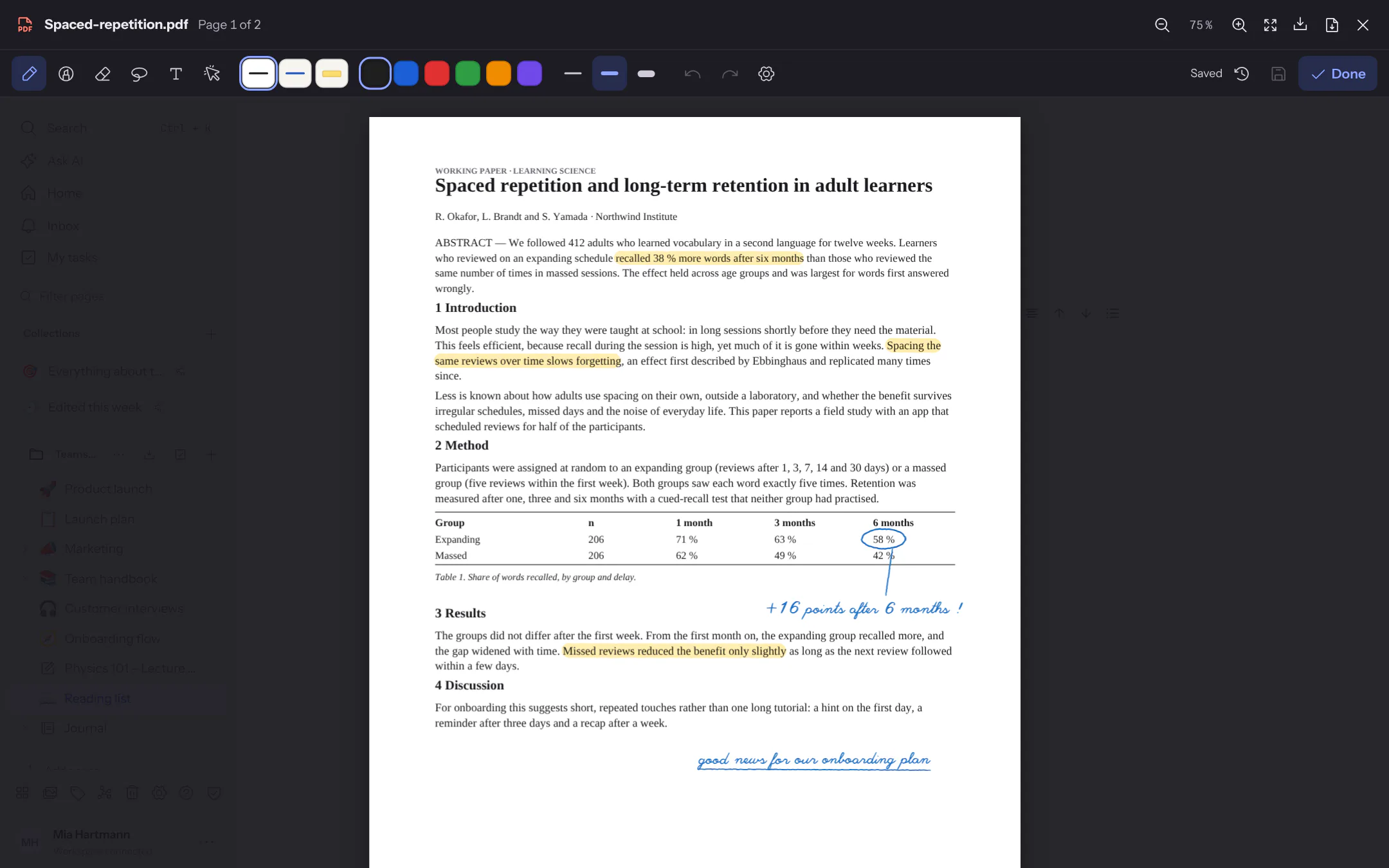
- **Favourite pens**: the three pens next to the tools remember colour and width; change them while one is chosen and the favourite changes with it. They apply on this device.
- **Shapes**: hold the pen still for a moment at the end of a stroke – a drawn line becomes straight, a rectangle, circle, triangle or diamond becomes the clean shape. Switch this off in the **Pen settings** (gear).
- **Lasso**: draw around strokes and text to move them, resize them with the handle at the bottom right, recolour, copy (++⌘ C++, paste with ++⌘ V++ – also on another page), duplicate or delete them.
- **Text** is placed with a tap on the page; a tap on existing text changes it. On the iPad, Scribble writes into it with the pen.
- **Draw with the pen only**: once you have written with the pen on a device, only the pen writes – fingers scroll and zoom, a resting hand leaves no marks. PDFs, whiteboards and images share the setting; switch it off in the **Pen settings**, then a finger writes too, and two fingers scroll and zoom.
- **Apple Pencil**: the eraser end of a pen erases. In the iPad app, double-tap or squeeze switches to the eraser and back – as set in the iPad settings, or in the **Pen settings** always to the eraser, the last tool or nothing.
The annotations belong to the page of the PDF, not to the screen: they stay in place at any zoom and apply to everyone who opens the PDF – readers see them but cannot change them. The PDF itself stays unchanged. **Done** (or ++⌘ S++) saves; every save is a version you can load again from the clock icon. If someone else saved the annotations in the meantime, your version wins and a notice says who; theirs is kept as a version. Search finds text you write on a PDF – in the app for iPhone and iPad also the handwriting itself, and **Convert to text** turns selected handwriting into typed text (see [Recognising handwriting](/notebooks#recognising-handwriting-iphone-and-ipad)).
To turn a PDF into a notebook you write in page by page and add sheets to, open it as a [notebook](/notebooks#creating-a-notebook): every PDF page becomes a sheet.
**Download** still downloads the original. **Download with annotations** (next to it once there are annotations) creates a new PDF with the same pages and the annotations on top as vector graphics – they stay sharp when zooming in. Protected (encrypted) PDFs can only be downloaded without annotations; text appears in Helvetica, characters outside the Western European character set as “?”.
## Voice notes and meetings
`/voice` opens the recorder: tap the microphone, speak, **Stop recording** – up to **two hours**, enough for a meeting. You can listen to the recording or discard it; **Insert** puts it into the page as audio (within the instance's upload limit). If speech recognition is set up, the spoken words follow below as text; otherwise the dialog only offers the audio.
- **Long recordings** go to the server in parts; it puts them together and sends them to speech recognition. `WHISPER_MAX_MB` limits the size (default 200).
- **Transcript with timestamps:** if speech recognition returns segments with times (OpenAI-compatible `verbose_json`, e.g. faster-whisper-server, speaches or whisper.cpp), a collapsible **Transcript · duration** block appears with one paragraph per passage and its timestamp (`00:04`, `1:02:05`).
- **Speakers:** only when the service itself separates speakers (diarization, switched on with `WHISPER_DIARIZE=on` for servers that know `diarize`) and returns a speaker per segment, each passage starts with **Speaker 1**, **Speaker 2** … Flowplan never guesses speakers from pauses. If the service only knows plain JSON, the text is inserted as paragraphs as before.
- **Then summarise with AI** summarises the transcript ([Summaries](/ai-writing#summaries)).
- **In the apps** for iPhone, iPad and Android the app records; iPhone and iPad turn the words into text on the device, without speech recognition on the server ([Voice notes in pages](/mobile-capture#voice-notes-in-pages)).
- **Generate tasks and summary** (when [AI actions](/ai-actions#ai-actions) are on for you): the AI proposes a summary with decisions and a task list with assignees and dates – as a preview with checkboxes; only **Run** adds them to the page.