# First steps
From signing in for the first time to your first own page: what you do with Flowplan in the first ten minutes.
## Sign in or sign up
You sign in with your e-mail and password, with a passkey (fingerprint, face or device PIN) or – if your organisation has set it up – with **Sign in with SSO** through your organisation's login (OpenID Connect, such as Keycloak, Authentik, Zitadel or Entra ID). The sign-in page offers the way you last used on this device as one large button; **With e-mail and password** opens the form. You create an account with **Create account**, provided the instance allows sign-ups or you have been invited. Afterwards you set up passkeys under **Settings → Account & security**. Everything else is described under [Sign-in](/sign-in).
On a brand-new instance you create the first account – it administers the instance. If you are moving or reinstalling, choose **Restore from a backup** there instead ([Restore while setting up](/en/storage-and-backups#restore-while-setting-up)).
When you sign in for the first time, Flowplan creates a private workspace with example pages. With single sign-on, your name, e-mail address and – if available – your profile picture come from the login provider.
> [!TIP]
> If the instance offers a **demo**, you can try Flowplan without an account. The demo gets its own example workspace and is deleted completely when you end it, sign out or after 45 minutes without activity.
**Language:** Flowplan follows your browser's language. Under **Settings → Appearance & language → Language** you pick German 🇩🇪, English 🇬🇧, English (US) 🇺🇸, French 🇫🇷 or Chinese 🇨🇳 from the list – it then applies on all devices, also to e-mails and push notifications. Further languages can be added: [Languages and translations](/languages).
## The introduction
After creating an account, Flowplan walks you through the essentials once. Every step can be skipped, and everything can be changed later in the settings:
::: steps
1. **Welcome**: language and appearance (automatic, light or dark).
2. **What would you like to start with?** Set the workspace's name (as its owner) and, if you like, create pages right away: a **Tasks** database, a **Notes** database, a **Journal** or a **Whiteboard**.
3. **What Flowplan does**: a short tour of pages and blocks, databases, whiteboards, the journal, collaboration, sharing, search and offline – each with a tip and a link into this documentation.
4. **Notifications**: e-mail summaries (when the instance sends e-mail) and push on this device.
5. **All set**: the created pages to open and the most important shortcuts.
:::
Later, **Settings → Appearance & language → Start introduction** (or "introduction" in the search with ++⌘/Ctrl K++) opens it again. Accounts that existed before the introduction was added do not see it automatically.
The settings open with an overview: one tile per section, grouped into **Personal**, **Connections**, **Workspace** and **Help & info**. The search at the top (“Search settings …”) helps – “passkeys” finds **Account & security**, for example –, and every section has its own link, e.g. `/#settings/notifications`.
## The interface
- **Sidebar** on the left: workspace switcher, search, home, inbox, your spaces with the page tree, and below them templates, media, trash and settings.
- **Home**: recently edited pages, quick starts for a new idea or project, and all pages of your workspace – customizable with widgets (see [Customize your home page](#customize-your-home-page)).
- **Header** of a page: path, share, comments, favourite and the **Page actions** menu (`…`).
- **Path:** workspace → parent pages → page, and for an open record → database → record. Every part is a link (also into a new tab). The path follows the structure, not the way you came. When it gets long, **…** folds the middle – a click lists the hidden levels; on a phone only **…** and the current page remain. Pages you may not read do not appear: guests see the path from the page shared with them.
On a computer, drag the sidebar's right edge to make it wider or narrower (200 to 480 pixels); a double click on the edge restores the original width. Flowplan remembers the width per device. On a phone the sidebar folds away: the icon at the top left opens it, and so does a swipe to the right that starts just inside the left edge of the screen (or **Navigation** in the bar at the bottom). On the iPhone the very edge stays the back gesture. Swipe it to the left or tap beside it to close it. For iPhone and iPad there is also an **app on the App Store**, for Android an **app to download** ([Apps for iPhone, iPad and Android](/mobile-apps)).
### Back and forward
At the top left, next to the sidebar icon, the arrows **←** and **→** take you to the page opened before and forward again. Every place with an address of its own is a step: pages, databases, journal days, whiteboards, a record opened from a database (as a dialog and as a full page, one step each), home, inbox, My tasks, tags, collections, media, trash and the sections of the settings. Dialogs, menus and the search do not count, and closing a record you opened in its database takes you back there without an extra step. When there is nothing in one direction, its arrow is greyed out. Every page and view opens at its top; back and forward take you to where you left it.
- **List:** a right click or a long press on an arrow shows the last (up to ten) pages in that direction with their icon and title – a click jumps straight there.
- **Keyboard shortcuts:** ++⌘ [++ and ++⌘ ]++ or ++⌥ ←++ and ++⌥ →++ (Windows and Linux: ++Alt ←++ / ++Alt →++ or ++Ctrl [++ / ++Ctrl ]++). While typing, ⌥/Alt with an arrow moves the cursor as usual; the shortcuts can be changed like all others ([Keyboard shortcuts](/keyboard-shortcuts)).
- **Browser:** the arrows take the same steps as the browser's back and forward buttons and the mouse's side buttons – you can mix them.
- **Desktop app:** also the *Navigation* menu → **Back** / **Forward**, the mouse's side buttons and, on a Mac, swiping on the trackpad ([More from the desktop app](/desktop-app#more-from-the-desktop-app)).
- **Phone:** there are no arrows there – the back gesture (iPhone) or the back button (Android) goes back.
Short animations show what just moved: cards and rows glide into their new place, bars that move along in the timeline visibly follow, and the target of a jump – from the table of contents, search or a notification – lights up briefly. Moving to another page only cross-fades the content area briefly, and the title is in its place at once; a card from a board or gallery grows into its record (on a phone the record comes up as a sheet). A tap or a key ends such a transition at once, and clicking quickly from one page to the next goes without one. While uploaded images load, they show a blurred preview in their final size and then fade in – nothing below them moves. How much moves is up to you under **Settings → Appearance & language → Animations** ([Light and dark](/offline-and-apps#light-and-dark)). When **Reduce motion** is on in your device's settings, everything moves to its target without motion, and jump targets are only highlighted briefly and still.
## Customize your home page
The home page is yours: **Customize** at the top right (or “Customize home page” in quick search) lets you arrange it from widgets the way you work. On phones everything sits in one column, on tablets in two, on large screens in three or four – the iPhone, iPad and Android apps and the desktop app show the same home page. Widgets of different heights leave no gaps: the first row follows your order from left to right, then each widget moves into the column with the least above it – so next to a tall **My activity**, short widgets such as **Agenda** stack on top of each other. Wide widgets sit under the lowest point of the columns they cover. With the keyboard and a screen reader you still go through the widgets in your order.
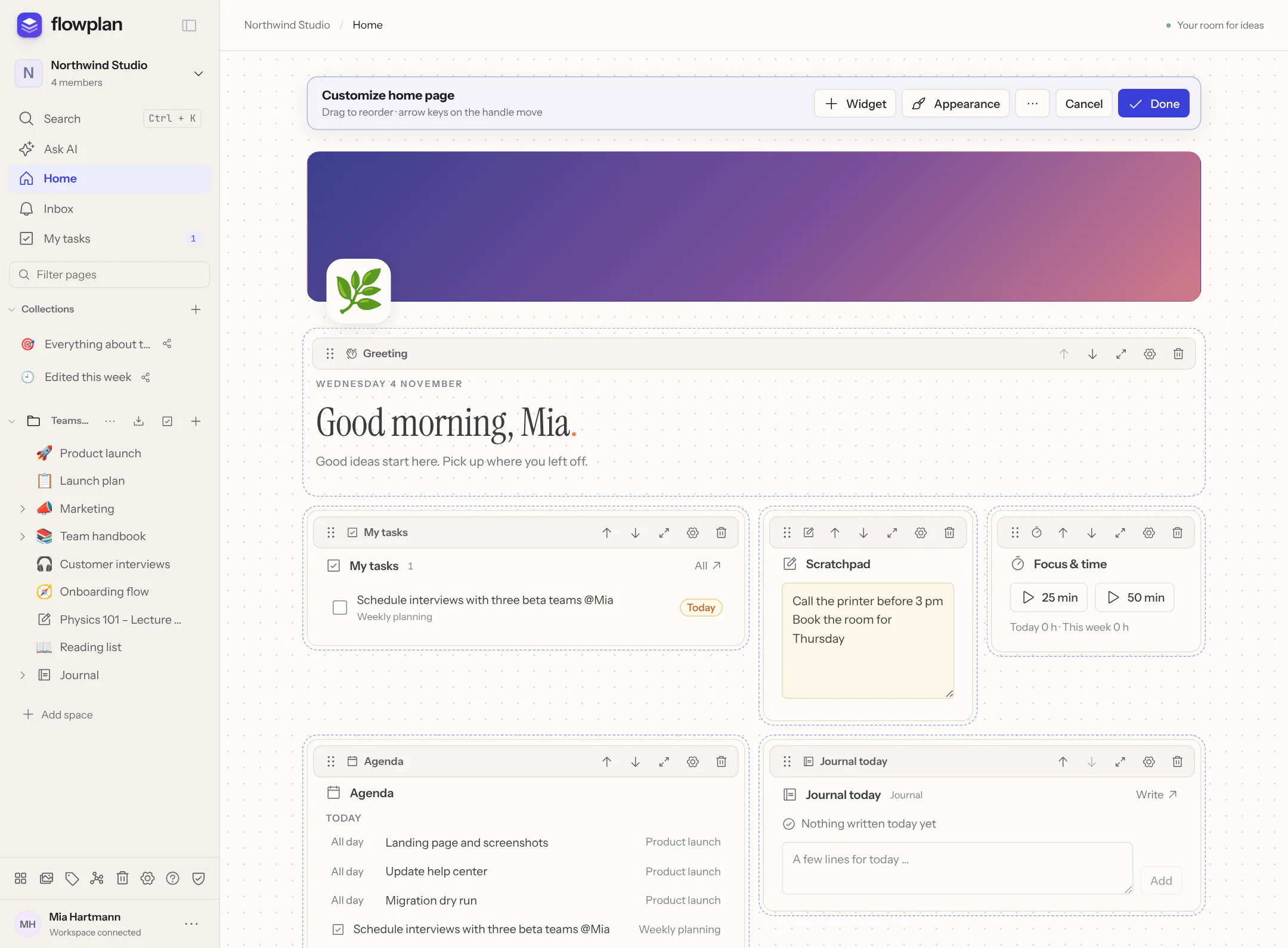
While customizing:
- **Widget** opens the gallery: greeting, recently edited or viewed, favourites, the workspace's pages, my tasks, inbox, journal today, agenda, database view, pinned page, quick capture, focus & time, habits, counter, scratchpad, activity, my activity, this week, links and – for administrators – the instance status.
- **Move**: drag the handle, use the up/down arrows, or the keyboard – focus the handle, then the arrow keys, Home and End.
- **Size**: small (one column), medium (two), large (three) or full width. A widget never gets wider than the space there is.
- **Settings** (gear): a heading of your own and what the widget shows – for **My tasks** “Due today and overdue”, “Due today”, “Overdue” or “All open”, from your tasks or the open records of a database view; for the **Agenda** the period (today, 3 or 7 days) and which calendar and timeline views count (also those connected to Google, Microsoft 365 or CalDAV).
- **Appearance**: a header with a colour, a gradient or a page's cover image, an emoji as icon, comfortable or compact spacing, a subtle background (dots, grid, tinted) and a normal or wide page.
- **Done** saves, **Cancel** discards. In the **…** menu you save the home page **for all your workspaces** (otherwise it applies to this one only) or **reset** it.
**My activity** shows how many pages you created and edited – per week, month or year (switchable in the widget), with a chart and the comparison with the same stretch of the previous period. An edited page counts at most once per day, and autosaves don't add to it. Only you see these numbers; Flowplan records nothing new for them and no times – it counts from what is stored anyway (creator, versions, activity log).
You tick off tasks right in the widget, habits too; the journal widget adds a few lines to today's entry, and the scratchpad holds whatever fits nowhere else – it saves as you type and is the same on all devices.
Widgets only show what you may see anyway: pages of other workspaces do not appear, journals behind a PIN only show their name, and the home page sees no content of end-to-end encrypted spaces.
> [!TIP]
> Workspace owners can use **… → Set as default for members** to choose the home page new members (and everyone without their own) see. Personal notes are not passed on.
## Your first page
::: steps
1. Click **+** next to a space in the sidebar or choose **New page** on the home screen.
2. Enter a name at the top and choose the kind below it: **Document**, **Database**, **Whiteboard**, **Journal**, **Dashboard**, **Notebook**, **Workflow** or **From a template** (the arrow keys work too). A line below describes the chosen kind, a database or notebook shows its options right there, and **Space** sets where the page is created.
3. **Create page** (on phones the buttons stay above the on-screen keyboard) and start writing. Everything is saved automatically, even without a connection.
:::
In a document, `/` opens the block menu: type `/h2`, `/todo` or `/table` and press Enter to insert. How the editor works in detail is explained under [Documents and the editor](/documents).
## Find instead of search
++⌘ K++ (Windows/Linux: ++Ctrl K++) opens the quick search across titles, text, database records, comments and even the content of uploaded PDFs and Office files. More under [Search, inbox and push](/search-and-notifications).
## Where to go next
- [Pages and spaces](/pages-and-spaces): page tree, favourites, moving and trash.
- [Databases](/databases): tables, boards, calendars and more from the same records.
- [Collaboration and comments](/collaboration): write together, comment, mention.
## Help and community
Questions, ideas or just saying hello: in the **[Flowplan Discord](https://discord.gg/bCEdB6MPrR)** users and admins help each other. Bugs and feature requests are best filed as [GitHub issues](https://github.com/yannicschuller/flowplan/issues), so nothing gets lost.
### About Flowplan
**Settings → Help & info → About Flowplan** (`/#settings/about`, also in the account menu ⋯ at the bottom of the sidebar – on a phone under **More** – and with ++⌘/Ctrl K++ → “About Flowplan”) shows:
- **Version:** the running version, the commit and the build date; for our Docker images also whether it is a **beta** (`:beta`) or a **release**. Admins also see here when a newer version is known. Best mention the version when reporting a bug.
- **What's new:** opens the release notes of the latest versions (see [What's new after updates](/en/offline-and-apps#light-and-dark)).
- **Licence & source code:** Flowplan is free software under the GNU AGPL-3.0 – with links to the licence text and to the source of the code running on this instance.
- **Links:** website, documentation, Discord and “Report a bug” (GitHub issues).
- **Support Flowplan ♥:** a link to GitHub Sponsors. It never appears in the iPhone, iPad and Android apps (app store rules); admins can hide it with `FLOWPLAN_HIDE_SPONSOR=true` ([Configuration](/configuration-storage#legal-and-interface)).
The search finds the page with “About”, “Version”, “Licence”, “Source”, “Support” or “Sponsor” (and the German words). The sign-in page also names the licence (AGPL-3.0) and the source code at the bottom.
---
# Pages and spaces
Everything in Flowplan is a page in a tree. Spaces structure the tree, workspaces keep teams apart.
**More on this topic:** [Tags, properties and aliases](/page-tags) · [Links, mentions and the graph](/links-and-mentions)
## Structure
| Level | What it is |
| --- | --- |
| **Workspace** | A separate world with its own members, groups, templates and storage quota. Switch with the name at the top of the sidebar. |
| **Space** | A section in the sidebar, e.g. "Teamspace" or "Private". Open to all members or private. |
| **Page** | Document, database, whiteboard, journal or dashboard. Pages can have sub-pages at any depth. |
## Page types
- **Document**: text made of blocks – headings, lists, tasks, tables, code, formulas, diagrams, embeds. See [Documents and the editor](/documents).
- **Database**: records with properties, shown as a table, board, calendar, timeline, gallery, list, feed, chart or form. See [Databases](/databases).
- **Whiteboard**: an infinite canvas with sticky notes, shapes, connectors, pen and frames. See [Whiteboards](/whiteboards).
- **Journal**: one page per day, open tasks move along. See [Journal](/journal).
- **Dashboard**: tiles with metrics, charts, database views, tasks due and notes. See [Dashboards](/dashboards).
- **Workflow**: a flow of trigger, logic and actions that runs in the background. Guests do not see workflow pages. See [Workflows](/workflows).
## Page actions
The `…` menu at the top right of every page offers:
| Action | Effect |
| --- | --- |
| Change icon, change cover | Emoji, symbol or your own image; upload a cover image or choose an existing one and set its position. |
| Full width | The content uses the whole window width – for everyone who opens the page. If you turned on [Show pages at full width](/offline-and-apps#light-and-dark) under **Settings → Appearance & language → Editor**, you see every page this way; the entry then says "Your setting". |
| Change font | Default, serif or mono for this page. |
| Lock page | Protects against accidental changes until someone unlocks it. |
| Duplicate | A copy including sub-pages, databases and files; internal links point to the copies. |
| Move | Below another page, into another space or workspace. |
| Save as template | See [Templates](/templates). |
| Export, print / PDF | See [Import, export and versions](/import-export-versions). |
| Present | Show a document as full-screen slides, see [Present](/reading-and-presenting#present). |
| Open a page beside it … | Open a second page on the right in the [split view](#split-view). |
| Owner and review … | Who looks after the page and when it should be checked again, see [Owner and review date](/page-tags#owner-and-review-date). |
| Version history | Compare and restore earlier states. |
| Move to trash | Removes the page with its sub-pages; restorable. |
Clicking a page's icon also opens the picker for an emoji, a symbol or your own picture; **Add cover** appears when the pointer is over the title (always on a phone). If you prefer the icon small next to the title rather than large above it, choose **Next to the title** under **Settings → Appearance & language → Page icon** – **Add cover** then sits in a narrow row above the title. There is no need for an emoji in the title itself, so export file names stay free of emoji. The icon size you choose (small, medium, large) applies to the view above the title; next to the title the icon is as high as a line of the title. Printing shows the page as you see it.
**On a phone** a page's top bar holds only ☰ (sidebar), the title – fully readable, long titles wrap – and `⋯`. **Follow** (bell), **Favourite** (star) and **Share** sit at the top of the `⋯` menu with their state, **Reading mode** below them. The comments button shows in the bar only when the page has open comments, with their count; otherwise **Comments** is in the menu. The cloud for the saving state appears only when there is something to report: offline, while changes are on their way, or after an error.
### Right-click in the sidebar
Right-clicking a page in the page tree or under favourites – a long press on a phone – opens its actions directly: **Open in new tab**, **Open in split view**, **Copy link**, **Add to favourites**, **Share**, **Add sub-page**, **Change icon**, **Duplicate**, **Move**, **Export**, **Lock page** and **Move to trash**. Actions with a dialog open the page first.
### Filter pages
The **Filter pages** field above the page tree hides everything that does not match; parent pages of the hits stay visible and expanded. Esc clears the filter. Templates, media, tags, graph, trash, settings, help and administration sit as a toolbar at the bottom of the sidebar. On a phone they are gathered behind **More** next to your name – the only button in that row, so your name and the connection status stay fully readable: a tap opens a list of all of them with labels, and the page tree keeps its height. Below a line it also holds what the account menu **⋯** offers on a computer: light or dark theme, **About Flowplan**, **Legal notice** and **Privacy** (when the instance has set them up) and, last and set apart, **Sign out**.
## Split view
Two pages side by side – say notes on the left and the task database on the right. A page opens on the right with:
- **Open in split view** in the right-click menu of a page in the page tree,
- ⌘-click (Windows/Linux: Ctrl-click) on a page in the page tree, under favourites or on a page link in the text,
- dragging a page from the page tree to the **right edge of the window** (a drop area appears there),
- ++⌘ ⌥ S++ or **Open a page beside it …** in the `…` menu: the quick search opens the chosen page on the right.
Each half has its own header with the title and **×**. The **×** on the left closes the left page and the right one moves into the main view; the arrow on the right brings the right page into the main view. Documents can be edited in both halves; databases, whiteboards and dashboards work as usual.
Drag the **divider** between the halves with the mouse; with the keyboard, tab to it, then ← / → (with ⇧ in large steps), Home / End for the narrowest and widest position, Enter or a double-click for half and half. The device remembers the width.
Dragging a page from the page tree into a document in the other half inserts a **link** to it there; selected text and blocks can be dragged between the two documents (they are copied).
The right page is part of the address (`?split=…`): reloading and bookmarks keep the split view. Windows up to 1024 pixels wide and phones do not have it – there, the same ways open the page as usual.
> [!NOTE]
> Since ⌘/Ctrl-click in the page tree now opens the split view, a multiple selection starts with ⇧-click or the tick icon of the space; after that, ⌘/Ctrl-click adds more pages too.
## Arrange and move
- Reorder pages in the sidebar by drag and drop, or drag them onto another page to nest them. Dropped onto a record with sub-pages (below its database) or onto the sub-pages of an open record, the page becomes its [sub-page](/databases#sub-pages-of-a-record). On touch screens a handle only picks something up after a short hold (about 0.3 seconds, with a short vibration); swiping before that scrolls the page, and a quick tap works as usual. The same goes for blocks in a document, home page widgets and records, cards and columns in databases. With a mouse or pen it starts right away.
- **Select pages** (the tick icon on a space) or ⇧-click marks several pages that can be moved or deleted together.
- **Moving** to another workspace takes sub-pages, database records and files along. Shares with groups or people who are not members there are dropped. Databases with relations to databases staying behind have to be detached first.
- **Moved to another space** (or workspace), pages keep the [tags and properties of the whole workspace](/page-tags#scope-workspace-or-space). If they (or their sub-pages and the records of their databases) carry tags or properties that apply **only in their current space**, a step **Bring tags and properties along** asks for each one:
- **Map** to a tag or a property of the same type at the destination – the one with the same name is suggested if there is one,
- **Copy to “destination”** – a tag or property of its own in the destination space, with all values (the default when there is nothing of the same name there; if the name is taken there, the copy gets the old space's name added, e.g. “Phase (Sales)”),
- **Remove** – the values are lost then.
Without this choice nothing moves – not by drag and drop, not when moving several pages, not through the API: values are never dropped silently. **Undo** brings the pages back and maps their tags to the ones of the same name in the old space again. The originals in the old space stay.
> [!NOTE]
> Pages keep their address when moved. Links to the page keep working as long as the reader has access in the new workspace.
## Favourites and "Linked from"
The star in the header (on a phone **Favourite** in the `⋯` menu) puts a page under **Favourites** in the sidebar – personal, others do not see your favourites. At the bottom of every page, **Linked from** shows which pages and database records refer to it.
## Manage spaces
Via `…` next to a space → **Edit space …** or **Settings → Spaces**:
- rename it, give it an emoji or symbol and one of nine colours, or an image of your own: **Upload image** next to **Choose icon** crops a PNG, JPEG, WebP or GIF to a small square (as for the workspace image); only people who can see the space receive it, and **Remove** goes back to the default folder icon,
- switch the visibility between open (all members) and private,
- **Duplicate space**: an independent copy of all active pages, records and attachments; comments, versions and shares are not copied,
- **Git export** (only for the owner of the space, when the administration has switched it on): push the space into a Git repository daily or weekly, see [Git export of a space](/markdown-git-export#git-export-of-a-space),
- move it to the trash. The last active space stays until there is another one.
### Order of spaces
Workspace owners decide in which order the spaces appear in the sidebar – the same for every member:
- **Drag**: grab a space by its header (name and symbol) and drop it above or below another space. A blue line shows where it lands.
- **Keyboard and phone**: `…` next to the space → **Move up** or **Move down**. Screen readers announce the new position.
- **Settings → Spaces** lists the spaces in the same order, with arrows to move them.
Other members see the new order within a few seconds, without reloading. Wherever spaces are offered for choice – moving, sharing, the browser extension, record to page – the same order applies.
- New spaces go to the end, a **duplicated** space right after its original.
- A space restored from the **trash** returns to its old place.
- A **restore archive** keeps the order of its spaces; on import they go to the end. Older archives without an order keep their previous one.
- Spaces you cannot see – private spaces of others, encrypted spaces without the key – keep their place. Their names appear nowhere; reordering changes nothing about visibility.
> [!NOTE]
> Through the API the command `space.reorder` (`{ workspaceId, order: [spaceIds] }`) sets the order of the spaces you see in the sidebar; only workspace owners may do this. The answer lists the visible spaces in their new order.
### Collapse and expand the sidebar
A click on a space's name collapses its pages or expands them again, and the same works for **Favourites** and **Collections**; the arrow in front of a page shows or hides its sub-pages. Pages with sub-pages start collapsed.
Flowplan remembers what you expanded and collapsed – in your account, per workspace, so it is the same on all your devices (browser, phone, desktop app) and after reloading. This covers pages, spaces, favourites, collections and the year and month folders of journals. Others do not see your choice.
- **Open page:** opening a page expands its space and the pages above it so it is visible in the sidebar; nothing else collapses. This only lasts for the visit – after a reload, only what you expanded yourself stays open (plus the way to the page that is open).
- **Expand all / Collapse all:** in a space's **…** menu, for all pages of the space.
- While filtering the page tree, everything with matches is open.
- Deleted pages and spaces drop out of what is remembered.
> [!NOTE]
> Through the API, the command `sidebar.state` (`{ workspaceId, changes: { "": true|false } }`) saves changes; the keys are `p:` (expanded), `s:` (collapsed), `g:favorites`, `g:collections` and `jo:`/`jc:` for journal folders. The bootstrap returns the state as `sidebar`.
## Trash
Deleted pages and spaces end up in the **Trash** at the bottom of the sidebar, deleted [database records](/databases) below them under **Deleted records**. Files deleted from [Media](/media-and-files#deleting-media) are listed under **Deleted files**. There they can be restored or deleted permanently. Publications, share links and forms are switched off when deleting and are not switched on again automatically when restoring.
- **Restore** brings a page back with the sub-pages that were deleted together with it. Sub-pages that were already in the trash before stay there – with their own retention period.
- **Delete permanently** next to a page deletes it together with its sub-pages in the trash. The dialog names the page and how many sub-pages go with it. You need the same right as for deleting it: editing the page. Sub-pages you may not edit stay in the trash on their own.
- **Empty trash** deletes everything in the trash you may delete: pages you may edit, spaces you manage and deleted records you may edit. The dialog shows the counts first. Pages from other people's private spaces and pages you can only read are left untouched.
- Deleted permanently are the page with its content, versions, comments and inline comments, for databases the properties, views and records, plus uploaded files, favorites, publications, share links, notifications and search results. Links from other pages then point to a deleted page. This cannot be undone; a [backup](/storage-and-backups) is the only way back.
- After **30 days** in the trash everything is deleted permanently by itself – pages, spaces, records, files and [templates](/templates#your-own-templates). The line at the top names the period, and every page shows how many days it has left. Admins change the period under [Limits & retention](/administration#limits-retention) (0 = never automatically).
Right after deleting, Flowplan shows a notice at the bottom such as “‘Notes’ moved to the trash” with **Undo** – for about six seconds, longer while the pointer or the focus rests on it. **Undo** or ++⌘ Z++ (outside text fields) brings the page back with its sub-pages and opens it again. The same goes for moving pages in the page tree and for several pages at once.
---
# Tags, properties and aliases
Tags and properties organise every page across spaces and the page tree; aliases give it more names, an owner and a review date keep it current.
## Owner and review date
So that guides, policies and knowledge pages do not go stale unnoticed, every page can have an **owner** and a **review date**. Set both under **… → Owner and review …** (edit rights needed):
- **Owner**: a member of the workspace (not a guest) who can read the page.
- **Next review on**: a fixed date, once, or
- **Then every … days**: a rhythm such as 30, 90, 180 days or yearly. Without a date it starts today.
Once the review date has come, the page shows the hint “This page is waiting for a review (owner: …)” at the top. **Reviewed** moves the date on by the rhythm, counted from today; a one-off date disappears. The owner gets a reminder on the due day (““Title” is waiting for your review”) – once per review date, in the inbox and, depending on the settings, as push or e-mail (kind “Date reminders”).
> [!NOTE]
> Through the API, the commands `page.owner` and `page.review` set owner and review date. A restore archive keeps review date and rhythm but not the owner, who belongs to the old workspace.
## Aliases
Under **… → Aliases …** a page gets further names, such as abbreviations ("PAC" for "Chauffage"). Up to 10 aliases of up to 100 characters each; Enter or a comma separates them, duplicates are dropped. Everyone with edit rights may change them.
@ mentions, the quick search and **Unlinked mentions** find the page by its aliases like by its title; hits show "Title · alias". When you pick a hit found by an alias in an @ mention, the alias becomes the link text. The Markdown export writes aliases as frontmatter (`aliases: [PAC]`) at the top of the page – only for pages that have some. Records use the property type [Aliases](/properties-and-formulas#aliases); a page that becomes a record takes its aliases there, and the other way round.
> [!NOTE]
> Through the API, the command `page.aliases` (`{ pageId, aliases: [...] }`) sets the aliases of a page; an empty list removes them. A restore archive keeps them.
## Tags and properties
Every page – document, database, whiteboard, notebook, dashboard, journal day – can carry **tags** and **properties**. A tag “Customer” is the same on every page it applies to; a property “Status” has the same options everywhere there. Whether they apply in the whole workspace or only in one space is their [scope](#scope-workspace-or-space). (The properties of database records are separate, see [Properties, formulas and rollups](/properties-and-formulas).)
A slim bar under the page title holds them:
- **+ Tag** opens a field that suggests the tags that apply to the page (the workspace's and those of its space; a space's tags with a small folder icon). ↑/↓ choose, Enter adds, Esc closes. If the name does not exist yet, **Create “name” in this space** (Enter) creates the tag for the page's space; owners can **create it for the whole workspace** instead. The field stays open so you can add several tags in a row. The ✕ on a tag removes it from the page.
- Clicking a tag opens the [tag view](#tag-view) with all pages that carry it.
- **+ Property** lists the properties that apply to the page and that it does not have yet; owners of the workspace and of the space can also choose **New property …** there – with the choice **Only in this space** (the default) or **In the whole workspace** (workspace owners only). You edit values right in the bar – with the same fields as in databases. The ✕ next to a value removes it.
With neither tags nor values the bar is just a faint line with **+ Tag** and **+ Property**; in reading mode, without edit rights and on locked pages it is hidden then.
### Collapsing the bar
With many tags and properties the bar gets long. The arrow at its far left collapses it into one line: the first tags as small chips (two on a phone, three otherwise), “+3” for the rest and the number of properties, e.g. “6 properties”. Clicking the line – or Enter/Space while it has focus – expands the bar again.
- **Your choice is per page and only yours.** It is stored in your account, so it applies on all your devices; others keep seeing the page the way they chose. This works in reading mode and without edit rights too.
- **Until you choose**, the bar is expanded while it is small and collapsed when the page shows **more than four properties** (properties with a value and the automatic ones such as “Created at” count; empty ones do not). This is decided when the page opens – the bar never folds away while you are filling in values.
- An empty bar (only **+ Tag** and **+ Property**) cannot be collapsed.
- **Printing and exports** always show all tags and properties, even when the bar is collapsed.
- Guests without an account who open a shared link see no bar, so there is nothing to remember there.
- Through the API the command `page.collapseProperties` sets your choice: `{ "action": "page.collapseProperties", "pageId": "…", "collapsed": true }` – `false` expands, `null` forgets the choice (the rule above applies again).
| Property type | Value |
| --- | --- |
| Text, URL, email, phone | Text up to 2,000 characters; URL, email and phone as links |
| Number | a number |
| Date | a day, optionally with a time |
| Select / multi-select | one or several of the defined options |
| Checkbox | yes or no |
| Person | a member of the workspace |
| Created at, edited at, created by, edited by | read from the page automatically |
**Who may do what:**
- **A page's tags and values** are set by whoever may edit the page – including guests with edit rights on it.
- **New tags** are created by members with edit rights while tagging – for the page's space. Tags for the whole workspace are created by owners only. Guests and readers only pick existing ones.
- **Settings → Tags & properties** is changed by workspace owners (everything) and a space's owners (their space's tags and properties); others see the lists. There tags are renamed, coloured (nine colours), ordered, merged and deleted, and properties are created, changed in type and options, ordered and deleted. A changed type or a removed option converts values where possible and removes the others; a deleted property disappears with its values from every page. Renaming, merging and deleting also changes the records of database properties that have the tags as options (see [Multi-select with the workspace's tags](/database-properties#multi-select-with-the-workspace-tags)).
- Values are read by whoever may read the page. The tag view, search and counts only show pages you may read; guests only see the tags and properties of the pages and records shared with them.
Pages in [encrypted spaces](/encrypted-spaces) have no tags or properties – the server would have to store them as plain text.
### Scope: workspace or space
Spaces separate topics and permissions – tags and properties can too. Every tag and every property applies either
- **in the whole workspace** – to all pages of all spaces, or
- **only in one space** – only pages of that space (and the databases in it) use it.
New tags and properties belong **to the space** you create them in; what existed before this distinction keeps applying to the whole workspace. Lists show the scope with a small label: the space's name (dashed) or “Workspace”.
- **Same names:** two spaces may each have their own tag “Urgent” – they are different tags. Within what a page sees (its space plus the workspace) a name is unique, ignoring case: a space cannot create a tag “customer” when “Customer” exists for the whole workspace. Same-named items are never merged on their own.
- **Visibility:** a space's tags and properties are seen by whoever may open that space (and whoever may read a page carrying them), and by the workspace owners.
- **Databases** with the [tags as options](/database-properties#multi-select-with-the-workspace-tags) offer the tags of their space and of the workspace.
- **Settings → Tags & properties** filters by scope. A new tag or property gets a scope there (a space's owners: only their space). Merging works only into a tag of the whole workspace or of the same space.
**Change scope** (arrow icon in the settings, workspace owners only):
- **From a space to the workspace** (promote) always works. If other spaces have a tag of the same name, the dialog names them; **Merge same-named** moves their pages to the promoted tag (properties only with the same type) – otherwise everything stays as it is.
- **From the workspace to a space** (or to another space) first shows where the tag or property is used **outside the target space** (spaces, pages, records). Then you choose: **Copy for the other spaces** (each space gets its own tag or property of the same name, with the values), **Remove there**, or **Do not change while it is used there**.
> [!NOTE]
> Through the API: `tag.save` and `property.save` take `spaceId` (missing or `null`: the whole workspace), `tag.scope`/`property.scope` change the scope (`resolve`: `block`, `copy`, `remove`; `mergeSameName`), `meta.usage` shows first where something is used. `GET /api/tags` returns `spaceId` for every tag and property. See [API and webhooks](/openapi#tags-and-properties-via-the-api).
### Tag view
**Tags** (the tag icon at the bottom of the sidebar, or `> tags` in quick search) shows all tags with the number of their pages and records. A tag opens the list of its pages, most recently changed first, and below them the **records** of databases whose multi-select has the [workspace's tags](/database-properties#multi-select-with-the-workspace-tags) as options (with database and space; a click opens the record). Only records you may read appear – no private records of others, no properties hidden from you, nothing behind a journal PIN or in the trash. Above it you narrow the list with text or further tags (“And: + Offer”). A tag is exactly that tag: if other spaces have one of the same name, **Also the tag of the same name in another space** adds its pages and records. Owners reach the settings through **Manage tags**. The view has its own address (`#tags/`) to share or bookmark. In the search, `#tag` finds the same, see [Filter by tags and properties](/search-and-notifications#filter-by-tags-and-properties).
### Copies, templates and trash
Duplicating keeps tags and values (into another space or workspace by name: the ones of the same name there; a space's missing tags and properties are created in the target space). [Page templates](/templates#your-own-templates) store tags and values and put them on new pages made from the template; templates of another space ask what becomes of that space's tags and properties. In the trash they are kept and come back on restore; only deleting permanently removes them. Through the API, the command `page.properties` sets tags and values, see [API and webhooks](/openapi#tags-and-properties-via-the-api).
---
# Members, roles and permissions
A workspace belongs to a team: its own members, groups, spaces and templates. Permissions work from the workspace via the space down to the single page and the single record.
**More on this topic:** [Customizing a workspace](/workspace-appearance)
## Workspaces
- **Create**: the name at the top of the sidebar → **Create workspace**. The administrators decide whether everyone may do this.
- **Switch**: via the same name; everyone can be a member of several workspaces.
- **Settings → General**: change the name and icon (**Name & icon**). Leaving and deleting are at the end in the **Danger zone**; when a button is greyed out, the text above it says why.
When **leaving**, a last owner has to make someone else an owner first under **Settings → Members**; your own spaces are handed over to a remaining owner of your choice. **Deleting** is only possible once you have another workspace; it removes all content, templates, files and shares for all members and cannot be undone. Both are confirmed with the workspace's name.
## Roles
| Role | May |
| --- | --- |
| **Owner** | Everything, plus managing members, groups, spaces (including their order in the sidebar), [tags and page properties](/page-tags#tags-and-properties) and the workspace itself |
| **Edit** | Create and change pages, set tags and property values, create new tags, comment, share |
| **View** | Read and comment |
| **Guest** | Only explicitly shared pages and spaces, with view or edit access |
## Invite members
**Settings → Members → Invite member** opens a sheet (from the bottom on phones): e-mail address, role and – if needed – **Invite as a guest**. If e-mail is set up on the instance, the person gets an invitation. They create an account with this address – even if sign-ups are otherwise closed – or sign in with SSO; the workspace appears as soon as the address is confirmed. Without e-mail, afterwards copy the **invitation link** under **Pending invitations** (**Copy link**) and send it to them yourself.
**Invitation link:** the link opens the sign-up form with the invited address already filled in – even if sign-ups are otherwise closed. It creates an account only for that address. Without e-mail the person needs the link; the address alone is not enough then.
**Only confirmed addresses:** an existing account takes over an invitation on its own only when its address provably belongs to it – confirmed with the e-mail link, by an administrator or by the SSO provider. Otherwise (for instance on an instance without e-mail, where any address can sign up) only the invitation link counts: whoever opens it and signs in or signs up accepts the invitation. So give the link only to the person invited.
**Where the invitation arrives:** open invitations are listed under **Settings → Members → Pending invitations** – with role, guest status and shared pages, when and by whom they were invited. There they can be **sent again** (with e-mail) or **withdrawn**. The invited person finds the workspace in the workspace switcher at the top left and a notification in the **inbox** – right away with a new account, with an existing one the next time they open Flowplan (with single sign-on, at the next sign-in). A single page can also be shared without the whole workspace: [Share a page with a person](/sharing#share-a-page-with-a-person).
Existing members can be turned into guests with **Make guest** and back with **Make member**.
## Guests
Guests are people outside the team, such as customers or freelancers. They only see pages and spaces shared with them, including sub-pages, and cannot create pages, invite anyone or change settings. They do not see the workspace's templates, only their own. For people without any account there are [links with their own permissions](/sharing#links-with-their-own-permissions) instead.
## Groups
**Settings → Groups & permissions**: under **Groups** create a group such as "Design" or "Sales" and tick members with **Manage** (with a search when there are many). Under **Access to spaces** set each space's visibility and below it **View** or **Edit** per group; single pages get a group through **Share**. New members of a group get its permissions right away.
With single sign-on, groups from the identity provider can maintain members and groups automatically – see [Map SSO groups](/sso-oidc#map-sso-groups-to-workspaces).
## How permissions work together
1. The **space** sets the basis: open to all members or private for the people it is shared with.
2. **Pages** inherit the permissions of their space and parent pages; under **Share**, people or groups are added.
3. **Records** of a database can be made read-only or private (see [Databases](/databases#permissions-per-record)).
4. **Properties** of a database can be made visible or editable only for editors, owners or selected groups (see [Property visibility](/properties-and-formulas#property-visibility)).
5. Linked databases, mentions and links never grant additional permissions: whoever may not read the source does not see it embedded either.
Owners of a workspace also manage other members' spaces, but do not get read access to their private pages that way.
**Encrypted spaces** go one step further: there, not only the permission on the server decides but the key. Whoever has not been given the space key reads nothing – not even workspace owners or the administrators. See [Encrypted spaces](/encrypted-spaces).
## Workflows: permissions and “runs as”
[Workflow pages](/workflows) follow the normal page permissions: readers see the status, the flow and the runs; editors (full members with edit rights) build, test, activate and pause. **Guests** do not see workflow pages and cannot start or approve a workflow. An active workflow **runs as** the person who last activated it – it only sees and changes what they may, and pauses when they lose their rights.
## Storage quota
Every workspace can have a quota. Uploads, copies, templates and imports beyond it are refused. Administrators see the usage under **Administration → Workspaces**.
---
# Customizing a workspace
A workspace's name, icon, colours and font, automatic links for recurring terms and your own print templates – set by its owners.
## Appearance
Owners give the workspace a look of its own under **Settings → Appearance**, for example in your organisation's colours and typefaces. It applies to all members and guests while this workspace is open – switching to another workspace switches the look too – and also to its [published pages](/sharing) and [forms](/forms). Two preview cards show the changes in light and dark before you save; **Reset to default** brings back Flowplan's own look.
- **Accent colour**: one from the selection or your own. Flowplan derives the colours for links, buttons, selections and highlights from it, separately for light and dark mode. So that text on the colour and the colour as text stay easy to read (at least 4.5 : 1 as WCAG asks), Flowplan darkens a colour that is too light (in dark mode it lightens one that is too dark) and shows you which colour it actually uses.
- **Background**: Standard (warm), Neutral, Cool or Sepia – each with a matching dark counterpart. There are no free background colours, so text stays readable everywhere.
- **Typefaces**: one each for the interface, for large headings and for code. You can choose Flowplan's own typefaces, the system font and about fifteen others, among them Inter, Atkinson Hyperlegible Next, IBM Plex, Source Sans/Serif/Code, Lora, Literata, Merriweather, EB Garamond and Fira Code. All of them are on your Flowplan server: the browser loads only the chosen ones, and no request goes to an outside font service. Pages whose font was changed to serif use the heading typeface.
- **Own fonts**: a house font can be uploaded as WOFF2, WOFF, TTF or OTF (up to 5 MB, up to 20 per workspace) and then chosen for any of the three. It counts toward the workspace's [storage quota](/workspaces-and-permissions#storage-quota) and is deleted with the workspace. Only upload fonts whose licence allows use on the web.
Light or dark stays each person's own choice. Anyone who prefers to keep Flowplan's own look turns off **Settings → Appearance & language → Use the workspace's appearance**; this applies to your account in every workspace and on all devices.
Custom CSS is deliberately not possible: CSS could quietly send content elsewhere, and it would break with updates of the app.
The look and the uploaded fonts are part of the workspace's [content archive](/import-export-versions#content-archive). On import, an owner takes it over into a workspace that still has Flowplan's own look; a look that was already chosen stays.
You'll find ready-made appearances, fonts included, in the [Flowplan Marketplace](https://marketplace.flowplan.org).
## Automatic links
Owners set up rules under **Settings → Workspace → Automatic links** that turn text like `ABC-123` into a link while you write – to the ticket in Jira or the issue on GitHub, for example. The rules apply to every member and guest of the workspace. Each rule has an optional name, a **pattern** (a regular expression, at most 200 characters), a **link template** and a switch to turn it off and on; up to 50 rules are possible.
In the template, `{match}` stands for the whole match, `$1` to `$9` (or `{1}` to `{9}`) for the groups in parentheses. The values are inserted URL-encoded, and the template must start with `https://`, `http://` or `mailto:`. Examples:
| Pattern | Link template | Text | becomes |
| --- | --- | --- | --- |
| `\bABC-\d+\b` | `https://jira.example.com/browse/{match}` | ABC-123 | https://jira.example.com/browse/ABC-123 |
| `#(\d+)` | `https://github.com/acme/app/issues/$1` | #42 | https://github.com/acme/app/issues/42 |
Under **Try it** you enter a sample text and see right away which parts become which link. Invalid patterns, patterns that match empty text, nested repeats like `(a+)+` (they can slow the browser down) and templates without a valid address are marked and not saved.
You'll find ready-made link rules for common services in the [Flowplan Marketplace](https://marketplace.flowplan.org).
## Print presets
Under **Settings → Workspace → Print presets** owners create [print presets](/print-and-pdf#print-presets) for everyone in the workspace – named print options such as “Clean for external” – and pick a default preset with the star. Members and guests pick them in the print window but cannot change them.
---
# Encrypted spaces
An encrypted space is meant for journals, passwords and other confidential notes. Content, files and – if you choose – titles are encrypted and decrypted in your browser. The server – and with it the operators, backups and the storage provider – only sees ciphertext.
## What is protected – and what is not
| | Encrypted |
| --- | --- |
| Text of the documents | yes |
| Files and images in the documents | yes, including file name and type |
| Page titles | only with **Encrypt titles** when creating the space |
| Page structure, icons, times, sizes | no |
| Name of the space and who is a member | no |
The encryption protects against reading along on the server and in backups. It does **not** protect against a server that deliberately serves modified program code: a web app runs the code the server sends. If you do not trust the operator of an instance at all, do not edit confidential data on that instance.
## Set up your keys
With your first encrypted space – or under **Settings → Account & security → End-to-end encryption** – you set up your keys:
::: steps
1. Choose a **passphrase** (at least 10 characters, ideally a whole sentence). It is not your sign-in password and never leaves your browser.
2. Keep the **recovery key** safe: 52 characters in groups of four, to **Download** or **Print**. Setup only completes once you confirm you have stored it safely.
:::
> [!WARNING]
> whoever loses the passphrase **and** the recovery key loses access to their encrypted data. Neither the administrators nor the operator can restore it – the server never saw the keys.
Under **Settings → Account & security → End-to-end encryption** you can change the passphrase and create a new recovery key (the old one stops working). Only if both are lost: **Reset keys …** at the very bottom, in the **Danger zone**. Afterwards a member has to give you access to each encrypted space again.
## Unlock and automatic locking
Encrypted pages first show **Unlock**. With the passphrase (or the recovery key plus a new passphrase) you decrypt your keys – only in this browser tab and only in memory. Reloading, **Lock now** or a period without activity (15 minutes by default, adjustable to 5, 15, 30 or 60) locks again. No readable copy stays on the device; that is why encrypted pages cannot be edited offline.
## Create a space
**Add space** → name → tick **Encrypted space**, optionally **Encrypt titles** → **Create space**. An encrypted space is always private. In the sidebar it carries a green lock.
Encrypted spaces hold **documents only**. Databases, whiteboards, dashboards and journals are not possible here (yet) – write a journal as documents, e.g. one page per month.
## Members
The lock next to the space name (or **Members** on a page) opens **Members and keys**:
- **Add**: owners of the space or of the workspace give a member the key (**Give key**). This works only while unlocked, and only for people who have already set up their own keys. New members also read all older content.
- **Remove** or **Leave space**: the space gets a new key right away; the removed person cannot read new content. **What they could decrypt before, they may have kept** – old content is not re-encrypted. Whoever is removed from the workspace loses the keys as well.
## What does not work in encrypted spaces
Everything that would need the server to read the content is switched off here and refused by the server:
- Search, AI, previews, "Related pages" and unlinked mentions
- Comments and text comments, mentions with notifications
- Share links, sharing single pages and publishing
- Version history, templates, duplicating, moving to other spaces (in or out)
- [Tags and page properties](/page-tags#tags-and-properties)
- Export as PDF, DOCX, EPUB, server-side Markdown, Git export
- Webhooks only receive the page ID, MCP clients only metadata
## Export and backup
The editor offers two ways:
- **Markdown (decrypted)**: the browser turns the page into Markdown and saves the file – the plaintext does not pass through the server.
- **Encrypted archive**: all pages of the space as ciphertext, plus your encrypted space keys and your key secured with passphrase and recovery key. Without passphrase or recovery key it is unreadable.
Regular instance backups also contain encrypted spaces only as ciphertext.
## Technical details
X25519 key pairs, AES-256-GCM, PBKDF2-SHA256 with 600,000 iterations for the passphrase, all through the browser's WebCrypto interface (current versions of Chrome, Edge, Firefox and Safari). The full design with the threat model is in [`docs/e2ee-design.md`](https://github.com/yannicschuller/flowplan/blob/main/docs/e2ee-design.md).
---
# Languages and translations
Flowplan is available in four languages: **German, English, French and Simplified Chinese** (简体中文). English also comes as **English (US)**: the same texts, but dates with the month first and weeks starting on Sunday. Further languages can be added without changing the app's code – with any translation tool that understands JSON files.
## Choosing a language
Flowplan follows your browser's language; languages Flowplan does not know show English. Under **Settings → Appearance & language → Language** you pick a language (with its flag) from the list – it then applies on all devices, also to e-mails and push notifications; **Automatic (follows the browser)** undoes the choice and picks English (US) for browsers set to US English (`en-US`), English for other English browsers. On the sign-in page the small button in the footer (e.g. **🇬🇧 EN**) opens a menu with all languages.
Dates, times and numbers follow the language (French: `fr-FR`, e.g. “15 oct. 2026” and “2 400,5”; Chinese: `zh-CN`, e.g. “2026年10月15日”). Calculations in notes use the decimal comma in French as well. Calendars start the week on Sunday in English (US) and on Monday in every other language – unless the view sets its own week start.
What you create yourself – pages, databases, properties – stays in the language it was made in. Templates and example content exist in German and English; French and Chinese accounts get the English ones.
## How translation works
German and English sit side by side in the code. Every further language is a **catalogue** in the app's `locales/` folder that maps the English text to its translation:
```json
{
"Sign in": "Se connecter",
"{0} commented on “{1}”": "{0} a commenté « {1} »"
}
```
- `locales/en.json` lists every text of the app (more than 3,500) and is the source for translation tools. It is generated, not edited by hand.
- `{0}`, `{1}` … stand for values such as names or numbers. They have to appear in the translation; their order may change.
- An empty or missing entry shows the English text – so a language can grow step by step, and new texts in the app never break anything.
## Adding a language
::: steps
1. Create the catalogue, e.g. for Italian:
```sh
npm run i18n -- --add it
```
This creates `locales/it.json` with every text and empty translations.
2. Translate – by hand or with a tool such as Weblate, Crowdin, POEditor or Lokalise (format “JSON key-value” or “i18next JSON”, source file `locales/en.json`). Machine translation (e.g. DeepL) works as a draft; please keep placeholders and HTML tags unchanged.
3. Register the language: in `lib/i18n.ts` under `LANGUAGES` with its name and date format (`it: { name: "Italiano", tag: "it-IT" }`), and import the catalogue in `lib/i18n-catalogs.ts`.
4. Check:
```sh
npm run i18n -- --check # progress and wrong placeholders
npm run i18n -- --check --missing # what is still missing, with the place in the code
```
:::
The language then appears in the choice on the sign-in page and in the profile, and browsers in that language get it automatically.
## Keeping catalogues up to date
After texts change in the code, `npm run i18n` collects all texts again: new ones are added empty to every catalogue, unused ones drop out, existing translations stay. The tests only report missing translations; wrong placeholders make them fail.
In the code, texts are `t("Deutsch", "English")` in components, `tr()` outside of them and `ct()` for content the server creates. Tables of text pairs get a marker so `npm run i18n` finds them, e.g. `// i18n-table: 1` for `[German, English]` pairs.
## Text recognition
Text recognition for scanned PDFs and images is separate: it reads German and English, French with `FLOWPLAN_OCR_LANGS=fra,eng` and Chinese (Simplified) with `FLOWPLAN_OCR_LANGS=chi_sim,eng` (see [Configuration](/configuration)).
---
# Moving to Flowplan
Flowplan is an open-source alternative to Notion, Confluence and AppFlowy under the AGPL-3.0. This is how you bring over pages, databases, images and files from the tool you use now.
**More on this topic:** [From AFFiNE](/migrate-affine) · [From Confluence, Evernote, Google Docs and Word](/migrate-office) · [From Obsidian and GoodNotes](/migrate-notes)
## Confluence, Evernote, Google Docs and Obsidian
Under **Settings → Import & export → Import** choose the target space at the top and, at **AFFiNE, Confluence, Evernote, Google Docs, GoodNotes, Microsoft Word or Obsidian**, the source (or let it be detected) and whether you want a page tree or a **new database**. Then choose the file:
1. Flowplan uploads the file (with a progress bar) and shows a **preview**: how many pages, folders, files (with their size) and tags will be imported, and what will not work – such as encrypted text, unsupported macros or images missing from the export.
2. **Import** creates everything in one step. If something fails, nothing is left half imported.
For all sources:
- End-to-end encrypted spaces cannot be targets (the server sees no plaintext there).
- You need write access to the target space; the workspace's storage quota and your personal limit are checked first (the preview already warns).
- Limits per import: by default 10,000 pages (documents, folders, databases, whiteboards and collections each count as a page; as a database: 10,000 records) and 20,000 files, 5,000 records per table, per file in the ZIP as much as the largest upload, at least 10 MB (PDFs and ZIPs inside the ZIP, such as Notion's “Export-…-Part-1.zip”, up to 100 MB – all within the import's overall limits). The operator sets pages and files with `FLOWPLAN_IMPORT_MAX_DOCS` and `FLOWPLAN_IMPORT_MAX_FILES` ([Configuration](/configuration#operations)). When a file brings more pages, the preview shows how many, names the limit and the variable, and **Import** stays disabled; files above the limit are left out (the preview says how many). ZIP exports and single files may be up to 100 MB. The **AFFiNE workspace file (`.affine`)** may be as large as the **largest upload** (Administration → [Limits & retention](/administration#limits-retention), can differ per person), but at least 100 MB; `FLOWPLAN_IMPORT_MAX_MB` sets the limit for the whole instance ([Configuration](/configuration#operations)). When a file is too large, the message names the limit and where to change it.
- **Preview and import run in the background.** After the upload the page shows the progress and then the preview or the result. A reverse proxy timeout (such as a 504) no longer cancels the import; keep the page open until it is done. Each person can run one import at a time. While Flowplan creates the pages, the server doesn't answer for a moment – with very large workspaces for longer.
- If there isn't enough memory for a very large workspace, Flowplan refuses the import with a message naming what it needs, instead of crashing. Give Flowplan more memory with `NODE_OPTIONS=--max-old-space-size=` (e.g. `4096`) in the container, or export the workspace in several parts.
- The file is uploaded only once: the preview keeps it on the server and **Import** uses it. Cancelling deletes it; otherwise it is deleted after six hours at the latest.
- The content is cleaned like when pasting: scripts, forms and embedded foreign pages are dropped. File names are cleaned; files a browser could run (HTML, SVG) are only stored for download.
- Links between imported pages point to the new pages. Images and attachments are uploaded – every file once, even if several pages show it.
- **As a new database**, every note becomes a record with the properties *Tags*, *Created*, *Updated*, *Folder* (the folder path) and – where present – *Source*. As pages, tags become the [page's tags](/page-tags#tags-and-properties); missing ones are created in the workspace.
## From Notion
::: steps
1. In Notion: **Settings → Export** (for the whole workspace) or **Export** in a page's **…** menu. Choose the format **HTML** (recommended) or **Markdown & CSV** and turn on **Include subpages**. Only the HTML export keeps toggles, toggle headings and colours.
2. In Flowplan: **Settings → Import & export → Import**, choose the target space at the top and the ZIP at **Notion, AppFlowy or Markdown export (ZIP)**.
3. Done – the import runs in one step. If it fails, nothing is left half imported.
:::
What it turns into:
- Every HTML or Markdown file becomes a page, every folder named like a page holds its sub-pages. The IDs Notion appends to file and folder names are dropped.
- From the HTML export: toggles become [toggles](/documents#toggles), toggle headings become headings that fold (or, where their content does not reach the next heading, toggles with the heading as their title). Text and background colours, tasks, nested lists, tables, formulas and image captions are kept.
- Every CSV file becomes a database. When both versions are there, Flowplan takes `Name_all.csv` (all records) instead of the current view.
- Columns get a fitting type: numbers, checkboxes, dates (also in Notion's format "September 24, 2026") and selects with their options; the rest stays text.
- Record pages are matched to their records as their document. Pages below a record in Notion (the folder named like the record) become its [sub-pages](/databases#sub-pages-of-a-record) – no loose pages and no stand-in pages any more.
- Images and files the pages refer to are uploaded.
- Callouts become [callouts](/formatting#callouts) and keep their emoji as their symbol.
- Links to headings (`Page.md#heading`) lead to the heading; `notion.so` links to pages of the export lead to the imported page (Notion's Markdown has no block ids, so links to single paragraphs lead to the page).
- Large exports that Notion splits into several ZIP files inside the ZIP are recognised.
Limits per import: 100 MB, by default 10,000 pages (`FLOWPLAN_IMPORT_MAX_DOCS`) and 5,000 records per table. Export larger workspaces in parts, for instance page by page.
## From AppFlowy
::: steps
1. In AppFlowy, export pages as **Markdown** and databases as **CSV**.
2. Put the files into one folder – sub-folders become sub-pages – and make a ZIP of it.
3. Import it in Flowplan under **Settings → Import & export → Import**.
:::
Markdown becomes pages, CSV becomes databases; linked images and files come along.
## After the move
- **Check links:** links between imported pages point to the new pages; links to pages outside the export still point to the old tool.
- **Links to blocks and headings are kept.** If a link in the source points to a particular place of another (or the same) page, it points to the same block in Flowplan after the import: a click opens the page and jumps there (see [Links to blocks](/links-and-mentions#links-to-blocks)). If the place cannot be found (for example because the export does not contain it), the link leads to the page.
- **Set up views:** an import creates one table per database. Add board, calendar, gallery or timeline afterwards – see [Views](/views).
- **Sharing:** permissions are not carried over. Invite members or share single pages – see [Sharing and publishing](/sharing).
- **Your data stays portable:** Flowplan exports again at any time as Markdown with frontmatter, CSV and ZIP, scheduled and pushed to Git if you like – see [Import, export and versions](/import-export-versions).
## Why move?
- **Completely open source:** all of the source code is on [GitHub](https://github.com/yannicschuller/flowplan) under the AGPL-3.0 – with no closed enterprise edition and no features behind a licence.
- **Your data, your server:** hosted on flowplan.org in Germany or as one Docker container on your own server – see [Installation](/installation).
- **No tracking.**
---
# From AFFiNE
Documents, databases and whiteboards come over from AFFiNE with their images and attachments – through the workspace export.
::: steps
1. In the AFFiNE desktop app, choose the export **Full Backup** (“Export a complete workspace backup”) in the **workspace settings**. This gives a file `Name_….affine` – the whole workspace database with documents, folders, collections, journal and files.
The web app has no such file; there you export documents as a **Snapshot** (ZIP) – this needs **Enable Snapshot Import Export** switched on under the experimental features of the workspace settings. A snapshot contains documents, databases, whiteboards and files, but no folders, collections, journal dates, properties or icons. Only snapshots from AFFiNE versions up to the end of 2024 (with an `info.json` file) contain tags; newer versions no longer write tags into snapshots. To bring tags, properties and icons along, use the workspace file (`.affine`) – the preview points this out.
2. In Flowplan: **Settings → Import & Export → Import**, choose the target space and pick the `.affine` file or the snapshot ZIP under **AFFiNE, Confluence, Evernote, Google Docs or Obsidian** (source **AFFiNE** or automatic).
3. The preview shows what comes along: pages, folders, files, tags, properties, page icons, whiteboards, databases, collections, days for the journal and how many documents become the content of database records – and what cannot be imported. **Import** creates everything in one step.
:::
What it becomes:
- **Where it goes:** a workspace file (`.affine`) with several items at the top – folders, documents outside folders, collections – arrives below **one page named after the AFFiNE workspace**; the preview names it (“Everything below a page …”). A **snapshot** and a workspace with a single item at the top go **straight into the target space** – no empty page above them. A whiteboard counts with its document; journal documents go into the journal.
- **Folders** become pages with their documents below them. A document in several folders lives in the first one; the others link to it. Documents outside folders sit at the top level – below the workspace page, if there is one.
- **Place documents with exactly one link below it** (a switch in the preview, on by default; the preview shows how many): a document outside folders that exactly one other document links to in its text goes below that document instead of the top level. Chains nest (C below B below A). Documents in folders, journal days, the content of database records and documents linked only from a database, whiteboard or journal day stay where they are. When two documents link to each other, the first goes below the other. Links are unchanged; the switch doesn't apply when importing as a database.
- **Text:** headings, paragraphs, bulleted and numbered lists, **to-dos** with their check mark, toggle lists, quotes, code blocks with their language, callouts (kind by colour: red → caution, orange/yellow → warning, green → tip, purple → important, otherwise note; their emoji becomes the [callout's symbol](/formatting#your-own-symbol-and-colour)), dividers, tables, LaTeX (block and inline), bold, italic, underline, strike-through, code, links, text and highlight colours.
- **Links between documents** – in the text (@ references), as linked-doc or synced-doc cards and as AFFiNE app links – point to the imported pages. Synced documents become links. References to a block (references and doc cards with a block, app links with `?blockIds=`) lead to that block; references to shapes on the canvas (`elementIds`) lead to the page.
- **Tags** become the page's tags, with their colours from AFFiNE (as a new database: the *Tags* property).
- **Properties** of a document (text, number, checkbox, date) become [page properties](/page-tags#tags-and-properties) of the same name; missing ones are created by the import if you may manage the workspace. Deleted properties and AFFiNE's own fields (created by, mode, template …) are left out.
- **Icons:** an emoji as the icon of a document, folder or collection becomes the page's icon. Icons from AFFiNE's own icon library have no counterpart; the preview gives their number.
- **Images and attachments** are uploaded and shown in their place – as when uploading in the editor: images as images, **PDFs with a preview** (they open in the viewer), **audio and video with a player**, other files as links. Bookmarks and embeds (YouTube, Figma, GitHub …) become links.
- **Databases** become a database page below their document and appear in the document at the same place as an embedded database. Columns: title, text, number, select, multi-select, date, checkbox, link (URL), progress (number in percent) and created. Rows keep their content as the record's document. Table views stay tables, kanban views become boards by the same column. Columns keep the order of the AFFiNE view (not the order they were created in); hidden columns stay hidden and column widths are kept (80 to 800 pixels). Image columns are not imported.
- **Documents made from database rows:** if you turned a row of a database into a document of its own in AFFiNE (the row's title is then a reference to the document), that document becomes the **record's content** – text, images, attachments, embedded databases and links, as for any page. It gets **no page of its own**; links to the document (in text, as cards, from collections and on whiteboards) lead to the record, and a folder that held the document lists a link to it. The record keeps the row's title and columns; if the title is nothing but the reference, it takes the document's title. This also applies when the row's only content is the card of a linked or synced document, and to snapshots that contain the document.
- If such a document consists of nothing but a database (in AFFiNE a database always lives in a document), the record shows that database as an embedded view, and the database itself sits **below the record's database page** – records have no subpages. Documents linked only from such records also go below the database instead of the top of the space, and databases that sit only on a document's whiteboard in AFFiNE become database pages below their document.
- **Templates:** documents marked as templates in AFFiNE become [workspace templates](/templates#your-own-templates) (category *Other*, with emoji and tags) instead of pages; a document that is only a database becomes a database template. Links to a template become text. Only the workspace file (`.affine`) says whether a document is a template – from a snapshot, templates become ordinary pages. If you may not edit the workspace, the templates are saved as "Only me". The import preview shows how many there are.
- From the workspace file (`.affine`) the document's **emoji icon** (as the record's icon) comes along, its **tags** go into a multi-select column **“Tags”** (or “Schlagwörter”) of the database, and its **properties** into columns of the same name and a matching type where the row has no value – values in the row's own columns always stay as they are. If the database has no such column, the tags or properties are left out; the preview gives their number.
- If **several rows** refer to the same document, the first one (in the order of the import) gets the content; the others keep their own content and start with a link to that record. A **journal document** stays a day in the journal, and a row that refers to the document holding its own database only gets a link.
- The document's own databases are created where the document was (in its folder or at the top) and stay embedded in the record; a whiteboard of the document is placed there too, and its card points to the record.
- When importing **as a new database**, databases are left out; such documents then become records of the new database like all others.
- **Whiteboards (edgeless):** a document's text always becomes a document. If its edgeless canvas holds more than the note with the text – shapes, connectors, texts, images, frames, further notes, drawings, mind maps – or AFFiNE opens the document in edgeless mode, a whiteboard **“Name – Whiteboard”** is created next to it. Document and whiteboard are linked: the document starts with a link to the whiteboard, and a card on the whiteboard points to the document (where the note was). Shapes (rectangle, rounded, ellipse, diamond, triangle) with text and colours, connectors (straight, elbow, curved, with arrows and labels, attached to their shapes), texts, brush strokes, images, frames, further notes (as sticky notes), groups and mind maps (nodes as shapes, branches as connectors) come along. Whatever has no counterpart is left out; the preview gives the number.
- **Collections** each become a page **“Collection: Name”** with links to their documents as of the import: those added by hand and those the rules match (tags, created/updated, title, favourites, journal). The rules are written on the page as text. If not every rule can be evaluated (rules on custom properties, for example), only the documents added by hand are listed, with a note. A collection in a folder lives in that folder.
- **Journal:** AFFiNE's journal documents go into the workspace's [journal](/journal), each into the matching day – the journal in the target space, else one in the workspace you may write in; if there is none, the import creates one. A missing day is created; an existing day gets the text appended at the end (under the AFFiNE document's title).
- Documents in AFFiNE's **trash** are not imported. HTML embeds and data views are left out; the preview names them.
- Whiteboards, databases and journal days only come along when importing **as pages**; as a new database every document becomes a record.
- **Large workspaces:** the `.affine` file may be larger than 100 MB (see the [limits above](/migrate#confluence-evernote-google-docs-and-obsidian)). The server writes it straight to disk while it is uploaded, reads the documents one at a time while converting them, and images and attachments one at a time while writing them – memory only ever holds one document and one file. Workspaces with thousands of documents go in one import (up to `FLOWPLAN_IMPORT_MAX_DOCS`, 10,000 pages by default); folders nested deeper than 50 levels are merged into the level above. A reverse proxy in front must let such large requests through (see [Coolify and reverse proxies](/coolify-and-proxy#pangolin-traefik-and-other-proxies)).
- Safety: the file is only read; the size, number and nesting of documents are limited, text never comes in as HTML, and links keep only `http`, `https` and `mailto`.
---
# From Confluence, Evernote, Google Docs and Word
Step by step from Confluence, Evernote, Google Docs, Microsoft Word and OneNote to Flowplan – with the page tree, images and attachments.
## From Confluence
::: steps
1. In Confluence: **Space settings → Export** (Confluence Cloud: **Space settings → Export space**). Choose **HTML** or **XML**, each with all pages.
2. Import the ZIP in Flowplan as above (source **Confluence** or automatic).
:::
What it turns into:
- The space's **page tree** becomes the page tree in Flowplan (from `index.html` or the parent pages in `entities.xml`; where a page is missing there, the breadcrumbs help).
- **Info, tip, note and warning macros** become callouts (info → note, tip → tip, note → warning, warning → caution), **code macros** code blocks, **expand** toggles, **task lists** tasks with their status.
- **Images** and **attachments** are uploaded; attachments the text does not show are listed as links at the end of the page. **Links to other pages** of the space point to the imported pages. Anchor links (`Page.html#Page-Heading`, `#…` on the same page, `ac:anchor` in the XML export) lead to the heading or anchor.
- In the XML export only the current version of each page counts; older versions and blog posts are skipped. Creation and modification dates are kept.
- Macros without a counterpart (such as table of contents or Jira queries) are dropped; the preview names them.
## From Evernote
::: steps
1. In Evernote, save a notebook via **… → Export notebook** as **ENEX**. Put several notebooks into one ZIP.
2. Import the `.enex` file or the ZIP in Flowplan.
:::
What it turns into:
- Every **note** becomes a page; with several notebooks, every notebook becomes a page with its notes below.
- The note text (ENML) becomes normal text with formatting, lists and tables; **checkboxes** become tasks.
- **Images and attachments** (embedded in the ENEX file) are uploaded and shown where they were in the text; PDFs and other files as links. Attachments without a place in the text go to the end.
- **Tags**, **created**/**updated** and the **source address** are kept – best import as a new database, then they are properties to filter and sort by.
- Encrypted text cannot be imported; the preview warns.
## From Google Docs
::: steps
1. At [takeout.google.com](https://takeout.google.com) choose **Drive** and set the format for documents to **HTML** (recommended) or **Microsoft Word**. Single documents also work via **File → Download → Web page (.html, zipped)** or **Microsoft Word (.docx)**.
2. Import the Takeout ZIP, the web page ZIP or the `.docx` file in Flowplan (source **Google Docs**; single `.docx` files also work with [Microsoft Word](#from-microsoft-word)).
:::
What it turns into:
- Every document becomes a page, **Drive folders** become parent pages.
- Headings, bold, italic, underline, strike-through, **nested lists**, tables and links come along; Google's redirect links point straight to their target again. Links to headings and bookmarks in the same document (`#h.…`, `#kix.…`) stay links to that place.
- **Images** are uploaded – including the ones embedded in the HTML.
- Word files: paragraphs, headings, lists (numbered and bulleted, also nested), tables (with merged columns), links and images. Comments, footnotes and headers/footers are dropped.
## From Microsoft Word
Import Word documents (`.docx`) under **Settings → Import & export → Import** with the source **Microsoft Word** (a `.docx` file is also detected automatically):
- **One document:** choose the `.docx` file. It becomes a page titled by its file name.
- **Several documents:** put the `.docx` files into a ZIP and choose the ZIP. Every document becomes a page, **folders** in the ZIP become parent pages. When everything sits in a single folder, that folder is left out.
Paragraphs, headings, bold, italic, underline, strike-through, lists (numbered and bulleted, also nested), tables (with merged columns), links and images come along. Comments, footnotes, headers and footers are dropped. Word's lock files (`~$….docx`) are skipped.
**Older Word files (`.doc`, Word 97–2003)** cannot be read by Flowplan. Open the file in Word, LibreOffice or Pages and save it as `.docx`, then import it. When a ZIP holds `.doc` or OneNote files next to `.docx` files, the `.docx` files are imported and the others are listed in the preview with the reason.
### OneNote
Flowplan does not read OneNote files (`.one`, `.onetoc2`, `.onepkg`) directly – it recognises them and tells you what to do. The way goes through OneNote's own export:
::: steps
1. In OneNote for Windows, open the page or section and choose **File → Export**, with **Word Document (.docx)** as the format.
2. Import the `.docx` file (or several as a ZIP) in Flowplan with **Microsoft Word**.
:::
If your version of OneNote offers no export as a Word document but only PDF, import the PDF as a notebook (as [from GoodNotes](/migrate-notes#from-goodnotes)) or upload it as a file to a page.
---
# From Obsidian and GoodNotes
Markdown folders such as an Obsidian vault become pages or databases, handwritten notebooks from GoodNotes become Flowplan notebooks.
## From Obsidian and other Markdown folders
- **A vault as pages:** make a ZIP of the vault folder (with its `.obsidian` folder) and import it under **Settings → Import & export → Import** – via **AFFiNE, Confluence, Evernote, Google Docs, GoodNotes, Microsoft Word or Obsidian** with a preview, or via the Notion/Markdown import, which recognises a vault as well.
- **Folders** become pages with their notes below. A **folder note** (`Projects/Projects.md` or `Projects.md` next to the folder) becomes the folder's page itself.
- **Wikilinks** `[[Page]]`, `[[Page|text]]`, `[[Folder/Page]]` and `[[Page#Heading]]` become links to the imported pages – resolved like Obsidian does, by path or file name. Links to notes that do not exist stay text.
- `[[Page#Heading]]`, `[[Page#^id]]`, `[[#Heading]]` and Markdown links with `#^id` become links to that heading or block; the `^id` markers at line ends leave the text and become the block's id.
- **Embedded files** `![[image.png]]` become images, `![[file.pdf]]` file links; embedded notes `![[Note]]` become links.
- **Callouts** such as `> [!note]` or `> [!warning] Title` become callouts of the matching kind.
- **Tasks** keep their [status](/tasks-in-documents#task-status): `- [ ]` open, `- [/]` in progress, `- [x]`/`- [X]` done, `- [-]` cancelled, `- [>]` deferred. Other symbols from Obsidian themes or the Tasks plugin (`[?]`, `[!]`, `[*]`, `["]`, `[<]` …) are kept: the task counts as open, shows the symbol small in its box and is written back with the same symbol in the Markdown export and in Git. Digits such as `[1]` stay plain text.
- **Tags** from the frontmatter (`tags:`) and in the text (`#tag`, not in code) are collected: on pages as the page's tags, in a new database in the *Tags* property – together with *Folder* for where a note came from. Further frontmatter keys become [properties](/import-export-versions#frontmatter-records-as-markdown-files) on pages.
- **Notes with frontmatter into an existing database:** in a database choose **Import CSV or Markdown** and pick the `.md` files or a ZIP. The YAML properties become columns – see [Frontmatter](/import-export-versions#frontmatter-records-as-markdown-files).
- **Aliases:** `aliases: [PAC, Pompe à chaleur]` (or `alias:`) in the frontmatter becomes the page's [aliases](/page-tags#aliases) or the record's [Aliases](/properties-and-formulas#aliases) property. @ mentions, search and unlinked mentions then also find "Chauffage" by "PAC", and the Markdown export writes them back as `aliases:`.
## From GoodNotes
Bring notebooks over from GoodNotes (5 and 6, on iPad, iPhone and Mac) as **PDF**. Every PDF becomes a [notebook](/notebooks) titled by its file name, every page a sheet with that page as its background – in the same size and orientation. You keep writing on it in Flowplan.
### Export from GoodNotes
**One notebook:**
::: steps
1. Open the notebook in GoodNotes.
2. Tap **Share** or **Export** at the top (depending on the version, the icon with the arrow or in the **⋯** menu) and choose **Export this notebook** – not just the current page.
3. Choose **PDF** as the format. If GoodNotes offers **Include page templates**, leave it on; otherwise ruling, grids and inserted PDF pages are missing from the background.
4. Save the PDF to **Files**, AirDrop it to your Mac, or open Flowplan in the browser and import it right away.
:::
**Several notebooks:** in GoodNotes' document overview, mark several notebooks with **Select** and export them together as PDF. Whether GoodNotes hands you single PDFs or a ZIP depends on the version – Flowplan takes both.
**All notebooks at once:** in GoodNotes' settings, turn on **Auto-Backup**, choose a cloud service (iCloud Drive, Google Drive, Dropbox or OneDrive) and set the format to **PDF**. GoodNotes then puts every notebook as a PDF into the backup folder, with your folders. Download that folder as a ZIP (Google Drive and Dropbox offer this in the browser; on a Mac, use **Compress** on the folder in Finder). The menus are named slightly differently depending on the GoodNotes version.
### Import into Flowplan
::: steps
1. Open **Settings → Import & export → Import** and choose the target space.
2. Choose **GoodNotes** as the source (a PDF is also detected automatically).
3. Click **Choose and check file** and pick the PDF – or several PDFs at once, or a ZIP of PDFs.
4. The preview shows how many notebooks and sheets will be created and what is skipped. **Import** creates the notebooks and opens the first one.
:::
Good to know:
- **Several PDFs** give several notebooks. **Folders** in the ZIP (such as the backup's folders) become parent pages; notebooks are listed in natural order ("Book 2" before "Book 10").
- **Handwriting and highlights** from GoodNotes are part of the PDF and stay sharp, but in Flowplan they belong to the background: you can write over them, but you cannot move or erase the old strokes one by one.
- **Search:** the PDF's text – typed text and, when GoodNotes exports it, the recognised handwriting – is indexed as for every PDF (the first 200 pages of each PDF). New handwriting in Flowplan is [recognised](/notebooks#recognising-handwriting-iphone-and-ipad) on iPhone and iPad.
- **Limits:** up to 500 pages per PDF (the preview names further pages and leaves them out), 1000 sheets per notebook, a PDF or ZIP of up to 100 MB. Damaged or password-protected PDFs and other files in the ZIP are skipped and named in the preview.
- Notebooks are only created when importing **as pages**, not as a new database.
Flowplan cannot read **the GoodNotes format (`.goodnotes`)** and backups in that format: it is GoodNotes' own, undocumented format and changes between versions. Flowplan recognises such files and tells you what to do – export the notebook as PDF, or switch Auto-Backup to PDF. When a ZIP holds `.goodnotes` files next to PDFs, the PDFs are imported and the others are listed in the preview.
PDFs from other note apps such as Notability, Noteshelf or OneNote become notebooks the same way.
---
# Import, content archive and versions
Content comes in as Markdown, CSV or an archive and goes out again as Markdown, PDF or a complete archive. The version history brings back earlier states.
**More on this topic:** [Export](/export) · [Printing and PDF](/print-and-pdf)
## Import
All imports are under **Settings → Import & export → Import**; at the top you choose the **Target space** once for all of them.
- **Markdown, text or HTML**: **Markdown, text or HTML files**. Headings, lists, tasks, tables, code and formulas become blocks; Mermaid code (` ```mermaid `, in HTML `
` or `
`) becomes a code block that shows the diagram – the code is one click away ([preview](/en/math-and-code#formulas-diagrams-and-code)). This applies to every import, including AFFiNE, Notion, Obsidian, Confluence (the language of code macros) and pasted Markdown. Image titles and `Table:`/`Listing:` lines become [captions](/en/formatting#captions), in HTML ``/`` and `
`. The AFFiNE import takes over the captions of images and code blocks.
- **Notion, AppFlowy or Markdown export**: **Notion, AppFlowy or Markdown export (ZIP)** accepts a ZIP with Markdown and CSV files. Markdown becomes pages, CSV databases, days of a Flowplan journal (`…/2026/10/2026-10-27.md` below the journal) days of that journal again, Excalidraw and draw.io files [whiteboards](/whiteboard-diagrams#import-excalidraw-and-draw-io), folders sub-pages; linked images and files are uploaded, and Notion record pages are matched to their records. A [Markdown export from Flowplan](/export) (a page or a space as ZIP) comes back with its page tree, titles and databases including their records; comments and earlier versions in the export are left out. Up to 100 MB, by default 10,000 pages (`FLOWPLAN_IMPORT_MAX_DOCS`) and 5,000 records per table; single files in the ZIP may be as large as the largest upload (at least 10 MB), and ZIPs inside it – such as the “Export-…-Part-1.zip” of large Notion exports – are unpacked too, as long as everything together fits the import's limits. You choose the target space beforehand.
- **Jira or Trello**: **Jira or Trello** – see [Projects, tickets and sprints](/projects-and-tickets#import-from-jira-and-trello).
- **CSV**: in a database, choose **Import CSV or Markdown** and pick a CSV file; the rows become records. A CSV exported from Flowplan comes back as it was: text that looks like a formula (`=…`, `+…`, `@…`) gets a protective apostrophe on export, which the import removes again; tags containing a comma (such as “Night, Weekend”) stay one tag when the column's options include it. The import finds people, related records, files and sprints by their name (people also by e-mail address) and links them again – but only when the name is unique: if two records are called “Meeting”, the cell stays empty rather than linking the wrong one. Columns missing from the file are left out instead of being emptied.
- **Reading values:** empty number cells stay empty (not 0), so sums and filters such as "is empty" still match after re-importing. Numbers may use a decimal comma and thousands separators ("1,5", "1.234,56"), checkboxes may also read Yes/No, x or ✓, dates also `05.11.2026`. A file with a single column (say, a view that shows only the title), short rows and trailing commas work too; only a broken quote makes the file unreadable.
- **If a value does not fit** a number, date or checkbox property (such as "2026-02-30"), Flowplan refuses the import and names the property – instead of dropping the value or storing it as text.
- **New options:** values that a select or multi-select property does not have as options yet are added as new options; a different letter case uses the existing option. At most 100 new options per import – a free-text column mapped to a select property is refused rather than creating thousands of options. A notice says which options were added to which property.
- **Markdown with frontmatter into a database** (such as notes from Obsidian): in the database, choose **Import CSV or Markdown** and pick one or more `.md` files or a ZIP – see below.
- **Content archive** (see below).
### Frontmatter: records as Markdown files
Notes from Obsidian, Logseq, Jekyll or Hugo carry their properties as YAML frontmatter at the top of the file:
```markdown
---
para: Resource
area: House
tags: [heating, maintenance]
created: 2026-03-14
---
# Heating – maintenance
…
```
**Import into a database:** every file becomes a record. The title comes from `title:`, otherwise from the first `#` heading or the file name; the rest of the text becomes the record's document, linked images and files from the ZIP are uploaded, and links between the imported files become links to the new records. Keys are matched to properties of the same name (case does not matter):
- select and multi-select take the values and add unknown ones as new options (so `tags:` lands in **Tags**);
- relations find the linked record by its title (also as `[[Title]]`), people by name or e-mail;
- dates are read as ISO dates, `true`/`false` as checkboxes, numbers as numbers;
- `aliases:` (a list or one text, separated by commas) and `alias:` together fill the property of type [Aliases](/properties-and-formulas#aliases), whatever its name; if there is none, **Create missing properties** adds one. A database without an aliases property but with a property named "aliases" gets the values there, as before;
- computed properties (formulas, rollups, timestamps) are not overwritten.
When importing records (Markdown, CSV) into a [multi-select with the workspace's tags](/database-properties#multi-select-with-the-workspace-tags), the values stay names; missing tags are created if you may create tags (members with edit rights) – otherwise such values are left out.
Before the import, a preview shows which properties match and which are missing. **Create missing properties** adds them with a fitting type: list → multi-select, ISO date → date, `true`/`false` → checkbox, number → number, address → URL, a few recurring values → select, otherwise text. Up to 5,000 files and 100 MB per import.
**Export:** in the ZIP export, every record under `records/` starts with `title:` and its properties: select as text, multi-select and relations (titles of the linked records) as lists, dates as ISO dates. Aliases are written under Obsidian's key `aliases:` as a list, so they survive a trip to Obsidian and back. Computed values and the record's id are below `flowplan:` and are skipped on import. When a record exported this way is imported into the same database again, the preview offers **update instead of adding**: the record with the same id gets the file's properties and text, and the previous state stays as a version. Without this choice it is added as a new record.
**Pages:** a page's [aliases](/page-tags#aliases), [tags and properties](/page-tags#tags-and-properties) are written by the Markdown export (single page, space export, scheduled export and Git export) as frontmatter at the top of the file – the way Obsidian reads them:
```markdown
---
tags:
- Customer
- Offer
Status: Sent
Budget: 12500
Due: 2026-12-01
Owner: Emil Example
---
# Offer Müller Ltd
```
People appear by name, multi-selects as a list, checkboxes as `true`/`false`; the automatic properties (created at …) are left out. Pages without aliases, tags and values keep no frontmatter.
When importing Markdown files, Markdown ZIPs and Obsidian vaults under **Settings → Import & export**, `aliases:`/`alias:` becomes the new page's aliases and `tags:` (or `tag:`, as a list or “a, b”) its tags; missing tags are created. Further keys become properties: if the workspace already has a property with that name, the page gets its value there. Unknown keys are created as new properties only by workspace **owners** – the type follows the value (`true` → checkbox, number → number, `2026-12-01` → date, list → multi-select, URL, email, otherwise text). Keys of publishing tools (`cssclass`, `publish`, `permalink`, `layout`, `slug`, `draft` …) never become properties. When the whole frontmatter is taken over, it disappears from the text; otherwise it stays in the text as before. The Git export reads aliases, tags and values of changed pages back from the repository.
**Where to export:** in a database's toolbar, **Export** opens a menu with **CSV (current view)**, **Markdown with files (.zip)**, **Markdown (.md)** and **As Word (DOCX)**. A single record is exported from the **…** menu in its header: **Export as Markdown (.md)** (with frontmatter), **Markdown with files (.zip)**, **As Word (DOCX)** (properties as a table, then the document) or **Print / PDF** – with the same [print options](/print-and-pdf#print-and-pdf); **Properties** there means the record's fields.
**CSV (current view)** writes the view's visible columns in their order (board, gallery and other card views always with the title) and the values as the table shows them: people (also Created by / Edited by) by name, related records by title, uploaded files by name (links stay links), sprints by name. Numbers, dates and checkboxes are written as stored. If a person's name isn't unique, their e-mail address is written instead. The CSV in the Markdown ZIP still holds all properties.
**From Obsidian:** links in the text are read as standard Markdown links. Convert wikilinks (`[[…]]`, `![[…]]`) first – in Obsidian, *Settings → Files and links*, turn off “Use [[Wikilinks]]” and choose relative paths.
## Content archive
Under **Settings → Import & export → Export → Workspace as ZIP** you download a ZIP of your workspace. To bring it back – also into another Flowplan instance – use **Backups → Restore a Flowplan archive**: the archive is created as a copy in new private spaces.
Backing up the whole instance (with accounts and permissions) is up to the administration: **Administration → Storage & backup**. The card **Trash & retention** leads to the trash and says how long things are kept: deleted pages and spaces until someone deletes them permanently, deleted database records 30 days; how long earlier versions stay is set by the administration.
It contains: accessible pages including the trash, databases with views and records, document content, relations, templates, comments, versions, favourites and form options, plus all files with checksums. Also the settings of databases (done rule, workflow, automations, sprints, story points – never the Git token), time entries and the status history behind burndown charts, the settings and trackers of journals with each day's values and place, handwriting on PDFs and your [home page](/first-steps#customize-your-home-page) (applied only when the person importing has none of their own yet).
The workspace's tags and properties (unused ones too) and every page's tags and values come along as well. Importing creates missing tags, and missing properties only if you own the target workspace; existing ones with the same name are reused.
The workspace's [appearance](/workspace-appearance#appearance) with its uploaded fonts and its [automatic links](/workspace-appearance#automatic-links) come along as well (the JSON export holds both, without the font files): on restore only an owner of the target workspace takes them over – link rules in addition to the existing ones (an existing rule with the same pattern stays, at most 50), the appearance only where Flowplan's own look still applies. Whatever fails the settings' checks (an invalid rule, not a font file, over 5 MB, more than 20 fonts, storage quota full) is left out and counted in the message without stopping the import.
The archive only holds what you may see yourself: other people's private records with their comments and files are left out, as are journals behind a PIN you have not unlocked right now. Versions of a database are included only for owners, because they contain every record. Each version holds the whole database; when not all of them fit into the archive of a large database, the newest come along and older ones stay behind – the current records are always included.
- Importing creates new IDs; internal links and relations are rewritten – embedded whiteboards, synced blocks, metrics, drawing blocks and records on whiteboard cards too.
- If the archive comes from someone else, their assignments and mentions become yours; tasks in documents show under **My tasks** right away.
- Older archives import as before; older servers skip what they do not know.
- Imported spaces and templates are private, shares and forms are not active.
- A failed import is rolled back completely.
- Limits: 2 GB ZIP, 20,000 files, 50,000 pages, 200,000 records per database and 64 MB for pages, records, comments and versions without the files (the file `flowplan.json` in the archive) – depending on the content, enough for around 100,000 records. The same limit applies to export, import and restore; database versions only go along as long as they fit.
Accounts, sessions and sign-in are not part of it – operations back them up every day with the whole instance.
## Version history
**Page actions → Version history**:
- Documents save automatically at most every five minutes, databases before the first change after ten quiet minutes.
- **Save current version** creates a state at any time; manually saved versions are kept permanently.
- **Changes** compares a version with the current state or with any other version (**Compare with**): added and removed text, for databases new, changed and removed records and properties.
- **The comparison in detail**: it walks the document block by block – headings, paragraphs, list items, table cells, quotes and code stay recognisable as such – and marks the single words inside a changed block: additions green, deletions red and struck through; unchanged blocks are dimmed. A summary states how many words came and went (for example "+120 words · −35 words"), and the arrows jump from change to change, also by keyboard. The same applies to the versions of a record document. Very long documents (more than 60,000 words on both sides together) or versions that differ in too many places are reported as too large to compare; they can still be restored.
- **Bring back single paragraphs**: compared with the current state, every removed or changed paragraph has a **Restore** button. The paragraph returns to its old place with its formatting; the rest of the page stays as it is.
- **Restore** sets the page back to that state. The [authors view](/reading-and-presenting#show-authors) then starts over; the restored text appears as "earlier".
- **Databases** come back with properties, options and records – and with the settings that name options: done rule, workflow, automations and the issue sync's status mapping, as they were then. So restoring the version from before an [option rename](/properties-and-formulas#rename-and-merge-options) doesn't leave the done rule on the new name. An automation that comes back changed then acts for the person who restored it. Older and imported versions leave the settings as they are.
Automatic versions are thinned out to one per day after seven days and deleted after 180 days (adjustable in the administration).
---
# Export
Export pages, databases and whole spaces as Markdown, HTML, Word, PDF or e-book – and as text for Jira and Confluence.
**Page actions → Export**:
| Format | Content |
| --- | --- |
| **Markdown (.md)** | One file with the page content; databases with an overview, properties and the documents of all records. |
| **Markdown with files (.zip)** | `index.md`, sub-pages under `pages/`, the days of a journal in its folder under `2026/10/2026-10-27.md` (see below), record documents under `records/`, databases also as CSV under `tables/`, attachments under `assets/` – all linked relatively. Every record under `records/` starts with its properties as YAML frontmatter (see below). With **Include comments and earlier versions**, `.comments.md` and `.versions/` come along. |
| **As Word (DOCX)** | A Word document of the page – see [Word, PDF with sub-pages and e-book](#word-pdf-with-sub-pages-and-e-book). |
| **As PDF (with sub-pages)** | The page with its sub-pages as one document with a cover and a table of contents, which the print dialog saves as PDF. |
| **As e-book (EPUB)** | The page with its sub-pages as an e-book for e-readers and e-book apps. |
| **Jira (wiki markup)** | The page as Jira wiki markup to paste into descriptions and comments – see [Jira and Confluence](#jira-and-confluence). |
| **Confluence (storage format)** | The page in Confluence's storage format (XHTML) – see [Jira and Confluence](#jira-and-confluence). |
| **HTML / JSON** | The older format for documents and databases. |
**To the clipboard instead of a file.** For the text formats – Markdown (.md), Jira, Confluence and HTML / JSON – choose between **File** and **Clipboard** under **Destination**. With **Clipboard** the button says **Copy**: the text goes straight to the clipboard, a message confirms it, and you paste it into an e-mail, a chat, a Jira ticket or an editor. HTML also comes along as formatted text, so mail programs and word processors take over headings, lists and tables; a code editor gets the HTML source. Pictures and attachments do not come along – they stay links to Flowplan with their full address and open only for people with access. Flowplan remembers your choice on this device. File formats (Markdown with files, Word, PDF, e-book) are files only. This works in the browser, in the desktop app and in the apps for iPhone, iPad and Android.
**Print / PDF** opens the browser's print view; save as PDF there. First a small window asks for the [print options](/print-and-pdf#print-and-pdf). Home screen apps on iPhone and iPad cannot print themselves: they open the page in Safari under a secret address for 15 minutes. This print view shows content only – no form fields, buttons or scripts – and at the top who created it.
The export respects read permissions and contains all records regardless of view filters. Formulas and Mermaid are kept as source.
**Captions in Markdown**: an image's [caption](/en/formatting#captions) becomes its title, a table's a line `Table: …` below it (as in Pandoc), a code block's `Listing: …`:

| Item | Amount |
| --- | --- |
| Server | €40 |
Table: Costs at a glance
```ts
const x = 1;
```
Listing: An example
The Markdown import (also ZIP, Git and **Edit as Markdown**) reads these back as captions, as well as Pandoc's short form `: …` below a table. The title of an image from other sources (``) becomes its caption. A plain paragraph that happens to start with `Table:` or `Listing:` right below a table or code block without a caption is exported as `Table\:` and so stays a paragraph. When the page numbers its captions, the frontmatter says so (`flowplan: captions: numbered`); the numbers themselves are not written into the text, so an import doesn't make them part of the caption.
**Whiteboards** come along in the ZIP as SVG images under `assets/`: a whiteboard page shows its image, and a whiteboard embedded in a document becomes the image with a link to the board in Flowplan. The image is cropped like **Export as SVG** in the board; pictures on the board sit next to it under `assets/`. Covered items stay covered, comment pins are not included; an empty board gives a short note instead of an image. Since SVG is text, Git shows changes to a board as a readable diff. The board cannot be edited outside Flowplan.
**Journal days** sort by path in the ZIP, in their journal's folder: `2026/10/2026-10-27.md` next to the `index.md` of an exported journal, for a journal below another page under `pages/-<id>/2026/10/…`. The heading is the day's title in the export's language ("Tuesday, 27 October 2026"; a renamed day keeps its title), the frontmatter names id and date (`flowplan: id, date`). This applies to the page and space export, the scheduled export and Git. The ZIP import turns them back into a journal with its days, without folder pages "2026" or "10"; a second file of the same date does not become a second day.
**Block links in the Markdown export.** Links to blocks become relative links with an anchor in the ZIP, the way Obsidian writes them: `[Project › Goals](<../index.md#^k3x9a2b1>)`. The linked block carries its id as a marker: a paragraph, heading or list item at the end of its line (`Our goals for 2027 ^k3x9a2b1`), any other block (table, code, quote, list …) on a line of its own right below it (`^k3x9a2b1`). Only blocks that a link in the workspace points to are marked – the rest of the Markdown stays clean. Obsidian reads both as block references; other Markdown tools show the short marker as text. On import (ZIP, Obsidian vault, [Git export](/markdown-git-export#push-into-a-git-repository) with taking over changes, **Edit as Markdown**) the marker becomes the block's id again and the links point to it again. Outside a ZIP (a single Markdown file, MCP) the link stays the Flowplan address with `&block=…`.
Limits per export: 500 pages, 200,000 records, 250 MB of content (at most 200 MB of it text); the ZIP may be up to 100 MB. The same limits apply to the [scheduled Markdown export](/markdown-git-export), which backs up whole databases with their comments and versions.
## Word, PDF with sub-pages and e-book
Three more formats for handbooks, reports and everything that is read or edited outside Flowplan. All three start from the same cleaned page content as the Markdown export and respect read permissions in the same way: they contain only what you may read – other people's private records, PIN-locked journals and pictures from pages you may not open stay out (a note stands in for such a picture, and a link to an inaccessible page becomes plain text).
**As Word (DOCX)** – **Page actions → Export → As Word (DOCX)**, for a database also via **Export** in the toolbar, for a single record via the **…** menu in the record's header. The file is written by Flowplan itself, without a Word library, and opens in Word, LibreOffice and Pages:
- Headings (as Word heading styles, so the navigation pane works), paragraphs with alignment, **bold**, *italic*, underline, strikethrough, code, highlights, text colour, superscript and subscript, links.
- Bulleted and numbered lists, also nested, tasks with ☐/☑ and their due date.
- Tables with merged cells and a shaded header row.
- Pictures (PNG, JPEG, GIF, WebP) embedded and scaled to the text width; the page's cover image at the top.
- [Captions](/en/formatting#captions) of images, tables and code in Word's "Caption" style below the block; when the page numbers its captions, the numbers are Word fields (SEQ), so a table of figures in Word picks them up.
- Callouts (note, tip, important, warning, caution) as shaded paragraphs, quotes with a side line, code blocks, formulas and Mermaid diagrams in a monospace style, toggles with their title, columns one after another.
- Footnotes as real Word footnotes, citations and the bibliography as text.
- A database becomes a table of all records followed by every record's document; a single record starts with its properties as a table.
- Not included: whiteboards, embedded videos, audio, PDFs, link cards and linked databases (they stay links to Flowplan), function plots and metrics (a note), comments and versions.
**As PDF (with sub-pages)** – **Page actions → Export → As PDF (with sub-pages)**: the page with all accessible sub-pages (can be turned off) becomes a print view with a cover, a table of contents and every page as a numbered chapter on a new page; links between the pages jump within the document. As with **Print / PDF**, the browser's print dialog opens – **save as PDF** there. Home screen apps on iPhone and iPad open the view in Safari as usual. Whiteboards come along as pictures, databases as a table with the records' documents. Before the print dialog you can choose the title page, table of contents, cover images, page numbers, paper size, fonts and links ([print options](/print-and-pdf#print-and-pdf)). Chrome and Edge put page numbers in the footer; page numbers in the table of contents appear only in renderers that know `target-counter` (Prince, Paged.js). For scripts: `GET /api/export/pdf?page=<id>&children=1` returns the HTML of the print view.
**As e-book (EPUB)** – **Page actions → Export → As e-book (EPUB)**: the page with its sub-pages as EPUB 3 – every page a chapter, the table of contents nested like the page tree, pictures and whiteboards as resources, links between the pages within the book, footnotes at the end of each chapter. Suitable for Apple Books, Kindle (after conversion), Calibre, Thorium and other readers. For scripts: `GET /api/export/epub?page=<id>&children=1`.
Limits: 200 pages per PDF or EPUB export, 5,000 records, 100 MB of attachments (files over 25 MB are left out). Database tables with more than 200 columns cannot be exported to Word.
## Jira and Confluence
Two text formats for teams that work with Atlassian tools. Both export **only the open page** (or a single record), without sub-pages – like **Markdown (.md)**. They respect read permissions like the other exports: pictures from pages you may not open become a note, links to inaccessible pages become text. Links and pictures keep their full address in Flowplan; Jira and Confluence show pictures from Flowplan only while the browser is signed in there.
**Jira (wiki markup)** – to paste into descriptions and comments of Jira Server/Data Center (and Jira Cloud fields that accept wiki markup):
- Headings as `h1.` to `h6.`, `*bold*`, `_italic_`, `-strikethrough-`, `+underline+`, `{{code}}`, superscript and subscript, text colour, links as `[text|address]`.
- Bulleted and numbered lists with `*` and `#`, nested too (`*#`); tasks as `* [ ]` and `* [x]` (cancelled ones struck through).
- Tables with `||head||` and `|cell|`; merged cells become empty cells.
- Code blocks as `{code:language}`, without a language as `{noformat}`; formulas as `{noformat}`, Mermaid as `{code}`.
- Quotes as `{quote}`, callouts as `{info}` (note, important), `{tip}`, `{note}` (warning) and `{warning}` (caution), toggles and meetings as `{panel}`, dividers as `----`.
- Pictures as `!address!`, mentions as the name, footnotes as superscript numbers with a list at the end.
- Characters that would start formatting in Jira (`* _ { } [ ] | ! ^ ~ +`, dashes at the edge of a word, `??`, `(y)` …) are escaped and show exactly as you typed them.
**Confluence (storage format)** – the XHTML Confluence stores its pages in: for the source editor, the REST API (`representation: storage`) or tools that publish to Confluence. Code blocks become the code macro with their language, callouts the info, tip, note and warning macros, toggles "expand", meetings panels, tasks Confluence task lists (with due date), pictures `<ac:image>` with their address in Flowplan. Tables, lists, links, quotes and footnotes stay plain XHTML.
As files the exports are called `<title>.jira.txt` and `<title>.confluence.xhtml`. For scripts: `GET /api/export/jira?page=<id>` or `GET /api/export/confluence?page=<id>`, with `&row=<id>` for a single record of a database; personal API tokens with read access are enough.
## Export a whole space
The download icon next to a space's name in the sidebar (or **Settings → Import & export → Export → One space**) opens the space export. Besides the Markdown ZIP it offers **Space as PDF** (a print view of all pages of the space with a cover and a table of contents, see above) and **Space as e-book (EPUB)** – each with everything you may read, up to 200 pages (`GET /api/export/pdf?space=<id>` or `/api/export/epub?space=<id>`). The Markdown ZIP downloads the whole space as **one** archive – to archive, read offline or put into your own Git repository:
- Every top-level page is in a folder of its own, `<title>-<id>/`, with everything below it – the same layout as the [scheduled Markdown export](/markdown-git-export). Inside, the format of **Markdown with files (.zip)** applies.
- `index.md` at the top lists the space's pages; links between pages of the space are relative, links into other spaces keep pointing to Flowplan.
- Anyone who can read the space may export it, no administrator needed. It contains only what that person may read: other people's private records and PIN-locked journals stay out, and other people's private spaces cannot be exported.
- **Include comments and earlier versions** works as for the page export; the same limits apply, for the whole space.
- For scripts with a read token: `{"spaceId":"…","format":"zip","history":true}` to `/api/markdown-export` (see [API tokens](/api-and-webhooks)). The space's id is shown in the export dialog.
- Regularly into a Git repository, without a script of your own: the [Git export of a space](/markdown-git-export#git-export-of-a-space), set up by the owner of the space.
---
<!-- https://docs.flowplan.org/en/print-and-pdf -->
# Printing and PDF
Print pages or save them as PDF – with print options, presets and page breaks where you want them.
## Print and PDF
**Page actions → Print / PDF** (or `> print` in the quick search, or ++⌘ P++ / ++Ctrl P++ with a page open) first opens a small window with the print options; **Print** (or <kbd>Enter</kbd>) then opens the browser's print dialog, where you can also **save the page as PDF**. The sidebar, toolbars, handles, comment bars, notices and buttons such as “Change cover” or “+ Tag” never appear on paper; colours are always light, blocks are not split in the middle of a page and long code lines wrap.
**Content** – what is printed:
| Option | Effect |
| --- | --- |
| **Cover image** | The cover of the page or record (in the PDF with sub-pages also the chapters' covers). |
| **Icon** | The page icon or the icon of a database record. |
| **Tags** | The page's tags. |
| **Properties** | The page's properties or a record's fields (a record's tag fields included). |
| **Page numbers** | A page number at the bottom centre. |
| **Title page**, **Table of contents** | Only in the PDF with sub-pages and the space as PDF. |
**Look**: **Paper size** (Default – the printer's, A4 for the PDF with sub-pages –, A4 or US Letter), **Title size** (Small, Normal, Large – for the page title and headings), **Body font** and **Heading font** (Default, Serif, Sans-serif or the [workspace's fonts](/workspace-appearance#appearance)) and **Links**: Default (as in Flowplan when printing a page, with the address in brackets in the PDF with sub-pages), like normal text, underlined, dashed underline or with the address in brackets.
Without changes Flowplan prints as before, only with page numbers. Flowplan remembers your last choice for you on all devices.
> Chrome and Edge (version 131 and later) put the page numbers in the footer. Firefox and Safari do not know this setting: turn on **Headers and footers** in the browser's print dialog there, and the browser prints its own page number (together with date, title and address).
### Print presets
A **print preset** is a named choice of these options, such as “Internal” (everything) and “Clean for external” (no cover image, icon, tags or properties, links as text). In the print window you pick it at the top under **Print preset**; once an option changes, it says **Custom**.
- **Save as preset …** saves the current choice as your own preset. The pencil and bin buttons next to it rename or delete your own presets; you can also manage them under **Settings → Print / PDF**.
- **Workspace presets** are created by workspace owners – in the print window (**Save for → For the workspace**) or under **Settings → Workspace → Print presets**. All members and guests can pick them but not change them; in the print window they carry a **Workspace** badge. The star makes one of them the **default preset**: the print window starts with it for everyone who has not chosen yet.
- At most 30 presets per person and per workspace. The workspace's presets travel in the [content archive](/import-export-versions#content-archive) and the JSON export; on import they are added to the existing ones (presets with the same name stay as they are).
- For scripts: `profile.print` (your own choice and presets) and `workspace.printPresets` (the workspace's presets, owners only) via `/api/command`; the PDF with sub-pages takes the options as JSON in the `print` parameter (`GET /api/export/pdf?page=<id>&children=1&print={"toc":false}`).
## Page break
A **page break** (`/page break`, also `/pagebreak`) sets where a new page starts in print. In the editor it is a thin dashed line labelled “Page break”; a click selects it, <kbd>⌫</kbd> deletes it like a divider, and the `⋮⋮` handle moves it.
- **Print / PDF** of a page and the [PDF with sub-pages](/export#word-pdf-with-sub-pages-and-e-book) start a new page after it; the line itself is not printed. On screen, on published pages and in presentations it stays a line.
- **Word (DOCX)** gets a real page break, **e-books** a break where the reader honours it.
- **Markdown export** writes `<div style="page-break-after: always"></div>`, which Pandoc, Typora and most Markdown-to-PDF tools understand. The **Markdown import** turns it back into a page break, as well as `\pagebreak` or `\newpage` on a line of their own. Pasted HTML from Word or Google Docs with a page break also becomes the block.
- There is no page break block in [encrypted spaces](/encrypted-spaces).
---
<!-- https://docs.flowplan.org/en/documents -->
# Documents and the editor
The editor works with blocks: every paragraph, list, table or embed is a block you can insert, format, indent and [move](/blocks). Everything is saved continuously, even without a connection.
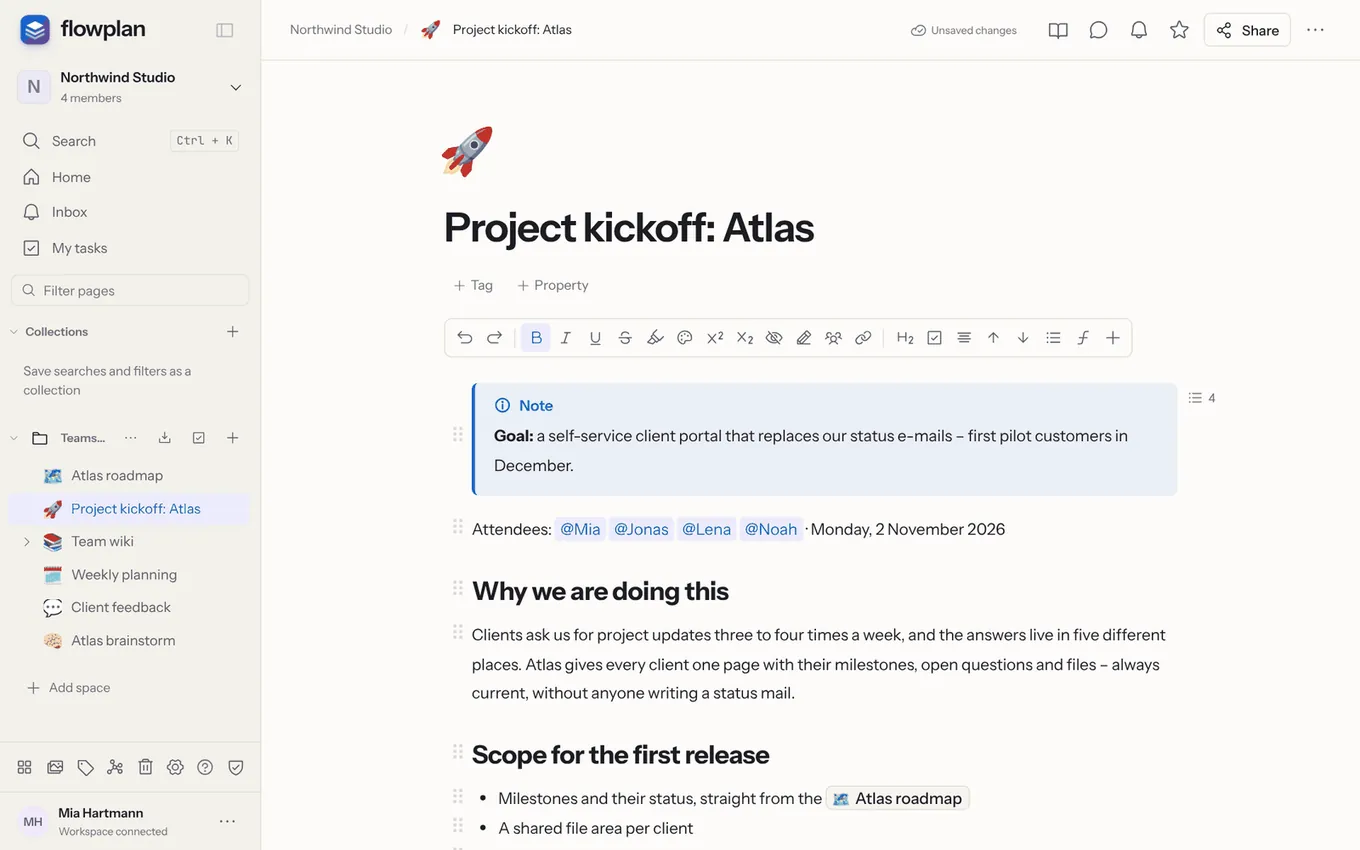
**More on this topic:** [Working with blocks](/blocks) · [Markdown in the editor](/markdown-editor) · [Formatting, callouts and captions](/formatting) · [Tasks in documents](/tasks-in-documents) · [Images, files and voice notes](/media-and-files) · [Math, diagrams, code and calculations](/math-and-code) · [Links, mentions and the graph](/links-and-mentions) · [Footnotes, citations and bibliography](/academic-writing) · [Reading, presenting and overview](/reading-and-presenting) · [Printing and PDF](/print-and-pdf)
## The block menu with /
At the start of a line or after a space, `/` opens the block menu right at the cursor. Keep typing to filter: `/h2`, `/todo`, `/code`, `/tab`. Arrow keys choose, <kbd>Enter</kbd> or <kbd>Tab</kbd> inserts, <kbd>Esc</kbd> closes.
> [!TIP]
> To type a plain slash, type a space after `/` or close the menu with <kbd>Esc</kbd>. In code blocks `/` is always an ordinary character.
| Block | Shortcut in the menu | What for |
| --- | --- | --- |
| Text | `/text` | A normal paragraph |
| Heading 1–4 | `/h1`, `/h2`, `/h3`, `/h4` | Structure; they appear in the table of contents |
| Task list | `/todo` | Tasks to tick off |
| Bulleted list, numbered list | `/ul`, `/ol` | Lists, nested as deep as you like |
| Quote | `/quote` | A highlighted quotation |
| Note, Tip, Important, Warning, Caution | `/note`, `/tip`, `/important`, `/warning`, `/caution` | A coloured box with icon and title – the five kinds of GitHub alerts |
| Toggle | `/toggle` | Content that folds in and out |
| Code | `/code` | Syntax highlighting for more than 240 languages (as in VS Code), preview for HTML, SVG, Markdown, Mermaid, LaTeX and Typst |
| Table | `/table` | A simple table in the text |
| Image or file | `/image`, `/file` | Upload or pick from the media library |
| Mermaid diagram | `/mermaid` | Flowcharts, sequence and class diagrams as text |
| draw.io diagram | `/drawio` | Draw diagrams with the draw.io editor |
| Formula, inline formula | `/math`, `/inlinemath` | LaTeX, rendered with KaTeX |
| Mention a page, record or person | `/mention` or `@` | A reference to a page, database record or person |
| Whiteboard | `/board` | Embed a whiteboard in the document |
| Draw | `/draw`, `/sketch`, `/handwriting` | Handwriting and sketches with a pen or finger ([Handwriting in documents](/notebooks#handwriting-in-documents)) |
| Linked database | `/db` | A view of an existing database |
| Two columns | `/columns` | Content side by side |
| Embed | `/embed` | Players for YouTube, Vimeo, Loom, Spotify, Figma, CodePen; a link card otherwise |
| Spoiler | `/spoiler` | Hidden text, revealed by a click |
| Voice note | `/voice` | Record (up to two hours) and insert as audio, optionally also as a transcript |
| Synced block | `/sync` | Content that stays the same on several pages |
| Insert synced block | `/sync` | Show an existing synced block |
| Divider | `/hr` | A horizontal line |
| Page break | `/page break`, `/pagebreak` | Continue on a new page in print, PDF and Word ([Page break](/print-and-pdf#page-break)) |
| AI | `/ai`, `/ki` | Let the [AI](/ai-writing#writing-assistant) write (when switched on) |
| Footnote | `/footnote`, `/fußnote` | Numbered note at the end of the page ([Footnotes](/academic-writing#footnotes)) |
| Citation | `/cite`, `/zitat` | Cite a source – DOI, BibTeX or Zotero ([Citations](/academic-writing#citations-and-bibliography)) |
| Bibliography | `/bibliography`, `/references` | All cited works as a list |
**Tables:** tables are compact – low rows, a left-aligned header, as wide as their content (dragged column widths stay). Point at a column border to see a blue line; drag it to make the column wider or narrower. Point at a cell and two handles ⋮⋮ appear: on the left edge of its row and on the top edge of its column. A click selects the row or column (outlined in blue) and opens its menu: a search field, **Colour** (text or background), **Insert row above/below** or **Insert column left/right**, **Duplicate** (++⌘ D++), **Clear contents**, **Delete row/column**, **Header row** or **Header column**, **Caption** and **Convert to database**. Drag a handle to move the row or column – a line shows where it lands; the header row stays the first row. With a row selected, ++⌘ ⇧ ↑/↓++ moves it (++⌘ ⇧ ←/→++ a column). The **+** bars below the table and at its right edge add a row or a column at the end. Drag across several cells and the selection gets a button at its top right with **Colour**, **Clear contents**, **Merge cells** and **Split cell**. Rows across merged cells, and columns in tables with merged cells, cannot be moved. On phones and tablets the handles and **+** bars belong to the cell you tap; the menu opens as a sheet from the bottom. Cell colours survive the Markdown export (as a comment before the table that other tools ignore) and come back as colours on import. <kbd>Tab</kbd> moves to the next cell and adds a row in the last one.
**Convert a table to a database:** when a table outgrows itself, choose **Convert to database** in the menu of a row or column handle. Flowplan creates a [database](/databases) from it below the document and puts an embedded view of it where the table was. The first row gives the column names, the first column becomes the records' titles. The other columns get their type from the filled cells: number (German or English separators), date (`2026-11-04` or `04.11.2026`), checkbox (✓, x, yes/no, ja/nein, true/false), URL, otherwise text. The database is named after the table's caption, else the nearest heading above it, else "Table". ++⌘/Ctrl Z++ brings the table back. Limits as for CSV import: up to 80 columns and 5,000 rows. Encrypted spaces don't offer it; in a database record the new database goes to the top of the space.
**Hiding the keyboard (phone):** while you write, the formatting bar sits above the on-screen keyboard. Its last button on the right, **Hide keyboard**, closes the keyboard so you see more of the document; the text and the cursor position stay. A tap into the text brings it back. In the content of a database record the bar sits above the keyboard in the same way while you write. For every other text field – titles of pages, databases and records, tags, properties, the name in the **New page** dialog, search fields, comments – the same button appears as a round button on the right, just above the keyboard. This works in the browser and in the apps.
## Toggles
A **toggle** has a title and content below it that folds in and out. Insert one with `/toggle`, or type `>` and a space at the start of an empty line. The cursor lands in the empty title (grey "Toggle"); text already after the `>` becomes the title.
- **Collapse and expand:** click (or tap) the arrow in front of the title. By keyboard: ++⌘ ⌥ Enter++ (Windows/Linux: ++Ctrl Alt Enter++) in the content collapses it and puts the cursor in the title, where the same keys expand it again.
- **Edit the title:** a click in the title puts the cursor there. In an expanded toggle, <kbd>Enter</kbd> or <kbd>↓</kbd> moves into the content, and <kbd>↑</kbd> at the start of the content moves back to the title. In a collapsed toggle, <kbd>↓</kbd> expands it and moves into the content.
- **A list of toggles:** <kbd>Enter</kbd> at the end of the title of a **collapsed** toggle adds a new collapsed toggle right below it, with the cursor in its title – handy for an FAQ. <kbd>Enter</kbd> in an **empty** title ends the list: the toggle becomes a normal paragraph, its content stays below.
- **From existing text:** in the block menu, **Turn into … → Toggle** turns a paragraph into a toggle with the text as its title. A list item becomes a toggle with the item's text as its title, and its indented sub-items go into the content. A single **Undo** reverses it.
- **Toggle headings:** **Turn into … → Toggle heading 1–4** shows the title as a heading. In Markdown it is then a heading inside `<summary>` (`<summary><h2>Title</h2></summary>`), as GitHub renders it.
- **Back to text:** **Turn into** also makes a toggle text, a heading, a list, a quote, a callout or code again: the title becomes the block, its content follows below. <kbd>⌫</kbd> at the start of the title turns it into plain text in the same way.
- **Move in with Tab:** <kbd>Tab</kbd> at the start of a block right below a toggle moves the block into the toggle, as the last block of its content. This works with paragraphs, headings, quotes, callouts, other toggles and the first items of a list; a collapsed toggle expands. So what is indented belongs to the toggle and hides with it when you collapse it. ++⇧ Tab++ moves a block back out, right below the toggle; the blocks after it stay inside. One **Undo** reverts each step.
- **Nesting:** <kbd>Tab</kbd> in a toggle's title moves the whole toggle into the toggle above it (or under the last item of a list above it), ++⇧ Tab++ moves it back out. The cursor stays in the title, and from there <kbd>Tab</kbd> never moves the focus out of the document. To undo, press <kbd>Esc</kbd> first – in the title, ++⌘/Ctrl Z++ only undoes typing in the title.
- **What belongs to it:** when the mouse is over a toggle's arrow or its ⋮⋮ handle, the whole toggle (title and content) is lightly shaded. The content is indented by exactly one Tab step.
- **Nothing gets lost:** when the cursor gets into a collapsed toggle (arrow keys, undo) or **Find on page** goes to a match in it, it expands. Collapse it while the cursor is inside, and the cursor moves in front of the toggle.
- **Just for you:** as with [collapsed sections](/reading-and-presenting#collapsing-sections), collapsing does not change the document – others editing at the same time keep their own state. Your browser or the app remembers what you collapsed on this device for your account, so it is still collapsed the next time you open the page. On another device the toggles are expanded. A toggle is always stored, exported (Markdown `<details>`, HTML) and published expanded; readers collapse it there themselves. What you collapsed is remembered on imported and API-created pages too. A toggle without a title is exported to Markdown with an empty `<summary></summary>` and comes back the same way on import.
- In **reading mode** a click on the whole title line collapses and expands it.
## Synced blocks
A synced block (`/sync` → **Synced block**) is content that is the same in several places – such as contact details, a checklist or a status notice. **Insert synced block** shows it on another page. You can edit it everywhere; the change appears on all pages, live on pages that are open.
- An orange frame marks the block; at the top it shows the number of pages and the page it was created on.
- The trash icon in the frame removes the block only in this place; it stays in the others.
- Permissions come from the page the block was created on: whoever may not read that page sees a notice instead of the content.
- The search finds the text on the original page. The block does not appear on published pages.
## More blocks
- **Table of contents**: lists the headings of the page and jumps there on click.
- **Two columns**: blocks side by side; stacked on a phone.
- **Linked database**: a view of an existing database with its own filters and sorting; changes to records go to the source. See [Views](/views#linked-databases).
- **Whiteboard**: a whiteboard right in the document; the button at the top right opens it large.
- **Draw** (`/draw`): a block for handwriting across the full width, blank, lined or grid, with a height you drag; several people draw at once without overwriting each other. See [Handwriting in documents](/notebooks#handwriting-in-documents).
---
<!-- https://docs.flowplan.org/en/blocks -->
# Working with blocks
Every block has a handle on its left: drag it to move the block, click it to open the block menu for turning it into something else, colouring, duplicating and moving. Select several blocks at once with the mouse or the keyboard.
**More on this topic:** [Documents and the editor](/documents) · [Formatting, callouts and captions](/formatting) · [Keyboard shortcuts](/keyboard-shortcuts#in-a-document)
## Handle and dragging
**+** and a handle (`⋮⋮`) appear to the left of a block – to keep the page calm, only at the block under the mouse pointer (anywhere on its row, the margin to its left included); while you type, they stay hidden until you move the mouse again. The handle sits where the block's text starts, so an indented paragraph has it next to its text. Blocks inside toggles, callouts and quotes have a handle of their own; the box keeps its handle too. A [meeting block](/meetings) has one handle at its title row for the whole block; the blocks in its summary keep theirs. Blocks inside a closed toggle have no handle until it is opened. You can still reach the handles by keyboard (<kbd>Tab</kbd> outside the text); a handle with keyboard focus always shows, with a ring. On touch devices only the block with the cursor has a handle, large enough to tap – so tap into the block first. Empty paragraphs have no handle unless the cursor is in them. To see every handle, turn on **Settings → Appearance & language → Editor → Always show block handles** (on this device). Reading mode and locked pages have no handles.
- **+** adds an empty block below and opens the [block menu with /](/documents#the-block-menu-with) right away; hold <kbd>⌥</kbd>/<kbd>Alt</kbd> to add it above. This works below any block, including tables, images, embeds and columns. Blocks inside columns have no **+** of their own – <kbd>Enter</kbd> and `/` work there.
- **Dragging** the handle shows an insertion line – also into callouts, quotes or columns. How far left or right you drag picks the level: to the right over a list item the block becomes its sub-item (the line indents), to the left it lands one level up – that's how you nest lists and move blocks into or out of toggles. The block that will receive the drop – a list item, list, toggle, callout, quote or column – is lightly tinted while you drag. At the left or right edge of a block you get columns. Hold <kbd>⌥</kbd>/<kbd>Alt</kbd> when you let go to drop a **copy**; the original stays.
List items and tasks stay what they are when moved: outside their list they form a list of the same kind of their own, and a numbered item keeps its number. Right next to a matching list they become part of it; in another kind of list they adapt. Dropped into a list, blocks land at the level of the drop line without empty items: paragraphs become items, other blocks such as tables become part of the item before them.
++⌘ ⇧ ↑/↓++ moves the current block past its neighbour. Every block action can be undone on its own.
**Between two blocks without text** (such as a table and an image), click into the gap or on the edge. With the keyboard, use the arrow keys until the blinking line appears, then type or press <kbd>Enter</kbd>. <kbd>Enter</kbd> on a selected image adds a paragraph below it. The **+** in the [toolbar](/formatting#format-text) above the text inserts the chosen block below the current one – only in an empty paragraph does it replace it. To convert a block, use **Turn into …** in the block menu.
## Block menu
A click on the handle selects the block and opens the **block menu** (from the bottom on phones). <kbd>Esc</kbd> closes the menu and keeps the block [selected](#selecting-several-blocks). With a mouse it opens to the left of the handle, so the block stays visible; only without room on the left does it open to the right. Its heading names the kind of block. At its top is a **search field**: typing filters every action and block type, <kbd>Enter</kbd> runs the first hit. With a mouse, submenus open to the side – further left, or over the menu when there is no room, never over the block; on phones in place. Entries show their keyboard shortcuts.
- **Turn into …** – text, heading 1–4, bulleted list, numbered list, task list, [toggle](/documents#toggles), toggle heading 1–4, quote, callout, code, block equation, **page** (the block becomes a sub-page, a link to it stays) or **2 or 3 columns**; list items become a toggle with their sub-items as its content, quotes and callouts can be dissolved
- **Colour** – text or background colour for the whole block (see [block colours](/formatting#block-colours))
- **Add block below** and **Add block above** – an empty block with the block menu with /, also on touch devices
- **Copy** (++⌘ C++), **Cut** (++⌘ X++), **Duplicate** (++⌘ D++), **Move** (up, down, below a heading of the page, to the top or to the end), **Comment**, **Ask AI**, **Copy link to block** and **Delete**
- **Callout type**, **Symbol** and **Colour** (callouts), **Width** (videos and embeds) and **Text direction** where they fit
- **Select several** – the selection mode on touch devices
## Selecting several blocks
With a mouse, drag a **rectangle** from the margin or an empty spot: every block it touches is selected and tinted light blue. <kbd>Esc</kbd> in a block or a click on its handle selects it (after the click, <kbd>Esc</kbd> first closes the block menu and the selection stays). ++↑++/++↓++ select the block before or after, ++⇧ ↑++/++⇧ ↓++ or ++⇧++-click on a handle extend the selection, ++⌘ A++ (++Ctrl A++) selects all blocks. In text, the first ++⌘ A++ selects the block's text, the second all blocks. On the selection, <kbd>Delete</kbd>, ++⌘ D++ (duplicate), ++⌘ ⇧ ↑/↓++ (move), <kbd>Tab</kbd>/++⇧ Tab++ (indent), ++⌘ C++/++⌘ X++/++⌘ V++ (copy, cut, paste blocks after it) and `/` (block menu for all) work; dragging any of their handles moves all. Copied or cut blocks are pasted back as blocks, also in another page; other apps get the text. A click into the text or <kbd>Esc</kbd> ends the selection.
On touch devices **Select several** in the block menu starts the **selection mode**: circles take the place of the handles, a tap selects a block, another one extends the selection up to it; when all items of a list are chosen, the whole list is. The bar at the bottom moves, copies, duplicates, moves below a heading or deletes the selection, **⋯** holds the rest of the block menu, **Cut** included. **Done** or <kbd>Esc</kbd> ends the mode.
## Indent
- <kbd>Tab</kbd> at the start of a paragraph or heading indents it (up to eight levels), ++⇧ Tab++ outdents it. If a [toggle](/documents#toggles) is directly above, <kbd>Tab</kbd> moves the block into it instead, and ++⇧ Tab++ moves it back out. Lines indented before stay as they are.
- <kbd>Backspace</kbd> at the start of an indented line first removes one level.
- In lists <kbd>Tab</kbd> nests the item below the previous one; if it can't be indented, nothing happens – <kbd>Tab</kbd> never leaves the text. <kbd>Enter</kbd> in an empty list item moves only that item one level up, one level per <kbd>Enter</kbd>; at the top level it becomes a normal paragraph. <kbd>Enter</kbd> at the end of an item with sub-items starts a new first sub-item. In code blocks <kbd>Tab</kbd> inserts two spaces, in tables it moves to the next cell. With a [block selection](#selecting-several-blocks), <kbd>Tab</kbd> also moves code blocks and tables into a toggle.
## Tabs
The **Tabs** block stacks content in tabs – for example instructions for different systems or variants of a text. Type `/tabs` to insert it. Each tab has a title and can hold any blocks: paragraphs, lists, tables, images, toggles and even more tabs.
- **Add:** **+** at the right of the tab strip – type its name right away.
- **Rename:** double-click the tab or press <kbd>F2</kbd>.
- **Reorder:** drag the tab or press ++⌘ ⇧ ←++/++⌘ ⇧ →++ (Windows/Linux: <kbd>Ctrl</kbd>+<kbd>Shift</kbd>+<kbd>←</kbd>/<kbd>→</kbd>).
- **Delete:** <kbd>Delete</kbd> on the tab; **Undo** brings it back. The last tab stays – delete the whole block from its block menu.
- **On phones:** swipe the tab strip; every action is in the **⋯** menu.
- **Keyboard:** <kbd>←</kbd>/<kbd>→</kbd>, <kbd>Home</kbd> and <kbd>End</kbd> switch tabs, <kbd>Enter</kbd> jumps into the tab's content.
Flowplan remembers which tab you're looking at, for you on this device. Others see their own tab, and switching never creates a new version. You can write in different tabs at the same time.
**Turn into → Tabs** makes tabs from selected blocks, each heading starting a new tab. **Turn into → Headings with content** turns them back into plain text.
Printing, PDF, e-books, the HTML export and published pages show all tabs one after another, each with its title as a heading; Word, Confluence and Jira also get a heading per tab.
**Markdown:** Flowplan writes and reads the format of the Obsidian "Tabs" plugin:
````markdown
```tabs
tab: Windows
Download the installer.
tab: Linux
Install the package with your package manager.
```
````
If a tab contains code blocks itself, the outer fence gets longer (`` ````tabs ``) – or use `~~~tabs`. A plugin options line such as `top, multi` is ignored on import.
## Text direction
Paragraphs, headings, lists, quotes, callouts and table cells in Arabic, Hebrew or Persian run **right to left automatically**: the direction follows the block's first letter. Bullets, checkboxes, quote bars, callout icons and block handles are then on the right.
In the block menu (click the handle `⋮⋮`) → **Text direction** you set **Automatic**, **Left to right** or **Right to left** for a block and everything inside it. The direction is kept in the HTML export; Markdown has no place for it.
---
<!-- https://docs.flowplan.org/en/markdown-editor -->
# Markdown in the editor
The editor understands Markdown: shortcuts as you type, whole pages edited as Markdown text, and answers from ChatGPT that arrive formatted when you paste them.
## Markdown shortcuts
While you type, the editor converts:
| Type | Result |
| --- | --- |
| `#`, `##`, `###` + space | Heading 1–3 |
| `-` or `*` + space | Bulleted list |
| `1.` + space | Numbered list |
| `[]` + space | Task |
| `>` + space | [Toggle](/documents#toggles) (or quote, see below) |
| `"` + space | Quote (also with „ “ ”) |
| ` ``` ` | Code block |
| `---` | Divider |
| `**bold**`, `*italic*`, `` `code` ``, `~~strike~~` | Formatting in the text |
**`>` as a quote:** if you are used to `>` for quotes from Markdown, switch **Settings → Appearance & language → Editor → “>” creates** to **Quote**. The setting applies to your account on all devices. It only affects typing: in imported Markdown files and in answers pasted from ChatGPT & co., `> text` becomes a quote as before, and the Markdown export still writes quotes as `> text`.
Code blocks carry their language in the fence: ` ```python `, ` ```typescript `, ` ```terraform `. The export writes the ids of VS Code/Shiki; the import also understands aliases and older names (`js`, `ts`, `py`, `sh`, `yml`, `cpp`, `csharp`, `plaintext` …) and stores them with the full id (` ```js ` becomes JavaScript, exported again as ` ```javascript `). Unknown languages are kept and show as "(imported)" in the block, without highlighting.
Line numbers, highlighted lines, the view and collapsing follow the language in the fence, in the usual notation: ` ```ts {3-5} showLineNumbers startLine=10 `, plus `view=preview`/`view=split`/`view=code`, `collapsed` and `collapsedLines=15`. The import also understands `showLineNumbers{10}` (rehype-pretty-code), `showLineNumbers=10` and `hl_lines="3 4"`/`linenums="10"` (MkDocs). The numbers in `{…}` count from the block's first line, whatever its start number. ` ```mermaid ` fences become code blocks that show the diagram.
## Edit as Markdown
**Page menu … → Edit as Markdown** shows the whole page as Markdown text with line numbers – handy for big rearrangements, find and replace, or if you prefer writing Markdown.
- **Apply** (++⌘ Enter++) saves a version first and replaces the content in one step; **Undo** takes the change back.
- Blocks without a Markdown form – embeds, whiteboards, linked databases, synced blocks, columns, tables with merged cells or widths, sized images, function graphs, metrics and bibliographies – appear as a marker `<!-- flowplan:block … -->`. You can move or delete them but not change them; they come back unchanged. If one is deleted, Flowplan asks before applying.
- Formatting without a Markdown form (colours, superscript, spoilers, mentions, citations) is kept as HTML in the text.
- **Alignment, indent, text direction and reactions** are lost when applying; the view says beforehand what is affected.
- If someone changes the page while you write in Markdown, a notice appears; **Apply anyway** then overwrites their changes.
- People who may only read – also on locked pages and in reading mode – see **View as Markdown** without Apply.
## Pasting answers from ChatGPT
Text copied from ChatGPT or another assistant is formatted when pasted: LaTeX formulas (`\[ … \]`, `\( … \)`, `$$ … $$`) become formula blocks and inline formulas, Markdown (headings, **bold**, lists, tables) is applied, lines with tabs become a table, `☐` a task list, and each line becomes its own paragraph. Formulas already rendered on a copied web page stay formulas. This also applies when copying straight from the ChatGPT web page. If formulas are already in the document as text (such as `\[ A(3;2;1) \]`), select them – or everything with ++⌘/Ctrl A++ – and choose **Turn into formulas** in the text menu. Ordinary text is pasted as before.
---
<!-- https://docs.flowplan.org/en/formatting -->
# Formatting, callouts and captions
Format text, use callouts in five kinds and with your own icon, caption and number images and tables.
## Format text
The **toolbar** above the text has all formatting and blocks: bold, italic, underline, strikethrough, highlight, colour and background colour, superscript and subscript, **Hide (spoiler)**, link, heading, task, alignment, lists, inline formulas and more blocks. Selecting text – or right-clicking it – opens the **text menu** with the quick actions right at the text: reactions for the paragraph, **bold**, *italic*, link, code, **Comment**, **Footnote** and **Copy**, the results of a selected calculation, and in tasks also **Due date**. The text menu appears above the selection – right under the toolbar it appears below it, so it never covers the toolbar. Underline, strikethrough and highlight are in the toolbar and on their shortcuts (++Ctrl/⌘ U++, ++Ctrl/⌘ ⇧ S++, ++Ctrl/⌘ ⇧ H++); where no toolbar is shown (e.g. in focus mode), the text menu offers them as well.
- **Menu on text selection**: under **Settings → Appearance & language → Editor → Menu on text selection** you choose when selecting shows the text menu – **Always**, **Only on a computer** (the default) or **Never**. "Only on a computer" depends on what you select with: with a mouse, trackpad or the keyboard (<kbd>⇧</kbd> + arrow keys) the menu appears, with a finger on a phone or tablet it does not – there the system's selection menu (cut, copy, paste) and the toolbar above the keyboard, with formatting and **Comment**, take over. On an iPad with a trackpad it appears when you select with the trackpad, not with your finger. A **right click** opens the text menu with every setting, also with "Never". The setting applies to your account on all devices.
- **Formatting toolbar**: under **Settings → Appearance & language → Editor → Formatting toolbar** you can hide the fixed bar above the text of pages and records (**Show** is the default, **Hide**). Hidden, the text menu over selected text offers all formatting, as in focus mode: **Turn into** at its start with the current block type ("Text ⌄" – text, heading 1–3, bulleted list, numbered list, task list, toggle, quote, callout, code, block equation), then **bold**, *italic*, underline, strikethrough, code, highlight, **colour** (text and background), link, **inline formula** and **clear formatting** (links and comments stay). **…** holds superscript and subscript, hide (spoiler), alignment, move block up/down, suggest, show authors and the table of contents. Comment, AI, footnote and copy stay as before; undo and redo are ++⌘ Z++ and ++⌘ ⇧ Z++. On a phone the bar above the keyboard stays – there it is the keyboard's formatting row. The setting applies to your account on all devices.
- **On a phone**: **Comment** is in the toolbar above the keyboard (and as **Comment on text** below the document), **Footnote** in the **+** menu or with `/footnote`. Reactions are in the text menu – with **Always** when selecting, and on Android also by a long press where the browser reports it as a right click.
- Formatting only applies to the current line. After <kbd>Enter</kbd> the new line starts as normal text – only lists and tasks continue with a new item, and a heading is followed by a paragraph.
- **Turn into**: in the text menu (also on right-click in a line; with the formatting toolbar hidden or in focus mode as the list "Text ⌄" at its start) a line changes its type without losing its text – text, heading 1–3, bulleted list, numbered list, task, quote or code block. The current type is highlighted.
- **Nested lists** change their markers per level: numbered 1. → a. → i., bullets • → ◦ → ▪, starting over from the fourth level. The level counts across list types – a numbered list below a bullet or a task starts with a. Published pages, print, PDF and Word look the same; the Markdown export keeps writing `1.`.
- **Code and highlight**: inline code shows in an accent colour on a grey background and can be combined with bold, italic, strikethrough and links (also when importing `**`code`**` from Markdown). A highlight without a colour is yellow, see-through in dark mode.
### Spoiler
Hidden text stays hidden while you write. A click on the area reveals it, another one hides it again. ++⌘ ⌥ H++ hides the selection. Sticky notes and text on whiteboards can be hidden too.
### Block colours
In the [block menu](/blocks#block-menu), **Colour** gives a whole block (paragraph, heading, list item, quote, toggle) a **text colour** or a **background colour** – the same nine colours as for text; **Default** removes it. Several [selected blocks](/blocks#selecting-several-blocks) are coloured at once. The colours adapt to the light and dark theme.
The Markdown export writes the colour as a comment before the block (for list items at the end of the line); other apps don't show it, and the import reads it back:
```markdown
<!-- flowplan:color red-background -->
Important paragraph
```
## Callouts
Callouts come in five kinds, as on GitHub, Forgejo and Obsidian: **Note** (blue), **Tip** (green), **Important** (purple), **Warning** (yellow) and **Caution** (red). Each kind has its icon and a title in the reader's language. With the cursor in a callout, `/tip`, `/warning` etc. change its kind; so does the block menu (click the handle `⋮⋮`) → **Callout type**.
### Your own symbol and colour
So that a callout serves other purposes too – an idea 💡, a date 📅, a key point ★ –, the block menu gives it a symbol and a colour of its own:
- **Symbol** → **Choose emoji or character …** opens the emoji picker (the same as for page icons, with search, categories and skin tone). Under **Or a character of your own** you can also type a character such as ★, → or ✓ – exactly one emoji or symbol character is allowed, no letters, digits, punctuation or spaces. **Remove symbol** brings back the icon of the kind.
- **Colour** offers the nine text colours (grey, brown, orange, yellow, green, blue, purple, pink, red); **Default** goes back to the kind's colour. The colours read well in the light and the dark theme.
The kind stays: it gives the title (“Tip”, “Warning” …) and is used for the Markdown export. Symbol and colour are kept when copying, duplicating, in templates, versions, published pages, when printing and in the PDF, EPUB and Word export. [Encrypted spaces](/encrypted-spaces) have no callouts.
### Callouts in Markdown
Markdown export writes callouts as GitHub alerts (`> [!WARNING]`). A symbol of its own leads the text, a colour of its own follows as a comment at the end that GitHub does not show:
```markdown
> [!TIP]
>
> 💡 The / menu is quicker.
>
> <!-- flowplan:callout color=green -->
```
Import (Markdown, ZIP, Notion) turns `> [!NOTE]` to `> [!CAUTION]` back into callouts of that kind; Obsidian's further kinds map to the nearest one (e.g. `danger` → Caution, `hint` → Tip), and a custom title (`> [!WARNING] Read first`) becomes a bold first line. A single emoji or symbol followed by a space at the start of the text becomes the callout's symbol; the colour comment restores the colour. Callouts from Notion's Markdown export (`<aside>💡 …</aside>`) become callouts with their emoji.
## Captions
Images, tables and code blocks can have a short **caption** – one line that says what the block shows. It appears small and muted below the block.
- **Add**: for an image, **Caption** in its [toolbar](/media-and-files#images-files-and-embeds) at the top right; for a table, **Caption** in the menu of a row or column handle; for a code block, **Add caption** in its bottom corner (when you point at it or the cursor is in it). Or use the block menu (handle `⋮⋮`) → **Add caption**.
- **Typing**: a caption is plain text on one line (up to 500 characters). <kbd>Enter</kbd> or <kbd>↓</kbd> continue below the block, <kbd>Esc</kbd> or <kbd>↑</kbd> go back into it. Others see the caption right away when editing together; ++⌘ Z++ in the document undoes changes.
- **Remove**: delete the text and leave the field (or press <kbd>⌫</kbd> in the empty field), or block menu → **Remove caption**.
- **Images**: the caption does not replace the alt text for screen readers. When an image has a caption, the block menu offers **Use caption as alt text**.
- Captions are kept when copying and pasting, moving, duplicating, in templates, versions, on published pages, when printing and in every export, and search finds them. From HTML (for example pasted web pages or Notion's HTML export), `<figure>` with `<figcaption>` and tables with `<caption>` become captions.
### Numbering captions
**Page actions (…) → Number captions** puts a number in front of the captions of a page: "Figure 1", "Table 1", "Listing 1" (for code). Each kind is counted separately in document order, and only blocks that have a caption count. The label follows the language Flowplan is shown in (English: Figure/Table/Listing, German: Abbildung/Tabelle/Listing, French: Figure/Tableau/Listing). The switch applies to the whole page and everyone who reads it – also on published pages, when printing and in the exports. Copies of the page keep it. Record documents in databases don't have it.
---
<!-- https://docs.flowplan.org/en/tasks-in-documents -->
# Tasks in documents
Tasks right in the text: tick them off, assign them to a person, give them a due date and one of five statuses as in Obsidian.
## Tasks with assignee and date
A task (`/todo` or `[]` + space) with a mention such as `@Anna` is assigned to Anna: she gets a notification and finds the task under **My tasks** in the sidebar. You set a date while the cursor is in the task, with the calendar button in the toolbar or through the text menu (select text or right-click → **Due date**). The date appears as a chip at the right of the line (highlighted today, red when overdue); a click on it changes the date or removes it with **Remove date**. A new task made with <kbd>Enter</kbd> starts without a date.
**My tasks** collects all tasks given to you, your own tasks with a date and all tasks from your journals (even without @name and without a date) – grouped into Overdue, Today, Next 7 days, Later and No date. Below, **From other workspaces** lists your tasks from your other workspaces, per workspace; clicking the page switches there. Ticking off and changing the date take effect right in the document, also for others who have it open. On the due date a reminder arrives in the morning; the number next to "My tasks" shows how many are due today or overdue.
**Tasks of your own, without a document:** At the top of **My tasks** there is the field **Add a task …** – type, press <kbd>Enter</kbd>, done. The task goes to your own page **Tasks**, which Flowplan creates the first time in your private space of the workspace (if you have none yet, a private space "Private" is created). The quick capture shorthand works here too: "Pay taxes tomorrow" or "Call the dentist Friday" set the date. `@name` gives the task only to someone who can open the page – your page is private, so otherwise the name stays in the text and a note says why; write tasks for others in a document you both can see. The page is a normal page: you find it in the sidebar, can rename or move it, and its tasks can do everything tasks can (states, ++Ctrl/⌘ L++, the reminder on the due date, widgets, Siri and Spotlight). If you delete it, the next task creates a new one. Guests and members with read-only access do not see the field.
**Filter:** **All / From documents & databases / My own** narrows the list – **My own** shows only the tasks of your page "Tasks". The device remembers the choice. **Open the page "Tasks"** takes you there.
**New tasks:** When someone gives you a task, a blue number appears next to "My tasks" in the sidebar (on a phone on **Navigation**) until you open My tasks; there the new tasks carry a small **New** while that view is open. The light number next to it still counts what is due today or overdue.
## Task status
A task has one of five statuses, as in Obsidian: **Open** `[ ]`, **In progress** `[/]` (a half-filled box), **Done** `[x]`, **Cancelled** `[-]` (a grey box with ×, struck through) and **Deferred** `[>]` (a box with →).
- Clicking the box ticks the task off or opens it again, as before; a task **in progress** is done with one click.
- **Right-click** the box (on tablets and phones: **long-press** it) to open a small menu with all five statuses.
- ++⌘/Ctrl L++ turns the line with the cursor into a task; on a task it changes the status: open → in progress → done → open. Cancelled and deferred tasks become open again. With several lines selected, all of them get the next status of the first one. In a bulleted or numbered list only that line becomes a task; the list is split there.
- **In progress** and **Deferred** count as open: they are listed under **My tasks** (with their status) and in the app's widgets, get the reminder on their due date and move on to the next day in a journal. **Cancelled** counts as closed but not as done: the task leaves "My tasks", does not move to the next day and is not listed among the completed tasks in the journal review.
- Ticking off a task in progress under **My tasks** or in a widget makes it done.
- Older app and desktop versions show the statuses as ticked (done, cancelled) or open (all others).
---
<!-- https://docs.flowplan.org/en/media-and-files -->
# Images, files and voice notes
Images, files, PDFs and embeds in documents – upload, annotate, delete again – and voice notes that Flowplan can transcribe.
## Images, files and embeds
- **Pasting from the clipboard** (++⌘ V++) or dragging in uploads images and files. Images can be resized at their edges.
- **Image toolbar**: point at an image (on a phone: tap it) and a small bar appears at its top right: **Comment**, **Caption**, **Replace image** (place, width, caption and alignment stay), **Download**, **Full screen** and **…** with alignment (left, centre, right), **Mark up image**, **Copy image**, **Copy link to block** and **Delete**.
- **Photos are scaled down before uploading**: at most 2560 px on the longer side, stored as WebP. The camera rotation is kept, metadata such as the location is removed. GIFs, SVGs and files that would hardly get smaller stay unchanged. Attachments in file properties and forms are stored as they are.
- **PDFs** appear as a card with a preview of the first page. A click opens the PDF viewer with all pages, zoom and **Download**. Two fingers zoom smoothly around the spot between them and move the pages – as in [notebooks](/notebooks), also while just reading; on a trackpad use the pinch gesture or Ctrl + scroll. The buttons and <kbd>⌘</kbd> <kbd>+</kbd>/<kbd>−</kbd> change the zoom in steps of 25 %. <kbd>Esc</kbd> closes the viewer. The same applies to PDFs in the media library, in files properties of databases and on published pages. In editable text, <kbd>⌘</kbd>-click a link to a PDF to open the viewer. In the viewer you can write on the PDF – see [Annotate PDFs](#annotate-pdfs).
- **Mark up images**: double-click an image (or the pen in the toolbar while the image is selected, or **… → Mark up image** in the image toolbar) to open it for editing – with **pen**, **highlighter**, **arrow**, **rectangle**, **circle** and **text**, seven colours and three line widths, undo with ++⌘ Z++. **Save** creates a new image with the markings; the original and the markings stay with the image, so you can change or remove them later.
- **Media** in the sidebar collects all uploads of the workspace for reuse.
### Deleting media
In **Media**, select files with their checkbox and put them in the trash with **Move to trash** (or the trash icon on the file). There is no confirmation because it can be undone. Anyone who may edit the file's page may delete it; viewers and guests can't.
- **Not used**: files that no page, record, whiteboard or comment of the workspace contains any more carry this badge. The **Not used** filter shows only them, and **Delete all unused** moves them to the trash together after a confirmation. Older versions in the version history don't count as a use and may still show such files.
- Removing an image from a document doesn't delete the file – it then just counts as not used.
- While a file is in the trash it can't be opened anywhere, including through shares and publications. Pages that still show it have a **File missing** placeholder in its place. Restoring brings it back unchanged.
- It is deleted for good – including in the `uploads` folder and in [object storage](/storage-and-backups) such as S3 – only when the trash is emptied, with **Delete permanently**, or when the retention period ends, see [Trash](/pages-and-spaces#trash). Until then it counts towards storage.
- **Embed** (`/embed`) takes an address: YouTube, Vimeo, Loom, Spotify, Figma and CodePen appear as players with an adjustable width, other sites as a link card with title and preview image.
- Links to pages and mentions of people show a preview on hover.
- The administrators set the maximum file size (10 MB by default).
### Annotate PDFs
If you may edit the page a PDF belongs to, the PDF viewer shows **Annotate** (not in [encrypted spaces](/encrypted-spaces) and on locked pages). A toolbar appears below it: **Pen** (with the Apple Pencil or another tablet pen, the line width follows the pressure), **Highlighter** (translucent, stays under the text and the ink), **Eraser** (**Whole strokes** or **Partial** – then only what is under the eraser goes), **Lasso**, **Text** and **Laser pointer** (points at something without staying). Plus colours, three widths, undo and redo (++⌘ Z++, ++⇧ ⌘ Z++).
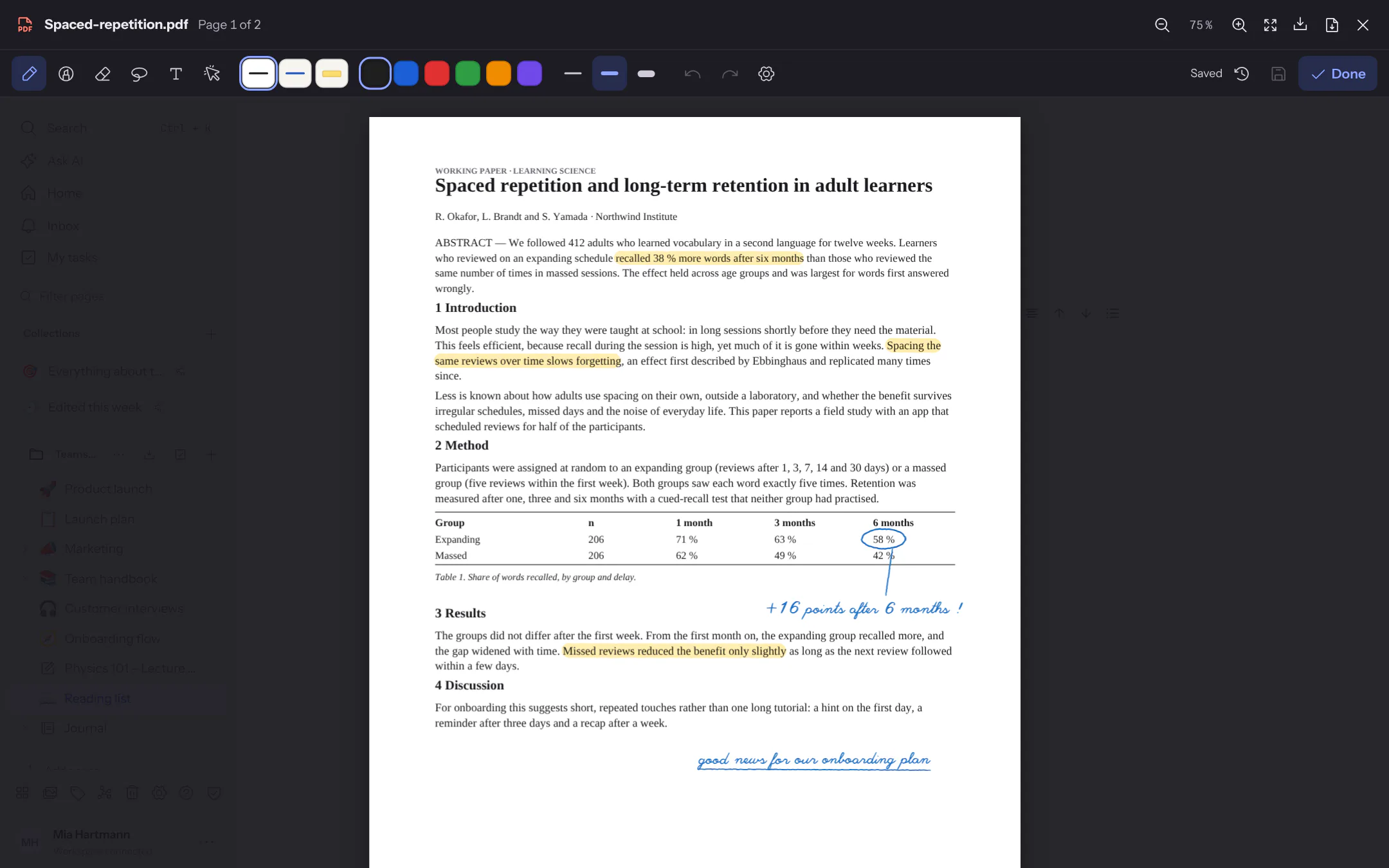
- **Favourite pens**: the three pens next to the tools remember colour and width; change them while one is chosen and the favourite changes with it. They apply on this device.
- **Shapes**: hold the pen still for a moment at the end of a stroke – a drawn line becomes straight, a rectangle, circle, triangle or diamond becomes the clean shape. Switch this off in the **Pen settings** (gear).
- **Lasso**: draw around strokes and text to move them, resize them with the handle at the bottom right, recolour, copy (++⌘ C++, paste with ++⌘ V++ – also on another page), duplicate or delete them.
- **Text** is placed with a tap on the page; a tap on existing text changes it. On the iPad, Scribble writes into it with the pen.
- **Draw with the pen only**: once you have written with the pen on a device, only the pen writes – fingers scroll and zoom, a resting hand leaves no marks. PDFs, whiteboards and images share the setting; switch it off in the **Pen settings**, then a finger writes too, and two fingers scroll and zoom.
- **Apple Pencil**: the eraser end of a pen erases. In the iPad app, double-tap or squeeze switches to the eraser and back – as set in the iPad settings, or in the **Pen settings** always to the eraser, the last tool or nothing.
The annotations belong to the page of the PDF, not to the screen: they stay in place at any zoom and apply to everyone who opens the PDF – readers see them but cannot change them. The PDF itself stays unchanged. **Done** (or ++⌘ S++) saves; every save is a version you can load again from the clock icon. If someone else saved the annotations in the meantime, your version wins and a notice says who; theirs is kept as a version. Search finds text you write on a PDF – in the app for iPhone and iPad also the handwriting itself, and **Convert to text** turns selected handwriting into typed text (see [Recognising handwriting](/notebooks#recognising-handwriting-iphone-and-ipad)).
To turn a PDF into a notebook you write in page by page and add sheets to, open it as a [notebook](/notebooks#creating-a-notebook): every PDF page becomes a sheet.
**Download** still downloads the original. **Download with annotations** (next to it once there are annotations) creates a new PDF with the same pages and the annotations on top as vector graphics – they stay sharp when zooming in. Protected (encrypted) PDFs can only be downloaded without annotations; text appears in Helvetica, characters outside the Western European character set as “?”.
## Voice notes and meetings
`/voice` opens the recorder: tap the microphone, speak, **Stop recording** – up to **two hours**, enough for a meeting. You can listen to the recording or discard it; **Insert** puts it into the page as audio (within the instance's upload limit). If speech recognition is set up, the spoken words follow below as text; otherwise the dialog only offers the audio.
- **Long recordings** go to the server in parts; it puts them together and sends them to speech recognition. `WHISPER_MAX_MB` limits the size (default 200).
- **Transcript with timestamps:** if speech recognition returns segments with times (OpenAI-compatible `verbose_json`, e.g. faster-whisper-server, speaches or whisper.cpp), a collapsible **Transcript · duration** block appears with one paragraph per passage and its timestamp (`00:04`, `1:02:05`).
- **Speakers:** only when the service itself separates speakers (diarization, switched on with `WHISPER_DIARIZE=on` for servers that know `diarize`) and returns a speaker per segment, each passage starts with **Speaker 1**, **Speaker 2** … Flowplan never guesses speakers from pauses. If the service only knows plain JSON, the text is inserted as paragraphs as before.
- **Then summarise with AI** summarises the transcript ([Summaries](/ai-writing#summaries)).
- **In the apps** for iPhone, iPad and Android the app records; iPhone and iPad turn the words into text on the device, without speech recognition on the server ([Voice notes in pages](/mobile-capture#voice-notes-in-pages)).
- **Generate tasks and summary** (when [AI actions](/ai-actions#ai-actions) are on for you): the AI proposes a summary with decisions and a task list with assignees and dates – as a preview with checkboxes; only **Run** adds them to the page.
---
<!-- https://docs.flowplan.org/en/links-and-mentions -->
# Links, mentions and the graph
Link pages, records and people with @, point at single blocks and see in the graph how everything connects.
## Page links and mentions
`@` searches pages, database records and people – keep typing to narrow the list. The arrow keys move through the hits, <kbd>Enter</kbd> inserts the highlighted one. `@` opens the list at the start of a line, after a space or after an opening bracket or quote; inside a word – such as an e-mail address like `ada@example.org` – `@` is simply typed. <kbd>Esc</kbd> (or <kbd>Enter</kbd> without a hit) closes the list and types the `@` and what you searched for into the text. Journal days come after the other pages. `@today`, `@yesterday` (also `@heute`, `@gestern`) or a date such as `@2026-10-27` offer a link to that day of the [journal](/journal#days-in-lists-search-graph-and-export) under **Journal**. Records appear with their database, such as "Heating – maintenance · Notes"; only records you may read are offered. Mentioning a person notifies them in the inbox.
Links to pages and records stay valid even if they are renamed or moved. A link that shows the old title gets the new one on a rename – in all documents and records you may edit; a link with its own text keeps it. The target lists all links to it under **Linked from** – including records whose text contains the link. Records and pages you may not read do not appear there.
A link to a page or record shows the target's icon in front of its text: its emoji, symbol or own picture – without one, the sign of its kind (document, database, whiteboard, record). When someone changes the icon, every link follows, just as the title does on a rename. This also applies in reading mode, comments, published pages, the hover preview, the `@` list, **Linked from**, **Related pages** and search. A link to a block keeps its paragraph mark unless the page has its own icon. For pages and records you may not read, the link shows only the general link sign. Printing includes the icons; Markdown exports contain only the link text.
Links to the web are underlined and carry a small outward arrow after their text. If you'd rather not see the arrow, switch off **Settings → Appearance & language → Icon on external links** – links then stay coloured and underlined, only the arrow is gone, in documents, records, comments and reading mode. The setting applies to your account on all devices and only to how you see things: published pages keep showing the arrow to their visitors. The arrow is never printed; a printout shows the link's address after it instead.
### Automatic links
When an owner has set up [automatic links](/workspace-appearance#automatic-links), matching text becomes a link as soon as you type a space, a punctuation mark or <kbd>Enter</kbd> after it, and also when you paste it – in pages, in documents of database records and in comments. It is an ordinary link: it stays when you collaborate, work offline or use the apps, and you edit or remove it like any other. ++⌘ Z++ (++Ctrl Z++) right after takes back only the link; the text stays. Text that is already there does not change; nothing is linked in code, existing links, formulas, titles or database table cells.
## Links to blocks
Every block can be linked: a paragraph, a heading, a list item, a table, an image, a diagram … The link is the page's address with the block, such as `https://flowplan.example.org/#page=…&block=k3x9a2b1` (records add `&row=…`), and works anywhere in the same workspace.
**Copying a link**
- in the block menu (the ⠿ handle left of the block, tap it on a phone): **Copy link to block**,
- for headings via the link symbol that appears after the heading on hover,
- in the [table of contents](/reading-and-presenting#table-of-contents) via the link symbol next to each heading (always visible on phones),
- with ++⌘ ⇧ L++ (Windows/Linux: ++Ctrl Shift L++) for the block the cursor is in.
The address is copied; pasted into other apps (mail, chat, Word) it shows as a link with the text "Page › start of the block".
**Pasting a link**
Paste a copied block link into a document or record of the same workspace (++⌘ V++): it becomes a link styled like a page link, with the text "Page › start of the block". If text is selected, that text becomes the link. `@` also finds headings and blocks of other pages: `@Project › Goals` (or `@Project#Goals`) shows the headings of the page "Project" that contain "Goals"; a single search word also finds paragraphs with that text. Headings of the current page are listed as "This page › …".
When the linked page (or record) is renamed, the page title in the link text changes along; the part after "›" stays as it is. On hover, the preview shows the block's current text.
**Opening a link**
A click opens the page (for a record, the record in its dialog), scrolls to the block and briefly highlights it. A block in a collapsed section is expanded. If the block no longer exists, the page opens with the notice "This block no longer exists – the page is open."
**Good to know**
- A block keeps its link when it is edited, moved (also cut and pasted) or turned into another kind. Copies – **Duplicate** or copy and paste within the same document – get a link of their own. When Enter splits a block, the link stays with the first part.
- Preview and link text only show what you may read: for a page you cannot read, only "Linked block" appears, without text.
- In [encrypted spaces](/encrypted-spaces) block links work within the space as well; the server does not know the text there, so there is no text preview.
- People who may only read a page can copy links to its blocks, too.
- **Align left** no longer has a keyboard shortcut (++⌘ ⇧ L++ now copies the block link); left is the default alignment and stays in the toolbar.
## Graph of links
The network icon at the bottom of the sidebar (or `> graph` in the quick search) shows all pages as dots and their links as lines. Database records appear as dots of their own once they link or are linked; a click opens the record. Large dots have many connections; colours tell documents, databases, records, whiteboards and journals apart.
- Drag to pan, scroll or use two fingers to zoom, click to open a page.
- Hovering highlights a page and its neighbours; **Highlight** marks pages by title.
- **Connect sub-pages** also shows the page hierarchy (dashed), **Pages without links** shows or hides single pages.
- **Journal days** controls the days of [journals](/journal): **hide**, **one dot per month** (default; the dot gathers the links of all days of the month, a click opens the journal) or **show each day**. The line at the top counts pages and journal days separately.
- Links to pages and records (also from a record's text), embedded whiteboards, linked databases and synced blocks count as connections. The graph only shows what you may see.
## Unlinked mentions
Below **Linked from** at the end of a page, **Unlinked mentions** lists documents and records in which the title of this page appears without being linked (titles of four characters or more), or one of its [aliases](/page-tags#aliases) as a whole word (two characters or more); the alias found is shown in grey next to the hit. **Link** turns the first mention there into a link to this page, by the title first, else by an alias – the text stays as written. An open record shows the same for its title and aliases below its properties.
---
<!-- https://docs.flowplan.org/en/math-and-code -->
# Math, diagrams, code and calculations
LaTeX formulas, Mermaid diagrams and code blocks with highlighting, calculating right in the text and figures from databases.
## Formulas, diagrams and code
- **Formulas** in LaTeX: as a block with `/math`, inside the text with `/inlinemath`. The preview appears while you type. Building blocks such as fraction, root, superscript, subscript, vector, cross product, ±, π and sum sit above the input.
- **Mermaid diagrams**: a click or <kbd>Enter</kbd> opens the source and preview. Up to 20,000 characters and 500 edges. In dark mode Mermaid diagrams are drawn dark, and redrawn when you switch; downloads (SVG/PNG) and printouts stay light.
- **draw.io diagrams** (`/drawio`): open the draw.io editor in a large window; **Save** applies the diagram as one step you can undo. A double-click, <kbd>Enter</kbd> or the pencil on the block opens it again. Flowplan stores the drawing and a picture of it: when viewing – on shared pages, in presentations and offline too – it doesn't load draw.io at all and only shows the picture (cleaned, without scripts and without content from elsewhere). Drawing and picture may each be up to 800 kB.
- **Maximize:** the arrows button at the top right of the window (next to the close button) enlarges draw.io to the whole browser window; the same button (**Restore size**) brings the window back. It works from the keyboard too. The diagram stays open and unsaved changes are not lost; <kbd>Esc</kbd> and **Close** ask before discarding changes as before. The device remembers the choice: the next diagram opens the way you left the last one. On a phone draw.io fills the screen anyway (keeping clear of the notch and the home indicator), so there is no button there.
- **A page for one diagram:** the **Diagram page** template (under [Templates](/templates#starter-templates), category *Knowledge & documentation*) creates a full-width page with one empty draw.io diagram and opens draw.io right away. On a full-width page the saved picture uses the whole width, and an empty diagram is a large area rather than a thin strip. There is no separate page type for this as there is for whiteboards – the diagram page is a document, so you can add text, more diagrams or other blocks.
- **Where draw.io runs:** by default Flowplan uses `embed.diagrams.net`. While you draw, the diagram's content goes to that service; the window says so. With `DRAWIO_URL` the instance points to its own draw.io (for example the `jgraph/drawio` container), and everything stays with you (see [Configuration](/configuration-storage#legal-and-interface)).
- **Look:** under **Settings → Appearance → Editor**: **draw.io theme** *Automatic* (follows Flowplan), *Light* or *Dark*, and **draw.io interface** *Default*, *Minimal* or *Sketch*. The choice applies to this device.
- **Export:** in the ZIP export every diagram becomes a `.drawio.svg` file that draw.io can open again; in a single Markdown file and in the Git export it is a ` ```drawio ` block with the drawing, which the import turns back into a diagram (the picture is made the next time it is saved). PDF and EPUB show the picture.
- **Code blocks**: the language is shown in the block's header with its full name ("JavaScript", "C++", "Angular TypeScript", "Plain text"). A click opens a list with a search – it finds names, aliases and file extensions (`ts`, `py`, `yml`, `tf`, `.rs` …). The languages you chose last come first (remembered in this browser). There are more than 240 languages with the same grammars as in VS Code – among them Svelte, Vue, Astro, JSX/TSX, Terraform, TOML, Typst, Zig, Prisma, GDScript, Nushell, systemd units, SSH config, Git commit messages, log files, CSV/TSV and .env files. **Line wrap** and **Copy** are at hand. <kbd>Tab</kbd> indents by two spaces.
- **Language detection**: when you paste code into a block without a language (plain text), Flowplan suggests a language if it is clearly recognisable – "Looks like Python – set?". One click sets it, the × dismisses the suggestion. Flowplan never changes the language by itself.
- **Preview**: code blocks in HTML, SVG (language XML with `<svg>`), Markdown, Mermaid, LaTeX and Typst show the switch **Code / Preview / Split** in their header. *Split* puts code and preview side by side, on a phone one below the other. The view is stored in the block; people who only read a page (read access, published pages, presentations) see the preview unless the block says otherwise, and can switch for themselves without changing anything. Errors (such as a typo in the diagram or in Typst, with the line number) show in place of the preview.
- **HTML** runs in a sealed frame: no scripts, no forms, no access to Flowplan or the network. Pictures from the web stay blank; embedded pictures (`data:`) and styles work. The height follows the content.
- **SVG**, **Mermaid** and **Typst** show as a picture – without scripts or links.
- **Markdown** is converted as on import, **LaTeX** shows formulas with KaTeX (separated by blank lines, with or without `$$ … $$`; not whole LaTeX documents with `\documentclass`).
- **Typst** loads the first time it is used (a few MB, from your own server, not from the web); Typst packages (`@preview/…`) and files are not available.
- New Mermaid code blocks (` ```mermaid ` or the language *Mermaid* chosen) show the diagram right away, empty ones code and diagram side by side. The separate Mermaid block (`/mermaid`) stays.
- **Line numbers**: the **…** menu in a code block's header turns **Line numbers** on or off for that block, sets the **First line number** (say 10 for an excerpt) and **highlights lines** – e.g. `3-5, 8`, counted as shown. The numbers cannot be selected and are not copied; with line wrap they stand at the first row of a wrapped line. Blocks without a setting of their own follow **Settings → Appearance & language → Editor → Show line numbers by default** (on this device).
- **Collapse**: code blocks with more than 25 lines appear collapsed – 10 lines high, scrolling inside, faded at the bottom. **Show all N lines** expands them, **Collapse** folds them again (both reachable by keyboard). People who may edit store the state in the block; readers only expand for themselves. The **…** menu sets **Collapsed** and the **Collapsed height** (5, 10, 15, 20 or 30 lines). Printing and every export always show the whole code.
- A language's highlighting loads with the first code block of that language; until then the code shows briefly without colours. Very long code blocks (more than 50,000 characters) stay without highlighting.
- **Fractions**: `/Fraction` (or `/Bruch`) inserts a formula inside the sentence.
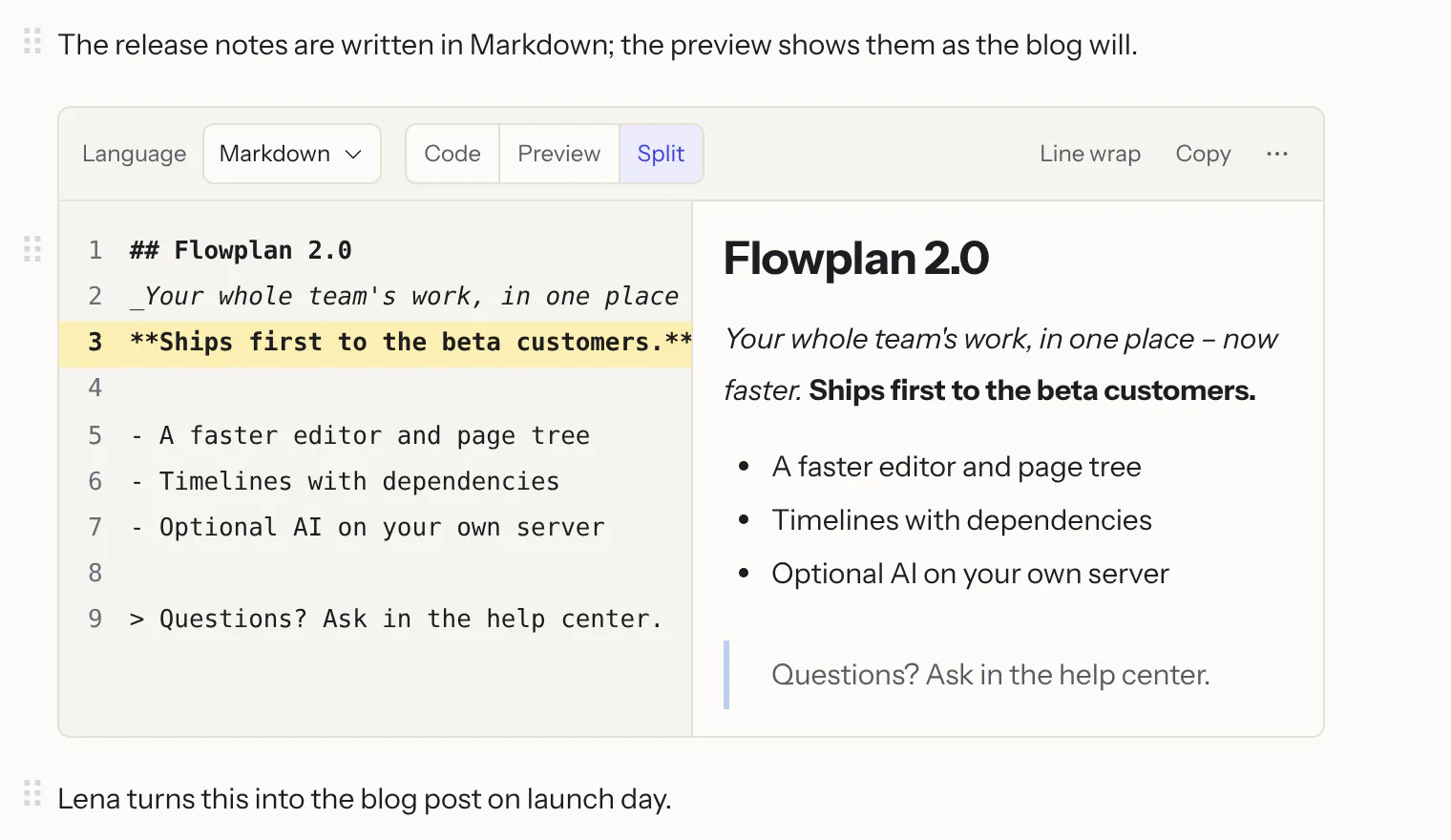
## Calculating in text
Flowplan only calculates when you want it to – exactly, with fractions, in German or English notation (`2,5` or `2.5`, `×`, `²`, `√`, `€`):
- **Hint after "="**: type a calculation followed by `=`, such as `12 × 2,400 € =` or `3/4 + 1/6 =`, and the result appears greyed out behind it. <kbd>Tab</kbd> accepts it, <kbd>Esc</kbd> or typing on dismisses it.
- **Selected text**: select a calculation, a term or an equation; the text menu (also on right-click) shows what is possible under **Calculate** and inserts the result after it with one click:
- **Result** and **Reduce** as an exact fraction, plus **As a decimal** – `12/18 = 2/3`
- **Expand**, including the binomial formulas – `(a + b)² = a² + 2ab + b²`
- **Factor** – `x² − 9 = (x − 3)(x + 3)`, `4x² − 12x + 9 = (2x − 3)²`, `6x² + 9x = 3x(2x + 3)`, also with several variables: `a³ − b³ = (a − b)(a² + ab + b²)`, `x² + 2xy + y² − 1 = (x + y − 1)(x + y + 1)`, by grouping `ax + ay + bx + by = (x + y)(a + b)`; **Factor with roots** splits further into real factors: `x² − 2 = (x − √2)(x + √2)`
- **Simplify** algebraic fractions – `(x² − 1)/(x − 1) = x + 1`, `1/x + 1/(x + 1) = (2x + 1)/(x(x + 1))`
- **Solve for x** – linear and quadratic equations exactly (`x² + 2x − 4 = 0 ⇒ x = −1 ± √5`), higher degrees exactly where possible (`x³ = 2 ⇒ x = ∛2`, `x⁴ − 5x² + 6 = 0 ⇒ x = ±√2, ±√3`), otherwise as rounded decimals (`x³ + x − 1 = 0 ⇒ x ≈ 0.682328`); with several variables, for each one that appears linearly. Equations with x in a denominator are solved with the common denominator; values that would make a denominator 0 are excluded and named (`x/(x − 1) = 1/(x − 1) ⇒ no solution (x = 1 excluded)`).
- **Copy result**: the button at the end of each result row copies the result as shown (such as `y² − 16y + 64`) to the clipboard as plain text – for pasting into other apps. Clicking the row itself still inserts it after the selection.
- **Function graph**: select a term in x, such as `x² − 2` or `f(x) = 2x + 1`, and choose **Draw graph** in the text menu – a graph with axes, grid and marked zeros appears below. `/Function graph` inserts one too. The functions are edited below the graph: it changes while you type, **+ Function** adds up to six functions in their own colours (`sin(x)`, `cos`, `tan`, `exp`, `ln`, `abs`, `√` and `π` work). Dragging moves the view, **+**/**−** or <kbd>⌘</kbd>/<kbd>Ctrl</kbd> + scrolling zoom, **⟲** resets the view. On published pages the graph can be moved and zoomed but not changed.
- **Vectors**: write vectors as `(1 | 2 | 3)`, `(1; 2; 3)` or `(1, 2, 3)`. Flowplan calculates sums and multiples (`2 · (1; −2) − (3; 1) = (−1; −5)`), the **dot product** with `·` including the **angle** (`(1, 0) · (0, 1) = 0 ⇒ ∠ = 90°`), the **cross product** with `×` (`(1|0|0) × (0|1|0) = (0 | 0 | 1)`) and the **magnitude** with `|…|` (`|(1, 1)| = √2`). A vector selected on its own shows its magnitude and **unit vector** (`(3, 4) ⇒ v⁰ = (3/5, 4/5)`). **Draw vectors** in the text menu shows vectors in the plane as arrows in a coordinate system – for `(1, 2) + (3, 1)` both vectors and their sum. More vectors such as `(3, 2)` can be entered in the graph next to functions. **Vectors in space** such as `(1, 2, 3)` – cross products too – are drawn in a 3D coordinate system with x, y and z axes, a floor grid and dashed guides to the floor; **dragging turns the view**, and the view is saved with the page. The formula editor has the building blocks **Vector** (column vector), **Vector arrow** and **Cross product**; column vectors in formulas are calculated the same way.
- **In formulas**: the formula editor shows the same options under **Calculate** and appends the result in LaTeX, such as `\frac{3}{4} + \frac{1}{6} = \frac{11}{12}`.
## Dashboards and metrics
**/Metric** inserts a card with a number from a database, **/Dashboard** three side by side. With the gear you choose:
- the **database** (every database in the workspace you can read),
- optionally a **view** – then only the records its filters show count, such as “Open tickets”,
- the **calculation**: number of records, sum, average, minimum or maximum of a number, formula or rollup property,
- a **label**.
The server calculates the number for the person looking at the page and refreshes it every minute; private records only count for people allowed to see them. On published pages, visitors without access see a dash. Add charts by inserting a **linked database** below the metrics and choosing a chart view there – that makes a dashboard from several databases.
---
<!-- https://docs.flowplan.org/en/academic-writing -->
# Footnotes, citations and bibliography
For papers and theses: footnotes, citing sources in the text and a bibliography that writes itself.
## Footnotes
`/footnote`, ++⌘ ⌥ F++ (++Ctrl Alt F++) or **Footnote** in the text menu inserts a footnote at the cursor and opens its text.
- The notes appear numbered under **Footnotes** at the end of the page. Numbers follow the order in the text and update by themselves when you move, copy or delete markers.
- Clicking a number jumps to its note, ↩ jumps back. Double-click the number (or press ++⌘ ⌥ F++ with a footnote selected) to edit or remove it.
- Notes are plain text; web addresses in them become links.
- Footnotes also show on shared and published pages, in print and in the HTML export, and search finds their text.
- In the Markdown export they become `[^1]` with `[^1]: text` at the end; the import reads them back – including Obsidian's short form `^[text]`.
## Citations and bibliography
For papers, theses and research notes you cite sources right in the text:
::: steps
1. `/cite` (or `/zitat`) opens the workspace's **bibliography**.
2. Search a title, paste a **DOI** (e.g. `10.1000/xyz123` – Flowplan fetches authors, title and year from Crossref and other DOI services) or bring in a whole list via **Import BibTeX or CSL-JSON (Zotero) …**.
3. Optionally add a page and insert.
:::
The text then reads "(Müller 2021)", "(Müller & Schmidt 2021, p. 12)" or "(Müller et al. 2021)"; hovering shows the full reference. `/bibliography` inserts a **bibliography**: all works cited on the page in an APA-like style, updating itself as you cite – also on shared and published pages.
- The bibliography belongs to the workspace; guests don't see it. Each citation carries its details along, so copies, exports and shared pages are complete without the list.
- **Zotero:** export a collection from Zotero as *BibTeX* or *CSL JSON* and import it in the dialog.
- In the **Markdown export** citations become Pandoc citations (`[@key]`, `[@key, p. 12]`) and the bibliography a section of its own – so a text can be processed further with Pandoc.
---
<!-- https://docs.flowplan.org/en/reading-and-presenting -->
# Reading, presenting and overview
Table of contents, collapsible sections, reading and focus mode, showing authors – and presenting a document as slides.
## Table of contents
The list icon at the top right of a document opens the **table of contents** beside the text – in every document, journal days and database records included. It is built from the headings and grows while you write, marks the section you are reading and jumps to a heading on click. Its header with the close button stays at the top while you scroll a long list; press <kbd>Esc</kbd> to close the list. Whether it is open is remembered in this browser for all documents. On a phone a round button at the bottom right opens it.
## Collapsing sections
Every heading can be **collapsed**: the small arrow to the left of a heading (it shows on hover; on touch devices and for collapsed headings always) hides everything below it – up to the next heading of the same or a higher level. A collapsed heading shows how much is hidden behind it (**… 3 blocks**); another click expands it again. With the cursor in the heading, ++⌘ ⌥ Enter++ does the same. On a phone the arrow sits at the end of the heading, in right-to-left text on the other side.
- **Collapse / expand all sections:** in a document's page menu `⋯`, at the top of the [table of contents](#table-of-contents), in quick search (`> sections`) or with ++⌘ ⌥ X++ and ++⌘ ⌥ O++ ([changeable](/keyboard-shortcuts#your-own-shortcuts)). With a database record open, it applies to the record's text.
- **Just for you:** what is collapsed is remembered on this device (per page or record) – it does not change the document, others still see everything. Documents you open for the first time are expanded.
- **Nothing gets lost:** when the cursor gets into a collapsed part (arrow keys, undo, a click in the table of contents), it expands. So it does when **Find on page** (++⌘ F++) goes to a match inside, or a search hit, backlink or notification leads there. You can keep typing in the collapsed heading itself; it stays collapsed.
- **Moving:** dragging a collapsed heading by its handle `⋮⋮` (or moving it with ++⌘ ⇧ ↑/↓++) takes its whole section along.
- **Printing and PDF** always show everything; so do export, presentations and published pages.
- Headings directly in the document collapse – in reading mode and in [encrypted spaces](/encrypted-spaces) too. Headings inside callouts, toggles, tables, columns or lists have no arrow; such blocks simply belong to the section they are in.
## Reading mode
The book icon in the top bar (on a phone **Reading mode** in the `⋯` menu, or ++⌘ ⌥ E++, quick search → `> reading`) opens a document **for reading only**: nothing changes by accident, handles and the block menu disappear – handy on the phone and when reading aloud or presenting. The pencil switches back to editing. The device remembers the mode per page; permissions stay the same, and others keep their own mode. Database records have the same book icon at the top of the record (see [Databases](/databases)).
Reading mode also covers everything embedded in the page: in **linked databases** you can't edit cells, add, delete or move records, or change views; a record opened from there is read-only too. Other people's changes keep showing up live. Synced blocks, drawings, metrics, function graphs and extension blocks are locked in reading mode as well.
## Focus mode
**Focus mode** (quick search → `> focus`) hides the sidebar, toolbar and page margins; the top bar only appears on hover. At the bottom, a bar counts the words of the page and those added in this session. With a **goal** (e.g. 500 words) a bar shows the progress; the device remembers the goal per page. <kbd>Esc</kbd> ends the mode.
## Present
**Present** in the `…` menu at the top right (or ++⌘ ⌥ P++, quick search → `> present`) shows a document as full-screen slides – without rebuilding it:
- Each **heading 1** starts a new slide. If the document has none, each **heading 2** does. A **divider** (`---`) always starts a new slide.
- Whatever comes before the first heading becomes a title slide with the page title.
- Images, tables, code, formulas and diagrams are scaled down so the whole slide fits on the screen.
| Key | Effect |
| --- | --- |
| <kbd>→</kbd>, <kbd>↓</kbd>, <kbd>Space</kbd>, <kbd>Page Down</kbd> | Next slide |
| <kbd>←</kbd>, <kbd>↑</kbd>, <kbd>Page Up</kbd> | Previous slide |
| <kbd>Home</kbd> / <kbd>End</kbd> | First / last slide |
| <kbd>Esc</kbd> | End the presentation |
A click into the right two thirds of the slide moves on, into the left third back. At the bottom, a counter and a bar show where you are; the bar of buttons fades out while the mouse rests. It also switches between **light and dark slides**. If “Reduce motion” is set on your system, slides change without a fade.
### Speaker notes and presenter view
A **callout** (`/callout`, kind “Note”) as the last block of a slide holds the **speaker notes**: it does not appear on the slide. **Presenter view** (notepad icon in the bar) opens a second window with the current and the next slide, the notes and the elapsed time – handy on the laptop while the projector shows the slides. Both windows stay in step: you can move on in either of them.
### Slides as PDF
The printer icon in the bar prints the slides – each on its own page in **landscape**. Choose **Save as PDF** in the print dialog to pass the slides on.
## Show authors
**Show authors** (in the toolbar or the page menu **…**) colours the text by the person who wrote it – each person always in the same colour. A legend shows names and shares; **Hide authors** turns the colouring off again.
- The content itself doesn't change; the colouring is just a view.
- Recording starts with this feature: older, imported or restored text appears as "earlier", and so does text written by guests through links with their own permissions.
- Images, mentions and other embedded objects are not coloured.
- Only people who may read the page see names.
---
<!-- https://docs.flowplan.org/en/whiteboards -->
# Whiteboards
An infinite canvas for brainstorming, processes and workshops: sticky notes, shapes, connectors, pen, frames and tables – together and live.
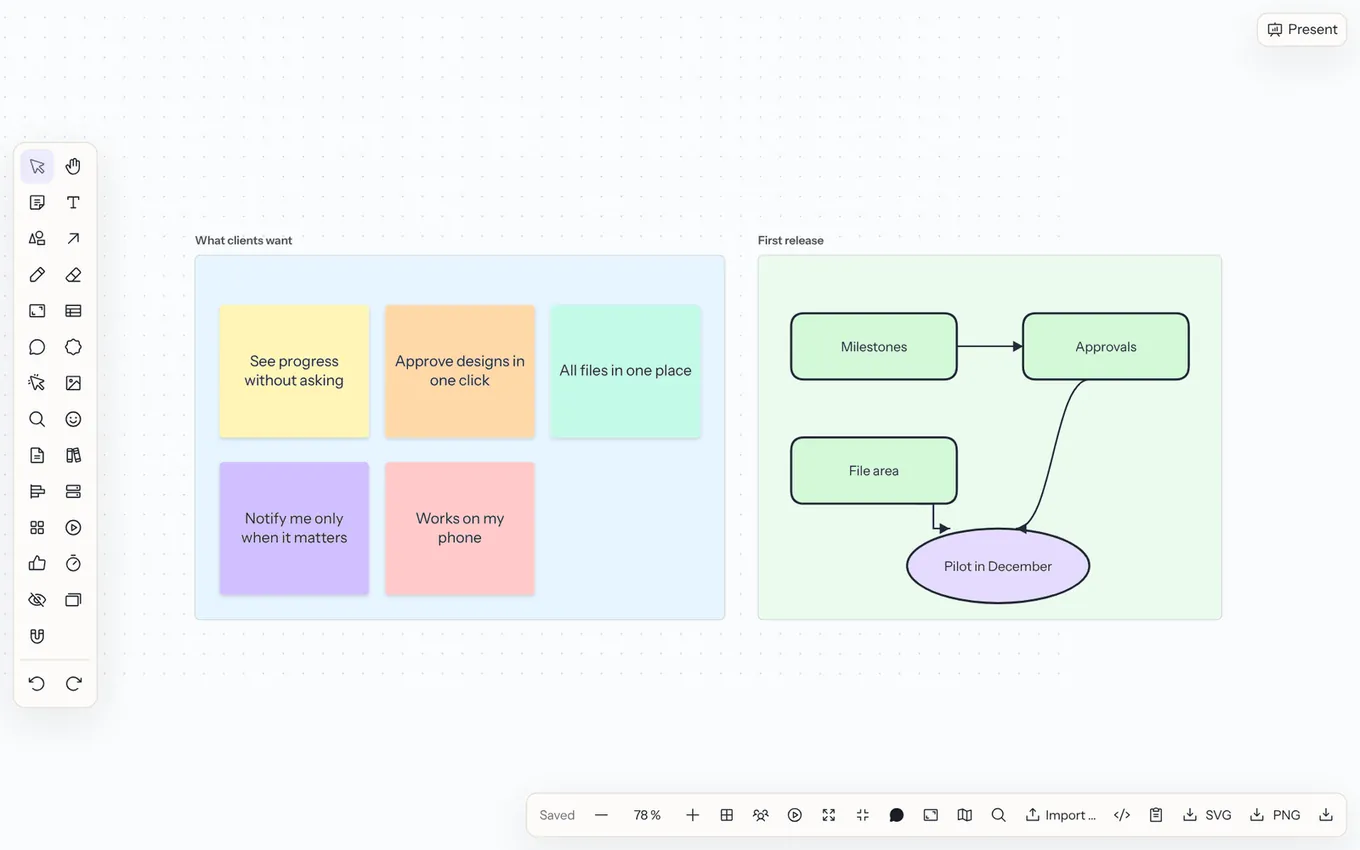
**More on this topic:** [Diagrams, mind maps and prototypes](/whiteboard-diagrams) · [Whiteboards: together, with AI and presenting](/whiteboard-collaboration) · [Racks and cabling](/whiteboard-racks)
## Tools
| Tool | Key | What for |
| --- | --- | --- |
| Select | <kbd>V</kbd> | Select, move, scale and rotate elements; drag a rectangle to select several |
| Hand | <kbd>H</kbd> | Move the canvas (also with space + drag or two fingers) |
| Sticky note | <kbd>N</kbd> | Coloured notes with text |
| Text | <kbd>T</kbd> | Free text |
| Shape | <kbd>R</kbd> | Rectangle, rounded, ellipse, diamond, triangle, hexagon, star, arrow, cloud |
| Connector | <kbd>L</kbd> | Straight, curved or elbowed; sticks to elements and follows them |
| Pen | <kbd>P</kbd> | Draw freehand |
| Eraser | <kbd>X</kbd> | Delete drawn strokes: just move over them |
| Frame | <kbd>F</kbd> | Group areas – and slides for presenting |
| Table | <kbd>G</kbd> | A simple table on the canvas |
| Comment | <kbd>C</kbd> | Pin a comment to a spot |
| Stamp | <kbd>E</kbd> | A quick reaction (👍 ❤️ ⭐ ✅ ❓ 🔥 💡 🎉) on an element; once more takes it back |
| Laser pointer | <kbd>K</kbd> | Point without changing anything: everyone sees a red trail that fades shortly |
### How the toolbar is laid out
- **On the left** are the tools for creating: Select, Move, Sticky note, Text, Shape, Connector, **Draw**, Frame, Table and Comment. **Draw** combines pen, eraser and laser pointer: the button shows the one used last, and you switch at the top of its options. The keys in the table still work for every tool.
- **+** (**Insert and more**) opens a panel with a search – typing filters, <kbd>Enter</kbd> takes the first match:
- **Insert:** image, images and icons, emoji, stamp, link page (a card linking to a Flowplan page), embed (video, web page or PDF, see [below](#embed-videos-web-pages-and-pdfs)), timeline and import (Excalidraw, draw.io, Mermaid, PlantUML)
- **Templates & library:** [templates](/whiteboard-collaboration#templates), shape library and racks (see [Racks and cabling](/whiteboard-racks))
- **AI**, when it is on for you
- **Facilitation** at the top right: voting, timer, private mode, estimation, bring everyone here and follow me (see [Work together](/whiteboard-collaboration#work-together)). A dot on the button shows that something is running.
- **At the bottom left** a bar with undo and redo, zoom, the arrows to the previous and next frame, **Present** (both once there are frames) and **…** (**View and actions**: grid, fit, full screen, comments, frames panel, minimap, search, prototype and export).
- **On phones** the bar sits at the bottom: Select, Move, Sticky note, Text, Shape, Draw and **More tools** – the same as under **+**, with a search too. **Facilitation** is the icon at the top right.
Readers who may only view see Select, Move, the laser pointer and the bottom bar.
## Style elements
Selected elements show a bar with colour, font size, bold, alignment, line width and style, **Bring forward**/**Send backward**, **Duplicate** (++⌘ D++) and **Delete** (<kbd>Del</kbd>). Sticky notes and text can also be **hidden** – like a spoiler in a document, revealed with a click.
A double click edits an element's text. Copy and paste work within and between whiteboards. **Italic** and **Underline** apply to the whole text of an element, like **Bold**.
## Group
Select several elements and press ++⌘ G++ (or **Group** in the bar): from then on they behave like one. A click selects the whole group, and it is moved, scaled at the corners, duplicated, copied, locked and deleted together. Groups can be combined into larger groups.
- A **double click** on a grouped element enters the group: a dashed outline shows it, and clicks now select single elements inside (in nested groups, the next level). <kbd>Esc</kbd> or a click elsewhere leaves the group.
- ++⇧ ⌘ G++ or **Ungroup** dissolves the outermost group of the selection.
- Copies of a group are a new group of their own. Like every change, grouping is shared live and can be undone with ++⌘ Z++.
## Lists, links and tags
Sticky notes, shapes and texts know a few formats right in the text:
| You write | Result |
| --- | --- |
| `- item` | Bulleted list (the **Bulleted list** and **Numbered list** buttons in the bar set it for the marked lines) |
| `1. item` | Numbered list; <kbd>Enter</kbd> continues the list, an empty line ends it |
| `**bold**`, `*italic*`, `__underline__` | Emphasise single words – while typing with ++⌘ B++, ++⌘ I++, ++⌘ U++ |
| `[text](https://…)` | Link – **Insert a link into the text** in the bar puts it around the marked text |
Links may only point to `https://`, `http://` and `mailto:` or to an element of the same board (see below); other addresses stay plain text. Web links open in a new tab. In addition, every element can carry a **link** of its own (chain icon in the bar); a small icon at its corner leads there.
**Tags** on sticky notes show as coloured chips along the bottom edge – a tag always has the same colour. In the board search, **Only notes tagged** highlights all notes with that tag and dims the rest.
## Links to frames and elements
**Copy link to this element** (in the bar of a selected element or in the frames panel) copies an address like `…/#page=…&item=…`. Whoever opens it sees the board zoomed to the element and selected – provided they may read the board.
Inside the board, links to elements fly there: in an element's link field or in the text as `[To the goal](#item=…)`. If the element is gone, a note says so.
## Align, stack and sort
- When moving, edges and centres snap to other elements; orange **guides** show to which. <kbd>⌥</kbd> while dragging turns snapping off.
- **Snap to grid** (grid button at the bottom) snaps elements without neighbours to the 24-point grid.
- Select several elements → **Arrange**: align left, centre, right, top, middle or bottom, distribute evenly or stack as a row or column.
- For workshops: **Group by colour**, **Group by person** (with headings), **Sort by votes** or **Arrange as a grid**.
## Pen and shape recognition
With a tablet pen (such as an Apple Pencil) the stroke width follows the pressure. Choose the colour in the pen menu; with **Recognise shapes**, drawn lines, rectangles, circles, triangles and diamonds turn into clean shapes (<kbd>⌥</kbd> on release keeps the stroke).
Once you have drawn with a pen on a device, only the pen draws: fingers move and zoom the board, a resting hand leaves no strokes. A hand resting on the screen while the pen draws neither cuts nor moves the stroke. **Draw with the pen only** in the pen menu switches this off – fingers then draw too, except the hand holding the pen: a touch while the pen draws or hovers, or within a moment after lifting it, moves the board instead. A pen touching down lightly does not start the stroke thick, and the width follows the pressure smoothly. Writing with Scribble in an open text on the board may run past its edges; the text stays open. A hovering Apple Pencil (iPad Pro, iPad Air M2 and later) shows where the stroke starts; the eraser end of a pen erases like the **Eraser**. In the [iPad app](/mobile-apps), double-tapping or squeezing the Apple Pencil switches to the eraser and back, to the previous tool or to the pen, as set on the iPad. The same applies when marking up images in documents.
## Images, icons and records
- **Images and icons** (under **+**) searches freely licensed images on Openverse; chosen images are uploaded to the server, and the credit shows as a tooltip on the image. There is also the icon library in ten colours.
- **Crop** (in the bar of an image): choose the part with the mouse, a finger or the arrow keys (<kbd>⇧</kbd> resizes). The image itself stays unchanged – **Show the whole image** undoes the crop at any time, and exports show the cropped part too.
- **GIFs**: when the instance has a key for GIPHY or Tenor (see [Configuration](/configuration-integrations#integrations)), **Images and icons** gets a **GIFs** tab. The search runs through the server; a chosen GIF is stored on the server like the Openverse images (up to 8 MB), and afterwards the board loads nothing from the provider. Without a key the tab is hidden.
- **Link page → Record from "…"** places a database record as a card. The card shows the title and up to three properties and stays up to date when the record changes; a double click opens it.
Cards of linked documents that are tall enough show the first lines of the page as a small preview.
## Embed videos, web pages and PDFs
**Embed** under **+** (on phones under **More tools**) takes a link:
- **Videos and web pages** from YouTube, Vimeo, Loom, Spotify, Figma and CodePen – the same list as for embeds in documents. Other addresses are refused. The board first shows only a preview with the provider; the content loads only after a click on **Load**, in an isolated frame (sandbox), and **Close embed** unloads it again. YouTube runs through `youtube-nocookie.com`.
- **PDFs**: **Upload PDF …** or drag a PDF file onto the board. The file is stored in the page and counts towards the storage quota; the board shows one page as a preview, with arrows to page through. A double click opens the PDF viewer.
Exports show a card with the provider and link instead of the player.
## Navigate
- Zoom with <kbd>⌘</kbd> + scroll wheel, trackpad gestures or the buttons in the bar at the bottom left.
- **Show everything** (++⇧ 1++) fits the view to all elements, ++⇧ 2++ to the selection – with a smooth camera move that any input stops at once.
- Undo ++⌘ Z++, redo ++⇧ ⌘ Z++.
- **Minimap** (in the **…** menu of the bottom bar, **View and actions**): a small overview of all elements with the visible part. Click or drag to go there; with the focus on the minimap the arrow keys move the view. The browser remembers whether it is open.
- **Search the board** (++⌘ F++ on the board, or in the **…** menu at the bottom): searches sticky notes, shapes, texts, tables, frames, comments, embeds and page and record cards. <kbd>Enter</kbd> and ++⇧ Enter++ (or the arrows) jump to the next or previous match, which is highlighted; <kbd>Esc</kbd> closes the search.
## Embed and export
- With `/board` in a document, a whiteboard becomes part of a page; the button at the top right opens it large.
- **Export as PNG** or **Export as SVG** saves the whiteboard as an image.
- **Export … (PNG, SVG, PDF)** opens the export dialog: what (**Whole board**, **Selection** or a single frame), the format and, for PNG, the **Resolution** 1×, 2× or 4×. As a **PDF** the board comes **Everything on one page** or with **One page per frame** in presentation order (hidden frames left out). The export is made in the browser; the server sees nothing of it.
- In the [Markdown export](/export), every whiteboard comes along as an SVG automatically.
- The text on the board is searchable and appears in exports.
- **Copy as Mermaid** takes shapes and connectors along as a Mermaid flowchart (see above).
---
<!-- https://docs.flowplan.org/en/whiteboard-diagrams -->
# Diagrams, mind maps and prototypes
On the whiteboard: mind maps with Tab, shape libraries for flowcharts and networks, Mermaid, PlantUML, Excalidraw and draw.io, wireframes and roadmaps.
## Mind maps
Select a sticky note, shape or text and press <kbd>Tab</kbd>: a connected branch appears on the right, ready to be labelled. <kbd>Tab</kbd> on the new branch branches further, ++⌥ Enter++ adds a sibling. The mind map arranges itself: branches sit to the right of their parent, evenly spaced and centred. **Arrange mind map** in an element's bar rearranges the whole tree. Typing on a selected sticky note starts writing right away.
## Diagrams: shape libraries
**Shape library** under **+** (or **More shapes …** in the shape menu) opens a searchable side panel – a sheet from the bottom on phones. A click or <kbd>Enter</kbd> puts the shape in the middle of the view, or drag it where you want it; arrow keys move between the shapes. Search works in English and German (“decision”, “Raute”, “gateway” …).
| Library | Shapes |
| --- | --- |
| Flowchart | Process, decision, start/end, data, document(s), predefined process, manual input and operation, database, preparation, delay, display, connector, off-page connector, internal storage, merge, loop limit, annotation |
| BPMN | Start, intermediate, end, timer and message events, task, subprocess, user and service task, exclusive, parallel and inclusive gateway, data object, data store, pool, lane, group |
| UML | Class (with compartments), interface, enumeration, actor, use case, component, package, note, lifelines, activation, initial and final node, state, decision, fork, node, combined fragment |
| ER diagram | Entity with attribute rows, weak entity, relationship, (key, multivalued) attribute |
| Org chart | Person, team, open position |
| Network | Server, database server, internet, firewall, router, switch, laptop, workstation, smartphone, tablet, user, Wi-Fi, printer, web |
| Cloud architecture | Compute, object storage, managed database, queue, function, CDN, load balancer, container, API gateway, cache, monitoring, secrets, virtual network, events |
| Wireframes | Browser, smartphone and tablet frames, dialog, buttons, input and search field, checkbox, radio button, toggle, dropdown, tabs, navigation bar, card, list, image and icon placeholders, avatar, text, slider, progress bar |
All shapes are vector graphics, take fill, line colour and width from the bar, can be connected and look the same in the SVG, PNG and Markdown exports. A double click edits the text; in classes and entities a line `--` separates the compartments (name, attributes, methods). The cloud icons are neutral icons drawn for Flowplan – no logos or icon sets of AWS, Azure or Google Cloud.
**Line ends**: for selected connectors you choose the start and end separately: arrow, open arrow, triangle (inheritance), diamond (aggregation), filled diamond (composition), circle, dot, cross and the crow's-foot ends for ER diagrams (one, exactly one, zero or one, many, one or many, zero or many).
## Arrange automatically
Select several connected shapes → **Arrange automatically** → **Top to bottom** or **Left to right**. Flowplan arranges the diagram in layers (with as few crossings as it can), the top left corner stays where it was and connectors stay attached. One ++⌘ Z++ undoes it all at once. Locked elements stay put.
## Import Mermaid and PlantUML
Simply paste Mermaid or PlantUML text onto the board (++⌘ V++), drop a `.mmd` or `.puml` file on it or choose **Import Mermaid/PlantUML …** under **+**. It becomes editable shapes and connectors, laid out automatically:
- **Mermaid**: `flowchart`/`graph` (with shapes, labels, subgraphs as frames), `sequenceDiagram`, `classDiagram`, `erDiagram` (with crow's feet), `stateDiagram`, `mindmap`.
- **PlantUML**: activity diagrams (`start`, `:action;`, `if`/`else`, `while`, `fork` …), sequence, class, use case and component diagrams and `@startmindmap`.
Everything is read on your device – no PlantUML server, no Java. The dialog shows beforehand what was detected. Lines Flowplan does not understand are skipped and listed with their line numbers; pure styling (`style`, `skinparam`, themes) is ignored silently. Limits: 100,000 characters, 400 shapes, 800 connectors, 40 participants in a sequence diagram, files up to 200 KB.
**Copy as Mermaid** (in the export menu) copies the selected shapes with their connectors – or the whole board – to the clipboard as a Mermaid flowchart, for example for a Mermaid diagram in a document.
## Import Excalidraw and draw.io
Use **Import …** under **+** – or drop the file onto the board – to bring in drawings from:
- **Excalidraw** (`.excalidraw`),
- **draw.io / diagrams.net** (`.drawio`, `.xml`, also compressed and with several pages) and **draw.io SVG exports** with an embedded diagram.
Shapes, texts, arrows with their connections and labels, freehand strokes, frames, colours, stroke widths, dashes and rotations become whiteboard items. Several draw.io pages are placed side by side, each in a frame of its own. What Flowplan doesn't know (stencils, embeds, external images) becomes a note with its text. Embedded pictures (PNG, JPEG, GIF, WebP) are stored as files of the page and count towards the storage quota.
- Dropping such a file into a **document** creates a new whiteboard below it and embeds it right away.
- In the **ZIP import** (see [Import](/import-export-versions#import)) `.excalidraw` and `.drawio` files become whiteboard pages.
- Limits: 20 MB per file (30 MB unpacked), 3,000 elements, 50 pages. Flowplan fetches nothing from the internet during import; texts are taken over as plain text.
## Wireframes and clickable prototypes
Sketch screens with the wireframe shapes, ideally one **frame** per screen (with the smartphone frame inside, for example). Select an element – a button, a shape, a sticky note – and set **On click → frame** in the bar, or **On click → back**. A small arrow badge on the element shows the link.
**Play prototype** (shown once there are frames) shows the selected frame – or the first one – full screen. Clicks on linked elements change the screen; a click elsewhere or the **Show clickable areas** button briefly highlights everything clickable. **Back** (<kbd>←</kbd>), **Restart** (<kbd>Home</kbd>) and <kbd>Esc</kbd> to close. Linked elements can be reached with the keyboard too (<kbd>Tab</kbd>, <kbd>Enter</kbd>).
When copying, duplicating and pasting, links point to the frames copied along; archives and exports keep them.
## Timelines (roadmaps)
**Timeline** under **+** (or in the shape library under “Planning”) adds a roadmap with a time scale, lanes and bars. While the timeline is selected, move bars right on the board – into another lane, too – and drag their ends to change the start or end. A red line marks today.
A double click or **Edit timeline** opens the settings: title, scale (**weeks**, **months**, **quarters**), period (up to about three years), today marker, lanes and bars with title, lane, dates and colour (up to 40 lanes and 400 bars).
As the **source** you can choose a **database** instead of own bars: records with a date become bars (start, optional end), a select property provides the lanes. The timeline is live: it shows the current state, and anyone who may edit the records moves a record's dates by moving its bar (a time of day is kept). Everyone sees only the records they may read in the database; the records are not stored in the board and therefore do not appear in the board's exports or search.
---
<!-- https://docs.flowplan.org/en/whiteboard-collaboration -->
# Whiteboards: together, with AI and presenting
Live on one board with others, sticky notes as database records, AI for ideas and clusters, presenting frames as slides and starting from templates.
## Work together
- **Live cursors**: you see the others' pointers with names in real time, as in Miro. Someone working outside your viewport appears as a marker at the edge; a click on it jumps there.
- Changes appear for everyone within seconds, also after a time without a connection.
- A **timer** for workshop phases, visible to everyone. If you like, **background music** plays along (Calm, Focus or Lo-fi): choose it in the timer window under **Music while the timer runs**. It starts and stops with the timer for everyone; volume and mute are up to each person via the speaker icon in the timer. If the browser blocks sound because nothing on the page has been clicked yet, **Sound on** appears. The music is generated in the browser, without audio files or external services.
- **Voting**: set the votes per person and start; everyone puts dots on elements, and the **result** shows the ranking. **Anonymous voting** shows everyone only their own votes until the vote ends – so nobody influences the others.
- **Follow me** (under **Facilitation**): everyone else sees your viewport and follows you as you pan and zoom. Whoever pans or zooms themselves stops following and can return with **Follow**. **End** lifts it for everyone.
- **Comments** on spots of the canvas, with replies and mentions.
- **Private mode** (crossed-out eye icon) for silent brainstorming: anyone who may edit the whiteboard starts it for the whole whiteboard or just one **frame**. While it runs, everyone sees only their own new notes and elements in that area (outlined, “only you”); of the others' contributions only the **number** shows, as hidden placeholders – no text, no names. **Reveal** shows all contributions to everyone at once and ends the mode; anyone with edit rights can do this, even if the facilitator has left. Private content is stored separately on the server and, until it is revealed, reaches neither the others' browsers nor search, exports, previews, the API or AI features. Reloading, a second tab or joining later are no problem; changes made without a connection are sent afterwards.
- **Estimate (planning poker)**: select notes or record cards – or a frame, then everything in it – and choose **Estimate**. Decks: Fibonacci (1, 2, 3, 5, 8, 13, 21, ?, ☕), T-shirt sizes (XS–XL) or your own values. Everyone picks a card hidden; you only see who has already estimated. **Reveal cards** shows the distribution, average, median and whether there is a **consensus**. **Apply result** writes the value onto the note as a label – for record cards into a number, select or text property of the record (with the usual permissions). Then **Next element** or **Estimate again**.
- **Bring everyone here**: everyone else jumps once to your current view – unlike “Follow me”, they move freely again afterwards. With a frame selected, the magnet icon brings everyone **to this frame**. The others see a notice (“Mara brought everyone here”) and return to where they were with **Back**.
## Sticky notes as database records
Turn a brainstorm into a backlog: select notes → **As records in database …** (database icon) in the bar. Without a selection the dialog takes the notes in view, with a selected frame the notes in it. This works without any AI.
::: steps
1. Choose the **target database** – you are offered databases you may add records to.
2. **Mapping:** the note's first line becomes the **title**, further lines the record's content. Optionally the **colour** becomes a select property (one option per note colour; options with the same name such as "Yellow" or "Red" are preselected) and the note's **author** a person property.
3. **Replace with cards** swaps the notes for record cards in the same place – connectors then attach to the card. **Keep and link** leaves the notes and places the cards next to them, joined by a dashed line.
:::
The cards are live: when someone changes the record in the database, the board shows it at once. Others see the new cards like any edit; one ++⌘ Z++ takes the change to the board back in one step (the records stay in the database).
- At most 500 notes at once; the server creates them in batches of 100, progress shows how far it got, **Cancel** stops – whatever was created already goes onto the board.
- Trying again after an error creates nothing twice.
- Values are checked like every edit: locked properties, existing options, only members as people.
- **Split with AI** (when AI is available to you): the AI reads the notes' text and fills further properties – such as assignee, due date or priority. A **preview** first shows the values per note, anything that does not fit is listed with the reason; records are only created after that.
- In the [API](/api-and-webhooks) the command is `whiteboard.toRecords`.
## AI on the whiteboard
When [AI](/ai) is on for you, **AI** under **+** (on phones under **More tools**) opens these features. Without AI the button is missing and everything else works as usual; on boards the AI may not read, the entries are greyed out with the reason.
- **Group by theme (AI)** – also in the **Arrange** menu once two notes are selected: the AI finds themes in the selected notes (without a selection: those in view) and arranges them in labelled columns, like **Group by colour**. Notes without text and those that fit nowhere go under "Other".
- **Summarise as a page** – reads the board (or the selection or selected frame) and creates a page next to it: summary, themes, **Decisions**, **Open questions** and **Action items**, with a link back to the board. With **Take over action items** they become real tasks with person and due date where the board names them – they appear in **My tasks**. Frames become sections; the AI reads large boards in parts, and the page says what was left out beyond the limit of 2,000 elements.
- **Create with AI …** – a **mind map** or a **flowchart** from a description, such as "how a holiday request is approved". It appears in the middle of the view (or to the right of it when something is already there) as normal shapes and connectors; the mind map uses the layout of **Arrange mind map**. At most 60 and 40 nodes respectively.
Every action shows its progress and can be **cancelled**; an error shows in the dialog with **Try again**. The result is an ordinary change to the board: everyone sees it live, and **one** ++⌘ Z++ takes it all back. Hidden notes stay hidden from the AI; it reads linked pages and records only when it may read them.
## Frames panel
**Frames** (in the **…** menu of the bottom bar, **View and actions**) lists all frames with a small preview – on phones as a sheet from the bottom.
- A click on the preview flies to the frame; the name can be renamed right there.
- **Dragging** the grip (or <kbd>⌥</kbd> + arrow keys) changes the order – it is the order of the presentation and is saved with the board. Until someone sorts, reading order applies (top to bottom, left to right).
- **Hide from the presentation** (eye icon) skips a frame when presenting without deleting it.
- **Speaker notes** per frame, shown only in the presentation.
- Also: **Copy link to this element**, **Export frame** and **Present from here**.
## Present
As soon as there are frames, **Present** appears in the bar at the bottom left; the arrows next to it also go to the previous or next frame without presenting. The frames are shown one after another in the order of the frames panel, filling the screen; hidden frames are left out, and everything outside the current frame fades away. Arrow keys or the buttons page through, **End presentation** or <kbd>Esc</kbd> closes.
- **Speaker notes** shows the notes of the frame.
- **Presenter view** opens the same second window as for [documents](/reading-and-presenting#speaker-notes-and-presenter-view): the current and the next slide, the notes and the elapsed time. Both windows stay in step – you can move on in either of them.
## Templates
**Templates** opens a searchable gallery with previews, sorted by category:
| Category | Templates |
| --- | --- |
| Retrospectives | Retrospective, 4L retrospective, starfish retrospective |
| Planning | Kanban, user story map, sprint planning, project timeline, Eisenhower matrix, impact/effort matrix |
| Strategy | OKRs, SWOT analysis, lean canvas, business model canvas, customer journey |
| Ideas | Empathy map, brainstorm, mind map |
| Diagrams | Flowchart, decision tree, org chart |
| Meetings | Meeting agenda, icebreaker |
A template lands in the middle of the view and is ordinary board content afterwards.
**Own templates**: **Save as template** turns the whole board or the selection into a template – **For the workspace** or **Only for me**. Comments, votes and stamps stay out; images and PDFs remain files of the workspace. Own templates are in the **Own templates** tab; the person who saved one and owners can delete it. At most 500 templates per workspace.
You'll find more whiteboard templates from the community in the [Flowplan Marketplace](https://marketplace.flowplan.org).
---
<!-- https://docs.flowplan.org/en/whiteboard-racks -->
# Racks and cabling
On a whiteboard you plan server racks: racks with their rack units (U), devices in them, ports on the devices and cables from port to port. Racks and devices are elements like sticky notes and shapes – combine them freely with notes, text, frames and network diagrams from the [shape library](/whiteboard-diagrams#diagrams-shape-libraries). Working together, undo, comments, presenting and the export as SVG, PNG or PDF work as for every other element.
## Adding racks
**Racks** under **+** opens the device library (on phones under **More tools**, as a sheet). At the top you add a **Rack 42U**, **Rack 24U** or a **Wall cabinet 12U** – with a click next to the last rack, or by dragging it to a spot. Several racks stand side by side this way.
A selected rack shows its **details** on the right: name, location, height in U (1–60), width (10″, 19″ or 23″), **View** front or rear, **Max. power** (W) and **Max. weight** (kg), plus the units used, the total power and weight and the list of devices. You also change the height with the handles at the top and bottom of the rack. **Front/Rear** in the bar above the rack turns it around.
## Mounting devices
The library contains servers (1, 2 and 4U), storage/NAS, switches (24 and 48 ports, 24 × SFP+, each with SFP uplinks and console), patch panels (24 and 48 ports, fibre with 24 × LC), router, firewall, UPS, PDU (1U and vertical as 0U), blanking panels, cable managers and shelves – each with height, ports, power and weight.
- **Drag** a device to a spot: over a rack it snaps to whole units, next to it it lies freely on the board.
- **Click** it (or press <kbd>Enter</kbd> in the search field) to put it into the selected rack – or the rack in the middle of the view – at the highest free place. When the rack is full, the device lies next to it.
- Move mounted devices with the mouse to other units or another rack; with <kbd>↑</kbd>/<kbd>↓</kbd> by one unit (<kbd>⇧</kbd>: five units), ++⌥ ↑/↓++ changes the height. The handles at the top and bottom change the height in whole units too.
- **Duplicate** (++⌘ D++) puts the copy at the next free place of the same rack. Deleting a rack deletes its devices.
- When two devices overlap or one sticks out of the rack, both are hatched red and marked with **!**; the rack counts them in its details.
Devices can have **half depth** (mounted at the front or the rear): a front and a rear device then share the same units. In the other view they only show as a dashed outline. Vertical PDUs are mounted as **0U left/right** in the side channel.
A device's **details**: name, kind, **roles**, manufacturer, model, serial number, **host name**, **IP addresses**, **MAC address**, height, position (lowest U), mounting, depth, colour, power (W), weight (kg), notes – for PDUs and UPSs also **Capacity** (W) with the current load. **Take out of the rack** puts it next to the rack.
- **Roles** are free tags with suggestions such as Docker host, hypervisor, bare metal, NAS, router or firewall.
- **IP addresses** takes one or more IPv4 or IPv6 addresses (also with `/24`), separated by commas, spaces or line breaks. Invalid entries are not saved and are pointed out when you leave the field. The **MAC address** is always stored as `aa:bb:cc:dd:ee:ff`, whether you type it with `-`, `.` or no separators.
- Network ports (RJ45, SFP/QSFP) also have their own MAC and IP address – every network card has its own.
- Hovering over a device for a moment shows a **card** with everything at a glance: name, kind, roles, host name, IP and MAC addresses (each with a copy button), manufacturer and model, height and position, power, used ports and the start of the notes. On a phone or tablet a long press opens the card, with the keyboard <kbd>I</kbd> for the selected device; <kbd>Esc</kbd> closes it.
- Search, Markdown and CSV export and the [NetBox import](/whiteboard-racks) include host name, addresses and roles (from NetBox: the primary IP with its DNS name, MAC and IP of the interfaces, role and tags). **Save as own device** leaves out host name and addresses.
**Save as own device** stores the device with its ports and values in the workspace's library (section **Own devices**). The person who saved it and owners of the workspace can delete it.
## Ports
Every device has ports with name, type (RJ45, SFP, SFP+, SFP28, QSFP+, QSFP28, LC, SC, MPO, console, USB, C13, C14, C19, C20, Schuko, DC), side (front or rear), label and VLAN. The ports of the side the rack shows are drawn; connected ports take the colour of their cable, a tooltip shows name, type and label. In the details you change or remove ports and add several at once with **Add ports** (count, type, side, prefix such as `Gi1/0/`). Clicking a port on the board shows it in the details.
## Cables
Cables are connectors whose ends sit on ports: with the **connector tool** (<kbd>L</kbd>) you drag from one port to another – also between two racks. A line that starts or ends on a port becomes a cable; its type follows the ports (power, console, fibre, DAC or Cat6a). Without drawing, use a device's details: **Connect …** at the port, then choose the device and a free port.
Cables run like in a tidy rack: from the port to the edge of its device, through the side channel and, between racks, over the top of the racks; every cable has its own lane. When two ports face each other – on the lower edge of the upper device and the upper edge of the lower one, or on the same edge of one device – and no other device is in between, the cable goes straight across instead of through the channel. Colour and stroke follow the type (e.g. OM3 aqua, OM4 violet, OS2 yellow, power thick, DAC dashed); a colour of its own takes precedence. Hovering or selecting a cable highlights both ends. **Show cables** in the view menu hides and shows all cables (the choice applies in this browser).
A cable's **details**: its two ends (a click jumps to the device and port), cable type (Cat5e, Cat6, Cat6a, Cat7, Cat8, OM3, OM4, OM5, OS2, DAC, AOC, power, console, other), colour, label, length in metres, VLAN and notes. If more than one cable is plugged into a port, the details point it out.
## Power and weight
The power and weight of the devices add up per rack (in the rack's header and details). Power cables from a PDU or UPS to a device make up the PDU's load: a device with two power supplies on two PDUs shares its power between both, a PDU on a UPS passes its whole load on to the UPS. When a rack exceeds its **Max. power** or **Max. weight**, or a PDU/UPS its capacity, a warning shows in the rack's header, on the device and in the details.
## Ports and cables at a glance
**Ports & cables** (in the view menu and the device library) shows all ports of the board as a table – rack, device, port, type, connected to, cable, VLAN – and all cables with label, type, ends, length and VLAN. Filter by text, category (network, fibre, power) and assignment (connected, free), sort by clicking the column headers; clicking a row shows the device or cable on the board. **Export as CSV** downloads the filtered list, **Print labels** prints one label per cable end (label, this end, the other end, type, length, VLAN).
## Import and export
- **Export JSON** (device library) saves the racks with devices, ports and cables – the selected ones or all – as a file; **Import JSON** places them on a board. This way you move racks to other boards and workspaces.
- **From NetBox …** fetches racks from [NetBox](https://netboxlabs.com/): enter the NetBox address, an API token (read-only is enough) and optionally a site (slug) and rack names. Flowplan queries racks, devices, device types (height, depth, weight), interfaces, front and rear ports, console and power ports and cables once and places them on the board (up to 20 racks). The address and token are used for this request only and are not stored on the server; **Remember the address and token in this browser** keeps them in your browser only. NetBox has to be reachable at a public HTTPS address – for a NetBox in the internal network see `NETBOX_ALLOW_PRIVATE` in the [configuration](/en/configuration-integrations#integrations).
- The board's **SVG, PNG and PDF export** shows the racks as they stand on the board. The **Markdown export** adds a section **Racks and cabling** to the board's SVG picture, with the devices per rack, the port assignments and the cable list as tables.
The AI and [MCP](/en/mcp) (`read_page`) read a board's racks, devices, ports and cables as text. On phones you view and edit racks: tapping selects a device, **Details** in the bar opens the details as a sheet, and the device library is under **More tools**.
---
<!-- https://docs.flowplan.org/en/dashboards -->
# Dashboards
A page made of tiles: metrics, charts and views of your databases, tasks due, your journal streak and notes – at a glance, and for everyone with exactly the data they may see.
## Creating a dashboard
**New page → Dashboard** (or `> New dashboard` in the quick search). A new dashboard is empty; **Add the first tile** opens the settings of the first tile.
## Tiles
| Tile | Shows |
| --- | --- |
| **Database view** | A view of a database, as the linked database in a document shows it. With **Records editable here** records can be changed right on the dashboard, otherwise they are read-only. |
| **Metric** | The number of records of a view (with its filters) or the sum, average, minimum or maximum of a number property. With a **target** a progress bar appears. |
| **Chart** | Columns, bars, line or donut over a property – drawn like the chart view; a click on a record opens it. |
| **Journal streak** | How many days in a row you have written in a journal, plus today's entry or **Write today**. |
| **My due tasks** | Your tasks from **My tasks** that are due today or overdue. |
| **Recently changed** | The most recently changed pages and the number of unread notifications in the [inbox](/notifications#inbox). |
| **Text** | Free text in Markdown – for headings, notes or links. |
## Arranging and sizing
**Edit** at the top right switches to edit mode:
- **Add tile** creates a new tile.
- **Drag** tiles to change their order – or use **Move earlier**/**Move later** in the tile menu (**…**).
- Choose the **size** in the tile menu: Small (a quarter), Medium (half), Large (two thirds) or Full width. On phones all tiles stack.
- **Configure …** changes source, title and values; **Remove** deletes the tile.
Tiles of different heights leave no gaps: the first row follows the order from left to right, then each tile moves up into the column with the least above it. Wide tiles sit under the lowest point of the columns they cover. Edit mode shows the same arrangement.
**Done** leaves edit mode. Every change is saved right away.
## Permissions
- People with edit rights on the page add and change tiles; readers only look at the dashboard.
- Every tile is calculated with the rights of the person looking: private records only count for those who may see them. A tile over a database or journal someone may not read (or that is locked with a PIN) shows that person only **Not available** – no title, no values.
- Sources must be in the same workspace.
## Copying, export and trash
- **Duplicate** copies the dashboard with all tiles; when a database is copied along, the tile in the copy points to the copy.
- The Markdown export contains a text overview of the tiles (title, type, source, texts), and so do PDF, Word and EPUB. The values themselves depend on who is looking and are therefore not exported.
- Deleted dashboards go to the trash like any page and come back with all their tiles.
- Through the [API](/api-and-webhooks), the `dashboard.save` action stores the tiles of a dashboard page.
---
<!-- https://docs.flowplan.org/en/notebooks -->
# Notebooks and handwriting
A **notebook** is a page of sheets to write on – with the Apple Pencil, another tablet pen, a mouse or a finger, like a paper notebook. The sheets sit one below the other and you scroll through them. Each sheet has its paper (lined, grid, dotted, Cornell, music staff …) or a page of a PDF as its background. There is also **handwriting in documents**: a drawing block in the middle of the text.
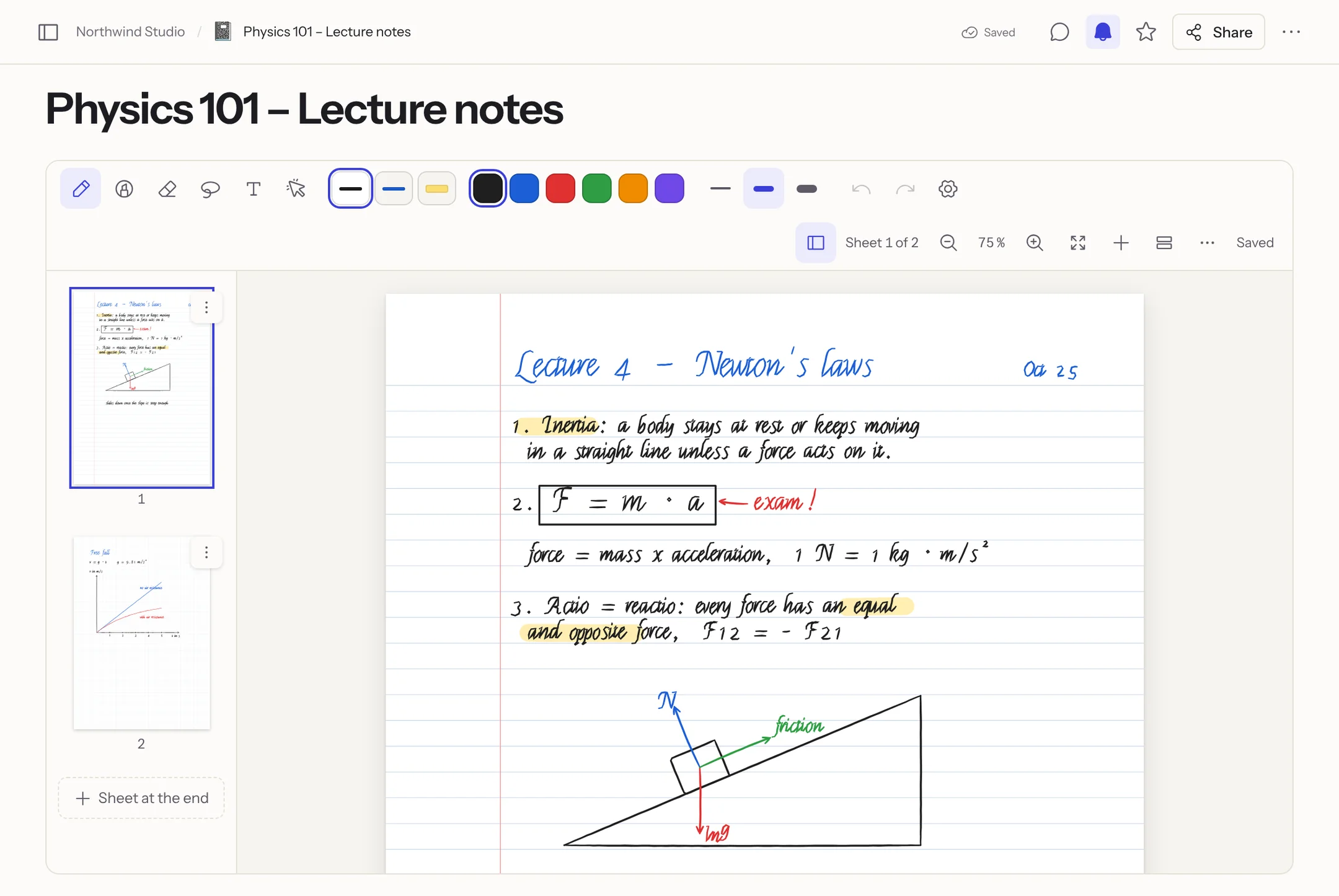
## Creating a notebook
**New page** → **Notebook** (or **New notebook** in the command palette). A new notebook starts with one sheet of lined A4 paper.
**From a PDF:** in the same dialog, choose a file under **Open a PDF as the notebook**. Every page of the PDF becomes a sheet with that page as its background – lecture slides, worksheets or forms are then written on as if printed. **⋯ → Import PDF …** adds more PDF pages to an existing notebook, after the current sheet. Up to 500 pages per import and 1000 sheets per notebook.
**From GoodNotes and other note apps:** export the notebooks as PDF and import them under **Settings → Import & export → Import** with the source **GoodNotes** – several at once or as a ZIP, every PDF becomes a notebook. Step by step: [Moving from GoodNotes](/migrate-notes#from-goodnotes).
## Paper
| Template | Looks like |
| --- | --- |
| Blank | no lines |
| Lined (college) | lines 7.1 mm apart (college ruled) with a margin |
| Lined (wide) | lines 8.7 mm apart (wide ruled) with a margin |
| Grid (5 mm) | squared paper |
| Dotted | dots every 5 mm |
| Cornell notes | title band, cue column on the left, summary at the bottom |
| Music staff | 12 staves (8 in landscape) |
Plus **A4** or **Letter**, **portrait** or **landscape**, and **light** or **dark**. On dark paper, black ink shows light and the highlighter glows.
The lines icon in the toolbar (or **Change paper …** in a sheet's menu) opens the choice. **Apply to**:
- **This sheet** – only the current sheet gets its own paper;
- **Notebook default** – for all sheets without their own paper and for new sheets;
- **All sheets** – sets the default and removes every sheet's own paper.
Sheets from a PDF keep their PDF page and its size.
## Writing
Whoever may edit the page writes right away – there is no "Annotate" step as in the PDF viewer. At the top is the toolbar: **Pen** (with pressure), **Highlighter**, **Eraser** (whole strokes or partial), **Lasso** (move, resize, recolour, copy, duplicate, delete), **Text** and **Laser pointer**, three favourite pens, colours, widths and the pen settings. They work as when [annotating PDFs](/media-and-files#annotate-pdfs): only the pen writes once you have used it, fingers scroll and zoom, a resting hand leaves no marks; holding still at the end of a stroke straightens it into a line, rectangle, ellipse …
Everything is saved as you write (on the right of the toolbar: *Saved*). Every change of a sheet is a version. When two people write on the same sheet at the same time, both keep their strokes; a notice says that someone wrote along. What others write appears after a few seconds.
Readers of the page see all sheets, zoom and export, but no tools.
Besides the preset widths, the slider button sets any line width, with a preview. The **+** after the colours opens a custom colour (colour field, hue, hex value); your recent custom colours are remembered on the device. For **Text** you choose the size (8–96 pt) and the font there: Default, Instrument Sans, Instrument Serif, JetBrains Mono, Caveat or Patrick Hand. In the PDF export Caveat and Patrick Hand come out as Helvetica, Instrument Serif as Times and JetBrains Mono as Courier.
With 'Insert PDF …' (in the plus menu or under 'More actions') you add a PDF to an existing notebook – before the first sheet, after any sheet or at the end; in the page overview, a sheet's menu offers 'Insert PDF before/after …' directly. Each PDF page becomes a sheet of its own with the page as background that you write on as usual (at most 500 pages per PDF, 1000 sheets per notebook). Two fingers zoom smoothly at the spot between them and move the sheets; on a trackpad, pinch or use Ctrl + scroll, and the Apple Pencil keeps writing undisturbed.
Every tool in detail – keyboard shortcuts, favourite pens, shapes and ruler, lasso, handwriting to text, pictures and stickers, audio – is under [Notebook tools](/notebook-tools).
## Page overview
**Overview, contents and presenting.** "All sheets and contents" opens every sheet as a grid. Tap a sheet's bookmark and filter with "Bookmarks only". Search finds titles, typed text and recognised handwriting and marks the matches. To reorder, drag a sheet with the mouse, hold and drag it with a finger or the Pencil, or move it with Alt + arrow keys. Under "Select" (Shift for a range) you duplicate, move or copy several sheets to another notebook, change their paper, export them as PDF or delete them. Deleting can be undone at once and restored for 30 days from "Deleted sheets …". The "Contents" tab lists your chapters (a sheet's menu → "Mark page as a chapter", indent, outdent, rename) and your bookmarks; a tap jumps there. "Insert link …" links to another sheet or page. "Present" shows the notebook full screen, sheet by sheet (arrow keys, Page Up/Down, swipe), with a laser pointer and a marker that fades after a few seconds. Anyone who has the notebook open, even read-only, sees "Follow" and then your sheet and pointer live. Select typed text with the lasso and 'Add to the contents as a heading' adds an entry to the contents that jumps to that spot. With several sheets selected in the overview, 'Paper …' changes the paper of all of them at once.
The sidebar icon on the left of the toolbar shows all sheets as previews; a tap jumps to the sheet. With **⋯** on a preview: **New sheet after**, **Duplicate** (with everything on it), **Change paper …**, **Move up**, **Move down** and **Delete**. You also change the order by dragging a preview or with ++⌥ ↑/↓++ on the focused preview. **+** in the toolbar adds a sheet **after the current sheet** or **at the end**, as does **Add sheet** below the last sheet.
## Exporting as PDF
**⋯ → Export as PDF** downloads the notebook as a PDF: one page per sheet in the sheet's size, paper and handwriting as vectors (sharp at any zoom), PDF sheets with their original page including its text. The Markdown export puts the notebook into the ZIP as a PDF as well and writes a short Markdown file with a link to it and the recognised text. The PDF, Word and EPUB exports show the sheets as pictures (Word: only their text). Published and shared notebooks are read-only.
## Handwriting in documents
Type `/draw` in a document (also `/zeichnen`, `/dessin`, `/handwriting` or `/sketch`): a **drawing block** across the full width appears. With a pen you write on it right away; with a mouse or finger after a tap into the block (or on **Draw**) – so a finger keeps scrolling the document. Then the toolbar appears with the block's **paper** (**Blank**, **Lined**, **Grid**) and **Done**. Drag the bottom edge to change the **height** (or use the arrow keys on the handle).
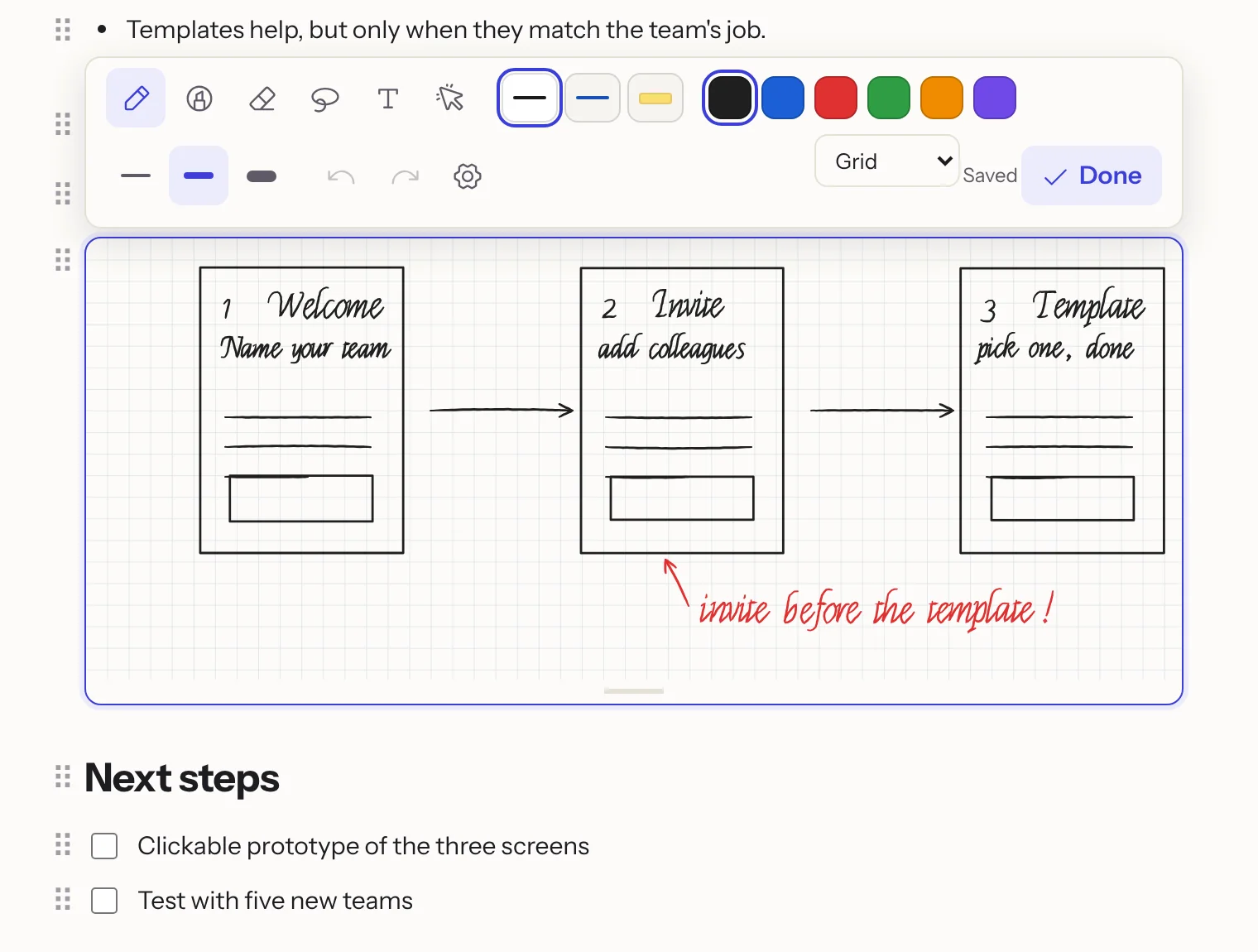
The handwriting belongs to the block and is saved as you draw. For working together this means: when several people draw in the same block at once, their strokes are merged instead of overwritten; the text around it you edit together as always. Copied or duplicated blocks (also into another document) take their drawing along and are independent afterwards. Permissions, locking and the trash work as for the document; on published pages, in share links and in exports the block shows as a picture.
## Recognising handwriting (iPhone and iPad)
In the Flowplan app for iPhone and iPad the device itself recognises what you write – the strokes do not leave the device for this:
- **Search:** shortly after saving, the handwriting of a sheet, a drawing block or a PDF page is recognised and its text saved along. Search then also finds notebooks, documents and PDFs by what is handwritten.
- **Convert to text:** select handwriting with the **lasso** and choose **Convert to text** (the *Aa* icon) in the selection's bar. In a notebook and on PDFs, typed text replaces the strokes in their place; in a drawing block the text becomes a paragraph below the block. Undo brings the strokes back.
In the browser and the desktop app there is no recognition; **Convert to text** does not appear there. Text typed on sheets, in drawing blocks and on PDFs is searchable everywhere.
## Limits
- [Encrypted spaces](/encrypted-spaces) have no notebooks and no drawing blocks.
- Locked pages show the handwriting; it can be changed after unlocking.
- A notebook's page versions only hold its appearance; each sheet has its own versions of the handwriting.
- Drawing blocks exist in documents and journal days, not in the documents of database records.
---
<!-- https://docs.flowplan.org/en/notebook-tools -->
# Notebook tools
Pens, eraser, shapes, lasso, pictures and audio in a notebook – and the keyboard shortcuts that switch between them.
## Keyboard shortcuts
| Key | Does |
| --- | --- |
| ++P H E L T K++ | Pen, highlighter, eraser, lasso, text, laser pointer |
| ++⌘ Z++ / ++⇧ ⌘ Z++ | Undo / redo |
| ++⌘ C++, ++⌘ V++, ++⌘ D++, <kbd>Delete</kbd> | Copy, paste, duplicate, delete the selection |
| <kbd>⌘</kbd> <kbd>+</kbd> / ++⌘ −++ / ++⌘ 0++ | Zoom in, zoom out, fit to width |
| ++⇧ ⌘ ↵++ | New sheet after the current one |
| ++⌥ ↓++ / ++⌥ ↑++ | Next / previous sheet |
| ++⌘ S++ | Save now |
On Windows and Linux use <kbd>Ctrl</kbd> instead of <kbd>⌘</kbd> and <kbd>Alt</kbd> instead of <kbd>⌥</kbd>. On an iPad with a keyboard the same shortcuts apply.
## Tools, favourite pens and eraser
Tap the selected tool again (or the gear) to open its settings: line width with presets and a slider, colour with a custom colour (colour area, hex value, eyedropper where the browser has one), and for text the size and font. + saves the current setting as a favourite pen (up to 8, text too); favourites appear in the toolbar and can be reordered or removed with the pencil button next to them. Favourites are kept per device. The eraser has three kinds: whole strokes, parts only (strokes are split, adjustable size) and highlighter only – the writing underneath stays. "Clear page" deletes everything on the sheet after asking; Undo brings it back.
**Restyle text afterwards.** With the Text tool, tap an existing text box: it opens for editing with a bar above it – font, size (presets, slider or a number, 8–96 pt), **bold**, *italic*, underline, alignment (left, centre, right) with line spacing, and colour; ++⌘ B++, ++⌘ I++ and ++⌘ U++ work while typing. Several text boxes at once: select them with the lasso – the selection bar then shows a second row with the same settings, applied to every selected text box; where they differ it shows "—". Each change can be undone on its own. "Edit text" in the selection bar opens a single text box for typing. The Text tool's panel sets how new text looks. In the PDF export, bold and italic use the standard Helvetica, Times and Courier fonts; the handwriting fonts appear as Helvetica there. Older app versions show such text without this styling; if they save the page, the text stays but the styling is lost.
## Shapes and ruler
Hold the pen still at the end of a stroke and it straightens into a line, arrow, rectangle, circle, triangle, diamond, polygon or star – squares and circles come out exact, lines snap to 15° steps, ends attach to the corners of other shapes. Keep moving without lifting to resize; Undo brings back the freehand stroke. The **Shapes** tool (S key) draws shapes directly or recognises them when you lift, optionally with a semi-transparent fill or dashed lines; in the tool's panel you pick the line style by its line sample (the name shows as a tooltip). Tap a shape with the lasso to move its corners, rotate or resize it, or change its colour, fill, line style and arrow heads. The **ruler** in the toolbar lies on the page at real scale (cm or inches): move it with one finger, turn it with two (it snaps at 0/15/30/45/60/90°); strokes along its edge come out straight and show their length. The **set square** measures angles between lines, and the **compass** draws circles and arcs of a set radius.
## Selecting with the lasso
With the lasso (key ++L++), tap a stroke or text to select just it, or draw a loop around several. Drag the selection to move it; the four corners resize it (Shift or a finger keeps the proportions), the round handle above it rotates it (snapping to 15° steps). On the iPad, two fingers on the selection scale and rotate it. The bar above the selection changes the colour (custom colours too) and line width, cuts, copies, duplicates, brings to front or sends to back, and deletes. Paste cut ink onto another sheet: tap the sheet, then ++⌘ V++ or "Paste". Copied ink is also put on the clipboard as a picture for other apps. Every action can be undone on its own.
## Converting handwriting to text
When AI is set up on your instance and allowed for the page, "Convert to text" turns the selected handwriting into text with the instance's AI model (it must understand images, e.g. a vision model in Ollama). The selected snippet is sent to the model as a picture. You can edit the recognised text, then insert it in place of the handwriting or next to it, or copy it. The feature is not offered in journals with a PIN or on pages closed to the AI.
## Pictures, stickers and own paper templates
**Pictures and stickers.** Use **Insert** (picture icon) to put a picture from a file, straight from the camera, from the page's pictures, or a sticker on the sheet; you can also paste pictures (++⌘ V++) or drag them onto a sheet. A picture appears in a frame: drag to move, drag a corner to resize (Shift: freely), use the handle above to rotate. The frame offers crop, bring to front/send to back (over or under the handwriting), opacity, duplicate, delete and "Save as sticker". Tap a picture with the lasso to edit it again. Pictures are attachments of the page, included in search and in the PDF export. Your own stickers (from pictures or lasso selections) are visible only to you, in every notebook of the workspace.
**Own paper templates.** In the paper dialog, **Own › Add template …** turns a picture or a PDF page (a planner page, say) into paper, stretched or tiled. Templates belong to the workspace; whoever added one (or an owner) can rename or delete it. Sheets keep their paper even when the template is deleted.
## Recording audio
Tap the microphone in the notebook bar and choose **Start recording**. While it runs (up to three hours), Flowplan remembers for everything you write the moment in the recording. The bar shows the time and the level; you can pause and stop. When you stop, the recording is uploaded and attached to the notebook; it counts against your storage. If the page reloads or the connection drops, the recording stays on the device and Flowplan offers to save it the next time you open the notebook.
To play it, choose the recording in the list. What was written during it starts out faded and appears as the recording reaches it. With **Play from here** (hand icon) or a long press with your finger you jump to the moment something was written. Speed: 1×, 1.5×, 2×. Recordings can be renamed, downloaded and deleted (they go to the trash); they come along with copies and exports of the notebook. In the app, Flowplan needs access to the microphone (Settings › Flowplan › Microphone).
---
<!-- https://docs.flowplan.org/en/journal -->
# Journal
A journal is a page with one sub-page per day. In the morning today's page is ready, with yesterday's open tasks already on it.
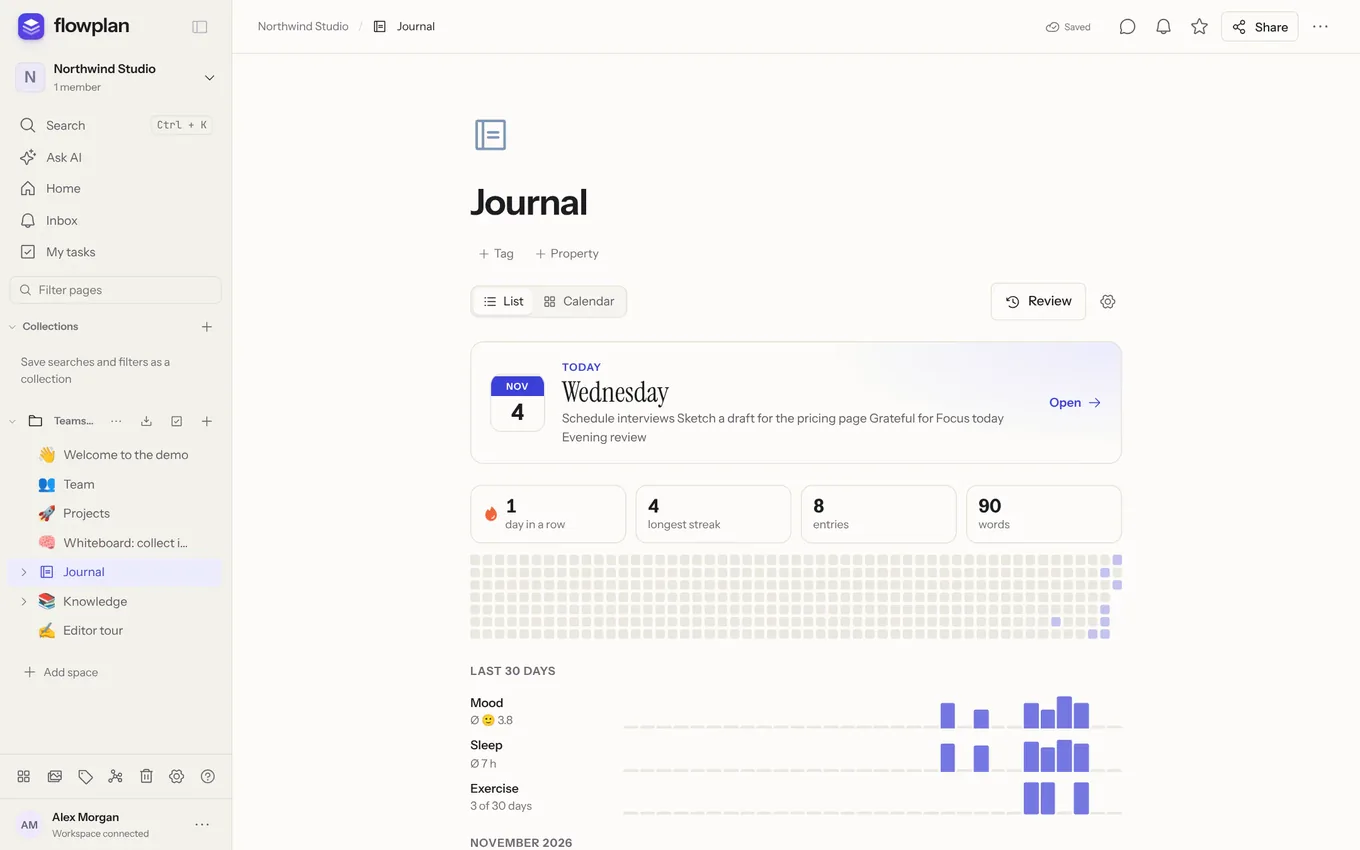
## Create a journal
**New page → Journal**. The page shows **Today** at the top and the past days below it with relative labels such as "Yesterday". The day pages are named after the date automatically, such as "Saturday, 26 September 2026".
## How a day comes about
- When a new day is opened for the first time, Flowplan creates its page. The day starts at midnight in your time zone.
- **Open tasks** from the last day move over – including nested sub-tasks. This includes tasks **in progress** `[/]`, **deferred** ones `[>]` and those with another Obsidian symbol such as `[?]`; done and **cancelled** `[-]` tasks stay on their day, as do empty tasks without text. A small ↻ at the corner of the checkbox shows that a task was carried over from an earlier day.
- Completed tasks and the rest of the text stay on their day.
- **Empty days disappear**: if a day got nothing of its own besides carried-over tasks, it is removed again on the next day. This way the journal only contains days on which something happened.
### Create the day's page: automatically or on the first write
Under **Set up journal → Days** you decide when today's page is created:
- **Automatically** (default): as described above, as soon as the day starts and the journal or the app is opened.
- **On the first write**: **Today** first shows a **draft** with the template and the tasks that would be carried over from the last day. Nothing is saved yet – the top bar says "Draft – created when you start writing". Only the first keystroke, a ticked task, a tracker value, a place or a file creates the page. Until then carried-over tasks stay on their day, and the draft appears neither in the sidebar nor in search, graph or export.
The draft is the same on every device: if two devices start writing at the same time, exactly one page is created and both texts end up in it. If what the day starts with changed in the meantime (for example because a task was ticked yesterday on another device), Flowplan opens the stored page and says so. Text typed offline stays on the device and creates the page as soon as the connection is back.
Every day remembers which version of the template it was created from. A day that only holds that template counts as empty even if the template was changed later.
### Remove empty days
**Set up journal → Days → Find empty days** lists old days on which nothing was written: only the template, no open tasks of its own, no tracker values or places, no files, comments, sub-pages, favourites, shares or links from other pages, title and icon unchanged (upper/lower case or spaces do not count as a change). Today always stays. You untick what should stay and move the rest with **Move … days to the trash** – days can be restored from there. Flowplan never removes or merges old days on its own.
## Daily template
**Set up journal** (gear on the journal page) → **Template**: every new day starts with this content, such as "Grateful for", "Focus today" and "Evening review". Ready-made templates are available (gratitude & focus, 5-minute journal, work log, daily review); **Use today** makes the current day the template. Tasks from the template come back every day and are not carried over in addition. A day that only holds the template counts as empty and disappears like any empty day.
**Carried-over tasks** (also under **Template**) decides where the open tasks of the day before go in a new day: **At the top** (the default, before the template), **After the template** or **Below the heading …** – the template's headings are offered. With a heading, the task list goes directly below it, before whatever the template puts there. If the template no longer has the heading, the tasks go after the template. This applies to days created automatically as well as to the draft with **On the first write**.
## Trackers, place and appointments
Above every day there is a bar:
- **Trackers**: mood (😞 to 😄), scales from 1 to 5, numbers with a unit (e.g. sleep in hours) or yes/no (e.g. sport). You decide which ones exist under **Set up journal → Trackers**.
- **Place**: enter freely; **Location** also stores the device's coordinates with a link to the map.
- **Appointments**: records of all databases with a date that you may see, including recurrences. Under **Set up journal → Calendar** you can also add a calendar via an iCal link (Google, Apple, Outlook, Nextcloud …).
In the settings under **Day bar**, place and appointments can be switched off for the whole journal.
### Completed this day
Below every day, **Completed this day** lists the database records that were completed that day and the tasks ticked off in a document that day – including those of your page "Tasks" from **My tasks** – each with the time, a link and the name of the database or page. Tasks carry a small task symbol. The list is worked out each time the day opens and is not copied into the day; tick a record off elsewhere (in another tab, too) and it is there when you come back.
- A record counts on the day it was last completed, and only while it is still done by its database's done rule – reopen it and it leaves the list. The day follows your time zone.
- **All / Only mine** at the top of the list: **Only mine** (the default) shows the records you completed yourself and those a person property assigns to you, whoever ticked them off. When an automation completes a record, it counts for the person who set up the automation. The choice is yours for this journal, on all devices.
- Only records you may see appear – no private records of others, nothing from locked journals or encrypted spaces. On a day with nothing completed, the list is missing; beyond 100 records it ends with "and … more".
- It can be switched off for the whole journal under **Set up journal → Day bar → Completed this day** (on by default).
- A task counts on the day it was last ticked off, and only while it is done – reopened or **Cancelled**, it drops out. Tasks of the day itself are in the day already and do not appear here. With **Only mine**, the tasks you ticked off or that are given to you count.
- If you change the text of a completed task, it stays in the list – with its new text.
### Meeting notes
Next to every appointment there is **Create meeting note**. Flowplan creates a page below the journal – with the title and date of the appointment, the **Attendees**, an **Agenda**, **Notes** and **Tasks** – and opens it. Afterwards the appointment shows **Open note**.
- **Attendees**: from the connected Google or Outlook calendar, from the iCal link and from person properties of the record. Whoever is a member of the workspace with that e-mail address is mentioned; others are listed with name and address.
- **Tasks** with @person show up for that person in **My tasks** right away.
- For records of a database the note links the record. A PIN lock of the journal also covers its meeting notes.
- The same outline is available as the template **Meeting note** under **Templates → Meetings**.
## In the sidebar
Even after years with thousands of days, the journal stays short in the sidebar. Below the journal you find:
- **Today** – also when today's page has not been created yet; a click opens the day,
- the **last 7 days**,
- **All days …** with the number of all days: opens the journal page at its list or calendar.
Other sub-pages of the journal (such as meeting notes or monthly summaries) follow below as usual.
Under **Set up journal → Days** you choose for each journal which **days appear in the sidebar**:
- **None**
- **Last 7 days** (the default)
- **Grouped by year and month**: as above, older days in addition in folders by year and month, such as "October 2026 · 18". The folders only exist in the sidebar, they are not pages – you cannot drag anything into them.
- **All**: every single day, as before.
When a day is open, the sidebar always shows it – also when it is older than 7 days; in the grouped view its year and month unfold. Days can still be dragged, and the arrow keys work in the folders too (→ opens, ← closes or jumps to the folder above).
## From day to day
Above every day page there is a bar:
- **← Previous day** and **Next day →** jump to the previous or next day with an entry – gaps are skipped.
- **Today** opens today's day.
- The **month** (such as "October 2026") opens a small calendar: days with an entry are highlighted and can be opened. The arrow keys move by a day or a week, <kbd>Page ↑</kbd>/<kbd>Page ↓</kbd> by a month; <kbd>Esc</kbd> closes it.
From anywhere, ++⌘ ⌥ Y++ (Windows/Linux: ++Ctrl Alt Y++) or the command **Journal: Today** in the quick search (++⌘ K++) takes you to today – of the journal used last. With several journals the quick search offers one entry per journal. The shortcut can be changed (see [Keyboard shortcuts](/keyboard-shortcuts#your-own-shortcuts)).
The streak, heatmap and tracker history on the journal page and the review of a week or a month are described in [Overview and review in the journal](/journal-review).
## PIN lock
Under **Set up journal → Lock**, a PIN of 6 to 8 digits protects the journal (shorter PINs set earlier keep working): days, search, previews and images stay hidden until the PIN is entered. After 15 minutes or with the lock button it locks itself again. After five wrong attempts there is a five-minute pause, after twenty in one day it is over until the next day – across server restarts too. When another person enters a wrong PIN five times, the person who created the journal gets a notification. Only the person who created the journal and the workspace owners may set or change a PIN. Changing or removing it requires the current PIN – a wrong one counts against the same limits as when unlocking, and after five wrong ones the person who created the journal is notified as well. If the PIN is forgotten, owners can remove it on the lock screen with **Reset PIN**. Like other important steps, they confirm this once more – with their password, a code from the authenticator app or a passkey, or, without any of these, with a sign-in no more than ten minutes ago. The reset is recorded in the activity log and the journal's creator is notified. The lock also covers sub-pages of days, databases below the journal (their records, relations, calendar subscriptions and CalDAV) as well as export, the content archive, comments and duplicating – unlock first for those. It protects against glances but is no encryption: whoever has access to the server's backups sees the content.
A journal with a PIN stays private: setting the PIN revokes every share link and publication of the journal and the pages below it, switches off public forms of its databases and takes the journal out of links and publications of pages above it. The message after locking says how many there were; the security log records it. No new links, publications or public forms can be created for a journal with a PIN – not even while it is unlocked. Sharing or publishing a page above it with its sub-pages leaves the journal out. Forms for members only stay.
## If today's page was deleted
If today's page is in the trash, the journal says so and offers **Create again** (a fresh page for today; with **On the first write** a new draft) or **Restore from trash**.
## Days in lists, search, graph and export
A journal soon has hundreds of days. So that they do not crowd out other pages:
- **Search and @ mentions**: days come after all other hits. The filter **Without journal days** in the quick search leaves them out completely (it stays on for the next search).
- **@heute**, **@gestern** and **@2026-10-27** (also `@today`, `@yesterday`) insert a link to that day of the journal while writing – the journal in the page's space, otherwise the one written in last. Today works as when opening the journal: the page is created or, with **On the first write**, the link goes to the draft. Days without an entry cannot be linked.
- **Graph**: under **Journal days** the graph hides the days, shows **one dot per month** (default) or **each day**.
- **Counting**: the home page, space settings and administration count days separately, such as "120 pages · 340 journal days".
- **Export**: in the Markdown ZIP, the scheduled export and Git, days sort by path in their journal's folder under `2026/10/2026-10-27.md` – see [Import, export and versions](/import-export-versions).
Journals behind a PIN you have not entered appear in none of these – not even in the numbers.
## Tips
- `/todo` or `[]` + space creates tasks that move along. They also appear under **My tasks**, without any @mention.
- Day pages are normal documents: headings, tables, images, mentions – everything works.
- Journals can be shared like any page. Whoever may only read sees the days but does not create any.
- The quick search finds entries across all days; **Without journal days** hides them.
## Workflows
The workflow trigger **New journal day** starts a [workflow](/workflows) when a day's page is created – so when the day is first opened or written in (or automatically, if the journal creates days itself), not at midnight. For fixed times there is the **Schedule** trigger. Journals with a PIN are closed to workflows.
With the step **Append to journal day**, a workflow writes into a day: today, yesterday or a given date, at the end of the day or below a heading. If the day does not exist yet, the workflow creates it the way opening it would – with the template and the carried-over tasks. More under [Workflow nodes](/workflow-nodes#pages).
---
<!-- https://docs.flowplan.org/en/journal-review -->
# Overview and review in the journal
Streak, heatmap and tracker history on the journal page, and the review of a week or a month – as numbers, as a page or summarised by AI.
## Overview on the journal page
- **Streak**: how many days in a row you have written, plus the longest streak, entries and words.
- **Heatmap**: the last year as squares, the darker the more you wrote. A click opens the day.
- **On this day**: entries from a week, a month, half a year and whole years ago.
- **Last 30 days**: the course of every tracker.
- **List or calendar**: the list shows an excerpt, place, mood and the first photo of each day; the calendar shows a month with photos as backgrounds.
## Review
**Review** sums up a week or a month: days, words, completed and still open tasks, tracker averages, places and photos. **Copy as Markdown** takes the summary along, for example into a weekly report.
### Summarise with AI
**Summarise with AI** in the review has the [AI](/ai-writing#summaries) sum up the week or month shown: highlights and achievements, a chronological overview and what is still open or needs following up – in the interface language. It works from each day's text, the completed and still open tasks, the trackers and places.
- The result appears as a **preview** first; nothing is saved. **Copy**, **Retry** and **Discard** sit below it.
- **Save as page** creates a sub-page of the journal, such as "AI summary October 2026", with a note that it was made with AI. There is one such page per journal and period: ask again for the same period and the review offers **Open** or **Create again and replace**. Replacing changes the page's content; the previous state stays in the version history.
- A journal with a [PIN](/journal#pin-lock) is closed to the AI, even while it is unlocked. Days closed to the AI ([Close pages and spaces to AI](/ai#close-pages-and-spaces-to-ai)) stay out, with everything that belongs to them.
- The button is only there when summaries are available to you and the AI may read the journal; otherwise it is greyed out or missing. The AI reads long periods in parts.
### Monthly summary
In the review of a month, **Create monthly summary** creates a normal sub-page of the journal – not a day – and opens it, such as "Monthly summary October 2026". It holds:
- days, words, completed and still open tasks in numbers,
- **Highlights**: tracker averages, places, photos and the completed tasks with a link to their day,
- **Still open**: tasks from this month that are still open today, with a link to the day they are on now,
- **Days**: every day as a link with the beginning of its text.
The page is built from your entries alone, without AI, and can be edited freely afterwards. If the month already has a summary, the review offers **Open monthly summary**; **Create a new one anyway** deliberately adds another one.
---
<!-- https://docs.flowplan.org/en/databases -->
# Databases
A database is a collection of records with properties. The same records can be shown as a table, board, calendar, timeline, gallery, list, feed, chart or form.
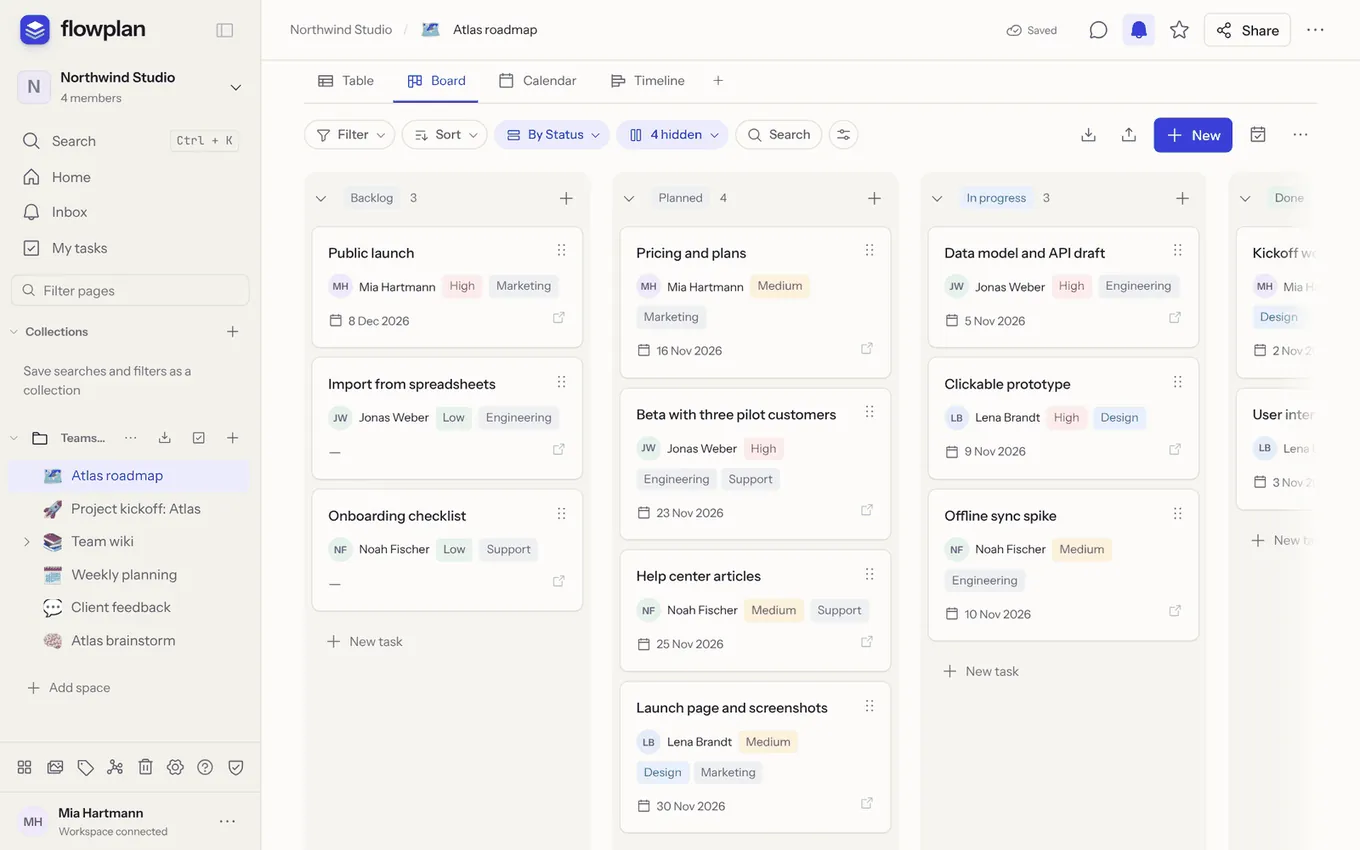
**More on this topic:** [Database properties](/database-properties)
## Create a database
**New page → Database** shows the **Kind** right below as one row to choose from, with the properties of the chosen one underneath:
| Kind | Properties | First view |
| --- | --- | --- |
| **Tasks** | Task, Status, Priority, Due, Assignee, Tags | Table "All tasks", plus board, calendar, timeline … |
| **Documents** | Title, Tags, Created, Edited | List "All documents" (last edited first), gallery, table; records open as a full page, empty properties are hidden |
| **Contacts** | Name, First name, Last name, Company, Position, E-mail, Phone, Mobile, Street, Postal code, City, Country, Birthday, Tags | List “All contacts” (by last name), Table, calendar “Birthdays”, Gallery; records open as a profile page with a contact card – see [Contacts](/contacts) |
| **Empty** | only a title | Table |
Below are **Your templates**: saved database templates, such as your own "Notes (PARA)" database with relations and views. The device remembers the last choice. Alternatively use a [template](/templates), such as "Tasks" or "Projects", or import a CSV file (see [Import, export and versions](/import-export-versions)).
## Records
- **New** at the bottom of the table or at the top right creates a record and opens it with the title selected – just start typing, <kbd>Enter</kbd> saves.
- **Editing:** in the table <kbd>Enter</kbd> saves numbers too; a double-click on a multi-select only opens it without ticking an option. <kbd>Esc</kbd> closes an open record – what you typed into the title or properties stays saved.
- A click on the title opens the record as a page: the title at the top to edit directly, the properties below it, and below them a full document with the same editor as every other page – including comments, version history and editing together.
- **Open records as** (sliders at the top of the record → layout, for all records of the database; a view can choose differently under **Configure view**): **Side peek** to the right of the view, **Centred** as a dialog over the view (the default) or **Full page** – the record then fills the content area next to the sidebar like any page, with no database behind it.
- **Open as page** (arrows at the top of the record) shows a record once as a full page, in a new tab with ++⌘/Ctrl++-click or the middle mouse button. Get back through the path in the top bar, the back button or the arrows at the top of the record (back to the side peek or the dialog).
- Also at the top right of a record: the star for favourites (in the sidebar a favourite opens the record as a full page), **Copy link** for the record's address, **Share** for links and the publication of only this record ([Share a single record](/sharing#share-a-single-record)), the lock for the record's permissions and the sliders for the layout of all records. **Icon** and **Cover** appear when the pointer is over the title.
- **Reading mode** (book icon at the top of the record or ++⌘ ⌥ E++) opens a record's text for reading only, as for pages; the device remembers it per record. Opened as a full page, **Full width** uses the whole screen – the properties keep a readable width, the text gets the space.
- An open record has its own address (`/#page=<database>&row=<record>`, as a full page with `&full=1`). It can be shared, bookmarked or linked in texts with `@`; the browser's back and forward move between database, dialog and full page. Below the properties, **Linked from** shows which records refer to it through a relation and which pages and records link to it in their text.
- **Record templates** give new records properties and content. One template can be the default for new records.
- Select several records (checkboxes on the left) and edit, duplicate or delete them together – up to 500 at once. Flowplan saves a state beforehand that can be restored from the version history.
- Deleted records sit in the database's trash and can be brought back – with their versions, the comments visitors left through a share link and the reactions on comments. This also works when a record linked two-way has been deleted meanwhile; only that link is dropped. Right after deleting it is quicker: **Undo** in the notice at the bottom (or ++⌘ Z++ while it shows). A bulk edit of several records, a record dragged into another column, a removed date and a deleted property can be taken back the same way.
### Sub-pages of a record
A record can hold pages of its own – call notes, a specification and flowcharts below a requirement, for example:
- **Add sub-page** below the record's document (in the dialog and as a full page) creates a page below the record and opens it. Its **Sub-pages** are listed above.
- Existing pages go there with **Page actions → Move** (the database as parent page, then choose **Below record**) or by drag and drop onto the record's sub-pages or onto the record in the sidebar. Several selected pages can be moved onto a record that already has sub-pages.
- In the **sidebar**, an expanded database shows the records that have sub-pages, with their sub-pages; the other records stay in the database. The path in the top bar shows database → record → sub-page.
- Sub-pages follow the **record's permissions**: whoever does not see a private record does not see its sub-pages either; a read-only record makes them read-only for editors. Adding or moving pages there needs edit rights on the record.
- **Deleting** the record moves its sub-pages to the trash with it; **restoring** brings them back, deleting for good removes them. **Move to …** another database takes them along; **Convert to page** makes them sub-pages of the new page. **Duplicate** and **Copy to …** copy the record alone; a copy of the whole database includes the sub-pages.
- Stand-in pages from an earlier Notion migration (a same-named page holding the sub-pages) are dissolved by moving their sub-pages below the record and deleting the empty page.
### Move a page into a database
**Page actions → Move into database …** turns a document page into a record of a database you may write to – for example to bring grown documentation into a notes database:
- Title, icon and cover become the record's title, icon and cover, the content its document; files and images stay the same files (they then belong to the database).
- The page's tags go into the database's (first) multi-select with the [workspace's tags](/database-properties#multi-select-with-the-workspace-tags), if there is one and you may change it.
- Comments, text comments, tasks and versions come along; favourites become record favourites.
- Links to the page in all pages and records of the workspace then point to the record.
- Sub-pages stay pages and become [sub-pages of the record](#sub-pages-of-a-record); with a database in another space they move up one level. Permissions for people set on the page keep applying to them.
- Sharing of only this page (permissions for people, share links, publication) ends – the dialog lists it first; the record follows the database's permissions. The database's default record template applies.
- The page itself goes to the trash.
### Turn a record into a page
The other way round, **Turn into page …** makes a record a document page again – in the **…** menu at the top of the open record or with a right-click on the record. You need edit access to the record and write access at the target location:
- Title, icon and cover become the page's title, icon and cover, the record's document its content; files and images stay the same files (they then belong to the page).
- The properties stay as a short "Property: value" list at the top of the page (readable in a Markdown export too); in the dialog you can drop them instead.
- The tags from multi-selects with the [workspace's tags](/database-properties#multi-select-with-the-workspace-tags) become the page's tags.
- Comments, text comments, tasks and versions come along; record favourites become page favourites.
- Links to the record in all pages and records of the workspace then point to the page – @ links and backlinks keep working.
- The page goes where the database is, or to another location of your choice, and follows its permissions. The record's own permissions and relations from other records to it end – the dialog lists them first.
- The record itself goes to the database's trash and can be brought back.
### Copy and move records
A **right-click** on a record – in a table, board, list, gallery, calendar or timeline – opens its menu: **Open**, **Duplicate**, **Copy to …**, **Move to …**, **Turn into page …** and **Delete**. When several records are selected, the menu applies to all of them; the selection bar also has **Move / copy to …**.
**Copying records:** with records selected in the table view, **Copy** in the selection bar (or ++⌘/Ctrl C++ while no text is selected) puts them on the clipboard – with the view's visible columns as the header row, in the table's order. Pasted into Excel, Numbers or Google Sheets, every value lands in its own cell; in a document it becomes a table. Values come out as the table shows them: numbers in the column's format, select and person columns by name, relations by the record's title, checkboxes as Yes/No.
In the dialog you choose the target database in the same workspace:
- **Copy** creates new records – with properties, content, icon and cover. Files and images of the source database are copied too, so the copy does not depend on the source. Only files that belong to the source database, that you may see and that are not in the trash are copied; a reference to any other file stays a reference and keeps that file's permissions.
- **Move** takes the record itself: content, comments, version history, tracked time and Git links stay with it. In the new database it gets the next number (ticket ID).
- Properties are matched **by name**, the title always to the title. Compatible types are converted (text ↔ e-mail, select ↔ multi-select, number → text …); missing select options are added to the target. **Create missing properties in the target** adds properties the target does not have yet.
- Calculated values (formulas, rollups, progress, created/edited) are worked out again in the target.
Dragging is quicker: **drag records by their handle (with the mouse also by the card) onto a database in the sidebar** to move them there – the target database is highlighted; hold <kbd>Alt</kbd> when you let go to copy them instead. Flowplan saves a state of the source beforehand.
## Large databases
Tables, lists and galleries first show 100 records; the next 100 follow as you scroll, and groups and board columns have **Show more**. Search, filters, sorting and column calculations still always apply to all records. This way even databases with thousands of records open in a fraction of a second.
## Filter, sort, group
Every view has its own settings:
- **Filters** with AND/OR groups; for date fields also relative periods ("this week", "last 30 days") that update themselves every day.
- **Dates and time zone:** on **Created at**, **Edited at** and date fields with a time, *is*, *is not*, *before*, *after*, *on or before*, *on or after* and *is between* count the day the moment falls on in the filter's time zone – a record from 11:30 pm belongs to that day, not the next. The default is your browser's time zone; it shows in the filter and can be changed there, as for relative periods. Dates without a time stay calendar days. Older filters keep using the UTC day until you edit them. The same goes for conditions in automations.
- **Sorting** by several properties. People, **Created by**, **Edited by** and sprints sort by name, relations by the title of the linked record – the way the table shows them.
- **Grouping** by almost any property (except files and checklists), with up to five levels in tables and lists; boards show the second level as rows (swimlanes).
- **Search** within the database, also in the text of the record documents.
- **Column calculations** below table columns: sum, average, median, minimum, maximum, percentages, earliest and latest dates and more.
## Recurring records
Date fields can repeat daily, weekly, monthly or yearly. Calendar and timeline show the occurrences; it remains a single record. If needed, a single occurrence can be detached as a record of its own.
### Repeating tasks
For tasks that are ticked off one by one each time (“monthly closing”, “server updates”), set a rhythm in the record under **Repeating task**: daily, weekly (optionally on certain weekdays, e.g. Mo, We, Fr), monthly or yearly, each every N days, weeks, months or years. With several date fields you choose which one moves on.
As soon as the record is done (status or checkbox, see [When is a record done?](/projects-and-tickets#when-is-a-record-done)), Flowplan creates the next record: a copy with the status it had before, the chosen date on the next occurrence and every other date field moved by as many days. The rhythm moves to the new record; reopening and completing the old one again creates nothing more.
- Month ends are clamped but the day is kept: 31 January → 28 February → 31 March.
- 29 February becomes the 28th in common years and the 29th again in leap years.
New records at fixed times – whether or not the last one is done – come from [scheduled automations](/projects-and-tickets#scheduled-automations).
## Date reminders
In a record, everyone can set a personal reminder for every filled date field – for times at the appointment or 5 minutes to 1 week before, for all-day dates on the day or 1, 2 or 7 days before at 09:00. Reminders appear in the inbox and as a push notification and do not change the record.
## Permissions per record
The permissions icon at the top of a record restricts a record beyond the permissions of the database:
- **Same as database**: the default.
- **Read-only record**: only its managers (page owners and the person who created the record) and people it is explicitly shared with may change it.
- **Private record**: only its managers and people it is shared with see it – together with its comments, tasks and files (in the file list, search, media library, copies, templates and backups).
Shares with people or groups never go beyond their role on the database page.
## Automations and workflows
Recurring steps of a database – set a date, notify, apply a template – are done by [automations](/projects-and-tickets#automations) under **… → Automations**. For longer flows with branches, waits, approvals, AI, e-mails or other services there are [workflows](/workflows); every rule can be extended into one with **Open in canvas**.
---
<!-- https://docs.flowplan.org/en/database-properties -->
# Database properties
A database's property types at a glance, colours for select options, formatted text in fields and multi-selects with the workspace's tags.
## Properties
| Type | Content |
| --- | --- |
| Text | Formatted text: bold, italic, strikethrough, code, links, line breaks (see below) |
| Number | Numbers with a format: currency, percent, decimal places, thousands separators |
| Date | With or without time and end date, time zone, personal reminders, recurrence |
| Select, multi-select | Options with a colour each ([see below](#option-colours)), e.g. for status or tags |
| Checkbox, checklist | Tick off; checklists with several items and progress |
| URL, e-mail, phone | Clickable |
| Person | Members of the workspace; assigning someone notifies them |
| Files | Attachments and images right on the record |
| Relation, rollup | A link to records of another database and calculations over them |
| Formula | A value calculated from other properties |
| Created time/by, edited time/by | Maintained automatically |
Relations, rollups and formulas are described under [Properties, formulas and rollups](/properties-and-formulas).
### Collapsing properties in a record
Below a record's title, the **Properties** arrow folds the properties into one line: the two or three most relevant values as small chips (status first, then selects, dates and people) and “+4 properties”. A tap on the line opens it again. The record's content moves up – especially useful on a phone.
- The choice applies to **all records of the database** and is stored in your account, **separately for phone and computer**: collapsing on the phone leaves everything visible on the computer.
- Without a choice of your own, properties are expanded on a computer; on a phone they are collapsed as soon as the record shows more than four properties. A record you have just created always opens expanded so you can fill it in.
- Collapsing changes no values and no permissions and only applies to you. Printing and exports always show all properties – unless you turn them off in the [print options](/print-and-pdf#print-and-pdf).
- Ordinary pages have the same in the [bar with tags and properties](/page-tags#collapsing-the-bar).
### Option colours
Every option of a select or multi-select can have its own colour – grey, blue, green, red, yellow, orange, purple, pink or teal, the same colours as [tags](/page-tags). The colour shows wherever the value appears: table, board columns, list, gallery, feed, groups, filters, in the record, in forms (multi-selects) and on published pages.
- **Changing it:** in the property's settings (click the column header), every option is listed as a chip below the options – click one to pick its colour. Faster, on the value itself: right-click a chip in the table or the header of a board column and choose a colour. It is saved at once; **Undo** in the notice brings the old colour back.
- **New options** get the next colour in turn by themselves – whether you type them in the settings, add a board column or they come in through an import, the API or AI. A renamed option keeps its colour.
- **Assign colours automatically** colours all options of the property in turn at once (replacing the colours set so far). **Undo** next to it or closing without saving discards it, **Save** keeps it.
- **Existing databases** look as before until you set colours: options without a colour are grey, only a few fixed words such as “Done” or “High” are coloured.
- **Import:** Notion's HTML export brings the options' colours along (Notion's brown becomes orange, “default” grey), as does AFFiNE; CSV, Markdown, Jira and Trello get colours in turn. When records are moved or copied to another database, new options take their colour along. The CSV export has no colours.
- **API and MCP:** `database.update` accepts and returns `optionColors`, e.g. `{"Open": "blue"}`. Without `optionColors` the stored colours stay; `{}` removes them.
- A multi-select with the workspace's tags ([below](#multi-select-with-the-workspace-tags)) shows the tags' colours.
### Formatted text
Text properties – all except the title – can contain **bold**, *italic*, ~~strikethrough~~, `code`, links and line breaks. These are marks within the text only, no blocks: headings, lists, quotes or tables are not available there (that is what the record's own text is for). There is no underline.
- **Editing:** click the cell in the table, or the field in the record. When text is selected, a small bar with bold, italic, strikethrough, code and link appears above it.
- **Shortcuts:** ++⌘ B++ bold, ++⌘ I++ italic, ++⌘ ⇧ X++ strikethrough, ++⌘ E++ code, ++⌘ K++ links the selected text (without a selection ++⌘ K++ opens the quick search as everywhere). Links only go to `http`, `https` and `mailto`; `example.com` becomes `https://example.com`, an e-mail address a `mailto:` link. An empty field removes the link.
- **Line break:** ++⇧ Enter++. In a table cell <kbd>Enter</kbd> ends editing and saves, <kbd>Esc</kbd> discards it. In the record, in the feed and when editing through a share link, <kbd>Enter</kbd> also makes a line break; the value is saved when you leave the field.
- **Display:** formatted in table, board, gallery, list, feed, the record, published pages and embedded views. In table cells and on cards a line break shows as a space (the row stays one line), in the record and the feed as a break. Links open in a new tab; on cards that are links themselves they stay text.
- **As plain text** the value counts for search, filters (*contains* …), sorting, grouping, formulas (`prop("Note")` returns the text without formatting), copying to the clipboard, the CSV export, the apps' widgets and placeholders in templates and automations.
- **Pasting** from Word, Google Docs or web pages keeps bold, italic, strikethrough, code and links; headings become bold, paragraphs and list items line breaks, images and tables are left out.
- **Import and export:** CSV (including Notion exports), Jira and Trello, vCards, LDAP and form answers are plain text – asterisks and underscores stay as written. Tables from AFFiNE and tables from documents (**Turn into database**) keep their formatting. The Markdown export writes the formatting as Markdown, the CSV export plain text. Older content archives come in as plain text.
- **Existing values** from before this feature look as they did: `*asterisks*` keep their asterisks.
- **Changing the type:** when another property becomes text, its values stay as written; when text becomes another type, the text without formatting counts.
- **API and MCP:** the value is a string with inline Markdown: `**bold**`, `_italic_` (or `*italic*`), `~~strikethrough~~`, `` `code` ``, `[label](https://…)` and `\n` for a line break. A backslash keeps `` \ * _ ~ ` [ ] `` as characters – so send plain text escaped. Links with other schemes (such as `javascript:`) show only their label; `# ` or `- ` at the start stay text. The title is plain text.
### Multi-select with the workspace tags
Instead of its own list, a multi-select can have the **workspace's tags** as its options – the same tags pages carry. In the property's settings (click the column header), under **Options**, choose between **Own list** and **Workspace tags**.
- The property offers the tags that apply in the database's space – those of the whole workspace and those of the space (see [scope](/page-tags#scope-workspace-or-space)) –, with their colours and in their order; a new tag from a record belongs to the database's space; cells, board columns and cards show the tag colours. In a record you pick with **+ Tag** as on pages: typing suggests matching tags, <kbd>Enter</kbd> takes one.
- A value that is not a tag yet creates the tag – as on pages, members with edit rights may do that. Readers, guests and read tokens only pick existing tags. On a board, **+ Group** creates a new tag for such a property.
- It stays a multi-select: filters, sorting, grouping, board columns, formulas, automations, import and export (Markdown, CSV, Git), API and MCP work as usual. The tag names are stored.
- **Renaming, merging and deleting** a tag (Settings → Tags & properties) changes every record with that tag as well: a renamed tag shows under its new name, merging turns the one tag into the other (without duplicates), a deleted tag disappears from the records. Filters and board columns of views follow; Flowplan first keeps a version of every database affected in its version history.
- Records with tags appear in the [tag view](/page-tags#tag-view) next to the pages and are found with `#tag` / `-#tag` in the search.
- **Switching** an existing multi-select to the tags: its options are matched to tags (ignoring case), missing tags are created; the records keep their values, now with the tag's exact name. **Back to “Own list”**, the tags become its own options – the ones in use first, at most 100; the values stay. The options keep the tags' colours.
- Guests only see the tags used in the records shared with them as options and create none. Through share links a record only offers its own tags.
- In [encrypted spaces](/encrypted-spaces) the option does not exist (like tags on pages).
---
<!-- https://docs.flowplan.org/en/views -->
# Views
A database can have as many views as you like. Every view shows the same records with its own layout, filters, sorting and groups.
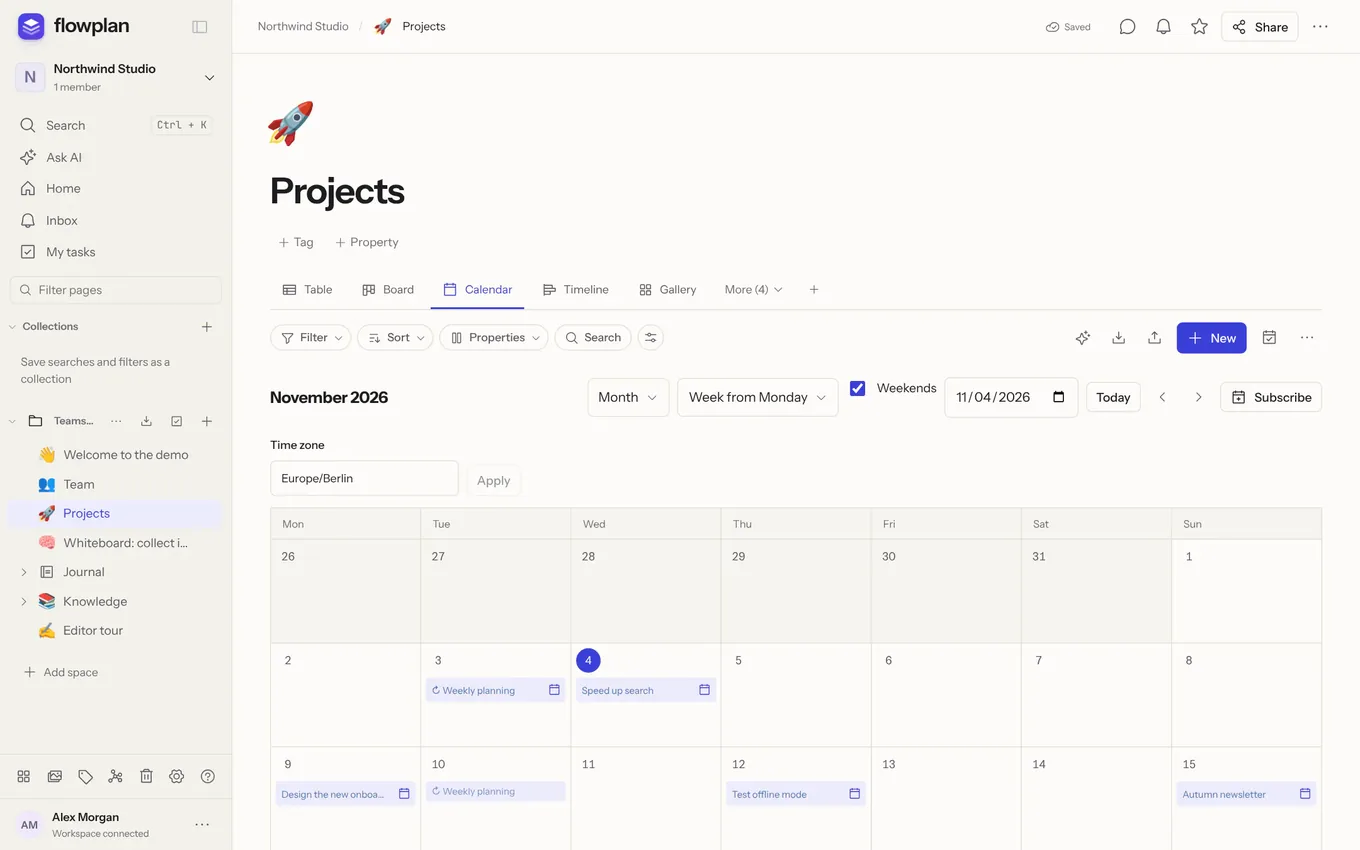
New view: **+** next to the view tabs, then choose one of the ten layouts. **View and properties** controls which properties are visible and in which order.
A **right-click on a view tab** opens its menu: **Rename**, **Duplicate**, **Settings …**, **Set as default view**, **Move left**, **Move right** and **Delete view** (the records are kept; the last view cannot be deleted). With the mouse, tabs can also be **reordered by dragging**, and a double-click renames them. On touch screens, swiping scrolls the tabs; a long press opens the menu with **Move left** and **Move right**.
**Default view:** the view that appears first when the database is opened – the board instead of the table, for example. Without it, the first view opens. A small star in the tab marks it; it can also be set in the view settings (handy on a phone).
## Reordering records by dragging
In tables, lists, feeds, boards and galleries, records can be dragged to another place by their **handle** (⋮⋮); cards on boards and in galleries also by the whole card with the mouse.
- **Mouse:** dragging starts only after the pointer has moved a few pixels – a simple click still opens the record, or on the handle the **Move record** dialog. While dragging, the cursor is the closed hand, a slightly lifted copy follows the pointer and a blue line shows where the record lands. Over a group header it lands at the end of that group (and changes the group).
- **Scrolling at the edges:** near the edge of the table, the board or the window the view scrolls along, sideways as well as up and down.
- **Cancel:** <kbd>Esc</kbd> during the drag puts everything back; nothing is changed.
- **Touch screens:** hold the handle briefly (about 0.3 seconds) until the record lifts, then drag. A quick swipe over the handle scrolls as usual; a short tap opens **Move record**. On boards the card handle and the column handle drag right away.
- **Keyboard:** focus the handle, <kbd>Space</kbd> lifts the record, <kbd>↑</kbd>/<kbd>↓</kbd> move it (on boards <kbd>←</kbd>/<kbd>→</kbd> to the next column, <kbd>Home</kbd>/<kbd>End</kbd> to the start or end), <kbd>Space</kbd> or <kbd>Enter</kbd> drops it, <kbd>Esc</kbd> cancels. Screen readers announce every position. ++Alt ↑/↓++ still moves it by one place at once.
- A record can also be dragged onto a **database in the sidebar** this way (see [Copy and move records](/databases#copy-and-move-records)).
## Table
- Edit cells directly; open records as a page via their title.
- Drag columns by their header onto another column – they land before it (blue line) – and resize them at their edges. On touch screens, hold the header briefly first.
- Choose a calculation below every column.
- Grouped tables fold groups and show summaries per group.
- The title column stays in place while the table scrolls sideways. On a phone it takes at most about 60 % of the table's width, and longer titles are cut short with "…". There the column with the checkbox and drag handle scrolls with the rest. This way the table can be swiped sideways anywhere, including on the title column.
## Board
The kanban view groups cards into columns, for example by status, select, person or relation.
- Move cards between and within columns by drag and drop: the card lifts, the target column opens a gap, and on release the card settles in. This changes the grouping property.
- **New** at the foot of a column creates a record right in that group.
- Reorder, hide or collapse columns; "No group" collects records without a value.
- **Add group** to the right of the columns creates your own status, such as "Waiting for customer": it is saved as a new option of the grouping select property and appears right away as a column of its own.
- Sub-groups also split the board into rows (swimlanes).
- Cards show every property ticked under **View → Properties and columns** that has a value, in that order; empty properties are left out, and the date sits at the bottom of the card. With more properties the card grows taller.
- With multi-select and relations, a card can appear in several columns; moving it only replaces the respective assignment.
- On touch devices, drag cards by their handle (swiping over a card scrolls) and columns by the ⋮⋮ handle in their header; with the mouse, drag columns by their header. <kbd>Esc</kbd> cancels and the card returns to its place.
## Calendar
Month, week and day view by a date field.
- Week and day show an hourly grid with an all-day row and overlaps placed side by side.
- Move appointments in 15-minute steps, extend or shorten them at their edges.
- Drag whole-day entries (month view and the all-day row) to another day with the mouse, on touch devices by their ⋮⋮ handle; the target day gets a dashed outline, <kbd>Esc</kbd> cancels. With the keyboard, ++Alt ←/→++ moves a focused entry by one day, ++Alt ↑/↓++ in the month view by one week.
- A click on an hour creates an appointment, **All day +** an all-day record.
- Every view has its own time zone; without a setting the browser's applies.
- The **week start** (Monday or Sunday) can be set per view; without a setting it follows the reader's language – Sunday in [English (US)](/languages), Monday otherwise.
- Keyboard: ++Alt ↑/↓++ moves by 15 minutes, ++Alt ←/→++ by one day.
### Subscribe to a calendar
**Subscribe** in the calendar view creates your personal link for Apple Calendar, Google Calendar or Outlook. It shows the records of this view with its filters – only what you may see – and recurrences as series. The link is secret and shown only once; **Create new link** invalidates the old one, **End subscription** switches it off. If you lose access to the database, the link returns nothing anymore.
### Sync both ways (CalDAV)
In the same dialog, **Set up access** sets up sync with Apple Calendar, Thunderbird or DAVx⁵ (Android). Events you add, move, rename or delete there land in the database.
- **Credentials**: you get a server, a username and a password that is shown only once.
- **Apple**: **Set up in Apple Calendar** (in the app, in Safari or on a Mac) downloads a configuration profile with the account – install it under Settings → **Profile Downloaded**. Several calendars at once: **Settings → Calendars & issues → Calendars on iPhone, iPad and Mac**. By hand: Add account → Other → CalDAV account, type “Manual”.
- **Thunderbird and DAVx⁵**: they take the calendar address directly.
- **Several devices**: each profile gets its own access, so a calendar set up on the Mac keeps working when you install the profile on the iPhone. **End access** or **Create new password** ends all accesses to this calendar, those of profiles included.
- **Permissions**: your own rights apply – whoever can only read the database cannot change anything from the calendar. Workflow and automations apply as for any change.
Google Calendar does not support CalDAV accounts; use the calendar sync below for it.
### Contacts as an address book (CardDAV)
Contacts databases can be subscribed to like calendars – as an address book in Apple Contacts, Thunderbird or DAVx⁵, read-only, with the same kind of access (password shown only once) and a configuration profile for iPhone, iPad and Mac. See [Subscribe as an address book](/contacts#subscribe-as-an-address-book-carddav).
### Sync with Google Calendar or Outlook
**Calendar sync** keeps a view with a date and a calendar in Google Calendar or Microsoft Outlook / 365 in step both ways – personally, with your own account.
::: steps
1. **Settings → Calendars & issues → Connect calendar** → **Connect Google Calendar** or **Connect Microsoft Outlook / 365**. You sign in with the provider and allow access to your calendars.
2. In the database, open the calendar icon next to **…** (**Calendar sync**), pick the view, the account and the calendar, and **Connect**.
:::
What is synced:
- **Title** ↔ event title.
- **Date** ↔ start and end: a date without a time becomes an all-day event, a date with a time a timed event. The view decides which date properties are start and end; the time zone of the calendar view applies to dates without their own time zone.
- **The record's document** ↔ description, as plain text. The description ends with a link back to the record.
- **New, changed, deleted** – both ways. Events deleted in the calendar move their records to the database's trash.
Good to know:
- Flowplan syncs **every ten minutes** and only fetches changes; **Sync now** in the dialog syncs right away.
- **Conflicts**: when both sides change the same event, the later change wins. The audit log records every conflict.
- **Permissions**: only records you may see and edit go to the calendar and are changed by it. Workflow and automations apply as for any change.
- **Range**: events from 90 days back to one year ahead. Recurring events from the calendar arrive as single records; a recurring record goes to the calendar with its first date.
- **Disconnect** under **Settings → Calendars & issues** ends every sync of that connection. You can also revoke access in your Google or Microsoft account.
- An administrator sets up the providers once, see [Configuration](/configuration-integrations#calendar-sync).
## Sprints
Backlog, sprints with goal and period, burndown and velocity – see [Projects, tickets and sprints](/projects-and-tickets#sprints).
## Timeline
Bars from a start to an end date field, on a scale of week, month, quarter or year.
- Move bars or drag their edges. On touch devices, hold a bar briefly, then drag it; a quick swipe scrolls the timeline. The handles at the edges drag at once. <kbd>Esc</kbd> cancels a drag in progress. The calendar icon opens a date dialog, also for unscheduled records.
- **Today** jumps to the current date; weekends can be highlighted.
- Keyboard: ++Alt ←/→++ moves by one day, with <kbd>⇧</kbd> it changes the end, with <kbd>Ctrl</kbd> the start.
### Dependencies (Gantt)
Records can wait for each other – for example "Print" only after "Proofreading":
- In the timeline's bar, choose a relation of the database to itself under **Dependencies** – or **Set up dependencies** creates a "Dependencies" property.
- **Link by dragging:** drag from the round handle at the end of a bar onto another bar – that one then waits for the first. Links that would create a circle are refused.
- **Arrows** connect the bars; if a record starts before its predecessor ends, the arrow is red. While dragging, the timeline already warns which record would be too early.
- **Move successors along:** moving a record moves every record that waits for it, directly or indirectly, by the same number of days – in one step. What counts is the side the link is attached to: the record's end for "End → start" and "End → end", its start for "Start → start" and "Start → end".
- **Resolve all conflicts** moves every record that starts too early behind its predecessor.
- **Highlight critical path** marks the records and arrows without slack: if one of them is delayed, the end of the whole plan moves.
In embedded views (linked databases), linking by dragging and **Resolve all conflicts** are not available – open the database itself for that.
## Gallery
Cards with a preview image and every ticked property that has a value (as on the board). The image comes from the record's content, its cover or a files property, filling the card or fitted in.
## List
Compact rows with the title and up to three filled-in properties, good for long collections.
## Feed
Records including their document content one below the other, like a blog or a log. The title, **Open record** or the comment count opens the full record. More records load in steps of 20.
## Chart
**Configure chart** chooses columns, bars, line or donut, the grouping and the calculation – count, sum, average, minimum, maximum. Date values can be summarised by day, week, month or year. A click on a data point shows the records behind it; **Export as CSV** exports all values.
- **Series** split every group by another property, side by side or stacked.
- **More values** put up to four additional calculations next to the main value, such as "sum of costs" next to "sum of revenue" per month. Every value becomes a series of its own with a legend; series and more values cannot be combined.
## Form
Collects records through a form, also from people without an account. See [Forms](/forms).
## Linked databases
In a document, `/db` shows a view of an existing database. The embed has its own views, filters and sorting; records and their changes still belong to the source. The source name in the header opens the full database.
Reading it requires access to both the document and the source. The embed grants no additional permissions; **Remove** only deletes the block.
---
<!-- https://docs.flowplan.org/en/properties-and-formulas -->
# Properties, formulas and rollups
Relations connect databases, rollups calculate across linked records, formulas calculate values from the properties of the same record.
> [!NOTE]
> This is about the properties of database records. The [properties of pages](/page-tags#tags-and-properties) (under the page title) apply in the whole workspace or only in one space, see [Scope](/page-tags#scope-workspace-or-space).
## Edit properties
A click on the column header or **View and properties** opens the property dialog: name, type (one of 24 property types), options and format. Changing the type keeps existing values as far as they fit. Number formats cover currencies, percent, decimal places and thousands separators and also apply to formulas with a numeric result; date fields show short, long or ISO dates and optionally times; **Remove date** below the field clears it again.
**URL, email and phone** properties show as links in tables, lists, boards, galleries and records: web addresses open in a new tab (shortened to host and path, the full address in the tooltip), email addresses in your mail app, phone numbers in your phone app. To change one, click the pencil next to the link (on hover or via Tab on a computer, always shown on phones) or the empty part of the cell; <kbd>Enter</kbd> saves, <kbd>Esc</kbd> discards. Only `http://` and `https://` addresses, email addresses and phone numbers become links – anything else stays plain text.
### Rename and merge options
Records store a select or multi-select value as the option's name. When you rename an option in the property dialog, the dialog lists what changes along with it before saving, for example *Rename “Open” to “To do” in 12 records.*
- **Update records** carries the new name everywhere: into the records (also record templates, the trash and form drafts), into the views' filters, groups and board columns, into [linked views](/views#linked-databases) of the database on other pages and into the database's rules – done rule, workflow, automations, form conditions and the issue sync's status mapping. Records keep their value under the new name; workflow checks and automations don't fire for it. Flowplan first keeps a version in the version history.
- **Merge:** write another option's name in an option's place and the two are merged (*Merge “Done” into “Finished”*). The records get the remaining option, which keeps its own rules; the merged option's settings under **Status rules and done** go away – the dialog points this out.
- **Save options only** saves just the list; records, filters and rules stay on the old names, as before.
- **Formulas** are not rewritten: if a formula compares against an option's name (such as `prop("Status") == "Open"`), adjust it yourself.
Renaming needs edit access to the property. For the [workspace tags](/database-properties#multi-select-with-the-workspace-tags), renaming happens under **Settings → Tags & properties**.
## Aliases
The property type **Aliases (other names)** holds further names of a record, such as "PAC" and "Pompe à chaleur" for the record "Chauffage". A database has at most one such property. In the record you enter the names separated by commas; up to 10 aliases of up to 100 characters each count, surrounding spaces and duplicate names (ignoring case) are dropped.
Aliases work like the title:
- **@ mentions** and the [quick search](/search-and-notifications#quick-search) also find the record by an alias and then show the real title with the alias in grey: "Chauffage · PAC". In the search, aliases weigh as much as the title.
- **Unlinked mentions** also look for every alias – as a whole word, from two characters, ignoring case. **Link** keeps the text as written: "PAC" becomes a link to "Chauffage" that still reads "PAC".
- The **Markdown export** writes them as `aliases:` into the frontmatter, the Markdown import reads `aliases:` and `alias:` back ([Frontmatter](/import-export-versions#frontmatter-records-as-markdown-files)).
Filters ("contains", "is"), sorting, formulas (as a list, like multi-select), CSV and the other exports treat aliases as a list of texts. An alias may be used by several records; then both appear. Only people who may read a record find it by its aliases.
Pages keep their aliases under **… → Aliases …** – see [Pages and spaces](/page-tags#aliases).
## Property visibility
Single properties such as "Salary" or "Internal note" can be limited to certain people. In the property dialog, the **Visibility** section sets who may **read** the property and who may **edit** it:
| Choice | Read | Edit |
| --- | --- | --- |
| **Everyone with access** (default for reading) | Everyone who may read the database | – |
| **Editors and owners** (default for editing) | Edit and owner roles | Edit and owner roles |
| **Owners only** | Owners of the database | Owners of the database |
| **Selected groups** | Members of these [groups](/workspaces-and-permissions#groups) | Members of these groups with edit rights |
- Only **owners of the database** change the visibility; they always see and edit everything themselves.
- Restricted properties show a **lock** in the column header. Whoever may not read a property does not get the column at all; cells someone may only read are read-only and say on hover who may edit them ("Editable only by …").
- The rules only narrow page and record permissions: whoever may only view the database does not edit a property for "selected groups" either.
- Everyone with access always sees the **title property** (the first one).
- The server enforces the rules everywhere: in the database itself, in linked views, dashboards, whiteboard cards, exports (Markdown, CSV, JSON, Word, EPUB, print), versions, through the API and the [MCP server](/mcp), for the [AI](/ai) and in calendar subscriptions. It refuses changes to properties someone may not edit – in the record, through bulk editing, import, API, AI or CalDAV – with a message.
- Restricted properties are never **public**: publications, links with their own permissions, forms, the customer portal and webhooks leave them out, even when a link allows editing.
- **Full-text search** and the AI's semantic search do not index restricted properties, for anyone.
- **Formulas, rollups, AI properties, progress and time** that read a hidden property count as hidden for that person as well – their result would otherwise give the value away. A formula with a computed `prop()` name depends on every property. A rollup is hidden when the person may not read the property in the target database.
- Whoever does not see a property can neither lose nor delete it when changing the schema. Versions of a database with restricted properties are restored by owners only, and records with hidden properties cannot be turned into a page or moved to another database (copying leaves the hidden values out).
Filters and sorting of a view that use a hidden property work on empty values for that person; the condition itself (such as the value compared with) stays stored in the view.
## Relations
::: steps
1. **Add property → Relation** and choose the target database.
2. Optionally **in both directions**: the target database gets a counterpart property, and changes are kept in sync on both sides.
3. In the cell, search for records and link them; several links can be removed one by one or cleared together.
:::
Relations appear as links in the record. The database search also finds records by the names of linked records, and relation filters offer these names directly.
Linked records show their icon, in the cell and in the picker. Clicking a linked record opens it in a window over the current table – you stay in your database and return to it with **Close**. **Open in database** switches to the record's own database.
## Rollups
::: steps
1. Create a relation first.
2. **Add property → Rollup**, then choose the relation and a property of the target database.
3. Choose a calculation – 22 are available, depending on the type: original values, unique values, count, empty/not empty (also as a percentage), sum, average, median, minimum, maximum, range, checked/unchecked, earliest and latest date, date range.
:::
Earliest and latest date over **Created at** or **Edited at** give an instant in UTC, shown in your time zone. Number rollups appear as a number, progress bar, progress ring or rating, with an adjustable target value. Values from databases someone may not read are not loaded for that person.
## AI properties
When [AI](/ai) is switched on, a property can take its value from an instruction to the AI – such as a summary or a category from other properties. Everything about it under [AI in databases](/ai-actions#ai-in-databases).
## Formulas
Choose the type **Formula** in the property dialog. The editor offers 58 functions with search, categories, signatures and examples, suggestions while you type and a live preview on a record of your choice.
```
round(prop("Effort") * prop("Hourly rate"), 2)
```
```
if(prop("Done"), "✓", concat(format(dateBetween(prop("Due"), today(), "days")), " days"))
```
- References with `prop("Name")` stay valid when the property is renamed.
- Syntax errors show their position and prevent saving.
- Numeric results are available in filters, sorting, charts and column calculations.
- Date functions calculate in UTC unless a zone is given; `now()` and `today()` update every minute.
- If a date is empty, date functions return an empty result instead of `#ERROR`. In comparisons an empty value counts as 0 – so `dateBetween(prop("Due"), today()) < 3` also matches records without a date; guard it with `!empty(prop("Due")) && dateBetween(prop("Due"), today()) < 3`.
- Formulas read **Created at** and **Edited at** as an instant in UTC (such as `2026-11-05T17:39:02Z`), so every date function works with them, e.g. `formatDate(prop("Created at"), "MM/DD", "America/New_York")`.
- Formulas do not run JavaScript; length, nesting and result size are limited.
### Function groups
| Group | Examples |
| --- | --- |
| Logic | `if`, `ifs`, `coalesce`, `and`, `or`, `not`, `empty` |
| Numbers | `sum`, `average`, `min`, `max`, `round`, `ceil`, `floor`, `abs`, `mod`, `pow`, `sqrt` |
| Text | `concat`, `length`, `contains`, `replace`, `replaceAll`, `trim`, `slice`, `lower`, `upper`, `format`, `toNumber` |
| Date | `now`, `today`, `parseDate`, `formatDate`, `dateAdd`, `dateSubtract`, `dateBetween`, `year`, `month`, `day`, `hour`, `timestamp` |
| Lists | `list`, `count`, `at`, `first`, `last`, `join`, `split`, `unique`, `sort`, `reverse` |
The formula editor shows the complete list.
---
<!-- https://docs.flowplan.org/en/forms -->
# Forms
A form view collects answers directly as records in the database – from members or, if enabled, from anyone with the link.
## Design a form
::: steps
1. Create a view of the type **Form** in the database.
2. **Design form** opens the editor:
- title, description and the label of the submit button,
- questions: order, hide, **required**, help text per question,
- question type: short or **long text**, **radio buttons** instead of a list, a **linear scale 1–10** for numbers,
- **Only show if …** per question (see [Conditions and pages](#conditions-and-pages)),
- **Text block before**, **Text block at the end** and **New page from here** for explanations and several pages,
- **title after submitting** and **confirmation text**,
- what happens **after sending** (see [Settings](#settings)).
3. **Save form**.
:::
Flowplan checks required fields and input types in the browser and on the server. Files properties allow uploads in the form.
### Conditions and pages
Every question, text block and page break can **Only show if …** an earlier answer matches – for example “Kind **is** Bug”, “Topics **includes** Billing”, “Subject **contains the text** invoice”, “Importance **is greater than** 7” or “E-mail **is answered**”. A hidden page break hides its whole page.
- Hidden questions are not required, and their answers are not saved – not even when they are sent anyway. The server checks the same rules as the browser.
- A question that depends on a hidden question stays hidden as well.
- With several pages a **progress bar** shows how far along you are (can be switched off); **Back** and **Next** change the page, and required questions are checked per page.
### Settings
Under **After sending**, **Confirmation by e-mail** and **Notify the team** – in the form editor as well as in a survey's settings:
- **Then redirect to**: an address with `https://` that the thank-you page leads to after a few seconds (0–60, default 3).
- **Placeholders**: `{Name of the question}` inserts the answer to that question – in the title and text after submitting, in the redirect (there only after the domain name, e.g. `https://example.com/thanks?name={Name}`) and in the e-mail. Unknown names stay as they are; people, relations and files are not inserted.
- **Confirmation by e-mail to the people answering**: subject and text are up to you. The e-mail contains the text and the answered questions as a list – without hidden and internal properties – and, with the [customer portal](#customer-portal), the link to the request (then only this one e-mail is sent). It goes to the first answered e-mail question; in forms that are not anonymous, otherwise to the signed-in account's address. Anonymous forms only write when the person types their address. E-mail must be set up ([Configuration](/en/configuration)); at most 5 e-mails per hour go to an address, 10 per sender and 300 per form.
- **Notify the team**: the chosen members get a notification of the kind “Guest comments and guest records” for each new answer – if they may see the record.
### Continue later
In forms and surveys that are not anonymous, **Save and continue later** keeps your answers so far as a draft for you (without files). When you open the link again, you continue on the same page; after sending, the draft is gone. Drafts unchanged for half a year are deleted.
## Share a form
Under **Share form**, switch the form on and copy the link.
- **Members only**: answering requires signing in; the answer carries the person's name.
- **Anonymous**: anyone with the link can answer, without an account and without a name. Files from anonymous answers count against a daily budget: 200 MB per form and `FLOWPLAN_ANONYMOUS_UPLOAD_MB` for the whole instance ([Configuration](/en/configuration)); each form also accepts at most 1000 answers per hour.
Person and relation questions only exist in forms for members, because they would reveal members and records.
> [!NOTE]
> Copied or imported forms start switched off and for members only. In the demo, forms can be designed but not made public, and confirmation e-mails cannot be switched on.
## Answers
Every answer is a normal record: it appears in all views and can be filtered, assigned and commented on.
## Surveys
**Turn into a survey** makes a form a survey – or create a new page from the **Survey** template. The builder has five tabs: **Questions**, **Preview**, **Settings**, **Share** and **Results**.
On the left is the flow with numbered questions, text blocks and page breaks; on the right you edit the selected item. **Add question** shows the question types grouped into choice, rating, and text and details. Everything is **saved automatically** shortly after you stop typing – the dot at the top right shows the state. If something is still missing (a question without text, an empty answer, a redirect without `https://`), saving waits and says why.
### Question types
Surveys have 19 question types:
- **Text**: short answer, long text, e-mail, phone, website, number, date, time
- **Choice**: single choice, multiple choice, dropdown, yes / no – optionally with “Other” and a text field, a random order and a minimum or maximum number
- **Rating**: stars (3 to 10), Net Promoter Score (0–10), a scale with labels at both ends, a slider
- **Matrix (Likert)**: several statements with the same answers
- **Ranking**: put items in order
- **File upload**
- Also **text blocks** for explanations and **page breaks** for several pages.
Pasting several lines into an answer field adds several answers at once.
### Conditions
Every question, text block and page break can **Only show if …** an earlier answer matches – with the same comparisons as in [forms](#conditions-and-pages). Example: “What should we improve?” only appears for a recommendation score up to 6. Hidden questions are not required, and their answers are not saved.
### Survey settings
- a welcome page, a progress bar for several pages, a thank-you text with placeholders
- redirect, confirmation e-mail and team notification as for [forms](#settings)
- **Closes on** and **At most this many answers** – after that the survey takes no more answers
- **One answer per person** – signed-in people by their account, anonymous ones by their connection
- an accent colour
### Sharing and results
**Share** opens the survey. It can be public, so anyone with the link can take part, and anonymous, so without signing in and without names.
Every answer is a record of the database. Each question is a property, a matrix one property per row. So you can filter and sort answers, export them as CSV and process them with automations.
**Results** shows:
- the answers per day,
- per question the count and share of every answer,
- averages, minimum and maximum,
- the NPS score with promoters, passives and detractors,
- matrix tables, the average places of rankings (options nobody has ranked yet show “–” and come last) and the latest text answers.
> [!NOTE]
> Renaming a question keeps its answers. Changing the type so that the stored kind changes (e.g. from text to number) creates a new property – earlier answers stay in the old one.
## Customer portal
The customer portal turns a form into a service desk: whoever sends it can follow their request afterwards.
::: steps
1. Under **Share form**, switch on the **customer portal**.
2. Choose which properties are visible in the portal – for example **Status** or a due date. A select property named “Status” is preselected when you switch it on. People, relations and files always stay internal.
:::
After sending, the person sees a private link to their request. If they answered an e-mail question and e-mail is set up, the link also arrives by e-mail – in their language; with the confirmation e-mail switched on, it is part of that one e-mail. The page shows the status, their answers and a conversation with the team.
The team replies in the record under **Customer request**. Replies go to the person by e-mail; when they write back, the people on the record, everyone who already replied and whoever created the database get a notification. **Copy customer link** passes the link on when there is no e-mail address.
> [!NOTE]
> The link is the key: anyone who has it sees the request and can reply. Switching off the customer portal or the form stops all links from working; switching it back on restores them.
## Processing form answers
The workflow trigger **Form answer** starts a [workflow](/workflows) for every answer – for example with the template **Form → AI category → assignment**: the AI puts the answer into a category, the person responsible is set and notified.
---
<!-- https://docs.flowplan.org/en/contacts -->
# Contacts
A contacts database is an address book for people: every record has a profile page with a contact card, with room for notes below. Contacts can be imported from an LDAP directory and kept in sync, imported and exported as vCard, and subscribed to as an address book (CardDAV) on your phone.
## Create a contacts database
**New page → Database → Contacts**. The database comes with:
| Property | Type |
| --- | --- |
| Name | Text – the display name “First Last” |
| First name, Last name | Text |
| Company, Position | Text |
| E-mail | Email |
| Phone, Mobile | Phone |
| Street, Postal code, City, Country | Text |
| Birthday | Date |
| Tags | Multi-select |
Plus the views **All contacts** (list sorted by last name), **Table**, **Birthdays** (calendar) and **Gallery**. Records open as a full page.
- **Name**: a new record is called “New contact”. Type a full name into the title (“Anna Maria Smith”) and Flowplan fills first and last name (the last word is the last name). When you change first or last name, the title follows – until you write a different one yourself, such as “Dr. A. Smith”.
- **Birthdays** repeat yearly: the “Birthdays” calendar shows them every year, and the contact card shows the age.
- **Closed to AI**: contacts are personal data, so new contacts databases are [closed to the AI](/ai#close-pages-and-spaces-to-ai); whoever manages the page can open it. Who sees the contacts is decided, as always, by the permissions of the space and page (and, if set, [permissions per record](/databases#permissions-per-record)).
## The profile page
At the top is the **contact card**: photo (or initials), position and company, clickable buttons for e-mail (`mailto:`), phone and mobile (`tel:`), the address with a link to the map (OpenStreetMap) and the birthday. ⤓ on the right downloads the contact as a vCard. Below follow the properties for editing and the document for notes – with everything the editor can do.
The photo is the record's icon: **Change icon → Image** sets one; vCard and LDAP imports bring it along.
The contact card is a layout setting: **Adjust layout** (sliders in the record) → **Contact card on top**. That way an existing database gets a contact card too, if its properties have the IDs `firstName`, `lastName`, `company`, `email` …
## Mention contacts
Type **@** in text to find contacts like any other record. Hovering (or tapping) the mention shows a card with name, position, company, e-mail and phone – e-mail and phone are clickable – and **Open profile**. The card only shows what you may read.
## Import and export vCards
The address book icon in the database toolbar opens the **Contacts** menu:
- **Import vCard (.vcf)**: files from Apple Contacts, Google Contacts, Outlook or Thunderbird, vCard 2.1, 3.0 and 4.0, any number of contacts per file (up to 5 MB). Name, company, position, first e-mail, phone and mobile, the (work) address, birthday, categories as tags, the note as the record's text and embedded photos (JPEG/PNG up to 256 KB) are imported. Flowplan never fetches photos from a link. A card exported from this database updates its record instead of creating a new one.
- **Export all as vCard**, or – with records selected – **Export selection as vCard**: one `.vcf` file (vCard 3.0) with note and photo. Single contacts via ⤓ on the contact card. Exports only contain records and properties you may read, and appear in the security log.
## Subscribe as an address book (CardDAV)
**Contacts → Subscribe as address book (CardDAV)** turns the database into an address book in Apple Contacts, Thunderbird or DAVx⁵ (Android) – **read-only**: you make changes in Flowplan.
- **Set up access** shows the server, user name and a password that is shown only once, plus the address book's address. **Create new password** or **End access** ends the old access.
- **Set up on iPhone, iPad or Mac** downloads a configuration profile with the CardDAV account (in the app through Safari; on a computer as a QR code). The link works once and for ten minutes.
- By hand in Apple: **Settings → Contacts → Accounts → Add account → Other → CardDAV account** with server, user name and password. Discovery works through `/.well-known/carddav`.
- **Permissions**: every request checks your permissions again. You only see records and properties you may read in Flowplan; if you lose access to the database, the address book returns nothing.
## Contacts from the LDAP directory
When an LDAP directory is set up (see [Contacts from LDAP](/scim-and-ldap#contacts-from-ldap)), editors of a contacts database import people from it.
The directory is only for people of the organisation: instance administrators, accounts that sign in with LDAP, and full members (not guests) of at least one workspace someone else created. Guests of the contacts database's workspace can never browse or import it, and neither can an API token. Anyone without access sees **Import from LDAP** greyed out with the reason.
::: steps
1. **Contacts → Import from LDAP** opens the tree of organizational units (OUs) below the base DN; sub-OUs load when expanded.
2. Pick an OU: the people in it are listed on the right (search: in the OU and everything below). People already imported are marked.
3. Tick people and **import** them – or **Import the whole OU (also future members)**: everyone in the OU and its sub-OUs; new people are added by the sync.
4. **Attribute mapping** (expandable) sets which LDAP attribute fills which property; the first attribute with a value wins. Default:
:::
| Property | LDAP attributes |
| --- | --- |
| Name | `displayName`, `cn` |
| First / last name | `givenName` / `sn` |
| Company | `company`, `o` |
| Position | `title` |
| E-mail | `mail` |
| Phone / Mobile | `telephoneNumber` / `mobile` |
| Street | `street`, `streetAddress` |
| Postal code / City / Country | `postalCode` / `l` / `co`, `c` |
| Birthday | `birthDate`, `dateOfBirth` (if present) |
| Photo | `thumbnailPhoto`, `jpegPhoto` (JPEG/PNG up to 256 KB) |
Only allowed attributes can be mapped: those of the default mapping and the ones the administration allows on top (`LDAP_CONTACTS_ATTRIBUTES` or **More attributes**, see [Contacts from LDAP](/scim-and-ldap#contacts-from-ldap)). The dialog lists the allowed attributes; a mapping with any other one is refused. When the administration takes an attribute off the list again, the sync stops reading it too.
**Sync** – directory → Flowplan only:
- Flowplan syncs every hour (configurable) and on **Contacts → Sync now**; the menu shows the last result.
- Properties from the directory are **read-only** in Flowplan and marked **LDAP**; the contact card says **from LDAP**. Notes, tags and your own properties stay editable.
- When an entry disappears from the directory, the contact stays and gets the tag **No longer in directory**; when it comes back, the tag goes. A run that would mark more than half of the contacts (at least five) as gone stops instead – that is more likely a wrong configuration.
- Contacts are found again by `entryUUID` (OpenLDAP), `objectGUID` (Active Directory) or `nsUniqueId` (389 DS), otherwise by DN – renamed or moved entries keep their contact.
- To stop following an OU: **Stop following** in the import dialog; the contacts stay.
- Imports appear in the administration's security log.
---
<!-- https://docs.flowplan.org/en/projects-and-tickets -->
# Projects, tickets and sprints
Tools for teams that work with tickets – all optional: a database behaves as before until you set one of them up.
Most of them sit in the **…** menu on the right of a database's toolbar: record templates, **Automations**, **Status rules and done**, **Time report** and **Git connection**.
**More on this topic:** [Git and issues](/git-and-issues)
## Ticket numbers
A property of the type **ID (ticket number)** shows a running number for every record, such as `WEB-123`.
- You choose the **prefix** when adding the property; it is unique in the workspace. A copied database, one created from a template and a restored one whose prefix has been taken meanwhile get the next free one (`WEB2`, `WEB3`, …).
- Numbers are never handed out twice, not even after deleting. A restored record keeps its number.
- **In text**, `WEB-123` is highlighted in every document: hovering shows title and status, <kbd>⌘</kbd>/<kbd>Ctrl</kbd>-click opens the record. This also works for text written before the ID property existed.
- **Search** finds records by their number, and **Git commits** can refer to them (see below).
## Subtasks and epics
The type **Parent record (subtasks)** lets records sit below another record of the same database – for example epic → story → task. Flowplan refuses loops.
- **In the record**, the **Subtasks** section lists everything below it with its state; you add new subtasks right there.
- **In tables**, **View → Show subtasks as a tree** indents records and lets you fold them.
- **Subtask progress** is a property of its own: it shows the share of done work across all levels as a bar.
- **On boards**, **Swimlanes by** with the parent property gives epic swimlanes.
## When is a record done?
Sprints, progress, overdue records and “My tasks” need to know when a record is done. Flowplan detects it:
- from a status select with an option like “Done”, “Erledigt”, “Terminé”, “Fermé”, “Completato”, “Hecho” or “已完成”,
- otherwise from a “Done” checkbox (or “Erledigt”, “Terminé” …).
Set it under **… → Status rules and done** when it should be different. Statuses such as “Expired”, “Expiré” or “Utilisé” do not count as done by themselves – tick them there if they should.
## When is a record due?
“My tasks”, reminders of due records (including the daily summary for chat apps and webhooks), the app's widgets and quick capture use a database's due date. Under **… → Status rules and done → Due date** you choose:
- **Automatic** (default): a date property named like a due date – such as “Due”, “Deadline”, “Fällig”, “Échéance”, “Date limite”, “Scadenza”, “Vencimiento” or “截止日期”, then names like “Termin”, “Valid until” or “Fin de validité” –, otherwise the first date property. The option shows which one that currently is.
- **A specific date property**, e.g. “Fin de validité” rather than “Date d'achat”.
- **No due date**: records show without a date in “My tasks” and the widgets and trigger no due reminders.
If the chosen property is deleted, **Automatic** applies again.
## Status rules
In the same dialog, switch on **Set allowed changes and required properties**:
- **Allowed changes**: in the “from (row) to (column)” table, untick changes such as “Open → Done”. A record then has to be “In progress” first.
- **Required properties**: a status needs certain properties – e.g. “Done only with a solution”.
- **Owners only**: some statuses can only be set by people with the *owner* role on the database.
The rules apply everywhere: table and board, bulk edits, guests and the Git connection. A change that does not fit is refused with an explanation.
## Automations
**… → Automations** takes care of recurring steps in the form *When … only if … then …*:
- **When**: a record is created, a record arrives through a form, a property changes (optionally to a certain value), a date has passed or it is time according to a schedule (see [Scheduled automations](#scheduled-automations)).
- **Only if** (optional): conditions such as “Priority is High” or “Assignee is empty”.
- **Then**: set properties, notify or **apply a template**.
- Values for properties can be fixed, or *today*, *now*, *the person who triggered it* or *the creator*.
- You can notify the person in a person property, the creator, the person who triggered it or a specific member.
- **Apply template** puts a [record template](/templates#record-templates) on the triggering record – with its [placeholders](/templates#placeholders) filled in. Either **only if the content is empty** (existing text then stays untouched) or **append below**. Empty properties get the template's values. Each rule applies a template to a record only once – even if the status later goes back and forth.
Suggestions add the usual rules in one click:
- “When Status → Done, set a date”,
- “When the due date has passed, notify”,
- “Assign new form records”,
- “When Status → Approved, apply a template” (when the database has record templates).
Example: *When* Status changes to “Approved”, *only if* Company is not empty, *then* apply the template “Kickoff”. Every approved record gets its kickoff page with the company name and date. Applied templates are recorded in the [activity log](/administration#activity-log) (`row.template.applied`).
Each rule can be switched off on its own.
### Open in canvas: a rule becomes a workflow
When a rule is not enough any more – several steps, waits, approvals, AI, e-mails or other services –, the **Open in canvas** icon next to the rule opens it as a [workflow](/workflows): a workflow page next to the database with the rule as its draft. The rule keeps running until you activate the workflow; then it is replaced by a reference in the same change (“Extended as a workflow”). So both never run at once, and never neither.
The difference: a rule acts for the database, a workflow runs as the person who activates it – the activate dialog says so.
> [!NOTE]
> Rules run on the server, however a record changes. What a rule changes does not trigger further rules, so rules cannot loop. Flowplan checks overdue records every few minutes; each rule fires once per record and date. Notifications appear as “Database automations” and can be switched off in the settings.
### Scheduled automations
With the trigger **it is time (schedule)** a rule creates a new record regularly, for weekly reports, monthly closings or maintenance:
- **When**: daily or every N days, weekly or every N weeks on a weekday, or monthly or every N months on a day (the 31st becomes the last day in shorter months), each at a time in your time zone. Examples: “Every Monday at 09:00”, “Monthly on day 1”, “Every 3 days”.
- **Then**: **Create a record** from a record template (properties and text) or empty. Date fields can be set relative to the run, e.g. “Due: +3 days”; 0 means the same day.
The suggestion “Create a record every Monday at 09:00” sets this up with the default template.
> [!NOTE]
> A scheduled rule runs once per date – also after a restart – and only from the moment it was saved. Dates on which the server was not running are not made up one by one; the latest missed one runs once. The rule creates records on behalf of the person who last changed it; if they lose edit rights or the database is locked, the rule rests. Switching it on or off does not change the person.
Repeating tasks, whose next record only appears once the previous one is done, are set in the record, see [Repeating tasks](/databases#repeating-tasks).
## WIP limits
On a board, **View → WIP limits** sets a maximum per column, e.g. “In progress: 3”.
- The column header then shows `2/3`.
- When it holds more, the column is marked.
- With **lock**, the column takes no further records – wherever they come from.
## Sprints
A view of the type **Sprints (backlog and planning)** plans work in time boxes. **Set up sprints** adds the “Sprint” property and the first sprint the first time.
- **Planning**: drag records from the **backlog** into a sprint – with the mouse by the record, on touch devices hold the ⋮⋮ handle briefly and drag – or use **Move to**, also on phones. With the keyboard: focus the handle, press <kbd>Space</kbd>, choose the section with <kbd>↑</kbd>/<kbd>↓</kbd>, <kbd>Space</kbd> or <kbd>Enter</kbd> drops, <kbd>Esc</kbd> cancels.
- **A sprint** has a name, start, end and goal; **+ Sprint** adds the next one.
- **Start** and **Complete**: when completing, choose where unfinished records go – the next sprint or back to the backlog.
- **Measure size in**: number of records or a number property such as story points.
- **Burndown**: the running sprint shows the work left per day against the ideal line.
- **Velocity**: closed sprints show what was committed and what was completed.
## Time tracking
A property of the type **Time tracking** adds up the time worked on a record. Optionally it shows an estimate from a number property in hours next to it.
- **In the record**: **Start** and **Stop** – each person has at most one running timer, a new one stops the old one.
- **Add time**: a duration as `45`, `1:30` or `1.5h`, with a date and a note.
- **Correcting**: you delete your own entries; owners can correct everyone's.
- **… → Time report**: the time report of this database, switchable to the whole workspace (see [Time reports and billing](#time-reports-and-billing)). The report across all databases is also under **Settings → Time**; there the filters carry their labels above the report, two side by side on phones.
### Time reports and billing
The time report sums up the time entries of a database or of the whole workspace.
- **Period**: This week (from Monday), This month, Last month or a custom period with start and end date (at most three years). The server's time zone applies.
- **Filters**: person, database (in the workspace), project, billing status and billable yes/no. **Project** is the record a record's first relation points to (not the parent relation of subtasks) – such as the project of a task. Records without a relation are listed under **No project**.
- **Group** by person, project, record, database, day or week. The totals come first (total, open, billed, not billable and – with hourly rates – the amount), then a bar chart and a table per group. Clicking a bar filters by that person, project or database.
- **Time entries**: the single entries with date, person, record, project, note, duration and billing status (the first 1000; the export contains all).
- **Export**: **CSV** (commas, decimal points) for spreadsheets and scripts, **CSV for Excel** with semicolons, decimal commas and a BOM, as a German Excel opens it correctly with a double click. Cells a spreadsheet would run as a formula start with an apostrophe.
- **Print** outputs totals, chart and table (also save as PDF); expanded time entries come along.
**Who sees what**: everyone sees their own time entries and the entries of others on records they may read. If the permissions of the property (who may read it, see [Property visibility](/properties-and-formulas#property-visibility)) hide the time property from someone, they only see their own time there. Own time on a record that has become private since appears without a title as “Record without access”.
**Billing status**: every time entry is **open**, **billed** or **not billable**. Whoever may edit the record and the time property changes the status – one by one in the list of time entries, or with **Mark as billed** for all open entries of the current selection. Entries that are not billable stay as they are, as do running timers. Every change is in the activity log (`time.billing`).
**Hourly rates** (optional): workspace owners set a rate per person and/or per project under **Hourly rates**, plus the currency (e.g. EUR, CHF). A project's rate takes precedence over the person's. Members with edit rights in the workspace see amounts; readers and guests see hours only.
> Through the API: `GET /api/time-reports` with `page` or `workspace` and the same filters (`format=csv` or `format=excel` for the files), `POST /api/time-reports` with `{ "action": "billing", "status": "billed", "filter": { … } }`.
## Records from all databases
**My tasks → Records from databases** shows records from every database of the workspace in one list. By default these are the open ones assigned to you – through any person property.
- You can filter by due date, database and text.
- Which date counts as the due date is set per database – see [When is a record due?](#when-is-a-record-due)
- **Save as view** turns a filter into a personal view of its own, e.g. “All my open tickets in all projects”.
## Import from Jira and Trello
**Settings → Import & export → Import → Jira or Trello** takes a Jira CSV export (all fields) or a Trello JSON export.
It becomes a new database with a table and a board. It brings over:
- status or list, priority, type, labels, dates and story points,
- assignees – as a person property when they are all members,
- checklists, and parent issues as subtasks,
- descriptions as content and comments as comments,
- attachments as links (the files stay at Jira or Trello).
---
<!-- https://docs.flowplan.org/en/git-and-issues -->
# Git and issues
Connect databases to GitHub, GitLab and Forgejo: branches, commits and pull requests on the record, issues synced both ways.
## Git connection
**… → Git connection** connects the database to GitHub, GitLab or Gitea/Forgejo:
::: steps
1. **Set up Git connection** creates a webhook address and a secret.
2. **In the repository**, add a webhook with both:
- content type JSON,
- events for pushes and pull or merge requests.
The exact steps are in the dialog.
3. **Commits and pull requests** that mention a ticket number of this database like `WEB-123` appear in the record under **Development**. Numbers of other databases are left alone – they have their own connection.
4. **“closes WEB-123”** (also *fixes*, *resolves*) marks the record done. This happens once the commit is on the default branch or the pull request is merged – through the database's workflow and automations.
:::
Every request is checked against the secret. Only people who may edit the database see the address and the secret. **New address and secret** invalidates the old ones.
Pull requests show their state as a badge: **Open**, **Merged** or **Closed**.
### Back-link on the pull request
Like Notion, Flowplan can link back to the record in the pull or merge request itself. In the dialog, under **Back-link on the pull request → Add access token**, enter the provider, the server (empty for github.com or gitlab.com, required for Gitea/Forgejo) and an access token:
- **GitHub**: fine-grained token with access to the repository and *Pull requests: Read and write* (or *Issues: Read and write*).
- **GitLab**: project or personal access token with the scope `api` (role at least Reporter).
- **Gitea / Forgejo**: token with `write:issue` (plus `read:repository` for private repositories).
When a pull/merge request names ticket numbers of this database, Flowplan writes **one** comment, e.g. `Linked in Flowplan: [WEB-123 Login form](…)` – one line per record, with a link to the record. Later events (edited title, merged, closed) **update the same comment** instead of writing new ones; if all numbers are gone, it says “No longer linked in Flowplan.”
- The comment shows the ticket number and title. For **private records** and databases behind a journal PIN, only the ticket number; nothing is written for databases in the trash or in encrypted spaces.
- The token is stored encrypted, never shown again and only sent to the server it was entered for. A webhook from another provider or server does not get it. Own servers are allowed by the administrators with [`ISSUE_SYNC_ALLOWED_HOSTS`](/configuration-integrations#integrations), as for the issue sync; internal addresses are blocked.
- The comment is written in the background – the webhook answers at once, even when the Git server is slow. Errors (e.g. `403` for a missing permission) show in the dialog under **Last back-link failed**. Flowplan writes at most 30 comments per minute and connection.
- Without a token nothing changes: Flowplan writes nothing to the repository. **Remove token** switches the back-link off.
## Sync GitHub, GitLab and Forgejo issues
A database can keep itself in step with the issues of a GitHub, GitLab or Forgejo/Gitea repository – both ways or only one. Unlike the [Git connection](#git-connection), which only links commits and pull requests, records and issues are created and updated on both sides here.
**Setting up the connection** (workspace owners and administrators):
::: steps
1. **Settings → Calendars & issues → Connect GitHub, GitLab or Forgejo**.
2. Choose the provider; for an own server enter its address (empty for github.com or gitlab.com), the repository (`owner/name`) or project (`group/project`) and an access token that may read and write issues – on GitHub a fine-grained token with *Issues: Read and write*, on GitLab a token with the `api` scope. For **Forgejo / Gitea** the server address is required (e.g. `https://codeberg.org`); create the token there under **Settings → Applications → Generate token** with `write:issue` and `read:repository` (`read:organization` optional, so organisation labels are found too).
3. **Test connection** makes one call with the token; **Save** stores the token encrypted. It is never shown again.
4. Optional **People**: one `login = e-mail` of a member per line. Assignees are matched through it.
5. For immediate updates, add the shown **webhook address** with the **secret** in the repository – on GitHub with content type JSON and the events *Issues* and *Issue comments*, on GitLab as *Secret token* with *Issues events* and *Comments*, on Forgejo/Gitea under **Settings → Webhooks → Add webhook → Forgejo** (or Gitea) with POST, content type `application/json`, the secret and the custom events *Issues* and *Issue comments*. Without a webhook, Flowplan syncs every 10 minutes.
:::
The sync acts as the person who set up the connection: they need edit rights on the database, and records they may not read are skipped. If they are no longer an owner of the workspace, the connection pauses until someone saves the token again.
**Mapping a database**: **… → Sync issues** in the database. There you choose the connection, repository and direction (*both ways*, *only issues → database*, *only database → issues*) and map properties:
| Issue | Property |
| --- | --- |
| Title | Title |
| Description (Markdown) | a text property or the record's document |
| Open/closed and labels | a select – per option "open" or "closed", optionally with a label (e.g. *Doing* → open + `in progress`) |
| Labels | a multi-select (only labels that exist as options) |
| Assignee | a person (through the connection's people list) |
| Milestone due date | a date (an existing milestone with that date is set) |
| Number and address | number/text or URL – read-only |
Two switches handle **comments**: issue comments appear as record comments (with name and link), and record comments go out as issue comments. **Also take over existing issues** fetches all existing issues on the first run; otherwise only what changes after saving. New records become issues once the mapping is saved – older records stay as they are.
**Conflicts**: if both the record and the issue changed since the last sync, the later change wins. The decision is written to the audit log. Each record is linked to at most one issue; the record then shows a chip like **GitHub #123** with a link.
**Status**: the dialog shows the last pull and push, conflicts, skipped records and errors; **Sync now** starts a run right away. When the provider reports a rate limit, Flowplan waits for the time it gives. A repository can only be connected to one database. **Disconnect** ends the sync; records and issues stay.
Pull requests are not synced. Administrators allow own servers (GitHub Enterprise, self-hosted GitLab, your own Forgejo or Gitea) with [`ISSUE_SYNC_ALLOWED_HOSTS`](/configuration-integrations#integrations).
---
<!-- https://docs.flowplan.org/en/workflows -->
# Workflows
A workflow is a flow of nodes on a canvas: a **trigger** (a new page, a changed record, a schedule, an e-mail …), then **logic** and **actions** – change records and pages, notify people, ask the AI, call other services. No code at all.
Workflows are a page type of their own. They run in the background on the server, step by step, survive restarts, retry on errors and can wait days for a date or an approval. A workflow can never do more than the person who activated it.
## First steps: the template from the issue
This links every new sub-page of an overview page there automatically – with a one-sentence description:
::: steps
1. In the sidebar choose **+ → Workflow** and give it a title.
2. On the empty canvas, pick the template **Link sub-pages on the overview**.
3. The short assistant asks for the **overview page** and whether a **short description with AI** comes along. **Create the draft**.
4. **Dry run** (nothing changes) or **Test run** (for real, as you) – the result shows at every node.
5. **Activate**. From now on every new sub-page lands on the overview as “• link – short text”, never twice.
:::
## How a workflow starts
A new workflow page offers four ways:
- **Start blank** – choose the trigger and build it yourself.
- **Templates** – six ready flows with gaps an assistant asks for (page, database, property, person, chat webhook, e-mail address):
| Template | What it does |
| --- | --- |
| Link sub-pages on the overview | New page directly below X → optional AI short description → append “• link – short text” to X, never twice |
| Reminder before the due date | Two days before the date at 9:00 → only if not done → remind the people responsible by push |
| Form → AI category → assignment | Form answer → the AI picks a category → per category make someone responsible and notify them; unclear → team lead |
| Weekly report | Fridays 15:00 → find records completed this week → the AI summarises → create a report page → optionally post to the chat |
| Inbound e-mail → ticket | E-mail to the workflow's address → the AI reads title, description, urgency → create a record → confirm to the sender |
| Webhook → record | Another service calls the workflow's address → create a record |
- **Draft with AI** – one sentence is enough, see [AI builder](#ai-builder).
- **Import from a file** – an exported workflow file, see [Export and import](#export-and-import).
Whatever you choose lands on the canvas as a **draft** – **Undo** takes it away again. A workflow never becomes active by itself.
Find more workflows in the [marketplace](/marketplace). Share one of your own with the marketplace icon in the head of the workflow page – without credentials, runs, webhook addresses and names of people. Workflows you take over always arrive paused, as a draft; what belongs to your workspace (page, database, person …) you set in the editor afterwards.
## The canvas
- **Node list** on the left: triggers, logic, records, pages, notify, AI, HTTP – with a search. Drag, or click (appends after the selected node).
- **Nodes** show an icon, a label and a one-line summary; a dot marks errors or warnings of the check. The ⚡ means: runs right away when the record is saved (the “immediate part”).
- **Side panel** on the right: the settings of the selected node, “On error”, a note and the input and output of the last test.
- **List** shows the same flow as an outline – fully usable with the keyboard. **Tidy up** arranges the nodes from left to right.
- Several people edit the same draft at the same time; what runs only changes with **Activate**.
## Placeholders and filters
In every text field, **{}** (or typing `{{`) inserts values of earlier nodes, such as `{{New page.Title}}` or `{{Trigger.Record.Fields.Status}}`. Filters follow a `|`:
| Filter | Example | Result |
| --- | --- | --- |
| `truncate` | `{{AI.summary \| truncate: 140}}` | at most 140 characters |
| `date` | `{{$today \| date: "yyyy-MM-dd"}}` | a date in your own form |
| `add_days` | `{{$today \| add_days: 3}}` | three days later |
| `default` | `{{Webhook.body.title \| default: "Untitled"}}` | a stand-in for empty values |
| `required` | `{{Webhook.body.title \| required}}` | an error when empty |
| `join`, `first`, `last`, `count` | `{{Find.records \| join: ", "}}` | lists to text |
| `upper`, `lower`, `trim`, `replace`, `number`, `plain`, `json` | | reshape text |
Built-in values: `$today`, `$now`, `$run`, `$workflow`, `$runner`, and inside “For each” `$item` and `$index`. Placeholder values are always inserted as text, never as HTML.
## Testing
- **Dry run**: writing nodes only report what they would do (“would create record …”); e-mail, chat and push are not sent, waits are skipped, approvals count as approved or rejected (your choice). AI nodes run and cost tokens.
- **Test run**: acts for real – as **you**, not as the person the workflow runs as.
- Trigger data: **example**, the **last real event**, a **record** or **page** to pick, or **your own values**.
Tests always use the draft. The result shows as a status ring at every node; a click shows input and output.
## Activate, pause, “runs as”
**Activate** checks the draft (missing settings, deleted databases, pages without access …) and shows what the workflow will do and **who it runs as**: the person who activates it. It only sees and changes what this person may. If they lose their rights, the workflow pauses and says so.
**Pause** holds open runs (or cancels them, if you choose); after activating they continue on their version. After ten failures in a row, or when half of the recent runs fail, a workflow pauses itself.
## Runs and versions
The **Runs** tab lists every run with status, duration and version; filter by failed, waiting, open and tests, search for errors. A run opens the canvas in its version with the timeline of its steps (attempts, waits, errors). **Retry from the failed node** and **Cancel** are there.
Inputs and outputs of a run are only shown to the person it ran as; colleagues see status and errors and debug with a test run of their own.
**Versions** shows activated versions and draft states in one timeline, compares two of them and restores one as the draft.
## AI builder
**Draft with AI** (on the empty canvas or in the bar at the top) builds a draft from one sentence – for example: *“When a page is created below Docker in the wiki, add it with a one-sentence description to the overview.”*
- The AI only sees **names** of databases, properties, options, spaces and pages you may see and that are open to the AI – no contents.
- Its proposal is checked against the node catalogue: unknown nodes are left out, unknown pages or properties stay empty and are marked.
- You see the proposal first; **Use as draft** inserts it as one change. Activating is up to you.
- It counts against your personal AI allowance, not the workflow's budget. See [AI](/ai-actions#ai-in-workflows).
## Workflow button on pages
**/Workflow button** puts a button into a document that starts a workflow with the trigger **Start manually**. If the trigger has input fields, the button shows a small form. After the click it says **Started** – editors of the workflow see the way to the runs.
The trigger decides who may press it: by default the **editors of the workflow**, switchable to **all members** who see the page with the button. Guests and share links never see the button. The run always runs as the workflow's runner; the person who clicked is recorded as “Started by”.
## Export and import
**Export as JSON** (the arrow at the top right) saves the flow as `.flowplan-workflow.json`: editors get the draft, readers the active version. The file names the pages, databases (with their properties) and people it uses, with their titles. **Credentials, webhook addresses and runs are never included** – credentials only with name, kind and host, so you can link them again.
**Import from a file** matches references in the workspace: same ID, otherwise same title (pages, databases), same name (people, properties). What stays open, the assistant asks for, or it stays empty. An import is always a draft.
You'll find ready-made workflows shared by others in the [Flowplan Marketplace](https://marketplace.flowplan.org).
Content archives and the [instance move](/move-instance) take workflows along with their draft and versions, without runs and secrets. Active workflows arrive **paused**, so nothing starts unexpectedly on the new instance.
## Phone and tablet
- **Phone**: status with an on/off switch, the flow as a list, runs and approvals. Editing happens on a tablet or computer.
- **Approvals**: the notification opens the workflow page on the **Approvals** tab – message, comment, **Reject** or **Approve**.
- **Approvals in the app**: in the iPhone and Android app, the notification carries **Approve** and **Reject** buttons, as long as notifications show their text on the lock screen. **Approve** asks for Face ID, Touch ID or a fingerprint first – without biometrics the **Approvals** tab opens instead. **Reject** needs no biometrics, but the phone has to be unlocked. The device must be signed in and active within the last 14 days; on Android the very first Approve opens the tab once, because that is when the key is created.
- **Tablet**: the full editor; connecting also works by tapping an output, then the target.
## Keyboard
| Key | Action |
| --- | --- |
| <kbd>Tab</kbd> / ++Shift Tab++ | between nodes |
| Arrow keys (further with <kbd>Shift</kbd>) | move the selected node |
| <kbd>Enter</kbd> / <kbd>Esc</kbd> | open / close the panel |
| <kbd>A</kbd> | append a node |
| <kbd>C</kbd> | connect to … |
| <kbd>Delete</kbd> | delete |
| ++Ctrl Z++ / ++Ctrl Y++ | undo / redo |
| ++Ctrl D++ | duplicate |
| <kbd>L</kbd> | list ↔ canvas |
| <kbd>F</kbd> | fit the view |
## Limits
| Limit | Default |
| --- | --- |
| Runs per minute and workflow | 60 |
| Runs per minute and workspace | 600 |
| Steps per run | 200 |
| Workflows triggering each other (cascade) | 5 levels |
| Items per “For each” | 100 |
| AI tokens per workflow and day | 100,000 |
| E-mails per workflow and day | 100 |
| Keeping runs | 30 days |
| Active workflows per workspace | 100 |
> [!ADMIN]
> Admins change them in the [administration](/administration#workflows) or with an [environment variable](/configuration-integrations#workflows). Editors can set lower values per workflow.
## API, MCP and SDKs
Workflows can be created, checked, tested, **activated** (with a write token) and started through the [REST API](/api-and-webhooks#workflows); the SDKs come with ready methods. Through [MCP](/mcp#workflows), an AI assistant reads workflows and runs, saves drafts, tests and starts them – it cannot activate them or decide approvals.
## Frequently asked questions
**Do workflows replace the automations of databases?** No. The simple rules stay in the form under **… → Automations** and run on the same engine. Every rule can be extended into a workflow with **Open in canvas**, see [Automations](/projects-and-tickets#automations).
**Why can't I see a workflow page?** Guests see no workflow pages. Otherwise the normal page permissions apply.
**Are there workflows in encrypted spaces?** No – the server would have to read the contents.
Every node in detail: [Node reference](/workflow-nodes).
---
<!-- https://docs.flowplan.org/en/templates -->
# Templates
Templates are saved pages – documents, databases or whole page trees – from which new pages are created. On top of that there are record templates within a database.
You'll find more templates – from the community and official ones from Flowplan, also for workflows, whiteboards, appearances and automatic links – in the [Flowplan Marketplace](https://marketplace.flowplan.org).
## Starter templates
**Templates** in the sidebar – or **From a template** in the **New page** dialog – shows 27 built-in templates in six categories, each with example records and fitting views:
| Category | Templates |
| --- | --- |
| Projects | Project planning, product roadmap, sprint board, project brief |
| Meetings | Meeting notes, meeting note, 1:1 conversation, retrospective, meeting minutes |
| Knowledge & documentation | Team wiki, how-to guide, diagram page, decision log, FAQ |
| Planning & goals | OKRs, quarterly planning, content calendar, budget planning |
| Personal | To-do list, reading list, habit tracker, travel planning |
| Other | Contacts & customers, job applications, inventory, event planning |
A click opens the **New page** dialog with the template chosen. If you already typed a name there, it stays; otherwise the template's name is in the field – selected, so you simply type over it. **Enter** creates the page. Dates in the examples are set relative to today.
The **Diagram page** is a full-width page with one empty [draw.io diagram](/math-and-code#formulas-diagrams-and-code); draw.io opens as soon as the page is created (if the instance uses draw.io).
As soon as there are [templates of your own](#your-own-templates), the category **My templates** comes right after **All**: it shows only the saved templates – your personal ones ("Only me"), the workspace's and those for all workspaces – without the built-in ones.
If you open the gallery from the **New page** dialog, the page goes where you were creating it – in the chosen space and under the chosen page – with your own templates too. Closing the gallery takes you back to the dialog.
The same goes for your own templates: **Use** leads to the **New page** dialog, where you give the page its own name before it is created. The template's name is only the suggestion.
## Your own templates
::: steps
1. On a page, choose **Page actions → Save as template**.
2. Choose a name, category and visibility:
- **Only me**,
- **Workspace**: all members of this workspace,
- **All workspaces** of the instance,
- **Public gallery** (administrators only): visible even without an account.
:::
### Templates of a space or of the whole workspace
Like [tags and properties](/page-tags#scope-workspace-or-space), your own template belongs **to a space** or **to the whole workspace**. When saving, **Only in this space** (the page's space) is preset; **In the whole workspace** is saved by owners only (private templates by anyone). What existed before this distinction applies to the whole workspace.
- **The gallery** first shows the templates of the space the new page is created in, and those of the workspace; **All spaces** also shows those of other spaces. A label names the space or “Workspace”. A space's templates are seen only by those who may open it.
- **Templates for the whole workspace** use only tags and properties of the whole workspace. If the page carries tags or properties of its space, Flowplan names them; **Save** then takes them out of the template (or make them workspace-wide first).
- **Using a template from another space:** if it brings tags or properties of its space, a step asks for each: **map** (to one of the same name or another tag, or a property of the same type, in the target space), **copy** (into the target space, the default without one of the same name) or **remove**.
- **Copy** makes a copy of the template for another space (or the workspace) – with the same step; copied tags and properties are created in the target space right away. **Edit → Applies** moves the template itself there.
Templates store their own copies of the files and stay usable even if the source page is deleted. The page's [tags and property values](/page-tags#tags-and-properties) come along too; new pages from the template get them (missing tags are created). Database templates contain views, records with their content, record templates and the form design. Templates can be renamed, made private or shared and moved to the trash. In the **Template trash**, **Restore** brings a template back, **Delete permanently** deletes it with its files, and **Empty template trash** deletes all you may manage (your own; as an owner all of the workspace; templates for all workspaces only admins). Pages already created are kept. After the [trash period](/pages-and-spaces#trash) (30 days by default) templates in the trash are deleted automatically.
You can publish your own document and database templates to the [marketplace](/marketplace) (**Publish to the marketplace …** in the template's row). Take over templates from the marketplace with **Open in Flowplan** there, or as a `.flowplan-template` file with **Import template**.
## Record templates
In a database, **Record templates** opens the templates for records: property values and content are applied to every new record. One template can be the default, so that **New** uses it automatically.
A template is made from a record: write the content, then **Save as template**. To change a template, choose **Edit** next to it in **Record templates** – a draft opens as a record; save it with **Save as template** and, under **Save as**, **Replace “…”**. The template keeps its role as default template and in automations. You can delete the draft record afterwards.
### Placeholders
Text in double curly braces is replaced with the record's values when the template is applied – in the title, headings, text, tables and callouts, and in text properties of the template. Example: *“Kickoff {{Company}} on {{Meeting}}”*.
- **`{{Property}}`** – the value of a property of the database. Upper and lower case don't matter.
- **`{{Title}}`**, **`{{Today}}`** (also `{{Date}}`), **`{{Now}}`**, **`{{Creator}}`**, **`{{Me}}`** (whoever applies the template) and **`{{Database}}`** are built in. The German names (`{{Titel}}`, `{{Heute}}`, `{{Datum}}`, `{{Jetzt}}`, `{{Ersteller}}`, `{{Ich}}`, `{{Datenbank}}`) work too. If a property has the same name (say “Date”), the property wins.
- The **{ }** icon next to a record's **Content** (**Insert placeholder**) inserts placeholders at the cursor and lists all properties of the database.
Values appear as in the table: dates in your language and in the property's date format, multi-select joined by commas, relations as the titles of the linked records, people by name, checkboxes as ✓ or ✗. Empty properties give empty text; unknown placeholders stay as written. Values are always inserted as plain text, never as formatting or HTML. Properties only certain people may see stay empty – the text is visible to everyone who sees the record.
Renaming properties is fine: templates remember the property, not just its name. In the draft of a template the placeholders stay as written.
### Apply a template to an existing record
In the **…** menu of an open record, or by right-clicking a row, choose **Apply template …**, then the template and what happens to the existing content:
- **Apply only if the content is empty** – if the record already has text, Flowplan says so and changes nothing.
- **Append below** – the template's text goes below the existing text.
Existing text is never overwritten and filled properties stay; only empty properties get the template's values. The previous content is kept as a version, and **Undo** in the notice brings it back. This needs edit rights on the record; the database's workflow rules apply as well. To do this automatically, use an [automation](/projects-and-tickets#automations).
## Public template gallery
Under `/templates`, the built-in templates and all templates with the visibility **Public gallery** are available even without an account, filtered by category, each with a preview. **Use in my workspace** opens the **New page** dialog with the template after signing in – check or overwrite the name, then **Create page**. Only administrators can add their own templates to the gallery.
## Whiteboard templates
On a whiteboard, **Templates** inserts a retrospective, a kanban board, a mind map, a SWOT analysis or a flowchart at the current spot.
Own whiteboard templates can be published to the [marketplace](/marketplace) with the marketplace icon under **Own templates**; uploaded pictures and record cards stay in the workspace.
## Workflow templates
A new workflow page offers six templates – from “Link sub-pages on the overview” to “Webhook → record”. A short assistant asks for the gaps (page, database, property, person …) and creates the draft. See [Workflows](/workflows#how-a-workflow-starts).
---
<!-- https://docs.flowplan.org/en/marketplace -->
# Marketplace
In the **Flowplan Marketplace** (marketplace.flowplan.org) people share what they built in Flowplan: document and database templates, workflows, whiteboard templates, appearances and rules for automatic links. Browse it and take templates over into your instance with one click – or publish your own. The templates that come with Flowplan are there too (public domain, CC0).
Browsing and taking over need no marketplace account. To publish, you sign in there with GitHub or an e-mail link. Every submission is reviewed before it becomes public.
## What you can share
| Kind | Where in Flowplan | Who may publish | What taking it over creates |
| --- | --- | --- | --- |
| Document and database templates | Template gallery → **Your templates** | whoever created the template, owners | a template in the gallery (for the workspace, a space or only you) |
| Workflows | Head of the workflow page (**Marketplace** icon) | whoever may edit the workflow | a new workflow page – **paused, as a draft** |
| Whiteboard templates | Whiteboard → **Templates → Own templates** | whoever created the template, owners | an own whiteboard template of the workspace |
| Appearance | Settings → **Appearance** | owners | replaces the workspace's appearance (with its typefaces) |
| Automatic links | Settings → **Automatic links** | owners | the rules are added to the existing ones |
Guests never publish anything.
## Publishing
::: steps
1. Choose **Publish to the marketplace …** on the template, the workflow or in the settings.
2. In the dialog, check the title, the summary (German and English), category, tags and language, and add up to **four preview pictures** (PNG, JPEG or WebP, 1 MB each at most). For documents and databases a screenshot pays off – Flowplan doesn't create one itself.
3. **Open in the marketplace**: Flowplan builds the file, opens the marketplace's submit page in a new window and hands it over there. You sign in, choose the **licence** (default CC BY 4.0, also CC0 and MIT), confirm that you hold the rights to the content and submit.
4. Or **Download as a file**: upload the `.flowplan-template` file on the submit page yourself.
:::
What is never included: a workflow's credentials, runs and webhook addresses, the address of your instance, names of people, pictures uploaded to a whiteboard (only pictures with an https address go along) and record cards. A workflow's references to pages, databases and people are matched by name on import or stay empty. For appearances with own typefaces: only publish typefaces whose licence allows passing them on.
## Taking over
::: steps
1. On a template's page in the marketplace, choose **Open in Flowplan**. Without a saved instance it says **Open in app.flowplan.org** – for the hosted Flowplan one click is enough. For your own instance, choose **Use your own instance …** and enter its address once (e.g. `https://flowplan.example.org`); from then on the button says **Open in flowplan.example.org**, and **Change instance** brings the field back. The address stays in your browser only.
2. Flowplan opens in a new window and receives the template. If you're not signed in, sign in first – the template waits in your browser meanwhile (up to 24 hours).
3. A preview shows the title, kind, author, licence and **what will be created**. For workflows you see every node, the external services it talks to, whether it uses AI steps or sends e-mail – and what you need to set in the editor after the import.
4. Choose the workspace and space (for workflows also the parent page) and **Take over**.
:::
When you come to the marketplace from Flowplan – via **More templates in the marketplace** in the template gallery, **Open the marketplace** under **Settings → Import & export**, or when publishing – the marketplace remembers your instance by itself and briefly shows **Instance saved: <address> · change** once. You don't have to type the address at all.
Workflows always arrive **paused, as a draft**. Check them, fill in what's missing and activate them yourself.
Take over a downloaded `.flowplan-template` file under **Settings → Import & export → Template from the marketplace**, or in the template gallery with **Import template**.
Flowplan checks every file again itself: size (25 MB at most), the file's structure, paths, compression and the content of each kind – just like an import from another instance.
## Checking an import
Before a submission goes public, the marketplace team checks it in flowplan-admin in two ways: a **security scan** looks for risky content in the package – such as executable files, scripts in documents or attachments, credentials, personal data or workflow steps that call internal addresses –, and an **import test** runs the import in a test workspace of its own on a Flowplan instance. A package with a blocking finding is only published when the team gives an explicit reason.
You can run the import test yourself too: `POST /api/marketplace/check` tells whether a package would import on your instance.
1. Flowplan reads the package exactly like the import: size (25 MB at most), ZIP safety, `template.json`, the kind's format.
2. Then a **dry run** in the workspace: the kind's import runs inside a database transaction that is always rolled back – the template and a page made from it with its properties, views, records and attachments, the whiteboard template, the appearance with its typefaces, the link rules. That also catches errors that only show when things are created (duplicate ids in a database, storage). Workflows are read, matched against the workspace and validated, but not created.
Nothing stays behind: no page, no file, no log entry, no webhooks or notifications.
```bash
curl -X POST https://flowplan.example.com/api/marketplace/check \
-H "Authorization: Bearer fp_…" \
-F file=@template.flowplan-template -F workspaceId=<workspace ID>
```
- `workspaceId` (optional): the workspace of the dry run – you must be a member (not a guest); templates need edit rights, the appearance and link rules owner rights. Without it Flowplan uses a workspace you own, otherwise one you can edit.
- `dryRun=0`: only read, no dry run.
- The answer is 200, also when the package would not import, with `ok: true|false`, `kind`, `creates` (what would be created: `templates`, `pages`, `fields`, `views`, `records`, `files`, `nodes`, `items`, `fonts`, `rules`, `theme`), `errors` and `warnings` (each `code`, `de`, `en`, maybe `at`) and `dryRun` (`ran`, `rolledBack`, `ms`).
- Limits: 25 MB per package, 30 checks in 10 minutes per person. When the marketplace is switched off, the endpoint answers 404.
- API tokens need the permission **Marketplace check** (see [API and webhooks](/api-and-webhooks#api-tokens)).
**For flowplan-admin:** create a test workspace in an account of its own, a **Read only** token with **Marketplace check** there, and set the address, the token and the workspace ID as `MARKETPLACE_IMPORT_CHECK_URL`, `MARKETPLACE_IMPORT_CHECK_TOKEN` and `MARKETPLACE_IMPORT_CHECK_WORKSPACE` in flowplan-admin.
## Privacy
- **Your instance never connects to the marketplace.** The hand-over runs in your browser between the two windows; Flowplan only sends to the configured marketplace address and only accepts something from there.
- The marketplace's server doesn't learn your instance's address. Flowplan adds it to its marketplace links only after the `#`, a part browsers never send to a server; the marketplace keeps it in your browser and removes it from the address bar right away. It only counts anonymously how often a template was downloaded or opened in Flowplan – without IP addresses and without cookies for visitors.
- When you publish, only the file you saw in the dialog goes to the marketplace.
## Switching it off
> [!ADMIN]
> Administrators switch the marketplace off for the whole instance under **Administration → Extensions & domains → Marketplace**. Flowplan then shows no marketplace buttons and accepts no templates.
The environment works too: `FLOWPLAN_MARKETPLACE_URL=off` switches the marketplace off, another address (e.g. a marketplace of your own) replaces `https://marketplace.flowplan.org`.
---
<!-- https://docs.flowplan.org/en/collaboration -->
# Collaboration and comments
Several people write on the same page at the same time without overwriting each other. Comments, mentions and the inbox keep conversations next to the content.
## Edit at the same time
- Documents and record contents are merged with Yjs (CRDT): every change is kept, even when two people type in the same paragraph.
- Changes reach the others within a fraction of a second: the server pushes every saved change right away to everyone who has the same document open (server-sent events). Only what changed is sent, not the whole document.
- **Coloured cursors and selections** with names show where others are writing; their movements arrive immediately too.
- Without a connection you keep working; changes are merged as soon as the network is back.
- Database changes are checked for version conflicts: if someone changed the same record in the meantime, your change is not silently written over it but refused, and you see the new state.
- Guests with an edit link also work live and see the members' cursors; members see the guests as "Guest · <link name>".
- Whiteboards also have [live cursors](/whiteboard-collaboration#work-together) as in Miro.
## Suggest changes
The pen button **Suggest** in the toolbar turns on suggestion mode. Typing then does not change the text directly:
- **Inserted text** appears underlined in green, **deleted text** stays in place, struck through in red. Typing over a selection creates both.
- Deleting your own suggestion removes it completely.
- Above the text, a bar shows the number of open suggestions. Expanded, it lists each one with person and text; a click jumps to the spot. **✓** accepts a suggestion (the insertion stays, the deleted text disappears), **✗** rejects it. **Accept all** and **Reject all** settle everything at once.
- Suggestions are part of the document: they appear for everyone right away and stay saved until someone accepts or rejects them. Everyone who may edit the page can accept and reject.
- Formatting, paragraph breaks and moved blocks are applied directly even in suggestion mode; other people's changes never become your suggestions.
- Changes in **code blocks** are marked as suggestions too. When accepting or rejecting leaves a paragraph or list item completely empty (a suggested new paragraph rejected, a fully deleted one accepted), it disappears as well.
- **Suggestions by the AI:** in [Ask AI](/ask-ai), **Suggest as changes** puts the answer into the page as suggestions in the same way – with your name and "(AI)".
## Reactions
- **Comments**: below every page and record comment, the smiley adds a reaction (👍 ❤️ 🎉 😄 👀 ✅ 🙏 🔥). A click on an existing reaction joins it or takes your own back; the tooltip shows who reacted. Everyone who may see the page can react.
- **Paragraphs and headings**: selecting text or right-clicking in the text opens the text menu. At the top are the reactions for the paragraph, below them formatting (bold, italic, underline, strikethrough, highlight, code, link), **Comment** and **Copy**, in tasks also **Due date**. The reactions sit as small pills on the block, are saved in the document and appear for everyone right away; a click on your own takes it back. This works for everyone who may edit the page. <kbd>Shift</kbd> + right-click brings up the browser's menu.
- Text comments have their own reactions in the thread.
## Follow pages
The bell at the top of a page (on a phone **Follow** at the top of the `⋯` menu) turns **Follow** on or off. Whoever follows a page gets a notification as soon as someone else changes it – one per page, until you have looked at it again – and for every new comment on it (for a database: also on its records). With e-mail set up, it lands in the e-mail digest. Whoever creates a page follows it automatically. Under **Settings → Notifications**, the kind "Changes to pages you follow" can be switched off for inbox, push and e-mail separately.
## Who has seen the page?
The eye next to the bell shows who opened the page and when. A tick means the person has seen the latest state; "older" means the page has changed since. Only people who may still see the page are shown.
## Changes since your last visit
If someone else changed a page since you last opened it, a notice with their names appears at the top. For documents, **Show changes** shows the text changes since your last visit (inserted and deleted, as in the version history). For databases the notice gives the number of edited records.
On the home screen, **Recently viewed** lists the pages you opened last; the [quick search](/search-and-notifications#order-path-and-recently-viewed) with nothing typed shows records too, grouped by day.
## Page comments
The speech bubble icon in the header opens the page's comments (on a phone it shows there only when there are open comments, with their count, otherwise **Comments** is in the `⋯` menu); comments on database records sit below the record. ++⌘ Enter++ sends. Page and record comments are plain text. `@` followed by a member's full name or e-mail address – say `@Anna Berg` – mentions the person: they get a notification, provided they may see the page and the record.
## Text comments
Select text and choose **Comment on text** or press ++⌘ ⌥ M++.
- The commented text is highlighted; a click on it opens the thread.
- Replies, emoji reactions, **Resolve** and **Reopen**.
- Posts can be formatted (lists, links, quotes, code); `@` opens the person search.
- Your own posts can be edited and deleted. People newly mentioned in an edit get a notification; those mentioned before are not notified again.
- If the text is deleted later, the quote stays in the thread.
- Drafts stay saved until you send or discard them.
Text comments exist in documents and in the contents of database records, also in exports and content archives.
## Mentions
- `@Name` in text or a comment notifies the person. The person search only shows members who may read the page.
- Only people who may see the page – and, for a record, the record – are notified; never the author. Someone who would hear about the comment anyway gets a single notification, the mention. If the page lies in a [journal with a PIN](/journal), the notification only says “This journal is locked.” until the PIN is entered.
- Guests do not see other members; their mentions notify nobody.
## Inbox
The **Inbox** in the sidebar collects mentions, comments and replies that concern you ([who hears about comments](/notifications#who-hears-about-comments)), date reminders as well as comments and records from guests. Unread items are marked; a click jumps to the spot – for text comments straight into the thread. You choose which events arrive as push notifications under **Settings → Notifications** (see [Search, inbox and push](/search-and-notifications)).
---
<!-- https://docs.flowplan.org/en/sharing -->
# Sharing and publishing
**Share** at the top right of every page (on a phone at the top of the `⋯` menu) opens **Share page**. A line at the top sums up how the page is shared right now – space, people, links and whether it is published. Below, three tabs handle one thing each: **People** (who in the workspace may access it), **Links** (named links for outsiders; only for those who may do more than read) and **Web** (publishing). Longer explanations sit behind the small **(i)**. At the bottom, **Copy link to page** copies the page's address for everyone with access, and **Done** closes the dialog.
## Access in the workspace
Pages inherit the permissions of their space and parent pages; below the list, the **People** tab names who comes in through the space (such as “Plus all 8 members of the space Team”, with **Manage space** for those who may). In addition, individual people or groups can be given permissions:
| Role | May |
| --- | --- |
| **View** | Read and comment |
| **Edit** | Change content, records and views |
Private spaces and pages are only visible to the people they are shared with. Guests only see what has been explicitly shared with them (see [Workspaces, members and permissions](/workspaces-and-permissions)).
### Share a page with a person
A page or database can be shared with someone who is not in the workspace – without taking them into the whole workspace. **Share → People**: enter an e-mail address (members are suggested), choose **View** or **Edit**, **Add**.
- **The person already has an account on this instance** (with a confirmed address)**:** they have access to the page and its sub-pages right away and get a notification in the inbox ("… shared “Page” with you") and – when the instance sends e-mail – right away an e-mail with a link to the page. **Settings → Notifications → Pages shared with you** turns the e-mail off. If they are not in the workspace yet, they join as a **guest** and see only what is shared with them.
- **No account yet:** they get an invitation by e-mail (when set up) and are listed as "Invited". Once they create an account with this address, the page is there. The same goes for an account whose address is not confirmed yet – then only the invitation link (**Settings → Members → Pending invitations → Copy link**) opens the page.
- Guests do not see the list of people with access; only those who may share see e-mail addresses. Each person sends at most a few dozen invitations an hour, and each address gets only a few e-mails.
- In the list, roles can be changed and people **removed**. A guest without any shared page left is no longer in the workspace either.
- Owners of the workspace and owners of the page's space may share. Everyone else only sees the list.
## Links with their own permissions
In the **Links** tab, **+ New link** creates as many named links as you like, e.g. "Feedback from the customer": choose a name and permission, optionally sub-pages, a password and an expiry date, then **Create link**. Each link in the list has a copy button and a **⋯** menu.
| Link permission | Visitors may |
| --- | --- |
| **Read** | look at the page |
| **Read and comment** | also comment; comments carry a guest note |
| **Read, comment and edit** | also change the title, text and visible properties of existing records |
- Links work without an account and can be revoked one by one (**⋯ → Revoke**).
- With **edit** links, guests write along live: changes by members and other guests appear right away, and cursors are visible both ways – guests appear as "Guest · <link name>".
- Optionally they also apply to the sub-pages that exist right now; new sub-pages are not added automatically.
- Edit links cannot change permissions, members, private relations or files properties. Before every guest edit, Flowplan saves the previous content.
- A [journal with a PIN](/journal) can be neither shared by link nor published; setting the PIN revokes existing links and publications. Sharing a page above it with its sub-pages leaves it out.
### Password and expiry date
Links with their own permissions and [publications](#publish-on-the-web) can have a **password** and an **expiry date** – when creating them or later: for links via **⋯ → Password and expiry date**, for the publication in the **Web** tab under **Password** and **Expires**. The list shows "Password" or "expires on …".
- Visitors enter the password once per device. It is valid for up to 12 hours and only for this link; a new password signs all visitors out.
- Ten wrong attempts within 15 minutes block that address for the link.
- Editing links have daily budgets: per link, guests upload at most 200 MB of files per day (20 files per 10 minutes) and send at most 100 MB of changes per day; a document does not grow beyond 3 MB of text through a link. For the whole instance `FLOWPLAN_ANONYMOUS_UPLOAD_MB` applies on top ([Configuration](/en/configuration)).
- After the expiry date the link only shows "expired" – no content, no files, no live updates.
- You can remove the password or extend the date at any time.
- Password-protected publications cannot be copied into other workspaces.
- The password is stored only as a hash and never shown again.
## Publish on the web
In the **Web** tab, the **Publish on the web** switch makes the page readable for everyone with the link. Then come the public link (**Copy** or open it) and the options:
- **Also publish the current sub-pages**; **Add new sub-pages to the selection** brings in ones created later.
- **Publish new sub-pages automatically** (only together with the sub-pages): pages that are later created under the published page, moved there, duplicated there or restored there – also by others and at any depth – are public without another step, with this publication's password, expiry, copy setting and look. If such a page is moved out again, it is no longer published. Never published automatically: pages you could not publish yourself (without your edit rights), journals with a PIN, workflow pages and pages of encrypted spaces. If you switch the option off, the sub-pages that joined until then stay published; new ones no longer join.
- **Visitors may copy it into their workspace** – only what the publication shows.
- Databases appear with their views – table, board, gallery, list, feed, calendar, timeline and chart (also with series and more values) –, records and record documents. A view is only published if all properties it needs are public. Person properties, relations, formulas, rollups and internal comments stay private.
- Files linked in published pages are public; other uploads are not.
- Switching it off, deleting or moving a page out of the published tree revokes access immediately, including to files.
- If a page has headings, visitors show its **outline** with the list icon to the right of the text (on a phone, the round button at the bottom right). It marks where you are reading and jumps to a heading on click. The browser remembers whether it is open – as in the editor.
### Appearance
In the **Web** tab, **Appearance** folds open below the options. There you set the look of the publication: **logo** and **favicon** (an HTTPS address or an uploaded file the publication shows), **accent colour**, **footer text** and **hide “Published with Flowplan”** – applied with **Save appearance**.
### Custom domain
When the administration switched it on (**Custom domains for publications**), a publication can also be shown under your domain, such as `docs.example.org`:
::: steps
1. In the **Web** tab, open **Custom domain**, enter the domain and choose **Add domain**.
2. At your DNS provider create the TXT record shown: name `_flowplan-verify.docs.example.org`, value `flowplan-verify-…`. Only this TXT record verifies the domain.
3. Point the domain at the Flowplan instance with a CNAME (or A/AAAA) record.
4. Choose **Check now**. The reverse proxy obtains the HTTPS certificate – see [Custom domains for publications](/coolify-and-proxy#custom-domains-for-publications).
:::
A verified domain stays verified until you remove it – including domains verified another way in the past. A domain that is still not verified after 7 days is released again; after that someone else may enter it.
Under the domain there are short addresses (`/` for the start page, `/<page ID>` for sub-pages), a `sitemap.xml` and `robots.txt` of its own, and search engines may index the pages; the `/share/…` link names them as the canonical address. The domain shows only this publication: no sign-in, no app, no API apart from the publication's read access, no cookies, and the pages cannot be embedded in other sites.
Publications with a password cannot be shown under a custom domain. When the publication ends, the domain answers with 404.
> [!WARNING]
> Embedded videos and external images load content from their provider when viewed. This also applies to published pages.
## Share a single record
A record of a database can be shared without opening the database: **Share** at the top of the record (the share icon in the dialog, the **Share** button on the record's own page) opens **Share record**. Anyone who may edit the record may share it.
- **Links**: as for pages – a name, a permission (read, comment, edit), optionally a [password and expiry date](#password-and-expiry-date); every link can be revoked on its own.
- **Web**: **Publish on the web** makes the record readable for everyone with the link, again with password and expiry date. Guest comments stay with the links; search engines do not index it.
- **Properties**: which properties visitors see – for all links and the publication of this record. Preselected are those a publication shows anyway, plus the record's files; empty ones are not shown. **Relations** (show the titles of linked records, without a link) and **people** (show names) only appear when you tick them. Properties with read permissions and rollups always stay private.
- **Include sub-pages** (when creating a link; a switch on the publication): visitors can also open the [record's sub-pages](/databases#sub-pages-of-a-record) and what lies below them – later ones too, as long as they sit below the record. Sub-pages of other records, the database and its other pages stay hidden.
Visitors see the record's title, icon, cover, the chosen properties and its document – no other records, no views, not the database; the path starts at the record (on a sub-page: record / sub-page). Links in the document to other pages or records are removed for them, and files are only visible when the record itself uses them. With **edit**, guests change the document (live) and the visible properties, but no relations.
- Members reach the record as before through the database and the [record's permissions](/databases#permissions-per-record); there are no guests of single records – that is what the link is for.
- **Private** records cannot be shared; if a shared record becomes private, is deleted, is moved to another database or its database is deleted, its links and its publication end at once.
- Your links appear under **Settings → Security**, all of them under **Administration → Security**.
## Forms
Forms have a link of their own, see [Forms](/forms#share-a-form).
---
<!-- https://docs.flowplan.org/en/search-and-notifications -->
# Quick search and collections
The quick search finds content right down into file attachments. The inbox and push notifications tell you when someone needs you.
**More on this topic:** [Inbox and notifications](/notifications)
## Quick search
++⌘ K++ (Windows/Linux ++Ctrl K++) or **Search** in the sidebar.
It searches:
- page titles and [aliases](/page-tags#aliases) as well as document text,
- [tags and property values](/page-tags#tags-and-properties) of pages,
- database records and their content,
- comments,
- file names,
- the text of PDF attachments (up to 50 MB, the first 100,000 characters),
- scanned PDFs and images with text recognition (German and English, French or Chinese (Simplified) on request via `FLOWPLAN_OCR_LANGS`),
- Word, Excel, PowerPoint and OpenDocument files.
Hits can be filtered by type and space. [Journal days](/journal#days-in-lists-search-graph-and-export) come after all other hits; **Without journal days** leaves them out completely and stays on for the next search. File text is indexed in the background and can be found after a few seconds. The search only shows what you may read. <kbd>Enter</kbd> opens the first hit.
Aliases of pages and records weigh as much as the title. When the search only matches an alias, the hit shows the real title with the alias in grey, e.g. "Chauffage · PAC". The same applies in the @ mention dialog.
### Order, path and recently viewed
Hits whose title is exactly your search come first, then titles that start with it (or have a word that does), then other title hits, and hits only in the text last. Within these, pages and records **you** open often and recently move up; pages you edited lately and your favourites count a little too. Each hit shows its path (space / … / parent page, for records including the database) and when it was last edited. Above the list are the number of hits and the order: **Best match**, **Last edited** or **Recently created**.
With nothing typed, the quick search lists the pages and records you opened last (up to 20, newest first), grouped by day: Today, Yesterday, then the date.
For this, Flowplan keeps the times of your last ten visits per page and record (to the minute). This history is yours alone: it only affects your own search and nobody else sees it, not even administrators in the app. Visits older than 180 days are deleted, and at most 500 pages and records per person are kept; the history goes when you leave a workspace and when your account is deleted. Access through API tokens does not count.
### Filter by tags and properties
These words act as filters in the search:
| Input | Finds |
| --- | --- |
| `#customer` | pages with the tag “customer” (case does not matter) and database records carrying it in a multi-select with the workspace's tags; tags with spaces as `#"New idea"` |
| `-#internal` | leaves out pages and records with the tag |
| `Status:Open` | property “Status” with the value “Open” (select and multi-select: exactly this option; text, URL, email, phone: contains) |
| `Budget:>1000`, `Budget:<=50`, `Budget:10..20` | compare numbers |
| `Due:2026-12`, `Due:>2026-11-01`, `Due:2026-11-01..2026-11-30` | dates: day, month or year; after, between (also `<`, `>=`, `<=`) |
| `Billed:yes` / `Billed:no` | checkbox |
| `Owner:Emil`, `Owner:me` | person by name; `me` is you |
| `Status:*` / `Status:-` | property set / empty |
Names with spaces go in quotes: `"Next step":Offer`. Several filters apply together; the remaining text is searched as usual. Filters without text list all matching pages, most recently changed first. Records count with their own tags and those of their database page. Words that name no tag and no property (like `#123`) stay ordinary search words.
Tags and properties can [apply in one space only](/page-tags#scope-workspace-or-space), and two spaces may have ones of the same name. `#Urgent` is a name: it finds the pages with any tag of that name you may see – in each space the one that applies there. The **Tag …** choice next to the search field shows, with a space chosen, only its tags and the workspace's; for all spaces all of them with the space's name as a hint. The [tag view](/page-tags#tag-view), in contrast, shows exactly one tag (same-named ones of other spaces on request).
Recognised filters appear as chips under the search field; ✕ removes one. The **Tag …** choice next to the space adds a tag filter. Collections keep the filters. Tag names and values are also ordinary words of the page: “customer” also finds pages tagged “customer”.
### Combine: AND, OR, NOT
Conditions combine freely, in the search and in [collections](#collections):
| Input | Meaning |
| --- | --- |
| `#customer #open` | both (AND; you may write `AND` between them) |
| `#open OR #waiting`, `#open \| #waiting` | either |
| `-#internal`, `NOT #internal`, `-draft` | without; `-` or `NOT` works before any condition and before parentheses |
| `(#open OR #waiting) -#internal` | parentheses group |
| `created_by:Anna`, `creator:me` | created by (a name, or `me` for you) |
| `updated_by:Emil`, `editor:me` | last changed by |
| `created:-7d`, `updated:this-week` | created or changed in the last 7 days, this week |
| `created:2026-03`, `updated:>2026-01-01`, `created:2026-01-01..2026-01-31` | year, month or day; after (`>`, `>=`), before (`<`, `<=`), a range |
| `type:document`, `type:database\|whiteboard`, `type:record` | only documents, databases, whiteboards or database records (also `notebook`, `journal`) |
| `in:"Team Marketing"` | only in this space |
| `title:offer` | only the title contains the word |
**Relative dates:** `-7d`, `-2w`, `-3m` and `-1y` mean the last 7 days, 2 weeks, 3 months or a year, including today. You can also use `today`, `yesterday`, `this-week`, `last-week`, `this-month`, `last-month`, `this-year` and `last-year`. Weeks start on Monday. "Today" is the day in your time zone. These also work for date properties: `Due:this-week`.
**Precedence:** `NOT`/`-` binds tightest, then AND, then OR. So `#A #B OR #C` means `(#A #B) OR #C`. Use parentheses when in doubt. `OR`, `AND` and `NOT` only count in capitals. A lower-case "or" stays a search word.
**Words:** Words right next to each other are searched as one phrase, as before. With `AND` between them (`invoice AND open`), they can appear anywhere.
**Keys:** `created_by`, `creator`, `updated_by`, `editor`, `created`, `updated`, `type`, `in` and `title` are English and ignore case. If a property has the same name, put its name in quotes: `"Type":Book`. For database records, `Property:value` first checks the record's own property of that name (e.g. `Priority:High`), then the database page's.
All existing searches work as before. Searches that use the new conditions list the matching pages and records without a text snippet, most recently changed first. The server does not search end-to-end encrypted spaces.
### Commands
The same quick search also runs commands: if the input starts with `>`, only commands appear, such as `> new database`, `> tasks`, `> dark` or `> focus`; <kbd>Enter</kbd> runs the first one. Matching commands also appear above the search hits without `>`. With a page open there are page commands as well: favourite, follow, comments, export, print/PDF, version history, share and focus mode.
### Collections
A **collection** is a saved search with its own place in the sidebar. Each time you open it, Flowplan searches again. New and changed pages and records that match appear by themselves.
- **Create:** In the quick search, choose **Save as collection** (the search's kind and space become `type:` and `in:`), or select **+** next to **Collections** in the sidebar.
- **Filters or text:** In the editor, build the query under **Filters**. Groups require **all conditions (AND)** or **any condition (OR)**. You can exclude any condition or group (NOT). The conditions are tag, created by, last edited by, property (by type: select, multi-select, text, number, date, checkbox, person), created and updated (relative or fixed), type, space, title contains and text contains. **Text** shows the same query in the search language. Both views stay in step: what you change in the text shows up in the filters again. If a text cannot be shown as filters (for example because of a missing parenthesis), the editor stays in text mode and says so. Below the query you see right away how many matches there are.
- **Results:** As a **list** or a **table** with title, type, space, tags, updated and created by. Most recently changed come first; select a column heading to sort the matches loaded so far. You see 500 matches at first. If more match, the end shows “500 of N matches” and **Load more** – each click appends the next 500 until all are there. When something changes in the workspace meanwhile, every match you have loaded stays.
- **Manage:** The **…** menu next to a collection has Edit (name, emoji, filters, sharing), Duplicate, Move up/Move down and Delete. You can also drag collections into order; the order is yours alone. After you delete a collection, **Undo** brings it back.
- **Sharing:** New collections are private. With **Share with the workspace**, all members see it under **Shared**; guests do not. Only you and the workspace's owners can change or delete it. Only you can share it or stop sharing it. Others can choose **Duplicate as my collection**.
- **Permissions:** In a collection, each person sees only what they may read themselves. This also applies to shared collections: no private spaces, no private records of others, no hidden properties, no journals behind a PIN, nothing from the trash. End-to-end encrypted spaces are left out, and the collection says so.
- **Limits:** 100 collections per person and workspace, 100 shared ones per workspace.
Saved searches from earlier versions became private collections when you updated. Searches for comments or files keep their words, but not the kind.
---
<!-- https://docs.flowplan.org/en/notifications -->
# Inbox and notifications
What lands in the inbox and how you hear about it: by e-mail, as a push on phone and desktop or in Telegram, Gotify, ntfy and Matrix.
## Inbox
The **Inbox** collects:
- mentions,
- comments that concern you (see [below](#who-hears-about-comments)) and replies in text comments you took part in,
- date reminders,
- comments and records from guests via share links,
- pages and workspaces shared with you,
- changes on pages you follow (you follow your own pages when creating them; the bell at the top right toggles following, on a phone **Follow** in the `⋯` menu),
- messages from automations.
### Who hears about comments
A new comment – on a page, on a database record or as a new text comment – does not notify the whole workspace, only:
- who follows the page (whoever creates a page follows it automatically; for a record: who follows the database),
- the page's owner,
- for a record: who created it and the people in its person properties (such as **Assignee**),
- who already commented on the same page or record,
- who is mentioned in the comment with `@` – in page and record comments by full name or e-mail address (`@Anna Berg`). Someone mentioned who would be notified anyway gets a single notification, the mention.
Replies in a text comment reach everyone who has written in that thread and the people mentioned in it. The author and anyone who may not see the page or the record are never notified. To keep up with a page, follow it with the bell.
**By default** what concerns you directly – mentions, shared pages, comments, reminders – arrives in the inbox, as push, by e-mail and in connected [chat apps](#chat-apps). Guest comments come without e-mail and chat app. **Changes on pages you follow and automations only land in the inbox**, so that not every small edit triggers a notification or mail. Under **Settings → Notifications** this can be changed per kind and channel; **Reset to defaults** restores the initial state.
**Retention:** read notifications are deleted after 90 days, unread ones after a year; at most the newest 1,000 per person are kept. The inbox shows the newest 100.
**For administrators: security incidents of the instance.** Admins see their own row **Security incidents of the instance** among the notification kinds: what the [detection rules](/security-monitoring#security) find on the whole instance (password guessing, new admin rights, probing …). Each admin chooses how incidents arrive – inbox, push, e-mail and chat apps are on by default – and which: **All incidents** (default) or **Critical only**. The choice applies to every channel of this kind; every incident still shows under **Administration → Threats & incidents**. Clicking or tapping the notification opens the incident's page. The row **Security notices** is only about your own account (a new sign-in, a wrong journal PIN, a chat app switched off); whoever had switched channels off there before the update has them off for security incidents too. Other people don't see the row.
Unread items are marked and can be filtered. A click opens the spot, for text comments the thread directly. Notifications without a page lead to their place in the app: a security incident to its page under **Administration → Threats & incidents**, a new sign-in to the signed-in devices, a chat app switched off to its connections – also when tapping the push notification and through the link in e-mails and chat apps.
### Notifications from workflows
[Workflows](/workflows) use two kinds of their own that you can switch off per channel under **Settings → Notifications**: **Messages from workflows** (what a workflow sends) and **Errors, pauses and approvals of workflows** – so you never miss an approval when you mute the messages. An approval notification opens the workflow page on the **Approvals** tab.
## E-mail
If a mail server is set up on the instance, unread notifications arrive by e-mail as a digest after ten minutes – one mail for everything that has piled up, each notification at most once. Under **Settings → Notifications**, the **E-mail** column can be switched on and off per kind. Invitations to a workspace and pages shared with you arrive by e-mail right away.
### Weekly digest
Under **Settings → Notifications → Weekly digest** you subscribe to an e-mail that arrives every **Monday at 7 am** in your time zone (your browser's time zone is saved when you switch it on):
- **Changed in pages you follow** – with the workspace and who changed it (changes of the last seven days, by others only),
- **Overdue tasks** and **Open tasks** – as in **My tasks**, across all workspaces.
**With a short AI summary of the changes** (only shown when [AI](/ai) is on for you) puts a few bullet points before the list. The AI only reads pages it may read for you, with your AI provider. If AI is off or the request fails, the e-mail comes as a plain list. If there is nothing to report in a week, no e-mail is sent. The digest needs a mail server to be set up.
## Push notifications
Under **Settings → Notifications**:
::: steps
1. **Enable push** – the browser asks for permission. This applies per device.
2. In the card **Notification kinds**, set the switches **Inbox**, **Push** and **E-mail** per kind – every change is saved at once. On a phone every kind is a card of its own with three labelled switches.
3. Use **Send test notification** to check that everything arrives (see [below](#test-notification)).
:::
Push notifications open the page concerned. No document content appears on the lock screen.
> [!NOTE]
> **iPhone and iPad** (iOS 16.4 or later): open Flowplan in Safari over HTTPS, **Add to Home Screen** and start it from that icon. Only there can push be enabled.
Signing out, the end of a session or a locked account end the push subscription; enable it again after the next sign-in if needed.
In the [apps for iPhone, iPad and Android](/mobile-apps), notifications come through the app: it asks for permission after the first sign-in, and the number of unread ones shows on the app icon. **Notification kinds** apply there as well. These notifications are end-to-end encrypted and therefore show their text – the relay, Apple and Google cannot read it, see [Push relay](/configuration-ai-push#push-relay-and-end-to-end-encryption).
### Test notification
**Settings → Notifications → Send test notification** immediately sends a notification "Test notification – everything works." to all your push targets: every browser with push enabled and every [app](/mobile-apps) with notifications allowed. It takes the same way as every notification – Web Push, the [push relay](/configuration-ai-push#push-relay-and-end-to-end-encryption) or Expo – but leaves nothing in the inbox. Tapping it opens these settings.
After at most ten seconds, each device is listed with the channel it went through (**Relay · end-to-end encrypted**, **Expo** or **Web Push**) and what happened:
- **Delivered** – handed to Apple, Google or the browser's push service. If nothing shows up anyway, check the device: are notifications allowed for Flowplan? An active Focus is mentioned.
- **Registration expired** – open the app once, it registers again. For a browser whose subscription expired, enable push there again.
- **Notifications turned off** – allow them in the app or in the device's system settings.
- **Push relay not set up, unreachable or instance not verified** – this concerns the instance, not your device; the message gives the reason (e.g. `PUSH_RELAY=off`, `APP_URL` without HTTPS, `/.well-known/flowplan-push` not reachable). See [Configuration](/configuration-ai-push#push-relay-and-end-to-end-encryption).
- **No devices registered** – enable push above or open the app and allow notifications.
The test only goes to your own devices, regardless of **Notification kinds** and Focus filters – the device's own permission and Focus still apply. At most five tests in ten minutes. The result never shows tokens or keys; administrators also see a diagnostics line with the relay address, whether `/.well-known/flowplan-push` is enabled and the instance's address (`APP_URL`).
> [!DESKTOP]
> The [desktop app](/desktop-app#notifications-in-the-desktop-app) has no Web Push. It asks for new notifications itself and shows them as system notifications, with the unread count on the app icon. There, **Settings → Notifications** shows a switch for the app's notifications instead of **Enable push**; **Do Not Disturb** and **All Profiles** are in the app's **Notifications** menu. **Notification kinds** apply here too: only kinds with push pop up.
## Chat apps
Instead of (or besides) push and e-mail, notifications arrive right away in a chat app: **Telegram**, **Gotify**, **ntfy** or **Matrix**. Under **Settings → Notifications → Chat apps** you connect one target per service; which kinds arrive there you choose in the **Notification kinds** card, column **Chat apps**. By default these are mentions, shared pages, comments, reminders and security notices – not guest comments, changes on pages you follow or automations. What is switched off for the inbox does not reach the chat app either.
| Service | What you enter |
| --- | --- |
| **Telegram – the instance's bot** | Nothing: **Create a connection link**, open the link on the device with Telegram and tap **Start** (or send the bot `/start <code>`). The code is valid for 15 minutes and only once. Only available when the administration has set up a bot. |
| **Telegram – own bot** | Bot token (from @BotFather), your chat ID (e.g. from @userinfobot) or `@channelname`, optionally an own API address – for a self-hosted Bot API server or a relay/proxy. Message your bot once so it may write to you. |
| **Gotify** | Server address and app token (create one in Gotify under *Apps*). Tapping the notification opens Flowplan. |
| **ntfy** | Server (empty: `https://ntfy.sh`), topic, optionally an access token or user and password. On ntfy.sh every topic is public – choose a name that is hard to guess, or your own server with authentication. |
| **Matrix** | Homeserver, room ID (`!abc:example.org`, in Element under *Room settings → Advanced*) and the access token of an account that is in the room – preferably a separate bot account. |
**Send test message** sends a message right away and shows the outcome: delivered, *Credentials refused (HTTP 401)*, *Not found (HTTP 404)* (address, topic, room or chat ID), *Server not reachable* or *Internal addresses are blocked*. **Change** takes new details; an empty token field keeps the stored token. **Disconnect** deletes the connection with its credentials.
**What a message says:** as with push, the kind, a short excerpt of the notification and a link to the place. With **Include the text** off, only “New notification in Flowplan” with the link. Notifications from [end-to-end encrypted spaces](/encrypted-spaces) **always** arrive without content. Tokens or other secrets are never part of a message.
**Credentials** (bot, app and access tokens, passwords) are stored only encrypted, like other [stored secrets](/configuration-storage#stored-secrets), and never shown again – only “Token set (…abcd)”. Connecting and disconnecting appear under **Settings → Security check → Sign-ins & changes**.
**Delivery:** messages go through a queue like push and e-mail. If the service does not answer, Flowplan retries with growing pauses and gives up after six attempts; if the service throttles (HTTP 429), Flowplan waits as long as asked. At most 20 messages a minute go to one target. What you already read in the app is not sent any more. If the service refuses a target three times in a row (401/403/404 or a blocked internal address), **Flowplan switches it off** and tells you in the inbox; **Switch on again** resumes it once fixed.
**For administrators:** the switch **Operations alerts** sends failed backups, full storage, errors of background workers and many failed sign-ins (at most once a day per alert) to your chat apps – also without a webhook under [Monitoring](/administration#monitoring). Security incidents arrive through the row **Security incidents of the instance** of the notification kinds, not twice.
Which services and servers are allowed is up to the administration ([Administration → Chat apps](/administration#chat-apps)).
---
<!-- https://docs.flowplan.org/en/offline-and-apps -->
# Offline and web app
Flowplan runs in the browser, can be installed as an app and keeps working without a connection.
**More on this topic:** [Desktop app for macOS, Windows and Linux](/desktop-app) · [Apps for iPhone, iPad and Android](/mobile-apps) · [Widgets and notifications in the apps](/mobile-widgets) · [Capturing, sharing and scanning in the apps](/mobile-capture)
## Work without a connection
Flowplan always saves documents locally in the browser first (IndexedDB) and syncs them with the server as soon as it can be reached. If the connection drops, you simply keep writing; other people's changes are merged when you reconnect.
### Turn on offline use
Under **Settings → Offline & devices**, the device also stores the app, the workspace, all readable pages and the records and files you open later. Then you can open pages, read documents and databases and edit text even without a connection.
- Online, the current state always comes from the server; the copy only serves without a connection.
- If the sign-in has expired, Flowplan shows the sign-in page online – without a connection, the stored copy still opens.
- The copies contain private content. They are removed when you sign out, when you turn the feature off and when another person signs in.
#### The whole app on the device
The copy holds the whole app – not only the parts you already opened online. The editor, calendar, timeline and gallery views, dashboards, charts, whiteboards, notebooks, math, Mermaid diagrams and the PDF viewer then load without a connection as well.
- **Storage:** about 18 MB on the device (around 5 MB to download), once per version. Flowplan only stores the app's files when the device has enough space.
- **New version:** after an update, Flowplan loads the new version's files with the next refresh; files that did not change are taken over instead of downloaded again. As soon as the new version is stored completely, the old one is removed.
- **Settings → Offline & devices** shows a line like “The app is stored for offline use (version 0.7.0) · 18 MB” – or how many files are still missing.
- If a part is missing without a connection after all, Flowplan shows “Not available offline – try again when you're online” with **Try again** in its place; the rest of the app keeps working, and the part loads by itself once the connection is back. A record whose content is not in the copy shows “This record is not available offline.”
#### The copy stays current
While Flowplan is open, it keeps the copy up to date on its own: at start, when the connection comes back, when you bring the app back to the foreground, and every 6 hours. It only loads what changed since the last update – usually two small requests.
- **New pages** are added; **changed** pages, records and documents are loaded again.
- **Deleted pages** and pages you may no longer read (including a journal behind a PIN) leave the copy together with their records and files.
- When an update takes a moment, **Updating offline copy …** shows briefly in the bottom left corner.
- When the sign-in has expired, Flowplan does not update – the existing copy stays as it is.
**Settings → Offline & devices** shows the state, for example “Offline copy updated 2 h ago · 312 pages · 85 MB”. **Update now** loads every page again.
**Also store record contents and files** also stores the documents of all database records and the files of the pages, even ones you have never opened – at most 200 MB and only while the device has enough space. Without it, only records and files you opened once are kept. Turning it off removes the records and files stored in addition.
Without a connection, Flowplan shows the date of the copy below the offline notice when it is older than 7 days (“Offline copy from Oct 12”).
> [!NOTE]
> Installed as an app (Chrome, Edge, Android), Flowplan also updates the copy in the background while the app is closed, when the browser allows it (Periodic Background Sync). The browser decides whether and how often – usually only for apps used often. Records and files never opened are loaded only by the open app.
### Database records offline
Changes to records without a connection appear in the views right away and are collected on the device. As soon as the connection is back, they go to the server one after another. If the server is briefly unreachable while they are sent – say, during a restart behind the proxy (answers 502, 503, 504, 429 or 408) –, the changes stay queued and go out on the next attempt instead of being discarded. If someone changed the same record in the meantime, Flowplan merges the changes field by field; if the same field was changed on both sides or the record was deleted, you decide in the conflict dialog.
> [!NOTE]
> A database's schema – properties and views – can only be changed with a connection.
### Offline in the app for iPhone and iPad
The app for iPhone and iPad keeps the offline copy itself – for every instance, self-hosted ones included. (iOS gives apps no service worker for addresses of your choice; in Safari and in the Android app, Flowplan works offline as in the browser.)
- **Turn it on** as everywhere under **Settings → Offline & devices** – per profile of the app. It also says “Stored in the Flowplan app”; state, size, version, **Update now**, **Also store record contents and files** and **Remove offline copies** work as in the browser.
- **Without a connection** – at start or when the instance cannot be reached – the app opens the stored copy: the same page you were on, with the notice “Offline – you see the last saved state”. Pages, databases, records, calendars, dashboards and the editor run from the copy. The app shows its “No connection” screen only when there is no copy for the profile.
- **Changes offline:** text in documents and changes to records are collected on the device as in the browser and synced as soon as the instance answers again. Then the app switches to the current page by itself – once you are not typing.
- **Kept current:** as in the browser while the app is open, and also every time it comes to the foreground; only what changed is loaded.
- **Where it is stored:** in the app's container, encrypted until the first unlock after a restart and not in backups. The copy belongs to the profile: **Sign out** in Flowplan and **Sign out and remove the profile** in the app's settings delete it; another profile never sees it.
- **Limits:** files over 25 MB, the PDF viewer and text recognition (OCR) need a connection in the app; at most 2 GB per profile, and the app always leaves 300 MB free. The copy needs a Flowplan server with this offline support (0.7.0 or newer); with older servers the app shows its “No connection” screen without a connection, as before.
## Install as an app
::: tabs
== Browser on a computer
- **Chrome, Edge**: the install icon in the address bar.
- **Safari on the Mac**: **File → Add to Dock**.
== iPhone and iPad
Share → **Add to Home Screen**. Only this way are push notifications possible there.
== Android
Menu → **Install app**.
:::
The installed app opens in its own window without browser bars.
### Share to Flowplan
When Flowplan is installed as an app on Android (Chrome), it appears in the **Share** menu of other apps. Shared text and links land in a preview; **Save as page** creates a page from it in the chosen space. Without being signed in, you first go to the sign-in and then back to the preview. iOS does not offer this menu to web apps.
The preview asks whether to save **as a page**, **as a record** in a database or – for links – **as a bookmark**. As a record, title, text and link (or the article text) go into the record; the link lands in the database's first URL property, otherwise in the text, and the database's default record template applies. If there is a default capture database (see below), **as a record** is preselected with it. **Include article text** loads the web page on the server and keeps its main text without navigation, ads and scripts (public addresses only).
### Web clipper in the browser
Under **Settings → Web clipper** you find the button **Save to Flowplan**. Dragged into the bookmarks bar, it opens a small window on any web page with the title, address and selected text – the same preview as when sharing. After saving, the window closes.
### Capture into a database
For an inbox, e.g. with PARA: **Quick capture** on the start page, ++⌘ ⌥ N++, `> capture` in the quick search or – with the installed app – a long press on the app icon → its capture shortcut open a small window with title and text. It is saved as a record in the chosen database; without a connection it waits on the device and is created once the connection is back.
**Improve text** (with the AI icon) below the fields has the [writing assistant](/ai-writing#writing-assistant) improve the spelling and grammar of title and text. The result appears as a preview: **Use** puts it into the fields, **Keep original** leaves everything as it was – nothing is saved until **Capture**. The AI is told to keep shorthand such as `#tag`, `@person`, `!high` or "tomorrow" and links as they are; if it changed or removed any of them, the preview lists them before you take it. The button is only there with a connection and when the writing assistant is allowed for you and the chosen database; as in the editor, it runs through the server or [on the device](/ai#on-device-ai-apple). The desktop app's capture window gets the same button with its next version (see [Quick capture (desktop)](/desktop-capture#ai-suggestion-optional)).
**Use as default for capturing** (in the window) or **Settings → Web clipper → Capture** sets the database that share, the web clipper and quick capture preselect – per person and workspace. The database's default record template applies, so new records land e.g. straight in the "Inbox" view.
### Bookmarks
Bookmarks land in the **Bookmarks** database of the chosen space; it is created the first time, with link, website, folder, note, date and "read" as well as the views All, Cards and Unread. The article text that was taken along is in the record. **Choose bookmarks file** imports the HTML file that Chrome, Edge, Firefox and Safari create when exporting bookmarks – including folders and dates; links that already exist are skipped.
## Light and dark
Flowplan follows your device's light or dark mode by itself – also when it changes while Flowplan is open (for example automatically in the evening). Under **Settings → Appearance & language → Appearance** you choose a fixed **Light** or **Dark** instead; **Automatic** follows the device again. The choice applies per device. Sign-in, public pages and forms, the website and this documentation follow the device as well, the apps also with their own screens and widgets.
**Animations** sets how much moves in Flowplan. *Normal*: menus and dialogs fade in briefly and grow slightly from where they open, side panels and sheets slide in from the edge; opening a page only cross-fades the content area, and the title is in its place at once. *Reduced*: only a short fade, nothing slides or grows. *Off*: nothing moves. Toggles, drag and drop and side panels work the same at every level. If "Reduce motion" is on in your device's settings, animations always stay off. The setting belongs to your account and applies on all devices, including the desktop app and phones.
Under **Editor**, **Always show block handles** shows the handle `⋮⋮` next to every block again instead of only at the block under the mouse pointer and the block with the cursor (see [Working with blocks](/blocks)), and **Show line numbers by default** turns on line numbers for every code block without a setting of its own – both on this device only, like the appearance. **Formatting toolbar** shows or hides the fixed bar above the text; hidden, the text menu carries all formatting (see [Format text](/formatting#format-text)). **Show pages at full width** makes all pages and records opened as a page use the whole width of the window, as if each had [Full width](/pages-and-spaces#page-actions) on. Only your view changes: each page's own **Full width** setting (`…` menu) stays as it is and still applies for everyone else. While this is on, the `…` menu shows **Full width** as on, with the hint "Your setting". These two choices apply to your account on all devices.
Below pages and records Flowplan shows **Related pages**, **Linked from** and **Unlinked mentions**. If you don't need them, turn off **Settings → Appearance & language → Show related pages and backlinks** – also on this device only. The panels then appear neither below pages nor in records.
**Settings → Appearance & language → Page icon** sets where a page's icon sits: **Above the title** (the default) shows it large above the title, **Next to the title** small to the left of the title on its first line – like a classic document, with less space above the text. This applies to documents, databases, whiteboards, journal days and every other page; a cover stays above it. The choice applies to your account on all devices and only changes what you see: the page's title and icon stay as they are, others keep their own setting, and published pages show the icon above the title.
**Settings → Appearance & language → What's new after updates** decides whether **New in Flowplan** appears once after Flowplan was updated: **Show all** (the default) shows the notes of every skipped version, **Only breaking changes** appears only when one of them has changes you need to adapt to, and shows only those, **Never** does not show the dialog. The choice applies to your account on all devices, including the iPhone, iPad and Android apps. Whatever you choose, **What's new** opens the latest versions' notes any time: in the account menu ⋯ at the bottom of the sidebar (on a phone under **More**), with ++⌘/Ctrl K++ → "What's new", under **Settings → Appearance & language** and under **About Flowplan**. Published pages never show the dialog.
After a reload Flowplan opens the workspace that was last open on this device. For this the browser keeps only the workspace's id in the cookie `flowplan-workspace`; an invitation or a link to a page in another workspace takes precedence. The width of the sidebar and the width and pinned state of the **Ask AI** panel are kept in the cookie `flowplan-layout` – a functional cookie holding just three numbers, valid for one year.
## Workflows on the phone
On a phone, a [workflow page](/workflows#phone-and-tablet) shows the status, the on/off switch, the flow as a list, the runs and the approvals; editing happens on a tablet or computer. An approval notification opens the page right at the **Approvals** tab. Workflow pages are not available offline.
---
<!-- https://docs.flowplan.org/en/desktop-app -->
# Desktop app for macOS, Windows and Linux
A slim desktop app wraps your Flowplan instance. On first start it asks for the address and suggests `https://app.flowplan.org` – for your own instance enter its address instead (e.g. `https://flowplan.example.com`). More instances are added as [profiles](#several-instances-profiles).
- All data stays on the server.
- The app remembers the window size and position and opens external links in the default browser. Right-click menu with spelling suggestions, [quick capture from anywhere](/desktop-capture), an icon in the menu bar or notification area, pages in windows of their own and more: see [More from the desktop app](#more-from-the-desktop-app).
- Offline use works in the desktop app too: turn on **Settings → Offline & devices** in the app – it keeps its own offline copies, separate from the browser or the installed web app. Without a connection it then opens the stored copy; its own offline page (**Try again**, **Profiles**) only appears when there is no copy on the device.
- **Notifications:** the app shows new inbox notifications as system notifications and the unread count on the app icon – also with the window minimised or hidden. See [Notifications in the desktop app](#notifications-in-the-desktop-app).
- It only accepts real Flowplan instances – an address running something else or redirecting to another site is refused.
- **Handoff (Mac):** the page open in the window appears on your iPad and iPhone (same Apple Account, Handoff on) and opens there in the Flowplan app – or in the browser without the app. A page open in the iPad or iPhone app appears in the Mac's Dock and opens in the desktop app, in the profile of its instance. See [iPad: windows, keyboard and Handoff](/mobile-capture#ipad-windows-keyboard-and-handoff).
- **Sign in with a passkey** and **Sign in with SSO** open the sign-in in the default browser, where passkeys (iCloud Keychain, Windows Hello, password managers) are available. After **Sign in to the app** the app takes over the sign-in; e-mail and password work directly in the app (**With e-mail and password** opens the form). This needs Flowplan 0.3.3 or newer. If your password manager doesn't fill in anything in the app, **Sign in in the browser** below the form signs you in through the browser as well (Flowplan 0.8.8 or newer).
- **Windows:** with a current desktop app and Flowplan newer than 0.8.13, **Sign in with a passkey** signs you in right in the app window with Windows Hello (face, fingerprint, PIN or security key). If that doesn't work or you cancel, **Sign in in the browser** below it goes through the browser as before. SSO still goes through the browser, and so do passkeys on macOS and Linux.
The apps for macOS, Windows and Linux are at [flowplan.org/download](https://flowplan.org/download) – the page detects your system. Updates install themselves (macOS, Windows installer, Linux AppImage). The Mac app is signed and notarized; with 1.0.5 or older, download the current version once – after that it updates itself. Windows shows SmartScreen. More under [Operations and troubleshooting](/operations#desktop-apps).
> [!NOTE]
> The environment variable `FLOWPLAN_UPDATE_URL` exists twice: on the computer running the desktop app it names another source for app updates (see [Updates](/operations#updates)); on the server, the variable of the same name points the instance's release check at a mirror (see [Configuration](/configuration#operations)). They mean different things and belong in different places.
## Several instances (profiles)
If you work with more than one Flowplan instance, say **Work – flowplan.company.com** and **Private – notes.example**, the desktop app keeps each one as a profile:
- **Add:** menu **Profiles → Add Profile…**, enter the address and, if you like, a name (without one the app shows the address). The address is checked as on first start.
- **Switch:** in the **Profiles** menu (macOS: in the *Flowplan* menu, Windows and Linux: in the *File* menu), with **Next Profile** (++⌘ ⇧ P++ or ++Ctrl Shift P++), from the Dock icon on the Mac and from the taskbar jump list on Windows.
- **Rename and remove:** **Profiles → Manage Profiles…** (also reachable from the offline page). Removing asks first, signs the profile out and deletes what it stored on this computer. Your data stays on the server.
Every profile has its own sign-in, its own offline copy and its own cookies – also two profiles on the same instance, for example for two accounts. Only the active profile's instance opens in the window; links to another instance go to the browser. With more than one profile, the window title names the active one.
If you had set up an address before, it becomes the first profile after the update – still signed in and with its offline copy.
## Notifications in the desktop app
Browsers receive notifications through Web Push, which the desktop app does not have. It therefore asks your instance itself, about once a minute while it runs:
- **What appears:** each new unread notification once, with the inbox line as title and the record below it (with several profiles also the profile name). Your **notification kinds** under **Settings → Notifications** apply: only kinds with **push** switched on pop up. More than three at once become one notification that opens the inbox.
- **Click:** brings the window to the front, switches to the right profile if needed and opens the page.
- **Count on the icon:** the unread notifications – on the Dock (macOS), in the launcher (Linux, where the desktop shows counts) and as a red dot on the taskbar button (Windows).
- **Settings:** in the **Notifications** menu (macOS: in the *Flowplan* menu, Windows and Linux: in the *File* menu): **Show Notifications**, **Do Not Disturb** for an hour or until tomorrow morning, and **All Profiles** (otherwise only the active profile). In the app, **Settings → Notifications** shows the same switch instead of Web Push.
Nothing pops up for the window in front – its inbox is in view anyway. What was there at the first start is not shown again, not even after a restart.
On a Mac the app keeps running in the Dock after closing the window and keeps notifying. On Windows and Linux closing the window quits the app; notifications arrive while it runs (minimised is enough) – or, with the [notification area icon](#more-from-the-desktop-app), also without a window.
This needs a Flowplan server 0.7.0 or newer and desktop app 1.0.7 or newer. The app only asks the profile's own instance, with its sign-in; nothing is stored on the server for it.
## Self-signed certificates
The desktop app connects to your server the way Chrome does: it trusts every certificate your system trusts. If your server uses its own certificate authority (CA), install it once in your system's certificate store and everything works without asking:
- **macOS:** double-click the CA file (`.crt`/`.pem`), add it to the "System" keychain in Keychain Access, open it there and set "Trust" to "Always Trust".
- **Windows:** double-click the CA file → "Install Certificate" → "Current User" → "Place all certificates in the following store" → "Trusted Root Certification Authorities".
- **Linux:** `certutil -d sql:$HOME/.pki/nssdb -A -t "C,," -n "My CA" -i ca.crt` (package `libnss3-tools` or `nss-tools`), then restart Flowplan.
If your system does not trust the certificate – a self-signed one, for example –, the app shows it when you add the server: server, issued to, issued by, validity and SHA-256 fingerprint. Compare the fingerprint with the one on your server (`openssl x509 -in cert.pem -noout -fingerprint -sha256`) and choose **Trust This Certificate**. Flowplan then trusts exactly this certificate for exactly this server in this profile. Expired or revoked certificates are never accepted.
If the server later presents a different certificate, the app loads nothing and warns you with the old and the new fingerprint. Only trust the new one if you know the certificate was renewed. **Manage Profiles…** shows which certificate a profile trusts, and **Stop Trusting Certificate** removes it (Flowplan restarts for this). From version 1.3.9.
## More from the desktop app
From desktop app 1.1.0 there is more around the window. Its switches are under **Settings…** (macOS: in the *Flowplan* menu, Windows and Linux: in the *File* menu).
- **Right-click and spelling:** a right click in fields, on links and images shows a system menu – suggestions for a misspelled word, **Add to Dictionary**, cut, copy, paste, **Paste as Plain Text**, open a link in the browser or in a new window, copy or save an image, **Look Up** on a Mac. In the editor Flowplan's own text menu stays; the app's suggestions appear at its top (needs a Flowplan server 0.7.0 or newer). Choose the spell checker's languages – German, English, French – under **Spelling** in the right-click menu, in the *Edit* menu or in the settings. Spell checking covers German, English and French only; Chromium, which the desktop app is built on, has no dictionary for Chinese.
- **Quick capture from anywhere:** ++Ctrl Shift Space++ (Mac: ++⇧ ⌘ Space++) opens a small window above every app – into the inbox, a database, today's journal entry or a page, with shorthand like `tomorrow 3pm #client @anna !high`, links from the clipboard, files, screen regions and voice notes, **Undo** and **Recently captured**, quick actions with shortcuts of their own and an optional AI suggestion. Offline, the capture waits encrypted in a queue and is sent later without arriving twice. Everything about it: [Quick capture (desktop)](/desktop-capture).
- **Icon in the menu bar (Mac) or notification area (Windows, Linux):** **Quick Capture**, the tasks due today or overdue from **My tasks**, the unread notifications, open Flowplan, the profiles and quit. On by default on a Mac, switched on in the settings on Windows and Linux; the app then keeps running in the notification area after its window is closed.
- **Open pages from links:** links like `flowplan://open?instance=…&page=…` open the page in the app, in the profile of its instance. In a browser on a computer, a page's actions (**…** at the top right) offer **Open in desktop app**. For an instance without a profile the app asks first whether to add it.
- **Pages in windows of their own:** **Open Page in New Window** (++⌘ ⇧ N++ or ++Ctrl Shift N++), a <kbd>Shift</kbd>- or middle-click on a link, or **Open in new window** in a page's menu. The app remembers these windows with their size and place and opens them again on the next start.
- **Back and forward:** the *Navigation* menu → **Back** / **Forward** (++⌘ [++ / ++⌘ ]++, Windows and Linux: ++Alt ←++ / ++Alt →++), the mouse's side buttons and, on a Mac, a three-finger swipe take the same steps as the [arrows at the top left](/first-steps#back-and-forward); the menu items are greyed out when there is nothing in that direction. For the swipe, choose **Swipe with two or three fingers** under **System Settings → Trackpad → More Gestures → Swipe between pages**.
- **Drop files:** drop PDFs, images, Markdown and text files on the Dock icon, open them with **Open With → Flowplan**, or drop them on the window where Flowplan does not take them itself. The app asks where to: **Into the Inbox** (one record per file) or **As New Pages** (Markdown becomes a real page). Images and PDFs up to 50 MB, text up to 5 MB, at most 10 files at once.
- **Open at login:** in the settings, optionally **Start without a window**.
- **Print and PDF:** **Print…** shows a preview and prints through the system's dialog, **Save as PDF…** saves the page as a PDF – both without sidebar and tools, as when printing from the browser.
- **Updates without interruptions:** a new update downloads in the background; a small notice at the bottom of the window shows progress, size and speed, and the progress also shows on the app icon. Once it is ready the notice (and the menu) offer **Restart**; otherwise it installs when you quit. No dialog interrupts your typing. **What's new?** in the notice unfolds the release notes of every version between the installed one and the new one, breaking changes highlighted (desktop app 1.3.8 and later). The notes come with the update from the GitHub releases the app checks anyway – no extra request. Whether and what the button shows is set in the app's **Settings** under **Updates → What's new after updates**: **Show all**, **Only breaking changes** or **Never**. What's new in Flowplan itself is shown by the instance after its update ([What's new after updates](/en/offline-and-apps#light-and-dark)).
---
<!-- https://docs.flowplan.org/en/mobile-apps -->
# Apps for iPhone, iPad and Android
The apps for iPhone, iPad and Android: install and update them, connect them to your own instance, several instances as profiles.
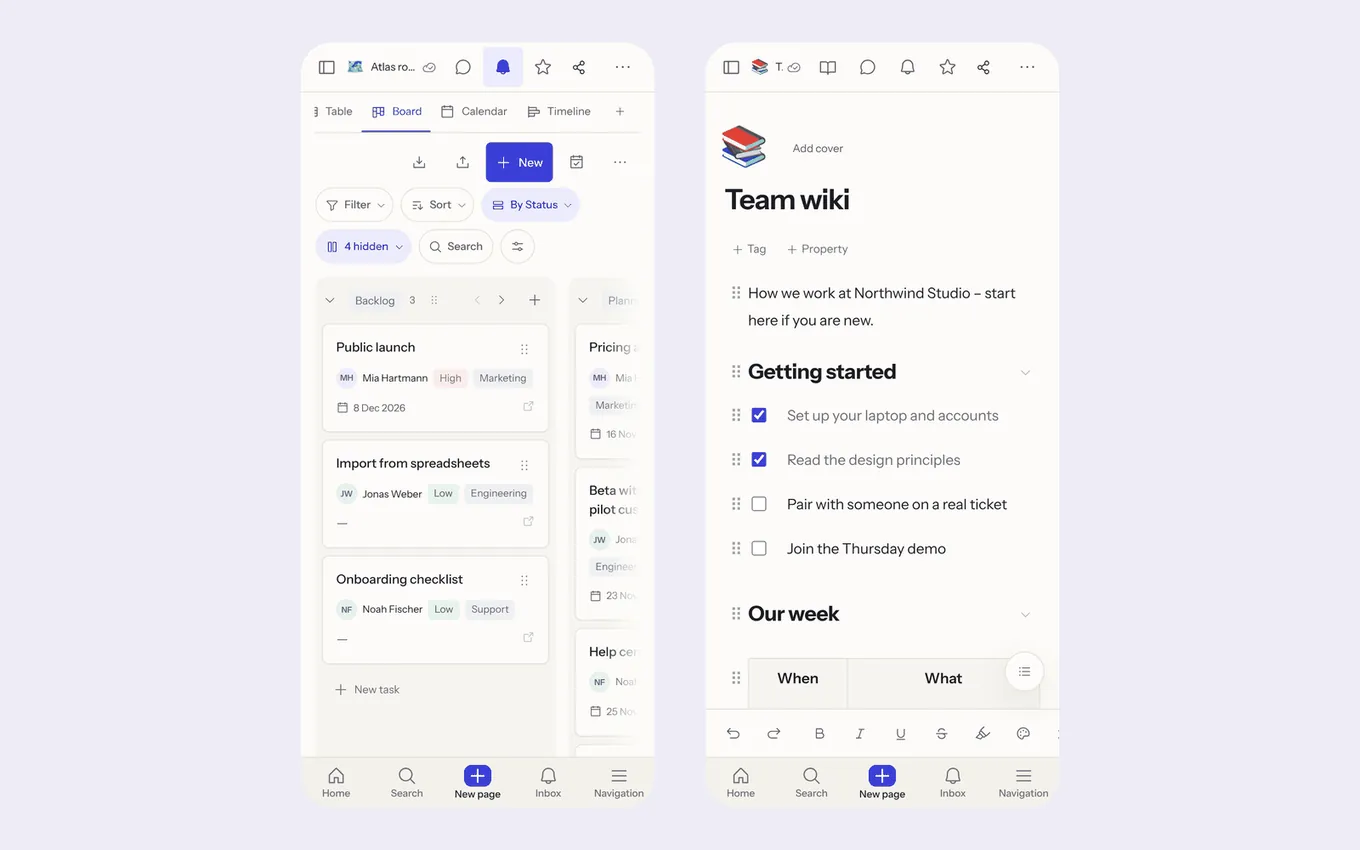
::: tabs
== iPhone and iPad
**The iPhone and iPad app is on the App Store:** [Flowplan on the App Store](https://apps.apple.com/app/id6825801344) – open the link on the iPhone or iPad and download the app, or search the App Store for “Flowplan”. New versions arrive through the App Store as with any other app.
== Android
**The Android app comes straight from us, without the Play Store:** [flowplan.org/download/android.apk](https://flowplan.org/download/android.apk) or on [flowplan.org/download](https://flowplan.org/download). See [Installing and updating the Android app](#installing-and-updating-the-android-app).
:::
## Installing and updating the Android app
::: steps
1. On the Android device, open [flowplan.org/download](https://flowplan.org/download) and tap **Download the app**.
2. Open the downloaded file (the browser's notification or *Downloads*).
3. The first time, Android asks whether the browser may install apps: **Settings** → **Allow from this source**, then go back and tap **Install**.
4. If Google Play Protect warns about an unknown app: **More details** → **Install anyway**. The app is signed with our key, just not distributed through Google Play.
:::
**Updates:** once a day the app checks whether there is a new version and then asks: **Download** fetches it in the browser, opening the file and tapping **Update** installs it over the old one – sign-in, profiles and settings stay. **Later** asks again for that version only after a week. New Flowplan features arrive through the server anyway, no app update needed.
You can also do without the Android app: Flowplan can be installed on Android as a web app as described above.
**Requirements:** iPhone and iPad with iOS/iPadOS 16.4 or later (the share sheet and the configurable widgets from iOS 17), Android 8.0 or later.
Like the desktop app, the mobile apps show your Flowplan instance; all data stays on the server and new features arrive without an app update. On top comes what only an app can do:
- **Notifications:** mentions, comments, tasks and reminders arrive as notifications, the number of unread ones shows on the app icon. The app asks for permission once after the first sign-in; a tap opens the page concerned. Which kinds arrive is set as in the browser under **Settings → Notifications**; there, **Send test notification** checks whether notifications reach all your devices and otherwise says why ([more](/notifications#test-notification)). [Buttons](/mobile-widgets#buttons-on-notifications) tick off a task, postpone it to tomorrow, answer a comment or mark it read – without opening the app.
- **[Widgets](/mobile-widgets#widgets)** for the home screen (on the iPhone also for the lock screen), each with settings of its own – tasks to check off, appointments, counters, time tracking and more; plus [widgets for administrators](/mobile-widgets#widgets-for-administrators).
- **[Live Activities](/mobile-widgets#live-activities-and-ongoing-notifications):** the timer, focus, the meeting, imports/exports and voice memos on the lock screen and in the Dynamic Island, or as an ongoing notification.
- **[Capture, Siri, Control Center](/mobile-capture#capture-siri-control-center):** notes, tasks, voice memos and photos from widgets, Siri, Control Center, the app icon and Android tiles; ask Siri what is due, open a page or search.
- **[Focus filters](/mobile-widgets#focus-filters)** (iPhone, iPad): one profile or workspace per Focus, optionally without notifications from the others.
- **[Share from other apps](/mobile-capture#share-from-other-apps):** text, links, photos and PDFs from any app straight into the inbox, a database or onto a page.
- **[Scanner and Spotlight](/mobile-capture#scan-documents-and-spotlight-iphone-and-ipad)** (iPhone, iPad): documents scanned into searchable PDFs, your pages and tasks in the phone's search.
- **[Voice notes](/mobile-capture#voice-notes-in-pages)** in pages are recorded by the app; on the iPhone and iPad they become text on the device itself.
- **[On-device AI](/mobile-capture#on-device-ai-and-writing-tools-iphone-and-ipad)** (iPhone, iPad, optional): writing assistant and summaries with Apple Intelligence without the text leaving the device; Apple's Writing Tools in the editor.
- **[Calendars in Apple Calendar](/mobile-capture#calendars-in-apple-calendar)** with one configuration profile instead of typing CalDAV credentials.
- **Staying signed in and app lock:** the app stays signed in while you use it or its widgets (default: 90 days without use, see [Stay signed in](/sessions)). If you like, Flowplan only unlocks with Face ID, Touch ID, a fingerprint or the device code – on iPhone, iPad and Android, again after more than a minute in the background.
- **Back:** swiping from the left edge (iOS) or the back gesture or button (Android) first closes what is open (menu, dialog, sidebar) and then goes up a level: from a settings section to the overview, from a record to its database, from a page to the previous page.
- **Exports and downloads** go to the system's share menu (e.g. "Save to Files").
- **Without a connection:** the app opens the profile's offline copy, on iPhone and iPad too – see [Offline in the app for iPhone and iPad](/offline-and-apps#offline-in-the-app-for-iphone-and-ipad).
- **iPad and tablets:** every orientation, Split View, Slide Over and Stage Manager, several windows, a hardware keyboard with the shortcuts listed when you hold <kbd>⌘</kbd>, the trackpad, and Handoff to the Mac – see [iPad: windows, keyboard and Handoff](/mobile-capture#ipad-windows-keyboard-and-handoff). With the **Apple Pencil** you write in [notebooks](/notebooks) and drawing blocks, draw on whiteboards and write on PDFs (see [Annotate PDFs](/media-and-files#annotate-pdfs)) with pressure while fingers move the board and a resting hand leaves no marks; double-tap and squeeze switch the tool, Scribble writes into any text field (see [Whiteboards](/whiteboards#pen-and-shape-recognition)). The app recognises your handwriting on the device: search finds it, and **Convert to text** turns selected strokes into text (see [Recognising handwriting](/notebooks#recognising-handwriting-iphone-and-ipad)).
- **iPhone Duo:** open or close it while you work – the page stays as it is (no reload, the same place, the text you are typing) and lays itself out anew: the phone layout with the bottom bar on the closed display and on the open one held upright, the sidebar on the open display held sideways. Content stays clear of the status bar and camera at the side of the closed display. On the open display you can use **several windows** as on the iPad (see [below](/mobile-capture#ipad-windows-keyboard-and-handoff)); the closed display has one. Full screen on iPhone Duo needs an app built for iOS 27.1 or later.
Also:
- On first start they ask for the address and suggest `https://app.flowplan.org`. They only accept real Flowplan instances that do not redirect to another site. More instances are saved as [profiles](#profiles-in-the-mobile-apps). **Sign out and remove the profile** in the **app settings** (via **Settings → Notifications → Open app settings**) signs the app out of the active profile's instance and removes it there.
- **Managed devices (MDM/EMM):** through managed app configuration (iOS Managed App Configuration or Android app restrictions), the key `server` presets the address of your own instance; the app suggests it on first start.
- **Sign in with a passkey** and **Sign in with SSO** open the system's sign-in sheet (iOS) or a browser tab (Android); after **Sign in to the app** the app takes over the sign-in. E-mail and password work directly in the app: **With e-mail and password** opens the form.
- **Password manager not filling in?** Tap **With e-mail and password** first, then **Sign in in the browser** below the form (or at the two-factor code). The sign-in opens in the same sheet as for passkeys and SSO; there your password manager recognises your instance's address and fills in the password and code. Inside the app itself, iOS only matches saved passwords to addresses built into the app – which isn't possible for self-hosted instances. This needs Flowplan 0.8.8 or newer; the app doesn't need an update.
- Signing in through the browser as well as notifications and widgets (the app interface) need Flowplan 0.4.0 or newer.
- Links to other sites open in the browser; without a connection the app shows a page of its own and reconnects by itself.
- Flowplan appears in other apps' **Share** menu – as **Flowplan** on iPhone and iPad, as **Save to Flowplan** on Android, see [Share from other apps](/mobile-capture#share-from-other-apps).
## An instance on your own network without HTTPS
On first start (or under **Add profile**) you enter your instance's address. Without `http://` in front, the app always assumes HTTPS. It accepts a plain `http://` address only when the instance runs **on your local network** – public domains and addresses always need HTTPS.
| Works with `http://` | iPhone and iPad | Android |
| --- | --- | --- |
| Private IP addresses: `192.168.x.x`, `10.x.x.x`, `172.16.x.x`–`172.31.x.x` | yes | yes |
| Tailscale and CGNAT addresses `100.64.x.x`–`100.127.x.x`, link-local `169.254.x.x` | yes | yes |
| Local IPv6 (`fd…`, `fe80…`), `localhost` | yes | yes |
| Names without a dot, e.g. `http://nas:3000` | yes | yes |
| `.local` names, e.g. `http://flowplan.local:3000` | yes | yes |
| `.lan`, `.home.arpa`, `.internal`, e.g. `http://flowplan.lan` | **no** | yes |
| Public domains and IPs, also Tailscale names `*.ts.net` | no (HTTPS only) | no (HTTPS only) |
On iPhone and iPad, iOS allows unencrypted connections only to IP addresses, names without a dot and `.local` names. For an instance at `flowplan.lan`, enter its IP address there (`http://192.168.1.20:3000`) – or set up HTTPS. The app tells you so when connecting instead of showing an empty page. On the first connection iOS also asks whether Flowplan may access devices on your local network: tap **Allow**.
As soon as an `http://` address is in the field, the app warns before connecting:
- **Passwords and all content cross the network unencrypted.** That is fine only on a network you trust.
- **Without HTTPS there are no** passkeys, encrypted spaces, voice notes on pages and, on Android, no offline copy (on iPhone and iPad the app keeps the offline copy itself, so it works there).
- **Notifications** from an instance that is only reachable on your local network usually don't arrive: the [push relay](/configuration-ai-push#push-relay-and-end-to-end-encryption) has to reach the instance from the internet.
For real use, set up HTTPS, see [Without HTTPS](/installation#without-https). With a Tailscale name (`*.ts.net`) you get HTTPS even without a public domain.
## Own certificates
If your instance uses a self-signed certificate or a private certificate authority (CA), ideally install the CA certificate on the device:
- **iPhone/iPad:** download it (for example in Safari or via AirDrop), install it in **Settings → General → VPN & Device Management** and turn on full trust in **Settings → General → About → Certificate Trust Settings**. iOS requires the server name in the Subject Alternative Name and at most 825 days of validity.
- **Android:** **Settings → Security → Encryption & credentials → Install a certificate → CA certificate**. The app trusts CAs you installed yourself.
Without an installed certificate, the app shows issuer, validity and SHA-256 fingerprint when connecting. On **Android** you can then choose **Trust this certificate**: the app trusts exactly that certificate, only for that instance. If it changes, the app loads nothing and asks again; you can remove it in the app settings. On Android, the offline copy works only with an installed CA, not with a certificate confirmed this way. On **iPhone and iPad** the app explains how to install the certificate. From app version 1.0.12.
## Profiles in the mobile apps
The apps for iPhone, iPad and Android also keep several instances as profiles:
- **Switch:** tap a profile under **Profiles** in the **app settings**, or long-press the app icon → **Switch profile** (on the iPhone while signed out). The same list is a tap away from the offline page.
- **Before signing in:** at the bottom of the sign-in and registration page (also for "Forgot password", the two-factor code and the new-password page) there is **Other server? Switch profile**. *Cancel* (on Android also the back button) takes you back to the page.
- **Wrong address:** a profile that has never been signed in can be corrected with **Change address** or deleted with **Remove profile** on the profile screen. If no Flowplan answers at the address, the app shows its own page with **Try again** and **Switch profile**.
- **Add:** **App settings → Add profile**, enter the address and, if you like, a name. If the address already has a profile, the app simply switches to it – there is one profile per instance.
- **Rename:** tap **Rename** next to a profile in the app settings.
- **Remove:** **Sign out and remove the profile** applies to the active profile; the next profile then becomes active.
Notifications, widgets, Live Activities, the number on the app icon and the running timer always belong to the **active** profile. On a switch the app unregisters the device from the previous instance's notifications; the sign-in there stays, so you are still signed in when you switch back. What the app keeps for a profile (the device token for widgets, the last summary) is stored separately in the keychain or Keystore and never goes to another instance. An address set up before becomes the first profile after the update.
## What the app keeps on the instance
After signing in, the app registers with the instance: the entry belongs to that sign-in; signing in again on the device moves it to the new session. It disappears with signing out, removing it under *Signed-in devices* or deleting the account. With its device token, widgets, Live Activities and Shortcuts read in the background only what you may see in Flowplan – in small answers of at most ten items per widget – and run their buttons (check off a task or habit, start/stop the timer, mark as read, save what you captured) – as do the buttons on notifications, which name only the notification: what they act on comes from the instance. The share sheet and the scanner save with it as well, and Spotlight reads your page titles and open tasks with it. For notifications the app leaves a token of the [push relay](/configuration-ai-push#push-relay-and-end-to-end-encryption) (the instance stores it only encrypted) and a public key; the private key stays in the Keychain or Keystore. Notifications thus arrive end-to-end encrypted: the relay, Apple and Google do not see their content, only the app decrypts it. Older app versions get them through Expo's push service – there, as with Web Push, they only say that something new is in the inbox. Operators can turn notifications off or send their text through Expo as well, see [Configuration](/configuration-ai-push#push-notifications). A [focus filter](/mobile-widgets#focus-filters) that hides notifications leaves a rule for this device there: which workspace may still notify it, for at most a day.
---
<!-- https://docs.flowplan.org/en/mobile-widgets -->
# Widgets and notifications in the apps
On iPhone, iPad and Android: home screen widgets, buttons on notifications, Live Activities and Focus filters.
## Widgets
Each widget shows **one thing** and has **settings of its own**. A widget you just added works right away with sensible defaults; small sizes show less. A tap opens the task or page in the app.
**Change the settings:**
::: tabs
== iPhone and iPad
Long-press the widget → *Edit Widget* (iOS 17 or later).
== Android
Long-press the widget → *Settings* (you can skip this step when adding it).
:::
The lists to choose from (databases, views, properties, calendars, forms …) come straight from your Flowplan instance.
| Widget | What it shows | Settings |
| --- | --- | --- |
| **Quick capture** | Buttons for note, task, voice memo, photo | Where to save (default: your capture inbox), which buttons |
| **Tasks** | Open tasks – **check them off right in the widget** | My tasks, records of a database (with view) or to-dos of a page; all open, due today or overdue; number |
| **Today** | Appointments and tasks due | Calendars, range (today, 3 days, week), tasks due on/off |
| **Page and favorites** | Your favorites, or one page / database view | Page, view, up to two properties |
| **Database counter** | One number (count, sum, average) with its last 14 days | Database, view, value, group, history |
| **Journal and habits** | Whether today is written, your streak; habits **to check off** | Journal, habit database |
| **Time this week** | Hours this week and today; **start/stop the timer** | Which timer "Start" starts |
| **Mentions** | Who mentioned you or gave you a task; **mark as read** | Mentions and/or new tasks, unread only |
| **Form responses** | New responses to a form | Form |
| **Flowplan** | Tasks due at a glance | With or without the inbox, running timer on/off |
| **Flowplan Inbox** | Number of unread notifications | – |
| **Flowplan Instance, Live, Storage** | [Administrators](#widgets-for-administrators) only: state, one live number, storage | What to show or which metric |
"My tasks" shows, besides tasks from documents, the open records of databases in which you are in a person property (such as "Assignee") – with the database and due date (the [database's due date](/projects-and-tickets#when-is-a-record-due)), and you can check them off right away if you may edit the record. By the same rules these records also appear in the **Flowplan** widget (including the count on the app icon and the reminders without push), with their due date in the **Today** widget and so in Siri's "What's on today in Flowplan", and in Spotlight on iPhone and iPad. Private records of others, databases behind a journal PIN, end-to-end encrypted spaces and properties hidden from you stay out everywhere; a record that a chosen calendar view in the **Today** widget already shows appears there only once.
Good to know:
- **Counter history:** Flowplan keeps the value of every day. Days before the widget was set up are estimated and drawn lighter and dashed.
- **Privacy:** widgets only show what you may see in Flowplan. Pages behind a journal PIN or end-to-end encrypted only show their state in a widget, never content.
- **Signed out?** When your session ends (e.g. a short SSO session), every widget shows *Open Flowplan to sign in*. Its settings stay; after signing in, the widgets fill again at once.
- **Profiles:** widgets belong to the active profile. Switching removes what the previous profile showed; on Android every widget keeps its settings per profile.
- **Colours on Android:** from Android 12 all widgets take the system colours (Material You, from the wallpaper or the chosen theme), light and dark. Red, amber and green keep their meaning. After a new wallpaper the widgets follow with their next update.
- **Check off today's tasks:** add the **Tasks** widget and choose *Due today* in its settings.
- **Updates:** when you change something in Flowplan, when the app comes to the foreground, and in the background about every 30 minutes (iOS decides how often).
- **Requirements:** the configurable widgets, the Live Activities other than the timer, and Siri and Shortcuts need a Flowplan server 0.7.0 or newer. *Flowplan*, *Flowplan Inbox* and the running timer work from 0.4.0.
## Widgets for administrators
People who administer the instance (members of the admin group, `OIDC_ADMIN_GROUP`, default `flowplan-admins`) get three more widgets in the app for iPhone, iPad and Android. Each shows one thing big; on the iPhone you choose which in the widget's settings.
| Widget | Sizes (iOS) | Setting (default first) | Tapping opens |
| --- | --- | --- | --- |
| **Flowplan Instance** | small, medium, lock screen | *Show:* state (*All fine*, notices or problems with the most important one), last backup, or version with available update | Administration (Monitoring when there are notices or problems) |
| **Flowplan Live** | small, medium, large, lock screen | *Metric:* active now, requests/min, error rate (1 h) or sign-ins today; from medium up the other numbers small and the requests of the last 24 hours as a chart | Administration → Monitoring |
| **Flowplan Storage** | small, medium, lock screen (ring) | *Metric:* disk used, database and files, or fullest workspace (quota) | Administration → Storage |
- Everyone else sees *Administrators only* in these widgets; without a sign-in they say *Open Flowplan to sign in*.
- Like the other widgets they read their data with the app's device token (`GET /api/mobile/admin-summary`). The instance checks on every call that the person of the session the device is bound to is an administrator right now – leaving the admin group, signing out or removing the device under *Signed-in devices* stops it. API tokens never get this data.
- Only numbers and states are sent – no names, e-mail addresses or workspace names.
- With the statistics switched off (`FLOWPLAN_METRICS=off` or in the administration under *Monitoring → Statistics*), *Flowplan Live* says "Statistics switched off"; state and storage stay.
- Older instances without this endpoint show *Administrators only*.
## Buttons on notifications
Long-press a notification (or pull it down) for its buttons. They do their work in the background; the app does not open.
| Notification | Buttons |
| --- | --- |
| **A task is due** (a task assigned to you is due today, a [date reminder](/databases#date-reminders) of a record) | **Done** ticks it off; **Tomorrow** moves its date to tomorrow – the time of day stays, a date further ahead moves one day on |
| **Comment, reply, mention in a comment** | **Reply** – type the answer right in the notification; it goes into the thread (or comments on the page) under your name. **Mark as read** |
| **Everything else** | **Mark as read** |
- Each button also marks the notification as read; the number on the app icon follows.
- **Done**, **Tomorrow** and **Reply** need the phone unlocked; **Mark as read** works on the lock screen.
- **Done** on a record uses the database's “done” state (a status option such as *Done*, or a checkbox *Done*); databases without one only offer **Mark as read**. If the task changed meanwhile, nothing is ticked off – a notification says so, and a tap opens the page.
- Your rights apply as in the browser, and the change shows in the activity, versions and automations like any other.
- **Done**, **Tomorrow** and **Reply** only appear when the notification brings its text along – without it, nobody could tell which task a button acts on. Through the [push relay](/configuration-ai-push#push-relay-and-end-to-end-encryption) that is the default, because the text is end-to-end encrypted (operators can turn it off with `MOBILE_PUSH_CONTENT=off`); older app versions through Expo only get it with `MOBILE_PUSH_CONTENT=on`. Otherwise there is **Mark as read** only.
**Reminders without push:** if your instance does not send push notifications to the app (switched off by the operators, or a test build without push), the app reminds you of your tasks itself – at 09:00 on the day a task is due, as long as notifications are allowed for Flowplan. It uses the tasks the app knows from its summary (the next eight).
## Live Activities and ongoing notifications
On iPhone what is running appears on the lock screen and in the Dynamic Island, on Android as a notification (a Live Update on Android 16):
| What runs | Shows | Button |
| --- | --- | --- |
| **Timer** | a running clock | – |
| **Focus** | e.g. 25 minutes of focus, then the break | *End* |
| **Meeting now** | the time left | *Open notes* – creates the meeting note in your journal if there is none yet |
| **Imports and exports** | their progress | – |
| **Voice memo** | recording | *Stop recording* |
| **Incident of the instance** | administrators only, only while it lasts | – |
Meetings, imports/exports and incidents can be switched off in the app settings under *Live Activities*; the timer, focus and voice memos always appear while they run.
If you start or stop the timer or focus elsewhere – in the browser, on another device – or focus moves on to the break, the instance updates the Live Activity on the iPhone by push through the [push relay](/configuration-ai-push#push-relay-and-end-to-end-encryption), even when the app is not open. By default this push holds only times and the phase; the Live Activity already knows the title and link from when it started on the device.
## Focus filters
On the iPhone and iPad, a Focus (Settings → Focus → e.g. *Work* → **Add filter** → **Flowplan**) can choose:
- **Profile or workspace:** a profile ("all workspaces") or one workspace of a profile. When the Focus starts, the app switches to that profile and opens the workspace; when it ends, it goes back to the profile you had before – unless you switched yourself in the meantime.
- **Hide notifications from other workspaces:** while the Focus is on, your instance does not send this phone push notifications from other workspaces – or none at all if the Focus belongs to another profile. They still arrive in the inbox. If the Focus is never switched off, the rule ends by itself after a day.
Workspaces appear in the list once the app has been signed in to that profile; open the app on the profile once if one is missing.
---
<!-- https://docs.flowplan.org/en/mobile-capture -->
# Capturing, sharing and scanning in the apps
Capture notes, tasks and voice notes quickly, share from other apps, scan documents – and what the apps on iPhone and iPad can do on top.
## Capture, Siri, Control Center
Every way leads to the app's capture screen: type a note or task, record a voice memo (keeps recording with the screen locked; transcribed when your instance can) or take/choose a photo.
| Way | What it offers |
| --- | --- |
| **Quick capture widget** | Note, task, voice memo, photo – into the place chosen in the widget |
| **Siri and Shortcuts** (English, German, French) | "Add a note to Flowplan" (into your capture inbox), "Add a task to Flowplan", "What's on today in Flowplan", "What's due today in Flowplan", "Open a page in Flowplan", "Search Flowplan", "Start the timer in Flowplan", "Stop the timer in Flowplan", "Record a voice memo in Flowplan", "Start focus in Flowplan" |
| **Control Center and the Action button** (iOS 18) | New note, Quick capture, Today's tasks (shows how many are due), Voice memo, Start focus, Timer (a switch) |
| **Long-press the app icon** (iPhone, iPad) | Inbox, My tasks, Search, New note, Switch profile. The iPhone shows the first four of them, *Switch profile* when signed out. |
| **Long-press the app icon** (Android) | *New note* and *Quick capture* (always there, even before the first sign-in), then the **pages you opened last**, Inbox, My tasks, Search, Voice memo and Switch profile. Most launchers show four of them; every shortcut can be dragged to the home screen. Shortcuts to pages of another profile are greyed out until that profile is active again. |
| **Android Quick Settings** | "New note" and "Quick capture" tiles (also from the lock screen). From Android 13, **App settings → Widgets → Add “Quick capture” to Quick Settings** adds the tile with one tap; otherwise use the pencil of Quick Settings. |
**Quick capture** (tile and shortcut on Android) opens a compact window: choose where it goes – the **inbox** (your default capture database, see [Capture into a database](/offline-and-apps#capture-into-a-database)) or another page or database, with search –, type title and text, take or choose photos if you like, **Save**.
What Siri does without opening the app:
- **Add a task:** Siri asks for the task; in the Shortcuts app you can also set a **due date** and the **list or database** it goes to (otherwise your capture default). In a database the due date goes into its first date property.
- **What's due today:** Siri reads out how many tasks are due today and overdue and the first three, and shows the list.
- **Search Flowplan:** searches pages, records and comments in all your workspaces and shows the best hits; in a shortcut, the hits can be passed on (e.g. to *Open a page*). The action *Search in the app* opens Flowplan's own search with the text instead.
- **Open a page:** Siri asks which page – say part of its title – and opens it in the app. In Shortcuts you pick the page from a list.
Siri, Shortcuts and the controls use the **active** profile. Pages of end-to-end encrypted spaces do not appear (not even their titles). Adding tasks, what's due, opening pages, searching, the new controls and focus filters need a Flowplan server 0.7.0 or newer.
## Share from other apps
In any app that can share (browser, Photos or gallery, Files, mail, scanner …), **Share → Flowplan** (iPhone, iPad) or **Share → Save to Flowplan** (Android) opens a small window with title, text, link and files.
- **What works:** text, links, photos and PDFs – several files at once too (at most 10). Other file types are not taken.
- **Where to:** the **inbox**, your default capture database, is preselected (set it in the browser with **Use as default for capturing**, see [Capture into a database](/offline-and-apps#capture-into-a-database)). **Save to** (iPhone, iPad) or **Change** (Android) lists every page and database you may write to, with search.
- **What you get:** in a database (the inbox included) a **record** – the link in the first URL property (if there is one), the files in the first files property and in the record itself. On a page a **sub page** with text, link, photos and PDFs.
**On iPhone and iPad** you stay in the app you share from. Flowplan remembers the last choice of where to save per profile. The sheet uses the sign-in of the app: open Flowplan once and sign in, otherwise it asks you to. Photos in HEIC become JPEG.
**On Android** the window lists under *Not taken* what it cannot take (other file types, more than 10 files). PDFs get a preview of their first page in the record. You can change the title; left empty it is the first line of the text, the link's address or the first file name. After **Save**, **Back to the app** returns to the app you shared from; **Open** shows the result in Flowplan. Not signed in yet? Text and links then go to the instance's preview as in the browser and continue after signing in.
The share sheet on iPhone and iPad as well as photos and PDFs on Android need a Flowplan server 0.7.0 or newer. Up to 0.6.0, Android takes only text and links, through the instance's preview.
## Scan documents and Spotlight (iPhone and iPad)
**Scan documents.** In a page, type `/` and choose **Scan document** (only in the iPhone and iPad app). The camera finds the edges and straightens each page; take as many pages as you like. Flowplan recognises the text on the device (German, English, French) and adds one PDF at the end of the page – or of the record you are in. The PDF carries the text invisibly, so you can select and search it in any PDF viewer, and **Flowplan's search finds the scan by its text** right away. The link `flowplan://scan` (e.g. in a shortcut) opens the scanner with the choice of inbox, page or database. The PDF does not stay on the phone after saving.
**Spotlight.** The app puts the titles of your most recently changed pages (up to 500, with where they are and a line of their content) and your open tasks – including database records assigned to you, those with a due date first – into the phone's search. A tap on a result opens it in Flowplan. Nothing of end-to-end encrypted spaces, pages behind a journal PIN or journal days goes there; signing out or switching profiles empties it. The index stays on the phone.
The scanner and Spotlight need a Flowplan server 0.7.0 or newer.
## Voice notes in pages
In the app, **Voice note** (`/voice`) in a document records with the phone's microphone – up to 30 minutes, also with the screen locked. **Insert** puts the recording into the page as audio:
- **Insert as text** (iPhone and iPad): the spoken words become text on the device with Apple's speech recognition – the recording does not leave the phone for it. The text follows below the audio as a **Transcript** with timestamps. The app asks once for permission to use speech recognition. It works for the languages the device can recognise by itself (set by the device's language; most major languages, depending on the iOS version).
- Where the device cannot (Android, other languages), your instance's speech recognition turns it into text if it is set up ([Voice notes](/media-and-files#voice-notes-and-meetings)); otherwise the audio stays on its own.
- **Then summarise with AI** puts a summary below the text when the [AI](/ai-writing#summaries) is available to you.
This needs a Flowplan server 0.7.0 or newer. In the browser, `/voice` records as before.
## On-device AI and Writing Tools (iPhone and iPad)
**Optional:** on an iPhone or iPad with **iOS/iPadOS 26** or later that supports Apple Intelligence, with **Apple Intelligence switched on** (Settings → Apple Intelligence & Siri), the writing assistant and the summary of open pages run with Apple's language model **on the device**. The text does not leave the device, also in encrypted spaces; the instance needs no AI provider for it. Results carry the label **On this device**. This needs a Flowplan server newer than 0.7.0 (currently the beta image).
- **Switch it off:** **Settings → AI → On this device (Apple) → Off** – Flowplan then never asks the device. It also shows whether Apple Intelligence on this device is available, turned off in Settings or not supported. Administrators can switch it off for the whole instance.
- **Server AI stays:** questions to the workspace, AI in databases and AI actions keep running through the instance when it is set up; it also takes over texts that are too long.
- **Older devices and iOS versions** (from iOS 16.4) use the app as before, just without this path.
- **Writing Tools:** Apple's Writing Tools (proofread, rewrite, summarise) work right in the editor – select text and choose **Writing Tools** in the text menu (from iOS 18 with Apple Intelligence).
More: [on-device AI](/ai#on-device-ai-apple).
## Calendars in Apple Calendar
**Settings → Calendars & issues → Calendars on iPhone, iPad and Mac**: choose calendar views and tap **Set up in Apple Calendar**. The app opens a configuration profile in Safari; confirm the download, then install it under **Settings → Profile Downloaded** (on the Mac: System Settings → Profiles). Each view becomes a CalDAV account in Apple Calendar, in both directions – see [Sync both ways](/views#sync-both-ways-caldav). On a computer the page shows a QR code instead; scan it with the iPhone's camera. The link works once and for ten minutes.
## iPad: windows, keyboard and Handoff
- **Several windows:** in a page's menu (right-click or long-press it in the sidebar), **Open in new window** gives the page a window of its own – side by side in Split View, in Slide Over or in Stage Manager. On iPhone Duo this works on the open display; on the closed one the menu item is not there. Links that would open a new tab do the same. Long-press the app icon → **Show All Windows** lists them. The first window holds the app settings, notifications and widgets; the others show a page and come back with it after a restart. All windows use the active profile and the app lock.
- **Hardware keyboard:** hold <kbd>⌘</kbd> and the iPad lists Flowplan's shortcuts – search ++⌘ K++, new page ++⌘ N++, quick capture ++⌘ ⌥ N++, the overview ++⌘ /++ and the others with <kbd>⌘</kbd>, <kbd>⌃</kbd> or <kbd>⌥</kbd>, including [your own](/keyboard-shortcuts#your-own-shortcuts). A shortcut works in the window in front. The editor's shortcuts (bold, undo …) work as in the browser.
- **Trackpad and mouse:** the pointer hovers over buttons and links as in Safari.
- **Handoff:** the page in front is offered to your Mac and your other devices (same Apple Account, Handoff on under Settings → General → AirPlay & Continuity). On the Mac it opens in the [desktop app](/desktop-app), without it in the browser. Pages from the Mac or another device open in the app on the profile of their instance; pages of an instance without a profile open in Safari. Pages behind the app lock are not offered while it is locked.
---
<!-- https://docs.flowplan.org/en/desktop-capture -->
# Quick capture (desktop)
A shortcut opens a small window above every app: a thought, a task, a link, a file, a screen region or a voice note – into the inbox, a database, today's journal entry or a page. Offline too.
Quick capture is part of the [desktop app for macOS, Windows and Linux](/desktop-app). It saves straight to your instance with the active profile's sign-in; nothing goes to third parties.
## At a glance
| Key | What happens |
| --- | --- |
| ++Ctrl Shift Space++ (Mac: ++⇧ ⌘ Space++) | opens the window above every app – also while Flowplan is minimised, hidden or (Mac, tray icon) closed |
| <kbd>Enter</kbd> | saves |
| ++Shift Enter++ | new line |
| <kbd>Tab</kbd> | choose the target: typing filters, ++↑ ↓++ moves, <kbd>Enter</kbd> takes it |
| ++Alt ↑++ / <kbd>↓</kbd> | previous / next target without opening the list |
| ++⌘/Ctrl Shift V++ | paste the clipboard – a link gets its title |
| hold ++⌘/Ctrl Shift R++ | record a voice note, release to stop |
| <kbd>↓</kbd> in the empty field | **Recently captured** |
| <kbd>Esc</kbd> | closes an open list, otherwise the window – the text stays as a draft |
The buttons in the window do the same: **Paste**, **Attach…**, **Region**, **Hold to talk**, **Suggest** and **As a task for today**. The first line becomes the title, the rest the text.
## Where it goes: targets
The top right shows where the capture goes. You can choose:
| Target | What is created |
| --- | --- |
| **Inbox** (default) | a record in your capture database – the default chosen under **Capture** (see [Capture into a database](/offline-and-apps#capture-into-a-database)) |
| a **database** | a new record; its default template applies, shorthand fills its properties |
| a **journal** | appended to **today's entry** – if the day does not exist yet, Flowplan creates it |
| a **page** | appended at the end of the page, as a new paragraph (or as a task) |
The list only shows where you may write. Recently used targets come first; the app remembers them per profile and starts with the last target next time.
> [!NOTE]
> **End-to-end encrypted spaces are not in the list.** The server cannot write into them, and the capture window – unlike the Flowplan window – has no keys. The list says how many pages are missing for that reason. For encrypted spaces, capture directly in the Flowplan window. Journals behind a PIN are left out too.
**As a task for today** turns the first line into an open task – due today or on the day from the text, assigned to you or to the person from the text. It shows up at once under **My tasks** and in the app's tray icon.
## Shorthand in the text
Flowplan reads what you type as you type and shows it as **chips** below the text – for example for “Write offer tomorrow 3pm #client @anna !high”:
`Due: Tue, Oct 27, 3:00 PM` · `Tags: Client` · `Assignee: Anna Schmidt` · `Priority: High`
What a chip takes over disappears from the title. The **×** on a chip keeps the text exactly as typed. Shorthand only fills properties the target has – otherwise the text stays, and the chip says “stays text”.
| Shorthand | Examples (German · English · French) | Becomes |
| --- | --- | --- |
| Days | `heute`, `morgen`, `übermorgen` · `today`, `tomorrow`, `day after tomorrow` · `aujourd'hui`, `demain`, `après-demain` | due date |
| Weekdays | `Freitag`, `nächsten Montag` · `friday`, `next monday` · `vendredi`, `lundi prochain` | the next such day |
| Spans | `in 3 Tagen`, `nächste Woche` · `in two weeks`, `next week` · `dans une semaine`, `la semaine prochaine` | a day (next week: its Monday) |
| Dates | `24.12.`, `24.12.2026`, `2026-12-24`, `24. Dezember` · `12/24`, `Dec 24th` · `24/12`, `le 5 novembre` | that day (without a year: the next one) |
| Times | `15 Uhr`, `um 15:30` · `3pm`, `at 3:30 pm` · `15h`, `à 9h30` | time of the date (alone: today) |
| Tag | `#client` | an option of a multi-select (“Tags” first), if it exists |
| Person | `@anna` | a person property (“Assignee” first) – first name, full name without spaces or e-mail name, when exactly one person matches |
| Priority | `!hoch`, `!niedrig` · `!high`, `!urgent`, `!low` · `!haute`, `!basse` · `!1`–`!4`, `!!!`, `!!` | an option of a “Priority” select (or one with priority options) |
- The due date goes into the first date property (first one named “Due”, “Fällig”, “Échéance” …). A time counts in your computer's time zone, also when the record is only sent later from the queue.
- `#27` is a number, not a tag; `name@example.org` stays an e-mail address; an exclamation mark at the end of a sentence stays one.
- Offline the window shows no chips; the shorthand is read when the capture is sent – with the day and time zone of capturing.
- The server reads the shorthand (one place for all apps). Older servers without this feature take only text into the inbox – the window says so.
## Clipboard and links
++⌘/Ctrl Shift V++ or **Paste** inserts the clipboard text. If it is a link (`https://…`), it appears as a link chip with title and provider – **your instance fetches the preview** (like link cards in the editor, protected against internal addresses), never the app itself. It is saved into the database's link property (otherwise into the text) and as a link card; with an empty text, the page's title becomes the title. Offline, the link is saved without a title.
## Files, screen regions and voice notes
- **Files:** drop images (PNG, JPEG, GIF, WebP, AVIF, HEIC), PDFs, Markdown and text files on the window, or choose them with **Attach…**. They are checked as when [dropping files on the main window](/desktop-app#more-from-the-desktop-app): extension **and** content, images and PDFs up to 50 MB, text up to 5 MB (the instance may allow less), at most 10 attachments. The list below the text shows them, **×** removes one. Images and PDFs go into the database's files property and into the text; Markdown and text become text.
- **Screen region:** **Region** – the window steps aside and you drag a region; it is attached as a PNG. On the Mac this uses the system's screenshot tool (Space picks a window, <kbd>Esc</kbd> cancels); on Windows and Linux Flowplan shows the screen under the pointer, you drag the region, <kbd>Enter</kbd> takes the whole screen, <kbd>Esc</kbd> cancels. Temporary files sit only briefly in the app's data folder and are deleted right away.
- **Voice note:** press and hold **Hold to talk** (or ++⌘/Ctrl Shift R++), release to stop. If your instance has transcription (Whisper, see [Configuration](/configuration)), the recording becomes text there and appears in the field – to check before saving. Without transcription, offline or if it fails, the recording is attached; the instance tries again when it is saved.
### Permissions per system
| System | Screen region | Microphone |
| --- | --- | --- |
| **macOS** | **System Settings → Privacy & Security → Screen & System Audio Recording** → switch on Flowplan, then restart Flowplan. Without it the window says so and opens the page with **Open System Settings**. | macOS asks the first time (“Flowplan uses the microphone for voice notes.”). Declined: **System Settings → Privacy & Security → Microphone**. |
| **Windows** | no permission needed | **Settings → Privacy & security → Microphone** must allow desktop apps |
| **Linux** | X11: none. Wayland: the desktop asks (portal) and often offers a screen or a window – Flowplan takes what it hands over. | depends on the desktop (PipeWire/PulseAudio) |
Flowplan never uses the camera, and the capture window may only use the microphone – and only while you hold the button.
## Offline: the queue
If the instance cannot be reached, the capture goes into a **queue** – with text, target, shorthand, link and attachments. The window says “No connection to … – queued, sent automatically”, the top shows “1 queued”, and the tray icon and the settings show the number too.
- **Sent by itself:** as soon as the connection is back, the computer wakes up or is unlocked, otherwise with growing pauses (5 s, 15 s, 30 s … at most every 15 minutes). **Send now** (window, tray icon, settings) tries right away.
- **Nothing twice:** every capture has its own key (`Idempotency-Key`) from the first moment, and every attempt sends exactly the same request. If an answer gets lost after the instance has already saved it, the next attempt receives the stored answer instead of a second record.
- **Nothing lost:** if the instance refuses something for good (target deleted, file too large), it stays in the queue and the window shows it with **Copy** (back into the field) and **Discard**. While signed out, the capture waits until you are signed in again.
- **Stored encrypted:** the queue and “Recently captured” are kept per profile in the app's data folder (`capture/`), encrypted with the system's key store (macOS Keychain, Windows DPAPI, Secret Service/KWallet on Linux). Without a key store on Linux they are stored unencrypted, readable only by your user account – the settings say which applies. Removing a profile deletes them.
## Undo and “Recently captured”
After saving, the window shows “✓ Saved to …” with **Open** (the record or page in the Flowplan window) and **Undo** – for ten seconds. Then the window goes away unless you started something new.
- **Undo** moves a captured record to the database's trash (restorable from there) and removes appended content from a page or the journal again – as long as it is still unchanged at the end. If someone has written on since, it stays, and the window says so. A capture still in the queue is simply not sent.
- **Recently captured:** <kbd>↓</kbd> in the empty field shows the profile's last 20 captures with target and time; <kbd>Enter</kbd> or **Open** opens one. The same list (the last 8) is in the menu bar or tray icon under **Recently Captured**; waiting ones are marked with ⏳.
## Quick actions
Under **Settings → Quick actions** you add more shortcuts that open the window ready for one thing:
| Quick action | Opens the window … |
| --- | --- |
| **Task** | with **As a task for today** and the chosen target |
| **Journal entry** | with the chosen journal – appended to today's entry |
| **Bookmark** | with the link from the clipboard and its title |
| **Meeting note** | with a chosen database and one of its templates (default, or e.g. “Meeting”), the text starting with “Meeting: ” |
| **Note** | with a fixed target, optionally as a task |
Each has a name, a target, a shortcut (**Change**, **Off**), **Try it** and **Remove**. None is active without a shortcut – after the update only the main shortcut is on. If another app already holds a shortcut, the action says so; a shortcut always belongs to one action only and never also to the main shortcut. At most eight quick actions.
## AI suggestion (optional)
**Suggest** asks an AI where the text belongs: database, a short title and properties the text clearly names. The result appears as chips with **✓** (accept) and **×** (ignore) – **nothing is applied by itself**. Every suggestion is checked on the server: only databases you may write to, only existing options, only real people and days.
- **Where the AI runs:** through your instance's AI (the **AI actions** feature, see [AI](/ai-actions#ai-actions)) – or on a Mac with macOS 26 and Apple Intelligence switched on, **on the Mac itself** ([On-device AI](/ai#on-device-ai-apple)): the instance only builds the question, the Mac answers it, and the text reaches no AI on the server. Which is preferred follows your setting for on-device AI.
- **What the AI sees:** the text in the window and the names of the databases, their properties and options – no content. Databases closed to the AI are left out.
- **Off:** the button is missing when the administration or you switched off AI (or AI actions).
**Improve text** comes with the desktop app's next version: as when [capturing in the browser](/offline-and-apps#capture-into-a-database), the AI corrects spelling and grammar and you decide in a preview. The shorthand (`#tag`, `@person`, `!priority`, dates) and links stay; if the AI changed or dropped any of it, the window warns you before you take the text. Only with a connection and when the writing assistant is allowed for you.
## Setup and the one-time hint
After the first sign-in the app shows one more step: **How Flowplan should run on this computer** – **Turn on quick capture** (with the shortcut, **Change**, **Try it now**; a taken shortcut is reported), **Icon in the menu bar / notification area**, **Start when you sign in to the computer** and **Start minimized / in the background** (only together with starting at sign-in). The switches start with your system's defaults (icon: on for Mac, off for Windows and Linux), everything can be skipped and changed later under **Settings** – they are the same settings.
People who had the app before and never captured see “New: quick capture with …” once in the lower left of the window, with **Try it** and **Settings**. After closing it, a click or the first capture, the hint never comes back.
## Privacy
- Captures are only stored on your instance, with the profile's sign-in and its origin check. Link previews, transcription and AI run through the instance (or on the Mac); the app itself fetches no other addresses.
- The computer only keeps the queue and “Recently captured” (encrypted, see above), the recently used targets (identifiers only) and, briefly, screen regions. The window has a session of its own without cookies or storage.
- End-to-end encrypted spaces are never a target.
## Requirements
The desktop app after 1.2.0 and a Flowplan server newer than 0.7.0. With an older server the window takes text (and **As a task for today**) into the inbox and says that targets, shorthand, links and attachments need a server update. Voice notes as text need transcription on the server; the AI suggestion needs AI actions switched on, or Apple Intelligence on the Mac.
---
<!-- https://docs.flowplan.org/en/browser-extension -->
# Browser extension
With the browser extension you save web pages to Flowplan in one click: the whole article, just the selection, a bookmark or single highlights. It runs in Chrome, Edge, Brave, Opera and Firefox.
## Setting up
::: steps
1. In Flowplan, create a [personal API token](/api-and-webhooks) under **Settings → API & AI assistants** (or **Settings → Web clipper → Create token**) and choose the permission **Browser extension only**. Such a token can do nothing else: it opens neither the API nor MCP and cannot read anything but the list of your targets.
2. Install the extension (see below) and click its icon.
3. Enter the address of your instance, for example `https://flowplan.example.com`, and the token. The browser now asks once for access to exactly this address – the extension never accesses other sites.
:::
**Sign out** in the extension's window removes the token from the browser and gives up the access to the instance. You can revoke the token in the settings at any time.
## Saving
Click the extension's icon or press **Alt+Shift+F**. Choose the target – the extension remembers it – and optionally tags:
- **Whole page:** the extension finds the actual article and leaves out navigation, ads, cookie notices, comments and sidebars. Links and images keep pointing to the original page. The link to the source sits at the top of the new page.
- **Selection:** only the selected part of the page, with formatting and links.
- **Bookmark only:** title, address, description and favicon go into the space's **Lesezeichen** (bookmarks) database (see [Web clipper](/import-export-versions)). Duplicate links are refused.
Depending on the target you get:
| Target | Whole page / selection | Bookmark |
| --- | --- | --- |
| A space | a new page in the space | a record in its bookmarks database |
| A page | a new sub-page | a record in the bookmarks database of its space |
| A database | a new record with the text as its document; the link goes into the first URL property | as for a page |
**Tags** go into a property named *Tags* (or *Schlagwörter*, *Labels*) when the database has one; new tags are added as options. In the bookmarks database the extension creates the *Tags* property the first time. On pages the tags appear as `#tag` below the source link.
The server cleans the content once more: scripts, forms, embedded foreign pages and event attributes are dropped, just like when pasting into the editor.
## Highlights
Select text on a web page and choose **Highlight in Flowplan** in the context menu (or press **Alt+Shift+H**). The passage is appended as a quote with a link to the source:
- If the target is a **page**, all highlights end up one below the other on that page.
- If the target is a **space**, the first highlight of a web page creates a new page for that source; further highlights of the same web page go onto the same page.
- If the target is a **database**, every highlight becomes a record.
A green check mark on the icon confirms the save, a red exclamation mark reports an error (such as an expired token).
Change the shortcuts in Chrome at `chrome://extensions/shortcuts`, in Firefox under **Add-ons → gear → Manage Extension Shortcuts**.
## Installing
The extension lives in the source code under `extensions/browser/` and needs no build step.
- **Chrome, Edge, Brave:** open `chrome://extensions`, turn on **Developer mode**, click **Load unpacked** and choose the folder `extensions/browser`.
- **Firefox:** open `about:debugging#/runtime/this-firefox` and **Load Temporary Add-on** → `extensions/browser/manifest.json`. For a permanent installation, have the ZIP signed at addons.mozilla.org.
- **Building the package:** `npm run extension:zip` writes `extensions/browser/dist/flowplan-<version>.zip` – upload this file to the Chrome Web Store, Edge Add-ons or addons.mozilla.org.
## Privacy and permissions
- The extension reads a page only when you call it (icon, context menu or shortcut) – it does not run in the background on every page.
- Permissions: `activeTab` (the current page, only after your click), `scripting` (to read it then), `contextMenus`, `storage` (address, token, the target chosen last) and access to exactly your Flowplan address, asked for only when connecting.
- It only sends to your instance. Cookies are not sent along; the token alone signs in.
- End-to-end encrypted spaces are not offered as targets: the server never writes plaintext into them.
- The server allows requests from browser extensions (CORS) only for the two clipper addresses `/api/clipper/targets` and `/api/clipper/save`, and only with a token – see [API and webhooks](/api-and-webhooks).
---
<!-- https://docs.flowplan.org/en/keyboard-shortcuts -->
# Keyboard shortcuts
All shortcuts at a glance. On Windows and Linux, <kbd>Ctrl</kbd> stands for <kbd>⌘</kbd> and <kbd>Alt</kbd> for <kbd>⌥</kbd>.
## Everywhere
| Shortcut | Effect |
| --- | --- |
| <kbd>⌘</kbd> <kbd>K</kbd> | Quick search |
| <kbd>⌘</kbd> <kbd>F</kbd> | Find on the page: marks every match, <kbd>Enter</kbd> or <kbd>⇧</kbd> <kbd>Enter</kbd> jumps to the next or previous one, <kbd>Esc</kbd> closes. Selected text becomes the query. Also works in the desktop app and the apps; on a whiteboard it searches the board. |
| <kbd>⌘</kbd> <kbd>N</kbd> | New page |
| <kbd>⌘</kbd> <kbd>⌥</kbd> <kbd>N</kbd> | Quick capture (record in the capture database) |
| <kbd>⇧</kbd> <kbd>⌘</kbd> <kbd>Space</kbd> / <kbd>Ctrl</kbd> <kbd>Shift</kbd> <kbd>Space</kbd> | Desktop app: quick capture from any app ([Quick capture (desktop)](/desktop-capture)) |
| <kbd>?</kbd> or <kbd>⌘</kbd> <kbd>/</kbd> | Keyboard shortcut overview |
| <kbd>⌘</kbd> <kbd>⌥</kbd> <kbd>E</kbd> | Read or edit the document |
| <kbd>⌘</kbd> <kbd>⌥</kbd> <kbd>B</kbd> | Show or hide the sidebar |
| <kbd>⌘</kbd> <kbd>⌥</kbd> <kbd>Z</kbd> | Focus mode on or off |
| <kbd>⌘</kbd> <kbd>⌥</kbd> <kbd>K</kbd> | Show or hide comments |
| <kbd>⌘</kbd> <kbd>⌥</kbd> <kbd>A</kbd> | Open or close [Ask AI](/ask-ai) (when the panel is open, focus moves into it; from there the shortcut closes it) |
| <kbd>⌘</kbd> <kbd>⌥</kbd> <kbd>S</kbd> | Open or close the [split view](/pages-and-spaces#split-view) |
| <kbd>⌘</kbd> <kbd>⌥</kbd> <kbd>P</kbd> | [Present](/reading-and-presenting#present) the document |
| <kbd>⌘</kbd> <kbd>P</kbd> | With a page open: [print options](/print-and-pdf#print-and-pdf), then print (<kbd>Enter</kbd>); otherwise the browser's print |
| <kbd>⌘</kbd> <kbd>⌥</kbd> <kbd>Y</kbd> | [Journal](/journal#from-day-to-day): open today (of the journal used last) |
| <kbd>⌘</kbd> <kbd>⌥</kbd> <kbd>X</kbd> | [Collapse all sections](/reading-and-presenting#collapsing-sections) (of the open document or record) |
| <kbd>⌘</kbd> <kbd>⌥</kbd> <kbd>O</kbd> | Expand all sections |
| <kbd>⌘</kbd> <kbd>[</kbd> or <kbd>⌥</kbd> <kbd>←</kbd> | [Back](/first-steps#back-and-forward) to the page opened before (<kbd>⌥</kbd> <kbd>←</kbd> not while typing – there it moves by words) |
| <kbd>⌘</kbd> <kbd>]</kbd> or <kbd>⌥</kbd> <kbd>→</kbd> | Forward to the next page |
| – | Light or dark theme (no default, your own shortcut possible) |
| <kbd>Esc</kbd> | Close a dialog, menu or the search |
| <kbd>⌘</kbd> <kbd>Z</kbd> | Take back a deletion, a move or a bulk edit while the notice with **Undo** shows (outside text fields; in the editor it undoes the last input) |
Every shortcut in this table except <kbd>Esc</kbd> and <kbd>⌘</kbd> <kbd>Z</kbd> can be changed, see [Your own shortcuts](#your-own-shortcuts).
> [!DESKTOP]
> In the desktop app, <kbd>⌘</kbd> <kbd>⇧</kbd> <kbd>P</kbd> or <kbd>Ctrl</kbd> <kbd>Shift</kbd> <kbd>P</kbd> switches to the next [profile](/desktop-app#several-instances-profiles) once more than one is saved.
## Your own shortcuts
<kbd>?</kbd> (outside text fields), <kbd>⌘</kbd> <kbd>/</kbd>, the <kbd>?</kbd> at the bottom of the sidebar or **Show keyboard shortcuts** under **Settings → Appearance & language** open the overview. Under **Everywhere**, every action has a **Change** button: press the new combination after it – <kbd>Esc</kbd> cancels. The combination applies at once and for your account on all devices and browsers.
The search field at the top of the overview filters as you type, by action name or by keys – <kbd>Ctrl</kbd>, <kbd>Cmd</kbd> and <kbd>⌘</kbd> count as the same key, as do <kbd>Shift</kbd>/<kbd>⇧</kbd> and <kbd>Alt</kbd>/<kbd>Option</kbd>/<kbd>⌥</kbd>, so "ctrl l" finds <kbd>⌘</kbd> <kbd>L</kbd>; <kbd>Esc</kbd> clears the field first, a second <kbd>Esc</kbd> closes the overview.
- The overview shows **conflicts**: if the combination already belongs to another action, it asks (**Use it anyway** takes it away from the other action). If it collides with an editor shortcut (such as <kbd>⌘</kbd> <kbd>B</kbd> for bold) or the browser usually keeps it for itself (such as <kbd>⌘</kbd> <kbd>W</kbd>), a note appears below it.
- The arrow resets an action to its default, **×** removes its shortcut altogether, **Reset all** restores every default. Your own shortcuts are marked **Custom**.
- Combinations without <kbd>⌘</kbd>, <kbd>Ctrl</kbd> or <kbd>⌥</kbd> (like <kbd>?</kbd>) only work outside text fields and the editor.
- The shortcuts of the editor, the page tree, presentations and the split view are fixed; the overview lists them for reference.
In the [iPad app](/mobile-capture#ipad-windows-keyboard-and-handoff) with a hardware keyboard, holding <kbd>⌘</kbd> lists the shortcuts with <kbd>⌘</kbd>, <kbd>⌃</kbd> or <kbd>⌥</kbd> – your own combinations included – in the iPad's overlay.
The overview names the keys as your device does: <kbd>⌘</kbd> and <kbd>⌥</kbd> on a Mac, <kbd>Ctrl</kbd> and <kbd>Alt</kbd> elsewhere. Through the API, the command `shortcuts.save` stores the same settings (see [API and webhooks](/api-and-webhooks)).
## In a document
| Shortcut | Effect |
| --- | --- |
| <kbd>/</kbd> | Block menu |
| <kbd>@</kbd> | Mention a page or person (arrow keys pick, <kbd>Enter</kbd> inserts, <kbd>Esc</kbd> closes) |
| <kbd>⌘</kbd> <kbd>B</kbd> / <kbd>I</kbd> / <kbd>U</kbd> | Bold, italic, underline |
| <kbd>⌘</kbd> <kbd>⇧</kbd> <kbd>S</kbd> | Strikethrough |
| <kbd>⌘</kbd> <kbd>E</kbd> | Inline code |
| <kbd>⌘</kbd> <kbd>⇧</kbd> <kbd>H</kbd> | Highlight |
| <kbd>⌘</kbd> <kbd>⌥</kbd> <kbd>H</kbd> | Hide (spoiler) |
| <kbd>⌘</kbd> <kbd>⌥</kbd> <kbd>M</kbd> | Comment on text |
| <kbd>⌘</kbd> <kbd>⌥</kbd> <kbd>1</kbd>–<kbd>4</kbd> | Heading 1–4 |
| <kbd>⌘</kbd> <kbd>⌥</kbd> <kbd>0</kbd> | Back to normal text |
| <kbd>⌘</kbd> <kbd>⇧</kbd> <kbd>E</kbd> | Centre the text |
| <kbd>⌘</kbd> <kbd>⇧</kbd> <kbd>L</kbd> | Copy the [link to the block](/links-and-mentions#links-to-blocks) with the cursor |
| <kbd>⌘</kbd> <kbd>L</kbd> | Turn the line into a [task](/tasks-in-documents#task-status), then change its status: open → in progress → done → open (as in Obsidian; several selected lines change together) |
| <kbd>⌘</kbd> <kbd>.</kbd> / <kbd>⌘</kbd> <kbd>,</kbd> | Superscript / subscript |
| <kbd>⌘</kbd> <kbd>⇧</kbd> <kbd>8</kbd> / <kbd>7</kbd> / <kbd>9</kbd> | Bulleted list, numbered list, task list |
| <kbd>⌘</kbd> <kbd>⇧</kbd> <kbd>B</kbd> | Quote |
| <kbd>⌘</kbd> <kbd>⌥</kbd> <kbd>C</kbd> | Code block |
| <kbd>Tab</kbd> / <kbd>⇧</kbd> <kbd>Tab</kbd> | [Indent](/blocks#indent) / outdent; right below a [toggle](/documents#toggles): move into it / back out (in its title too) |
| <kbd>⌘</kbd> <kbd>⇧</kbd> <kbd>↑</kbd> / <kbd>↓</kbd> | Move block up / down (a collapsed heading with its section); with a table row selected: move the row up / down |
| <kbd>⌘</kbd> <kbd>⇧</kbd> <kbd>←</kbd> / <kbd>→</kbd> | With a table column selected: move the column left / right |
| <kbd>⌘</kbd> <kbd>D</kbd> | Duplicate the block, also selected blocks or a selected table row or column |
| <kbd>Esc</kbd> | Select the block with the cursor ([selecting several blocks](/blocks#selecting-several-blocks)); with the block menu open: close the menu, the block stays selected; with blocks selected: end the selection |
| <kbd>⌘</kbd> <kbd>A</kbd> | In text: first the block's text, the second time all blocks; with blocks selected: all blocks at once |
| <kbd>⌘</kbd> <kbd>C</kbd> / <kbd>⌘</kbd> <kbd>X</kbd> | With blocks selected: copy / cut the blocks – <kbd>⌘</kbd> <kbd>V</kbd> pastes them back as blocks, also in another page |
| <kbd>⌘</kbd> <kbd>⌥</kbd> <kbd>Enter</kbd> | In a heading: [collapse or expand its section](/reading-and-presenting#collapsing-sections); in a [toggle](/documents#toggles): collapse or expand it |
| <kbd>⇧</kbd> <kbd>Enter</kbd> | Line break within the same block |
| <kbd>⌘</kbd> <kbd>Z</kbd> / <kbd>⌘</kbd> <kbd>⇧</kbd> <kbd>Z</kbd> | Undo / redo |
| <kbd>⌘</kbd> <kbd>Enter</kbd> | Send a comment; in **Edit as Markdown**: apply |
| <kbd>⌘</kbd> <kbd>J</kbd> | [Writing assistant](/ai-writing#writing-assistant) for the selection or line (when AI is on) |
| <kbd>⌘</kbd> <kbd>⌥</kbd> <kbd>F</kbd> | Insert footnote (edits a selected one) |
Markdown shortcuts such as `##`, `-`, `[]` or ` ``` ` are listed under [Markdown in the editor](/markdown-editor#markdown-shortcuts).
## Page tree
| Shortcut | Effect |
| --- | --- |
| <kbd>↑</kbd> / <kbd>↓</kbd> | Move between pages |
| <kbd>→</kbd> / <kbd>←</kbd> | Expand or collapse sub-pages – also the year and month folders of a [journal](/journal#in-the-sidebar) |
| <kbd>Enter</kbd> | Open the page |
| <kbd>⇧</kbd>-click | Select several pages |
| <kbd>⌘</kbd>-click | Open in the [split view](#split-view) |
## Presentation
| Shortcut | Effect |
| --- | --- |
| <kbd>→</kbd> <kbd>↓</kbd> <kbd>Space</kbd> <kbd>Page Down</kbd> | Next slide |
| <kbd>←</kbd> <kbd>↑</kbd> <kbd>Page Up</kbd> | Previous slide |
| <kbd>Home</kbd> / <kbd>End</kbd> | First / last slide |
| <kbd>Esc</kbd> | End the presentation |
## Split view
| Shortcut | Effect |
| --- | --- |
| <kbd>⌘</kbd>-click | Open a page in the page tree or a page link on the right |
| <kbd>←</kbd> / <kbd>→</kbd> (divider focused) | Change the width, with <kbd>⇧</kbd> in large steps |
| <kbd>Enter</kbd> (divider focused) | Half and half |
## Whiteboard
| Shortcut | Effect |
| --- | --- |
| <kbd>V</kbd> <kbd>H</kbd> <kbd>N</kbd> <kbd>T</kbd> <kbd>R</kbd> <kbd>L</kbd> <kbd>P</kbd> <kbd>X</kbd> <kbd>F</kbd> <kbd>G</kbd> <kbd>C</kbd> <kbd>E</kbd> <kbd>K</kbd> | Select, hand, sticky note, text, shape, connector, pen, eraser, frame, table, comment, stamp, laser pointer |
| <kbd>⌘</kbd> <kbd>+</kbd> / <kbd>⌘</kbd> <kbd>−</kbd> | Zoom in / out |
| Arrow keys | Move the selection by 1 point, with <kbd>⇧</kbd> by 10 |
| <kbd>⇧</kbd> <kbd>1</kbd> | Show everything |
| <kbd>⇧</kbd> <kbd>2</kbd> | Zoom to selection |
| <kbd>⌘</kbd> <kbd>G</kbd> / <kbd>⇧</kbd> <kbd>⌘</kbd> <kbd>G</kbd> | Group / ungroup |
| <kbd>⌘</kbd> <kbd>F</kbd> | Search the board |
| <kbd>⌘</kbd> <kbd>D</kbd> | Duplicate |
| <kbd>Del</kbd> | Delete |
| <kbd>⌘</kbd> <kbd>Z</kbd> / <kbd>⇧</kbd> <kbd>⌘</kbd> <kbd>Z</kbd> | Undo / redo |
| <kbd>↑</kbd> / <kbd>↓</kbd> | Move the selected device in its rack by one unit (with <kbd>⇧</kbd> by five) |
| <kbd>⌥</kbd> <kbd>↑</kbd> / <kbd>↓</kbd> | Change the selected device's height by one unit |
| <kbd>Enter</kbd> | On a rack, device or cable: open its details |
## Databases
On the ⋮⋮ handle of a record (table, list, feed, board, gallery, sprints):
| Shortcut | Effect |
| --- | --- |
| <kbd>Space</kbd> | Lift the record; then <kbd>Space</kbd> or <kbd>Enter</kbd> drops it |
| <kbd>↑</kbd> / <kbd>↓</kbd> | Move the lifted record up/down one place (sprints: choose the section) |
| <kbd>←</kbd> / <kbd>→</kbd> | Board: move the lifted card to the next column |
| <kbd>Home</kbd> / <kbd>End</kbd> | Move the lifted record to the start/end |
| <kbd>Esc</kbd> | Cancel lifting or dragging; nothing is changed |
| <kbd>⌥</kbd> <kbd>↑</kbd> / <kbd>↓</kbd> | Move the record up/down one place right away |
| <kbd>Enter</kbd> | (not lifted) Open the **Move record** dialog |
### In formatted text properties
In a text property (table cell, record; see [Formatted text](/database-properties#formatted-text)):
| Shortcut | Effect |
| --- | --- |
| <kbd>⌘</kbd> <kbd>B</kbd> / <kbd>I</kbd> | Bold / italic |
| <kbd>⌘</kbd> <kbd>⇧</kbd> <kbd>X</kbd> | Strikethrough |
| <kbd>⌘</kbd> <kbd>E</kbd> | Code |
| <kbd>⌘</kbd> <kbd>K</kbd> | Link the selected text (without a selection: quick search) |
| <kbd>⇧</kbd> <kbd>Enter</kbd> | Line break |
| <kbd>Enter</kbd> | Table cell: save and finish; in the record: line break |
| <kbd>Esc</kbd> | Table cell: discard the edit |
## Calendar and timeline
| Shortcut | Effect |
| --- | --- |
| <kbd>⌥</kbd> <kbd>↑</kbd> / <kbd>↓</kbd> | Move an appointment by 15 minutes (with <kbd>⇧</kbd>: change the end) |
| <kbd>⌥</kbd> <kbd>←</kbd> / <kbd>→</kbd> | Move by one day |
| <kbd>⌥</kbd> <kbd>⇧</kbd> <kbd>←</kbd> / <kbd>→</kbd> | Timeline: change the end |
| <kbd>⌥</kbd> <kbd>Ctrl</kbd> <kbd>←</kbd> / <kbd>→</kbd> | Timeline: change the start |
| <kbd>⌥</kbd> <kbd>↑</kbd> / <kbd>↓</kbd> | Month view: move a whole-day entry by one week |
| <kbd>Esc</kbd> | Cancel a drag in progress |
## Workflows
On a [workflow's](/workflows) canvas: <kbd>Tab</kbd> between nodes, arrow keys move, <kbd>Enter</kbd> opens the panel, <kbd>A</kbd> appends a node, <kbd>C</kbd> connects, <kbd>Delete</kbd> deletes, <kbd>Ctrl</kbd>+<kbd>D</kbd> duplicates, <kbd>L</kbd> switches to the list, <kbd>F</kbd> fits the view. The overview is under [Workflows → Keyboard](/workflows#keyboard).
## In this documentation
<kbd>/</kbd> jumps into the search, arrow keys choose a hit, <kbd>Enter</kbd> opens it.
---
<!-- https://docs.flowplan.org/en/slash-commands -->
# Block menu commands
Every entry of the `/` block menu – what you type to find it and what it inserts.
At the start of a line or after a space, `/` opens the menu; how to use it is described in [The block menu with /](/documents#the-block-menu-with). Typing on filters by name, shortcut and description, with the best match at the top: instead of the shortcuts in the table, the name works too, in English as in German. With nothing typed, the five blocks you used last come first. Blocks of [block extensions](/plugins) appear under **Extensions** with their own names.
This list is generated from Flowplan's editor. The field above the tables filters it.
## AI
| Block | Type | What it does |
| --- | --- | --- |
| AI assistant | `/ki`, `/ai`, `/assistent`, `/assistant` | Let the AI write text *(When AI writing is on)* |
## Text
| Block | Type | What it does |
| --- | --- | --- |
| Text | `/text`, `/p`, `/absatz`, `/paragraph` | Just start writing |
| Heading 1 | `/h1`, `/titel`, `/heading1`, `/#` | Large heading |
| Heading 2 | `/h2`, `/heading2`, `/##` | Medium heading |
| Heading 3 | `/h3`, `/heading3`, `/###` | Small heading |
| Heading 4 | `/h4`, `/heading4`, `/####` | Smallest heading |
| Quote | `/quote`, `/>` | Highlight a thought |
| Spoiler | `/verdecken`, `/versteckt`, `/hide`, `/geheim` | Hide text until someone clicks it |
| Divider | `/hr`, `/divider`, `/linie`, `/---` | Separate content |
| Page break | `/seitenumbruch`, `/pagebreak`, `/umbruch`, `/newpage` | Continue on a new page in print and PDF |
## Lists
| Block | Type | What it does |
| --- | --- | --- |
| Task list | `/todo`, `/aufgabe`, `/task`, `/checkbox` | Tick off step by step |
| Bulleted list | `/ul`, `/liste`, `/bullet`, `/punkte` | A list with bullets |
| Numbered list | `/ol`, `/nummer`, `/numbered`, `/1.` | An ordered list |
## Blocks
| Block | Type | What it does |
| --- | --- | --- |
| Citation | `/zitat`, `/cite`, `/citation`, `/doi` | Cite a source: DOI, BibTeX or Zotero |
| Bibliography | `/bibliography`, `/literatur`, `/references`, `/quellen` | All cited works as a list |
| Callout | `/callout`, `/hinweis`, `/note`, `/info` | Highlighted box: note, tip, important, warning or caution |
| Callout: Useful information | `/info`, `/note`, `/hinweis` | Useful information |
| Callout: Helpful advice | `/tip`, `/tipp`, `/hint` | Helpful advice |
| Callout: Key information | `/important`, `/wichtig` | Key information |
| Callout: Needs attention | `/warning`, `/warnung` | Needs attention |
| Callout: Risk or negative outcome | `/caution`, `/danger`, `/achtung`, `/gefahr` | Risk or negative outcome |
| Toggle | `/toggle`, `/details`, `/aufklappen` | Show and hide details |
| Code | `/codeblock`, `` /``` `` | Insert a code block |
| Table | `/table` | Rows and columns |
| Footnote | `/fussnote`, `/footnote`, `/fn`, `/anmerkung` | Numbered note at the end of the page |
| Two columns | `/spalten`, `/columns`, `/cols` | Content side by side |
| Tabs | `/tabs`, `/reiter`, `/registerkarten` | Switch between content in tabs |
## Media
| Block | Type | What it does |
| --- | --- | --- |
| Image or file | `/bild`, `/image`, `/img`, `/datei` | Upload a file from your device |
| Mermaid diagram | `/mermaid`, `/diagramm`, `/flowchart`, `/chart` | Flows, sequences and relationships |
| draw.io diagram | `/drawio`, `/draw.io`, `/diagrams.net`, `/diagramm` | Draw diagrams with draw.io *(When the instance offers draw.io)* |
| Draw | `/zeichnen`, `/draw`, `/dessin`, `/dessiner` | Handwriting and sketches with a pen or finger *(Not in database records)* |
| Whiteboard | `/board`, `/canvas` | Show or create a board |
| Meeting | `/meet`, `/besprechung`, `/meeting`, `/protokoll` | Record, transcribe and summarise automatically |
| Voice note | `/audio`, `/aufnahme`, `/mikrofon`, `/diktat` | Record and insert as text |
| Embed | `/embed`, `/youtube`, `/video`, `/figma` | YouTube, Vimeo, Loom, Spotify, Figma or CodePen |
| Scan document | `/scan`, `/scanner`, `/kamera`, `/camera` | With the camera, as a searchable PDF *(In the apps for iPhone, iPad and Android)* |
## Math
| Block | Type | What it does |
| --- | --- | --- |
| Formula | `/math`, `/latex`, `/katex`, `/tex` | Mathematical expression |
| Inline formula | `/inlinemath` | Math right inside a sentence |
| Function graph | `/graph`, `/plot`, `/funktion`, `/function` | Draw functions of x, editable live |
| Fraction | `/fraction`, `/bruch`, `/frac`, `/geteilt` | Numerator over denominator, inside a sentence |
## Database & embeds
| Block | Type | What it does |
| --- | --- | --- |
| Metric | `/metric`, `/kpi`, `/zahl`, `/anzahl` | A number from a database, kept up to date |
| Dashboard | `/dashboard`, `/kennzahlen`, `/metrics`, `/kpi` | Three metrics side by side, embed charts below |
| Mention a page, record or person | `/mention`, `/link`, `/seite`, `/person` | Connect knowledge with @ |
| Linked database | `/datenbank`, `/db`, `/database`, `/linked` | Existing records with a view of their own |
## More
| Block | Type | What it does |
| --- | --- | --- |
| Synced block | `/sync`, `/synced`, `/synchron`, `/wiederverwenden` | Content that stays the same on several pages |
| Workflow button | `/workflow`, `/knopf`, `/button`, `/automation` | Starts a workflow with a manual trigger |
| Insert synced block | `/sync`, `/synced`, `/einfuegen`, `/kopie` | Show an existing synced block |
---
<!-- https://docs.flowplan.org/en/workflow-nodes -->
# Workflow nodes
Every node a [workflow](/workflows) knows – with its type (as it appears in the JSON and the API), its ports and the values later nodes use as placeholders.
This list is generated from Flowplan's node catalogue; `GET /api/workflows/catalog` returns every node's settings as JSON Schema.
## Triggers
| Node | Type | What it does | Ports | Outputs |
| --- | --- | --- | --- | --- |
| New record ⚡ | `trigger.record.created` | A record is created in a database. | out | `record`, `actor`, `via` |
| Record changed ⚡ | `trigger.record.changed` | Properties of a record change. | out | `record`, `before`, `changed`, `actor` |
| Record done ⚡ | `trigger.record.done` | A record becomes done. | out | `record`, `actor` |
| Date reached | `trigger.record.date` | A date of a record is reached or overdue. | out | `record`, `date` |
| Form answer ⚡ | `trigger.form.submitted` | Someone submits a database's form. | out | `record`, `answers`, `respondent` |
| Schedule | `trigger.schedule` | Daily, weekly or monthly at a time. | out | `slot` |
| New page | `trigger.page.created` | A page is created. | out | `page`, `actor` |
| Page changed | `trigger.page.changed` | A page's title or content changes (2 minutes after the last change). | out | `page`, `actor`, `changes` |
| Page moved | `trigger.page.moved` | A page gets a new parent or space. | out | `page`, `from`, `to`, `actor` |
| Tag added | `trigger.page.tagged` | A page gets a tag. | out | `page`, `tag`, `actor` |
| New comment | `trigger.comment.created` | Someone comments on a page or record. | out | `comment`, `page`, `record`, `actor` |
| Mention | `trigger.mention` | Someone is mentioned in a page, record or comment. | out | `page`, `record`, `mentioned`, `actor` |
| Start manually | `trigger.manual` | Starts with “Run”, the API or a button. | out | `inputs`, `startedBy`, `source` |
| Inbound webhook | `trigger.webhook` | Another service calls the workflow’s address. | out | `body`, `query`, `headers`, `receivedAt` |
| E-mail received | `trigger.mail.received` | An e-mail arrives at an address that goes to this workflow. | out | `mail`, `authenticated` |
| New journal day | `trigger.journal.day` | A day’s page is created in a journal. | out | `day`, `date`, `journal` |
## Logic
| Node | Type | What it does | Ports | Outputs |
| --- | --- | --- | --- | --- |
| If ⚡ | `logic.if` | Branches on conditions. | true, false | `matched` |
| Set values ⚡ | `logic.set` | Named values for later nodes. | out | – |
| Stop ⚡ | `logic.stop` | Ends the run as succeeded or failed. | – | – |
| Switch ⚡ | `logic.switch` | Branches on the first matching case. | case:…, default | `case` |
| For each | `logic.foreach` | Runs the following nodes for every item of a list. | item, done | `count`, `results` |
| Wait | `logic.wait` | Waits for a duration, until a point in time or until the next time of day. | out | `waitedUntil` |
| Approval | `logic.approval` | Waits until a person approves or rejects. | approved, rejected, timeout | `decidedBy`, `comment`, `decidedAt` |
## Records
| Node | Type | What it does | Ports | Outputs |
| --- | --- | --- | --- | --- |
| Create record | `action.record.create` | Creates a record in a database. | out | `record` |
| Update record ⚡ | `action.record.update` | Changes properties of a record. | out | `record`, `before` |
| Find records | `action.record.find` | Finds records by conditions. | out | `records`, `first`, `count` |
| Apply template ⚡ | `action.record.template` | Applies a record template to a record. | out | `record` |
## Pages
| Node | Type | What it does | Ports | Outputs |
| --- | --- | --- | --- | --- |
| Create page | `action.page.create` | Creates a page below a parent page, from a page template if you like. The title (with placeholders) applies then as well; the template's name only when it comes out empty. | out | `page` |
| Append to page | `action.page.append` | Adds blocks at the end, the start or below a heading. | out | `page`, `appended` |
| Tag page | `action.page.tag` | Adds tags to a page or removes them. | out | `page` |
| Move page | `action.page.move` | Moves a page below a new parent. | out | `page` |
| Create task | `action.task.create` | Writes a task into a page, with a person and a due date if you like. | out | `page`, `task` |
| Append to journal day | `action.journal.append` | Writes Markdown with placeholders into today's, yesterday's or a given day of a journal – at the end or below a heading. A missing day is created as opening it would. | out | `day`, `date`, `journal`, `created`, `completed` |
| Read journal day | `action.journal.read` | Reads today's, yesterday's or a given day of a journal – its text and what was "Completed this day" – for an AI step, for example. Changes nothing. | out | `content`, `completed`, `day`, `date`, `journal`, `found` |
**Create task** writes a task into a chosen page (or one from a placeholder) or into the own task page of the person the workflow runs as (the page "Tasks" from **My tasks**, created the first time). Text and due date may contain placeholders; the person is a single one – the person it runs as, whoever triggered it, a person property of the record or a member. With **Below the heading**, the task goes to the end of the section under that heading (created at the end when missing); consecutive tasks join the same list. The node acts with the rights of the person it runs as: the assignee must be able to open the target page, the own task page is private and only for the person it runs as; locked pages, journals with a PIN and encrypted spaces are refused. A dry run shows what would be written and changes nothing.
**Append to journal day** writes into a day of a journal. **Day**: **Today** or **Yesterday** – in the workflow's time zone (workflow settings), like `$today` – or **A given date** from a date or a placeholder (such as a date property of the record; for a moment in time, its day in that time zone counts). Future days are refused. **Content** is Markdown – headings, lists, tasks `- [ ]`, **bold**, links – with placeholders. The placeholders' values go in as text, never as formatting: a value with `**` or `<b>` stays exactly as it is, page values become links to the page, line breaks in a value stay line breaks. **Place**: **At the end of the day** or **Below a heading** – then at the end of the section under the heading with exactly that text, so later runs line up below in order; without that heading, at the end of the day. Empty lines at the end (from the template) stay below the new text. If the day does not exist yet, the step creates it: the newest day the way opening it would – with the template and the open tasks of the day before where [Carried-over tasks](/journal#daily-template) puts them (also with "On the first write"); a day before a later one with the template only, since its tasks have moved on already. A day in the trash stays there and the step fails. The step acts with the rights of the person it runs as: they must be able to edit the journal; journals with a PIN, locked pages and encrypted spaces are refused. Outputs: `day` (the day page, for links in later steps), `date`, `journal` and `created` (whether the day was just created). A dry run shows the day, date and place and changes nothing – it does not create a day either.
**Read journal day** hands a journal day to the next steps – useful when your workflow starts manually or on a schedule and an AI step should know the day. Pick the journal and the day as in **Append to journal day**. Put `{{…content}}` into the prompt and the AI gets the day's text plus the "Completed this day" list, just as you see it below the day (Only mine/All). `completed` holds only the list; `found` is `false` when the day doesn't exist yet (the list still counts). The step reads with the rights of the person the workflow runs as; journals with a PIN and encrypted spaces are refused. **New journal day** and **Append to journal day** also output the list as `completed`, e.g. `{{trigger.completed | join: "\n"}}`.
## Notify
| Node | Type | What it does | Ports | Outputs |
| --- | --- | --- | --- | --- |
| Notify person ⚡ | `notify.person` | A notification in the app, by push, email or chat app. | out | `notified` |
| Send e-mail | `notify.email` | Sends an e-mail to people or addresses. | out | `sent` |
| Chat message | `notify.chat` | Posts to a chat webhook of the workspace (Slack, Matrix, Teams, Discord). | out | `sent` |
## AI
| Node | Type | What it does | Ports | Outputs |
| --- | --- | --- | --- | --- |
| AI: Summarize | `ai.summarize` | Summarizes a text. | out | `summary` |
| AI: Classify | `ai.classify` | Puts a text into one of the categories. | out, unclear | `category`, `categories`, `confidence` |
| AI: Extract fields | `ai.extract` | Reads named values from a text. | out | `fields`, `missing` |
| AI: Custom prompt | `ai.prompt` | A prompt of your own, answered as text or JSON. | out | `text`, `json` |
## HTTP
| Node | Type | What it does | Ports | Outputs |
| --- | --- | --- | --- | --- |
| HTTP request | `http.request` | Calls an HTTPS address (fixed host). | out | `status`, `headers`, `body`, `json` |
⚡ – can run in the immediate part: right when a record is saved, in the same change.
Every node can **On error** retry (up to 5 times), end the run, continue through the `error` port or skip the error.
---
<!-- https://docs.flowplan.org/en/ai -->
# Setting up AI
Optional AI for writing, summaries, questions to your workspace and databases – off by default, completely local with Ollama if you like, or with a key for OpenAI, Anthropic, Gemini or any OpenAI-compatible service. In the apps for iPhone, iPad and Mac optionally also [right on the device with Apple Intelligence](#on-device-ai-apple).
> [!NOTE]
> **AI in Flowplan is always optional.** After installation it is off. Administrators decide whether it is available, which provider is used, who may use it and which features are allowed. Everyone can switch it off again for themselves and decide which pages the AI may read. With [Ollama](#ollama-completely-local) your text never leaves the server. The one exception to “off by default”: [on-device AI (Apple)](#on-device-ai-apple) is allowed because nothing leaves the device – administrators and everyone can switch it off too.
**More on this topic:** [Writing assistant and summaries](/ai-writing) · [Ask your workspace](/ask-ai) · [AI actions, databases and workflows](/ai-actions) · [Meetings](/meetings)
## Principles
- **Off until someone switches it on** – on the instance and for every person. The one exception is [on-device AI (Apple)](#on-device-ai-apple): it is allowed because nothing leaves the device, and it can be switched off just the same.
- **Every feature separately:** writing assistant, summaries, questions to the workspace, AI in databases, AI actions and AI on whiteboards can each be allowed or switched off by administrators and by every person.
- **Only with your permissions:** the AI never reads more than you may see yourself – and only what you allow it ([What the AI may access](#what-the-ai-may-access)).
- **You see where your text goes:** every AI feature names the provider and whether data leaves the server.
- **Keys stay secret:** API keys are stored encrypted and never shown again ([Security of keys](#security-of-keys)).
## Providers
| Provider | Data leaves the server | Typical address |
| --- | --- | --- |
| **Ollama** | no (when Ollama runs on your own server or network) | `http://ollama:11434` |
| **OpenAI-compatible** | yes, to the chosen service – except for local servers such as LM Studio, vLLM or LocalAI | `https://api.openai.com/v1`, `https://api.mistral.ai/v1`, `https://openrouter.ai/api/v1` |
| **Anthropic** (Claude) | yes, to Anthropic | `https://api.anthropic.com` |
| **Google Gemini** | yes, to Google | `https://generativelanguage.googleapis.com` |
You enter the model freely – any model ID the provider knows. **Test connection** checks address, key and model with a short request.
### Ollama: completely local
[Ollama](https://ollama.com) runs open models on your own server. Flowplan's `compose.yaml` includes a matching service that only starts on request:
```bash
docker compose --profile ai up -d
```
In `.env`:
```env
OLLAMA_URL=http://ollama:11434
```
Then choose the provider **Ollama** under **Administration → AI**. **Load installed models** shows what is there; **Download model** fetches more models with a progress bar, such as `llama3.1`, `qwen2.5` or `mistral`. For [search by meaning](/ask-ai), also download an embedding model such as `nomic-embed-text` and enter it under **Embedding model**.
> [!TIP]
> How well and how fast local models answer depends on the server. Small models (3–8 billion parameters) run on current CPUs; a graphics card makes them much faster. If Ollama runs on another machine in your network, enter its address – addresses in your own network are allowed for the instance provider.
## On-device AI (Apple)
> [!NOTE]
> **Optional and can be switched off at any time.** In the Flowplan apps for iPhone, iPad and Mac, Flowplan can use **Apple Intelligence right on the device**. **The text does not leave the device** – it goes neither to the Flowplan server nor to an AI provider. AI through the server is not affected and stays available.
**What you need:**
::: tabs
== iPhone and iPad
The Flowplan app for iPhone or iPad with **iOS/iPadOS 26** or later, on a device that supports Apple Intelligence (such as iPhone 15 Pro or later, iPad with an M chip).
== Mac (desktop app)
The desktop app 1.2.0 or later on a Mac with an M chip and **macOS 26** or later.
:::
On both, **Apple Intelligence must be switched on** (Settings → Apple Intelligence & Siri). In the browser and on other devices this path does not exist. The server needs a Flowplan version newer than 0.7.0 (currently the beta image).
**What runs on the device** – the light actions on an open page:
- the [writing assistant](/ai-writing#writing-assistant) for selected text (improve, rephrase, shorten, expand, explain more simply, change tone, translate, as a list/table, your own instruction) and free writing at the cursor,
- the [summary](/ai-writing#summaries) of the open page, a record or a voice note – with key points and **open tasks** that the model extracts in a structured way.
**What stays on the server:** questions to the workspace, AI in databases, AI actions and summaries of database views. They still need an instance provider.
Results from the device carry the label **On this device**, and the bottom line reads “Apple Intelligence · only on this device”. The answer appears piece by piece as usual, and **Stop** cancels on the device too.
**Limits:** the on-device model is small and has little room (about 4,000 tokens for instruction, text and answer together). For the writing assistant that is enough for a few paragraphs; longer pages are summarised in parts. What is too long is taken over by the server if you may use AI there – otherwise Flowplan says the text is too long, or summarises only the beginning. If the model declines a request under Apple's safety rules, it is not sent to the server instead.
**Switching it on and off:**
- **Everyone** under **Settings → AI → On this device (Apple)**: **When possible (default)** – on the device when it can, otherwise on the server; **Only without AI on the server** – the device only when the server offers no AI; **Off** – Flowplan never asks the device. It also shows whether Apple Intelligence on this device is **available**, **turned off in Settings** or **not supported**. Switching off **Use AI features** turns off on-device AI too.
- **Administrators** under **Administration → AI → On-device AI (Apple)** for the whole instance (or with `FLOWPLAN_AI_DEVICE=off`, [configuration](/configuration-ai-push#ai)). The main switch **Turn on AI** applies to AI through the server; on-device AI has its own switch and is allowed by default – also without a provider.
- **On the Mac** also in the desktop app under **Settings… → Apple Intelligence (optional) → Use Apple Intelligence on this Mac** – on by default where it is available. Off, the app never starts the model and the instance cannot reach it. This switch applies to this Mac only.
- **Pages and spaces closed to the AI** stay closed, as do your own rules, the switches of the individual features, **Selected people** and **Guests too**.
**Encrypted spaces:** in [end-to-end encrypted spaces](/encrypted-spaces) there is otherwise no AI, because the server does not know the text. On the device there is: the writing assistant (AI button in the toolbar) and the summary work with the decrypted text on the device – nothing goes to the server, not even as a fallback.
> [!TIP]
> Apple's **Writing Tools** (proofread, rewrite, summarise in the text menu) also work right in the editor in the app for iPhone and iPad. They are part of the system and run independently of these settings.
## For admins
Under **Administration → AI**:
::: steps
1. **Turn on AI.**
2. Choose the **instance provider** (or **No provider**, see below), enter address, model and – if needed – the **API key**. **Test connection.**
3. **Who may use AI:**
- **All** or **Selected people** – enable the latter per person under **Administration → Users**: click the person, then **More → AI features**.
- **Guests too** – when off, guests have no AI features.
- **People may add their own provider/key** – then everyone can set up their own provider with their own key in their settings. This also works with no instance provider at all: people use AI with their own account at a provider, without the instance paying for it.
4. **Features:** allow or forbid each one separately. Optionally turn on [semantic search](/ask-ai#semantic-search-optional).
5. **On-device AI (Apple):** allowed by default, independently of the switch in step 1 ([on-device AI](#on-device-ai-apple)). Switch it off if there should be no AI on the instance at all.
6. **Save.**
:::
This covers three typical setups:
| Setup | Settings |
| --- | --- |
| Everyone uses the same AI | Instance provider, **All** |
| Only certain people | Instance provider, **Selected people**, enable them under Users |
| Everyone with their own solution | **No provider** (or one as well), **People may add their own provider/key** |
All settings can also be preset with [environment variables](/configuration-ai-push#ai), for instance for automated installations. They apply until someone saves in the administration.
### Close pages and spaces to AI
Owners of a workspace or a space can mark a **page** (under **Share → People**) or a **space** (in the space settings) **Closed to AI**. This applies to everyone and to everything below – sub-pages and database records. No AI feature reads this content, even if a person allowed it in their own rules.
New [contacts databases](/contacts) start closed to the AI; whoever manages the page can open them.
## For users
Under **Settings → AI**:
- **Provider in use:** which provider works for you and whether your text leaves the server ("Your text is processed on this server and does not leave it." with Ollama).
- **Use AI features:** switch AI off for yourself entirely – or single features.
- **On this device (Apple):** whether Apple Intelligence is available here and whether Flowplan should use it – **When possible (default)**, **Only without AI on the server** or **Off** ([on-device AI](#on-device-ai-apple)).
- **Set up own provider** (if administrators allow it): provider, address, model and your key. Your own providers need public `https` addresses. If there is an instance provider too, choose under **Which provider to use** between **The instance's** and **My own**.
### What the AI may access
You decide which content the AI may read:
- **Everything I may see** (default) – with exceptions you exclude.
- **Only selected** – only workspaces, spaces, pages and databases you allow.
With **Add rule** you pick a workspace, space, page or database and **allow** or **exclude** it. Rules apply to sub-pages and records too; the closest rule wins. For example, allow a whole workspace and exclude a page with salary data in it.
The AI **never** reads:
- pages and records you may not see,
- other people's private records,
- the trash,
- journals with a PIN lock (even when unlocked),
- pages and spaces closed to AI.
On a page the AI may not read, AI features are greyed out with a note saying why.
When you ask the AI about a journal day (**This page**, the writing assistant, summaries), it also gets the "Completed this day" list – as you see it, and only what it may read. In workflows, the step [Read journal day](/en/workflow-nodes) hands a day to the AI.
## Security of keys
- **Stored encrypted:** API keys – the instance's and everyone's – are only stored encrypted in the database (AES-256-GCM, bound to their owner; a copied value can't be decrypted elsewhere). The key for this comes from `FLOWPLAN_ENCRYPTION_KEY`, `FLOWPLAN_SECRETS_KEY` or the file `secrets.key` in the data folder ([Stored secrets](/configuration-storage#stored-secrets)).
- **Write-only:** a stored key is never shown again – not in the interface, the API, exports, backups or logs. Only "stored · ends in …abcd" with **Replace** and **Remove** is visible.
- **Bound to the address:** if the provider or address changes, the stored key is deleted. A key therefore never goes to a server other than the one it was entered for. Keys are only sent in headers, never in addresses; redirects are not followed.
- **No internal addresses for own providers:** people's own providers only reach public `https` addresses – no addresses in the internal network or of the server itself.
- **From environment variables:** a key from `FLOWPLAN_AI_API_KEY` is never stored in the database and only used for the provider from the variables.
- **Error messages** from providers are cleaned of keys before they are shown or logged.
- **No access with API tokens or in the demo:** API tokens can neither read nor change AI settings and cannot use AI features; in the demo, AI through the server is off (on-device AI is there with the default settings).
- **Limits:** at most 30 requests per minute, 300 per hour (`FLOWPLAN_AI_REQUESTS_PER_HOUR`) and 3 at once per person.
- **Backups:** `secrets.key` is not part of the instance backup. After restoring on another server without this file, Flowplan shows "stored but unreadable – please replace", and the keys are entered again.
## Frequently asked questions
**Do I have to use AI?** No. AI through the server is off until administrators switch it on, and everyone can switch it off for themselves. AI on Apple devices is allowed because the text does not leave the device, and it is just as optional: **Settings → AI → On this device (Apple) → Off**.
**Does anything go to the server with on-device AI?** No. The text is processed on the iPhone, iPad or Mac; the server only learns which setting you chose.
**Does it work without any cloud?** Yes, with Ollama on your own server. Then no text leaves the server.
**Does the provider train on my data?** That depends on the provider's terms. Flowplan only sends what a request needs, and only content the AI may read. If you want to be sure, use Ollama.
**Are conversations stored?** Flowplan does not keep requests and answers permanently; whatever you insert into pages is normal content with version history.
**Can the AI change things by itself?** No. AI actions are proposals; only when you select them and press **Run** are they created with your permissions.
**What about the MCP server?** The [MCP server](/mcp) is a different route: an external assistant such as Claude Desktop works with your Flowplan. It is independent of the settings here.
---
<!-- https://docs.flowplan.org/en/ai-writing -->
# Writing assistant and summaries
The AI writes, shortens, translates and improves text at the cursor and summarises pages, meetings and comments.
## Writing assistant
The writing assistant edits selected text or writes new text at the caret. It is available to people who may edit the page – if administrators allowed AI and the writing assistant and you haven't turned it off under **Settings → AI**.
How to open it:
- Select text → **AI** in the text menu.
- ++⌘ J++ (++Ctrl J++): works on the selection; without one, on the current line; on an empty line, a free prompt opens.
- `/ai` or `/ki` in the block menu: free prompt at the caret.
| Action | What happens |
| --- | --- |
| **Improve** | Fixes spelling, grammar and punctuation and changes as little as possible. |
| **Rephrase** | Same content, other words. |
| **Shorten** | To about half; what matters stays. |
| **Expand** | More explanation and examples, without inventing facts. |
| **Explain more simply** | Short sentences, plain words. |
| **Change tone** | Factual, friendly or casual. |
| **Translate** | Into a language you choose – by default German text to English, other text to German. |
| **As a list** / **As a table** | Restructures the text. |
| **What should the AI do?** | Your own instruction, e.g. "Turn this into an email". |
**Free writing** (`/ai`, ++⌘ J++ on an empty line): describe what you want – e.g. "Write an introduction about …". With **Page as context** (on by default), the page's content is sent along.
The AI answers in the language of the text; for free writing, in the language of your instruction. The answer first appears in a **preview** under the text, not in the document; a pulsing caret shows more is coming, **Stop** ends it early. Then:
- **Replace** (for free writing **Insert**) – the answer replaces the selection or the empty line.
- **Insert below** – under the paragraph or list.
- **Retry** – the same request again; **Other action** – back to the choices; **Discard** – nothing changes.
Headings, lists, tasks, tables, code and callouts are inserted as real blocks. Inserting is a single step that ++⌘ Z++ undoes, and it works during collaboration like any other edit. Inserted blocks briefly light up in the accent colour – display only, not saved and invisible to others.
> [!NOTE]
> Images in answers are not inserted (only their alt text), and links only if they point to `http(s)`, e-mail or Flowplan itself. This stops manipulated content from sending text out through image addresses.
### Linking existing pages
With **Link existing pages** (in the writing assistant, on by default; your browser remembers the choice) Flowplan looks for up to eight pages of the workspace that fit your instruction and the selected text – with the same search as [Ask your workspace](/ask-ai) – and gives the AI their titles and a short excerpt. Where a page really fits, the AI links it in its text. This works for every action, free writing and the summary of a voice note.
- The links already show in the **preview**; below it, **Linked: …** lists the linked pages. They are inserted as real page links – like `[[` in the editor: they appear in backlinks, follow a rename and survive the Markdown export.
- Only pages the AI may read for you are offered (see [What the AI may access](/ai#what-the-ai-may-access)) – never the page you are writing in, and never closed, private, deleted or PIN-protected content. The AI only knows the pages by number; Flowplan sets the links itself. Addresses the AI makes up never become links.
- **Lists of pages:** when you ask for a list ("List all Docker Compose pages with links"), the AI also gets the titles of further matching pages (at most 120, 30 with local AI) – without excerpts. Once the answer is complete, Flowplan links every list item that names exactly the title of a page (also at its start, as in "**Gitea** – Git server"). Upper and lower case, emoji, hyphens and spaces do not matter ("it-tools" finds "🛠️ IT-Tools"). A link is only set when exactly **one** page the AI may read for you has that title – with two pages called "Notes" the item stays text; Flowplan never guesses.
- Introductions and closing lines such as "Sure! Here is the list:" or "I hope this helps!" do not end up in the document – not as a bullet of their own either.
- The **on-device AI** and end-to-end encrypted spaces do not link: that would mean searching the text on the server.
- Administrators can switch the **Link pages** feature off, and so can you under **Settings → AI**.
## Summaries
The AI returns a short **summary**, the **key points** and the **open tasks** – in the language of the content.
- **Page:** page menu **…** → **Summarise with AI**. The result appears in a side panel with **Insert as callout at the top** (summary and key points as a callout at the start of the page), **Insert tasks as checklist** (below the caret), **Copy** and **Retry**.
- **Database:** the AI button in the toolbar summarises the records of the **current view** – with its filters, search and sort order, at most 300 records. The panel says how many were included ("120 of 340 records").
- **Record:** AI button in the record's header; callout and checklist go into the record's document.
- **Voice note:** if the server turns voice notes into text ([Voice notes](/media-and-files#voice-notes-and-meetings)), **Then summarise with AI** summarises the transcript; **Insert below** puts the summary under it.
Long pages are read in parts: each part is summarised, then the parts are merged (in smaller parts with local AI). Very long content is cut after twelve parts, and the panel says so. Records you may not see or that are closed to the AI are left out.
### Where your data goes
Every AI panel names the provider at the bottom, e.g. "Ollama · llama3.1 · local" or "… · Data goes to api.openai.com". With local AI the text stays on your server; otherwise the selected text, your instruction and – with **Page as context** and summaries – the page content go to that provider. Flowplan loads page and database content itself on the server and first checks that the AI may read it.
On pages the AI may not read, every AI entry is greyed out with the hint "The AI has no access to this page" – also for selected text. The server refuses such requests as well.
---
<!-- https://docs.flowplan.org/en/ask-ai -->
# Ask your workspace
**Ask AI** (sidebar, ++⌘ ⌥ A++ or ++Ctrl Alt A++, ++⌘ K++ → "Ask AI …" or the button in search) answers questions about your pages and databases – such as "When is the next heating maintenance due?" or "What did we decide about onboarding?".
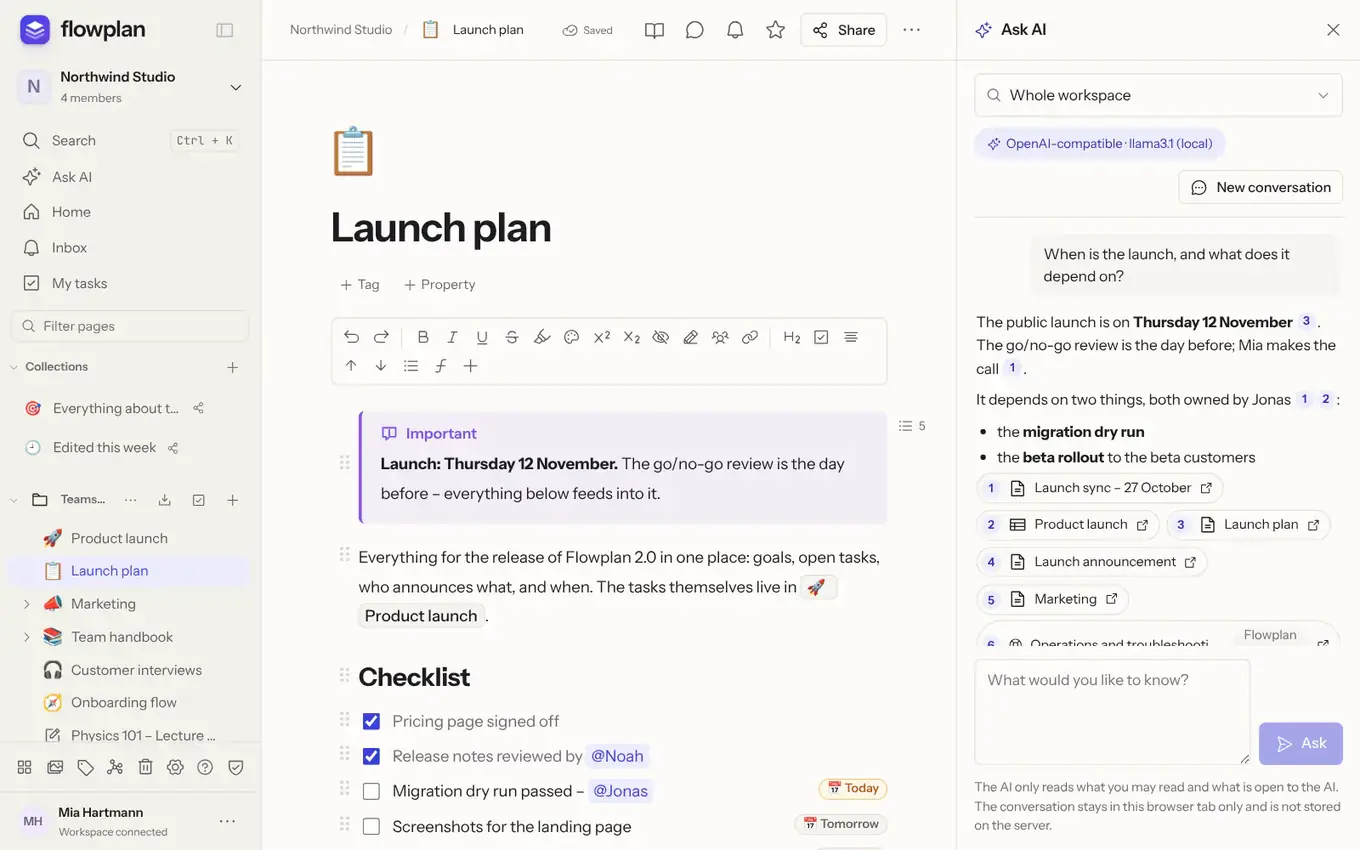
**A panel at the right edge:** on a computer and an iPad, **Ask AI** opens as a panel to the right of the page; the page gets narrower, nothing is covered. You can keep writing, scrolling and opening other pages while the answer is written – it keeps going, and the conversation stays when you switch pages. A click on a source opens the page beside it, the panel stays open. The panel starts at about 420 px and takes at most 45 % of the window; drag its left edge (or use the arrow keys) to change the width – a double-click resets it – and this browser remembers it. The page beside it lays out for the room it has left: when it gets tight it switches to its narrow layout, and the **table of contents** collapses to a button that opens the outline as a list. In narrow windows (below about 1100 px) the panel lies over the page instead of squeezing it; **Pin** puts it beside the page, **Unpin** over it again – this browser remembers that too. <kbd>Esc</kbd> in the panel, the <kbd>×</kbd> or the same shortcut close it again. **Ask AI** and the **comments** share the right edge: opening one closes the other. In focus mode the panel is hidden. On phones, **Ask AI** is a sheet above the bottom bar; swiping it down (or the arrow at its top) shrinks it to an "AI is answering …" button – the answer keeps going.
- **This page:** with a page open, the **This page** switch sits above the question field – on by default. The whole page then goes to the AI with your question: text, headings, lists, tables and code blocks as Markdown. So the AI answers questions like "What does this code block do?" or "Summarise this page" from the page itself; it appears as source [1], marked **This page**, and the search in the chosen scope runs as well. If the page is too long for the model, only its beginning goes along (about 60,000 characters, 12,000 with local AI), and a note below the answer says so. The server first checks that you may read the page and that the AI may read it; closed pages and end-to-end encrypted spaces have no switch. A click turns it off for this page; when you open another page it is on again.
- **Suggest as changes:** below an answer given with **This page**, this button puts the answer into the page as [suggested changes](/collaboration#suggest-changes) – for example after "Switch the stack to Postgres 16" or "Fix the spelling in the second section". Nothing is overwritten: removed words are struck through, new ones are marked, each change is a suggestion of its own with your name and "(AI)", which you accept or reject one by one in the **Suggestions** bar (or all at once). In a **code block** the lines are compared – only the changed lines are suggested. New paragraphs, list items or code blocks go to the right place; if you reject them they disappear completely. If a passage has changed in the meantime or Flowplan cannot find it again unambiguously, it is not applied – the panel says how many suggestions were inserted and how many were not. The button only appears when you may edit the page (and it is not locked); people who may only read get the answer. It works with every provider, local ones too.
- The answer names its **sources** as numbered references [1], [2] …; a click opens the page or record. The references come from the search, never from the AI's text. Below the answer you see the sources it actually cites; further sources found sit behind **n more sources** and unfold on a click (if an answer cites none, the first three show).
- If the AI finds nothing that fits, it answers "I found nothing about that." instead of making something up.
- **Where to look:** the whole workspace, the open page with its sub-pages, or one space – in the menu at the top left. With **All my workspaces** (its last entry) the question searches every workspace you belong to – each only when AI is usable for you there (not as a guest when guests have no AI, for example), and with your rules for each workspace. Sources from other workspaces carry its name; a click switches there.
- **Questions about Flowplan itself:** The Flowplan help – this documentation, in English and German – is built into the app and searched along with **Whole workspace** and **All my workspaces**. Questions like “How do I set up two-factor sign-in?” or “Where do I choose the AI provider?” are answered from the help; such sources are marked **Flowplan help** and open the matching section on docs.flowplan.org. **Only the Flowplan help** in the menu asks there alone. The help lives in the app itself – no request goes out for it, and it matches the installed version.
- **Journal and dates:** journal days reach the AI with their date, and so does today's date. Questions like “What was the last thing with Batu?” or “What did I last …” take the newest matching day. A name or a rare word finds its pages even when a common word of the question hits many other pages.
- **Formatting:** answers are formatted – bold, italic, lists (also nested), code and links; the source numbers stay clickable.
- **Copy:** **Copy** below the sources takes the whole answer. Each code block also has its own **Copy code** button in its top right corner – handy when the AI puts a command, a snippet or a ready text (such as an issue to file) into a code block. This applies wherever AI answers appear formatted.
- **Propose actions:** below an answer, the AI can propose what to create from it – see [AI actions](/ai-actions#ai-actions).
- **Conversation:** follow-up questions take the last questions and answers into account; **New conversation** starts over. The conversation stays in this browser tab only and is not stored on the server.
- The search uses the full-text index; the best-matching passages go with your question to the provider shown at the top of the panel. The AI only reads what you may read and what is open to the AI ([What the AI may access](/ai#what-the-ai-may-access)). A page's [tags and property values](/page-tags#tags-and-properties) count as part of its text.
- While the answer is written, a shimmer and a typing cursor show progress; the sources appear one after another.
Questions about the last or latest thing ("What did I last do with …?") always consider the newest journal days that match the question. The AI also reads handwriting in drawing blocks and notebooks (typed text and text recognised on iPhone/iPad) and the text of a page's PDFs, Office files and images – with the same rights as the page; journals with a PIN stay closed to the AI.
## Semantic search (optional)
Questions in Chinese, Japanese, Korean or Thai are split into words even though these languages don't use spaces. "浦东新区的发票在哪里" searches for 浦东新区 and 发票; small particles like 的 are left out.
In addition to full text, Flowplan can store content as vectors ("embeddings"). **Ask AI** then also finds passages without the same words – "trip" finds "company outing".
::: steps
1. Set an **embedding model** at the instance provider:
- **Ollama:** download `nomic-embed-text` (under **Administration → AI → Download model** or `ollama pull nomic-embed-text`) and enter it.
- **OpenAI-compatible:** e.g. `text-embedding-3-small`; **Gemini:** `text-embedding-004`. Anthropic has no embeddings.
2. **Turn on semantic search** and save. Or via the environment: `FLOWPLAN_AI_SEMANTIC_SEARCH=on` and `FLOWPLAN_AI_EMBEDDING_MODEL=nomic-embed-text`.
:::
- A background job embeds changed pages and records chunk by chunk; unchanged chunks are not embedded again. At most `FLOWPLAN_AI_EMBED_PER_HOUR` chunks per hour (default 5,000).
- **Never embedded:** journals with a PIN, pages and spaces closed to AI, and the trash. Permissions and personal AI rules apply to every question.
- Semantic search always uses the instance provider. People using their own provider search full text only.
- **Storage:** 4 bytes per dimension and chunk (up to about 900 characters) – with `nomic-embed-text` (768 dimensions) about 3 KB per chunk, roughly three to four times the text; with 1,536 dimensions about 6 KB. Only a checksum of each chunk is stored, not its text. The administration shows the number and size.
- **Switching off** deletes all vectors; **changing the model** rebuilds them.
- For very large instances (hundreds of thousands of chunks) there is no vector index yet; the search stays correct but gets slower.
## Related pages
Below a page and in a database record, **Related pages** shows up to eight pages and records that belong with it. It also works without AI:
- **Without semantic search**, it counts links from the page, links to the page, pages with the same links, the same tags (multi-select) for records, and similar titles in the full-text index.
- **With semantic search**, pages with similar content are added ("by meaning"). Only the vectors already stored are compared – no request goes to the provider, no text leaves the server. The open page must be readable for the AI; every hit passes the same rules as **Ask AI**.
Only what you may read is shown – no private spaces of others, no hidden records, nothing from the trash or locked journals.
---
<!-- https://docs.flowplan.org/en/ai-actions -->
# AI actions, databases and workflows
An AI answer becomes tasks, records and pages; plus AI properties in databases, AI on whiteboards and AI nodes in workflows.
## AI actions
From an answer of **Ask AI**, from the writing assistant (**Propose actions** below the answer) or from the transcript of a [meeting](/media-and-files#voice-notes-and-meetings), the AI proposes actions:
| Action | What happens |
| --- | --- |
| **Create page** | A new page with title and content in a space where you may create pages. |
| **Create tasks** | Tasks at the end of a document, optionally with an assignee (@mention) and due date – they appear in **My tasks** like ones you wrote. |
| **Append text** | A summary, for example, at the end of a document. |
| **Create record** / **Change record** | In a database, only in properties you may change and only with valid values (existing options, members, dates). |
**Nothing happens without you:** the proposals appear as a **preview with checkboxes**. What is not possible – a space without write access, a restricted property or a database closed to the AI – is greyed out with the reason. Only **Run** creates the chosen actions.
- Actions run **in your name and with your permissions**; the server checks each action again when running it. Version history, notifications, automations and webhooks work as for your own change; the audit log records `ai.action`.
- **Undo:** created pages and records can be taken back right in the result (they go to the trash); appended text and changed records are in the version history.
- The AI only sees a catalogue of the spaces, databases, properties and members you may write to and the AI may read – no content beyond that. The AI's answer is plain JSON and is never executed directly.
- Like every other feature, **AI actions** can be switched off by the administration and under **Settings → AI**.
### Using data from databases
When you name a database in your request, the AI reads its records and works with the real values instead of a template full of placeholders. Example: "Create documentation from the Server table" gives you a table of your servers with their IP addresses and URLs.
The AI reads a database when
- you name its title in the request (case does not matter, quotes are fine, e.g. "Server"),
- you link it in the request or the text (page link with `[[`),
- it is linked or embedded as a view in the open document and your request speaks of a table or database ("Summarise the linked table") – in the writing assistant only with "Page as context",
- in "Ask AI" the question is limited to the open database, or a source found is the database itself.
This applies to AI actions, the writing assistant (free prompt with `/ai` and a custom instruction for a selection) and "Ask AI". Below the answer or above the proposed actions you see which data was read, e.g. "Data from: Server (12 records)". In "Ask AI" the database is listed as a source.
What the AI sees:
- only records you may see and the AI may read – no private records of others, nothing from journals with a PIN, from pages and spaces [closed to AI](/ai#close-pages-and-spaces-to-ai), from end-to-end encrypted spaces, from the trash, or from places you excluded in your AI settings,
- only properties visible to you (per-property read permissions apply); relations, formulas, rollups, files, progress, time and sprints are not sent, nor the text of the records' documents,
- the records in the database's order.
Limits: at most 3 databases and 200 records per request and about 40,000 characters (about 8,000 in the writing assistant with a model on your own server). If not everything fits, the data says so ("… and 57 more records") and the AI points it out. Apple's on-device AI does not read databases.
## AI on whiteboards
On [whiteboards](/whiteboard-collaboration#ai-on-the-whiteboard), **AI** in the toolbar opens three features:
- **Group by theme (AI):** arrange the selected notes – or all in view – by theme in labelled columns.
- **Summarise as a page:** a new page next to the board with summary, themes, decisions, open questions and action items (optionally as real tasks with person and due date), linking back.
- **Create with AI …:** a mind map or a flowchart from a description.
When [creating database records from notes](/whiteboard-collaboration#sticky-notes-as-database-records) there is also **Split with AI**: the AI fills further properties from the note's text, with a preview before anything is created. Creating the records itself needs no AI.
- People who may edit the board can use it. The AI's answer is strictly checked (only known notes, shapes and properties, limits) and then applied like your own edit – live for everyone, undone in one step.
- Only the text of the elements concerned goes to the provider – without hidden notes and without linked pages or records the AI may not read. When creating, only your description goes there, nothing from the board. The audit log records `ai.whiteboard`.
- The **AI on whiteboards** feature can be switched off like all others by administrators and under **Settings → AI**; it is on as soon as AI is on.
## AI in databases
### AI property
When adding a property, choose **AI property** and write an instruction naming other properties in curly braces:
- `Summarize {Description} in one sentence`
- `Category from {Title}: one of Novel, Non-fiction, Crime`
- `{Content}` stands for the record's page content.
The **output** is text, select, multi-select (existing options only – invented ones are dropped) or number. Since an AI property is a normal property, filters, sorting, grouping, forms and exports work as usual.
- **Fill in for all** in the property dialog computes all records in the background; an indicator shows how many values are still being computed.
- In a record, **Recompute** computes one value right away and shows when and with which model it was made.
- **Recompute automatically when the properties used change:** values follow changes with a short delay and within the AI limits. This runs in the name of the person who switched it on or last changed the instruction. If they lose access, it stops; if AI is off on the instance, it pauses.
- Values are written like edits: with version history, automations and webhooks. Freshly computed cells light up briefly.
- Viewers, guests and API tokens cannot write AI values. Private records and databases closed to AI are skipped.
### Fill in fields with AI
Select records in the table → **Fill in with AI** → choose a property (e.g. tags). The AI fills only **empty** cells – from the title, the other properties and the content; for selects only with existing options.
### Create a database with AI
New page → Database → **Create with AI** and describe it, e.g. "Reading list with author, genre, status, rating". The AI proposes properties with types, select options and a few example records. You rename, remove properties or leave out the examples – only **Create page** creates the database. The proposal is checked strictly (allowed types, at most 25 properties and 30 options, matching example values); nothing from the AI's answer is executed.
## AI in workflows
[Workflows](/workflows) have four AI nodes: **Summarize**, **Classify** (into categories or the options of a select, with an “unclear” port), **Extract fields** and **Custom prompt** (text or JSON). They use the AI feature **AI in workflows** – admins switch it off under Administration → AI, everyone for themselves in their own AI settings.
- **Budget**: at most 100,000 tokens per workflow and day (`FLOWPLAN_WORKFLOW_AI_TOKENS_PER_DAY`); when it is used up, the node fails with a message.
- **What the AI reads**: only pages and records the person the workflow runs as may see and that are open to the AI; blocked pages and journals with a PIN stay out.
- **Prompt injection**: foreign text (e-mails, webhooks, page contents) is marked in the prompt as data. The AI only returns data, never actions – its answer is checked (categories from the list, typed fields). Where an AI output decides recipients, an address or a target, the check warns before activating.
- **AI builder**: “Draft with AI” builds a draft from one sentence; the AI only sees names of databases, properties and pages, no contents, and it counts against your personal AI allowance.
---
<!-- https://docs.flowplan.org/en/meetings -->
# Meetings
Type **/meet** in a document or a record's document. The block records a meeting, writes the transcript and then summarises it automatically.
**Header**
- **Event ▾**: a small menu at the calendar icon lists the day's events from your calendars – calendar databases (with a calendar view, including ones synced from Google or Microsoft 365) and calendar subscriptions – grouped by calendar, with the time first. Dated records of other databases (such as a sync log or tasks) appear only under **Other entries of this day**. An event fills in title, date and attendees.
- **Title** (default "New meeting"), the **date** as a date mention, **attendees** (+): the plus opens a search – type a name or e-mail address, pick with ↑ ↓ and Enter. Members become mentions; when nobody matches, the last row **Add guest "…"** adds the person by name.
- **Full page** enlarges the block. **Settings** (gear) opens a menu – a bottom sheet on phones:
- **Continue recording** (red dot), **Re-generate summary**, **Transcribe again** (while the audio is kept),
- the meeting's **Language** (for transcription and summary; *Automatic* = the interface language), **Instructions** (presets or *Custom …* with your own text), **Consent** (confirm before recording, notice text, play the notice – applies to the whole workspace), **Upload recording …**, **One combined track** (when the meeting's sound is recorded too),
- **Copy link to meeting**,
- **Delete audio now …** and **Delete transcript …** (red, asks first; the transcript comes back with ++⌘ Z++ / ++Ctrl Z++).
Menus and pickers float above the content; the block does not move. Escape closes them and returns the focus to their button.
**Three tabs**
- **Summary**: always in the same order – first the **action items** as "Owner: task": real tasks you can tick off, with a due date only when a date was said. The owner is whoever is explicitly named as responsible in the meeting or the notes – or whoever takes the task on themselves ("I'll take care of it", "I'll send the estimate"): that speaker becomes the owner. Otherwise the task has no owner; Flowplan never guesses. When the owner is a member who can read the page, they are mentioned and the task appears in their **My tasks** (with a notification). Then the **decisions** (with the reason below when one was given), the **open questions** (with their context) and finally the **summary by topic**.
- **Notes** (formerly "Agenda"): your own notes – before, during and after the meeting, editable at any time. The summary takes them into account.
- **Transcript**: every passage with time and speaker. It is **locked**, so reading, selecting and copying change nothing. **Edit transcript** (lock) unlocks it: corrected passages get a ✎, and Flowplan remembers that you corrected them. Unlocked, **Find and replace** works across the whole transcript (e.g. "Mayr" → "Maier"), with **Add to the glossary** so speech recognition spells the name right next time (owners only). Lines that speech recognition makes up in silence or noise ("Thanks for watching", "Untertitel im Auftrag des ZDF", "Sous-titres réalisés par …", a lone "Thank you.", the same line many times in a row) are marked *no speech*, hidden and left out of the summary – nothing is deleted: **Show N hidden lines** shows them.
**Sources**: every item of the summary ends with up to three sources – small timestamps like `08:17` that show where the passage starts in the transcript (`1:02:05` from an hour on). Hover over one to see the passage; a click opens the transcript there and plays the recording from that point if it is kept. Exports, published pages and printouts show the same times.
**Recording**
- **Start recording**, **Pause**, **Resume**, **Stop** (asks once "End the meeting?" – then it is transcribed and summarised). While recording, a small **level meter** per source (microphone, system sound) shows that sound arrives; when one source stays silent for more than 30 seconds while the other has sound (a muted or wrong microphone, a tab shared without audio), the block says so. **Continue recording** (in the menu) picks the meeting up later – the transcript continues. When a recording ended unexpectedly (window closed, connection lost), the block offers **Continue**.
Which sound is recorded depends on where you record:
::: tabs
== Desktop app
In the **desktop app** (Windows 10+, macOS 13+) the microphone and the **system sound** are recorded as two separate tracks: the microphone is you (your name), the system sound is everyone else ("Others"). With `WHISPER_DIARIZE=on` and a service that separates speakers, the others are told apart ("Others 1", "Others 2"). macOS asks once for "Screen & System Audio Recording"; without it Flowplan records the microphone only and says where to allow it.
== Browser
In the **browser**, **Start recording** records the microphone (everyone in the room on one track); in Chrome and Edge the block points this out first. In **Chrome and Edge**, **Record all participants** also records a tab's or the screen's sound: in the sharing dialog pick the video call's tab (or the screen) and tick the box to share the sound (for a tab, “Share tab audio”); Flowplan drops the picture at once. Firefox and Safari pass no sound there – use the desktop app (also for the sound of other programs).
== Mobile apps
The apps for iPhone, iPad and Android record the microphone only.
:::
- **Headphones** work best. With loudspeakers the microphone hears the others too; Flowplan removes such duplicate passages from the microphone track (same time, nearly the same words).
- **One combined track** (menu): microphone and meeting sound are mixed into one track instead of two. Speakers are then only told apart by the Whisper service (`WHISPER_DIARIZE=on`); separate tracks stay the default.
- The recording goes to the server in 30-second pieces; when the connection drops, the pieces stay in the browser and are sent later. Up to 3 hours per meeting. The server transcribes the pieces **while you record** – after you stop, only the last piece and the summary are left, so the result is there much sooner. When that does not work (another format, the service briefly unavailable), the whole recording is transcribed at the end; the audio is never lost.
- **Upload recording …** (menu): M4A, MP3, WAV, AAC or WebM – one file with everyone, or two files (the microphone first, then the meeting's sound).
**After the recording**: the block goes quiet – no big button any more, just a line like "41:21 recorded · transcribed · summarised". When processing fails, the error shows there with **Process again**, which only processes what is missing – a track that was already transcribed is not sent again. Instance admins also see the exact cause below it (e.g. "no answer within 504 s", "ECONNREFUSED" or the Whisper service's answer). **Transcribe again** (menu, only while the audio is kept) sends the recording to speech recognition once more, e.g. after adding to the glossary or changing the Whisper service, and then writes the summary anew; the previous one stays in the page's version history. When passages were corrected, Flowplan asks whether to **keep** them (the default) or **replace** them.
**Summary**: written after you stop, in the meeting's language, by your instance's AI provider. It needs at least one minute of recording and reads the transcript **and the notes** – including notes you add after the meeting: **Re-generate summary** always uses the current state. **Instructions**: Automatic, Status meeting, 1:1, Workshop, Customer call, or your own. **Re-generate summary** uses other instructions without transcribing again. **Ask this meeting** answers only from this block's transcript and notes, with source chips.
**In a database**: when the block is in a record's document (e.g. a "Meetings" database), Flowplan fills existing properties after processing: date, attendees (person), duration (number, minutes) and status (an option such as "Done").
**From the journal**: the meeting note of a journal day's event ends with a meeting block holding the event's title, date and attendees.
**Settings → Workspace → Meetings** (owners):
- **Instructions**: the default for new blocks.
- **Vocabulary → Glossary**: names, acronyms and terms speech recognition should spell right – one per line or separated by commas. Flowplan passes them, together with the instance's `WHISPER_PROMPT`, to Whisper as a hint; Whisper reads only about 224 tokens of it (some 550 characters), the rest is cut after the last whole term.
- **Keep audio**: *Delete after the transcript* (default), *Delete after some days* or *Keep*. Kept audio counts against the storage.
- **Consent required** with your own **notice text**: before recording the notice appears with "Everyone being transcribed has agreed"; **Play consent notice** reads it aloud. Who confirmed is stored.
**Who may do what**: whoever can read the page sees the block – guests only on pages shared with them. Recording and processing need edit rights. Locked pages, journals behind a PIN (while locked) and end-to-end encrypted spaces: no recording (the server would hear the audio). Transcription needs `WHISPER_URL`, the summary your instance's AI; neither leaves your server or your configured provider.
## API and MCP
API tokens have a new permission **"AI and transcription"** (Settings → API & AI assistants, when creating a token; off by default). Only tokens with it reach the AI features (`/api/ai/run`, `ask`, `write`, `summarize`), transcription (`/api/transcribe`) and meetings. Administrators can switch the permission off for the whole instance (Administration → AI → "API tokens with 'AI and transcription'"). Requests count against the same AI limits as the interface.
```bash
curl -X POST https://flowplan.example/api/meetings \
-H "Authorization: Bearer fp_…" \
-F pageId=<page id> \ # or databaseId=<database id>
-F title="Kick-off" -F date=2026-11-11 \
-F attendees='["Ben","anna@example.org"]' \
-F instructions=status \
-F me=@microphone.webm -F others=@system.webm # or -F audio=@everyone.m4a
```
Answer `202 { id, pageId, rowId, status: "transcribing", statusUrl }`. `GET /api/meetings/{id}?content=1` returns the status, the summary (Markdown), `agenda` (the block's Notes) and the transcript. Instead of audio you can send `transcript` as text (one passage per line, optionally `Name: text`). When the workspace requires consent, send `consent=true`. More: `POST /api/meetings/{id}/summarize` (summarise again), `POST /api/meetings/{id}/retranscribe` (transcribe the kept audio again; `{"dryRun": true}` only counts the corrected passages, `{"force": true}` replaces them too), `POST /api/meetings/{id}/ask`. In the transcript (`content=1`) passages carry `hallucination` (no speech) and `edited` (corrected); `errorDetail` is shown to instance admins only.
MCP: **`create_meeting_note`** (audio as base64 in `audio` or `me` + `others`, or `transcript`; target `pageId` or `databaseId`) and **`get_meeting_note`** – only with a write token that has "AI and transcription".
Environment: `FLOWPLAN_AI_TOKENS=off` switches the token permission off by default (until an administrator saves the AI settings).
---
<!-- https://docs.flowplan.org/en/api-and-webhooks -->
# API and webhooks
With personal API tokens, scripts, n8n or Home Assistant access Flowplan; webhooks report new records, form answers and pages to other services.
**More on this topic:** [OpenAPI and SDKs](/openapi) · [Inbound e-mail](/inbound-email) · [Chat notifications](/chat-notifications)
## API tokens
Under **Settings → API & AI assistants** you create tokens: with a name, **Read only**, **Read and write** or **Browser extension only**. The token is shown only once – afterwards only its beginning is visible. A **Read only** token is refused for every request that writes, including restoring backups and uploading files.
- **Browser extension only:** for the [browser extension](/browser-extension). The token only reaches /api/clipper/targets and /api/clipper/save; everywhere else it counts as no token.
- **Marketplace check:** a tick when you create the token, off by default (not for **Browser extension only** tokens). The token then reaches the [import check](/marketplace#checking-an-import) of marketplace packages (`POST /api/marketplace/check`) – also as a **Read only** token, because the check keeps nothing. The permission never allows a real import; that still needs a **Read and write** token. Without the permission `/api/marketplace/check` answers 403.
Every request with the token acts with your permissions:
```bash
curl -H "Authorization: Bearer fp_…" https://flowplan.example.com/api/bootstrap
```
- **Read**: all `GET` endpoints, such as `/api/bootstrap` (workspace, pages) and `/api/pages/<id>` (a document, or a database with its records).
In a database's answer the records are under `rows` (with `preview` instead of the full document); `related` contains linked databases, the database's own records are only under `rows`.
- **Write**: `POST /api/command` with the same action as the interface, e.g. to create a record:
```bash
curl -X POST https://flowplan.example.com/api/command \
-H "Authorization: Bearer fp_…" -H "Content-Type: application/json" \
-d '{"action":"row.create","pageId":"<database ID>","cells":{"title":"From Home Assistant"}}'
```
**Markdown export** also works with a read token, since it only reads – e.g. for a cron job that pushes the export into a Git repository (or let Flowplan do it, see [Markdown export and Git](/markdown-git-export)):
```bash
curl -sf -X POST https://flowplan.example.com/api/markdown-export \
-H "Authorization: Bearer fp_…" -H "Content-Type: application/json" \
-d '{"pageId":"<page id>","format":"zip","includeSubpages":true,"history":true}' -o export.zip
```
Instead of `pageId`, `spaceId` exports a whole [space](/export#export-a-whole-space) into one ZIP: `{"spaceId":"<space id>","format":"zip","history":true}`.
**Block links:** `GET /api/pages/{pageId}/blocks/{blockId}` returns the title and the start of a block's text (with `?row=` for records), `GET /api/blocks?workspace=…&q=…` searches headings and blocks, and the `block.ids` action gives the blocks of an older document their ids.
Tokens never get administrator rights and cannot create further tokens. You can revoke them at any time in the same list; locked accounts lose their tokens automatically.
To connect Claude, ChatGPT or other AI assistants, use the [MCP server](/mcp) with a token like this.
## Idempotency-Key: retries without doubles
A request can fail without an answer – the connection drops, a proxy times out – although Flowplan already applied it. So that a script can simply try again, every changing request takes the header `Idempotency-Key`: one key per logical action (e.g. a UUID v4, 8–128 characters of `A–Z a–z 0–9 _ -`), sent again **unchanged** with every retry of that action.
```bash
KEY=$(uuidgen)
curl -X POST https://flowplan.example.com/api/command \
-H "Authorization: Bearer fp_…" -H "Content-Type: application/json" \
-H "Idempotency-Key: $KEY" \
-d '{"action":"comment.create","pageId":"<page ID>","body":"Deployed"}'
# The same request with the same key again: no second comment.
```
- **First request:** applied; the key is stored with the answer. For `POST /api/command` this happens in the same transaction as the change – either both or neither.
- **Same key, same request** (method, path and body): the stored answer with the same status, marked with `Idempotent-Replayed: true`. Nothing is applied again.
- **Same key, different request:** `422` (`code: idempotency_key_reused`).
- **First request still running:** `409` with `Retry-After` (`code: idempotency_in_progress`) – wait and send again with the same key.
- **Answers with secrets** (a new API token, a feed address, an access password) and answers larger than 64 KB are not stored: a repeat gets `409` (`code: idempotency_already_applied`) instead of the secret a second time.
- An invalid key gives `400` (`code: idempotency_key_invalid`). A failed request (4xx, 5xx) keeps no key – after fixing the cause it can be sent again with the same key.
Keys belong to whoever sends them: to the person for the web app, to the API token, or to the app installation (widgets, Shortcuts, share sheet). The same key of another token or person is a different key. Keys expire after 24 hours. Requests without the header work as before.
The header is accepted by `POST /api/command`, uploads (`/api/upload`), imports, webhooks, time reports, issue sync, the browser extension's `/api/clipper/save` and the actions of the mobile apps; the [OpenAPI document](/openapi) marks these operations (`x-idempotent`). The web app, the mobile apps (widgets, Shortcuts, share sheet, notification buttons, changes queued offline) and the generated SDKs send a key with every change on their own and keep it when they retry – a double click, a tap with a weak signal or a reconnect never applies a change twice.
## Webhooks
Webhooks have their own section: **Settings → Webhooks** (group “Connections”, owners only). Owners of a workspace create webhooks there with **Create webhook**: an address, events and optionally a single database. The list shows each webhook with its format, last delivery and events. Every webhook has a page of its own (`/#settings/webhooks/<id>`) with the cards **Target** (format, address, database, credentials for Slack/Matrix), **Events** (one switch per event), **Message** (chat formats only), **Preview** and – for an existing webhook – **Delivery** with **Send test message**; **Save changes** saves it, and it is deleted in the **Danger zone** with **Delete webhook …**. The secret key appears once above the list after creating.
Stored credentials (the token for Slack or Matrix) never go to a new address: if you change the address or the format of a webhook with a token, enter the token again, otherwise it isn't saved.
A webhook acts with the rights of the person who created it: it only reports pages, records and comments they may read – content from other people's private spaces stays out, as do hidden properties. If that person is deactivated or leaves the workspace, the webhook stops delivering. Its address and secret are stored encrypted.
| Event | When |
| --- | --- |
| `row.created` | A new record in a database, also from a form |
| `row.updated` | A record changed (`changed` names the properties) |
| `row.done` | A record became done (status "Done" or similar, or the database's done rule) |
| `form.submitted` | A form answer |
| `page.created` | A new page |
| `comment.created` | A new comment on a page or record (`text`) |
| `mention` | Someone was mentioned in a page or record (`userId`, `text` = the name) |
| `digest.due` | Once a day at the chosen time: open records due today or overdue (`items`) |
Flowplan sends JSON with `POST`:
```json
{
"event": "row.created",
"id": "…",
"createdAt": "2026-09-27T10:00:00.000Z",
"workspaceId": "…",
"data": { "pageId": "…", "rowId": "…", "cells": { "title": "New" } }
}
```
The test message from the settings arrives with the event `test`.
### Check the signature
The header `X-Flowplan-Signature: sha256=<hex>` is the HMAC-SHA256 signature of the body with the secret key that is shown once when the webhook is created:
```js
import { createHmac, timingSafeEqual } from "node:crypto";
const expected = "sha256=" + createHmac("sha256", secret).update(rawBody).digest("hex");
const valid = timingSafeEqual(Buffer.from(expected), Buffer.from(req.headers["x-flowplan-signature"]));
```
### Delivery
- Answers with status 2xx count as delivered; otherwise Flowplan retries up to six times with growing intervals.
- The list under **Settings → Webhooks** shows each webhook's format, last delivery or last error and its events.
- Only public HTTPS addresses are allowed. For services in the same network (Home Assistant, n8n) the administrators set `FLOWPLAN_WEBHOOK_ALLOW_PRIVATE=true`.
- **Send test message** in the list or on the webhook's page (card **Delivery**) sends a sample message right away and shows the result; it is not retried. Below the last delivery the list also shows the last error and when it happened.
### Create webhooks via the API
With a **write token** of an owner, webhooks can also be created, changed and removed via the API (`POST /api/webhooks`, `POST /api/webhooks/update`, a test message with `POST /api/webhooks/test`; remove one with `POST /api/command` and `{"action": "webhook.delete", …}`), for instance by automation services. Read tokens cannot.
## Workflows
[Workflows](/workflows) can be driven entirely through the API (all routes in the OpenAPI document under *Workflows*):
| Route | Purpose |
| --- | --- |
| `GET /api/workflows?workspaceId=` | List with status, “runs as” and last run |
| `GET /api/workflows/catalog` | Node catalogue with settings as JSON Schema |
| `GET /api/workflows/{id}` | Status, active version, draft with its check (editors) |
| `POST /api/workflows/{id}/draft` | Replace the draft by a graph JSON |
| `POST /api/workflows/{id}/test` | Dry run or test run of the draft |
| `POST /api/workflows/{id}/activate` | Activate – you become the person it runs as (write token) |
| `POST /api/workflows/{id}/pause` | Pause, optionally cancel open runs |
| `POST /api/workflows/{id}/run` | Start a workflow with a manual trigger |
| `GET /api/workflows/{id}/runs`, `GET /api/workflow-runs/{runId}` | Runs and steps |
| `POST /api/workflow-runs/{runId}/retry` / `cancel` | Retry from the failed node / cancel |
| `GET /api/workflows/{id}/export`, `POST /api/workflows/import` | JSON export (without secrets) and import as a draft |
Read tokens only read. Approvals are decided only by a signed-in person, never by a token. `activate`, `run` and `import` take an `Idempotency-Key`. The SDKs have methods for all of it (`saveWorkflowDraft`, `testWorkflow`, `activateWorkflow`, `runWorkflow` …).
### Inbound workflow webhook
The **Inbound webhook** trigger has an address of its own, `POST /api/workflow-hooks/<token>` (shown in the node, can be rotated). The default is **signed**: `X-Flowplan-Timestamp` (Unix seconds, at most 5 minutes old) and `X-Flowplan-Signature: sha256=<HMAC-SHA256(secret, timestamp + "." + body)>`. Each signature counts once. The answer is `202` right away, with the run's ID.
```bash
body='{"title":"Server down","description":"web-1 is not answering"}'
ts=$(date +%s)
sig=$(printf '%s.%s' "$ts" "$body" | openssl dgst -sha256 -hmac "$SECRET" | cut -d' ' -f2)
curl -X POST "$URL" -H "Content-Type: application/json" -H "X-Flowplan-Timestamp: $ts" -H "X-Flowplan-Signature: sha256=$sig" -d "$body"
```
```js
const ts = Math.floor(Date.now() / 1000).toString();
const sig = crypto.createHmac("sha256", secret).update(`${ts}.${body}`).digest("hex");
await fetch(url, { method: "POST", headers: { "Content-Type": "application/json", "X-Flowplan-Timestamp": ts, "X-Flowplan-Signature": `sha256=${sig}` }, body });
```
```python
ts = str(int(time.time()))
sig = hmac.new(secret.encode(), f"{ts}.{body}".encode(), hashlib.sha256).hexdigest()
urllib.request.urlopen(urllib.request.Request(url, body.encode(), {"Content-Type": "application/json", "X-Flowplan-Timestamp": ts, "X-Flowplan-Signature": "sha256=" + sig}))
```
For services that cannot sign there is the deliberately chosen **Token only** mode (at most 10 calls a minute). A workflow's HTTP node sends an outgoing `Idempotency-Key: <run>:<node>:<iteration>`, so retries do not act twice at the receiver.
## n8n
For [n8n](https://n8n.io) there is the community node **`n8n-nodes-flowplan`** (source under [`integrations/n8n`](https://github.com/yannicschuller/flowplan/tree/main/integrations/n8n)).
::: steps
1. In n8n, install `n8n-nodes-flowplan` under **Settings → Community Nodes**.
2. Add a **Flowplan API** credential: your instance address and an [API token](#api-tokens).
3. Use the nodes:
- **Flowplan** lists workspaces and pages, creates pages (optionally with Markdown content), reads, creates and updates database records (properties by name) and searches.
- **Flowplan Trigger** starts workflows on new or changed records, form answers and new pages. It registers its own webhook on activation (which needs a write token of an owner), removes it on deactivation and rejects deliveries with a wrong signature.
:::
If n8n runs in your own network, set `FLOWPLAN_WEBHOOK_ALLOW_PRIVATE=true` ([Configuration](/configuration-integrations#integrations)).
## Calendar subscriptions
Calendar views can be subscribed to as an iCalendar link, see [Views](/views#subscribe-to-a-calendar).
---
<!-- https://docs.flowplan.org/en/openapi -->
# OpenAPI and SDKs
Every instance describes its own API as an [OpenAPI 3.1](https://spec.openapis.org/oas/v3.1.0) document:
- `GET /api/openapi.json` – the document. Its `servers` entry carries the instance's address (`APP_URL`).
- `/api/docs` – the same description for reading: every path by section, parameters, requests, answers and schemas.
Both are only available to signed-in people and with an API token (`Authorization: Bearer fp_…`, any scope); without signing in `/api/openapi.json` answers `401` and `/api/docs` asks to sign in. Instances that want to show the description publicly set `FLOWPLAN_PUBLIC_API_DOCS=true`; visitors then only see the major version (`0.x`) under `info.version`, signed-in people the exact one.
```sh
curl -H "Authorization: Bearer fp_…" https://flowplan.example.com/api/openapi.json > openapi.json
```
It lists every endpoint an API token may call: workspace and pages, search, files, imports and exports, webhooks, the MCP server and `POST /api/command` with a schema for each commonly used action (`page.create`, `row.create`, `row.update`, `webhook.delete` …) plus the list of all other actions. Each endpoint names its error codes (400, 401, 403, 404, 409, 413, 429) and the rate limits; calendar subscriptions and CalDAV are noted as external accesses with their own link.
Uploaded images have a placeholder: the answer of `POST /api/upload` names, under `placeholder`, the size the image is shown in (`w`, `h`) and a [ThumbHash](https://evanw.github.io/thumbhash/) (`hash`, base64) – a blurred preview in about 25 bytes. `GET /api/files/placeholders?ids=…` returns the same for up to 100 files and profile pictures (`avatar:<user ID>`), but only for files you may download; anything else is left out of the answer. For older files the placeholder is computed on the first request. Files of encrypted spaces never have one – the server cannot see their content.
The document is built from the code: where the server validates input with `zod` (properties and views of a database, the actions, export options), the same schemas are used; the rest is described from the routes in `lib/openapi.ts`. A test keeps them together – every route under `app/api`, every action of `command()` and the SDKs.
## Clients
Two thin, dependency-free clients are generated from the document, in the source under [`sdk/`](https://github.com/yannicschuller/flowplan/tree/main/sdk):
- **TypeScript** (`sdk/typescript/flowplan.ts`): one file, ESM, built on `fetch`, with types for every answer and action. Copy the file into your project and you are done:
```ts
import { FlowplanClient } from "./flowplan.js";
const client = new FlowplanClient({ baseUrl: "https://flowplan.example.com", token: "fp_…" });
const { workspace, pages } = await client.bootstrap();
const { id } = await client.command({ action: "row.create", pageId: "<database ID>", cells: { title: "From the SDK" } });
```
- **Python** (`sdk/python/flowplan_client.py`): standard library only (`urllib`), Python 3.11 or newer, `TypedDict`s for the answers:
```python
from flowplan_client import FlowplanClient
client = FlowplanClient("https://flowplan.example.com", token="fp_…")
shell = client.bootstrap()
created = client.command({"action": "row.create", "pageId": "<database ID>", "cells": {"title": "From the SDK"}})
```
Methods are named after the document's `operationId` (`getPage` / `get_page`, `search`, `uploadFile` / `upload_file`, `markdownExport` / `markdown_export` …). Answers outside 2xx raise `FlowplanError` with the status, the server's message and, for 429, the time to wait. Each SDK comes with a README and an example script.
Both clients send an [`Idempotency-Key`](/api-and-webhooks#idempotency-key-retries-without-doubles) with every change on their own and retry by themselves – GET requests and changes after a network error, `429`, `502`, `503`, `504` or `409` while the first attempt still runs, twice by default (`retries`, `0` turns it off). Changes are retried with the same key and so applied once. To repeat an action later, pass your own key: `idempotencyKey` (TypeScript, in the options of a call) or `idempotency_key=` (Python).
If you build Flowplan yourself, `npm run sdk` regenerates the clients; the test `tests/openapi.test.ts` fails when the committed files no longer match the document.
## Tags and properties via the API
- `GET /api/tags?workspace=<id>` – the workspace's tags (`id`, `name`, `color`, `position`, `pages`, `records`: number of readable database records with the tag) and properties (`id`, `name`, `type`, `options`). `GET /api/tags/<tagId>?workspace=<id>` also returns the readable pages (`pages`) and records (`records`: `page_id`, `row_id`, `title`, `database`, `space_id`, `updated_at`, `tags`) with that tag.
- `GET /api/pages/<id>` contains `properties`: `tags` (tag IDs), `values` (by property ID) and `info` (created/changed at/by).
- `POST /api/command` with `page.properties`: `{ "action": "page.properties", "pageId": "…", "addTags": ["Customer"], "values": { "Status": "Open", "Budget": 1200 } }`. Tags and properties go by ID or name; `tags` replaces all tags, `addTags`/`removeTags` change them, `null` removes a value.
- `POST /api/command` with `page.collapseProperties`: `{ "action": "page.collapseProperties", "pageId": "…", "collapsed": true }` collapses the bar with tags and properties for you (`false` expands, `null` back to the default). Applies only to you, on all devices; read access to the page is enough.
- `pages.tag` adds or removes tags on up to 500 pages at once.
- Owners (for a space's tags and properties also that space's owners): `tag.save`, `tag.delete`, `tag.merge`, `tag.reorder`, `property.save`, `property.delete`, `property.reorder`. New tags (`tag.save` without `tagId`) with `spaceId` may also be created by members who may write in that space; without `spaceId` (or `null`) a new tag or property applies to the whole workspace (owners only).
- Scopes ([more](/page-tags#scope-workspace-or-space)): tags and properties in `GET /api/tags` carry `spaceId` (`null`: the whole workspace); `GET /api/tags/<id>?sameName=1` adds same-named tags of other spaces. `tag.scope`/`property.scope` (`{ workspaceId, tagId | propertyId, spaceId, resolve?: "block" | "copy" | "remove", mergeSameName? }`, owners only) change the scope, `meta.usage` (`{ workspaceId, kind, id, spaceId }`) shows the use outside the target first.
- Moving: `page.moveCheck` (like `page.move`) lists the tags and properties of the current space the destination lacks (`foreign`, with `sameName` and `candidates`). `page.move` and `pages.bulk` take the choice as `meta`: `{ "tags": { "<id>": { "action": "map", "to": "<id>" } }, "properties": { "<id>": { "action": "copy" } } }` or short `"auto"` (map to the same-named ones, else copy), `"copy"`, `"remove"`. Without a choice, `page.move` answers 409 instead of dropping values.
- Templates: `template.save` without `spaceId` belongs to the page's space, with `spaceId: null` to the whole workspace (owners; a space's tags: 409 or `spaceMeta: "remove"`). `template.dependencies` (`{ workspaceId, templateId, spaceId }`) lists what a template of another space brings (keys `tag:<name>`, `property:<name>`); `page.create`, `template.apply` and `template.copy` (`{ workspaceId, templateId, spaceId, meta? }`) take the choice as `meta`, `template.update` changes a template's scope with `spaceId`. `GET /api/templates` returns `space_id` and `space_name`.
- Text properties (except the title) hold inline Markdown – in `row.create`, `row.update`, `rows.bulk`, `rows.import`, when reading and in webhooks: `**bold**`, `_italic_`, `~~strikethrough~~`, `` `code` ``, `[label](https://…)` (http, https, mailto only), `\n` for a line break. Send plain text escaped: a backslash before `` \ * _ ~ ` [ ] ``. See [Formatted text](/database-properties#formatted-text).
- Database properties with the tags as options: in `database.update` a `multiselect` property with `"tagOptions": true` (the server sets its `options`). Cells hold tag names; a new name in `row.create`, `row.update` or `rows.bulk` creates the tag (members with edit rights, 403 otherwise); `rows.import` leaves out names that may not become tags. MCP lists such properties in `get_database` with `tagOptions: true`.
- In `GET /api/search`, `#tag`, `-#tag`, `name:value`, `OR`, `NOT`, parentheses, `created_by:`, `created:`, `type:`, `in:` and `title:` act as filters (parameter `tz`: the time zone for `today` and similar) (see [Search](/search-and-notifications#filter-by-tags-and-properties)). MCP clients get tags and values with `read_page` as frontmatter.
## Record versions
`row.update` carries the `version` of the record you read. If the record changed since, the server answers `409` – unless you also send `base`: the values of the changed properties as you read them. Then the change applies as long as nobody else changed those properties meanwhile, and only a real conflict (someone changed the same property) gets the `409`. Answers to `row.update` and the other changes of a record (`row.move`, `row.schedule` …) include its new `rowVersion`; send that with the next change.
## Collections via the API
- `GET /api/collections?workspace=<id>` – your collections and those shared with the workspace, in your order: `id`, `name`, `icon`, `query`, `shared`, `mine`, `canEdit`, `ownerName`.
- `GET /api/collections/<id>?tz=Europe/Berlin&offset=0&limit=500` – runs a collection. It returns `collection`, `items` (`pageId`, `rowId`, `type`, `title`, `icon`, `spaceId`, `database`, `tags`, `createdAt`, `updatedAt`, `createdBy`, `creatorName`; most recently changed first, `limit` matches per page, default 500, at most 5000), `total`, `offset`, `nextOffset` (the `offset` of the next page, `null` on the last one), `truncated` (more pages follow) and `encryptedLeftOut`. Matches always follow the permissions of the token's person.
- `GET /api/collections/preview?workspace=<id>&q=<query>` – the first 50 matches of a query that is not saved, and its canonical form (`query`).
- `POST /api/command`:
- `collection.create` `{ workspaceId, name, query, icon?, shared? }`
- `collection.update` `{ collectionId, name?, query?, icon?, shared? }`
- `collection.delete` / `collection.restore` `{ collectionId }`
- `collection.duplicate` `{ collectionId, name? }`
- `collection.reorder` `{ workspaceId, order: [ids] }`
The query is stored in its canonical form and returned as `query`. `search.save` and `search.delete` still work and create or delete collections.
- MCP: `list_collections`, `run_collection` (read), `save_collection`, `delete_collection` (write).
---
<!-- https://docs.flowplan.org/en/inbound-email -->
# Inbound e-mail
Workspace owners create addresses with **Create address** under **Settings → General → Inbound e-mail** that file incoming e-mail in Flowplan:
- **Target page**: every e-mail becomes a new subpage. The subject is the title, the text (cleaned HTML or plain text) the content, with sender and date above it. Attachments become files of the new page; embedded images (`cid:`) appear in place, all other attachments as a list below.
- **Target database**: every e-mail becomes a record. The subject is the title, the text the record's content, the sender address goes into the first e-mail property (if there is one), the e-mail's date is the creation date, and attachments go into the first files property (otherwise as a list into the content).
- **Allowed senders**: addresses (`ada@example.org`) or domains (`example.org`, exactly that domain). E-mails from other senders are not stored but noted in the audit log.
- **Signing key** (optional): see below.
The address acts with the permissions of the person who created it. If they lose write access to the target or the target is locked, the address stops accepting mail (the list shows the error).
Security and limits:
- Every address has a random 32-character token. **Generate a new token** invalidates the current address at once.
- HTML from e-mails is cleaned like guest content: no scripts, forms, styles or frames; remote images (e.g. tracking pixels) are removed, links stay.
- Attachments: at most 20 per e-mail, 10 MB per file, 25 MB together; larger ones are named in the text. The file type is checked against the content, photos lose their location; only images and PDFs open in the browser, everything else is downloaded. Attachments count towards the workspace's storage quota and the daily budget for anonymous uploads (200 MB per address and day, plus `FLOWPLAN_ANONYMOUS_UPLOAD_MB` for the whole instance).
- At most 60 e-mails per address and hour (rejected ones count too); beyond that Flowplan answers 429 and the provider retries later.
- The same `Message-ID` is stored only once per address. Without a `Message-ID`, sender, subject, date and text count.
- The sender address of an e-mail can be forged. The sender list is a pre-filter; above all the token must stay secret. For webhooks the signing key adds protection.
## Via webhook (Mailgun, Postmark, SendGrid, Cloudflare)
Without further setup Flowplan accepts e-mail as a `POST` to the webhook address shown in the list:
```
https://flowplan.example.com/api/inbound-mail/<token>
```
Flowplan recognises the format from the content:
| Provider | Setup |
| --- | --- |
| **Mailgun** | *Receiving → Create Route*: an expression such as `match_recipient("flowplan@mg.example.com")`, action *Forward* to the webhook address. Enter Mailgun's *HTTP webhook signing key* as the signing key; Flowplan then checks `timestamp`, `token` and `signature` (at most 15 minutes old). |
| **Postmark** | Server → *Inbound* stream → *Webhook URL* = the webhook address. Postmark sends JSON with `FromFull`, `TextBody`, `HtmlBody` and `Attachments`. |
| **SendGrid** | *Settings → Inbound Parse → Add Host & URL*: domain and webhook address. With *POST the raw, full MIME message* the whole e-mail arrives (`email`), otherwise the fields `from`, `subject`, `text`, `html`, `attachment-info` and `attachment1…`. |
| **Cloudflare Email Routing** | An Email Worker rule that passes on the raw e-mail (example below). |
| **Your own scripts** | JSON or `multipart/form-data` with `from`, `to`, `subject`, `text`, `html`, `messageId`, `date` and `attachments` (JSON: `[{ "filename", "contentType", "content" (base64), "contentId" }]`, multipart: file fields) – or the whole e-mail as `raw` (text) or `rawBase64`, or as the body with `Content-Type: message/rfc822`. |
Cloudflare Email Worker:
```js
export default {
async email(message, env) {
const raw = await new Response(message.raw).arrayBuffer();
const body = new Uint8Array(raw);
const key = await crypto.subtle.importKey("raw", new TextEncoder().encode(env.FLOWPLAN_KEY), { name: "HMAC", hash: "SHA-256" }, false, ["sign"]);
const sig = [...new Uint8Array(await crypto.subtle.sign("HMAC", key, body))].map((b) => b.toString(16).padStart(2, "0")).join("");
const res = await fetch(env.FLOWPLAN_URL, {
method: "POST",
headers: { "Content-Type": "message/rfc822", "X-Flowplan-Signature": `sha256=${sig}` },
body,
});
if (!res.ok) message.setReject(`Flowplan: ${res.status}`);
},
};
```
**Signing key**: when an address has one, every delivery needs either the header `X-Flowplan-Signature: sha256=<hex>` (HMAC-SHA256 of the unchanged body with the key, as with Flowplan's own webhooks) or Mailgun's signature fields. Otherwise Flowplan answers 401.
Answers: `200` with `{"status": "stored" | "duplicate" | "rejected"}` – rejected and duplicate e-mails get 200 too, so the provider does not retry. `401` invalid signature, `404` unknown token, `409` target not writable, `413` too large or daily budget reached, `415` unknown format, `429` hourly limit.
## Via an IMAP mailbox
Instead of a provider, Flowplan can poll a mailbox of your own (every two minutes, unread e-mail). The administrators set `INBOUND_IMAP_HOST`, `INBOUND_IMAP_USER`, `INBOUND_IMAP_PASSWORD` and `INBOUND_MAIL_DOMAIN` for it ([Configuration](/configuration-integrations#inbound-e-mail-imap)). Each address in the list then reads
```
inbox+<token>@mail.example.com
```
(plus addressing: the part before `+` is the mailbox's user name). Flowplan looks for the token in `To`, `Cc`, `Delivered-To` and `X-Original-To`. Processed, duplicate, rejected and unroutable e-mails are marked as read; when the hourly limit or daily budget is reached they stay unread for the next round.
## Via the API
With an owner's **write token**: `GET /api/inbound-mail?workspace=<id>` lists the addresses; `POST /api/command` with `inbound.save` (create or change: `pageId`, `senders`, optionally `label`, `secret`, `id`), `inbound.rotate` and `inbound.delete` manages them.
---
<!-- https://docs.flowplan.org/en/chat-notifications -->
# Chat notifications
Instead of JSON, a webhook can post a ready message to a chat. On the webhook's page under **Settings → Webhooks**, choose the **format** in the card **Target**:
| Format | Target | What arrives |
| --- | --- | --- |
| JSON | n8n, Home Assistant, your own services | The signed JSON above |
| Slack | Incoming Webhook or a Slack app | Block Kit: header, text with the record as a link, fields for changed properties, a line with who and when |
| Matrix | Room webhook (e.g. hookshot) or the Matrix client API | HTML message (`formatted_body`) with plain text as `body` |
| Microsoft Teams | Incoming Webhook or the workflow "Post to a channel when a webhook request is received" | Adaptive Card with a fact list and an **Open in Flowplan** button |
| Discord | Channel webhook | Embed with title, link, fields and timestamp |
Next to the form a **preview** shows the message for a sample event, and below it the content that is actually sent.
## Setup
**Slack**
- *Messages only:* Create an app in Slack (api.slack.com/apps), turn on **Incoming Webhooks**, pick a channel and enter the address `https://hooks.slack.com/services/…` in Flowplan.
- *With thread replies:* Give the app the `chat:write` scope under **OAuth & Permissions**, install it and enter the **Bot User OAuth Token** (`xoxb-…`) and the **channel ID** (in Slack: channel details, at the bottom); invite the bot to the channel (`/invite @App`). For replies, also enter the **signing secret** (Basic Information). After saving, the webhook's page (card **Delivery**) shows a **Request URL** (`…/api/webhooks/slack/<id>`): turn on **Event Subscriptions** in the app, enter that address and subscribe to the bot event `message.channels` (`message.groups` for private channels). Replies in the thread of a Flowplan message then appear as a comment on the record – written in the name of the person who set up the webhook, prefixed with "Slack:". Threads are matched for 30 days.
**Matrix**
- *Room webhook:* Create a "generic webhook" in the room with a bridge such as hookshot and enter its address. Flowplan sends `text` and `html` (plus the fields of a Matrix message).
- *Client API:* Create an access token for a bot account, invite the account to the room and enter the **homeserver address** (e.g. `https://matrix.example.org`), the **access token** and the **room** (`!id:server` or `#alias:server`) in Flowplan. Flowplan sends with `PUT /_matrix/client/v3/rooms/{room}/send/m.room.message/{txn}`; retries of the same delivery never create duplicate messages.
**Microsoft Teams**
- In Teams, add a workflow to the channel from the template "Post to a channel when a webhook request is received" (or a classic Incoming Webhook) and enter the address it shows.
**Discord**
- In the channel settings under **Integrations → Webhooks** create a webhook and enter the address `https://discord.com/api/webhooks/…`. Mentions (@everyone etc.) are never triggered.
Access tokens, bot tokens and signing secrets are stored encrypted and never shown again; when editing, an empty field keeps the stored value, and **Remove stored credentials** deletes them. Chat addresses follow the same rule as other webhooks: public HTTPS only, and every delivery checks the address again.
## Templates
Every event has a default text that you can change in the form (**Template for event**). The buttons insert placeholders:
| Placeholder | Content |
| --- | --- |
| `{title}` | Title of the record or page |
| `{actor}` | Who caused it |
| `{page}` | Database or parent page |
| `{changes}` | Changed properties as a list (in the digest: the due records) |
| `{url}` | Link in Flowplan |
| `{text}` | Comment text or the name of the mentioned person |
| `{date}` | Date and time (in the digest: the day) |
| `{count}` | Number of changes or due records |
A small Markdown is allowed: `**bold**`, `_italic_`, `` `code` ``, `[text](address)`, lines starting with `- ` as a list and `> ` as a quote. Flowplan converts it to the platform's markup (Slack mrkdwn, Matrix HTML, Teams Markdown, Discord Markdown). Values from Flowplan are never read as markup – a `*` in a title stays a `*`. When `{changes}` is not in the template, Slack, Teams and Discord show the changes as fields of their own and Matrix as a list below. Long values are shortened (titles 200 characters, comments 1,000, at most 10 changes and 25 due records) so the platforms' limits are kept. The **language of the messages** (default texts, date format) is set per webhook.
Example:
```text
{actor} changed [{title}]({url}) in **{page}**:
{changes}
```
## Daily digest
With the event **Due today** (`digest.due`, "daily at …") a list of the open records that are due today or overdue arrives once a day at the chosen time (the browser's time zone when the webhook was created) – from all databases of the workspace or only the chosen one. The due date is the date property with "Due", "Fällig", "Deadline" or similar in its name, otherwise the first date property; done is what the database's done rule says. Private records are never listed. When nothing is due, nothing is sent.
---
<!-- https://docs.flowplan.org/en/mcp -->
# MCP: AI assistants
Connect Claude, ChatGPT and other AI assistants to your Flowplan using the Model Context Protocol (MCP). They search, read and write with exactly your permissions, nothing more.
Looking for these docs in your assistant instead? See [Flowplan docs in your AI](/docs-in-your-ai).
Besides the optional [built-in AI](/ai), MCP connects the assistant *you* choose. It works with your pages, databases and tasks. It sees only what you can see in Flowplan.
## Set up
::: steps
1. Under **Settings → API & AI assistants**, create a [personal API token](/api-and-webhooks) for the assistant. Choose **Read only** if the assistant should only search and read. Choose **Read and write** if it should also create pages and records.
2. Copy the address shown under **AI assistants (MCP)**. It is your Flowplan address followed by `/api/mcp`, for example `https://flowplan.example.com/api/mcp`.
3. Enter both in your client (examples below). The settings page has a ready-made configuration for each client and fills in a token you have just created.
:::
Use a separate token for each assistant. That way you can see when each one was last used, and you can revoke one without affecting the others.
### Claude Code
```bash
claude mcp add --transport http flowplan https://flowplan.example.com/api/mcp \
--header "Authorization: Bearer fp_…"
```
With `--scope user` the connection is available in all your projects. In Claude Code, `/mcp` shows the connection and its tools.
### Claude Desktop
Claude Desktop connects to remote MCP servers that use a token through the small `mcp-remote` bridge, which needs Node.js. Open **Settings → Developer → Edit config**, add the following to `claude_desktop_config.json`, and restart Claude:
```json
{
"mcpServers": {
"flowplan": {
"command": "npx",
"args": ["-y", "mcp-remote", "https://flowplan.example.com/api/mcp", "--header", "Authorization:${FLOWPLAN_AUTH}"],
"env": { "FLOWPLAN_AUTH": "Bearer fp_…" }
}
}
}
```
The token goes in `env`, not in `args`: that way it does not appear in the process list.
### ChatGPT
In ChatGPT, custom MCP connectors are available in **developer mode**, depending on your plan and workspace settings. Under **Settings → Apps & Connectors**, create a new connector with the address `https://flowplan.example.com/api/mcp`. If ChatGPT offers token or API key authentication, enter `fp_…` there.
If your ChatGPT version only offers OAuth or "No authentication", ChatGPT cannot connect to Flowplan yet. Flowplan currently signs in only with personal tokens (see [What is supported](#what-is-supported)). Never put the token into the address as a workaround: addresses end up in logs.
### Cursor, VS Code, Windsurf and others
Clients that speak Streamable HTTP and accept their own headers use this configuration (the exact file depends on the client, e.g. `.cursor/mcp.json` or `.vscode/mcp.json`):
```json
{
"mcpServers": {
"flowplan": {
"type": "http",
"url": "https://flowplan.example.com/api/mcp",
"headers": { "Authorization": "Bearer fp_…" }
}
}
}
```
## Tools
| Tool | What it does | Token |
| --- | --- | --- |
| `list_workspaces` | Your workspaces with your role and the spaces you can see | Read |
| `list_pages` | Pages in a workspace, optionally in one space or below one page | Read |
| `search` | Full-text search across pages, records, comments and file contents; also understands #tag, OR, NOT, created_by:, created:, type:, in:, title: | Read |
| `list_collections` | A workspace's collections (your own and shared ones) with their query | Read |
| `run_collection` | The pages and records that match a collection now, with your permissions | Read |
| `read_page` | A page as Markdown; databases with their records, whiteboards with their racks, devices, ports and cables | Read |
| `query_database` | Records with properties by name, property definitions, views; text filter, a saved view, paging | Read |
| `get_record` | One record with all properties and its record document | Read |
| `my_tasks` | Your tasks from documents and records, with due dates | Read |
| `create_page` | New document, database or whiteboard; documents can start with Markdown content | Write |
| `append_to_page` | Appends Markdown to the end of a document | Write |
| `create_record` | New record; properties by name, optionally with its record document (`document`, Markdown) | Write |
| `update_record` | Changes individual properties and/or the record document of a record | Write |
| `save_collection` | Creates a collection or changes its name, query, emoji and sharing | Write |
| `delete_collection` | Moves a collection to the trash | Write |
Properties are named by their name (or ID). Dates are written as `YYYY-MM-DD`, options by their name, people by e-mail address or name, and relations as a list of record IDs. Text properties (except the title) are formatted text: `get_database` marks them with `markdown: true`, and they are read and written as inline Markdown (`**bold**`, `_italic_`, `~~strikethrough~~`, `` `code` ``, `[label](https://…)`, `\n`; see [Formatted text](/database-properties#formatted-text)). `update_record` accepts the `version` from `get_record`: if someone changed the record in the meantime, the change is refused instead of being overwritten.
Write the record document with `document` as Markdown – when creating with `create_record`, later with `update_record`. `update_record` replaces the document; with `documentMode: "append"` the text is added at the end. The previous state is kept as a version, and open editors see the change right away.
In addition, each page is available as a **resource** `flowplan://page/<ID>` (your favourites are listed). There are two **prompts**: *Summarize a page* and *Plan my day*.
### Workflows
For [workflows](/workflows) there are `list_workflows`, `get_workflow`, `get_workflow_catalog`, `list_workflow_runs`, `get_workflow_run` (reading) and, with a write token, `save_workflow_draft` (graph JSON into the draft, also as a new workflow page – with the check), `test_workflow` (dry run or test run) and `run_workflow` (only workflows with a manual trigger). **Activating and deciding approvals are not available over MCP** – those are a person's decisions about rights. So an assistant builds drafts, and you check and activate them in Flowplan.
## Permissions
- Every call acts as the person who owns the token, with **exactly their rights**. The same checks apply as in the browser: workspace membership and guest access, private spaces, page and group permissions, private records, and journals locked with a PIN.
- **Read tokens** only offer read tools. A write call with a read token is refused.
- **Write tools** run the same actions as the interface. That means automatic versions, mentions and task notifications, followers, the activity log and [webhooks](/api-and-webhooks#webhooks) all work as usual. Locked pages stay locked.
- Tokens never have administrator rights and cannot create or revoke tokens.
- The public demo has no MCP access: demo accounts cannot create tokens, and browser sessions are not accepted by `/api/mcp`.
## Security notes
- Treat the token like a password. Anyone who has it can read (and with a write token change) everything you can. Revoke a token under **Settings → API & AI assistants** if you no longer need it or it might have leaked; the connection stops immediately.
- AI assistants can be misled by content they read (prompt injection), for example by text on a page shared with you. Give an assistant a **read token** if it does not need to write. With a write token, use the client's confirmation prompts for tool calls.
- Answers can contain anything you can read in Flowplan. That content goes to the provider of your assistant, so check its privacy terms first.
- `/api/mcp` accepts only tokens, not the sign-in cookie, so another website cannot use your browser session. Requests from a foreign `Origin` are refused.
- Limits: 120 requests per minute per person, 2 MB per request, and answers are cut after 200,000 characters. Write tools have the same size limits as the interface.
## What is supported
- Transport: **Streamable HTTP** (`POST /api/mcp`, JSON answers, no session). Protocol versions 2025-06-18, 2025-03-26 and 2024-11-05.
- Sign-in: personal API tokens as `Authorization: Bearer fp_…`. **OAuth** sign-in (for clients that only support OAuth) is not available yet.
- Not included: deleting content, administration, files and uploads, whiteboard contents.
## Examples
- "Search Flowplan for the offer for Müller and summarize the open points."
- "Read the page *Team meeting* and add a section *Decisions* with today's results."
- "Show my overdue tasks and make a plan for today."
- "Create a record in the *Bugs* database: title *Login on iPad hangs*, status *Open*, assigned to anna@example.com."
---
<!-- https://docs.flowplan.org/en/docs-in-your-ai -->
# Flowplan docs in your AI
Ask Claude, ChatGPT or your coding assistant about Flowplan directly: the documentation is available as a public MCP server, as buttons on every page and as Markdown for language models.
This page is about this **documentation**. To give your assistant access to your own pages and databases in Flowplan, see [MCP: AI assistants](/mcp).
## The docs' MCP server
The docs are an MCP server (Model Context Protocol) at this address:
```text
https://docs.flowplan.org/mcp
```
It is public, needs no account and no key, and can only read. Your assistant uses it to search the docs itself and read the right pages, instead of answering from memory. It has three tools:
| Tool | What it does |
| --- | --- |
| `search_docs` | Searches every page – with the same search as the search box here – and returns pages and sections with address and snippet |
| `get_page` | Returns a page as Markdown, by its name (`installation`) or its address |
| `list_pages` | Lists every page with title, description and section |
Every page exists in English and German. English is the default; if you write in German, the assistant usually picks the German pages by itself.
### Claude
In Claude (in the browser and in the desktop app), add the server as a custom connector:
::: steps
1. Open **Settings → Connectors** and choose **Add custom connector**.
2. Enter a name, for example *Flowplan docs*, and the address `https://docs.flowplan.org/mcp`.
3. Save. No sign-in is needed.
:::
Whether and how many custom connectors you can add depends on your plan and, for teams, on your organization's settings.
### Claude Code
```bash
claude mcp add --transport http flowplan-docs https://docs.flowplan.org/mcp
```
With `--scope user` the docs are available in all your projects. `/mcp` shows the connection and its tools.
### Cursor
In `.cursor/mcp.json` in your project (or `~/.cursor/mcp.json` for all projects):
```json
{
"mcpServers": {
"flowplan-docs": {
"url": "https://docs.flowplan.org/mcp"
}
}
}
```
### VS Code
In `.vscode/mcp.json` in your project:
```json
{
"servers": {
"flowplan-docs": {
"type": "http",
"url": "https://docs.flowplan.org/mcp"
}
}
}
```
### ChatGPT and others
In ChatGPT, custom MCP connectors are available in **developer mode**, depending on your plan and workspace settings. Create a new connector there with the address `https://docs.flowplan.org/mcp` and choose **No authentication**. Where exactly this lives changes from time to time; if in doubt, check ChatGPT's help.
Other clients only need the address: the server speaks **Streamable HTTP** and answers with JSON, without a session and without sign-in.
## Buttons on every page
Below the title of every page there are four buttons:
- **Ask Claude** and **Ask ChatGPT** open the assistant with a ready-made question: it should read the page as Markdown and then answer your questions about it. The question is part of the link's address – you see it before you send it.
- **Copy as Markdown** puts the whole page on the clipboard as Markdown, to paste into any chat.
- **View as Markdown** shows the page as Markdown text.
The buttons are ordinary links. The docs load no script from Anthropic or OpenAI for them and do not count who uses them.
## llms.txt and Markdown
For language models and your own tools, the docs are also available as text:
| Address | Content |
| --- | --- |
| [/llms.txt](/llms.txt) | Index of every page with description and Markdown address ([llmstxt.org](https://llmstxt.org)) |
| [/llms-full.txt](/llms-full.txt) | Every page in one file |
| `/en/installation.md` | One page as Markdown: the page's address with `.md` at the end |
With `/de` in front, `llms.txt`, `llms-full.txt` and the `.md` addresses are in German.
## Privacy
- The MCP server needs no account, no key and no cookies.
- Search queries are answered, not stored or logged.
- A per-minute limit prevents abuse. For it, the server counts requests under a hash of the IP address that changes every day and is only kept in memory; the IP address itself is not stored.
- What you ask your assistant goes to its provider, under that provider's privacy terms.
> [!NOTE]
> The server returns only what is written here. If your assistant tells you something you cannot find on these pages, ask for the source – the tools return the address of every result.
---
<!-- https://docs.flowplan.org/en/plugins -->
# Block extensions
Block extensions bring custom block types into the editor: a poll, a counter, a chart from a database, your team's own widget. An extension is a static web page with a manifest. Flowplan shows it isolated in a frame and only talks to it through messages.
## For owners: register an extension
::: steps
1. Your administrators allow the address: either through `PLUGIN_ALLOWED_ORIGINS` ([configuration](/configuration-integrations#integrations)) or with the switch **Block extensions from any HTTPS address** under **Administration → Extensions & domains**.
2. Under **Settings → Block extensions** enter the address at **Address of the extension**, e.g. `https://plugins.example.org/poll/`, and choose **Register**. Flowplan loads `flowplan-plugin.json` from there, checks it and shows the extension as a card of its own: which blocks it brings and what it may do, below that the switches **Active** and **Also show on published pages**. It is removed with the trash icon at the top of its card.
3. In the editor its blocks appear in the `/` menu under **Extensions**.
:::
Per extension there is:
- **Active** – when off, its blocks only show their text.
- **Also show on published pages** – without this switch its blocks appear on [published pages](/sharing#publish-on-the-web) as text only.
- **Databases it may read** – only when it requests database access.
- **Settings** – as the manifest describes them. Everyone who sees the block also sees the settings: do not enter passwords.
Registering again reloads the manifest (new version, new block types). Removing it leaves the blocks in the documents; they then show their text.
## What an extension may do – and what not
The frame has `sandbox="allow-scripts"` and never `allow-same-origin`, so the extension runs in an anonymous origin of its own:
- It reads neither Flowplan's cookies nor its storage and cannot change the page around it.
- It knows neither the name nor the e-mail address of the person reading.
- Forms, pop-ups and redirecting the whole page are blocked.
- Every message is checked: sender (exactly this frame), shape (zod schema), the nonce from the handshake. More than 60 messages per second are dropped.
- Height: the extension asks for a height; Flowplan keeps it between 40 px and the manifest's `maxHeight` (at most 2000 px).
Permissions a manifest can request:
| Permission | Meaning |
| --- | --- |
| `read:page` | Title of the page the block is on. |
| `read:selection` | The text selected in the editor. |
| `write:block` | Store its own data in the block (JSON, at most 64 KB) – only for people with edit rights. |
| `read:database:<id>` | Read records of exactly this database (ID of the database page). |
| `read:database` | Read records of the databases an owner picks when registering. |
Database queries always run with the rights of the person reading: private records and properties with a read rule stay hidden. Published pages never query databases, and blocks there are always read-only.
The text an extension hands over with its data goes into search and the Markdown export. In the export a link to the extension takes the frame's place.
## For developers: build an extension
An extension is a set of static files served over HTTPS. A complete example (counter and poll) lives in the repository under `examples/plugin-hello/`.
### The manifest
`flowplan-plugin.json` next to the entry page:
```json
{
"name": "Hello Flowplan",
"version": "1.0.0",
"description": "A counter and a small poll",
"entry": "index.html",
"blocks": [
{ "type": "counter", "label": "Counter", "icon": "🔢", "description": "A number to count up" },
{ "type": "poll", "label": "Poll", "icon": "📊", "entry": "poll.html" }
],
"permissions": ["read:page", "write:block"],
"size": { "height": 160, "maxHeight": 600 },
"settings": {
"step": { "type": "number", "label": "Counter step", "default": 1 }
}
}
```
| Field | Rule |
| --- | --- |
| `name` | 1–60 characters. |
| `version` | `1.2.3`, optionally with a suffix (`1.2.3-beta.1`). |
| `entry` | Relative path of the page in the frame (default `index.html`); no `..`, no other address. |
| `blocks` | 1–20 block types: `type` of lowercase letters, digits and `-`; `label`; optionally `icon` (emoji), `description` and an `entry` of its own. |
| `permissions` | See above. |
| `size` | Initial `height` and `maxHeight` in pixels (40–2000). |
| `settings` | Up to 20 settings: `string`, `number` or `boolean` with `label` and `default`. |
The manifest must not redirect to another address and may be at most 64 KB.
### Security headers
Serve the page with a strict Content Security Policy, for example:
```
Content-Security-Policy: default-src 'none'; script-src 'self'; style-src 'self'; img-src 'self' data:; connect-src 'none'
```
`connect-src 'none'` makes sure block data does not leave the frame. If the extension needs a server of its own, name it there explicitly.
### The message protocol
All messages are objects with `protocol: "flowplan-plugin/1"`. After loading, Flowplan sends:
```js
{ protocol: "flowplan-plugin/1", type: "init", nonce, blockType, readOnly, permissions, settings }
```
From then on every message of the extension carries this `nonce`. Answer with `ready` first; Flowplan then sends the stored data as `data`.
| From the extension | Fields | Answer |
| --- | --- | --- |
| `ready` | – | `data` with the stored data |
| `resize` | `height` | – (the height is capped) |
| `getData` | `id` | `response` with `result` = data |
| `setData` | `id`, `data`, optionally `text` (search text, up to 2000 characters) | `response`; errors `read-only`, `permission:write:block` or `too-large` |
| `getContext` | `id` | `response` with `theme`, `locale`, `readOnly`, `blockType`, `page.title` (with `read:page`), `selection` (with `read:selection`) |
| `query` | `id`, `databaseId`, optionally `limit` (1–200) | `response` with `fields` and `rows`; errors `public` or `permission:read:database:<id>` |
Answers look like `{ protocol, nonce, type: "response", id, ok: true, result }` or `{ …, ok: false, error }`. When others change the data (simultaneous editing, undo), `data` arrives again.
A minimal example:
```js
const PROTOCOL = "flowplan-plugin/1";
let nonce = null;
const send = (message) => parent.postMessage({ protocol: PROTOCOL, nonce, ...message }, "*");
addEventListener("message", (event) => {
if (event.source !== parent || event.data?.protocol !== PROTOCOL) return;
const message = event.data;
if (message.type === "init" && !nonce) {
nonce = message.nonce;
send({ type: "ready" });
} else if (message.nonce === nonce && message.type === "data") {
document.body.textContent = JSON.stringify(message.data);
send({ type: "resize", height: document.documentElement.scrollHeight });
}
});
```
Messages to Flowplan go out with the target `"*"`: the frame has no origin of its own that Flowplan could name. Flowplan recognises senders by the frame and the nonce.
### Try it
::: steps
1. Serve `examples/plugin-hello/` over HTTPS (for example behind your reverse proxy).
2. Set `PLUGIN_ALLOWED_ORIGINS=https://plugins.example.org` and restart Flowplan.
3. As an owner register `https://plugins.example.org/plugin-hello/` and type `/counter` in the editor.
:::
---
<!-- https://docs.flowplan.org/en/installation -->
# Installation with Docker
Flowplan runs as a single container with SQLite and a data directory. Postgres, Redis or a separate search service are not needed – PostgreSQL and several instances are possible, but optional.
[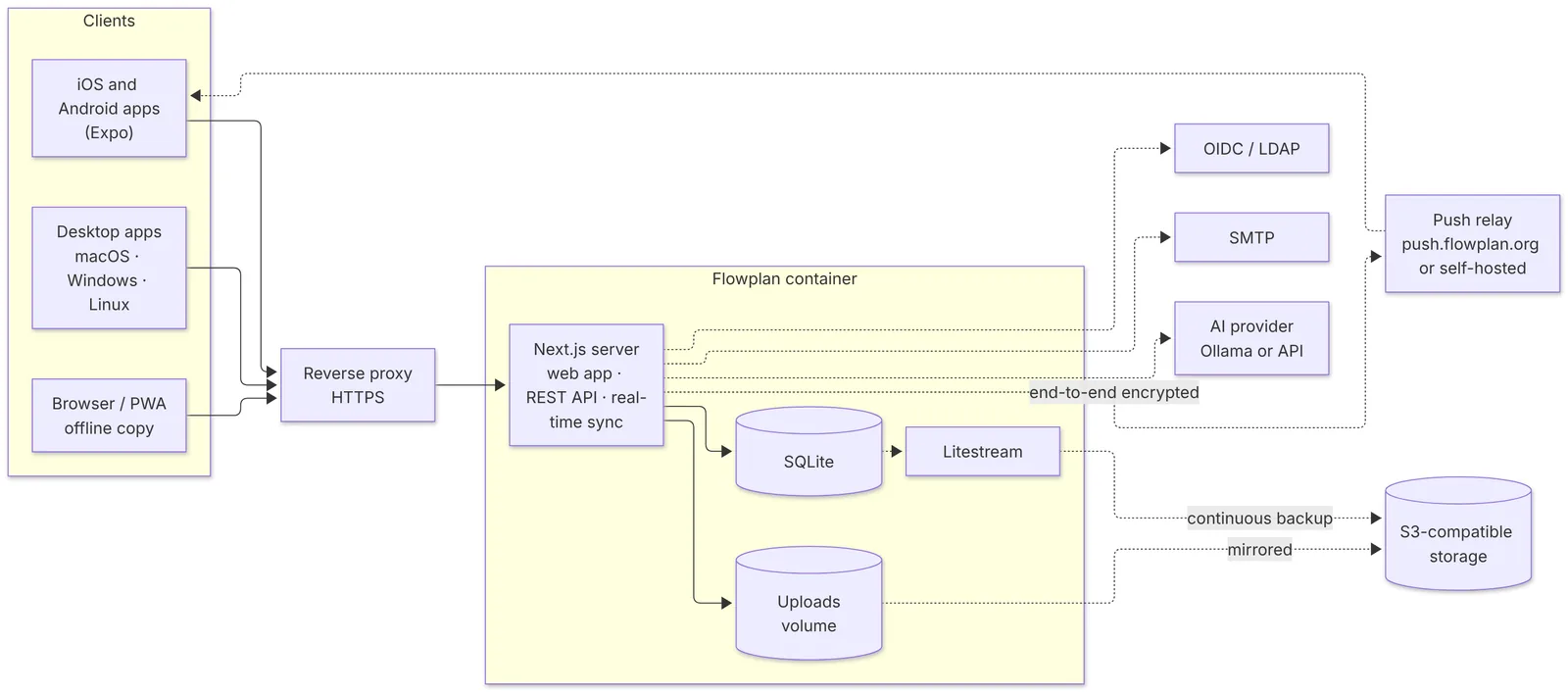](/screenshots/architecture-en-light.webp)
**More on this topic:** [Deploy in one click](/one-click-deploy)
## Requirements
- A server with Docker and a persistent volume. Text recognition for scanned PDFs briefly needs noticeable CPU when uploading.
- Already running an instance on another server? Then [move it](/move-instance) after installing instead of starting over.
- A domain with HTTPS through a reverse proxy (Traefik, Caddy, nginx, Coolify, Pangolin …). For just trying it out it works without, see [Without HTTPS](#without-https).
- Optionally an OpenID Connect provider for single sign-on. Without one, people sign in with e-mail and password or a passkey, see [Sign-in](/sign-in).
- Optionally an S3-compatible storage for files and the continuous database backup, see [Storage, S3 and backups](/storage-and-backups).
- Optionally a PostgreSQL database instead of SQLite, see [PostgreSQL](/en/postgresql). How much hardware you need for how many people is under [Sizing](/en/sizing).
## With Docker Compose
Flowplan is open source (AGPL-3.0). The ready-made image is in the GitHub Container Registry, for `linux/amd64` and `linux/arm64`:
| Tag | Content |
| --- | --- |
| `ghcr.io/yannicschuller/flowplan:latest` | The latest version (release) |
| `ghcr.io/yannicschuller/flowplan:0.7.0` | A fixed version (currently 0.7.0), also as `:0.7` and `:0` |
| `ghcr.io/yannicschuller/flowplan:beta` | The latest manually built development state, or a release if that is newer – for trying out, not for production |
::: steps
1. Download the Compose file and the example configuration:
```bash
mkdir flowplan && cd flowplan
curl -O https://raw.githubusercontent.com/yannicschuller/flowplan/main/compose.yaml
curl -o .env https://raw.githubusercontent.com/yannicschuller/flowplan/main/.env.example
```
2. In `.env`, set at least the public address:
```dotenv
APP_URL=https://flowplan.example.com
# Recommended once the address is reachable from the internet: openssl rand -hex 24
FLOWPLAN_SETUP_TOKEN=
```
With `FLOWPLAN_SETUP_TOKEN` you create the first account via `https://flowplan.example.com/register?setup=<token>`; without the link a new instance offers neither sign-up nor restore. If the token is missing and `APP_URL` is not a local address, Flowplan warns at start in the log and on the setup screen.
For single sign-on also set `OIDC_ISSUER`, `OIDC_CLIENT_ID`, `OIDC_CLIENT_SECRET` and `OIDC_ADMIN_GROUP` (see [Sign-in](/sign-in)); for e-mails (invitations, forgotten passwords) the `SMTP_*` values from the [configuration](/configuration-integrations#e-mail-smtp).
3. Start it:
```bash
docker compose up -d
```
:::
The container listens on port `3000` (bound to `127.0.0.1` only in the Compose file, so that the proxy sits in front of it). The volume `flowplan-data` on `/app/data` holds all content independently of the container. Choose a fixed version with `FLOWPLAN_VERSION=0.7.0` in `.env`.
> [!NOTE]
> An instance opens with the sign-in page. The website [flowplan.org](https://flowplan.org) and this documentation are separate projects; the hosted instance runs at [app.flowplan.org](https://app.flowplan.org).
## Build the image yourself
From the source code ([github.com/yannicschuller/flowplan](https://github.com/yannicschuller/flowplan)):
```bash
git clone https://github.com/yannicschuller/flowplan.git && cd flowplan
cp .env.example .env
docker compose up -d --build
```
Or without Compose:
```bash
docker build -t flowplan:latest .
docker run -d --name flowplan \
-p 127.0.0.1:3000:3000 \
-v flowplan-data:/app/data \
--env-file .env \
flowplan:latest
```
Build arguments: `PG_CLIENT_MAJOR` (default `18`) chooses the version of `pg_dump`, `pg_restore` and `psql` in the image – at least your PostgreSQL server's major version ([PostgreSQL](/postgresql)). `FLOWPLAN_SKIP_TYPECHECK=1` is meant for development only: it skips the TypeScript check during the build when it already ran, as in our CI.
The image contains Node, Litestream for the S3 backup and `curl` for the health check. Flowplan runs in it as UID 1000 (the user `node`), or as the user from `PUID`/`PGID` – never as root ([Volume permissions](/coolify-and-proxy#volume-permissions)).
## First start
::: steps
1. Open `https://flowplan.example.com/api/health` – the answer is `200` with `"status":"ok"`.
2. Open the address in the browser: a new instance offers **Create account**. This first account administers the instance. If the address is reachable from the internet, set `FLOWPLAN_SETUP_TOKEN` first and create the account via `/register?setup=<token>` – otherwise someone could beat you to it ([Sign-in](/en/sign-in#e-mail-and-password)). (With single sign-on: **Sign in with SSO**; administrators are the members of the group in `OIDC_ADMIN_GROUP`.)
3. In the sidebar under **Administration**, set the instance name, upload limit, sign-ups and the [other settings](/administration).
:::
**Moving or reinstalling?** Instead of the first account, the setup screen offers **Restore from a backup**: upload a backup file or fetch the newest backup from S3 or via SFTP, encrypted ones with the old instance's key. Afterwards you sign in with the accounts of the backup ([Restore while setting up](/en/storage-and-backups#restore-while-setting-up)). To move from a running instance there is also [Moving an instance](/en/move-instance).
> [!WARNING]
> With SQLite, **exactly one instance** runs. Several replicas would write to the same SQLite file. Do not simply scale horizontally; when updating, stop the old container before the new one. Several instances only work in [cluster mode](/en/cluster) with PostgreSQL, Redis and S3.
## Without HTTPS
For trying it out only: Flowplan also runs at a plain `http://` address, for example `APP_URL=http://192.168.1.20:3000` on your own network. `APP_URL` must then be exactly that address – with `http://` and the port.
The sign-in page and **Administration → Instance** then show the note "This instance runs without HTTPS". That is fine for a test, not for real use:
- **Passwords cross the network unencrypted** – anyone on the same network can read them.
- **Passkeys, the offline copy, push, and the camera, microphone and clipboard** are only available in the browser over HTTPS. Flowplan hides them or says why they are missing.
- **The apps for iPhone, iPad and Android** connect without HTTPS only to an instance on your local network (e.g. `http://192.168.1.20:3000`, `http://nas` or `http://nas.local`) and warn first. On iPhone and iPad, `.lan` or `.home.arpa` names don't work – enter the IP address there. See [An instance on your own network without HTTPS](/mobile-apps#an-instance-on-your-own-network-without-https).
- Cookies carry no `Secure` flag, and the browser does not upgrade requests to HTTPS.
At `http://localhost` or `http://127.0.0.1` on your own computer there is no note: browsers treat these addresses like a secure connection.
For real use, put a reverse proxy with a certificate in front (see [Coolify and reverse proxies](/coolify-and-proxy)) and change `APP_URL` to the `https://` address. With Caddy two lines are enough; Caddy gets the certificate itself.
> [!NOTE]
> Up to 0.8.0 Flowplan silently required HTTPS: at an `http://` address styles and scripts were missing and the registration form simply stayed put. This is fixed – and forms with a password never send credentials in the address bar again.
## Update
When a newer release exists, the **administration** shows a notice with the new version number and a link to the changes (turn off with `FLOWPLAN_UPDATE_CHECK=false`, see [Configuration](/configuration)). With the image tag `:latest`, this is all it takes:
```bash
docker compose pull
docker compose up -d
```
With a self-built image, use `git pull` and `docker compose up -d --build` instead.
On start, Flowplan migrates the database itself. Make a backup beforehand (see [Storage, S3 and backups](/storage-and-backups)); going back to an older version after a migration is not supported.
After the update everyone sees **New in Flowplan** once the next time they open Flowplan: the release notes of every version since the one they last saw – the newest unfolded, older ones folded, grouped into **Breaking changes**, **Security**, **New**, **Improved** and **Bug fixes**; breaking changes are highlighted at the top. **Close** (or Esc) and **Settings** dismiss the dialog for this version. The notes are part of the image: Flowplan does not ask the internet for them. New accounts start at the running version and see no older notes; accounts from before 0.9.4 see only 0.9.4's notes after updating to it. Beta images (`:beta`) show the notes up to the version they report – the next release's notes only with that release. Everyone chooses what they get under **Settings → Appearance & language → What's new after updates** ([Light and dark](/en/offline-and-apps#light-and-dark)); administrators set the default for new accounts under **Administration → Instance** ([Instance](/en/administration#instance)). The complete list of changes is in the [changelog on GitHub](https://github.com/yannicschuller/flowplan/blob/main/CHANGELOG.md).
### Upgrading to 0.7.0
Nothing to do by hand; Flowplan creates the new tables (for idempotency keys and the push relay, among others) on start. What changes for operations:
- **API description only when signed in:** `/api/openapi.json` and `/api/docs` need a sign-in or an API token. Public as before with `FLOWPLAN_PUBLIC_API_DOCS=true` (see [OpenAPI and SDKs](/openapi)).
- **A shorter health check:** without a token, `/api/health` only answers `{"service":"flowplan","status":"ok"}`; the details come with `FLOWPLAN_METRICS_TOKEN` (see [Health check](/operations#health-check)).
- **Push to the apps through the push relay:** notifications to the apps go end-to-end encrypted through `push.flowplan.org`. `APP_URL` must be the public HTTPS address and outgoing HTTPS to the relay possible – see [Push relay](/configuration-ai-push#push-relay-and-end-to-end-encryption).
- **Usage statistics:** monitoring counts requests, active people and storage – numbers only. Switch it off with `FLOWPLAN_METRICS=off` or in the administration (see [Statistics](/monitoring#statistics)).
## Kubernetes (Helm)
The chart lives in the repository at [`deploy/helm/flowplan`](https://github.com/yannicschuller/flowplan/tree/main/deploy/helm/flowplan). Flowplan runs as **exactly one pod** (SQLite) with a volume for `/app/data`; updates replace the pod with a short downtime (strategy `Recreate`). The chart (version 0.1.0) installs Flowplan 0.7.0 (`appVersion`); choose another version with `--set image.tag=…`.
```bash
kubectl create namespace flowplan
kubectl -n flowplan create secret generic flowplan-env \
--from-literal=FLOWPLAN_ENCRYPTION_KEY="$(openssl rand -base64 32)"
helm install flowplan deploy/helm/flowplan -n flowplan \
--set appUrl=https://flowplan.example.org \
--set existingSecret=flowplan-env \
--set ingress.enabled=true \
--set ingress.hosts[0].host=flowplan.example.org
```
- Set OIDC, SMTP and S3 via `oidc.*`, `smtp.*` and `s3.*`; secrets preferably in `existingSecret` (keys are the names of the [environment variables](/configuration)). Further variables via `env`.
- `appUrl` is required (or taken from the first ingress host).
- The chart generates a random `FLOWPLAN_SETUP_TOKEN` (kept across upgrades; your own value via `setupToken` or in `existingSecret`). Create the first account with the setup link `helm install` prints at the end: `https://flowplan.example.org/register?setup=<token>`; read the token with `kubectl -n flowplan get secret flowplan -o jsonpath='{.data.FLOWPLAN_SETUP_TOKEN}' | base64 -d`.
- Use a block or local volume, not NFS (SQLite).
- Health checks use `/api/health`; the pod runs as user 1000 without extra privileges. `helm test flowplan` checks that it answers.
- The volume is kept on uninstall.
- To update: `git pull` in the repository, then `helm upgrade flowplan deploy/helm/flowplan -n flowplan --reuse-values`.
The chart's README explains every value. Several pods with PostgreSQL, Redis and S3 (`cluster.enabled=true`): see [Cluster mode](/en/cluster#kubernetes-helm). The database role in `DATABASE_URL` should own the database but not be a superuser ([Role without superuser rights](/en/postgresql#role-without-superuser-rights)).
## Without Docker
Node.js 22.13 or newer (the image uses Node 26):
```bash
npm ci
npm run build
FLOWPLAN_DATA_DIR=/var/lib/flowplan npm start
```
For local development, `npm run dev` is enough. Development mode also offers **Open local workspace**, a shared example account; production mode has no such access.
## Next
- [Configuration](/configuration): all environment variables.
- [Coolify and reverse proxies](/coolify-and-proxy): running behind Traefik, Coolify or Pangolin.
- [Moving an instance](/move-instance): to another server, with an example for Hetzner Cloud.
- [PostgreSQL](/en/postgresql) and [cluster mode](/en/cluster): for larger teams.
---
<!-- https://docs.flowplan.org/en/one-click-deploy -->
# Deploy in one click
No server of your own yet? Three ways to a running instance without setting up Docker by hand. All of them use the same image as the Compose file below.
| Method | Data | HTTPS and address |
| --- | --- | --- |
| [Render](#render) | SQLite on a persistent disk | Automatic, `https://<name>.onrender.com` or your domain |
| [DigitalOcean App Platform](#digitalocean-app-platform) | PostgreSQL (dev database), files in a Spaces bucket | Automatic, `https://<name>.ondigitalocean.app` or your domain |
| [Any server](#any-server-cloud-init-or-install-script) (Hetzner, Netcup, IONOS …) | SQLite in a Docker volume on the server | Caddy with a Let's Encrypt certificate for your domain |
## Render
**[Deploy to Render →](https://render.com/deploy?repo=https://github.com/yannicschuller/flowplan)**
The button reads the Blueprint [`render.yaml`](https://github.com/yannicschuller/flowplan/blob/main/render.yaml) from the repository: a web service from the image `ghcr.io/yannicschuller/flowplan:latest` in Frankfurt, a 5 GB disk on `/app/data` and the health check on `/api/health`.
::: steps
1. Click the button, sign in to Render and confirm the Blueprint. The SMTP fields can stay empty (see [E-mail](/en/configuration-integrations#e-mail-smtp)).
2. Render generates `FLOWPLAN_SETUP_TOKEN`. Once the deploy is done, copy it from the service's **Environment** tab and open `https://<name>.onrender.com/register?setup=<token>` – this first account administers the instance.
:::
**Costs:** persistent disks need a paid instance – the Blueprint uses **Starter**, the smallest one with a disk; the disk is billed per GB on top (see Render's pricing). For more than a handful of people choose a larger instance ([Sizing](/en/sizing)). On the free instance the data would be lost on every restart.
**Address:** without `APP_URL`, Flowplan uses Render's own address (`RENDER_EXTERNAL_URL`, or else `https://` with `RENDER_EXTERNAL_HOSTNAME`). For your own domain, add it under **Settings → Custom Domains** and set `APP_URL=https://flowplan.example.com` under **Environment** – ideally before the first account, because passkeys are bound to the address.
**Persistence and updates:** everything lives on the disk – Render runs a service with a disk as exactly one instance and stops it briefly on every deploy. Render keeps snapshots of the disk; for backups away from Render, add S3 ([Storage, S3 and backups](/en/storage-and-backups)). To update, start a **Manual Deploy**: Render pulls the `:latest` image again.
## DigitalOcean App Platform
**[Deploy to DigitalOcean →](https://cloud.digitalocean.com/apps/new?repo=https://github.com/yannicschuller/flowplan/tree/main)**
The button reads [`.do/deploy.template.yaml`](https://github.com/yannicschuller/flowplan/blob/main/.do/deploy.template.yaml): a service from the image, a PostgreSQL 16 dev database and the health check on `/api/health`, in Frankfurt (`fra`).
App Platform has **no persistent volumes**: the container's disk is reset on every deploy and restart. That is why the template uses PostgreSQL instead of SQLite (`DATABASE_URL` points at the database) and expects a bucket for files:
- **Uploads:** create a Spaces bucket and a Spaces access key, and fill in `S3_BUCKET`, `S3_ACCESS_KEY_ID` and `S3_SECRET_ACCESS_KEY` (`S3_ENDPOINT` is preset for Frankfurt, `https://fra1.digitaloceanspaces.com`). Flowplan then puts every file into the bucket and fetches missing ones back after a deploy. **Without a bucket, uploaded files are lost on the next deploy.**
- **`FLOWPLAN_SETUP_TOKEN`** (generate with `openssl rand -hex 24`): the first account only via `<address>/register?setup=<token>`.
- **`FLOWPLAN_ENCRYPTION_KEY`** (generate with `openssl rand -base64 32`): encrypts the files in the bucket and protects stored secrets such as API keys. It must be set here, because a `secrets.key` on the container's disk would be replaced on every deploy. Keep a copy in a password manager.
- Optional `WEB_PUSH_PUBLIC_KEY` and `WEB_PUSH_PRIVATE_KEY` (`npx web-push generate-vapid-keys`): without them, new keys are made on every deploy and push in the browser stops until people turn it on again. Push to the apps is not affected.
App Platform cannot generate secrets itself, so you enter these values when creating the app (or later under the component's **Settings → Environment Variables**). `APP_URL` is App Platform's `${APP_URL}`: the `ondigitalocean.app` address, or your domain once you add it under **Settings → Domains** – then deploy again.
**Database:** a dev database has **no backups** and is meant for trying out. For real use, upgrade it to a managed database cluster, or attach an existing one with PostgreSQL 16 or newer ([PostgreSQL](/en/postgresql)). The image ships `pg_dump` and `pg_restore`, so Flowplan's own scheduled backups work on PostgreSQL too – store them in the bucket ([Storage, S3 and backups](/en/storage-and-backups)). The connection is encrypted; `uselibpqcompat=true` in `DATABASE_URL` accepts DigitalOcean's own certificate authority, as `psql` does with `sslmode=require`. If the log reports `permission denied for schema public`, the dev database's role may not create tables – use a managed database cluster, where the database owner can ([Role without superuser rights](/en/postgresql#role-without-superuser-rights)).
**Updates:** start a new deploy (**Actions → Force Rebuild and Deploy**); App Platform pulls the `:latest` image again.
## Any server: cloud-init or install script
For a virtual server (VPS) with **Ubuntu 24.04 or Debian 12** at any provider. Most of them – Hetzner Cloud, Netcup, IONOS, DigitalOcean Droplets, Vultr, Scaleway, OVHcloud – accept a cloud-init file as **"user data"** or **"cloud config"** when you create the server.
::: steps
1. Point your domain's DNS record (A, and AAAA for IPv6) to the server – with a new server, as soon as you know its address.
2. Copy [`deploy/cloud-init.yaml`](https://github.com/yannicschuller/flowplan/blob/main/deploy/cloud-init.yaml), set the one line `FLOWPLAN_DOMAIN=flowplan.example.com` and paste it as user data when creating the server.
3. After a few minutes, sign in with SSH and read `/root/flowplan-README.txt`: it holds the address and the link for the first account. Progress is logged in `/var/log/flowplan-install.log`.
:::
On a server that already runs, the install script does the same:
```bash
curl -fsSL https://raw.githubusercontent.com/yannicschuller/flowplan/main/deploy/install.sh | sudo bash -s -- flowplan.example.com
```
What the script sets up:
- **Docker** with the Compose plugin from Docker's own package repository (skipped when it is already there).
- **`/opt/flowplan`** with `compose.yaml` (Flowplan and [Caddy](https://caddyserver.com), which fetches and renews the HTTPS certificate itself), the `Caddyfile` and a `.env` readable only by root. Its secrets are generated on the server with `openssl`: `FLOWPLAN_SETUP_TOKEN` and `FLOWPLAN_ENCRYPTION_KEY` – keep a copy of the key in a password manager, encrypted backups cannot be read without it.
- **The data** in the Docker volume `flowplan-data`. It survives updates and restarts; for backups off the server add S3 or SFTP ([Storage, S3 and backups](/en/storage-and-backups)).
- **Firewall** (ufw): only SSH, 80 and 443 stay open. On a server with a firewall of its own, run the script with `FLOWPLAN_FIREWALL=off`. Ports 80 and 443 must be free – if another web server already holds them, put Flowplan behind it instead ([Coolify and reverse proxies](/en/coolify-and-proxy)).
- **Automatic security updates** of the system (unattended-upgrades).
- **Image updates are off by default:** you update when it suits you with `cd /opt/flowplan && docker compose pull && docker compose up -d` – the administration tells you about new releases. For an automatic weekly update (Sunday night), set `FLOWPLAN_AUTO_UPDATE=weekly` in the cloud-init file (or before `bash` in the command), or later run `systemctl enable --now flowplan-update.timer`.
**Without a domain** (`FLOWPLAN_DOMAIN=` left empty, or the script without an argument), Flowplan starts at `http://<server address>` without a certificate – fine for a test, see [Without HTTPS](/installation#without-https). To switch to a domain later, point its DNS record to the server and run the script again with the domain: it sets `APP_URL` and the `Caddyfile`, and keeps the data and secrets. Do it before the first account if you can, because passkeys are bound to the address.
Further settings (e-mail, single sign-on, S3) go into `/opt/flowplan/.env`, followed by `docker compose up -d` in `/opt/flowplan` – see [Configuration](/en/configuration).
---
<!-- https://docs.flowplan.org/en/coolify-and-proxy -->
# Coolify and reverse proxies
Flowplan only needs an HTTPS proxy in front of it. WebSockets are not needed: collaboration runs over normal HTTP requests and server-sent events.
## Coolify
::: steps
1. Choose **New resource → Docker Image** (`ghcr.io/yannicschuller/flowplan:latest`) or **Dockerfile** from the Git repository.
2. **Ports Exposes**: `3000`.
3. Enter the domain, e.g. `https://flowplan.example.com`. Coolify gets the certificate via Traefik.
4. **Persistent Storage**: a volume with the target `/app/data`.
5. Set the environment variables from the [configuration](/configuration).
6. Deploy. After about 20 seconds the health check reports the container as healthy.
:::
### Health check
The image comes with its own health check. If you set it up in Coolify:
| Field | Value |
| --- | --- |
| Check type | HTTP request |
| Method / scheme / host | `GET` / `HTTP` / `localhost` |
| Port | `3000` – empty means 80, where nothing listens |
| Path | `/api/health` |
| Expected code | `200` |
| Start period | `30` seconds (with S3, Litestream restores the database on the first start) |
Flowplan sends no `X-Powered-By` header. The health check only needs the status code; its details are not public without a token (see [Health check](/operations#health-check)).
### Volume permissions
Flowplan runs as UID 1000 (the user `node`) by default. A new Docker volume gets the permissions automatically. For a mounted host folder that belongs to someone else, set `PUID` and `PGID` – as with the linuxserver.io images, no `user:` needed:
```yaml
services:
flowplan:
image: ghcr.io/yannicschuller/flowplan:latest
environment:
PUID: "1001"
PGID: "1001"
volumes:
- /path/to/flowplan-data:/app/data
```
At start, before anything else, Flowplan gives the data folder to `PUID:PGID` and then runs the app as that user – never as root. `chown` only runs while the folder or something directly in it still belongs to someone else – so once, not on every start. Without a value, `PGID` equals `PUID`; both must be numbers greater than 0 (`0` is refused). Without `PUID`/`PGID`, Flowplan runs as UID 1000 and hands the folder to it the same way.
**Alternatively, Docker's own `user:`** – Flowplan then runs as that user from the start and changes no owners; the folder must already belong to it. Any UID/GID works, also one without an entry in the image's `/etc/passwd`. Kubernetes (`runAsUser`, the [Helm chart](/installation#kubernetes-helm)) works this way.
```yaml
services:
flowplan:
image: ghcr.io/yannicschuller/flowplan:latest
user: "1001:1001" # or "${UID}:${GID}", with UID and GID in .env
volumes:
- /path/to/flowplan-data:/app/data
```
With `user:`, `PUID`/`PGID` have no effect; Flowplan says so in one line at start. Or give the folder to UID 1000 instead: `sudo chown -R 1000:1000 /path/to/flowplan-data`. If nothing fits, the start stops with "Flowplan cannot write to its data folder …".
**Commands in the container** (`docker exec`, `docker compose exec`/`run`, `docker run … node …`) run as root without `user:`. Flowplan's own tools – `/app/move.mjs`, `/app/decrypt.mjs`, `/app/scripts/db-*.mjs` – switch to `PUID:PGID` (default 1000:1000) by themselves before they write anything. For any other command that writes into the data folder, add the user: `docker compose exec -u 1001:1001 flowplan …` (`-u 1000:1000` without `PUID`). Whatever a command run as root leaves directly in the data folder, Flowplan hands over at the next start.
### Roll out automatically
Coolify does not watch the registry itself. The repositories' image workflows therefore trigger a deployment through the Coolify API after pushing a new image (`POST /api/v1/deploy?uuid=…` with an API token). Coolify's built-in GitHub webhook does not fit: it builds from source and fires on the push, before the image is ready.
::: steps
1. In Coolify, turn on API access under **Settings** (and allow the CI runner's address if needed).
2. Under **Keys & Tokens → API tokens**, create a token with the *deploy* permission.
3. In the resource under **Webhooks**, copy the *Deploy Webhook* address, e.g. `https://coolify.example.com/api/v1/deploy?uuid=…&force=false`.
4. In the GitHub repository under **Settings → Secrets and variables → Actions**, create two secrets: `COOLIFY_WEBHOOK` (the address) and `COOLIFY_TOKEN` (the token).
:::
| Repository | Image in Coolify | Rolled out on |
| --- | --- | --- |
| flowplan | `ghcr.io/yannicschuller/flowplan:beta` (or `:latest` without automation) | every manual build (**Actions → Docker image → Run workflow**) and every release newer than the current beta |
| flowplan-website | `ghcr.io/yannicschuller/flowplan-website:latest` | every push to `main` |
| flowplan-docs | `ghcr.io/yannicschuller/flowplan-docs:latest` | every push to `main` |
Pull requests and Dependabot never deploy; without the secrets (in forks, for example) the step is skipped. If Coolify does not pull the new image on deploy, set `pull_policy: always` in the compose file.
> [!WARNING]
> Keep the number of instances at 1 in Coolify. Several containers would write to the same SQLite file.
## Pangolin, Traefik and other proxies
- `APP_URL` must exactly match the address under which Flowplan appears in the browser.
- If TLS ends at the front proxy (such as Pangolin) and it passes on to Traefik, **turn off TLS to the target** there and set a **custom host header** with the Flowplan domain – otherwise Traefik finds no route and answers with 404.
- Large uploads: content archives can be up to 2 GB, [AFFiNE workspace files](/migrate-affine) as large as the import limit (largest upload, at least 100 MB, or `FLOWPLAN_IMPORT_MAX_MB`). Traefik does not limit the request size by itself – only a `buffering` middleware of your own with `maxRequestBodyBytes` does; it then has to be at least that large. nginx needs `client_max_body_size` (the example below allows 2 GB; the default is just 1 MB), Caddy only limits with `request_body { max_size … }`. Cloudflare (proxied) lets at most 100 MB per request through on the Free and Pro plans – import larger AFFiNE files through a route without the Cloudflare proxy. Flowplan takes large imports as a stream and writes them to disk; the request must state its size (`Content-Length`), which browsers always do.
- Timeouts: exporting and importing large archives can take minutes; raise proxy timeouts if needed.
- Server-sent events (live editing in documents, live cursors on whiteboards) must not be buffered; nginx: `proxy_buffering off` (see the example below). Flowplan also sends `X-Accel-Buffering: no` for this.
- Client address: the proxy must set `X-Forwarded-For` (Traefik and Caddy do so by default, nginx needs the line from the example). Only then does Flowplan limit sign-in attempts, demo starts and anonymous form answers per address. Without the header only the limits per account and per link apply, and the log shows a note on the first request. `FLOWPLAN_TRUSTED_PROXIES` names the number of proxies ([Configuration](/en/configuration)).
### nginx
```nginx
server {
server_name flowplan.example.com;
client_max_body_size 2g;
location / {
proxy_pass http://127.0.0.1:3000;
proxy_set_header Host $host;
proxy_set_header X-Forwarded-For $proxy_add_x_forwarded_for;
proxy_set_header X-Forwarded-Proto $scheme;
proxy_buffering off;
proxy_read_timeout 600s;
}
}
```
### Caddy
```
flowplan.example.com {
reverse_proxy 127.0.0.1:3000
}
```
Never expose the internal port `3000` publicly as well.
## Custom domains for publications
With **Custom domains for publications** under **Administration → Extensions & domains**, owners show published pages under their domain ([Sharing and publishing](/sharing#custom-domain)). Flowplan recognises the domain by the `Host` header and serves only the publication. The certificate stays the reverse proxy's job; it must pass requests for any host on to Flowplan and keep the `Host` unchanged.
Flowplan answers `GET /api/domains/allowed?domain=<host>` with 200 for verified domains of active publications and with 404 otherwise – exactly the question Caddy asks before a new certificate.
### Caddy with on-demand TLS
```
{
on_demand_tls {
ask http://127.0.0.1:3000/api/domains/allowed
}
}
flowplan.example.com {
reverse_proxy 127.0.0.1:3000
}
# Every other host: a certificate only when Flowplan knows the domain.
https:// {
tls {
on_demand
}
reverse_proxy 127.0.0.1:3000
}
```
Caddy fetches the certificate on the first request for the domain. Domains Flowplan has not verified get none – so nobody can trigger certificates for other people's names.
### Traefik
Traefik does not ask before issuing a certificate. Add a router per domain (file provider or labels) – after the domain is verified in Flowplan:
```yaml
http:
routers:
flowplan-docs-example:
rule: Host(`docs.example.org`)
service: flowplan
tls:
certResolver: letsencrypt
services:
flowplan:
loadBalancer:
servers:
- url: http://flowplan:3000
```
Verification does not depend on the router: Flowplan only checks the TXT record `_flowplan-verify.<host>`.
### Coolify
In Coolify add the extra domain to the **Domains** field of the Flowplan resource (comma-separated, e.g. `https://flowplan.example.com,https://docs.example.org`) and redeploy. Coolify creates the router and certificate for Traefik. `APP_URL` stays the address of the app.
### Security
- Under a custom domain Flowplan only answers the publication's read access, its files and the interface's static files. Sign-in, app and API answer with 404 – also when someone forges the `Host` header.
- Cookies and `Authorization` headers are dropped there, and Flowplan never sets a cookie.
- The pages carry `frame-ancestors 'none'` and `X-Frame-Options: DENY`.
- An entry for the instance's own address is not possible.
- A domain is verified only by the DNS TXT record `_flowplan-verify.<host>` – a domain already pointing at the instance is not enough. Unverified entries expire after 7 days, so nobody can block someone else's domain for good.
---
<!-- https://docs.flowplan.org/en/move-instance -->
# Moving an instance
How to move a whole Flowplan instance to another server – say from a home server to a rented one – with all accounts, workspaces, files and keys, usually with only a few minutes of downtime.
A Flowplan instance consists of exactly four things:
| Part | What | Moves along |
| --- | --- | --- |
| Container | the image `ghcr.io/yannicschuller/flowplan` (for `linux/amd64` and `linux/arm64`) | install anew, the same or a newer version |
| Data folder `/app/data` | `flowplan.sqlite` (+ `-wal`, `-shm`), `uploads/`, `web-push-keys.json`, `secrets.key`; `ocr/` and `tmp/` are recreated | yes – this is the actual move |
| Environment variables | `APP_URL`, keys, `OIDC_*`, `S3_*`, `SMTP_*` … | copy by hand, **above all the keys** |
| Domain and reverse proxy | DNS record, HTTPS certificate | switch DNS, set up the proxy again |
This holds for every way of running it: `docker run`, Docker Compose, Kubernetes with the [Helm chart](/installation#kubernetes-helm), without Docker or in a deployment panel. If you use a panel, recreate the same container with the same volume and the same variables there.
**More on this topic:** [Moving with the move tool](/move-instance-tool)
## Prepare
::: steps
1. **Write down the environment variables.** All the old instance gets – depending on the setup from the `.env`, with `docker inspect <container>` (section `Env`), `docker compose config` or `helm get values flowplan`. The full list is under [Configuration](/configuration).
2. **Keep the keys safe**, apart from the data (password manager):
- `FLOWPLAN_ENCRYPTION_KEY` (or the file of `FLOWPLAN_ENCRYPTION_KEY_FILE`) and `FLOWPLAN_ENCRYPTION_KEY_PREVIOUS`: without them, encrypted backups, the encrypted files in the bucket and the stored secrets sealed with it cannot be read.
- `FLOWPLAN_SECRETS_KEY` (or `…_FILE`), if set. If neither is set, the key for stored secrets is `secrets.key` in the data folder – the built-in move tool takes it along; with the other ways you copy it yourself.
- What depends on it: AI keys, calendar connections (Google, Microsoft 365), chat app tokens, Git export tokens and the accounts' two-factor secrets. Without the key, accounts with two-factor sign-in only get in with recovery codes.
3. **Keep the domain.** The same `APP_URL` means passkeys, the OIDC redirect, CalDAV and CardDAV accounts, the apps, incoming webhooks (Git, tickets, inbound e-mail) and share links simply keep working after the DNS switch. With a new domain all of that must be set up again (see [Another domain](#another-domain)).
4. **Lower the TTL of the DNS record** at least as long beforehand as the current TTL (often 1 to 24 hours), e.g. to 300 seconds. The switch then takes effect within minutes.
5. **Set up the new server** (example: [Hetzner Cloud](#example-hetzner-cloud)) with **the same or a newer** Flowplan version – an older one cannot open a newer database – and with the same environment variables. A bucket of its own for the new instance is simplest; with the same bucket see [way C](#way-c-s3-and-litestream).
6. **Make a backup**: **Administration → Storage & backup → Whole instance → Download**. It never hurts.
7. **Warn the users**: **Administration → Maintenance & notices** shows everyone a maintenance window.
:::
## Three ways
| Way | When | Downtime |
| --- | --- | --- |
| **A: Move tool** (recommended) | whenever the new server can reach the old one | minutes (only the final sync) |
| **B: Download and upload a backup** | small instances, no network path between the servers | from the backup until the new instance starts |
| **C: S3 and Litestream** | the old instance already runs with S3 and Litestream | from stopping the old to starting the new instance |
### Way B: Download and upload a backup
::: steps
1. On the old instance [announce maintenance](/administration#maintenance-notices) – changes after the download are lost.
2. **Administration → Storage & backup → Whole instance → Download**. With `FLOWPLAN_ENCRYPTION_KEY` the file is encrypted (`.zip.enc`) – the new instance then needs the same key.
3. The instance backup holds the database and files but **not** `secrets.key` and `web-push-keys.json`. Copy both by hand (or set the keys as variables):
```bash
# old
docker compose cp flowplan:/app/data/secrets.key .
docker compose cp flowplan:/app/data/web-push-keys.json .
# new
docker compose cp secrets.key flowplan:/app/data/
docker compose cp web-push-keys.json flowplan:/app/data/
docker compose exec -u root flowplan chown 1000:1000 /app/data/secrets.key /app/data/web-push-keys.json
# with PUID/PGID or user: that user and group instead of 1000:1000
```
4. On the new instance **Restore from backup → Choose backup**. The proxy in front must let such large uploads through (Caddy does by itself, nginx with `client_max_body_size`, Cloudflare at most 100 MB); otherwise bring the file to the server with `scp` and upload it there. At most 50 GB.
5. Restart; the previous state stays as `pre-restore-…`. Then switch DNS.
:::
### Way C: S3 and Litestream
If the old instance runs with S3 (files in the bucket) and Litestream (a continuous copy of the database under `<prefix>/db/`), the new instance can start straight from the bucket:
::: steps
1. **Stop** the old instance – the Litestream of two instances must never write into the same folder at the same time.
2. Start the new instance with the **same** `S3_*` variables, the same `FLOWPLAN_ENCRYPTION_KEY` and an **empty** data folder. Litestream restores the database; Flowplan fetches files on first access right away and all others in the background.
3. Copy `secrets.key` and `web-push-keys.json` as in way B unless the keys are set as variables.
4. Switch DNS.
:::
With `FLOWPLAN_LITESTREAM=off` there is no continuous copy: use the newest scheduled backup from `<prefix>/backups/` instead (see [Restore](/storage-and-backups#restore)). The pre-flight check of way A notices a Litestream copy in the bucket and points to this way.
> [!NOTE]
> Active [workflows](/workflows) arrive on the new instance **paused** – with their draft, versions and held runs. So nothing starts twice while the old instance is still running. Check them afterwards and activate them again.
## Switch DNS
::: steps
1. After the final sync (way A) or the start of the new instance, change the domain's **A record** (IPv4) and **AAAA record** (IPv6) to the new server. Remove a port forwarding or tunnel at the old location.
2. The new server's proxy gets its certificate as soon as the domain points to it (with Let's Encrypt over port 80) – give it a minute.
3. Check what the world sees with `dig +short flowplan.example.org` (or `nslookup`). Whoever still has the old address cached reaches the old instance until the TTL runs out – which then shows the notice with the new one.
4. Raise the TTL again afterwards.
:::
## Check afterwards
- **Sign in**: with password, passkey and SSO. Existing sessions stay valid.
- **Administration → Monitoring**: all green? **Administration → Encryption** shows the same key ID as before.
- **Administration → Storage & backup**: S3 connected, the queue drains (with S3, Flowplan uploads every file once after a takeover), **Back up now** succeeds.
- **Administration → E-mail → Send test email** and **Administration → Push notifications → Send test notification**.
- Open a few pages, images and attachments; upload a file.
- AI, calendar connections, chat apps: if they work without signing in again, the stored secrets are readable.
- Refresh CalDAV/CardDAV in an app, open the desktop and mobile apps, trigger incoming webhooks (Git, tickets) once.
## Clean up
- Remove `FLOWPLAN_MOVE_ALLOW_PRIVATE` on the new instance.
- Delete `pre-move-…` (or `pre-restore-…`) in the data folder after a few days, e.g. `docker compose exec flowplan sh -c 'rm -rf /app/data/pre-move-*'`.
- Keep the old instance running with its notice for a few days, then stop it, wipe its volume and revoke its S3 credentials (if it had its own). The move token is already used up.
- Turn on or check a scheduled backup on the new instance ([Backups](/storage-and-backups#backups)).
## Going back if something goes wrong
Until the DNS switch nothing is lost: on the old instance **Administration → Storage & backup → Move instance → Lift read-only**, and everything runs as before. After the switch: switch DNS back and lift the read-only state – what was changed on the new instance in the meantime only comes back with a move in the other direction. The new instance itself returns to its previous state when you replace `flowplan.sqlite*` and `uploads/` with the contents of `pre-move-…` while the container is stopped.
## Another domain
If the instance gets a new address, set `APP_URL` to it and then set up again:
- **Passkeys** are bound to the domain: everyone signs in with password or SSO and creates them again.
- **OIDC**: change the redirect address at the provider to `<new APP_URL>/api/auth/callback`.
- **CalDAV and CardDAV**: set up the accounts in the calendar and contacts apps again.
- **Incoming webhooks** (Git, ticket sync, inbound e-mail) and **share links** point to the old address.
- **Desktop and mobile apps** store the server's address. They keep connecting to the old instance; there everyone sees the notice "This instance has moved to …", and changes are refused with a message naming the new address. Sign out in the app and enter the new address (desktop: **Profiles → Add profile …**). Leave **Redirect the web interface** off meanwhile: the apps refuse an address that redirects to another site.
## Example: Hetzner Cloud
A concrete way from a home server to a server at Hetzner, with Docker Compose and Caddy. Plan names and prices change – the Hetzner Console is what counts.
### Server
| Setting | Recommendation |
| --- | --- |
| Type | **CAX21** (Arm64, 4 vCPU, 8 GB RAM) or **CX32** (x86, 4 vCPU, 8 GB RAM), or their current successor. 4 GB is enough for small teams; text recognition of scanned PDFs needs CPU for a moment, local AI (Ollama) much more. The image exists for `linux/arm64` and `linux/amd64`, both types fit. |
| Location | **Falkenstein** (`fsn1`) or **Nuremberg** (`nbg1`) – Object Storage is available there too. |
| Image | **Ubuntu 24.04** |
| Networking | Public IPv4 and IPv6. Keep an IPv4 address: not every registry and mail server is reachable over IPv6. |
| SSH key | Add your own public key; never use password sign-in. |
| Firewall | Create and assign a **Hetzner Cloud Firewall**: inbound TCP **22** only from your address (or your VPN), TCP **80** and **443** and UDP **443** (HTTP/3) from anywhere. Docker bypasses `ufw` on the server; the Cloud Firewall in front still applies. |
| Backups | Turn on the server's **Backups** (a surcharge on the server price): daily images of the whole disk, in addition to Flowplan's own backups. |
### Object Storage as S3
::: steps
1. In the Hetzner Console **Object Storage → Create bucket**, same location as the server (e.g. Falkenstein), visibility **private**. The name must be unique, e.g. `flowplan-<your-name>`.
2. **Security → S3 credentials → Generate credentials**. The secret is shown only once.
3. Into the `.env`:
:::
```dotenv
S3_BUCKET=flowplan-example
S3_ENDPOINT=https://fsn1.your-objectstorage.com
S3_REGION=fsn1
S3_ACCESS_KEY_ID=<access key>
S3_SECRET_ACCESS_KEY=<secret key>
S3_PREFIX=flowplan
```
Endpoint and region follow the location: `https://<location>.your-objectstorage.com` with `fsn1` (Falkenstein), `nbg1` (Nuremberg) or `hel1` (Helsinki) as `S3_REGION`. With `FLOWPLAN_ENCRYPTION_KEY`, files and backups are stored there encrypted; the Litestream copy is not (see [Litestream and encryption](/storage-encryption#litestream-and-encryption)). Object Storage is billed monthly, with a base price that includes a quota – see Hetzner for current prices.
### Docker, Flowplan and Caddy
Install Docker following the official guide for Ubuntu ([docs.docker.com/engine/install/ubuntu](https://docs.docker.com/engine/install/ubuntu/)), then:
```bash
mkdir -p /opt/flowplan && cd /opt/flowplan
curl -o .env https://raw.githubusercontent.com/yannicschuller/flowplan/main/.env.example
# create compose.yaml and Caddyfile from below, fill in .env
docker compose up -d
```
`compose.yaml`:
```yaml
# Flowplan with Caddy in front (HTTPS from Let's Encrypt). Exactly one instance (SQLite).
services:
flowplan:
image: ghcr.io/yannicschuller/flowplan:${FLOWPLAN_VERSION:-latest}
env_file: .env
environment:
FLOWPLAN_DATA_DIR: /app/data
# Caddy is the one proxy in front and sets X-Forwarded-For.
FLOWPLAN_TRUSTED_PROXIES: "1"
volumes:
- flowplan-data:/app/data
restart: unless-stopped
healthcheck:
test: ["CMD", "node", "-e", "fetch('http://127.0.0.1:3000/api/health').then(r=>process.exit(r.ok?0:1)).catch(()=>process.exit(1))"]
interval: 30s
timeout: 5s
start_period: 20s
retries: 3
caddy:
image: caddy:2
ports:
- "80:80"
- "443:443"
- "443:443/udp"
environment:
FLOWPLAN_DOMAIN: ${FLOWPLAN_DOMAIN}
volumes:
- ./Caddyfile:/etc/caddy/Caddyfile:ro
- caddy-data:/data
- caddy-config:/config
depends_on:
- flowplan
restart: unless-stopped
volumes:
flowplan-data:
caddy-data:
caddy-config:
```
`Caddyfile`:
```caddyfile
{$FLOWPLAN_DOMAIN} {
encode zstd gzip
reverse_proxy flowplan:3000
}
```
In the `.env`, besides the old instance's values:
```dotenv
FLOWPLAN_DOMAIN=flowplan.example.org
APP_URL=https://flowplan.example.org
# SMTP: Hetzner blocks outgoing ports 25 and 465 for new accounts – use 587 with STARTTLS.
SMTP_PORT=587
SMTP_SECURE=false
# Only for the move, when the home server is reachable only in the LAN/VPN:
# FLOWPLAN_MOVE_ALLOW_PRIVATE=true
```
For a [temporary address](/move-instance-tool#way-a-the-move-tool) during the move, set `FLOWPLAN_DOMAIN=new.flowplan.example.org` and the matching `APP_URL`; after **Apply**, change both to the final domain and restart with `docker compose up -d` – the same restart applies the move. Caddy can also serve both names: `{$FLOWPLAN_DOMAIN}, new.flowplan.example.org { … }`.
Prefer Kubernetes? The repository's [Helm chart](/installation#kubernetes-helm) runs on a single server too (with k3s, say); the move then goes through the interface or `kubectl exec … node /app/move.mjs` (above).
### The run with the home server
::: steps
1. A day before, lower the DNS record's TTL to 300 seconds.
2. Set up the Hetzner server as above, with the same variables as at home (the keys!), and start it with `docker compose up -d`; create the first account.
3. At home **Prepare the move**; on the Hetzner server **Take over from another instance** with the home server's public address (or its VPN address with `FLOWPLAN_MOVE_ALLOW_PRIVATE=true`).
4. Pre-flight check until no errors remain. **Make the source read-only and fetch the last state**, **Apply**, `docker compose restart flowplan`.
5. Point the A and AAAA records to the Hetzner server's addresses, remove the port forwarding at the router.
6. [Check afterwards](#check-afterwards), [clean up](#clean-up) after a few days.
:::
---
<!-- https://docs.flowplan.org/en/move-instance-tool -->
# Moving with the move tool
The move tool has the new instance fetch everything from the old one – database, files, keys – with a short downtime; plus troubleshooting a move.
## Way A: The move tool
Under **Administration → Storage & backup** (admins only), the new instance fetches everything straight from the old one: server to server, resumable and with checksums.
**On the old instance – "Prepare the move"**
::: steps
1. **Move instance → Prepare the move**. For safety Flowplan asks for your password; with SSO the sign-in must be at most 15 minutes old (otherwise sign out and in once).
2. Flowplan shows the **transfer address** and the **move token** (`fpmove_…`) – **only this once**. The token is valid for 24 hours and only for the move: it may read the instance, make it read-only for the final sync and complete the move, nothing else. Only a hash is stored; **Revoke** invalidates it at once, and a new token replaces the old one. Creating, revoking and every step of the move are in the activity log and a security event under **Administration → Security**. Ten wrong token attempts from one address lock it out for 15 minutes.
:::
**On the new instance – "Take over from another instance"**
The new instance is fresh: only the first admin account you create on first start. If it already has content, Flowplan asks for an explicit confirmation, because everything is replaced.
> [!TIP]
> **Same domain, but DNS still points to the old server?** Then you cannot reach the new instance at its final address yet, and its proxy cannot get a certificate for it. Two options:
> - **Temporary address:** point a second name at the new server (say `new.flowplan.example.org`), start the new instance with `APP_URL=https://new.flowplan.example.org` first and do the move there. The pre-flight check then warns about `APP_URL` – that is expected. Before the restart in step 6, set `APP_URL` to the final address (the proxy may serve both names).
> - **Without the interface:** the [command line](#without-the-interface-command-line) on the new server.
::: steps
1. **Move instance → Take over from another instance**: enter the **address of the old instance** (its `APP_URL`) and the **move token**, **Start the takeover**.
- If the old server is only in your own network (LAN, a VPN such as WireGuard or Tailscale, e.g. `http://192.168.1.10:3000`), set `FLOWPLAN_MOVE_ALLOW_PRIVATE=true` on the **new** instance for the move. Without it, as for every request the server makes, only public `https://` addresses are allowed.
2. **First copy**: a consistent database snapshot, every file in `uploads/` one by one with a SHA-256 checksum, `web-push-keys.json` and `secrets.key`. The page shows bytes, files and the estimated time left. The old instance keeps running as usual. If the connection drops or a server restarts, **Resume** continues where it stopped – files already checked are not fetched again, a half file continues from its last byte.
3. **Pre-flight check → Check**. Flowplan compares the settings of both instances – only names and check values (an HMAC keyed with the move token), never the values themselves – and checks whether the new instance reaches S3, SMTP and the OIDC provider. The result is a list of **OK**, **Warning** and **Error**:
| Check | Meaning |
| --- | --- |
| Version | Error if the new instance is older than the old one: update it first. |
| `FLOWPLAN_ENCRYPTION_KEY` | Error if it is missing or different: encrypted backups, the encrypted files in the bucket, stored tokens and calendar connections would be unreadable. Set the old key (a new one only in addition, the old one then in `…_PREVIOUS`). |
| Stored secrets | Error if their key is missing (`FLOWPLAN_SECRETS_KEY` or `FLOWPLAN_ENCRYPTION_KEY`). A generated `secrets.key` comes along by itself. |
| `APP_URL` | Warning for a different address, with everything that must then be set up again. |
| OIDC, S3, SMTP, push, AI, other | Variables missing here, with a different value, or set only here. Missing `OIDC_ISSUER`/`OIDC_CLIENT_ID` is an error – nobody would get in with SSO. |
| Same bucket | Warning: both instances would write into the same folder (see [way C](/move-instance#way-c-s3-and-litestream)). |
| S3, SMTP, OIDC reachable | Error with the service's message. Many providers block outgoing ports 25 and 465 – use port 587 then. |
Change the new instance's variables and restart it until no errors remain; the move continues after the restart.
4. **Make the source read-only and fetch the last state**: downtime starts here. The old instance accepts no more changes – everyone sees "Move in progress: This instance is read-only", reading and signing in still work, changes (also through the API, CalDAV, webhooks, inbound e-mail) are refused with a clear message. The new instance fetches a fresh database snapshot and only the files that are new or changed since the first copy; removed ones go. This usually takes minutes.
5. **Apply on restart → Apply**: Flowplan checks the database and prepares everything for the next start – exactly like **Restore from backup**. The old instance is told: it now shows "This instance has moved to …", stays read-only, and its move token is used up.
6. **Restart the new instance** (the container, the pod or the service). On start Flowplan swaps in database, files and keys; the new instance's previous state stays in the data folder as `pre-move-<time>`. The log says `Instanz wiederhergestellt; vorheriger Stand in …/pre-move-…`.
7. **Switch DNS** (below) and [check afterwards](/move-instance#check-afterwards).
:::
You now sign in on the new instance with the accounts of the old one; the new one's first admin account is replaced. Existing sign-ins (browsers, apps) stay valid as long as the domain stays the same.
On the old instance, **Move instance** also offers **Redirect the web interface**: whoever opens it in the browser goes straight to the new address. **Lift read-only** makes it writable again – only when the move is called off.
While the old instance is read-only, its background services pause: incoming mail (the IMAP mailbox stays unread for the new instance), calendar and issue sync, workflows, reminders, deliveries of e-mail, push, webhooks and messengers, and scheduled backups. The app can't change anything there either.
### Without the interface (command line)
The same without a web interface on the new instance – before any account exists there, say, or over SSH while DNS still points to the old server. The tool is in the image as `/app/move.mjs` and in the source as `scripts/move.mjs` (`npm run move`). It fetches the first copy, makes the old instance read-only, fetches the last state, prepares everything for the next start and tells the old instance the new address (`--target-url`, otherwise `APP_URL`). Interrupted? Run the same command again – it continues where it stopped.
```bash
# Docker Compose (in the new instance's folder; same .env, same volume)
docker compose run --rm flowplan node /app/move.mjs \
--from https://flowplan.example.org --token fpmove_…
docker compose up -d # starts and applies the copy
# docker run
docker run --rm -v flowplan-data:/app/data -e APP_URL=https://flowplan.example.org \
ghcr.io/yannicschuller/flowplan node /app/move.mjs --from https://flowplan.example.org --token fpmove_…
# (writes as UID 1000; with PUID/PGID add -e PUID=… -e PGID=…, with user: --user UID:GID)
# Kubernetes (Helm chart)
kubectl -n flowplan exec deploy/flowplan -- node /app/move.mjs --from https://flowplan.example.org --token fpmove_…
kubectl -n flowplan rollout restart deploy/flowplan
# without Docker
npm run move -- --from https://flowplan.example.org --token fpmove_… --data /var/lib/flowplan
```
| Option | Meaning |
| --- | --- |
| `--from <address>` | Address of the old instance. On the command line internal addresses and `http://` are allowed too – you decide where it connects. |
| `--token <token>` | The move token (or `FLOWPLAN_MOVE_TOKEN` in the environment, to keep it out of the shell history). |
| `--data <folder>` | Data folder, default `FLOWPLAN_DATA_DIR` or `./data`. |
| `--target-url <address>` | Address of the new instance for the notice on the old one (default `APP_URL`). |
| `--copy-only` | Only the first copy; the old instance stays writable. Later run it again without the option for the final sync. |
| `--yes` | Replace a data folder that already has content (its previous state stays as `pre-move-…`). |
The pre-flight check is only in the interface; on the command line compare the variables yourself (list above).
## Troubleshooting
| Message or state | Cause and fix |
| --- | --- |
| "Internal addresses are only allowed with FLOWPLAN_MOVE_ALLOW_PRIVATE=true" | The old instance has a private address (LAN, VPN, `localhost`) or only `http://`. Set `FLOWPLAN_MOVE_ALLOW_PRIVATE=true` on the new instance, restart, remove it after the move. |
| "Invalid or expired move token" | Copied wrongly, older than 24 hours, revoked, replaced by a new one or used up by a completed move. Create a new one on the old instance. |
| "Too many invalid move requests" | Ten wrong tokens from one address: wait 15 minutes. |
| The transfer stops | **Resume** (or run the command again). Finished files stay, half ones continue. |
| "Checksum does not match" | The file arrived damaged and is fetched again automatically; if it keeps happening, check the connection (proxy, VPN). |
| "This database snapshot no longer exists" | The old instance made a new snapshot in the meantime (new token, restart). **Resume** fetches it. |
| Time-out at the start (502/504) | The first time, the old instance computes the checksums of all files. A proxy with a short time limit in front (nginx: `proxy_read_timeout` 60 s, Cloudflare 100 s) gives up. Raise the limit or use the address without the proxy (with `FLOWPLAN_MOVE_ALLOW_PRIVATE`). |
| Pre-flight: error for `FLOWPLAN_ENCRYPTION_KEY` or stored secrets | Set the old instance's key on the new one and restart. Only then switch. |
| SMTP not reachable | Many providers block outgoing ports 25 and 465. Use `SMTP_PORT=587` with STARTTLS. |
| Nothing happens after **Apply** | Applying needs a restart of the new instance. The log must say `Instanz wiederhergestellt`. |
| The old instance says "read-only" although the move was called off | **Move instance → Lift read-only**. |
---
<!-- https://docs.flowplan.org/en/administration -->
# Administering the instance
Whoever administers the instance sees **Administration** in the sidebar: the instance's first account and everyone it gives the admin right to – with single sign-on also the members of the group in `OIDC_ADMIN_GROUP`.
**More on this topic:** [Managing users](/user-management)
## Overview
The administration opens with an overview. At the top is the state of the instance: problems and notices (linked to the area concerned), six live figures – people active now, people active today (different people since midnight), requests per minute, error rate of the last hour, sign-ins today and the response time (p95: how long the slowest 5 % of the last hour's requests took) – and the requests of the last 24 hours as a chart. The figures refresh every 15 seconds while the page is visible (“Live”). Below, one tile per area with its state and, where it fits, a figure with its trend: active people (Users), the fullest quota (Workspaces), storage of the last 30 days, AI tokens today, changes in the activity log, requests or errors (Monitoring). Errors are marked red, notices yellow. On phones the tiles are a list with a small trend on the right.
The sections are grouped into **People** (Users, Sign-in & SSO, Workspaces), **Data** (Storage & backup, Limits & retention, Markdown & Git export), **Services** (E-mail, Push notifications, AI, Extensions & domains), **Security** (Threats & incidents, Encryption, Activity log – see [Security](/en/security-monitoring#security)) and **Operations** (Monitoring, Maintenance & notices, Instance). Every section starts with a **status line** – e.g. “Scheduled backup off” with a link to the switch, or “S3 off” with a link to the guide. Every setting has exactly one home. Switches and choices save at once, with “Saving …” or “Saved” next to them; single text fields show **Save** once you have changed them. Every section has its own address, e.g. `/#admin/storage` or `/#admin/monitoring`.
## Workspaces
All workspaces with members, pages, usage (a bar when there is a quota) and **Own quota** – saved when you leave the field. Empty = default, 0 = unlimited. The default is set under [Limits & retention](#limits-retention).
## Storage & backup
The one place for backups:
- **Backups**: **S3 mirror** and **Litestream** with their state, the scheduled **Daily database backup** – a consistent copy of the database per day, with S3 in the bucket under `backups/`, otherwise in the data folder –, **Hourly instead of daily** (meant for encrypted backups in place of Litestream, see [Encryption](/storage-encryption#encryption); keep more copies then, e.g. 72 for three days), **Backups kept**, the last backup and **Back up now**. The Markdown export still runs once a day.
- **Usage**: what is local and what is in the bucket, by kind, and how the database is split.
- **Whole instance → Download** creates a verified copy of the database and files while running. With `FLOWPLAN_ENCRYPTION_KEY` the file is encrypted (`.zip.enc`).
- **Content**: how many workspaces, pages, databases, records, files, accounts and comments there are.
- **Move instance**: on the old instance **Prepare the move** (a move token, visible once, valid for 24 hours, revocable; confirmed with your password or a fresh sign-in), then read-only, "moved to …" and **Redirect the web interface**. On the new instance, also in red, **Take over from another instance**: first copy with progress, **pre-flight check** of the settings (names and check values only), **Make the source read-only and fetch the last state** and **Apply** on the next restart (previous state as `pre-move-…`). Guide: [Moving an instance](/move-instance).
- At the very end, in red: **Restore from backup**. An uploaded backup is checked and applied on the next restart; the previous state stays as `pre-restore-…` in the data directory. An encrypted backup is decrypted with the current or an earlier key. With [PostgreSQL](/postgresql#restoring) it also takes a scheduled backup (`flowplan-….dump`) – then only the database is replaced, the files stay.
Details: [Storage and backups](/storage-and-backups).
## Limits & retention
| Setting | Effect |
| --- | --- |
| Storage per workspace | For workspaces without a quota of their own. |
| Storage per person | For people without a limit of their own; everything they upload or copy. |
| Own workspaces per person | How many workspaces a person may own. |
| Largest upload | The limit per file in MB. Also applies to [importing an AFFiNE workspace file](/migrate-affine) (at least 100 MB; `FLOWPLAN_IMPORT_MAX_MB` takes precedence). |
| Keep versions | Days after which automatic versions are deleted. |
| Empty the trash after | Days after which deleted pages, spaces, database records and templates are deleted permanently with their files (1–3650, default 30, 0 = never automatically). See [Trash](/pages-and-spaces#trash). |
Empty fields fall back to the [environment variables](/configuration). Everyone sees their limits and the storage they use under **Settings → Account & security → Your limits**.
### Workflows
**Limits & retention → Workflows** holds the limits of [workflows](/workflows): runs per minute (per workflow and workspace), steps per run, cascade depth, items per “For each”, AI tokens and e-mails per workflow and day, how long runs are kept, the longest wait, active workflows per workspace, the HTTP node (on/off, only certain hosts, internal addresses) and e-mails to addresses outside the members. Left empty, the value from the [environment](/configuration-integrations#workflows) applies. Next to it, monitoring shows the load: active workflows, runs per minute, waiting and running steps, the oldest step due, the failure rate and today's AI tokens.
## Markdown & Git export
Choose pages and databases for the Markdown export, switch on the Git export of spaces, and the (deprecated) instance Git repository – see [Markdown export and Git](/markdown-git-export).
## E-mail
**Sending e-mail** shows the configured server, the sender, the queue and the last error; without SMTP a note with the variables ([E-mail (SMTP)](/configuration-integrations#e-mail-smtp)). **Test e-mail** checks the connection right away.
## Push notifications
Whether notifications can reach the apps and through which service (`/#admin/push`). The overview's tile shows the relay with a green, yellow or red badge – e.g. “Reachable (85 ms)” – and the deliveries of the last 24 hours; the same tile is under **Monitoring → Health**.
- **Push relay**: the address in use – the official `https://push.flowplan.org` or your own from `PUSH_RELAY_URL` (credentials in the address are never shown) –, whether it is on and otherwise exactly why not (`PUSH_RELAY=off`, `APP_URL` not an HTTPS address, `PUSH_RELAY_URL` invalid), the `APP_URL` the relay knows the instance by, and whether `/.well-known/flowplan-push` is published.
- **Reachability**: the instance requests `GET <relay>/healthz` – at most 5 seconds, HTTPS only, following no redirects – and shows “Reachable” with the response time (and the relay's version if it names one) or the reason: timeout, connection refused, DNS, TLS, redirect, HTTP status. It also fetches its own `/.well-known/flowplan-push` at `APP_URL`, as the relay does, and checks that the current signing key is listed. If that fails from inside, it is only a warning: behind NAT or a proxy that does not resolve its own address internally this is normal – what counts is that the relay reaches it from outside ([test notification](/notifications#test-notification)). A result is kept for a minute; **Check now** checks again at once.
- **Signing key**: key ids with their status (signing, waiting, retiring) and dates. **Rotate key …** asks first and rotates as described in [Push relay and end-to-end encryption](/configuration-ai-push#push-relay-and-end-to-end-encryption), optionally immediately.
- **Deliveries of the last 24 hours** per channel (relay, Expo, Web Push) and result (delivered, gone, forbidden, invalid, rate limited, error), the last delivery through the relay, the last error as a code (e.g. `signature HTTP 401` or `unreachable`), the queue and the registered devices per channel. Counted only while the usage statistics are on (see [Monitoring](#monitoring)).
- **Expo and Web Push**: `MOBILE_PUSH` on or off, what `MOBILE_PUSH_CONTENT` sends along, where the VAPID keys come from and whether `WEB_PUSH_SUBJECT` is set.
The answers never contain tokens, keys or push addresses. `/api/admin/push` is for signed-in administrators only, never for API tokens.
## Chat apps
**Administration → Chat apps** governs [notifications to chat apps](/notifications#chat-apps). At the top: allowed services, the instance's bot, active connections and those switched off after errors, and the deliveries of the last 24 hours.
- **Allowed services:** Telegram, Gotify, ntfy and Matrix can be switched off one by one (default: `FLOWPLAN_MESSENGERS`). Services switched off get no more messages; people's connections stay stored and resume when the service is switched on again.
- **Instance Telegram bot:** bot token from @BotFather and optionally an own API address (Bot API server or relay/proxy, also in the own network). **Check and save** asks Telegram for the bot with `getMe` and stores the token only when it is accepted – encrypted, shown only as “…abcd”. **Remove bot** deletes it (a token from `FLOWPLAN_TELEGRAM_BOT_TOKEN` then applies again). A conflict with a webhook or another program polling the bot shows under **Last error**.
- **Server addresses:** empty allows any public server; otherwise only the hosts listed, one per line (`*.example.org` for subdomains). `api.telegram.org` and `ntfy.sh` always work. Internal addresses need `FLOWPLAN_MESSENGER_ALLOW_PRIVATE=true`.
Changing the bot is recorded as the security event “Instance Telegram bot changed”, changing services and hosts as “Security-relevant setting changed” – both also in the [activity log](#activity-log).
## AI
Optional and off by default: provider (Ollama, OpenAI-compatible, Anthropic, Gemini), who may use AI, individual features and users' own keys. A switch of its own: **On-device AI (Apple)** – allowed by default because nothing leaves the device. Everything in [AI](/ai#for-admins).
## Extensions & domains
**Block extensions from any HTTPS address** (off: only from `PLUGIN_ALLOWED_ORIGINS`) and **Custom domains for publications** – see [Block extensions](/plugins) and [Coolify and reverse proxies](/coolify-and-proxy#custom-domains-for-publications).
**Marketplace**: switch publishing to and taking over from the [Flowplan Marketplace](/marketplace) on or off for the whole instance.
## Encryption
The key ID, earlier keys, how many files in the bucket are not yet encrypted with this key (**Encrypt existing objects** catches up), and what leaves the server unencrypted regardless (Litestream, Git export). See [Encryption](/storage-encryption#encryption).
## Activity log
The latest changes with person, action and affected resource – such as shares, role changes, deletions, settings and the billing status of time entries –, searchable and filtered by person and kind, a list on phones. Under **Export**, optionally pick a from and to date (UTC, as stored) and download the log as **CSV** (semicolons, with BOM, for Excel) or as **JSON**. In the CSV, values a spreadsheet would run as a formula start with an apostrophe. Only signed-in administrators can export, never API tokens.
## Monitoring
Health, usage and events of the instance – live: five key figures at the top (**Active 24 h**, **Storage**, **Deliveries 7 days**, **AI tokens 14 days**, **Errors 24 h**) with their trend and, where it fits, a comparison with the period before, below them cards in two columns with charts, queues, background workers, refused requests, alerts by webhook and the usage statistics. Details under [Operations and troubleshooting](/monitoring#administration-monitoring).
## Maintenance & notices
**Notice for everyone** – a banner for everyone until you clear it – the **maintenance notice** with start and end, which disappears by itself afterwards, and **banners to click away** that each person sees until they close them – e.g. for the apps or your Discord server ([Maintenance & notices](/monitoring#maintenance-notices)).
## Instance
| Setting | Effect |
| --- | --- |
| Instance name | Shown when signing in, in the sidebar and in the browser tab. |
| Public demo | Visitors try Flowplan without an account, see [Demo](#demo). |
| Version | Running **version**, **commit** (linked to GitHub) and build date. Docker images from our workflow know their commit; with Coolify it comes from `SOURCE_COMMIT`. For your own build pass `--build-arg GIT_COMMIT=$(git rev-parse HEAD)`, otherwise it says "commit unknown". When a newer version is out, a notice with **How to update** shows there. |
| Admin group | The SSO or LDAP group from `OIDC_ADMIN_GROUP`. |
| What's new after updates for new accounts | What new accounts start with for **What's new after updates**: **Show all** (default), **Only breaking changes** or **Never**. Only for accounts created afterwards; existing accounts keep their setting, and everyone can change it under **Appearance & language**. |
Everyone sees version, licence and source code under **Settings → About Flowplan**; for our images it also says whether it is a beta or a release (own builds: `--build-arg FLOWPLAN_CHANNEL=beta` or `release`). If you run modified code, name its source with `FLOWPLAN_SOURCE_URL`; `FLOWPLAN_HIDE_SPONSOR=true` hides the link to GitHub Sponsors ([Configuration](/configuration-storage#legal-and-interface)).
Below, **More instance settings** leads to the sections that earlier instance settings moved to.
## Demo
The demo is off on every instance until an administrator switches it on under **Administration → Instance → Public demo**.
Then the address `/demo` of your instance starts a demo (on flowplan.org the button **Try the demo** links there). Without an account it creates a demo guest with an example workspace of its own. Every demo gets fresh example pages that show all features: a welcome page, an editor tour with all blocks, a project database with relation, rollup, formula, recurrence and all views (table, board, calendar, timeline, gallery, list, feed, chart, form), a whiteboard, a journal and a small wiki.
- The demo ends with **End demo**, on signing out, after 45 minutes without activity and after three hours at the latest. Then the account, workspace, pages and files are deleted completely.
- Demo guests cannot take anything outside: no publishing, no share links, no invitations, no further workspaces, no public forms, no administration.
- Every demo workspace has 25 MB of storage. New demos are limited to five per hour and address and 40 at the same time.
- Running and total started demos are shown under **Administration → Monitoring → Instance in numbers**.
---
<!-- https://docs.flowplan.org/en/user-management -->
# Managing users
Create, lock, merge and delete accounts, grant admin rights and decide who may sign in and how.
## Users
All accounts as a searchable table (cards stacked on phones) with their state: **Active**, **Inactive** (30 days or more without signing in), **Disabled** (blocked), plus **Admin** (local accounts with admin rights and everyone who last signed in with the admin group, also via SSO or LDAP) and **E-mail unconfirmed**, how many workspaces the person is a member of (the tooltip shows how many of them they own), the storage used against their limit, when they were last here and when the account was created. Clicking a column header – **Person**, **Status**, **Workspaces**, **Storage**, **Last active**, **Created** – sorts by it, a second click reverses the order; at first the most recently active come first. On phones, choose the order under **Sort by**. At the bottom the table pages through 25, 50 or 100 accounts at a time (“1–25 of 112”). The filter buttons above the table (with their counts) show only active, inactive or disabled accounts, admins or who is **here now**. Several accounts at once: tick them, then **End sessions**, **Block** or **Unblock**. To give the table room, **Sign-in & SSO** and **Workspaces** sit as tabs above the heading on this page instead of beside it.
**Who is here right now** shows in the **Last active** column and refreshes every 30 seconds: a green dot for **Active now** (Flowplan is open and was used in the last few minutes), an amber one for **Open · idle for …** (open but untouched since then – a tab in the background, too), a grey one with the time of the last visit when Flowplan is closed, and an empty circle for accounts that were never here. For this the open app only reports once a minute that it is open and how long ago it was last used (typing, clicking, scrolling, touching) – not what someone does or which page is open.
Clicking the row or the name opens the account in a side panel (from the bottom on phones). **⋯** at the end of the row is quicker: **Details and settings**, **Sign out everywhere** and **Block …** or **Unblock**. At the top the panel shows the person's workspaces (with their names, how many they own), when they were last active, when the account was created and how they sign in (e.g. “E-mail + password · SSO · Passkey”), below that the **Storage** used with a bar – everything they upload or copy, across all workspaces – and:
- **Role**: for accounts with e-mail and password **Member** or **Admin** (someone always administers the instance); for SSO accounts it comes from the sign-in group.
- **Storage limit** for this person.
- **Sessions**: on how many devices the person is signed in; **Sign out** ends all sessions.
- **Password** (accounts with e-mail and password): **Create link** makes a reset link valid for two hours – to hand over when the instance does not send e-mails.
- **E-mail address**: **Mark as confirmed** for accounts that have not opened the link from the confirmation e-mail yet.
- Folded under **More: …** (the line names what is inside):
- **Own workspaces** and **Largest file** as further limits. Empty = instance default, 0 = unlimited; admins are not limited. As soon as you change one of these limits or the storage limit, the **Save limits** bar appears at the bottom.
- **AI features**: if [Administration → AI](/ai#for-admins) is set to "Selected people", you allow or deny AI per person here.
- **Two-factor sign-in** (for accounts with an authenticator app): **Reset** (e.g. for a lost phone) turns off the account's authenticator app; this is recorded in the activity log, and the person gets an e-mail if the instance sends e-mail.
- **Sign-in methods**: whether the account has a password (or removed it), whether it signs in through LDAP and which SSO identities are connected – with issuer, address, when connected and last used. The person connects and disconnects them under **Settings → Account & security**.
- **Merge accounts**: **Merge …** combines the account with a second account of the same person (see [Merge accounts](#merge-accounts)).
- At the end: **Block** blocks the account at once and ends all sessions; **Unblock** releases it again. **Delete account** (**Delete …**) is possible only once an account is blocked. The dialog says beforehand what happens: name, e-mail, password, passkeys, sessions and personal settings are deleted, as are workspaces where only this person was a member and their private spaces. Shared workspaces get another member as owner if needed; contributions there stay and appear as "Deleted account". Even when the account stays as an empty placeholder for that, the personal data goes: calendar connections and their syncing, CalDAV and CardDAV links, guest access, own keys for encrypted spaces, grants on single records, devices, drafts, widget and sidebar settings, the quick search's visit history, stickers and reactions. What stays is content, version history and authorship as well as tracked time (a running timer stops); share links the person created keep working. Your own account and the last admin account cannot be deleted.
Accounts with e-mail and password are created with **Create account** (see [Sign-in](/sign-in)); SSO accounts on their first sign-in via OIDC, and their admin right comes from the group at the provider. Whether people may sign up themselves is set under [Sign-in & SSO](#sign-in-sso).
### Merge accounts
When a person has two accounts – such as a local one and one created at their first SSO sign-in – merge them with **Merge …** under **More** in their account's side panel. Choose the other account (accounts with the same e-mail address are listed first) and, with the arrow, which one stays. The preview lists what moves before anything happens.
Everything of the account taken over moves to the one that stays: own pages and spaces, memberships of workspaces and spaces with their shares (the **higher role** stays; guest only if the person was a guest everywhere), groups, comments and reactions, mentions in comments and documents, assignments and person properties in databases, favourites, collections, sidebar, journal, notifications and their settings, webhooks, calendar and contact connections, time tracking, passkeys, SSO identities, the LDAP and SCIM link and the history in the activity and security logs. Where both accounts have the same thing (a favourite, or the sidebar of a workspace), the one of the account that stays wins.
- **Sessions** of the account taken over end; its **API tokens** are revoked (scripts need a new token of the remaining account – so no token suddenly reads another account's data).
- **Password**: if the remaining account has none, it takes over the other's; otherwise it keeps its own. A local account's admin right goes along.
- **Authenticator app**: taken over when the remaining account has none; recovery codes must then be created again.
- **End-to-end encryption**: if only the account taken over has keys, they move. If both have keys, those of the remaining account stay; encrypted spaces only the other account had must be shared again.
- Older versions of documents keep their mentions as they were.
The merge runs as one step – all or nothing –, is recorded in the activity log and as "Accounts merged" in the security log. The account taken over is deleted afterwards. Your own account can only be the one that stays.
## Sign-in & SSO
- **Sign-up & access**: **Sign-up with email and password** (anyone may create an account; without this setting only invited addresses and the instance's first account), **Everyone may create workspaces** and **Block inactive accounts** after a number of days without signing in. Blocked accounts lose their sessions and their API tokens stop working; the block appears in the activity log and can be lifted under **Users**. **Delete inactive accounts** goes one step further: after a number of days without any use (at least 60, and more than for blocking) an account is deleted – as when an admin deletes it: personal data and the workspaces and private spaces only this person belongs to go, contributions to shared workspaces stay under “Deleted account”. 14 and 3 days before, the person gets an e-mail with the date; signing in before then keeps the account. If it is already blocked, the e-mail asks them to contact the administrators – unblocking it under **Users** cancels the deletion. Without e-mail delivery set up, for admin accounts and for accounts without an e-mail address nothing is ever deleted. Under **Users**, “Deleted on …” shows where a deletion is pending; every deletion appears in the activity log.
- **Two-factor sign-in**: **Require two-factor sign-in** – not required, only for admins or for all local accounts –, plus how many local accounts already have a second factor. Accounts without an authenticator app and without a passkey set up a second factor right after signing in ([Two-factor sign-in](/sign-in#two-factor-sign-in)). SSO accounts are not affected.
- **Sessions**: how long people stay signed in – **Browser without “Stay signed in”** (hours after signing in, default 8), **Offer “Stay signed in” in the browser** (default off), **Browser with “Stay signed in”** (7, 30, 90 or 365 days without use, default 7), **Desktop and mobile apps** (default: stay signed in; or as in the browser without “Stay signed in”) and **Apps: end without use** (30, 90 or 365 days, default 90). **Default** follows the `SESSION_*` environment variables ([Configuration](/configuration)); a value chosen here takes precedence. The apps' lifetime applies only to sign-ins the app proves – the hand-off through the browser, or the password with the app's device key; the user agent alone does not count, and older app versions sign in with a password like a browser. See [Stay signed in](/sessions).
- **Single sign-on (OIDC)**: whether a provider is set up, the admin group and **Map SSO groups centrally** – provider groups get roles and groups in any workspace ([SSO groups](/sso-oidc#map-sso-groups-to-workspaces)).
- **SCIM tokens** and the **LDAP directory** with their state ([User provisioning (SCIM)](/scim-and-ldap#user-provisioning-scim), [Sign-in with LDAP](/scim-and-ldap#sign-in-with-ldap)).
- **Contacts from LDAP**: base DN, people filter, sync and **More attributes** (which LDAP attributes may be mapped beyond the default mapping, on top of `LDAP_CONTACTS_ATTRIBUTES`) for [contacts databases](/contacts#contacts-from-the-ldap-directory); changes are recorded as security events. See [Contacts from LDAP](/scim-and-ldap#contacts-from-ldap).
---
<!-- https://docs.flowplan.org/en/sign-in -->
# Sign-in: password, passkeys and two-factor
Flowplan signs people in with e-mail and password, optionally with passkeys. In addition – or instead – sign-in can go through an OpenID Connect provider (single sign-on), whose groups decide who administers the instance.
The sign-in page shows the fastest way first: one large button for the way you last signed in with on this device (with “Last used” below it), the other ways as buttons underneath. **With e-mail and password** opens the form in place; **Create account** – when sign-ups are open – is in the line below. On a first visit single sign-on comes first if the instance offers it, otherwise the passkey, otherwise the form; ways the instance has turned off are not shown at all, and an instance with passwords only shows the form right away. On phones the app icon and “Welcome back.” are at the top and the buttons at the bottom, within reach of your thumb. From 960 px wide the page is split: on the left a panel in Flowplan's colours with the logo, on the right the sign-in. Sign-up, password reset, setting up the second factor and linking accounts use the same frame.
**More on this topic:** [Stay signed in](/sessions) · [Single sign-on with OIDC](/sso-oidc) · [Users from a directory: SCIM and LDAP](/scim-and-ldap)
## E-mail and password
Without further setup you sign in with e-mail and password – via **With e-mail and password** – or with a passkey once you have created one.
- **The first account** of a new instance administers it: the sign-in page then offers **Create account** right away. This account sees the **Administration**.
- **Instances reachable from the internet:** until the first account exists, anyone who opens the address could create it and administer the instance. Set `FLOWPLAN_SETUP_TOKEN` to a random value (e.g. `openssl rand -hex 24`): the first account can then only be created with the setup link `https://flowplan.example.com/register?setup=<token>`; without it the page offers no sign-up. The token also protects **Restore from a backup** on the setup screen. Once the first account exists the token has no effect. Without a token and with an `APP_URL` that does not point to this machine, Flowplan warns at start in the log and with a note on the setup screen. The Helm chart generates the token itself. If two people sign up first at the same moment, only one of them becomes administrator; the other gets a note. With single sign-on you can also never use the link – the administrators then come through the group in `OIDC_ADMIN_GROUP`, and everyone else joins by invitation.
- **Further accounts** are created when the administrators open sign-ups under **Instance → Allow sign-ups with e-mail and password** – or for addresses with an [invitation](/workspaces-and-permissions): the invitation link opens the form with the invited address and creates an account only for it; without e-mail it works only through the link. Workspaces someone was invited to appear as soon as the address is confirmed via the e-mail link.
- **Confirming the e-mail address:** if the instance sends e-mail (`SMTP_*` set), a new account signs in only after the address has been confirmed with the link from the e-mail – the link signs in right away. Trying earlier shows a notice and sends the link again (at most every five minutes); **Send the link again** also works after signing up. Without e-mail every account counts as confirmed immediately, as does the instance's first account. Admins can confirm an address by hand under **Administration → Users**, with **Mark as confirmed** in the account's side panel; resetting the password via a link confirms it too. If the address already has an account, signing up shows the same as for a new address, and the account's owner gets a note by e-mail instead – so the page does not reveal which addresses have an account.
If you open the confirmation link in a different browser from the one you registered in, you set a new password there – the one chosen at registration no longer works. This way nobody can create and keep an account for someone else's address in advance.
- **Passwords** have at least 10 characters and are stored with scrypt. After 8 failed attempts for an account from the same IP address (or 30 failed attempts from one IP address in total) that address pauses for 15 minutes. Someone who knows your address cannot lock you out this way: from other IP addresses you still sign in. Against attempts from many IP addresses at once, every sign-in to an account with more than 10 failures in 15 minutes waits a little longer (up to 5 seconds), and after 100 the account is locked for the rest of the 15 minutes. Without a known client address (see `FLOWPLAN_TRUSTED_PROXIES`) the limit of 8 applies to the account itself. The same holds for signing in with LDAP. These limits – like those for codes, passkeys, confirming important steps and passwords of shared links – hold under many parallel requests too: every attempt counts before the password is checked.
- **Forgot password**: with [e-mail delivery](/configuration-integrations#e-mail-smtp) set up, **Forgot?** next to the password field on the sign-in page sends a link that is valid for two hours. Without e-mail, the administrators create a link to hand over under **Users**, with **Password → Create link** in the account's side panel. After a reset all previous sessions are ended.
- **Admin right**: under **Users**, the administrators pass it on (**Make admin**) or take it away; someone always has to administer the instance.
- Everyone changes their name and password under **Settings → Account & security** (card **Profile**, or **Change password …** in **Sign-in & security**). The name is saved when you leave the field. After a password change, turning on the authenticator app and removing a passkey, all other sessions end; the current one stays signed in. Starting a demo while signed in signs the previous account out. A wrong current password when changing it counts like a wrong code: too many failures block it for 15 minutes.
- Sign-ups and "Forgot password" are limited per address and network address (at most one reset e-mail every five minutes per account).
`FLOWPLAN_LOCAL_LOGIN=false` turns off e-mail, password and passkeys – then only single sign-on remains.
Under **Settings → Account & security**, the **Sign-in methods** card shows how you sign in: e-mail and password, the directory (LDAP) and connected SSO identities with provider, address, date connected and last use. That is where you connect and disconnect SSO identities and remove or set the password – see [Connect an existing account to SSO](/sso-oidc#connect-an-existing-account-to-sso).
## Passkeys
With a passkey you sign in with your fingerprint, face recognition or device PIN, without a password. Passkeys are created under **Settings → Account & security → Add a passkey**; afterwards **Sign in with a passkey** on the sign-in page is all it takes.
Under **Settings → Account & security**, the card **Sign-in & security** lists password, two-factor sign-in, passkeys and the signed-in devices, each with its state (“Off”, “On · 8 codes left”, “2 passkeys”). **Delete account** is at the very bottom, in the **Danger zone**. Addresses such as `/#settings/account/passkeys` or `/#settings/account/two-factor` open a card directly.
- Passkeys exist for accounts with e-mail and password. SSO accounts sign in with their provider, which may offer passkeys itself.
- Passkeys belong to the domain in `APP_URL`. They need HTTPS (or `http://localhost` during development); a bare IP address does not work. Whoever changes the domain creates the passkeys anew.
- A passkey can be removed in the settings at any time.
- In the desktop app, **Sign in with a passkey** and **Sign in with SSO** open the sign-in in the default browser and hand it back to the app afterwards ([Desktop apps](/operations#desktop-apps)).
## Two-factor sign-in
Accounts with e-mail and password can add an authenticator app (two-factor authentication, 2FA), such as Aegis, 2FAS, Google Authenticator or 1Password.
::: steps
1. **Settings → Account & security → Two-factor sign-in → Set up an authenticator app.**
2. Scan the QR code with the app – or type the key shown.
3. Confirm with the current six-digit code.
4. Keep the ten **recovery codes** safe. They are shown only once, and each works exactly once.
:::
When signing in, Flowplan asks for the code from the app (or a recovery code) after the password.
- A code counts only once; codes from the previous and the next 30-second window are accepted, so a slightly wrong clock doesn't matter.
- Too many wrong codes block sign-in for 15 minutes.
- **Passkeys** are enough on their own: signing in with a passkey needs no code – even with the app turned on. Whoever wants a code as well turns on **Also ask for a code after the passkey** under **Settings → Account & security → Two-factor sign-in → Manage**. Turning it off needs the password or a current code.
- **SSO accounts** get their second factor from the provider; **API tokens** are not affected.
- **Turning it off** and **new recovery codes** need the password or a current code.
- **Forgot password** does not skip the second step.
- Lost your phone and your codes? An administrator can reset two-factor sign-in ([Administration → Users](/user-management#users)).
> [!ADMIN]
> Admins can require two-factor sign-in for all local accounts or only for admins ([Administration → Sign-in & SSO](/user-management#sign-in-sso)). Accounts without an app and without a passkey then set up a second factor right after signing in, before using Flowplan; accounts with a passkey but no app sign in with the passkey.
> [!IMPORTANT]
> The apps' keys are stored encrypted – with `FLOWPLAN_ENCRYPTION_KEY`, otherwise `FLOWPLAN_SECRETS_KEY`, otherwise with the generated file `secrets.key` in the data folder ([Configuration](/configuration-storage#stored-secrets)). Be sure to back up this file or the key: the instance backup deliberately leaves it out. Without it, only the recovery codes work after a restore.
## Security check
**Settings → Security check** (`/#settings/security`) shows everyone how well their account is protected – tailored to how they sign in:
- **The check:** second factor, passkey and recovery codes left (e-mail accounts), a confirmed e-mail address, devices unused for over a month, API tokens without an end date or unused for three months, edit links without a password and end date, whether security notices arrive by push or e-mail, and failed sign-ins on your own account. Open points come first, each with the way to fix it. With SSO and LDAP it points to the provider or the directory.
- **What you shared:** your share links (with right and protection), public pages you created, and people or open invitations with their own access to your pages – each to delete, stop or remove right there.
- **Sign-ins & changes** of the last 30 days with device and network, including failed attempts with your address.
- **Tips** that fit the account.
When someone signs in with a device not seen for 90 days, a security notice arrives as well.
## Security
With OIDC, Flowplan checks the discovery, issuer, audience, signature, PKCE, state and nonce. Sessions are random tokens, stored hashed in SQLite; cookies are `HttpOnly`, `SameSite=Lax` and `Secure` with HTTPS. Groups or roles are never taken from browser data.
- An account **deactivated** in the administration loses all sessions immediately; open live connections are closed within 15 seconds at the latest, as they are when read access is withdrawn.
- Every page carries a **content security policy**: scripts only run with a nonce that is new for every request, frames only come from the supported players (YouTube, Vimeo, Loom, Spotify, Figma, CodePen). The reverse proxy sets HSTS (usually active with Traefik/Coolify).
- Sessions can be revoked individually in the administration.
- Invitations to an e-mail address are only assigned after a sign-in with a confirmed address (`email_verified=true` with OIDC, the confirmation link for e-mail accounts).
## Common errors
| Symptom | Cause |
| --- | --- |
| An error about the redirect URI | The URI entered at the provider does not exactly match `APP_URL` + `/api/auth/callback`. |
| No administration visible | The group is missing in the token: check the scope, `OIDC_GROUPS_CLAIM` and the exact group name, then sign in again. |
| "Invalid request origin" | `APP_URL` differs from the address in use (e.g. `http` instead of `https`). |
| Sign-in refused | `OIDC_ALLOWED_GROUP` is set and the person is not a member. |
| "Create account" is missing | Sign-ups are closed: open them in the administration or invite the person. |
| A passkey cannot be created | `APP_URL` is not an HTTPS domain (an IP address or `http://` other than `localhost`). |
---
<!-- https://docs.flowplan.org/en/sessions -->
# Stay signed in
How long a session lasts is set under **Administration → Sign-in & SSO → Sessions** ([Administration](/user-management#sign-in-sso)); without a setting there, the environment variables and their defaults apply.
| Where | How long (default) | Setting · variable |
| --- | --- | --- |
| Browser without **Stay signed in** | 8 hours after signing in – even while Flowplan is open | **Browser without “Stay signed in”** · `SESSION_HOURS` (1–24) |
| Browser with **Stay signed in** | 7 days after the last use, at most 30 days after signing in | **Offer “Stay signed in” in the browser** · `SESSION_REMEMBER` (default off), **Browser with “Stay signed in”** · `SESSION_IDLE_HOURS` |
| Desktop and mobile app | 90 days after the last use of the app or its widgets, at most 365 days after signing in | **Desktop and mobile apps** · `SESSION_APP_REMEMBER` (default on), **Apps: end without use** · `SESSION_APP_DAYS` |
- **In the browser** the sign-in page shows the **Stay signed in** box as soon as the administration offers it – for password, passkey and SSO (also through “Connect account”). It is meant for your own devices: when ticked, the session lives on while Flowplan is used. The longest lifetime (`SESSION_MAX_DAYS`, default 30 days, never shorter than the time without use) limits how long a stolen cookie is good for.
- **The apps** run on personal devices and always stay signed in – whether you signed in with a password in the app or with a passkey or SSO through the browser. The widgets keep the session alive as well. The app has to prove the sign-in is its own; that the app's name is in the user agent is not enough, because any browser can send it:
- **Passkey, SSO or “Sign in in the browser”**: the hand-off back to the app is the proof – only the app that started the sign-in can redeem it. This works with every app version.
- **Password in the app**: newer apps (iPhone, iPad and Android after 1.0.5, desktop after 1.3.0) create a random device key per server on first launch, keep it in the system's key store (Keychain, Android Keystore, the desktop's key store) and send it with the password. The first sign-in of an account on that device registers the key; later sign-ins need the same key. The server keeps only a hash.
- **Older app versions** (such as 1.0.5) have no device key: after a password sign-in they stay signed in like a browser – 8 hours, or with **Stay signed in** where the instance offers it (the box then appears in the app as well). Sign-ins with a passkey or SSO keep the app's lifetime; so do app sessions that existed before this change. An instance that does not want this sets **Desktop and mobile apps** to **As in the browser without “Stay signed in”** (`SESSION_APP_REMEMBER=false`). The **app lock** in the app's settings (Face ID, Touch ID, fingerprint or device passcode, on iPhone, iPad and Android) protects the phone further.
- SSO sessions extend the same way. Group changes at the provider follow through SCIM, the LDAP sync or the next sign-in. Only when `SESSION_GROUPS_HOURS` is set does an SSO session that stays signed in end after that many hours already: signing in at the provider again fetches the current groups, so `OIDC_ALLOWED_GROUP` and `OIDC_ADMIN_GROUP` apply by then at the latest, even without SCIM.
- A disabled account loses access immediately, as before.
- When the same person signs in again on a device (for example because the session ran out), the app's registration survives – notifications, widgets, Live Activities and Shortcuts move over to the new session. Only an explicit **Sign out** (in the app or under **Signed-in devices**) removes it.
- Shorter times apply from the next sign-in; longer ones extend sessions that stay signed in the next time they are used. Turning “Stay signed in” or the apps' staying signed in off stops the extending; running sessions then end at their next expiry.
**Settings → Account & security → Signed-in devices** lists all your own sessions with device, last use and end; **Sign out** ends a single one, **Sign out all other devices** all but the current one.
---
<!-- https://docs.flowplan.org/en/sso-oidc -->
# Single sign-on with OIDC
Sign in through your own identity provider – Keycloak, Authentik, Entra ID, Google, Okta or any OpenID Connect service – with groups for admins and workspaces.
Optional. With `OIDC_ISSUER` set, the sign-in page shows **Sign in with SSO**; new people are created on their first sign-in. E-mail accounts and SSO accounts can exist side by side.
## Create a client at the provider
Register a **confidential web client** – or a **public client**: if `OIDC_CLIENT_SECRET` is empty, Flowplan signs in without a secret and relies on PKCE alone. That suits providers that serve many instances with one client. Providers that sign ID tokens with the client secret only (HS256) need a confidential client.
| Setting | Value |
| --- | --- |
| Redirect URI | `https://flowplan.example.com/api/auth/callback` |
| Flow | Authorization code with PKCE (S256) |
| Scopes | `openid profile email` and the scope for groups (often `groups`) |
| Groups | must be in the signed ID token or in the UserInfo answer |
The redirect URI is always `APP_URL` plus `/api/auth/callback`.
## Variables
```dotenv
APP_URL=https://flowplan.example.com
OIDC_ISSUER=https://id.example.com/realms/company
OIDC_CLIENT_ID=flowplan
OIDC_CLIENT_SECRET=secret
OIDC_SCOPES=openid profile email groups
OIDC_GROUPS_CLAIM=groups
OIDC_ADMIN_GROUP=flowplan-admins
SESSION_HOURS=8
```
| Variable | Meaning |
| --- | --- |
| `OIDC_ISSUER` | The issuer URL; Flowplan reads the discovery from it (`/.well-known/openid-configuration`). |
| `OIDC_GROUPS_CLAIM` | The claim with the groups, also as a path such as `realm_access.roles`. |
| `OIDC_ADMIN_GROUP` | Members of this group see the **Administration**. The name is compared exactly. |
| `OIDC_ALLOWED_GROUP` | If set, only members of this group may sign in. |
| `OIDC_LINKED_SSO_ONLY` | `true`: accounts connected to SSO sign in through SSO only (off by default). A password or passkey sign-in is refused with a note; passkeys and the authenticator app stay for confirming important steps. See [Connect an existing account to SSO](#connect-an-existing-account-to-sso). |
| `OIDC_NEW_ACCOUNTS` | `false`: SSO sign-in creates no new accounts (on by default) – only existing, connected or SCIM-provisioned accounts sign in. At a first SSO sign-in with a known address, "Create a separate account instead" is then not offered. |
| `OIDC_PROMPT_CREATE` | `true`: **Sign up** opens the provider's registration directly (`prompt=create`). |
| `OIDC_PICTURE` | Take the profile picture from the `picture` claim (on by default, `off` turns it off). The image must be at a public HTTPS address; internal addresses are not fetched – not even via redirects. |
| `SESSION_HOURS` | How long a browser session is valid in hours, as long as "Stay signed in" is not used; the apps stay signed in (see [Stay signed in](/sessions)). |
## Group names with common providers
- **Keycloak**: add the "Group Membership" mapper to the client, token claim name `groups`, turn off "Full group path" – otherwise the group is called `/flowplan-admins`. For realm roles use `OIDC_GROUPS_CLAIM=realm_access.roles` instead.
- **Authentik**: the `profile` scope already delivers `groups` with the group names – a scope `groups` is not needed. The issuer is the provider's address with the trailing slash, e.g. `https://auth.example.org/application/o/flowplan/`. Without a **signing key** on the provider Authentik signs the ID token with the client secret (HS256); Flowplan accepts that from version 0.8.3 on. With a signing key (RS256) Flowplan also checks the signature against the provider's published keys. When you create the OAuth2 provider through the API, set `grant_types` explicitly to `["authorization_code"]` (plus `"refresh_token"` if tokens should be refreshed): without it, Authentik 2026.8 gives it an empty list, and every sign-in fails with `invalid_request` ("The request is otherwise malformed"), which doesn't point at the cause.
- **Zitadel**: roles are under `urn:zitadel:iam:org:project:roles`; create a claim of your own with an action or enter the path.
- **Entra ID**: configure the groups claim in the token. Entra delivers object IDs by default; then enter the admin group's ID as `OIDC_ADMIN_GROUP`.
## When SSO sign-in fails
The server log names the reason: a line `OIDC sign-in failed:` with the kind of error, its code and – if the provider answered with an error – its `error` and `error_description` (never tokens or secrets). Common causes:
- **Redirect URI**: the provider must allow exactly `<APP_URL>/api/auth/callback`. `APP_URL` has to be the address in the browser – otherwise the provider rejects the redirect or the sign-in cookie is missing ("Sign-in expired").
- **Issuer**: `OIDC_ISSUER` must match the `issuer` in the provider's discovery character for character, including a trailing slash.
- **Client secret** wrong, or a secret set for a client the provider treats as public (or none for a confidential one): the token endpoint answers `invalid_client`.
- **`unexpected JWT "alg"`**: the provider signs ID tokens with another algorithm than it announces in its discovery.
## Connect an existing account to SSO
An account can sign in several ways: with e-mail and password, through LDAP and through one or more SSO identities (OIDC). Whoever created a local account first and gets SSO later connects the two – instead of ending up with a second profile.
**From the settings:** Under **Settings → Account & security → Sign-in methods**, choose **Connect SSO …**, confirm with your password, a code from the authenticator app or a passkey, then sign in with the provider. From then on the SSO identity (provider and subject) belongs to your account; you sign in with either. The flow only works for your account and the session you started it in, for ten minutes.
- If the SSO identity already belongs to another Flowplan account, nothing is connected. Ask the administrators to [merge the two accounts](/en/user-management#merge-accounts).
- **Disconnect** (bin next to the SSO identity) works only while another sign-in method remains: a password, LDAP or another SSO identity.
- **Remove password …** is offered once an SSO identity is connected: you then sign in through SSO only. Passkeys and the authenticator app stay for confirming important steps. **Set password …** gives the account a password again at any time.
- Connecting, disconnecting and removing or setting the password are confirmed each time – with the password, a code from the app or a passkey. An account without any of these (SSO only) confirms with a sign-in at most ten minutes ago.
**At the first SSO sign-in:** When an SSO identity signs in for the first time, its provider has **verified** its e-mail address (`email_verified`), and exactly one Flowplan account with that address signs in with a password, LDAP or a passkey, Flowplan does not create a new account. A page asks instead: "An account with this e-mail already exists – connect it?" You confirm the existing account with its password (plus the code from the app when it is turned on) or its passkey; then both are connected and you are signed in. **Create a separate account instead** is offered only when the instance allows new SSO accounts (see `OIDC_NEW_ACCOUNTS` under [Configuration](/en/configuration#sign-in)). Nothing is ever connected without that proof; wrong passwords and codes count towards the lockout after too many attempts, as at a normal sign-in.
Good to know:
- A connected account with e-mail and password keeps its name, picture and admin right; SSO group mappings still do not change its memberships.
- With `OIDC_LINKED_SSO_ONLY=true`, connected accounts sign in through SSO only – a password or passkey sign-in then gets a clear note to choose "Sign in with SSO". Passkeys and the app stay for confirming steps.
- Connecting, disconnecting, refused connections, removing the password and merges are recorded in the security log (**Administration → Security**).
- LDAP accounts stay linked by their DN; they can connect SSO the same way (proof with the directory password). The LDAP link itself cannot be disconnected.
- When connecting, Flowplan asks the provider with `prompt=login`, so an account still signed in there is not connected by accident.
- With `OIDC_ALLOWED_GROUP`, only SSO identities in that group can be connected – as for signing in.
## Map SSO groups to workspaces
Groups from the identity provider (the claim in `OIDC_GROUPS_CLAIM`) can give membership and groups in workspaces – so you manage access centrally in the provider.
- **Admins** map groups – for any workspace centrally under **Administration → Sign-in & SSO → Map SSO groups centrally**, or, where they are owners, under **Settings → Groups & permissions → SSO groups**.
- **Owners** who aren't admins see their workspace's mappings there but can't change them. A mapping brings people of the whole instance into a workspace and shows their addresses there – that is the administration's decision.
- A mapping gives a **role** (View, Edit, Owner), a **workspace group** (for [page permissions](/workspaces-and-permissions#groups)) or both.
At every SSO sign-in Flowplan applies them:
- Matching people are added; with several matching groups the highest role wins. Guests stay at "Edit" at most.
- Whoever no longer has the SSO group loses what the mapping gave.
- **The mapping always wins.** If a mapping matches a person, Flowplan sets the role and groups to what the mapping says – even if the member was added or changed by hand. From then on the membership is managed through SSO.
- Members and group memberships that no mapping matches and that never came from SSO stay untouched.
- The last owner of a workspace always stays.
- Changed mappings apply right away to everyone with an active SSO session, otherwise at the next sign-in (with "Stay signed in" and `SESSION_GROUPS_HOURS` set, at the latest after that).
- Accounts with e-mail and password are not affected.
> **Note: changes by hand while SSO is active.** If an owner changes the role or a group of a member who comes from an SSO group (marked "via SSO group …" in the member list), the change lasts only until that person's next SSO sign-in or the next change of the mappings. Then the mapping sets the role and groups again. Flowplan says so right after the change. For a lasting difference, the administration changes the mapping – or the person's groups in the identity provider.
In the member list and the group dialog, such members show "via SSO group “X”".
---
<!-- https://docs.flowplan.org/en/scim-and-ldap -->
# Users from a directory: SCIM and LDAP
Have the identity provider create and remove accounts via SCIM, or check sign-ins against an LDAP directory such as Active Directory.
## User provisioning (SCIM)
With SCIM 2.0 your identity provider creates accounts in Flowplan, keeps name and address up to date and deactivates accounts as soon as someone leaves – without the person having to sign in first. Flowplan speaks SCIM 2.0 as in RFC 7643/7644 (users and groups, filters, PATCH).
**Setting up**
::: steps
1. **Administration → Sign-in & SSO → SCIM tokens**: **Create token**. The token starts with `fpscim_` and is shown only once; only its hash is stored. You can revoke it at any time.
2. At the provider, enter the **SCIM base URL** `<APP_URL>/api/scim/v2` and the token as **bearer token**.
3. Assign people and groups to the app at the provider, or turn on "Push Groups".
:::
**What Flowplan does with it**
- **Accounts**: a new SCIM account is an SSO account. If an account with the same e-mail address exists, it is linked instead of duplicated. At the first OIDC sign-in the person takes over the prepared account – by the `externalId` (= the provider's `sub`) or a verified e-mail address.
- **Deactivating**: `active: false` disables the account like **Block** in the administration – all sessions end at once, API tokens stop working. `active: true` enables it again. **Deleting** (DELETE) deactivates and unlinks; the content and the account itself stay, final deletion is still done in the administration. The last admin account with a password cannot be deactivated over SCIM.
- **Groups**: SCIM groups do not create groups in Flowplan. Their **display name** counts like an SSO group from the token: the [SSO group mappings](/sso-oidc#map-sso-groups-to-workspaces) give the role and workspace groups, and all rules from there apply (the mapping always wins, the last owner stays). Membership changes take effect at once, not only at the next sign-in. A person's OIDC groups and SCIM groups are combined.
- Accounts with e-mail and password can be linked and deactivated, but mappings do not change their memberships.
- The **last SCIM requests** with their status are listed in the administration – useful when the provider reports errors.
Not supported: bulk, sorting, `/Me` and password changes (Flowplan stores no password for SCIM accounts).
### SCIM with common providers
- **Okta**: app integration (SAML or OIDC) → **Provisioning** → "SCIM connector base URL" = `<APP_URL>/api/scim/v2`, "Unique identifier field for users" = `userName`, authentication mode **HTTP Header** with the token. Under "To App" turn on *Create Users*, *Update User Attributes* and *Deactivate Users*; add groups under **Push Groups**.
- **Microsoft Entra ID**: enterprise application → **Provisioning** → mode *Automatic*, "Tenant URL" = `<APP_URL>/api/scim/v2`, "Secret Token" = the token, **Test connection**. Keep `userPrincipalName` → `userName` and `objectId` → `externalId` in the attribute mappings; set the scope to "Sync only assigned users and groups". Entra works in cycles of about 40 minutes.
- **Authentik**: **Applications → Providers → create a SCIM provider**, URL `<APP_URL>/api/scim/v2`, enter the token; attach the provider to the Flowplan application as **backchannel provider**. Groups are sent with their names.
- **Keycloak**: Keycloak has no SCIM client of its own; install a SCIM extension (e.g. "keycloak-scim") or use LDAP or OIDC groups.
## Sign-in with LDAP
With `LDAP_URL` set, the password field of the sign-in page checks names against an LDAP directory (OpenLDAP, 389 DS, Active Directory, …). The field is then called **E-mail address or user name**.
- **Accounts with e-mail and password** keep signing in with their Flowplan password. Every other name is searched with the search account (`LDAP_BIND_DN`) and `LDAP_USER_FILTER` below `LDAP_BASE_DN`, and the password is checked by binding as that person. Empty passwords are never sent; the name is escaped as in RFC 4515, so `*` or `)` in a name do not change the filter.
- An LDAP account is a directory account like an SSO account: the first time it is created by its DN or linked to an existing SSO/SCIM account with the same address. An account with e-mail and password of the same address is never taken over.
- **Groups** come from `LDAP_GROUP_ATTRIBUTE` (default `memberOf`): Flowplan takes the group's name (the first RDN, usually the CN, e.g. `flowplan-admins`) **and** the full DN. Either can be used in the [SSO group mappings](/sso-oidc#map-sso-groups-to-workspaces) and as `OIDC_ADMIN_GROUP`.
- **Hourly sync**: Flowplan reads all LDAP accounts again – groups, name, address. Whoever is missing from the directory or locked there (Active Directory `userAccountControl`, 389 DS `nsAccountLock`, OpenLDAP ppolicy `pwdAccountLockedTime`) is disabled; once they are back, they are enabled again. Accounts disabled by an admin stay disabled. A run that would disable more than half of the accounts (at least five) stops – that is more likely a wrong configuration.
- **Two-factor sign-in** applies as for passwords: LDAP accounts can set up an authenticator app, and the instance's policy ("admins" or "everyone") applies to them too.
- **Administration → Sign-in & SSO → LDAP directory** shows the status, **Test connection** and **Sync now** with the last result.
| Variable | Default | Meaning |
| --- | --- | --- |
| `LDAP_URL` | *empty* | `ldap://host:389` or `ldaps://host:636`. Without it, no LDAP. |
| `LDAP_BIND_DN` / `LDAP_BIND_PASSWORD` | *empty* | Search account. Without it, the search is anonymous. |
| `LDAP_BASE_DN` | – | Where people are searched, e.g. `ou=people,dc=example,dc=org`. |
| `LDAP_USER_FILTER` | `(\|(uid={user})(mail={user}))` | `{user}` is replaced by the escaped name. Active Directory: `(\|(sAMAccountName={user})(userPrincipalName={user})(mail={user}))`. |
| `LDAP_GROUP_ATTRIBUTE` | `memberOf` | Attribute with the person's groups. |
| `LDAP_TLS_CA` | *empty* | CA certificate for `ldaps://` or StartTLS (file path or PEM text). Certificates are always verified. |
| `LDAP_STARTTLS` | `false` | `true`: encrypt `ldap://` with StartTLS. |
| `LDAP_TIMEOUT_MS` | `8000` | Time limit per LDAP operation. |
### Examples
**OpenLDAP** (with the `memberof` overlay):
LDAP_URL=ldaps://ldap.example.org
LDAP_BIND_DN=cn=flowplan,ou=services,dc=example,dc=org
LDAP_BIND_PASSWORD=…
LDAP_BASE_DN=ou=people,dc=example,dc=org
**Active Directory**:
LDAP_URL=ldaps://dc1.corp.example.com
LDAP_BIND_DN=CN=svc-flowplan,OU=Service,DC=corp,DC=example,DC=com
LDAP_BASE_DN=OU=Staff,DC=corp,DC=example,DC=com
LDAP_USER_FILTER=(&(objectCategory=person)(|(sAMAccountName={user})(userPrincipalName={user})(mail={user})))
**Keycloak** as the source: Keycloak itself is no LDAP server – connect Flowplan to the same directory Keycloak uses through "User Federation", or use OIDC.
**Authentik**: create an LDAP outpost (provider "LDAP", base DN e.g. `dc=ldap,dc=goauthentik,dc=io`), a service account with "Search full LDAP directory" as `LDAP_BIND_DN` (`cn=<name>,ou=users,<base>`), `LDAP_USER_FILTER=(|(cn={user})(mail={user}))`. Groups are in `memberOf`.
### Contacts from LDAP
[Contacts databases](/contacts#contacts-from-the-ldap-directory) import people from the directory and keep them in sync (directory → Flowplan only). Flowplan uses the server, search account and TLS of the LDAP sign-in (`LDAP_URL`, `LDAP_BIND_DN`/`LDAP_BIND_PASSWORD`, `LDAP_TLS_CA`, `LDAP_STARTTLS`, `LDAP_TIMEOUT_MS`). Base and filter can be separate:
| Variable | Default | Meaning |
| --- | --- | --- |
| `LDAP_CONTACTS_BASE_DN` | `LDAP_BASE_DN` | Where contacts are searched; the OU tree of the import dialog starts here. Entries outside it cannot be reached. |
| `LDAP_CONTACTS_FILTER` | `(&(\|(objectClass=inetOrgPerson)(objectClass=user)(objectClass=contact))(!(objectClass=computer)))` | Which entries are people. |
| `LDAP_CONTACTS_SYNC_MINUTES` | `60` | Interval of the sync (15–1440). |
| `LDAP_CONTACTS_ATTRIBUTES` | – | More attributes mappings may use (separated by commas or spaces). Without it only the attributes of the default mapping are allowed. |
| `LDAP_CONTACTS` | on | `off` turns contacts from the directory off. |
For contacts alone, `LDAP_URL` with `LDAP_CONTACTS_BASE_DN` is enough; without `LDAP_BASE_DN`, sign-in with LDAP stays off.
**Administration → Sign-in & SSO → Contacts from LDAP** shows where base and filter come from and overrides them: base DN, filter, sync every … minutes, **More attributes** (attributes allowed on top of `LDAP_CONTACTS_ATTRIBUTES`, separated by commas) and **Allowed** (off: nobody can import, the sync rests). Stored values take precedence over the environment; empty fields fall back to the environment. **Test connection** checks the bind and the base. The search account's password stays in the environment and is never stored. Changes and imports are recorded as the security event “Security-relevant setting changed”.
Who may use the directory: instance administrators, accounts that sign in with LDAP and full members (not guests) of at least one workspace someone else created – never guests of the contacts database's workspace and never an API token. Someone with only workspaces of their own therefore cannot reach the directory, even though anyone may create workspaces. See [Contacts from the LDAP directory](/contacts#contacts-from-the-ldap-directory).
Limits: at most 500 people per list in the dialog (search for more), 2000 linked contacts and 20 OUs per database; every operation has the `LDAP_TIMEOUT_MS` time limit.
---
<!-- https://docs.flowplan.org/en/configuration -->
# Configuration
All environment variables at a glance. Many values can also be set in the interface of the **Administration** (see [In the interface](#in-the-interface)); values set there take precedence.
**More on this topic:** [Configuration: storage, database and security](/configuration-storage) · [Configuration: e-mail, integrations and workflows](/configuration-integrations) · [Configuration: AI, voice notes and push](/configuration-ai-push)
## Required
| Variable | Example | Meaning |
| --- | --- | --- |
| `APP_URL` | `https://flowplan.example.com` | The public address exactly as it appears in the browser – scheme, host, port if any, without a trailing slash. The basis for sign-in redirects, cookies, passkeys, links in e-mails and push notifications and the origin check. |
## Sign-in
| Variable | Default | Meaning |
| --- | --- | --- |
| `FLOWPLAN_LOCAL_LOGIN` | on | `false` turns off e-mail, password and passkeys; then only single sign-on remains. |
| `FLOWPLAN_SETUP_TOKEN` | *empty* (Helm: generated) | Recommended for instances reachable from the internet: the first account and the restore on the setup screen only work via `/register?setup=<token>`. No effect afterwards. If it is missing and `APP_URL` is not a local address, Flowplan warns at start in the log and on the setup screen. See [Sign-in](/en/sign-in#e-mail-and-password). |
| `OIDC_ISSUER` | *empty* | The login provider for single sign-on. Without it there are only e-mail, password and passkeys. |
| `OIDC_CLIENT_ID` | – | Client ID. |
| `OIDC_CLIENT_SECRET` | – | Client secret. Never put it into the image or into Git. Empty: a public client, PKCE only. |
| `OIDC_LINKED_SSO_ONLY` | off | `true`: accounts connected to SSO sign in through SSO only. A password or passkey sign-in is refused with a note; passkeys and the authenticator app stay for confirming important steps. See [Connect an existing account to SSO](/en/sso-oidc#connect-an-existing-account-to-sso). |
| `OIDC_NEW_ACCOUNTS` | on | `false`: SSO sign-in creates no new accounts – only existing, connected or SCIM-provisioned accounts sign in. At a first SSO sign-in with a known address, "Create a separate account instead" is then not offered. |
| `SESSION_HOURS` | `8` | Browser session without "Stay signed in": ends this many hours after signing in (1–24). Also under **Administration → Sign-in & SSO → Sessions**; a value saved there takes precedence (for every `SESSION_*` except `SESSION_MAX_DAYS` and `SESSION_GROUPS_HOURS`). |
| `SESSION_REMEMBER` | off | `true` offers **Stay signed in** in the browser when signing in – see [Sign-in](/sessions). The apps stay signed in regardless. |
| `SESSION_IDLE_HOURS` | `168` | With "stay signed in" in the browser: the session ends this many hours after it was last used (1–8760). |
| `SESSION_APP_REMEMBER` | on | The desktop and mobile apps stay signed in while they (or their widgets) are used – for sign-ins the app proves (hand-off through the browser, or password with the app's device key; see [Sign-in](/sessions)). `false`: their sessions end like a browser session without "Stay signed in". |
| `SESSION_APP_DAYS` | `90` | An app's session ends after this many days without use (1–365). |
| `SESSION_MAX_DAYS` | `30` / `365` | Sessions that stay signed in end at the latest this many days after signing in (1–365; default 30 in the browser, 365 in the apps; never shorter than the time without use) – with SSO just as with password and passkey. |
| `SESSION_GROUPS_HOURS` | *empty* | Only when set: SSO sessions with "stay signed in" end after this many hours already, so group changes at the provider take effect with the new sign-in. Without it they follow through SCIM, the LDAP sync or the next sign-in. |
| `LDAP_URL` | *empty* | Sign-in with an LDAP directory (`ldap://` or `ldaps://`) – see [Sign-in with LDAP](/scim-and-ldap#sign-in-with-ldap). |
| `LDAP_BIND_DN` / `LDAP_BIND_PASSWORD` | *empty* | Search account for LDAP; without it, anonymous search. |
| `LDAP_BASE_DN` | – | Where LDAP accounts are searched. |
| `LDAP_USER_FILTER` | `(\|(uid={user})(mail={user}))` | Search filter; `{user}` is the escaped sign-in name. |
| `LDAP_GROUP_ATTRIBUTE` | `memberOf` | Groups for SSO mappings and the admin group, synced hourly. |
| `LDAP_TLS_CA` | *empty* | CA for `ldaps://`/StartTLS (path or PEM). |
| `LDAP_STARTTLS` | `false` | `ldap://` with StartTLS. |
| `LDAP_TIMEOUT_MS` | `8000` | Time limit per LDAP operation. |
| `LDAP_CONTACTS_BASE_DN` | `LDAP_BASE_DN` | Base for [contacts from LDAP](/scim-and-ldap#contacts-from-ldap); the OU tree starts here. |
| `LDAP_CONTACTS_FILTER` | people without computers | Which entries count as contacts. |
| `LDAP_CONTACTS_SYNC_MINUTES` | `60` | Sync of contacts from the directory (15–1440 minutes). |
| `LDAP_CONTACTS_ATTRIBUTES` | – | More LDAP attributes contacts databases may map (separated by commas or spaces), on top of those of the default mapping. |
| `LDAP_CONTACTS` | on | `off` turns contacts from LDAP off. |
The other OIDC variables and everything about passwords and passkeys are described under [Sign-in](/sign-in).
## Operations
| Variable | Default | Meaning |
| --- | --- | --- |
| `FLOWPLAN_DATA_DIR` | `/app/data` in the image, `./data` otherwise | Data directory for SQLite, uploads, push keys and text recognition data. |
| `PUID` / `PGID` | `1000` / same as `PUID` | Only in the image, without `user:` (as with linuxserver.io): at start Flowplan gives the data folder to this user and group and runs as them, never as root; `0` is refused. With `user: "UID:GID"` Flowplan runs as that user directly instead – see [Volume permissions](/coolify-and-proxy#volume-permissions). |
| `FLOWPLAN_WORKSPACE_QUOTA_MB` | unlimited | Default storage quota per workspace in MB (`0` = unlimited). |
| `FLOWPLAN_IMPORT_MAX_MB` | *empty* | Largest file for [imports from AFFiNE](/migrate-affine) and other tools in MB, for everyone. Without it the **largest upload** applies (Administration → Limits & retention, or the person's own limit), at least 100 MB. Only the AFFiNE workspace file (`.affine`) may exceed 100 MB; ZIP exports stay at 100 MB. A proxy in front must let such large requests through. |
| `FLOWPLAN_MAX_DOCUMENT_MB` | `16` | Largest size of a collaboratively edited document (page or record document) in MB. Changes that would make a document grow beyond it are refused ("The document is too large …"); split larger content across several pages. Keeps every edit of a huge document from slowing the server down. |
| `FLOWPLAN_IMPORT_MAX_DOCS` | `10000` | Largest number of pages per [import](/migrate) from AFFiNE, Confluence, Evernote, Google Docs, Obsidian and Notion/Markdown: documents, folders, databases, whiteboards and collections; when importing as a new database, the number of records. Above it the preview shows the count and the import is refused (the message names the variable). Documents are converted one at a time; a higher value costs time, hardly memory. |
| `FLOWPLAN_IMPORT_MAX_FILES` | `20000` | Largest number of files (images, attachments) per import from an AFFiNE workspace or snapshot; further ones are left out, the preview names their number and the variable. ZIP exports may have as many entries as pages and files together (at least 12,000). |
| `FLOWPLAN_SNAPSHOT_RETENTION_DAYS` | `180` | How long automatic versions are kept, in days (`0` = forever). |
| `FLOWPLAN_OCR` | on | `0` turns off text recognition for scanned PDFs and images. |
| `FLOWPLAN_OCR_LANGS` | `deu,eng` | Languages of the text recognition, e.g. `fra,eng`; the first is the main language. `deu`, `eng`, `fra` and `chi_sim` (Chinese, Simplified, e.g. `chi_sim,eng`) are bundled. Each extra language costs memory and time per page; Chinese the most (about 100 MB more memory, roughly one and a half times as long per page). |
| `FLOWPLAN_METRICS` | on | `off` switches off the usage statistics of the [monitoring](/monitoring#statistics): requests, errors and response times per minute, active people per hour, storage history and AI tokens. Only numbers are collected – no IP addresses, paths or names; minutes are kept 48 hours, hours 35 days, days 400 days. With `off` nothing is collected, and the switch **Collect usage statistics** under **Administration → Monitoring → Statistics** is locked. `/api/metrics` does not depend on it. |
| `FLOWPLAN_METRICS_TOKEN` | *empty* | At least 16 characters; enables `/api/metrics` in Prometheus format. Sent as `Authorization: Bearer …`, it also unlocks the details of `/api/health` (see [Health check](/operations#health-check)). |
| `FLOWPLAN_PUBLIC_API_DOCS` | `false` | `true` makes `/api/openapi.json` and `/api/docs` readable without signing in; visitors only see the major version (`0.x`) there. Otherwise only for signed-in people and API tokens. |
| `FLOWPLAN_UPDATE_CHECK` | on | `false` turns off the check for new versions (for instances without internet). Otherwise the server asks GitHub for the latest release at most every 12 hours and shows admins a notice in the administration. |
| `FLOWPLAN_MARKETPLACE_URL` | `https://marketplace.flowplan.org` | Address of the Flowplan Marketplace (default `https://marketplace.flowplan.org`); `off` switches it off. The instance never connects to it itself – the address only decides which window the browser exchanges templates with. See [Marketplace](/marketplace). |
| `FLOWPLAN_UPDATE_URL` | GitHub API | Another address for the latest release (same format as `api.github.com/repos/yannicschuller/flowplan/releases/latest`), such as an internal mirror. Not to be confused with the [desktop app's](/desktop-app) variable of the same name, which names the app's update source on the computer running it. |
| `FLOWPLAN_TRUSTED_PROXIES` | `1` | Number of proxies in front of Flowplan (Traefik alone: `1`, Pangolin in front of Traefik: `2`, `0` = trust no header). Decides which entry in `X-Forwarded-For` is the real address – for limiting sign-in attempts, demo starts and anonymous form answers. Entries made up by the browser are ignored this way. When no address arrives at all (the proxy does not set the header), only the limits per account and per link apply, and the log shows a note once. |
| `FLOWPLAN_SECURITY_LOG` | `on` | Security events as a JSON line on stdout: `on` (with address, for fail2ban/CrowdSec), `anonymous`, `off` ([Security](/en/security-monitoring#security)). |
| `FLOWPLAN_SECURITY_RETENTION_DAYS` | `90` | How long security events stay in the database (at least 7). |
| `FLOWPLAN_COUNTRY_HEADER` | *empty* | The proxy's header with the country of the request (e.g. `CF-IPCountry`); turns on the rule "two countries in a short time". |
| `OTEL_EXPORTER_OTLP_ENDPOINT` | *empty* | OTLP collector (HTTP); security events go there as OpenTelemetry logs. With `OTEL_EXPORTER_OTLP_HEADERS` and `OTEL_SERVICE_NAME`. |
| `FLOWPLAN_ANONYMOUS_UPLOAD_MB` | `1024` | How many MB visitors without an account may upload per day on the whole instance – through anonymous forms and editing links (`0` = unlimited). Each form or link additionally gets 200 MB per day, independent of the workspace's storage quota. |
The Typst preview loads its compiler and fonts (WebAssembly, about 11 MB compressed) on first use from `/typst/…` of your own server; nothing is fetched from a CDN.
## Do not set
The image sets `NODE_ENV`, `PORT`, `HOSTNAME` and `NEXT_TELEMETRY_DISABLED` itself, and `FLOWPLAN_DROP_ROOT=1` (Flowplan's tools in the container give up root and run as `PUID:PGID`). The container's start sets `FLOWPLAN_LITESTREAM_SSE_C` when `LITESTREAM_SSE_C_KEY` is set; the administration uses it to show whether the Litestream copy is encrypted. `FLOWPLAN_DIST_DIR` is only meant for parallel development servers, `OIDC_ALLOW_LOCAL_HTTP` only for tests with a provider on `http://localhost`, `FLOWPLAN_GIT_ALLOW_HTTP` only for tests of the Git export with an `http://` server (no effect in production). Version and commit (`FLOWPLAN_VERSION`, `GIT_COMMIT`, `SOURCE_COMMIT`) come from the build; `FLOWPLAN_VERSION` in `.env` only picks the image tag in `compose.yaml`.
## In the interface
In the **Administration**, administrators set (see [Administering the instance](/administration)):
- **Instance**: the instance name and whether the instance offers a public **demo** (running and total started demos are shown under **Administration → Monitoring → Instance in numbers**),
- **Sign-in & SSO**: whether anyone may sign up with e-mail and password, whether everyone may create workspaces of their own, after how many days without sign-in accounts are blocked, required two-factor sign-in,
- **Limits & retention**: the default storage quota, storage and own workspaces per person, the maximum upload size, how long versions are kept,
- **Storage & backup**: the daily or hourly database backup and how many copies are kept,
- **Maintenance & notices**: a notice banner for everyone and the maintenance notice,
- **Extensions & domains**: **Custom domains for publications** (off) and **Block extensions from any HTTPS address** (off) – see [Coolify and reverse proxies](/coolify-and-proxy#custom-domains-for-publications) and [Block extensions](/plugins),
- **Monitoring → Statistics**: whether usage statistics are collected (locked with `FLOWPLAN_METRICS=off`).
Empty fields fall back to the environment variables.
---
<!-- https://docs.flowplan.org/en/configuration-storage -->
# Configuration: storage, database and security
The environment variables for S3 and database backups, PostgreSQL and cluster, encryption, stored secrets, moving an instance and legal pages.
## S3 and database backup
| Variable | Default | Meaning |
| --- | --- | --- |
| `S3_BUCKET` | *empty* | Turns S3 on. Without this variable everything stays local. |
| `S3_ENDPOINT` | AWS | API address of the storage, e.g. `http://minio:9000`. |
| `S3_ACCESS_KEY_ID` / `S3_SECRET_ACCESS_KEY` | – | Access keys with read and write access to the bucket. |
| `S3_REGION` | `us-east-1` | Region. Garage requires its own value (often `garage`). |
| `S3_PREFIX` | `flowplan` | Folder in the bucket; files under `<prefix>/uploads/`, the database under `<prefix>/db/`. |
| `FLOWPLAN_LITESTREAM` | on | `off`: only mirror files, do not back up the database. |
| `LITESTREAM_SSE_C_KEY` | *empty* | Optional: the storage provider encrypts the Litestream replica (SSE-C, 32 bytes base64, only over https and with providers that support SSE-C). |
Details: [Storage, S3 and backups](/storage-and-backups).
## Database and cluster
Without these variables, Flowplan uses SQLite in one container. They are also listed, with comments, in the [`.env.example`](https://github.com/yannicschuller/flowplan/blob/main/.env.example). Every value with its default and explanation is under [PostgreSQL](/postgresql#variables) and [Cluster mode](/cluster#more-variables).
| Variable | Default | Meaning |
| --- | --- | --- |
| `DATABASE_URL` | *empty* | `postgres://…` switches to PostgreSQL. Its role should own the database but not be a superuser ([PostgreSQL](/en/postgresql#role-without-superuser-rights)). |
| `FLOWPLAN_PG_SCHEMA`, `FLOWPLAN_PG_POOL`, `FLOWPLAN_PG_*_TIMEOUT` | `public`, `10`, … | Schema, connections per instance and time limits. |
| `FLOWPLAN_PG_PREPARE` | on | `off`: unnamed queries instead of named prepared statements – for PgBouncer in `transaction` mode without `max_prepared_statements`. |
| `DATABASE_SESSION_URL` | `DATABASE_URL` | A direct connection (or a `session`-mode pool) for notifications, the lead in a cluster and `pg_dump`/`pg_restore`, when `DATABASE_URL` points at PgBouncer in `transaction` mode. |
| `FLOWPLAN_BACKUP_FORMAT` | `pg_dump` | `sqlite`: scheduled backups on PostgreSQL in the portable SQLite format. |
| `FLOWPLAN_CLUSTER` | *empty* | `1`: several instances; requires `DATABASE_URL`, `REDIS_URL`, `S3_BUCKET`, `FLOWPLAN_ENCRYPTION_KEY` (or `FLOWPLAN_SECRETS_KEY`) and `WEB_PUSH_PUBLIC_KEY`/`WEB_PUSH_PRIVATE_KEY`. |
| `REDIS_URL` | *empty* | Redis for cluster mode, `redis://…` or `rediss://…`. |
| `FLOWPLAN_READY_REQUIRE` | all | Which checks decide `/api/health/ready`. |
## Encryption
| Variable | Default | Meaning |
| --- | --- | --- |
| `FLOWPLAN_ENCRYPTION_KEY` | *empty* | 32 bytes, base64 (`openssl rand -base64 32`). Encrypts files in the bucket, scheduled backups, Markdown exports and the instance backup. Without a key nothing changes. |
| `FLOWPLAN_ENCRYPTION_KEY_FILE` | *empty* | Instead of the variable: path to a file holding the key (Docker secret). |
| `FLOWPLAN_ENCRYPTION_KEY_PREVIOUS` | *empty* | Earlier keys, comma-separated – only for reading after a key change. |
Details: [Encryption](/storage-encryption#encryption).
## Stored secrets
Flowplan stores AI provider keys, the keys of authenticator apps ([two-factor sign-in](/sign-in#two-factor-sign-in)), the access tokens of the [Git export of spaces](/markdown-git-export#git-export-of-a-space) and the tokens of [chat apps](/notifications#chat-apps) only encrypted (AES-256-GCM, bound to their place). The key for this comes, in this order, from:
| Source | Meaning |
| --- | --- |
| `FLOWPLAN_ENCRYPTION_KEY` | If set, it also encrypts the stored secrets. |
| `FLOWPLAN_SECRETS_KEY` / `FLOWPLAN_SECRETS_KEY_FILE` | A key just for this: 32 bytes, base64 or hex (`openssl rand -base64 32`), or the path to a file (Docker secret). |
| `secrets.key` in the data folder | Without the two variables, Flowplan creates this file itself when first needed (readable only by its owner). |
> [!IMPORTANT]
> The instance backup deliberately leaves out `secrets.key` – it doesn't belong next to the data it protects. Back up the file separately or set the key as a variable. If it is missing after a restore, admins and users enter their AI keys and chat-app tokens again, and for two-factor sign-in recovery codes or a reset by an administrator help.
> The [move tool](/move-instance), by contrast, takes `secrets.key` along, as it moves the whole instance.
## Instance move
| Variable | Default | Meaning |
| --- | --- | --- |
| `FLOWPLAN_MOVE_ALLOW_PRIVATE` | *empty* | On the **new** instance: `true` allows taking over an instance at an internal address (LAN, VPN, `localhost`) and over `http://` – a home server, say. Without it only public HTTPS addresses. Remove it after the move. |
Details: [Moving an instance](/move-instance).
## Legal and interface
| Variable | Default | Meaning |
| --- | --- | --- |
| `IMPRINT_URL` | *empty* | Link to the legal notice, e.g. `https://example.com/imprint`. Shown on the sign-in page, under shared pages and forms and in the account menu (on a phone under **More** in the sidebar) – only when set. |
| `PRIVACY_URL` | *empty* | Link to the privacy policy, in the same places and also only when set. |
| `FLOWPLAN_SOURCE_URL` | Flowplan’s GitHub repository | Address of the source of the code running on this instance (http or https). The AGPL-3.0 requires that whoever runs a **modified** version for others offers them its source (§ 13). When set, **Settings → About Flowplan** and the sign-in page (footer “Source code”) link to this address instead of `github.com/yannicschuller/flowplan`; the commit is then no longer linked to GitHub. |
| `DRAWIO_URL` | `https://embed.diagrams.net` | Address of the draw.io editor for the `/drawio` block, e.g. your own `jgraph/drawio` container. https only (http only for `localhost`); an invalid value turns draw.io off. Viewing never loads draw.io. |
| `FLOWPLAN_HIDE_SPONSOR` | `false` | `true` hides only the **Support Flowplan ♥** part (link to GitHub Sponsors) under **Settings → About Flowplan**. Licence and source code always stay visible. In the iPhone, iPad and Android apps the link never shows regardless; in browsers and the desktop app it does. |
---
<!-- https://docs.flowplan.org/en/configuration-integrations -->
# Configuration: e-mail, integrations and workflows
The environment variables for sending mail and inbound e-mail, integrations such as GitHub and calendars, chat apps and workflows.
## E-mail (SMTP)
| Variable | Default | Meaning |
| --- | --- | --- |
| `SMTP_HOST` | *empty* | Turns on sending e-mail: invitations, address confirmations, password resets and digests of unread notifications. |
| `SMTP_PORT` | `587` | Port. With `465` Flowplan speaks TLS directly, STARTTLS otherwise. |
| `SMTP_SECURE` | by port | `true`/`false` forces TLS from the start of the connection. |
| `SMTP_USER` / `SMTP_PASSWORD` | *empty* | Sign-in at the mail server. |
| `SMTP_FROM` | `Flowplan <SMTP_USER>` | Sender, e.g. `Flowplan <flowplan@example.com>`. |
Check delivery under **Administration → E-mail → Send test email**.
## Inbound e-mail (IMAP)
For [inbound e-mail](/inbound-email) via webhook (Mailgun, Postmark, SendGrid, Cloudflare) nothing needs to be set. A mailbox of your own is polled over IMAP every two minutes:
| Variable | Default | Meaning |
| --- | --- | --- |
| `INBOUND_MAIL_DOMAIN` | *empty* | Domain of the inbound addresses, e.g. `mail.example.com`. The settings then show `inbox+<token>@mail.example.com` for each address. |
| `INBOUND_IMAP_HOST` | *empty* | Turns on IMAP polling (together with `INBOUND_IMAP_USER`). |
| `INBOUND_IMAP_PORT` | `993` | Port (`143` when `INBOUND_IMAP_TLS=false`). |
| `INBOUND_IMAP_USER` / `INBOUND_IMAP_PASSWORD` | *empty* | Sign-in at the mailbox. The part before `@` is also the part before `+` in the addresses. |
| `INBOUND_IMAP_FOLDER` | `INBOX` | Folder that is polled. |
| `INBOUND_IMAP_TLS` | `true` | `false` only for a mail server on the same host or network (unencrypted). |
| `INBOUND_MAIL_AUTHSERV_ID` | *empty* | The id (authserv-id) your own receiving mail server or provider starts its `Authentication-Results` header with, e.g. `mx.example.com`. Also applies to inbound e-mail via webhook. |
The mail server must support plus addressing (`inbox+anything@…` is delivered to `inbox@…`); Dovecot, Postfix, Gmail/Google Workspace and Microsoft 365 (switch it on there) do. Flowplan marks processed e-mails as read and deletes nothing.
**Sender check:** whether a sender counts as verified (SPF/DKIM/DMARC passed for the From domain) is read from the `Authentication-Results` header. The sender can put one in the message too – so only the topmost header with the id from `INBOUND_MAIL_AUTHSERV_ID` counts. Without the variable no sender counts as verified: workflows set to **Verified senders only** then never start, the default (all but failed ones) keeps running. The id is at the start of the header your server writes into received e-mails (`Authentication-Results: mx.example.com; spf=pass …`).
## Integrations
| Variable | Default | Meaning |
| --- | --- | --- |
| `FLOWPLAN_WEBHOOK_ALLOW_PRIVATE` | *empty* | `true` allows webhooks to internal addresses and `http://` – such as Home Assistant or n8n in the same network. Without this variable only public HTTPS addresses are allowed. |
| `SPACE_GIT_EXPORT` | *empty* | `true` turns on the [Git export of spaces](/markdown-git-export#git-export-of-a-space): space owners push their space into a repository of their own, daily or weekly. |
| `SPACE_GIT_ALLOWED_HOSTS` | *empty* | Allowed Git servers for it, comma-separated (e.g. `git.example.org`). Without it any public `https://` server is allowed; internal addresses never. |
| `SPACE_GIT_ALLOW_PRIVATE` | *empty* | `true` also allows internal addresses for the servers listed in `SPACE_GIT_ALLOWED_HOSTS` – for example a Forgejo on the same host that the container reaches via `--add-host git.example.org:host-gateway`. Only works together with the list; every other server stays limited to public addresses. |
| `ISSUE_SYNC_ALLOWED_HOSTS` | *empty* | Own servers for the [GitHub, GitLab and Forgejo issue sync](/git-and-issues#sync-github-gitlab-and-forgejo-issues), comma-separated (e.g. `gitlab.example.org`). github.com, gitlab.com and codeberg.org are always allowed; other servers only when listed here. |
| `ISSUE_SYNC_ALLOW_PRIVATE` | *empty* | `true` also allows internal addresses for the servers listed in `ISSUE_SYNC_ALLOWED_HOSTS` – for example a GitLab in the same network. Only works together with the list. |
| `NETBOX_ALLOW_PRIVATE` | *empty* | `true` also allows internal addresses and `http://` for the [NetBox import on whiteboards](/en/whiteboard-racks#import-and-export) – for example a NetBox in the same network. Without it, only public HTTPS addresses. The address and token are never stored on the server. |
| `PLUGIN_ALLOWED_ORIGINS` | *empty* | HTTPS origins owners may register [block extensions](/plugins) from, comma-separated (e.g. `https://plugins.example.org`). Without it only when the administration switches on **Block extensions from any HTTPS address**. The origins are also added to the `frame-src` of the Content Security Policy. |
| `GIPHY_API_KEY` / `TENOR_API_KEY` | *empty* | Key for the [GIF search on whiteboards](/whiteboards#images-icons-and-records) at GIPHY or Tenor (if both are set, GIPHY wins). Without a key the **GIFs** tab is hidden. Searches run through the server; chosen GIFs up to 8 MB are stored on the server. |
| `EXPORT_GIT_*` | *empty* | Deprecated: the Git export of the whole instance, see [Push into a Git repository](/markdown-git-export#push-into-a-git-repository). Keeps working; the Git export of spaces is the better choice. |
## Calendar sync
Two-way sync of database views with [Google Calendar and Microsoft Outlook / 365](/views#sync-with-google-calendar-or-outlook). Each person connects their own account; without a client ID that provider stays hidden. Flowplan asks for changes every ten minutes (the providers' push notifications are not used – they would need a publicly reachable HTTPS address verified with the provider).
| Variable | Default | Meaning |
| --- | --- | --- |
| `GOOGLE_CALENDAR_CLIENT_ID` / `GOOGLE_CALENDAR_CLIENT_SECRET` | *empty* | OAuth client (type “Web application”) from the Google Cloud Console, with the Google Calendar API enabled and the scope `…/auth/calendar`. Redirect URI: `<APP_URL>/api/calendar-sync/callback/google`. |
| `MS_CALENDAR_CLIENT_ID` / `MS_CALENDAR_CLIENT_SECRET` | *empty* | App registration in Microsoft Entra ID (web platform) with the delegated permissions `Calendars.ReadWrite` and `offline_access`. Redirect URI: `<APP_URL>/api/calendar-sync/callback/microsoft`. |
| `MS_CALENDAR_TENANT` | `common` | `common` (work and personal accounts), `organizations` or a tenant ID. |
People's refresh tokens are stored sealed in the database (like all [stored secrets](/configuration-storage#stored-secrets)).
## Chat apps
Notifications to [Telegram, Gotify, ntfy and Matrix](/notifications#chat-apps). Everything can also be set under **Administration → Chat apps**; values saved there take precedence.
| Variable | Default | Meaning |
| --- | --- | --- |
| `FLOWPLAN_MESSENGERS` | *all* | Services people may connect, comma-separated: `telegram`, `gotify`, `ntfy`, `matrix`; `off` for none. |
| `FLOWPLAN_TELEGRAM_BOT_TOKEN` | *empty* | Token of the instance's Telegram bot (from @BotFather). With it people connect Telegram through a link with a one-time code, without an own bot. |
| `FLOWPLAN_TELEGRAM_API_URL` | `https://api.telegram.org` | Address of the Bot API for the instance's bot – a self-hosted [Telegram Bot API server](https://github.com/tdlib/telegram-bot-api) or a relay/proxy. May be in the own network and `http://`. |
| `FLOWPLAN_MESSENGER_ALLOW_PRIVATE` | as `FLOWPLAN_WEBHOOK_ALLOW_PRIVATE` | `true`: people may name servers in the own network (internal addresses, `http://`) – e.g. Gotify or ntfy at home. Otherwise internal addresses are blocked, also when a name is later pointed at one. |
**The instance's bot without a public address:** Flowplan uses no webhook but reads the bot's messages with `getUpdates` – only while a connection code waits (at most 15 minutes). Outgoing HTTPS to the Bot API is enough. The bot must therefore not have a webhook at the same time or be polled by another program (Telegram then reports a conflict, the administration shows it) – use a separate bot just for Flowplan.
**Outgoing connections:** to `api.telegram.org` (or the own API address), `ntfy.sh` and the servers people name. They go through the same check as link previews and webhooks: resolve the address, refuse internal addresses, use exactly the checked address, no redirects. Refused attempts appear as the security event “Internal address refused (SSRF)”.
The tokens of people and of the bot are stored encrypted like other [stored secrets](/configuration-storage#stored-secrets). If the key is missing after a restore, the administration enters the bot token again; connections with an own token are switched off after three failed attempts, and their owners learn it in the inbox.
## Workflows
Defaults for [workflows](/workflows); the [administration](/administration#workflows) can override them.
| Variable | Default | Meaning |
| --- | --- | --- |
| `FLOWPLAN_WORKFLOWS` | `on` | Main switch; `off`: no new workflow pages, all paused |
| `FLOWPLAN_WORKFLOW_RUNS_PER_MINUTE` | 60 | Runs per minute and workflow |
| `FLOWPLAN_WORKFLOW_WORKSPACE_RUNS_PER_MINUTE` | 600 | Runs per minute and workspace |
| `FLOWPLAN_WORKFLOW_STEPS_PER_RUN` | 200 | Steps per run |
| `FLOWPLAN_WORKFLOW_CASCADE_DEPTH` | 5 | Depth of workflows triggering each other |
| `FLOWPLAN_WORKFLOW_FOREACH_MAX` | 100 | Items per “For each” |
| `FLOWPLAN_WORKFLOW_AI_TOKENS_PER_DAY` | 100000 | AI tokens per workflow and day (0 = AI nodes off) |
| `FLOWPLAN_WORKFLOW_MAILS_PER_DAY` | 100 | E-mails per workflow and day |
| `FLOWPLAN_WORKFLOW_RUN_DAYS` | 30 | Days runs are kept |
| `FLOWPLAN_WORKFLOW_MAX_WAIT_DAYS` | 365 | Longest wait or approval deadline |
| `FLOWPLAN_WORKFLOW_ACTIVE_PER_WORKSPACE` | 100 | Active workflows per workspace |
| `FLOWPLAN_WORKFLOW_WORKERS` | 4 | Steps at once per instance |
| `FLOWPLAN_WORKFLOW_HTTP` | `on` | HTTP node allowed |
| `FLOWPLAN_WORKFLOW_HTTP_HOSTS` | empty | Only these hosts (comma-separated) |
| `FLOWPLAN_WORKFLOW_HTTP_ALLOW_PRIVATE` | `false` | Allow internal addresses (home network, n8n) |
| `FLOWPLAN_WORKFLOW_EXTERNAL_MAIL` | `on` | E-mails to addresses outside the members |
| `FLOWPLAN_WORKFLOW_TEST_RUNS_PER_MINUTE` | 10 | Test and dry runs per person and minute |
| `FLOWPLAN_WORKFLOW_PARALLEL_RUNS` | 10 | Runs of one workflow running at the same time (1–100); further ones wait in the queue |
| `FLOWPLAN_WORKFLOW_RUNS_KEPT` | 10000 | Keep at most this many runs per workflow (100–1,000,000); older finished ones are deleted daily, open ones never |
> [!NOTE]
> **Development and tests only:** `FLOWPLAN_WORKFLOW_LEASE_MS` (default 120000, a step's [lease](/cluster#workflows-in-a-cluster)), `FLOWPLAN_WORKFLOW_POLL_MS` (5000, how often each instance looks for due steps) and `FLOWPLAN_WORKFLOW_SWEEP_MS` (60000, how often expired leases go back to the queue) shorten the queue's timings, in milliseconds. Do not set them in production.
---
<!-- https://docs.flowplan.org/en/configuration-ai-push -->
# Configuration: AI, voice notes and push
The environment variables for AI providers, transcribing voice notes with Whisper and push notifications up to running your own push relay.
## Voice notes (Whisper)
Voice notes in the editor are always stored as audio. With a Whisper service in your own network, Flowplan also turns them into text; the recording never leaves your server.
| Variable | Default | Meaning |
| --- | --- | --- |
| `WHISPER_URL` | *empty* | Address of an OpenAI-compatible Whisper server (`POST /v1/audio/transcriptions`), e.g. `http://whisper:8000`. Turns transcription on. |
| `WHISPER_MODEL` | `Systran/faster-whisper-small` | The model name as the service expects it. |
| `WHISPER_LANGUAGE` | `de` | Language of the recordings (e.g. `en`). |
| `WHISPER_API_KEY` | *empty* | Only if the service requires a key. |
| `WHISPER_MAX_MB` | `200` | Largest recording in MB. |
| `WHISPER_RESPONSE_FORMAT` | `verbose_json` | Response format of speech recognition; falls back to `json` once. |
| `WHISPER_DIARIZE` | *empty* | `on`: ask for speaker separation (`diarize=true`), only for services that support it. |
| `WHISPER_TIMEOUT_SECONDS` | *empty* | How long one transcription may take, in seconds. Without it a minute per MB of audio, at least 3 minutes, at most 2 hours. Raise it for slow CPUs. |
| `WHISPER_PROMPT` | *empty* | Vocabulary for all workspaces (names, acronyms, separated by commas), sent to Whisper as `prompt` – before the workspace's glossary, together at most about 550 characters. |
| `WHISPER_VAD` | *empty* | `on`: skip silence first (`vad_filter=true`, faster-whisper/speaches) – fewer made-up lines. |
| `MEETING_LIVE_TRANSCRIPTION` | `on` | `off`: transcribe meetings only after they stop instead of while recording. |
Example with [speaches](https://github.com/speaches-ai/speaches) (formerly faster-whisper-server) in the same Compose project:
```yaml
whisper:
image: ghcr.io/speaches-ai/speaches:latest-cpu
volumes:
- whisper-models:/home/ubuntu/.cache/huggingface/hub
restart: unless-stopped
```
Then set `WHISPER_URL=http://whisper:8000` for Flowplan. Newer speaches versions do not download models by themselves; download it once, for example from the Flowplan container:
```sh
node -e "fetch('http://whisper:8000/v1/models/Systran/faster-whisper-small',{method:'POST'}).then(r=>console.log(r.status))"
```
`small` needs about 1 GB of memory and transcribes roughly in real time on a normal CPU; `base` is faster and less accurate, `medium` more accurate and considerably slower. Do not make the Whisper service publicly reachable – only Flowplan talks to it.
**whisper.cpp** as the Whisper service (fast on Apple Silicon or with a GPU): start `whisper-server` with the OpenAI path, with conversion of the recordings (needs ffmpeg on the service's machine, for WebM) and with voice activity detection:
```sh
whisper-server -m models/ggml-large-v3-turbo.bin --host 0.0.0.0 --port 8080 \
--inference-path /v1/audio/transcriptions --convert \
--vad -vm models/ggml-silero-v5.1.2.bin -mc 0 -ml 400 -sow
```
`--vad -vm …` skips silence (whisper.cpp's `models/download-vad-model.sh` downloads the Silero model), `-mc 0` stops Whisper from latching onto a made-up line and repeating it, `-ml 400 -sow` limits the segment length and splits on word boundaries – which gives more precise source chips. Then set `WHISPER_URL=http://whisper:8080` for Flowplan. With **faster-whisper/speaches**, `WHISPER_VAD=on` does the same.
Long recordings: whisper.cpp with large-v3-turbo needed about 380 seconds for 8.4 MB on an M2; on a CPU it takes considerably longer. Flowplan waits a minute per MB; if that is not enough, raise `WHISPER_TIMEOUT_SECONDS`. When a transcription fails, admins see the cause in the meeting block.
## AI
All optional; the values apply until an admin saves under **Administration → AI**. Details: [AI](/ai).
| Variable | Default | Meaning |
| --- | --- | --- |
| `FLOWPLAN_AI` | *off* | `on` switches AI on. |
| `FLOWPLAN_AI_PROVIDER` | *empty* | `ollama`, `openai` (OpenAI-compatible), `anthropic` or `gemini`. If only `OLLAMA_URL` is set, Ollama is used. |
| `OLLAMA_URL` | *empty* | Address of Ollama, e.g. `http://ollama:11434` with the Compose service. |
| `FLOWPLAN_AI_BASE_URL` | *per provider* | Address of the provider, e.g. `https://api.mistral.ai/v1` for an OpenAI-compatible service. |
| `FLOWPLAN_AI_MODEL` | *empty* | Model, e.g. `llama3.1` or `gpt-4o-mini`. |
| `FLOWPLAN_AI_EMBEDDING_MODEL` | *empty* | Model for semantic search, e.g. `nomic-embed-text` (Ollama). Without it: full-text search only. |
| `FLOWPLAN_AI_API_KEY` / `FLOWPLAN_AI_API_KEY_FILE` | *empty* | The provider's key. Never stored in the database and only used for the provider from the variables. |
| `FLOWPLAN_AI_ACCESS` | `everyone` | `selected`: only people who were enabled. |
| `FLOWPLAN_AI_GUESTS` | *off* | `on`: guests may use AI too. |
| `FLOWPLAN_AI_USER_PROVIDERS` | *off* | `on`: people may add their own provider and key. |
| `FLOWPLAN_AI_FEATURES` | *all* | Allowed features, comma-separated: `write`, `summarize`, `ask`, `database`, `actions`, `whiteboard`. |
| `FLOWPLAN_AI_DEVICE` | *on* | `off`: no [on-device AI](/ai#on-device-ai-apple) in the apps for iPhone, iPad and Mac. Independent of `FLOWPLAN_AI`. |
| `FLOWPLAN_AI_SEMANTIC_SEARCH` | *off* | `on`: [semantic search](/ask-ai#semantic-search-optional) with the embedding model. |
| `FLOWPLAN_AI_EMBED_PER_HOUR` | `5000` | Maximum chunks embedded per hour for semantic search. |
| `FLOWPLAN_AI_REQUESTS_PER_HOUR` | `300` | Maximum AI requests per person and hour (plus 30 per minute, 3 at once). |
## Push notifications
| Variable | Meaning |
| --- | --- |
| `WEB_PUSH_SUBJECT` | Contact for the push services, e.g. `mailto:admin@example.com`. |
| `WEB_PUSH_PUBLIC_KEY` / `WEB_PUSH_PRIVATE_KEY` | VAPID key pair. If not given, Flowplan creates one in `FLOWPLAN_DATA_DIR/web-push-keys.json`. Required in [cluster mode](/cluster#requirements). |
| `MOBILE_PUSH` | Notifications to the apps for iPhone, iPad and Android. Nothing to set up; `off` turns them off altogether. Default: `on`. |
| `PUSH_RELAY_URL` | The [push relay](#push-relay-and-end-to-end-encryption) notifications to the apps go through. An HTTPS origin only (`http` only for `localhost`), without a path. Default: `https://push.flowplan.org`. |
| `PUSH_RELAY` | `off`: no relay. Apps then only get notifications if they have an Expo token (older app versions), through Expo's push service. Default: `on`. |
| `MOBILE_PUSH_CONTENT` | Whether the notification's text comes along – and with it the buttons **Done** and **Tomorrow** on due tasks and **Reply** on comments ([Buttons on notifications](/mobile-widgets#buttons-on-notifications)); **Mark as read** is always there. *Empty* (default): only where it is end-to-end encrypted, i.e. through the relay; through Expo (older apps) only "something new in the inbox" as with Web Push, and Live Activities only with times, no titles. `on`: also through Expo and with titles in Live Activities – readable by Expo, Apple and Google. `off`: never, not even through the relay. |
The VAPID keys must not change, otherwise all browsers lose their subscription. Outgoing HTTPS to the push services of Apple, Google and Mozilla (Web Push) and to the push relay must be possible.
### Push relay and end-to-end encryption
Notifications to the apps go through the Flowplan push relay (`push.flowplan.org`). Only the relay holds the credentials for Apple (APNs) and Google (Firebase); your instance needs none of its own – self-hosted instances, too, reach the apps from the App Store and Google Play this way.
- **End-to-end encrypted:** every app installation creates a key pair (X25519) per instance and gives the instance only the public key. The instance encrypts every notification with it (HKDF-SHA256, AES-256-GCM, a fresh one-time key per notification); only the app on the device decrypts it. The relay, Apple and Google only see ciphertext – plus the kind of message, which buttons it has, the number on the app icon and when it was sent. If a notification cannot be decrypted, the app shows "New notification".
- **Signed:** the instance has a signing key pair of its own (Ed25519), created on first use. The private key is stored only encrypted in the database (like stored secrets, see above); the public key is published at `/.well-known/flowplan-push`. The relay only accepts signed requests, and only for devices that registered for exactly this instance. For this, `APP_URL` must be the public HTTPS address, and `/.well-known/flowplan-push` must be reachable from outside.
- **What is stored:** per app installation the relay token (only encrypted) and the public key. Both go with signing out, removing the device under *Signed-in devices*, or when the relay reports that the device can no longer be reached. Neither tokens nor keys nor content are logged.
- **Live Activities** (iPhone) for the timer and focus are also updated by the instance through the relay when their state changes. iOS renders their content itself – it cannot be encrypted. By default it therefore holds only times and the phase, no titles (`MOBILE_PUSH_CONTENT=on` sends the title along).
- **Older app versions** without the relay keep getting notifications through Expo's push service (`exp.host`), without text by default.
- **Rotating the signing key:** `node --import tsx scripts/push-relay-key.mjs rotate` in the repository, or as an administrator `POST /api/admin/operations` with `{"action":"pushRelay.rotate"}`. The new key is published at once and signs after a little more than an hour; the old one stays listed for 7 days (`--grace-days` or `graceDays`). For a key that may have leaked, `--immediate` or `"immediate": true`: the new one signs at once, all old ones are removed. `{"action":"pushRelay.keys"}` lists the keys (ids and dates only). Or under **Administration → Push notifications → Rotate key …**.
- **Your own relay:** only together with your own app build – see [Running your own push relay](#running-your-own-push-relay).
- **Checking it:** **Settings → Notifications → Send test notification** sends at once through the relay, Expo and Web Push to your own devices and shows the result per device – for example that the relay could not verify the instance (`/.well-known/flowplan-push` not reachable) or cannot be reached. Administrators also see the relay address, whether `/.well-known/flowplan-push` is enabled and the `APP_URL` in use. See [Test notification](/notifications#test-notification).
- **State in the administration:** **Administration → Push notifications** shows the relay in use (official or your own), whether it is on and otherwise why not, whether it is reachable right now (`/healthz`, with response time), whether the instance can fetch its own `/.well-known/flowplan-push` at `APP_URL`, the signing keys with **Rotate key …**, the deliveries of the last 24 hours per channel and the last error. See [Administration → Push notifications](/administration#push-notifications).
**For an instance's privacy policy**, for example: "Push notifications to the Flowplan apps are delivered end-to-end encrypted through Flowplan's push service (push.flowplan.org) and the services of Apple (APNs) or Google (Firebase Cloud Messaging). These services receive a device token, the address of this instance, the time and the kind of the notification, but not its content." – extend it accordingly with `MOBILE_PUSH_CONTENT=on` or notifications through Expo.
### Running your own push relay
The relay is open source ([github.com/yannicschuller/flowplan-push](https://github.com/yannicschuller/flowplan-push)) and can be self-hosted. **The official Flowplan apps (iPhone and iPad from the [App Store](https://apps.apple.com/app/id6825801344), Android from [flowplan.org/download](https://flowplan.org/download)) don't need it** – they only accept notifications through `push.flowplan.org`, because Apple and Google deliver to these apps only with Flowplan's keys. Your own relay makes sense if you build **your own app version** (own bundle ID, own Apple team) or want to reach instances in an internal network.
::: steps
1. **Start the relay** – as the Docker image `ghcr.io/yannicschuller/flowplan-push:latest` (or built from the repository), e.g. in Coolify at `https://push.example.com`, port `8080`, a volume on `/data`. Environment variables:
| Variable | Value |
| --- | --- |
| `RELAY_STORAGE_KEY` | `openssl rand -base64 32` – encrypts the stored device tokens |
| `RELAY_PUBLIC_URL` | the relay's public address without a path, e.g. `https://push.example.com` (otherwise `https://push.flowplan.org` applies) |
| `APNS_KEY_ID`, `APNS_TEAM_ID`, `APNS_KEY` | your Apple team's APNs key (`.p8`): key ID, team ID and the file's contents (base64 also works) |
| `ALLOWED_BUNDLE_IDS` | your app's bundle ID, e.g. `com.example.notes` |
| `FCM_SERVICE_ACCOUNT` | optional, your Firebase project's service-account JSON for Android |
| `TRUST_PROXY` | `1` behind Coolify/Traefik |
| `ALLOW_PRIVATE_INSTANCES` | `true` if instances in an internal network (private addresses, `http://localhost`) should send notifications – meant for development and closed networks only, as the relay's README says |
`https://push.example.com/healthz` answers `{"status":"ok"}`; the start-up log says whether APNs and FCM are set up.
2. **Build the app** – with your bundle ID and Apple team, `PUSH_RELAY_URL=https://push.example.com` (the app's build variable) and, for Android, your `google-services.json`. The app only registers with the relay it was built for.
3. **Configure the instance** – `PUSH_RELAY_URL=https://push.example.com`. `APP_URL` must be the instance's HTTPS address and `/.well-known/flowplan-push` reachable for the relay. An instance can use one relay only: pointed at yours, it no longer reaches the store apps through the relay.
4. **Check** – with the [test notification](/notifications#test-notification).
:::
Operations, key rotation, blocking abusive instances (`node dist/src/cli.js block <origin>` in the container) and backups are described in the relay's README.
---
<!-- https://docs.flowplan.org/en/environment-variables -->
# All environment variables
Every environment variable of Flowplan in one table, from A to Z – with its default, its meaning in one sentence and the section that describes it in full.
The variables are read when the container starts, for example from the `.env` file next to `compose.yaml` or from the environment variables in Coolify ([Installation](/installation)). Many values can also be set in the **Administration**; what is saved there takes precedence ([In the interface](/configuration#in-the-interface)).
The list is put together from the pages of this documentation; a test checks against Flowplan's code that no variable is missing. The field above the table filters it, also by parts such as `S3_` or `OIDC`.
| Variable | Default | Meaning | Described in |
| --- | --- | --- | --- |
| `APP_URL` | – | The public address exactly as it appears in the browser – scheme, host, port if any, without a trailing slash. | [Configuration › Required](/configuration#required) |
| `DATABASE_SESSION_URL` | `DATABASE_URL` | A direct connection (or a `session`-mode pool) for notifications, the lead in a cluster and `pg_dump`/`pg_restore`, when `DATABASE_URL` points at PgBouncer in `transaction` mode. | [Configuration: storage, database and security › Database and cluster](/configuration-storage#database-and-cluster) |
| `DATABASE_URL` | *empty* | `postgres://…` switches to PostgreSQL. | [Configuration: storage, database and security › Database and cluster](/configuration-storage#database-and-cluster) |
| `DRAWIO_URL` | `https://embed.diagrams.net` | Address of the draw.io editor for the `/drawio` block, e.g. your own `jgraph/drawio` container. https only (http only for `localhost`); an invalid value turns draw.io off. | [Configuration: storage, database and security › Legal and interface](/configuration-storage#legal-and-interface) |
| `EXPORT_GIT_AUTHOR` | – | Author of the commits. | [Markdown export and Git › Push into a Git repository](/markdown-git-export#push-into-a-git-repository) |
| `EXPORT_GIT_BRANCH` | – | Branch, default `main`. | [Markdown export and Git › Push into a Git repository](/markdown-git-export#push-into-a-git-repository) |
| `EXPORT_GIT_EMAIL` | – | Author of the commits. | [Markdown export and Git › Push into a Git repository](/markdown-git-export#push-into-a-git-repository) |
| `EXPORT_GIT_IMPORT` | – | `true`: changes made in the repository since the last run are taken over before exporting. | [Markdown export and Git › Push into a Git repository](/markdown-git-export#push-into-a-git-repository) |
| `EXPORT_GIT_TOKEN` | – | Token with write access to that repository. | [Markdown export and Git › Push into a Git repository](/markdown-git-export#push-into-a-git-repository) |
| `EXPORT_GIT_URL` | – | `https://` address of the repository, without credentials. | [Markdown export and Git › Push into a Git repository](/markdown-git-export#push-into-a-git-repository) |
| `EXPORT_GIT_USERNAME` | – | User name for the token (default `flowplan`; GitLab: `oauth2`). | [Markdown export and Git › Push into a Git repository](/markdown-git-export#push-into-a-git-repository) |
| `FLOWPLAN_AI` | *off* | `on` switches AI on. | [Configuration: AI, voice notes and push › AI](/configuration-ai-push#ai) |
| `FLOWPLAN_AI_ACCESS` | `everyone` | `selected`: only people who were enabled. | [Configuration: AI, voice notes and push › AI](/configuration-ai-push#ai) |
| `FLOWPLAN_AI_API_KEY` | *empty* | The provider's key. | [Configuration: AI, voice notes and push › AI](/configuration-ai-push#ai) |
| `FLOWPLAN_AI_API_KEY_FILE` | *empty* | The provider's key. | [Configuration: AI, voice notes and push › AI](/configuration-ai-push#ai) |
| `FLOWPLAN_AI_BASE_URL` | *per provider* | Address of the provider, e.g. `https://api.mistral.ai/v1` for an OpenAI-compatible service. | [Configuration: AI, voice notes and push › AI](/configuration-ai-push#ai) |
| `FLOWPLAN_AI_DEVICE` | *on* | `off`: no [on-device AI](/ai#on-device-ai-apple) in the apps for iPhone, iPad and Mac. | [Configuration: AI, voice notes and push › AI](/configuration-ai-push#ai) |
| `FLOWPLAN_AI_EMBED_PER_HOUR` | `5000` | Maximum chunks embedded per hour for semantic search. | [Configuration: AI, voice notes and push › AI](/configuration-ai-push#ai) |
| `FLOWPLAN_AI_EMBEDDING_MODEL` | *empty* | Model for semantic search, e.g. `nomic-embed-text` (Ollama). | [Configuration: AI, voice notes and push › AI](/configuration-ai-push#ai) |
| `FLOWPLAN_AI_FEATURES` | *all* | Allowed features, comma-separated: `write`, `summarize`, `ask`, `database`, `actions`, `whiteboard`. | [Configuration: AI, voice notes and push › AI](/configuration-ai-push#ai) |
| `FLOWPLAN_AI_GUESTS` | *off* | `on`: guests may use AI too. | [Configuration: AI, voice notes and push › AI](/configuration-ai-push#ai) |
| `FLOWPLAN_AI_MODEL` | *empty* | Model, e.g. `llama3.1` or `gpt-4o-mini`. | [Configuration: AI, voice notes and push › AI](/configuration-ai-push#ai) |
| `FLOWPLAN_AI_PROVIDER` | *empty* | `ollama`, `openai` (OpenAI-compatible), `anthropic` or `gemini`. | [Configuration: AI, voice notes and push › AI](/configuration-ai-push#ai) |
| `FLOWPLAN_AI_REQUESTS_PER_HOUR` | `300` | Maximum AI requests per person and hour (plus 30 per minute, 3 at once). | [Configuration: AI, voice notes and push › AI](/configuration-ai-push#ai) |
| `FLOWPLAN_AI_SEMANTIC_SEARCH` | *off* | `on`: [semantic search](/ask-ai#semantic-search-optional) with the embedding model. | [Configuration: AI, voice notes and push › AI](/configuration-ai-push#ai) |
| `FLOWPLAN_AI_TOKENS` | – | Environment: `FLOWPLAN_AI_TOKENS=off` switches the token permission off by default (until an administrator saves the AI settings). | [Meetings › API and MCP](/meetings#api-and-mcp) |
| `FLOWPLAN_AI_USER_PROVIDERS` | *off* | `on`: people may add their own provider and key. | [Configuration: AI, voice notes and push › AI](/configuration-ai-push#ai) |
| `FLOWPLAN_ANONYMOUS_UPLOAD_MB` | `1024` | How many MB visitors without an account may upload per day on the whole instance – through anonymous forms and editing links (`0` = unlimited). | [Configuration › Operations](/configuration#operations) |
| `FLOWPLAN_BACKUP_FORMAT` | `pg_dump` | `sqlite`: scheduled backups on PostgreSQL in the portable SQLite format. | [Configuration: storage, database and security › Database and cluster](/configuration-storage#database-and-cluster) |
| `FLOWPLAN_CLUSTER` | *empty* | `1`: several instances; requires `DATABASE_URL`, `REDIS_URL`, `S3_BUCKET`, `FLOWPLAN_ENCRYPTION_KEY` (or `FLOWPLAN_SECRETS_KEY`) and `WEB_PUSH_PUBLIC_KEY`/`WEB_PUSH_PRIVATE_KEY`. | [Configuration: storage, database and security › Database and cluster](/configuration-storage#database-and-cluster) |
| `FLOWPLAN_COUNTRY_HEADER` | *empty* | The proxy's header with the country of the request (e.g. `CF-IPCountry`); turns on the rule "two countries in a short time". | [Configuration › Operations](/configuration#operations) |
| `FLOWPLAN_DATA_DIR` | `/app/data` in the image, `./data` otherwise | Data directory for SQLite, uploads, push keys and text recognition data. | [Configuration › Operations](/configuration#operations) |
| `FLOWPLAN_DIST_DIR` | – | `FLOWPLAN_DIST_DIR` is only meant for parallel development servers, `OIDC_ALLOW_LOCAL_HTTP` only for tests with a provider on `http://localhost`, `FLOWPLAN_GIT_ALLOW_HTTP` only for tests of the Git export with an `http://` server (no effect in production). | [Configuration › Do not set](/configuration#do-not-set) |
| `FLOWPLAN_DROP_ROOT` | – | The image sets `NODE_ENV`, `PORT`, `HOSTNAME` and `NEXT_TELEMETRY_DISABLED` itself, and `FLOWPLAN_DROP_ROOT=1` (Flowplan's tools in the container give up root and run as `PUID:PGID`). | [Configuration › Do not set](/configuration#do-not-set) |
| `FLOWPLAN_ENCRYPTION_KEY` | *empty* | 32 bytes, base64 (`openssl rand -base64 32`). | [Configuration: storage, database and security › Encryption](/configuration-storage#encryption) |
| `FLOWPLAN_ENCRYPTION_KEY_FILE` | *empty* | Instead of the variable: path to a file holding the key (Docker secret). | [Configuration: storage, database and security › Encryption](/configuration-storage#encryption) |
| `FLOWPLAN_ENCRYPTION_KEY_PREVIOUS` | *empty* | Earlier keys, comma-separated – only for reading after a key change. | [Configuration: storage, database and security › Encryption](/configuration-storage#encryption) |
| `FLOWPLAN_GIT_ALLOW_HTTP` | – | `FLOWPLAN_DIST_DIR` is only meant for parallel development servers, `OIDC_ALLOW_LOCAL_HTTP` only for tests with a provider on `http://localhost`, `FLOWPLAN_GIT_ALLOW_HTTP` only for tests of the Git export with an `http://` server (no effect in production). | [Configuration › Do not set](/configuration#do-not-set) |
| `FLOWPLAN_HIDE_SPONSOR` | `false` | `true` hides only the **Support Flowplan ♥** part (link to GitHub Sponsors) under **Settings → About Flowplan**. | [Configuration: storage, database and security › Legal and interface](/configuration-storage#legal-and-interface) |
| `FLOWPLAN_IMPORT_MAX_DOCS` | `10000` | Largest number of pages per [import](/migrate) from AFFiNE, Confluence, Evernote, Google Docs, Obsidian and Notion/Markdown: documents, folders, databases, whiteboards and collections; when importing as a new database, the number of records. | [Configuration › Operations](/configuration#operations) |
| `FLOWPLAN_IMPORT_MAX_FILES` | `20000` | Largest number of files (images, attachments) per import from an AFFiNE workspace or snapshot; further ones are left out, the preview names their number and the variable. | [Configuration › Operations](/configuration#operations) |
| `FLOWPLAN_IMPORT_MAX_MB` | *empty* | Largest file for [imports from AFFiNE](/migrate-affine) and other tools in MB, for everyone. | [Configuration › Operations](/configuration#operations) |
| `FLOWPLAN_INSTANCE_ID` | host name + random | Name of the instance in the overview and in the `application_name` of its database connections. | [Cluster mode › More variables](/cluster#more-variables) |
| `FLOWPLAN_LEADER_INTERVAL` | `5000` | How often (ms) instances check the lead; decides how fast a failed leader is replaced. | [Cluster mode › More variables](/cluster#more-variables) |
| `FLOWPLAN_LITESTREAM` | on | `off`: only mirror files, do not back up the database. | [Configuration: storage, database and security › S3 and database backup](/configuration-storage#s3-and-database-backup) |
| `FLOWPLAN_LITESTREAM_SSE_C` | – | The container's start sets `FLOWPLAN_LITESTREAM_SSE_C` when `LITESTREAM_SSE_C_KEY` is set; the administration uses it to show whether the Litestream copy is encrypted. | [Configuration › Do not set](/configuration#do-not-set) |
| `FLOWPLAN_LOCAL_LOGIN` | on | `false` turns off e-mail, password and passkeys; then only single sign-on remains. | [Configuration › Sign-in](/configuration#sign-in) |
| `FLOWPLAN_MARKETPLACE_URL` | `https://marketplace.flowplan.org` | Address of the Flowplan Marketplace (default `https://marketplace.flowplan.org`); `off` switches it off. | [Configuration › Operations](/configuration#operations) |
| `FLOWPLAN_MAX_DOCUMENT_MB` | `16` | Largest size of a collaboratively edited document (page or record document) in MB. | [Configuration › Operations](/configuration#operations) |
| `FLOWPLAN_MESSENGER_ALLOW_PRIVATE` | as `FLOWPLAN_WEBHOOK_ALLOW_PRIVATE` | `true`: people may name servers in the own network (internal addresses, `http://`) – e.g. Gotify or ntfy at home. | [Configuration: e-mail, integrations and workflows › Chat apps](/configuration-integrations#chat-apps) |
| `FLOWPLAN_MESSENGERS` | *all* | Services people may connect, comma-separated: `telegram`, `gotify`, `ntfy`, `matrix`; `off` for none. | [Configuration: e-mail, integrations and workflows › Chat apps](/configuration-integrations#chat-apps) |
| `FLOWPLAN_METRICS` | on | `off` switches off the usage statistics of the [monitoring](/monitoring#statistics): requests, errors and response times per minute, active people per hour, storage history and AI tokens. | [Configuration › Operations](/configuration#operations) |
| `FLOWPLAN_METRICS_LOOP` | – | > **For load tests:** `FLOWPLAN_METRICS_LOOP=1` also measures the delay and utilisation of the Node event loop and the time spent in SQLite, and adds them to `/api/metrics`. | [Monitoring and maintenance › Prometheus](/monitoring#prometheus) |
| `FLOWPLAN_METRICS_TOKEN` | *empty* | At least 16 characters; enables `/api/metrics` in Prometheus format. | [Configuration › Operations](/configuration#operations) |
| `FLOWPLAN_MODE` | – | Equivalent: `FLOWPLAN_MODE=cluster`. | [Cluster mode › More variables](/cluster#more-variables) |
| `FLOWPLAN_MOVE_ALLOW_PRIVATE` | *empty* | On the **new** instance: `true` allows taking over an instance at an internal address (LAN, VPN, `localhost`) and over `http://` – a home server, say. | [Configuration: storage, database and security › Instance move](/configuration-storage#instance-move) |
| `FLOWPLAN_OCR` | on | `0` turns off text recognition for scanned PDFs and images. | [Configuration › Operations](/configuration#operations) |
| `FLOWPLAN_OCR_LANGS` | `deu,eng` | Languages of the text recognition, e.g. `fra,eng`; the first is the main language. | [Configuration › Operations](/configuration#operations) |
| `FLOWPLAN_PG_BIN` | *empty* | Folder with `pg_dump`, `pg_restore` and `psql` if they are not on the `PATH`. | [PostgreSQL › Variables](/postgresql#variables) |
| `FLOWPLAN_PG_CONNECT_TIMEOUT` | `30000` | Longest a request waits for a free connection from the pool (ms). | [PostgreSQL › Variables](/postgresql#variables) |
| `FLOWPLAN_PG_IDLE_TX_TIMEOUT` | `60000` | A transaction idle this long is ended (ms). | [PostgreSQL › Variables](/postgresql#variables) |
| `FLOWPLAN_PG_LOCK_TIMEOUT` | `10000` | Longest a query waits for a lock (ms). | [PostgreSQL › Variables](/postgresql#variables) |
| `FLOWPLAN_PG_POOL` | `public`, `10`, … | Schema, connections per instance and time limits. | [Configuration: storage, database and security › Database and cluster](/configuration-storage#database-and-cluster) |
| `FLOWPLAN_PG_PREPARE` | on | `off`: unnamed queries instead of named prepared statements – for PgBouncer in `transaction` mode without `max_prepared_statements`. | [Configuration: storage, database and security › Database and cluster](/configuration-storage#database-and-cluster) |
| `FLOWPLAN_PG_SCHEMA` | `public`, `10`, … | Schema, connections per instance and time limits. | [Configuration: storage, database and security › Database and cluster](/configuration-storage#database-and-cluster) |
| `FLOWPLAN_PG_SCHEMA_AUTO` | on | `off`: the instance does not create or update the schema itself – a separate step does (`node /app/scripts/db-schema.mjs`, see [cluster mode](/en/cluster#schema-before-the-start)). | [PostgreSQL › Variables](/postgresql#variables) |
| `FLOWPLAN_PG_STATEMENT_TIMEOUT` | `120000` | Longest a query may run, in milliseconds; `0` = no limit. | [PostgreSQL › Variables](/postgresql#variables) |
| `FLOWPLAN_PGVECTOR` | on | `off` ignores `pgvector` even when it is installed. | [PostgreSQL › Variables](/postgresql#variables) |
| `FLOWPLAN_PUBLIC_API_DOCS` | `false` | `true` makes `/api/openapi.json` and `/api/docs` readable without signing in; visitors only see the major version (`0.x`) there. | [Configuration › Operations](/configuration#operations) |
| `FLOWPLAN_READY_REQUIRE` | all | Which checks decide `/api/health/ready`. | [Configuration: storage, database and security › Database and cluster](/configuration-storage#database-and-cluster) |
| `FLOWPLAN_REDIS_PREFIX` | `flowplan:` | Prefix for keys and channels when several installations share one Redis. | [Cluster mode › More variables](/cluster#more-variables) |
| `FLOWPLAN_SECRETS_KEY` | – | A key just for this: 32 bytes, base64 or hex (`openssl rand -base64 32`), or the path to a file (Docker secret). | [Configuration: storage, database and security › Stored secrets](/configuration-storage#stored-secrets) |
| `FLOWPLAN_SECRETS_KEY_FILE` | – | A key just for this: 32 bytes, base64 or hex (`openssl rand -base64 32`), or the path to a file (Docker secret). | [Configuration: storage, database and security › Stored secrets](/configuration-storage#stored-secrets) |
| `FLOWPLAN_SECURITY_LOG` | `on` | Security events as a JSON line on stdout: `on` (with address, for fail2ban/CrowdSec), `anonymous`, `off` ([Security](/en/security-monitoring#security)). | [Configuration › Operations](/configuration#operations) |
| `FLOWPLAN_SECURITY_RETENTION_DAYS` | `90` | How long security events stay in the database (at least 7). | [Configuration › Operations](/configuration#operations) |
| `FLOWPLAN_SETUP_TOKEN` | *empty* (Helm: generated) | Recommended for instances reachable from the internet: the first account and the restore on the setup screen only work via `/register?setup=<token>`. | [Configuration › Sign-in](/configuration#sign-in) |
| `FLOWPLAN_SKIP_TYPECHECK` | – | `FLOWPLAN_SKIP_TYPECHECK=1` is meant for development only: it skips the TypeScript check during the build when it already ran, as in our CI. | [Installation with Docker › Build the image yourself](/installation#build-the-image-yourself) |
| `FLOWPLAN_SNAPSHOT_RETENTION_DAYS` | `180` | How long automatic versions are kept, in days (`0` = forever). | [Configuration › Operations](/configuration#operations) |
| `FLOWPLAN_SOURCE_URL` | Flowplan’s GitHub repository | Address of the source of the code running on this instance (http or https). | [Configuration: storage, database and security › Legal and interface](/configuration-storage#legal-and-interface) |
| `FLOWPLAN_TELEGRAM_API_URL` | `https://api.telegram.org` | Address of the Bot API for the instance's bot – a self-hosted [Telegram Bot API server](https://github.com/tdlib/telegram-bot-api) or a relay/proxy. | [Configuration: e-mail, integrations and workflows › Chat apps](/configuration-integrations#chat-apps) |
| `FLOWPLAN_TELEGRAM_BOT_TOKEN` | *empty* | Token of the instance's Telegram bot (from @BotFather). | [Configuration: e-mail, integrations and workflows › Chat apps](/configuration-integrations#chat-apps) |
| `FLOWPLAN_TRUSTED_PROXIES` | `1` | Number of proxies in front of Flowplan (Traefik alone: `1`, Pangolin in front of Traefik: `2`, `0` = trust no header). | [Configuration › Operations](/configuration#operations) |
| `FLOWPLAN_UPDATE_CHECK` | on | `false` turns off the check for new versions (for instances without internet). | [Configuration › Operations](/configuration#operations) |
| `FLOWPLAN_UPDATE_URL` | GitHub API | Another address for the latest release (same format as `api.github.com/repos/yannicschuller/flowplan/releases/latest`), such as an internal mirror. | [Configuration › Operations](/configuration#operations) |
| `FLOWPLAN_VERSION` | – | Choose a fixed version with `FLOWPLAN_VERSION=0.7.0` in `.env`. | [Installation with Docker › With Docker Compose](/installation#with-docker-compose) |
| `FLOWPLAN_WEBHOOK_ALLOW_PRIVATE` | *empty* | `true` allows webhooks to internal addresses and `http://` – such as Home Assistant or n8n in the same network. | [Configuration: e-mail, integrations and workflows › Integrations](/configuration-integrations#integrations) |
| `FLOWPLAN_WORKFLOW_ACTIVE_PER_WORKSPACE` | 100 | Active workflows per workspace | [Configuration: e-mail, integrations and workflows › Workflows](/configuration-integrations#workflows) |
| `FLOWPLAN_WORKFLOW_AI_TOKENS_PER_DAY` | 100000 | AI tokens per workflow and day (0 = AI nodes off) | [Configuration: e-mail, integrations and workflows › Workflows](/configuration-integrations#workflows) |
| `FLOWPLAN_WORKFLOW_CASCADE_DEPTH` | 5 | Depth of workflows triggering each other | [Configuration: e-mail, integrations and workflows › Workflows](/configuration-integrations#workflows) |
| `FLOWPLAN_WORKFLOW_EXTERNAL_MAIL` | `on` | E-mails to addresses outside the members | [Configuration: e-mail, integrations and workflows › Workflows](/configuration-integrations#workflows) |
| `FLOWPLAN_WORKFLOW_FOREACH_MAX` | 100 | Items per “For each” | [Configuration: e-mail, integrations and workflows › Workflows](/configuration-integrations#workflows) |
| `FLOWPLAN_WORKFLOW_HTTP` | `on` | HTTP node allowed | [Configuration: e-mail, integrations and workflows › Workflows](/configuration-integrations#workflows) |
| `FLOWPLAN_WORKFLOW_HTTP_ALLOW_PRIVATE` | `false` | Allow internal addresses (home network, n8n) | [Configuration: e-mail, integrations and workflows › Workflows](/configuration-integrations#workflows) |
| `FLOWPLAN_WORKFLOW_HTTP_HOSTS` | empty | Only these hosts (comma-separated) | [Configuration: e-mail, integrations and workflows › Workflows](/configuration-integrations#workflows) |
| `FLOWPLAN_WORKFLOW_LEASE_MS` | – | > **Development and tests only:** `FLOWPLAN_WORKFLOW_LEASE_MS` (default 120000, a step's [lease](/cluster#workflows-in-a-cluster)), `FLOWPLAN_WORKFLOW_POLL_MS` (5000, how often each instance looks for due steps) and `FLOWPLAN_WORKFLOW_SWEEP_MS` (60000, how often expired leases go back to the queue) … | [Configuration: e-mail, integrations and workflows › Workflows](/configuration-integrations#workflows) |
| `FLOWPLAN_WORKFLOW_MAILS_PER_DAY` | 100 | E-mails per workflow and day | [Configuration: e-mail, integrations and workflows › Workflows](/configuration-integrations#workflows) |
| `FLOWPLAN_WORKFLOW_MAX_WAIT_DAYS` | 365 | Longest wait or approval deadline | [Configuration: e-mail, integrations and workflows › Workflows](/configuration-integrations#workflows) |
| `FLOWPLAN_WORKFLOW_PARALLEL_RUNS` | 10 | Runs of one workflow running at the same time (1–100); further ones wait in the queue | [Configuration: e-mail, integrations and workflows › Workflows](/configuration-integrations#workflows) |
| `FLOWPLAN_WORKFLOW_POLL_MS` | – | > **Development and tests only:** `FLOWPLAN_WORKFLOW_LEASE_MS` (default 120000, a step's [lease](/cluster#workflows-in-a-cluster)), `FLOWPLAN_WORKFLOW_POLL_MS` (5000, how often each instance looks for due steps) and `FLOWPLAN_WORKFLOW_SWEEP_MS` (60000, how often expired leases go back to the queue) … | [Configuration: e-mail, integrations and workflows › Workflows](/configuration-integrations#workflows) |
| `FLOWPLAN_WORKFLOW_RUN_DAYS` | 30 | Days runs are kept | [Configuration: e-mail, integrations and workflows › Workflows](/configuration-integrations#workflows) |
| `FLOWPLAN_WORKFLOW_RUNS_KEPT` | 10000 | Keep at most this many runs per workflow (100–1,000,000); older finished ones are deleted daily, open ones never | [Configuration: e-mail, integrations and workflows › Workflows](/configuration-integrations#workflows) |
| `FLOWPLAN_WORKFLOW_RUNS_PER_MINUTE` | 60 | Runs per minute and workflow | [Configuration: e-mail, integrations and workflows › Workflows](/configuration-integrations#workflows) |
| `FLOWPLAN_WORKFLOW_STEPS_PER_RUN` | 200 | Steps per run | [Configuration: e-mail, integrations and workflows › Workflows](/configuration-integrations#workflows) |
| `FLOWPLAN_WORKFLOW_SWEEP_MS` | – | > **Development and tests only:** `FLOWPLAN_WORKFLOW_LEASE_MS` (default 120000, a step's [lease](/cluster#workflows-in-a-cluster)), `FLOWPLAN_WORKFLOW_POLL_MS` (5000, how often each instance looks for due steps) and `FLOWPLAN_WORKFLOW_SWEEP_MS` (60000, how often expired leases go back to the queue) … | [Configuration: e-mail, integrations and workflows › Workflows](/configuration-integrations#workflows) |
| `FLOWPLAN_WORKFLOW_TEST_RUNS_PER_MINUTE` | 10 | Test and dry runs per person and minute | [Configuration: e-mail, integrations and workflows › Workflows](/configuration-integrations#workflows) |
| `FLOWPLAN_WORKFLOW_WORKERS` | 4 | Steps at once per instance | [Configuration: e-mail, integrations and workflows › Workflows](/configuration-integrations#workflows) |
| `FLOWPLAN_WORKFLOW_WORKSPACE_RUNS_PER_MINUTE` | 600 | Runs per minute and workspace | [Configuration: e-mail, integrations and workflows › Workflows](/configuration-integrations#workflows) |
| `FLOWPLAN_WORKFLOWS` | `on` | Main switch; `off`: no new workflow pages, all paused | [Configuration: e-mail, integrations and workflows › Workflows](/configuration-integrations#workflows) |
| `FLOWPLAN_WORKSPACE_QUOTA_MB` | unlimited | Default storage quota per workspace in MB (`0` = unlimited). | [Configuration › Operations](/configuration#operations) |
| `GIPHY_API_KEY` | *empty* | Key for the [GIF search on whiteboards](/whiteboards#images-icons-and-records) at GIPHY or Tenor (if both are set, GIPHY wins). | [Configuration: e-mail, integrations and workflows › Integrations](/configuration-integrations#integrations) |
| `GIT_COMMIT` | – | Version and commit (`FLOWPLAN_VERSION`, `GIT_COMMIT`, `SOURCE_COMMIT`) come from the build; `FLOWPLAN_VERSION` in `.env` only picks the image tag in `compose.yaml`. | [Configuration › Do not set](/configuration#do-not-set) |
| `GOOGLE_CALENDAR_CLIENT_ID` | *empty* | OAuth client (type “Web application”) from the Google Cloud Console, with the Google Calendar API enabled and the scope `…/auth/calendar`. | [Configuration: e-mail, integrations and workflows › Calendar sync](/configuration-integrations#calendar-sync) |
| `GOOGLE_CALENDAR_CLIENT_SECRET` | *empty* | OAuth client (type “Web application”) from the Google Cloud Console, with the Google Calendar API enabled and the scope `…/auth/calendar`. | [Configuration: e-mail, integrations and workflows › Calendar sync](/configuration-integrations#calendar-sync) |
| `IMPRINT_URL` | *empty* | Link to the legal notice, e.g. `https://example.com/imprint`. | [Configuration: storage, database and security › Legal and interface](/configuration-storage#legal-and-interface) |
| `INBOUND_IMAP_FOLDER` | `INBOX` | Folder that is polled. | [Configuration: e-mail, integrations and workflows › Inbound e-mail (IMAP)](/configuration-integrations#inbound-e-mail-imap) |
| `INBOUND_IMAP_HOST` | *empty* | Turns on IMAP polling (together with `INBOUND_IMAP_USER`). | [Configuration: e-mail, integrations and workflows › Inbound e-mail (IMAP)](/configuration-integrations#inbound-e-mail-imap) |
| `INBOUND_IMAP_PASSWORD` | *empty* | Sign-in at the mailbox. | [Configuration: e-mail, integrations and workflows › Inbound e-mail (IMAP)](/configuration-integrations#inbound-e-mail-imap) |
| `INBOUND_IMAP_PORT` | `993` | Port (`143` when `INBOUND_IMAP_TLS=false`). | [Configuration: e-mail, integrations and workflows › Inbound e-mail (IMAP)](/configuration-integrations#inbound-e-mail-imap) |
| `INBOUND_IMAP_TLS` | `true` | `false` only for a mail server on the same host or network (unencrypted). | [Configuration: e-mail, integrations and workflows › Inbound e-mail (IMAP)](/configuration-integrations#inbound-e-mail-imap) |
| `INBOUND_IMAP_USER` | *empty* | Sign-in at the mailbox. | [Configuration: e-mail, integrations and workflows › Inbound e-mail (IMAP)](/configuration-integrations#inbound-e-mail-imap) |
| `INBOUND_MAIL_AUTHSERV_ID` | *empty* | The id (authserv-id) your own receiving mail server or provider starts its `Authentication-Results` header with, e.g. `mx.example.com`. | [Configuration: e-mail, integrations and workflows › Inbound e-mail (IMAP)](/configuration-integrations#inbound-e-mail-imap) |
| `INBOUND_MAIL_DOMAIN` | *empty* | Domain of the inbound addresses, e.g. `mail.example.com`. | [Configuration: e-mail, integrations and workflows › Inbound e-mail (IMAP)](/configuration-integrations#inbound-e-mail-imap) |
| `ISSUE_SYNC_ALLOW_PRIVATE` | *empty* | `true` also allows internal addresses for the servers listed in `ISSUE_SYNC_ALLOWED_HOSTS` – for example a GitLab in the same network. | [Configuration: e-mail, integrations and workflows › Integrations](/configuration-integrations#integrations) |
| `ISSUE_SYNC_ALLOWED_HOSTS` | *empty* | Own servers for the [GitHub, GitLab and Forgejo issue sync](/git-and-issues#sync-github-gitlab-and-forgejo-issues), comma-separated (e.g. `gitlab.example.org`). github.com, gitlab.com and codeberg.org are always allowed; other servers only when listed here. | [Configuration: e-mail, integrations and workflows › Integrations](/configuration-integrations#integrations) |
| `LDAP_BASE_DN` | – | Where people are searched, e.g. `ou=people,dc=example,dc=org`. | [Users from a directory: SCIM and LDAP › Sign-in with LDAP](/scim-and-ldap#sign-in-with-ldap) |
| `LDAP_BIND_DN` | *empty* | Search account. | [Users from a directory: SCIM and LDAP › Sign-in with LDAP](/scim-and-ldap#sign-in-with-ldap) |
| `LDAP_BIND_PASSWORD` | *empty* | Search account. | [Users from a directory: SCIM and LDAP › Sign-in with LDAP](/scim-and-ldap#sign-in-with-ldap) |
| `LDAP_CONTACTS` | on | `off` turns contacts from the directory off. | [Users from a directory: SCIM and LDAP › Contacts from LDAP](/scim-and-ldap#contacts-from-ldap) |
| `LDAP_CONTACTS_ATTRIBUTES` | – | More attributes mappings may use (separated by commas or spaces). | [Users from a directory: SCIM and LDAP › Contacts from LDAP](/scim-and-ldap#contacts-from-ldap) |
| `LDAP_CONTACTS_BASE_DN` | `LDAP_BASE_DN` | Where contacts are searched; the OU tree of the import dialog starts here. | [Users from a directory: SCIM and LDAP › Contacts from LDAP](/scim-and-ldap#contacts-from-ldap) |
| `LDAP_CONTACTS_FILTER` | `(&(\|(objectClass=inetOrgPerson)(objectClass=user)(objectClass=contact))(!(objectClass=computer)))` | Which entries are people. | [Users from a directory: SCIM and LDAP › Contacts from LDAP](/scim-and-ldap#contacts-from-ldap) |
| `LDAP_CONTACTS_SYNC_MINUTES` | `60` | Interval of the sync (15–1440). | [Users from a directory: SCIM and LDAP › Contacts from LDAP](/scim-and-ldap#contacts-from-ldap) |
| `LDAP_GROUP_ATTRIBUTE` | `memberOf` | Attribute with the person's groups. | [Users from a directory: SCIM and LDAP › Sign-in with LDAP](/scim-and-ldap#sign-in-with-ldap) |
| `LDAP_STARTTLS` | `false` | `true`: encrypt `ldap://` with StartTLS. | [Users from a directory: SCIM and LDAP › Sign-in with LDAP](/scim-and-ldap#sign-in-with-ldap) |
| `LDAP_TIMEOUT_MS` | `8000` | Time limit per LDAP operation. | [Users from a directory: SCIM and LDAP › Sign-in with LDAP](/scim-and-ldap#sign-in-with-ldap) |
| `LDAP_TLS_CA` | *empty* | CA certificate for `ldaps://` or StartTLS (file path or PEM text). | [Users from a directory: SCIM and LDAP › Sign-in with LDAP](/scim-and-ldap#sign-in-with-ldap) |
| `LDAP_URL` | *empty* | `ldap://host:389` or `ldaps://host:636`. | [Users from a directory: SCIM and LDAP › Sign-in with LDAP](/scim-and-ldap#sign-in-with-ldap) |
| `LDAP_USER_FILTER` | `(\|(uid={user})(mail={user}))` | `{user}` is replaced by the escaped name. | [Users from a directory: SCIM and LDAP › Sign-in with LDAP](/scim-and-ldap#sign-in-with-ldap) |
| `LITESTREAM_SSE_C_KEY` | *empty* | Optional: the storage provider encrypts the Litestream replica (SSE-C, 32 bytes base64, only over https and with providers that support SSE-C). | [Configuration: storage, database and security › S3 and database backup](/configuration-storage#s3-and-database-backup) |
| `MEETING_LIVE_TRANSCRIPTION` | `on` | `off`: transcribe meetings only after they stop instead of while recording. | [Configuration: AI, voice notes and push › Voice notes (Whisper)](/configuration-ai-push#voice-notes-whisper) |
| `MOBILE_PUSH` | – | Notifications to the apps for iPhone, iPad and Android. | [Configuration: AI, voice notes and push › Push notifications](/configuration-ai-push#push-notifications) |
| `MOBILE_PUSH_CONTENT` | – | Whether the notification's text comes along – and with it the buttons **Done** and **Tomorrow** on due tasks and **Reply** on comments ([Buttons on notifications](/mobile-widgets#buttons-on-notifications)); **Mark as read** is always there. | [Configuration: AI, voice notes and push › Push notifications](/configuration-ai-push#push-notifications) |
| `MS_CALENDAR_CLIENT_ID` | *empty* | App registration in Microsoft Entra ID (web platform) with the delegated permissions `Calendars.ReadWrite` and `offline_access`. | [Configuration: e-mail, integrations and workflows › Calendar sync](/configuration-integrations#calendar-sync) |
| `MS_CALENDAR_CLIENT_SECRET` | *empty* | App registration in Microsoft Entra ID (web platform) with the delegated permissions `Calendars.ReadWrite` and `offline_access`. | [Configuration: e-mail, integrations and workflows › Calendar sync](/configuration-integrations#calendar-sync) |
| `MS_CALENDAR_TENANT` | `common` | `common` (work and personal accounts), `organizations` or a tenant ID. | [Configuration: e-mail, integrations and workflows › Calendar sync](/configuration-integrations#calendar-sync) |
| `NETBOX_ALLOW_PRIVATE` | *empty* | `true` also allows internal addresses and `http://` for the [NetBox import on whiteboards](/en/whiteboard-racks#import-and-export) – for example a NetBox in the same network. | [Configuration: e-mail, integrations and workflows › Integrations](/configuration-integrations#integrations) |
| `NEXT_TELEMETRY_DISABLED` | – | The image sets `NODE_ENV`, `PORT`, `HOSTNAME` and `NEXT_TELEMETRY_DISABLED` itself, and `FLOWPLAN_DROP_ROOT=1` (Flowplan's tools in the container give up root and run as `PUID:PGID`). | [Configuration › Do not set](/configuration#do-not-set) |
| `OIDC_ADMIN_GROUP` | – | Members of this group see the **Administration**. | [Single sign-on with OIDC › Variables](/sso-oidc#variables) |
| `OIDC_ALLOW_LOCAL_HTTP` | – | `FLOWPLAN_DIST_DIR` is only meant for parallel development servers, `OIDC_ALLOW_LOCAL_HTTP` only for tests with a provider on `http://localhost`, `FLOWPLAN_GIT_ALLOW_HTTP` only for tests of the Git export with an `http://` server (no effect in production). | [Configuration › Do not set](/configuration#do-not-set) |
| `OIDC_ALLOWED_GROUP` | – | If set, only members of this group may sign in. | [Single sign-on with OIDC › Variables](/sso-oidc#variables) |
| `OIDC_CLIENT_ID` | – | Client ID. | [Configuration › Sign-in](/configuration#sign-in) |
| `OIDC_CLIENT_SECRET` | – | Client secret. | [Configuration › Sign-in](/configuration#sign-in) |
| `OIDC_GROUPS_CLAIM` | – | The claim with the groups, also as a path such as `realm_access.roles`. | [Single sign-on with OIDC › Variables](/sso-oidc#variables) |
| `OIDC_ISSUER` | – | The issuer URL; Flowplan reads the discovery from it (`/.well-known/openid-configuration`). | [Single sign-on with OIDC › Variables](/sso-oidc#variables) |
| `OIDC_LINKED_SSO_ONLY` | – | `true`: accounts connected to SSO sign in through SSO only (off by default). | [Single sign-on with OIDC › Variables](/sso-oidc#variables) |
| `OIDC_NEW_ACCOUNTS` | – | `false`: SSO sign-in creates no new accounts (on by default) – only existing, connected or SCIM-provisioned accounts sign in. | [Single sign-on with OIDC › Variables](/sso-oidc#variables) |
| `OIDC_PICTURE` | – | Take the profile picture from the `picture` claim (on by default, `off` turns it off). | [Single sign-on with OIDC › Variables](/sso-oidc#variables) |
| `OIDC_PROMPT_CREATE` | – | `true`: **Sign up** opens the provider's registration directly (`prompt=create`). | [Single sign-on with OIDC › Variables](/sso-oidc#variables) |
| `OIDC_SCOPES` | – | With SSO the group is missing in the token: check `OIDC_SCOPES`, `OIDC_GROUPS_CLAIM`, `OIDC_ADMIN_GROUP` and sign in again. | [Operations and troubleshooting › Troubleshooting](/operations#troubleshooting) |
| `OLLAMA_URL` | *empty* | Address of Ollama, e.g. `http://ollama:11434` with the Compose service. | [Configuration: AI, voice notes and push › AI](/configuration-ai-push#ai) |
| `OTEL_EXPORTER_OTLP_ENDPOINT` | *empty* | OTLP collector (HTTP); security events go there as OpenTelemetry logs. | [Configuration › Operations](/configuration#operations) |
| `OTEL_EXPORTER_OTLP_HEADERS` | – | With `OTEL_EXPORTER_OTLP_HEADERS` and `OTEL_SERVICE_NAME`. | [Configuration › Operations](/configuration#operations) |
| `OTEL_EXPORTER_OTLP_LOGS_ENDPOINT` | – | With `OTEL_EXPORTER_OTLP_ENDPOINT` (or `OTEL_EXPORTER_OTLP_LOGS_ENDPOINT`) Flowplan sends the events as OTLP logs (HTTP/JSON, `/v1/logs`) to your collector, e.g. Grafana Alloy, the OpenTelemetry Collector, Grafana Cloud, Honeycomb or Datadog. | [Security and attack detection › OpenTelemetry](/security-monitoring#opentelemetry) |
| `OTEL_EXPORTER_OTLP_LOGS_HEADERS` | `OTEL_EXPORTER_OTLP_HEADERS` | Headers for the collector, for the logs only: `api-key=abc,x-scope=flowplan` (comma-separated, values URL-encoded). | [Security and attack detection › More variables](/security-monitoring#more-variables) |
| `OTEL_SERVICE_NAME` | – | With `OTEL_EXPORTER_OTLP_HEADERS` and `OTEL_SERVICE_NAME`. | [Configuration › Operations](/configuration#operations) |
| `PG_CLIENT_MAJOR` | – | Build arguments: `PG_CLIENT_MAJOR` (default `18`) chooses the version of `pg_dump`, `pg_restore` and `psql` in the image – at least your PostgreSQL server's major version ([PostgreSQL](/postgresql)). | [Installation with Docker › Build the image yourself](/installation#build-the-image-yourself) |
| `PGCONNECT_TIMEOUT` | `15` | How many seconds `pg_dump`, `pg_restore` and `psql` wait at most for the connection to the server (libpq's variable). | [PostgreSQL › Variables](/postgresql#variables) |
| `PGID` | `1000` / same as `PUID` | Only in the image, without `user:` (as with linuxserver.io): at start Flowplan gives the data folder to this user and group and runs as them, never as root; `0` is refused. | [Configuration › Operations](/configuration#operations) |
| `PLUGIN_ALLOWED_ORIGINS` | *empty* | HTTPS origins owners may register [block extensions](/plugins) from, comma-separated (e.g. `https://plugins.example.org`). | [Configuration: e-mail, integrations and workflows › Integrations](/configuration-integrations#integrations) |
| `PRIVACY_URL` | *empty* | Link to the privacy policy, in the same places and also only when set. | [Configuration: storage, database and security › Legal and interface](/configuration-storage#legal-and-interface) |
| `PUID` | `1000` / same as `PUID` | Only in the image, without `user:` (as with linuxserver.io): at start Flowplan gives the data folder to this user and group and runs as them, never as root; `0` is refused. | [Configuration › Operations](/configuration#operations) |
| `PUSH_RELAY` | – | `off`: no relay. | [Configuration: AI, voice notes and push › Push notifications](/configuration-ai-push#push-notifications) |
| `PUSH_RELAY_URL` | – | The [push relay](/configuration-ai-push#push-relay-and-end-to-end-encryption) notifications to the apps go through. | [Configuration: AI, voice notes and push › Push notifications](/configuration-ai-push#push-notifications) |
| `REDIS_URL` | *empty* | Redis for cluster mode, `redis://…` or `rediss://…`. | [Configuration: storage, database and security › Database and cluster](/configuration-storage#database-and-cluster) |
| `RENDER_EXTERNAL_HOSTNAME` | – | **Address:** without `APP_URL`, Flowplan uses Render's own address (`RENDER_EXTERNAL_URL`, or else `https://` with `RENDER_EXTERNAL_HOSTNAME`). | [Deploy in one click › Render](/one-click-deploy#render) |
| `RENDER_EXTERNAL_URL` | – | **Address:** without `APP_URL`, Flowplan uses Render's own address (`RENDER_EXTERNAL_URL`, or else `https://` with `RENDER_EXTERNAL_HOSTNAME`). | [Deploy in one click › Render](/one-click-deploy#render) |
| `S3_ACCESS_KEY_ID` | – | Access keys with read and write access to the bucket. | [Configuration: storage, database and security › S3 and database backup](/configuration-storage#s3-and-database-backup) |
| `S3_BUCKET` | *empty* | Turns S3 on. | [Configuration: storage, database and security › S3 and database backup](/configuration-storage#s3-and-database-backup) |
| `S3_ENDPOINT` | AWS | API address of the storage, e.g. `http://minio:9000`. | [Configuration: storage, database and security › S3 and database backup](/configuration-storage#s3-and-database-backup) |
| `S3_PREFIX` | `flowplan` | Folder in the bucket; files under `<prefix>/uploads/`, the database under `<prefix>/db/`. | [Configuration: storage, database and security › S3 and database backup](/configuration-storage#s3-and-database-backup) |
| `S3_REGION` | `us-east-1` | Region. | [Configuration: storage, database and security › S3 and database backup](/configuration-storage#s3-and-database-backup) |
| `S3_SECRET_ACCESS_KEY` | – | Access keys with read and write access to the bucket. | [Configuration: storage, database and security › S3 and database backup](/configuration-storage#s3-and-database-backup) |
| `SESSION_APP_DAYS` | `90` | An app's session ends after this many days without use (1–365). | [Configuration › Sign-in](/configuration#sign-in) |
| `SESSION_APP_REMEMBER` | on | The desktop and mobile apps stay signed in while they (or their widgets) are used – for sign-ins the app proves (hand-off through the browser, or password with the app's device key; see [Sign-in](/sessions)). | [Configuration › Sign-in](/configuration#sign-in) |
| `SESSION_GROUPS_HOURS` | *empty* | Only when set: SSO sessions with "stay signed in" end after this many hours already, so group changes at the provider take effect with the new sign-in. | [Configuration › Sign-in](/configuration#sign-in) |
| `SESSION_HOURS` | – | How long a browser session is valid in hours, as long as "Stay signed in" is not used; the apps stay signed in (see [Stay signed in](/sessions)). | [Single sign-on with OIDC › Variables](/sso-oidc#variables) |
| `SESSION_IDLE_HOURS` | `168` | With "stay signed in" in the browser: the session ends this many hours after it was last used (1–8760). | [Configuration › Sign-in](/configuration#sign-in) |
| `SESSION_MAX_DAYS` | `30` / `365` | Sessions that stay signed in end at the latest this many days after signing in (1–365; default 30 in the browser, 365 in the apps; never shorter than the time without use) – with SSO just as with password and passkey. | [Configuration › Sign-in](/configuration#sign-in) |
| `SESSION_REMEMBER` | off | `true` offers **Stay signed in** in the browser when signing in – see [Sign-in](/sessions). | [Configuration › Sign-in](/configuration#sign-in) |
| `SMTP_FROM` | `Flowplan <SMTP_USER>` | Sender, e.g. `Flowplan <flowplan@example.com>`. | [Configuration: e-mail, integrations and workflows › E-mail (SMTP)](/configuration-integrations#e-mail-smtp) |
| `SMTP_HOST` | *empty* | Turns on sending e-mail: invitations, address confirmations, password resets and digests of unread notifications. | [Configuration: e-mail, integrations and workflows › E-mail (SMTP)](/configuration-integrations#e-mail-smtp) |
| `SMTP_PASSWORD` | *empty* | Sign-in at the mail server. | [Configuration: e-mail, integrations and workflows › E-mail (SMTP)](/configuration-integrations#e-mail-smtp) |
| `SMTP_PORT` | `587` | Port. | [Configuration: e-mail, integrations and workflows › E-mail (SMTP)](/configuration-integrations#e-mail-smtp) |
| `SMTP_SECURE` | by port | `true`/`false` forces TLS from the start of the connection. | [Configuration: e-mail, integrations and workflows › E-mail (SMTP)](/configuration-integrations#e-mail-smtp) |
| `SMTP_USER` | *empty* | Sign-in at the mail server. | [Configuration: e-mail, integrations and workflows › E-mail (SMTP)](/configuration-integrations#e-mail-smtp) |
| `SOURCE_COMMIT` | – | Docker images from our workflow know their commit; with Coolify it comes from `SOURCE_COMMIT`. | [Administering the instance › Instance](/administration#instance) |
| `SPACE_GIT_ALLOW_PRIVATE` | *empty* | `true` also allows internal addresses for the servers listed in `SPACE_GIT_ALLOWED_HOSTS` – for example a Forgejo on the same host that the container reaches via `--add-host git.example.org:host-gateway`. | [Configuration: e-mail, integrations and workflows › Integrations](/configuration-integrations#integrations) |
| `SPACE_GIT_ALLOWED_HOSTS` | *empty* | Allowed Git servers for it, comma-separated (e.g. `git.example.org`). | [Configuration: e-mail, integrations and workflows › Integrations](/configuration-integrations#integrations) |
| `SPACE_GIT_EXPORT` | *empty* | `true` turns on the [Git export of spaces](/markdown-git-export#git-export-of-a-space): space owners push their space into a repository of their own, daily or weekly. | [Configuration: e-mail, integrations and workflows › Integrations](/configuration-integrations#integrations) |
| `TENOR_API_KEY` | *empty* | Key for the [GIF search on whiteboards](/whiteboards#images-icons-and-records) at GIPHY or Tenor (if both are set, GIPHY wins). | [Configuration: e-mail, integrations and workflows › Integrations](/configuration-integrations#integrations) |
| `WEB_PUSH_PRIVATE_KEY` | – | VAPID key pair. | [Configuration: AI, voice notes and push › Push notifications](/configuration-ai-push#push-notifications) |
| `WEB_PUSH_PUBLIC_KEY` | – | VAPID key pair. | [Configuration: AI, voice notes and push › Push notifications](/configuration-ai-push#push-notifications) |
| `WEB_PUSH_SUBJECT` | – | Contact for the push services, e.g. `mailto:admin@example.com`. | [Configuration: AI, voice notes and push › Push notifications](/configuration-ai-push#push-notifications) |
| `WHISPER_API_KEY` | *empty* | Only if the service requires a key. | [Configuration: AI, voice notes and push › Voice notes (Whisper)](/configuration-ai-push#voice-notes-whisper) |
| `WHISPER_DIARIZE` | *empty* | `on`: ask for speaker separation (`diarize=true`), only for services that support it. | [Configuration: AI, voice notes and push › Voice notes (Whisper)](/configuration-ai-push#voice-notes-whisper) |
| `WHISPER_LANGUAGE` | `de` | Language of the recordings (e.g. `en`). | [Configuration: AI, voice notes and push › Voice notes (Whisper)](/configuration-ai-push#voice-notes-whisper) |
| `WHISPER_MAX_MB` | `200` | Largest recording in MB. | [Configuration: AI, voice notes and push › Voice notes (Whisper)](/configuration-ai-push#voice-notes-whisper) |
| `WHISPER_MODEL` | `Systran/faster-whisper-small` | The model name as the service expects it. | [Configuration: AI, voice notes and push › Voice notes (Whisper)](/configuration-ai-push#voice-notes-whisper) |
| `WHISPER_PROMPT` | *empty* | Vocabulary for all workspaces (names, acronyms, separated by commas), sent to Whisper as `prompt` – before the workspace's glossary, together at most about 550 characters. | [Configuration: AI, voice notes and push › Voice notes (Whisper)](/configuration-ai-push#voice-notes-whisper) |
| `WHISPER_RESPONSE_FORMAT` | `verbose_json` | Response format of speech recognition; falls back to `json` once. | [Configuration: AI, voice notes and push › Voice notes (Whisper)](/configuration-ai-push#voice-notes-whisper) |
| `WHISPER_TIMEOUT_SECONDS` | *empty* | How long one transcription may take, in seconds. | [Configuration: AI, voice notes and push › Voice notes (Whisper)](/configuration-ai-push#voice-notes-whisper) |
| `WHISPER_URL` | *empty* | Address of an OpenAI-compatible Whisper server (`POST /v1/audio/transcriptions`), e.g. `http://whisper:8000`. | [Configuration: AI, voice notes and push › Voice notes (Whisper)](/configuration-ai-push#voice-notes-whisper) |
| `WHISPER_VAD` | *empty* | `on`: skip silence first (`vad_filter=true`, faster-whisper/speaches) – fewer made-up lines. | [Configuration: AI, voice notes and push › Voice notes (Whisper)](/configuration-ai-push#voice-notes-whisper) |
---
<!-- https://docs.flowplan.org/en/storage-and-backups -->
# Storage, S3 and backups
All data lives in one directory. With S3 storage, files are mirrored and the database is backed up continuously – the container then holds nothing irreplaceable anymore.
**More on this topic:** [Encrypting files and backups](/storage-encryption) · [Markdown export and Git](/markdown-git-export)
## What is where
| Path in `/app/data` | Content |
| --- | --- |
| `flowplan.sqlite` (+ `-wal`, `-shm`) | All content, accounts, sessions, settings |
| `uploads/` | Uploaded files |
| `web-push-keys.json` | Push keys, unless set via the environment |
| `secrets.key` | Key for stored secrets, only without `FLOWPLAN_ENCRYPTION_KEY` and `FLOWPLAN_SECRETS_KEY` ([Configuration](/configuration-storage#stored-secrets)) |
| `pre-restore-…`, `pre-move-…` | Previous state after a restore or a [move](/move-instance); delete after a few days |
| `ocr/` | Language data for text recognition, recreated when needed |
## Turn on S3 storage
With `S3_BUCKET` and credentials (see [Configuration](/configuration-storage#s3-and-database-backup)):
- **Files**: every uploaded file goes into the bucket right after saving, and deleted files move to `<prefix>/.deleted/uploads/` there; they are removed only once no kept scheduled backup in the bucket needs them, after one day at the earliest ([delayed deletion](#delayed-deletion)). `uploads/` stays the working copy. If a file is missing there – a new host, a lost volume –, Flowplan fetches it from the bucket: right away when requested, all others in the background.
- **Database**: [Litestream](https://litestream.io) transfers changes to the SQLite file to `<prefix>/db` about every second. If the container starts without a database, Litestream first restores it from the bucket.
On the first start with S3, Flowplan uploads all existing files. **Administration → Storage & backup** shows the progress, the connection and the split between local and S3 (cards **Backups** and **Usage**); with `FLOWPLAN_METRICS_TOKEN`, or signed in as an administrator, `/api/health` shows it under `objectStorage.pending`.
MinIO, Garage, SeaweedFS, AWS S3 and other S3-compatible services are suitable.
### Garage
Garage creates neither the bucket nor the keys by itself:
```bash
garage status # read the node ID
garage layout assign -z dc1 -c 10G <node ID>
garage layout apply --version 1
garage bucket create flowplan
garage key create flowplan
garage bucket allow --read --write --owner flowplan --key flowplan
garage key info flowplan --show-secret # key ID and secret
```
`S3_REGION` must match the value `s3_region` in `garage.toml`.
### SeaweedFS
Start the S3 service so that it listens on all interfaces (`-ip.bind=0.0.0.0`), otherwise other containers cannot reach it. The endpoint is the S3 port, `8333` by default.
> [!NOTE]
> Why no Postgres and no Redis by default? Flowplan works in one process directly on SQLite – faster and simpler for one instance per organisation. Sessions, presence and live sync run through the database and the process itself; Redis would have nothing to do. For larger teams there is [PostgreSQL](/postgresql) and [cluster mode](/cluster) with Redis.
## Backups
1. **Instance backup in Flowplan** (recommended): **Administration → Storage & backup → Whole instance → Download** downloads the database and files consistently while running.
2. **S3 with Litestream**: a continuous backup; an earlier point in time can be restored (below).
3. **Scheduled backup**: a consistent copy of the database every day or every hour, with S3 in the bucket under `backups/`, otherwise in the data folder – encrypted when a key is set ([Encryption](/storage-encryption#encryption)). Also to a server of your own via [SFTP](#backup-via-sftp), with all files if you like, or through an [SMB or NFS share](#smb-or-nfs-share). No scheduled backup is made before the first account exists (demo accounts and the development account do not count) – so a new instance does not put an empty copy next to the backups of an old one.
4. A **volume backup** on the host or in Coolify. For a consistent copy, stop the container first.
5. **By hand** while running:
```bash
sqlite3 /app/data/flowplan.sqlite "VACUUM INTO '/backup/flowplan.sqlite'"
```
Back up `uploads/` and `web-push-keys.json` as well.
With **PostgreSQL**, scheduled backups and **Back up now** become `pg_dump` archives (`flowplan-….dump`) and Litestream is not used; targets, encryption and retention stay the same. See [Backups with pg_dump](/postgresql#backups-with-pg-dump).
The content archive under **Settings → Import & export → Export → Workspace as ZIP** backs up a workspace but does not replace an instance backup with accounts and permissions.
## Backup via SFTP
The scheduled backup can also go to a server of your own – a NAS, a backup server or rented storage with SSH access. Set it up under **Administration → Storage & backup → SFTP target**:
- **Server**, **port** (22) and **user**, sign-in with a **password** or a **private key** (OpenSSH or PEM, optionally with a passphrase). Flowplan stores password, key and passphrase only encrypted ([stored secrets](/en/configuration-storage#stored-secrets)); afterwards the interface only shows that one is stored.
- **Folder on the server**: relative to the login folder or absolute (`/srv/backups/flowplan`); `..` is not allowed. If it is missing, Flowplan creates it.
- **Keep**: this many backups stay in the folder, older ones are removed.
- **Include files**: mirrors the uploaded files to `uploads/` in the folder. New files are added with every backup; files deleted for good in Flowplan move to `.deleted/uploads/` ([delayed deletion](#delayed-deletion)). Files the database still lists are never moved away there. If the `uploads/` folder is missing or empty although the database lists files (a volume that is not mounted, say), the backup skips the mirror with an error; the database copy is still transferred.
- With `FLOWPLAN_ENCRYPTION_KEY`, everything on the server is encrypted – the database as in S3 and the data folder (`flowplan-….sqlite.enc`), every file on its own ([Encryption](/storage-encryption#encryption)).
**Host key:** on the first **Test connection**, Flowplan shows the server's fingerprint (`SHA256:…`) before it sends any credentials. Compare it on the server with `ssh-keygen -lf /etc/ssh/ssh_host_ed25519_key.pub` and confirm it with **Trust this key**. If the server later presents another key (a reinstall – or someone intercepting the connection), every transfer stops and the administration shows the old and the new fingerprint; it only continues after **Accept the new key**. Another server or port always needs a new confirmation.
The SFTP backup runs with every scheduled backup (daily or hourly; **Scheduled database backup** must be on); **Back up now** in the SFTP target transfers right away. The last transfer and the last error are shown below it and in the status line at the top.
A restricted account on the server is enough, e.g. with OpenSSH:
```text
Match User flowplan
ChrootDirectory /srv/sftp/flowplan
ForceCommand internal-sftp
AllowTcpForwarding no
```
### Delayed deletion
A kept backup should always be fully restorable – including the files deleted since it was made. That is why Flowplan does not remove deleted files on the SFTP server (with **Include files**) and in the S3 bucket right away:
- They move to `.deleted/uploads/` (SFTP: in the folder, S3: under `<prefix>/`). The time of the move is appended to the name (`<file>.<milliseconds since 1970>`), so it survives copying the folder or a restore on another instance.
- They are removed for good by a later backup once they were moved before the oldest backup still kept – then no backup needs them any more. In the bucket also not before one day has passed, as far as Litestream's history reaches back. So a higher **Keep** also means deleted files stay longer.
- If a deleted file comes back (after a restore, for example), the SFTP backup moves it back from `.deleted/uploads/` instead of transferring it again.
- When [restoring](#restore-while-setting-up), Flowplan looks for a file missing from `uploads/` in `.deleted/uploads/`.
Without scheduled backups (**Scheduled database backup** off), Flowplan deletes in the bucket right away – there is no backup that could need the file.
### SMB or NFS share
Flowplan does not speak SMB or NFS itself – the container would need mount privileges for that. Instead, Docker mounts the share as a volume, and the scheduled backup writes to the data folder's `backups/` folder (the local target, i.e. without `S3_BUCKET`):
```yaml
services:
flowplan:
volumes:
- flowplan-data:/app/data
# Put the share over the backups folder.
- nas-backups:/app/data/backups
volumes:
flowplan-data:
# SMB/CIFS (the Docker host needs cifs-utils)
nas-backups:
driver: local
driver_opts:
type: cifs
device: "//nas.example.lan/flowplan"
o: "username=flowplan,password=${NAS_PASSWORD},uid=1000,gid=1000,file_mode=0600,dir_mode=0700,vers=3.0"
```
For NFS instead:
```yaml
nas-backups:
driver: local
driver_opts:
type: nfs
o: "addr=nas.example.lan,nfsvers=4,rw"
device: ":/export/flowplan"
```
`uid=1000` is the user `node` Flowplan runs as; with NFS the export must be writable for this UID. The password comes from an `.env` file next to `compose.yaml`. In panels such as 1Panel or Portainer this is a "volume with driver local and options" or a "CIFS/NFS volume".
> [!WARNING]
> Only put the `backups/` folder on the share, never the whole data folder: SQLite needs reliable file locks, which SMB and NFS do not guarantee. The share only receives the database – for the files, download the [instance backup](#backups) or use the SFTP target with **Include files**.
## Restore
- **From an instance backup**: upload it under **Administration → Storage & backup → Restore from backup** (at the very end). Flowplan checks it and applies it on the next restart; the previous state stays as `pre-restore-…` in the data directory.
- **From a scheduled backup**, with the app stopped: [decrypt](/storage-encryption#emergency-decrypt-without-a-running-instance) an encrypted one first, then move the existing `flowplan.sqlite` with `-wal` and `-shm` aside and put the backup in place as `/app/data/flowplan.sqlite`. With S3, the files follow from the bucket.
- **On a new host with S3**: start a new installation with **the same** `S3_*` variables and an empty volume. Litestream restores the database, the files follow in the background. Stop the old instance first; `secrets.key` and `web-push-keys.json` are not in the bucket (see [Moving an instance, way C](/move-instance#way-c-s3-and-litestream)).
- **Moving to another server**: see [Moving an instance](/move-instance) – the built-in move tool fetches database, files and keys straight from the old instance, with a few minutes of downtime.
- **From a scheduled backup of an instance with PostgreSQL** (`flowplan-….dump`, `.dump.enc`): also upload it under **Restore from backup**, or on the setup screen of a new instance with PostgreSQL. Only the database is replaced, the files stay. Only the data of Flowplan's tables is loaded; an archive with custom functions, views or triggers in Flowplan's schema is refused – see [PostgreSQL, restoring](/postgresql#restoring).
- **An earlier point in time**, with the app stopped:
```bash
litestream restore -config /etc/litestream.yml \
-timestamp 2026-09-26T12:00:00Z -o /app/data/flowplan.sqlite
```
Move the existing `flowplan.sqlite` with `-wal` and `-shm` aside first.
### Restore while setting up
A new, still empty instance takes over a backup right on the setup screen: under **Create account**, click **Restore from a backup** ([Installation, first start](/en/installation#first-start)). You can use
- **File**: a scheduled backup (`flowplan-….sqlite`, `.sqlite.enc`) or the backup of the whole instance (`flowplan-instanz-….zip`, `.zip.enc`), up to 50 GB. The upload is written straight to disk and shows its progress. If attachments are then missing – neither in the backup nor in the instance's file storage –, the page says how many; if the old instance kept its files in S3 or on an SFTP server, restore from there.
- **S3**: the newest scheduled backup from `<prefix>/backups/` of a bucket, with the files from `<prefix>/uploads/` – any missing there come from `<prefix>/.deleted/uploads/`.
- **SFTP**: the newest backup from the folder, with the files from `uploads/` (if **Include files** was on) – any missing there come from `.deleted/uploads/`. Flowplan shows the host key first; it only signs in once you confirm **The fingerprint matches**.
If the backup is encrypted, the page asks for the old instance's key (`FLOWPLAN_ENCRYPTION_KEY`) – or it is already set on the new one. Flowplan checks the database (intact, a Flowplan database, not from a newer version – older ones are brought up to date when they open, as with an update), puts the empty initial state aside as `pre-restore-…` and applies the backup right away. Afterwards you sign in with an account from the backup. If Litestream runs (S3 without `FLOWPLAN_LITESTREAM=off`), the backup is applied on the next restart of the container – the page says so.
This is only possible while the instance has no account, and with `FLOWPLAN_SETUP_TOKEN` set only via the setup link. As soon as an account exists, the server refuses every request for it; then **Administration → Storage & backup → Restore from backup** remains.
> [!NOTE]
> Stored secrets (authenticator apps, AI and messenger keys, the SFTP password) can only be read with the same `FLOWPLAN_ENCRYPTION_KEY` or `FLOWPLAN_SECRETS_KEY` as on the old instance; without either, the key is in `secrets.key` in the data folder, which is in no backup. If you entered a key while restoring, set it as `FLOWPLAN_ENCRYPTION_KEY` afterwards.
## Quotas
`FLOWPLAN_WORKSPACE_QUOTA_MB` or **Administration → Limits & retention** sets a default quota per workspace; under **Administration → Workspaces** it can be overridden per workspace. Uploads, copies, templates and imports beyond the quota are refused.
---
<!-- https://docs.flowplan.org/en/storage-encryption -->
# Encrypting files and backups
With a key of your own, Flowplan encrypts everything that leaves the server – files in the bucket, backups and the database copy – existing data too.
## Encryption
On request, Flowplan encrypts everything it sends out of the server with a key only the server knows (AES-256-GCM). Whoever gets hold of the bucket or a backup – the storage provider, someone with leaked credentials, a bucket made public by mistake – sees only unreadable data.
| What | Encrypted |
| --- | --- |
| Files in the bucket (`<prefix>/uploads/`) | yes |
| Scheduled backups (`flowplan-….sqlite.enc`) | yes, in the bucket and in the data folder |
| Markdown exports (`….zip.enc`) | yes, in the bucket and in the data folder |
| Downloaded instance backup (`….zip.enc`) | yes |
| Litestream replica of the database (`<prefix>/db/`) | no – see [Litestream](#litestream-and-encryption) |
| Git export | no – readable Markdown is what it is for |
| Data folder on the server (`flowplan.sqlite`, `uploads/`) | no – use the host's disk encryption for that |
### Turn it on
Create a key, set it as an environment variable and restart:
```bash
openssl rand -base64 32
# or without openssl:
docker run --rm ghcr.io/yannicschuller/flowplan node /app/decrypt.mjs --new-key
```
```env
FLOWPLAN_ENCRYPTION_KEY=<32 bytes, base64>
# or as a Docker secret:
FLOWPLAN_ENCRYPTION_KEY_FILE=/run/secrets/flowplan-key
```
**Administration → Encryption** then shows “Encryption on” with the key ID (the first bytes of a hash, not the key itself). A malformed key shows up there as an error; backups then fail instead of being stored unencrypted.
> [!CAUTION]
> Without the key, encrypted backups and files are lost – for you too. Keep it apart from the backups (password manager, vault), not in the same bucket and not only on the same server.
### Existing data
There is no migration step, and nothing is rewritten at startup. Flowplan recognises encrypted data by its first bytes, so unencrypted and encrypted data sit side by side without problems:
- **From the moment you turn it on**, new files and every new backup and export are encrypted.
- **Files already in the bucket** stay readable and unencrypted for now. Administration counts them; **Encrypt existing objects** uploads them once more in the background, this time encrypted, replacing the old object. The app keeps running normally meanwhile.
- **Older backups and exports** are not rewritten. Over time they drop out of retention (**Backups kept**), or you can delete them by hand.
- **Restore** works with both: an unencrypted instance backup can still be uploaded, and an encrypted one is decrypted first.
- If the bucket has **versioning**, older unencrypted versions of the objects remain. Remove them with a lifecycle rule or by hand.
**Turning it off** works too: move the key to `FLOWPLAN_ENCRYPTION_KEY_PREVIOUS`. Then nothing new is encrypted, but what is already encrypted stays readable.
### Change the key
::: steps
1. Set the new key as `FLOWPLAN_ENCRYPTION_KEY` and move the old one to `FLOWPLAN_ENCRYPTION_KEY_PREVIOUS` (several separated by commas), then restart.
2. Under **Administration → Encryption**, choose **Encrypt existing objects**. All files in the bucket are re-encrypted with the new key.
3. Keep the old key until the last backup encrypted with it has dropped out of retention.
:::
Every encrypted file names the ID of its key. If that key is missing, Flowplan says exactly that instead of silently returning broken data.
### Litestream and encryption
Litestream (0.5) cannot encrypt the database replica itself. With a key set, Administration therefore warns that an unencrypted copy is kept under `<prefix>/db/`. Two ways out:
1. **Encrypted backups only** (recommended for a bucket you do not trust): set `FLOWPLAN_LITESTREAM=off`, turn on **Hourly instead of daily** under **Administration → Storage & backup → Backups**, and keep more copies (e.g. 72). Then delete the folder `<prefix>/db/` in the bucket. The price: in the worst case you lose the last hour instead of the last seconds, and on a new host you restore the database from the newest backup (below).
2. **Server-side encryption at the provider (SSE-C)**: set `LITESTREAM_SSE_C_KEY` to a key of its own (32 bytes, base64). The provider encrypts the replica and receives the key with every request to do so. That protects against leaked disks or buckets, not against the provider itself. It only works over https and only with providers that support SSE-C (check first). Empty the folder `<prefix>/db/` before turning it on, because a replica made of unencrypted and SSE-C parts cannot be restored.
### Emergency: decrypt without a running instance
`decrypt.mjs` needs only Node.js – no database and no running server. It is in the Docker image at `/app/decrypt.mjs` and in the source at `scripts/decrypt.mjs`:
```bash
# in the folder with the backup
docker run --rm --user "$(id -u)" -v "$PWD:/work" -w /work -e FLOWPLAN_ENCRYPTION_KEY='<key>' \
ghcr.io/yannicschuller/flowplan node /app/decrypt.mjs flowplan-2026-10-19-03-00.sqlite.enc
# → flowplan-2026-10-19-03-00.sqlite
```
The same works for Markdown exports (`.zip.enc` becomes `.zip`), for the instance backup and for single objects from `uploads/` in the bucket (output `<name>.decrypted`). Add earlier keys through `FLOWPLAN_ENCRYPTION_KEY_PREVIOUS`; `--key-file <path>` reads the key from a file. The output only appears once the checksum is correct.
The format is openly documented: `FPE1` (4 bytes) · key ID (8 bytes) · IV (12 bytes) · data · GCM tag (16 bytes). The first 12 bytes are authenticated as well.
### More protection
Encryption covers what leaves the server. On the server itself, the database and files are unencrypted, because Flowplan has to read them to show them. To cover that as well:
- **Disk encryption** on the host (LUKS, an encrypted volume at your provider). You can add it at any time, independently of Flowplan.
- The format carries a version (`FPE1`) and a key ID. A later switch to another method or key therefore goes the same way as above, without making old backups unreadable.
- Encrypting the running database (SQLCipher) is deliberately not part of this; see the reasoning in [issue #32](https://github.com/yannicschuller/flowplan/issues/32).
- For individual confidential content there are **[encrypted spaces](/encrypted-spaces)**: they are encrypted in the browser already, so the database, the uploads folder and the backups on the server hold only ciphertext – independently of `FLOWPLAN_ENCRYPTION_KEY`.
---
<!-- https://docs.flowplan.org/en/markdown-git-export -->
# Markdown export and Git
A readable copy outside Flowplan – for emergencies when the instance is down, or as an archive in a Git repository. **Administration → Markdown & Git export** chooses pages and databases; with every scheduled backup (and with **Back up now**) each becomes a Markdown ZIP with its sub-pages, comments and earlier versions:
- with S3 in the bucket under `<S3_PREFIX>/exports/`, otherwise in the data folder under `exports/`; as many are kept as backups (**Backups kept**). With `FLOWPLAN_ENCRYPTION_KEY` the ZIPs are encrypted (`.zip.enc`), the push to Git is not;
- the export reads with the permissions of the person who saved the selection – private records and journals with a PIN stay out;
- file names and paths in the ZIP contain ids, so they stay the same between runs (clean Git diff). Records start with YAML frontmatter, comments are in `<file>.comments.md`, earlier versions under `<file>.versions/`.
## Push into a Git repository
> [!IMPORTANT]
> The instance Git export (`EXPORT_GIT_*`) is deprecated. It keeps working but is replaced by the [Git export of a space](#git-export-of-a-space), which space owners set up themselves; the administration shows a notice about it. The scheduled Markdown export to S3 or the data folder stays as it is.
With these variables Flowplan pushes every export into a repository itself (Forgejo, Gitea, GitHub, GitLab) – every page in a folder of its own, one commit per run with changes:
| Variable | Meaning |
| --- | --- |
| `EXPORT_GIT_URL` | `https://` address of the repository, without credentials. |
| `EXPORT_GIT_TOKEN` | Token with write access to that repository. Only in the environment, never in the database or a backup. |
| `EXPORT_GIT_USERNAME` | User name for the token (default `flowplan`; GitLab: `oauth2`). |
| `EXPORT_GIT_BRANCH` | Branch, default `main`. An empty repository gets it on the first run. |
| `EXPORT_GIT_AUTHOR`, `EXPORT_GIT_EMAIL` | Author of the commits. |
| `EXPORT_GIT_IMPORT` | `true`: changes made in the repository since the last run are taken over before exporting. |
With `EXPORT_GIT_IMPORT=true`, changed files are handled like this:
- **Records** (`records/<database>/…md`) are updated by `flowplan.id` in the frontmatter; new files become new records.
- **Document pages** (`index.md`, `pages/…-<id>.md`) get the file's text; the previous state stays as a version.
- **Journal days** (`<journal folder>/2026/10/2026-10-27.md`) are found by their journal (the folder) and the date; `flowplan.id` in the frontmatter only counts when it names a day of the same journal. Repositories from older versions, where days were still `pages/<title>-<id>.md`, keep working: changes to those files are still taken over before the export, then the export writes the days to the new paths and removes the old files. No day is created twice; a renamed journal keeps its days because the folder is matched by its id.
- Database tables, comments and versions are copies and are not read back.
Markdown does not know every Flowplan block (such as columns). Whiteboards are in the repository as SVG images; an embedded board carries an invisible marker (`<!-- flowplan:whiteboard … -->`) that makes it an embed again when changes are taken over from Git – please leave the image and link below it in place. If you edit pages with other such blocks in Git, the previous state is in the version history. The administration shows the state of the last push (commit, changes taken over, errors).
## Git export of a space
Instead of one repository for the whole instance, the owner of a space sets up a repository for that space themselves: **Manage space → Git export** (via `…` next to the space or **Settings → Spaces**). The administration only switches the feature on:
| Variable | Default | Meaning |
| --- | --- | --- |
| `SPACE_GIT_EXPORT` | *empty* | `true` turns on the Git export of spaces. Without it, space owners don't see it and exports already set up don't run. |
| `SPACE_GIT_ALLOWED_HOSTS` | *empty* | Git servers, comma-separated, e.g. `git.example.org,codeberg.org`. When set, only these are allowed; without it, any public `https://` server. |
| `SPACE_GIT_ALLOW_PRIVATE` | *empty* | `true` also allows internal addresses for the servers listed in `SPACE_GIT_ALLOWED_HOSTS` – for example a Forgejo on the same host that the container reaches via `--add-host git.example.org:host-gateway`. Only works together with the list; every other server stays limited to public addresses. |
In the space, the owner enters:
- the **repository address** (`https://`, without credentials), **branch** (default `main`), **user name** and an **access token with write access** (GitLab: user name `oauth2`);
- the **frequency**: daily or weekly, plus **Run now**;
- optionally **comments and earlier versions** (`<file>.comments.md`, `<file>.versions/`).
What happens:
- The repository gets the [Markdown export of the space](/import-export-versions) – every top-level page in a folder of its own (`<title>-<id>/`), plus `index.md` and `README.txt`. Other files in the repository (such as `LICENSE` or CI files) stay untouched.
- One commit per run, and only when something changed; pages no longer in the space are deleted in the same commit.
- Attachments above 10 MB go along, as in the Markdown export.
- The export reads with the owner's permissions: private records of others and journals with a PIN stay out.
- Export only: Flowplan does not take over changes made in the repository.
- The settings show the last run (commit, files changed, error) and when the next one is due. A failed run is retried after an hour.
Security:
- Flowplan stores the token only encrypted (like the other [stored secrets](/configuration-storage#stored-secrets), bound to the space). After saving, the interface only shows whether one is stored; it is not in exports, and in the instance backup only encrypted. A new repository address needs the token again.
- Every address is resolved and checked: internal addresses (localhost, private networks) cannot be reached, redirects are not followed. The only exception: servers the administration lists in `SPACE_GIT_ALLOWED_HOSTS` when `SPACE_GIT_ALLOW_PRIVATE=true` is set as well – for example a Git server on the same host. Even then it stays HTTPS, with the pinned address and no redirects.
- The export ends, and token and working copy (`git-export/spaces/<space>/` in the data folder) are deleted, when the owner turns it off, leaves the workspace, becomes a guest or deletes their account – or when the space gets a new owner or moves to the trash.
**Administration → Markdown & Git export** shows how many spaces use the Git export and their last errors – without addresses or content.
---
<!-- https://docs.flowplan.org/en/operations -->
# Operations and troubleshooting
Health check, metrics, the storage overview and the most common causes when something does not run.
**More on this topic:** [Monitoring and maintenance](/monitoring) · [Security and attack detection](/security-monitoring)
## Health check
`GET /api/health` answers without sign-in with `200`, or with `503` when there are problems, and tells nothing about the instance:
```json
{"service":"flowplan","status":"ok"}
```
With `503` it says `"status":"error"`. Docker/Podman health checks, Kubernetes probes, Coolify, Gatus and uptime monitors only need the status code; the desktop and mobile apps recognise a Flowplan instance by `"service":"flowplan"`.
The details come only with the token from `FLOWPLAN_METRICS_TOKEN` (`Authorization: Bearer <token>`, as for `/api/metrics`) or for signed-in instance administrators:
- `checks.database`: database reachable and writable,
- `checks.storage`: upload directory writable,
- `searchBacklog`: search index backlog,
- `failedPushDeliveries`: failed push deliveries,
- `objectStorage`: with S3 `pending` (files still to upload) and `retrying`, otherwise `"off"`,
- `uptimeSeconds`: the server's uptime.
- `version`, `commit`, `builtAt`: which version from which commit runs here (empty when the image doesn't carry them) – for example to check whether a deployment is current.
```sh
curl -H "Authorization: Bearer $FLOWPLAN_METRICS_TOKEN" https://flowplan.example.com/api/health
```
Personal API tokens do not unlock the details.
For Kubernetes and load balancers there are also `/api/health/live` (the process answers) and `/api/health/ready` (database and, in a cluster, Redis and the bucket reachable; `503` while shutting down), see [Cluster mode](/cluster#health-readiness-and-shutdown).
## Check after the first start
- `/api/health` returns `200`.
- Signing in works and lands back in Flowplan.
- The first account (with SSO: a member of the admin group) sees **Administration**.
- Upload a file, restart the container, open the file again – then the volume is mounted correctly.
- With S3: `objectStorage.pending` drops to `0`; the bucket contains `flowplan/uploads/` and `flowplan/db/`; the log shows lines from `litestream` on start.
## Workflows
[Workflows](/workflows) run in the server process. A restart loses nothing: running steps without a valid lease return to the queue after two minutes at most, waiting runs (waits, approvals) continue at their time, schedules make up for the last missed slot once. Under **Administration → Limits & retention → Workflows**, monitoring shows waiting steps, the oldest step due, undistributed events and the failure rate. Runs are deleted after 30 days (`FLOWPLAN_WORKFLOW_RUN_DAYS`), waiting ones never.
## Troubleshooting
| Symptom | Cause and fix |
| --- | --- |
| Sign-in ends with an error about the redirect URI | The URI at the provider ≠ `APP_URL` + `/api/auth/callback`. |
| "Invalid request origin" when saving | `APP_URL` differs from the address in use. |
| No administration visible | With SSO the group is missing in the token: check `OIDC_SCOPES`, `OIDC_GROUPS_CLAIM`, `OIDC_ADMIN_GROUP` and sign in again. For e-mail accounts an administrator grants the right under **Users**. |
| Everything is empty after a restart | The volume is not mounted on `/app/data`. |
| `SQLITE_READONLY`, `EACCES` or `unable to open database file` in the log, nothing appears in the data folder | The mounted host folder does not belong to the user Flowplan runs as (usually started with `user:`): set `PUID`/`PGID` instead of `user:` (Flowplan then takes over the folder itself), run Flowplan as the owner with `user: "UID:GID"`, `sudo chown -R 1000:1000 /path/to/flowplan-data`, or use a named Docker volume ([Volume permissions](/coolify-and-proxy#volume-permissions)). Newer images say so at start and stop. |
| Container "degraded" in Coolify | The health check port is empty (= 80); enter `3000`. |
| 404 through the front proxy | No route at the inner proxy: set the host header, turn off TLS to the target, the container must be healthy. |
| `objectStorage.retrying: true` | The bucket is unreachable or the keys are wrong. Uploads are retried with growing intervals, nothing gets lost locally. Check the endpoint from the container (typos, service only bound to an internal IP). |
| The container does not start, the log shows `litestream` | Endpoint, bucket or keys for the database backup are wrong; to narrow it down use `FLOWPLAN_LITESTREAM=off`. |
| Push does not arrive | `WEB_PUSH_SUBJECT` is missing, the keys have changed or outgoing HTTPS is blocked. |
| High CPU load after uploads | Text recognition of scanned PDFs; if needed `FLOWPLAN_OCR=0`. |
| Other people's changes or live cursors arrive late | The proxy buffers server-sent events (`/api/documents/live`, `/api/whiteboards/…/cursors`); turn buffering off. Without the channel, Flowplan keeps syncing every few seconds. |
## Desktop apps
The desktop app for macOS, Windows and Linux is a slim window around a Flowplan instance. All data stays on the server; new Flowplan features arrive with the server and need no app update. The app has its own repository: [flowplan-desktop](https://github.com/yannicschuller/flowplan-desktop).
**Offline use:** works in the desktop app as in the browser, including the AppImage on Linux. Turn it on in the app itself under **Settings → Offline & devices**, because the app, the browser and the installed web app store separately. Without a connection the app opens the copy from the instance's service worker, also when another page of the instance fails to load; the app's own offline page only appears without a copy. If the option is missing, the address is not HTTPS with a valid certificate (the service worker needs a secure connection; `http://localhost` works for tests). See [Work without a connection](/offline-and-apps#turn-on-offline-use).
### Download
[flowplan.org/download](https://flowplan.org/download) detects the system and downloads the latest version; every file is listed below. The same files are in the [latest release](https://github.com/yannicschuller/flowplan-desktop/releases/latest):
| System | File | Architecture |
| --- | --- | --- |
| macOS 12 or newer | `Flowplan-<version>-mac.dmg` | Apple Silicon and Intel in one app |
| Windows 10 or newer | `Flowplan-<version>-windows-setup.exe`, the `.zip` without installing | x64 and ARM in one installer |
| Linux | `Flowplan-<version>-linux-<arch>.AppImage`, or the `.tar.gz` | x64 and ARM |
On first start the app always asks for the instance's address, suggesting `https://app.flowplan.org` (HTTPS, `http://localhost` for local tests); more instances are added as profiles (see below). For managed installations `--server=<URL>` or the environment variable `FLOWPLAN_SERVER` suggests their own address instead – the first start still asks to confirm it. The app checks that Flowplan really runs there (`/api/health` answers with `"service": "flowplan"`) and refuses addresses that redirect to another site.
**Signing in with passkeys and SSO:** passkeys, and providers that ask for one, only work in a real browser. The app therefore opens the sign-in in the default browser: it creates a random secret, opens `/api/auth/desktop` with its hash, after signing in you confirm **Sign in to the app**, and the browser hands a one-time code back to the app via `flowplan://sign-in`. The code is valid for one minute, once, and only together with the secret that never leaves the app. If the browser asks whether it may open Flowplan, that is this step.
From version 1.0.6 the Mac app is signed with a Developer ID and notarized by Apple; macOS opens it without asking. Only versions up to 1.0.5 were unsigned: there macOS blocks the first launch (from macOS 15 allow it under **System Settings → Privacy & Security → Open Anyway**, up to macOS 14 right-click → **Open**; if macOS says "damaged", `xattr -dr com.apple.quarantine /Applications/Flowplan.app` helps). Self-built apps without a certificate behave the same, see [flowplan-desktop → Signing](https://github.com/yannicschuller/flowplan-desktop#signing). Windows shows SmartScreen (**More info → Run anyway**), and an AppImage has to be made executable first (`chmod +x`).
### Profiles
The desktop app can keep several instances as profiles (how to use them: [Several instances](/desktop-app#several-instances-profiles)). Under the hood:
- Every profile has its own Electron session (`persist:profile-<id>`): cookies, service worker, offline copy, IndexedDB and cache are separate, also for two profiles on the same instance. Permissions (notifications, microphone) go only to the active profile's instance, and a sign-in started in the browser is dropped on a switch.
- The profiles live in `config.json` in the app's user data folder (`profiles`, `activeProfile`). An address from version 1.0.4 or older becomes the first profile automatically on first start and keeps its session; `server` still mirrors the active profile, so an older version finds an address after a downgrade.
- `--profile=<id or name>` starts the app with a saved profile or switches a running app to it, for example from a Linux launcher. New addresses are not accepted this way; only `--server=<URL>` or `FLOWPLAN_SERVER` suggest one on first start, as before.
- Removing a profile signs it out of the instance and empties its session on this computer.
### Updates
The app checks for a newer release 15 seconds after starting, then every six hours and via **Nach Updates suchen …** in the menu:
| Installed as | What happens |
| --- | --- |
| Windows installer | Downloads in the background, with its progress in a small notice in the window and on the taskbar button; then the notice, the menu and the notification area offer **Restart**, otherwise it installs when the app quits. |
| Linux AppImage | The same – the AppImage replaces itself. |
| macOS (1.0.6 and later, signed) | The same. |
| macOS up to 1.0.5 (unsigned), Windows ZIP, Linux `.tar.gz` | A notice in the window names the new version and leads to the download page (up to 1.0.8 this was a dialog). macOS only lets signed apps replace themselves – so from 1.0.5 or older download 1.0.6 once; after that the app updates itself. |
From the version after 1.0.8 no dialog interrupts any more: the answer to **Check for Updates…** also appears as a notice in the window. Without a connection the check stays quiet and tries again later. `FLOWPLAN_UPDATE_URL` on the computer running the app makes it fetch updates from another source – a folder with the same files (`latest*.yml` and the installers), for example a mirror inside a company network. Not to be confused with the server's variable of the same name, which points the instance's release check at a mirror (see [Configuration](/configuration#operations)). A mirror can include release notes in the releaseNotes field of its latest*.yml (Markdown or HTML); the app shows them under **What's new?** as plain text.
### Settings, links and launch at login
- The app's settings (notification area icon, open at login, the quick capture shortcut, the spell checker's languages) are in `config.json` under `settings`, the pages in windows of their own per profile under `pageWindows`. The app checks both when reading; anything unknown is dropped.
- `flowplan://open?instance=<address>&page=<id>` opens a page (see [flowplan-desktop → Links](https://github.com/yannicschuller/flowplan-desktop#links-to-pages-flowplan)). An instance without a profile is only added after asking and the same check as on setup. On Linux this needs the registered desktop file, like the sign-in through the browser.
- **Open at login** registers a login item on macOS and Windows; on Linux the app writes `~/.config/autostart/flowplan.desktop` (or under `$XDG_CONFIG_HOME`).
- Quick capture and dropped files go to the profile's own instance with its sign-in, through the same endpoints as the web app (`capture.record`, `/api/upload`, the Markdown import, `/api/import/source`); nothing is set up on the server for it.
### Signing and new versions
New versions are made in the flowplan-desktop repository via **Actions → Release → Run workflow**: the version goes up, the apps are built and attached for all three systems, and the release is published only once everything is there. Installed apps find it within six hours.
The apps are signed as soon as the secrets `CSC_LINK`/`CSC_KEY_PASSWORD` (macOS, plus `APPLE_ID`, `APPLE_APP_SPECIFIC_PASSWORD`, `APPLE_TEAM_ID` for notarization) or `WIN_CSC_LINK`/`WIN_CSC_KEY_PASSWORD` (Windows) are set there; a signed Mac app then updates itself like on Windows. To build yourself: in the repository run `npm run dist:mac`, `dist:win` or `dist:linux`.
---
<!-- https://docs.flowplan.org/en/monitoring -->
# Monitoring and maintenance
Watch the instance live: figures, statistics, alerts via webhook, maintenance notices and Prometheus.
## Administration → Monitoring
**Administration → Monitoring** shows the instance live – refreshed every 15 seconds, paused while the tab is in the background:
- **Health**: database, file storage (with disk usage), S3 mirror, backup, e-mail, AI provider (reachable and response time, checked at most every five minutes), push relay (reachable, checked at most every minute, see [Push notifications](/administration#push-notifications)), background workers and update. Each tile leads to the section in charge.
- **Key figures**: five tiles in a row, each with a value and a small trend; storage, AI tokens and errors compare with the period before once it has been collected: **Active 24 h** (plus active now and since midnight), **Storage** (change over 7 days, with disk usage), **Deliveries 7 days** (plus those given up), **AI tokens 14 days** (vs. last week) and **Errors 24 h** (5xx, vs. the day before, with the error rate). Each tile jumps to its card.
- **Charts**: across the full width **Requests & errors** (5xx) – 1 hour, 24 hours or 7 days, with requests per minute and p95 response time –, below it the cards in two columns (one on narrow screens): **Active people** per hour (7 days), **Sign-ins** successful and failed per day (14 days), **Refused requests**, **Storage** by kind and the largest workspaces, **Deliveries** (webhooks, push, e-mail) per day and **AI usage** (tokens per day and per feature). Every chart shows its values on hover, tap or with the arrow keys and has **As a table**.
- **Queues**: what is waiting to be processed right now – search index, mail queue, push delivery, AI fields and AI search index, S3 upload, webhooks retrying.
- **Events**: errors, warnings and notes of the last 14 days, filterable.
- **Quick actions**: **Back up now**, **Check AI provider**, **Check alerts**, **Test alert**, the way to Maintenance & notices and the activity log as CSV.
- Below: **Background workers**, **Instance in numbers** (size of the database and uploads, versions, uptime, demos …), **Alerts by webhook** and **Statistics**.
In detail:
- **Refused requests**: failed sign-ins, requests a limit refused with 429 (sign-in attempts, invitations, AI, MCP, forms …) and anonymous uploads over the daily budget (forms, share links) – per day over the last 14 days. A rise points to attacks or limits that are too tight. The counters are kept for 35 days and cleaned up daily.
- **Background workers**: last run and last error of backup, Markdown export, AI background work, calendar and issue sync and LDAP sync; “off” means not set up.
- **Storage**: usage by kind and the largest workspaces with bars against the quota (yellow from 80 %, red from 95 %). Quotas are set under **Administration → Workspaces** and **Administration → Limits & retention**.
- **Deliveries**: delivered webhooks, push messages and e-mails per day; what is waiting, given up and the latest errors are under **Queues**. Only the host of a webhook address is shown, never its path or token.
### Statistics
For the charts, Flowplan counts requests, errors and response times per minute, active people per hour, storage per day and AI tokens per feature – numbers only, without IP addresses, paths, user agents or names. Who was active is held in memory for the running hour only, so that each person counts once. Successful sign-ins are counted with their time (without the person). AI tokens come from the provider where it reports them, otherwise they are estimated (four characters per token).
| Resolution | Kept for |
| --- | --- |
| Minutes | 48 hours |
| Hours | 35 days |
| Days (storage, AI tokens) | 400 days |
Switch the statistics off under **Administration → Monitoring → Statistics** (**Collect usage statistics**) or for the whole instance with `FLOWPLAN_METRICS=off` (see [Configuration](/configuration#operations)); the switch is then locked. **Delete statistics** removes all counted requests, active people, storage history, AI tokens and successful sign-ins; the counters of refused requests stay.
### Alerts by webhook
Under **Administration → Monitoring → Alerts by webhook**, enter an `https://` address (with `FLOWPLAN_WEBHOOK_ALLOW_PRIVATE=true` also `http://` and internal addresses) and choose the events:
| Event | When |
| --- | --- |
| Backup failed | The last scheduled backup ended with an error. |
| Storage > 90 % | A workspace with a quota is more than 90 % full. |
| Worker error | A worker that is set up reported an error in the last 24 hours. |
| Many failed sign-ins | 50 or more failed sign-ins within an hour. |
| Security incidents | Right away for every new incident of the [detection rules](/security-monitoring#detection-rules) (`ops.security`, with `rule` and `severity`). |
Flowplan checks every ten minutes and sends at most **one message per event and day** as a `POST` with JSON:
```json
{ "event": "ops.storage_high", "title": "Speicher > 90 %", "detail": "Agency: 93 %", "instance": "Flowplan", "url": "https://flowplan.example.org", "at": "2026-10-22T08:10:00.000Z" }
```
The `title` is in German, as alerts are sent outside of a request; match on `event`.
The header `X-Flowplan-Signature: sha256=<HMAC-SHA256 of the body>` is made with the **signing secret** shown, `X-Flowplan-Event` names the event. **Send test** sends `ops.test` right away, **Check now** checks out of turn, **New secret** creates a new signing secret. The latest alerts sent are listed below with their status code. An empty address turns alerts off.
### Maintenance & notices
**Administration → Maintenance & notices** holds two banners and the banners to click away. The **notice for everyone** – e.g. “The new filing applies from Monday” – stays until you clear the field. A **maintenance notice** with text, start and end appears to everyone signed in as a banner at the top of the window from saving on – before the start as “Scheduled maintenance”, during it as “Maintenance in progress”, in each person's time zone and language. After the end it disappears by itself, also in windows already open (they check every five minutes). Everyone can hide the notice for themselves. **Remove notice** withdraws it at once. Saving and removing are in the activity log.
#### Banners to click away
For news each person should see only once – e.g. “Flowplan is now an app” or your Discord server – **New banner** creates a banner everyone sees until they close it or follow its link. After that it never appears for them again, on no device; whoever opens Flowplan next sees it at the top of the window.
- **Content:** an optional **heading** (bold), the **text** (at most 300 characters) and an optional **link** with its own label – an `https://` address (opens in a new tab) or a page of this instance (`#…` or `/…`). The **preview** shows it while you write.
- **Colour:** notice (blue), promotion (accent), news (green) or important (yellow).
- **Who and where:** everyone or administrators only; everywhere or **browser only** – then not in the desktop app and the apps, e.g. when it promotes the apps.
- **Period:** optional **From** and **Until**; without them it applies right away and until you end it.
- **Templates** fill in the form for the apps (link to flowplan.org/download, browser only) or for Discord.
The list shows each banner with its state (shown, planned, paused, ended) and how many closed it and how many followed the link. **Pause** hides it without losing its numbers; **Show again** shows it to everyone once more, also to those who closed it; **Delete** removes it with its numbers for everyone right away. At most three banners appear at a time, newest first. Creating, changing and deleting are in the activity log.
### Storage overview
**Administration → Storage & backup** shows in the cards **Backups**, **Usage** and **Content**:
- whether the S3 storage is reachable, how long the check took and how many files are still waiting,
- what is local and what is in the bucket: files by kind (images, videos, documents …) and how the database is split,
- how many workspaces, pages, databases, records, whiteboards, files, accounts and comments there are.
## Prometheus
With `FLOWPLAN_METRICS_TOKEN` (at least 16 characters), `/api/metrics` delivers metrics: sizes, queues, search backlog, storage and quota per workspace, `flowplan_object_storage_pending` and `flowplan_build_info` with version and commit.
```yaml
scrape_configs:
- job_name: flowplan
metrics_path: /api/metrics
authorization:
credentials: <FLOWPLAN_METRICS_TOKEN>
static_configs:
- targets: ["flowplan:3000"]
```
Without a token the endpoint is switched off. The same token unlocks the details of `/api/health` (see above).
> [!NOTE]
> **For load tests:** `FLOWPLAN_METRICS_LOOP=1` also measures the delay and utilisation of the Node event loop and the time spent in SQLite, and adds them to `/api/metrics`. The values cover the time since the previous scrape – meant for a single scraper such as the load test script, not for a shared Prometheus. Off by default.
---
<!-- https://docs.flowplan.org/en/security-monitoring -->
# Security and attack detection
Which security events Flowplan records, how it detects attacks and how to pass them on to logs, OpenTelemetry, fail2ban or CrowdSec.
## Security
Flowplan records security-relevant events, detects typical attacks in them and hands both to your own tools. It all works without setup; the variables below only connect it to the outside.
### What is recorded
- **Sign-in:** successful, failed, refused (limit or block), from a new device
- **Account:** password changed or reset, passkey added or removed, two-factor on or off, API token created or revoked, sessions ended, account deleted
- **Rights:** admin rights granted or removed (also through SSO or LDAP groups at sign-in), roles, invitations, accounts disabled or reset by admins
- **Sharing and data:** share links, published pages, all exports and backups
- **Refused:** requests from a foreign origin, internal addresses (SSRF), scripts in submitted content, many refused API requests from one address
- **Administration:** LDAP, SCIM, restore, extensions, domains, AI provider, alerts and other security-relevant settings
**Privacy:** for an address, the database keeps only its network (IPv4 `/24`, IPv6 `/48`) and a hash keyed with a secret of the instance – enough to group and block, not the address itself. Accounts of failed sign-ins are only stored masked (`ma***@example.com`). Events are deleted after 90 days (`FLOWPLAN_SECURITY_RETENTION_DAYS`).
### Administration → Threats & incidents
The page `/#admin/threats` (group **Security**) sums it up and refreshes every 30 seconds:
- **State:** open incidents (critical ones in red), hints on missing connections, numbers of the last 24 hours and sign-ins per hour
- **Incidents** of the detection rules, with actions right next to them: resolved, block the address or network for 24 hours, end all sessions of the person, disable the account. **Details & next steps** opens an incident's own page (`/#admin/threats/incident/<id>`): on the left what happened – why the rule fired (with its thresholds), the period, the origin and whether it is already blocked, the accounts tried, successful sign-ins in the same period (red when an account may have been taken over afterwards), networks, countries, devices and the timeline of all its events; for probing also the requested paths with answer and count (IDs and tokens replaced by `:id`, `:n` and `:token`). On the right what the incident means, when it is harmless and what to do step by step – with the matching action (block the address, end sessions, disable the account, resolve) or the link to it right at the step.
- **Addresses with failures**, **events** with filters (severity, kind) and export as CSV or JSON
- **Signed-in people** (admins first), **open ways in** (API tokens, share links, public pages of the whole instance) to revoke
- **Blocks** of addresses and networks, for a time or indefinitely. Blocked addresses only get `403` – signed-in people in them too. Your own address and network cannot be blocked.
New incidents go to all instance admins as notifications of the kind **Security incidents of the instance**. Each admin chooses how under **Settings → Notifications**: the channels (by default inbox, push, e-mail and chat apps) and whether **all incidents** or **critical only** arrive; the notification leads straight to the incident's page, and the top of the incident list says how you are notified right now. When a webhook is set up under **Monitoring → Alerts by webhook**, every incident also goes there right away (event `ops.security` with `rule` and `severity`). At most 30 reports an hour, so an attack floods nobody.
Whoever signs in with a device not seen for 90 days gets a security notice themselves – a taken-over account is often noticed by its owner first.
### Detection rules
| Rule | Trigger | Severity |
| --- | --- | --- |
| Password guessing on an account | 10 failures on one account in 15 minutes | warning |
| Many failures from one address | 20 failures from one address in 15 minutes | warning |
| Many accounts from one address | 5 different accounts from one address in 15 minutes (credential stuffing) | critical |
| Sign-in after many failures | successful sign-in after 5 failures on the same account | critical |
| Admin from a new device | an admin signs in with a device not seen for 90 days | warning |
| Two countries in a short time | sign-ins from two countries within 2 hours (needs `FLOWPLAN_COUNTRY_HEADER`) | critical |
| Rights changed | admin rights, LDAP/SCIM, restore, extensions, domains | critical |
| Encryption key reset | an account resets its key for [encrypted spaces](/en/encrypted-spaces) (passphrase and recovery key lost) – only affects its own access to those spaces | warning |
| Several keys reset | 3 accounts reset their encryption key within an hour | critical |
| Many exports | more than 20 exports by one person in an hour (and far above their usual) | warning |
| Probing | 60 refused API requests (401/403/404) from one address in 10 minutes | warning |
| Attacks through content | 5 refused scripts or internal addresses in an hour | warning |
The same thing within a day counts on the open incident instead of opening a new one.
### Logs (stdout, JSON)
Every event is a JSON line on stdout – Docker, Loki, Elastic, Graylog or Datadog pick them up as they are:
```json
{"ts":"2026-10-30T19:11:27.536Z","level":"warn","logger":"flowplan.security","event":"login.failure","severity":"warn","ip":"203.0.113.7","network":"203.0.113.0/24","subject":"ma***@example.com","device":"Chrome · macOS","detail":"password"}
```
More fields depending on the event: `user` (account id), `country`. The full address (`ip`) is only in this line – for fail2ban and CrowdSec. `FLOWPLAN_SECURITY_LOG=anonymous` leaves it out, `=off` writes no lines.
### OpenTelemetry
With `OTEL_EXPORTER_OTLP_ENDPOINT` (or `OTEL_EXPORTER_OTLP_LOGS_ENDPOINT`) Flowplan sends the events as OTLP logs (HTTP/JSON, `/v1/logs`) to your collector, e.g. Grafana Alloy, the OpenTelemetry Collector, Grafana Cloud, Honeycomb or Datadog. Credentials go in `OTEL_EXPORTER_OTLP_HEADERS` (`api-key=…,x-scope-orgid=…`), the service name in `OTEL_SERVICE_NAME` (default `flowplan`). The fields of the log line arrive as attributes `flowplan.*`.
### Prometheus
`/api/metrics` also has `flowplan_security_events_total{event,severity}`, `flowplan_security_incidents_open{rule,severity}` and `flowplan_security_blocks`. An alert in Prometheus or Grafana:
```yaml
- alert: FlowplanSecurityIncident
expr: sum(flowplan_security_incidents_open{severity="critical"}) > 0
for: 1m
```
### fail2ban
With the `journald` logging driver (`logging: { driver: journald }` in the Compose service) fail2ban reads the lines directly:
```ini
# /etc/fail2ban/filter.d/flowplan.conf
[Definition]
failregex = "logger":"flowplan\.security","event":"login\.(failure|refused)","severity":"[a-z]+","ip":"<HOST>"
"logger":"flowplan\.security","event":"request\.probing","severity":"[a-z]+","ip":"<HOST>"
# /etc/fail2ban/jail.d/flowplan.conf
[flowplan]
enabled = true
backend = systemd
journalmatch = CONTAINER_NAME=flowplan
filter = flowplan
maxretry = 10
findtime = 10m
bantime = 1h
```
When fail2ban blocks in the firewall in front of the reverse proxy, the request never arrives. The blocks in Flowplan itself also work behind Cloudflare or a proxy fail2ban does not control.
### CrowdSec
A parser for the log lines and a scenario for password guessing (example; the acquisition with `labels: { type: flowplan }`):
```yaml
# parsers/s01-parse/flowplan.yaml
name: flowplan/flowplan-logs
description: "Flowplan security events"
filter: "evt.Line.Labels.type == 'flowplan'"
onsuccess: next_stage
nodes:
- filter: "UnmarshalJSON(evt.Line.Raw, evt.Unmarshaled, 'flowplan') in ['', nil] && evt.Unmarshaled.flowplan.logger == 'flowplan.security'"
statics:
- meta: log_type
expression: "'flowplan_' + replace(evt.Unmarshaled.flowplan.event, '.', '_')"
- meta: source_ip
expression: evt.Unmarshaled.flowplan.ip
# scenarios/flowplan-bf.yaml
type: leaky
name: flowplan/login-bf
description: "Flowplan password guessing"
filter: "evt.Meta.log_type in ['flowplan_login_failure', 'flowplan_login_refused']"
groupby: evt.Meta.source_ip
capacity: 10
leakspeed: 30s
blackhole: 5m
labels:
remediation: true
```
### More variables
| Variable | Default | Effect |
| --- | --- | --- |
| `FLOWPLAN_SECURITY_LOG` | `on` | `on` (with address), `anonymous` (without), `off` (no log lines) |
| `FLOWPLAN_SECURITY_RETENTION_DAYS` | `90` | How long events stay in the database (at least 7) |
| `FLOWPLAN_COUNTRY_HEADER` | *empty* | The proxy's header with the country of the request, e.g. `CF-IPCountry` behind Cloudflare – turns on the rule "two countries". Only set it when the proxy sets the header itself. |
| `OTEL_EXPORTER_OTLP_ENDPOINT` | *empty* | OTLP collector for the events (see above) |
| `OTEL_EXPORTER_OTLP_LOGS_HEADERS` | `OTEL_EXPORTER_OTLP_HEADERS` | Headers for the collector, for the logs only: `api-key=abc,x-scope=flowplan` (comma-separated, values URL-encoded). Without it, `OTEL_EXPORTER_OTLP_HEADERS` applies. |
Everything with addresses needs the reverse proxy to set `X-Forwarded-For` and a correct `FLOWPLAN_TRUSTED_PROXIES` ([Configuration](/en/configuration)). When no address arrives, the page shows a hint.
---
<!-- https://docs.flowplan.org/en/postgresql -->
# PostgreSQL
Instead of SQLite, Flowplan can use a PostgreSQL database – when you already run a well-kept database server, when more people work at the same time, or when you want several instances in [cluster mode](/en/cluster).
## SQLite or PostgreSQL?
**SQLite stays the default** and is the best choice for most instances: one container, one data folder, nothing else to run. A single query is even faster on SQLite, because it runs inside the same process.
PostgreSQL pays off when
- you already run or rent a database server (with its own monitoring, replication and point-in-time recovery) and want Flowplan on it,
- regularly more than about 20 people work in Flowplan **at the same time** (see [Sizing](/en/sizing)),
- you want to run several Flowplan instances behind a load balancer – [cluster mode](/en/cluster) requires PostgreSQL.
Feature-wise there is no difference: every feature, search and backups work with both databases. You can switch at any time, in both directions, see [Switching the database](/en/database-migration).
Flowplan still needs its data folder (`/app/data`) with PostgreSQL: it holds uploaded files (without S3), `secrets.key`, the push keys and temporary files of backups. Only the database moves to PostgreSQL.
## Requirements
- **PostgreSQL 16 or newer**, an empty database (or an empty schema) and a role that owns it. Flowplan needs no superuser rights – and should not have them, see [Role without superuser rights](#role-without-superuser-rights).
- **A UTF-8 locale** such as `en_US.utf8` or `de_DE.utf8` – the official `postgres` image and most managed services use one. With the `C` locale, search still finds Chinese and Japanese text correctly, but much more slowly.
- **The `pg_trgm` extension** for full-text search. It ships with every regular PostgreSQL and is "trusted": Flowplan installs it itself into a schema of its own, `flowplan_ext`, if the role may create objects in the database (`CREATE` privilege, which the database owner has). Otherwise run `CREATE EXTENSION pg_trgm;` once as an administrator. Without `pg_trgm` search keeps working, but scans every entry each time (the log says so).
- **Optionally `pgvector`** for [semantic AI search](/en/ai). From pgvector 0.8 on, Flowplan installs it itself like `pg_trgm`. **Before 0.8** the extension is not "trusted" – an administrator then runs `CREATE EXTENSION vector;` once in Flowplan's database, and Flowplan uses it from its next start. Without `pgvector`, Flowplan computes semantic search itself, as on SQLite; switch it off with `FLOWPLAN_PGVECTOR=off`.
- **For backups**, `pg_dump` and `pg_restore` of at least the server's major version. The Docker image ships the PostgreSQL 18 tools; they back up and restore on servers from version 16 to 18. If you [build the image yourself](/installation#build-the-image-yourself), choose the version with `--build-arg PG_CLIENT_MAJOR=18`. Without Docker, install a matching `postgresql-client` package or point `FLOWPLAN_PG_BIN` at the folder holding the programs.
```sql
-- as an administrator (superuser) on the PostgreSQL server
CREATE ROLE flowplan LOGIN NOSUPERUSER NOCREATEDB NOCREATEROLE PASSWORD '<password>';
CREATE DATABASE flowplan OWNER flowplan;
-- in the new database, the extensions into a schema of their own:
\c flowplan
CREATE SCHEMA IF NOT EXISTS flowplan_ext AUTHORIZATION flowplan;
CREATE EXTENSION IF NOT EXISTS pg_trgm SCHEMA flowplan_ext;
-- optional, for semantic search (the only way before pgvector 0.8):
CREATE EXTENSION IF NOT EXISTS vector SCHEMA flowplan_ext;
```
### Role without superuser rights
Let Flowplan connect with a role that owns the database but is **not a superuser**. Flowplan creates and alters tables, functions and triggers in its database – owning it is enough for that. A superuser, on the other hand, can read files on the database server and run programs there (`COPY … TO PROGRAM`); a flaw in Flowplan, or an administrator exploiting one, would reach the host.
Many images and charts make the configured user a superuser – the official `postgres` image does so with `POSTGRES_USER`. In that case create a role of its own as above. The administrator best installs the extensions right away, into the schema `flowplan_ext`: Flowplan uses an installed extension wherever it is, and otherwise creates `pg_trgm` (and `pgvector` from 0.8) in `flowplan_ext` itself. `pgvector` before 0.8 can only be installed by an administrator; without it semantic search runs more slowly.
An existing role that is a superuser is demoted by another superuser:
```sql
-- once, while flowplan is still a superuser (as flowplan):
CREATE ROLE admin LOGIN SUPERUSER PASSWORD '<password>';
-- then as admin:
ALTER ROLE flowplan NOSUPERUSER NOCREATEROLE NOCREATEDB;
```
The database and its tables stay owned by `flowplan`, and the extensions installed so far stay usable. Keep the `admin` login for administration; Flowplan does not need it.
## Setting it up
`DATABASE_URL` selects PostgreSQL. If the value starts with `postgres://` or `postgresql://`, Flowplan uses PostgreSQL; without it, it stays on SQLite.
```dotenv
DATABASE_URL=postgres://flowplan:<password>@db.example.internal:5432/flowplan
# with TLS to the database server:
# DATABASE_URL=postgres://flowplan:<password>@db.example.internal:5432/flowplan?sslmode=require
```
Special characters in the password (`@`, `:`, `/`, `#` …) must be percent-encoded in the address, e.g. `%40` for `@`.
On its **first start**, Flowplan creates all tables, indexes and triggers itself. On every update it adds what the new version needs – it never drops anything, and several instances coordinate through a lock. So an update works as usual: pull the new image, restart the container.
### With Docker Compose
An example of a single container with PostgreSQL next to it. For `pgvector`, use the image `pgvector/pgvector:0.8.0-pg16` instead of `postgres:16`.
```yaml
services:
flowplan:
image: ghcr.io/yannicschuller/flowplan:latest
env_file: .env
environment:
FLOWPLAN_DATA_DIR: /app/data
DATABASE_URL: postgres://flowplan:${POSTGRES_PASSWORD}@postgres:5432/flowplan
ports:
- "127.0.0.1:3000:3000"
volumes:
- flowplan-data:/app/data
depends_on:
postgres:
condition: service_healthy
restart: unless-stopped
postgres:
image: postgres:16
environment:
POSTGRES_USER: postgres
POSTGRES_PASSWORD: ${POSTGRES_ADMIN_PASSWORD}
FLOWPLAN_DB_PASSWORD: ${POSTGRES_PASSWORD}
volumes:
- postgres-data:/var/lib/postgresql/data
- ./postgres-init.sh:/docker-entrypoint-initdb.d/10-flowplan.sh:ro
healthcheck:
test: ["CMD-SHELL", "pg_isready -h 127.0.0.1 -U flowplan -d flowplan"]
interval: 5s
retries: 20
restart: unless-stopped
volumes:
flowplan-data:
postgres-data:
```
`POSTGRES_PASSWORD` (the password of the role `flowplan`) and `POSTGRES_ADMIN_PASSWORD` (that of the image's superuser `postgres`, for administration only) go into the `.env` next to `compose.yaml` (`openssl rand -hex 24` each). The script [`postgres-init.sh`](https://github.com/yannicschuller/flowplan/blob/main/deploy/compose/cluster/postgres-init.sh) from the cluster example creates the role `flowplan` without superuser rights on the database's first start, gives it the database `flowplan` and installs the extensions into `flowplan_ext` – put it next to `compose.yaml`. A volume made with an older version of this example (`POSTGRES_USER: flowplan`) keeps its roles: there `flowplan` is the superuser until you [demote it](#role-without-superuser-rights).
### Variables
| Variable | Default | Meaning |
| --- | --- | --- |
| `DATABASE_URL` | *empty* (SQLite) | Address of the PostgreSQL database, `postgres://…` or `postgresql://…`. |
| `DATABASE_SESSION_URL` | `DATABASE_URL` | A connection of its own for notifications, the lead in a cluster and `pg_dump`/`pg_restore`/`psql` – only needed when `DATABASE_URL` points at PgBouncer in `transaction` mode ([below](#pgbouncer)). |
| `FLOWPLAN_PG_SCHEMA` | `public` | Schema inside the database, if Flowplan shares the database with something else. Created if missing. |
| `FLOWPLAN_PG_POOL` | `10` | Connections per instance (1–500). |
| `FLOWPLAN_PG_STATEMENT_TIMEOUT` | `120000` | Longest a query may run, in milliseconds; `0` = no limit. |
| `FLOWPLAN_PG_LOCK_TIMEOUT` | `10000` | Longest a query waits for a lock (ms). |
| `FLOWPLAN_PG_IDLE_TX_TIMEOUT` | `60000` | A transaction idle this long is ended (ms). |
| `FLOWPLAN_PG_CONNECT_TIMEOUT` | `30000` | Longest a request waits for a free connection from the pool (ms). |
| `FLOWPLAN_PG_PREPARE` | on | `off` sends every query unnamed instead of as a named prepared statement – for PgBouncer in `transaction` mode before 1.21 or without `max_prepared_statements`. |
| `FLOWPLAN_PG_SCHEMA_AUTO` | on | `off`: the instance does not create or update the schema itself – a separate step does (`node /app/scripts/db-schema.mjs`, see [cluster mode](/en/cluster#schema-before-the-start)). |
| `FLOWPLAN_PGVECTOR` | on | `off` ignores `pgvector` even when it is installed. |
| `FLOWPLAN_BACKUP_FORMAT` | `pg_dump` | `sqlite`: scheduled backups in the portable SQLite format instead of `pg_dump` (below). |
| `FLOWPLAN_PG_BIN` | *empty* | Folder with `pg_dump`, `pg_restore` and `psql` if they are not on the `PATH`. |
| `PGCONNECT_TIMEOUT` | `15` | How many seconds `pg_dump`, `pg_restore` and `psql` wait at most for the connection to the server (libpq's variable). |
Every variable is also listed, with comments, in the repository's [`.env.example`](https://github.com/yannicschuller/flowplan/blob/main/.env.example).
Long-running work such as backups, restores and schema changes lifts the time limits for itself.
**Connections:** each instance opens up to `FLOWPLAN_PG_POOL` connections plus up to two of its own (notifications, and in a cluster the election of the leading instance). The server's `max_connections` must therefore be at least `instances × (FLOWPLAN_PG_POOL + 2)` plus a reserve for backups and administration. PostgreSQL's default of 100 is plenty for one instance with the default pool.
## Search on PostgreSQL
Search on PostgreSQL returns the same hits in the same order as on SQLite: parts of words ("plan" in "Projektplanung"), Chinese and Japanese text without spaces, umlauts and accents, title before text, the same snippets. Under the hood it uses trigram indexes from `pg_trgm`.
> [!NOTE]
> **First start after the update or switch:** Flowplan builds the two search indexes while it opens the database. On large instances this can take a few minutes, and the instance does not answer meanwhile. Give health checks enough time (`start_period`, `startupProbe`). After that, the index fills up in the background – search already works and finds more as it goes.
To rebuild the search index completely, e.g. after installing `pg_trgm` or when hits are missing:
```bash
docker compose exec flowplan node /app/scripts/db-search-rebuild.mjs
```
The script reads `DATABASE_URL` and `FLOWPLAN_PG_SCHEMA` from the container's environment; the running instance then indexes everything again (pages, records, comments, messages and files). The same command works on SQLite.
## Backups with pg_dump
On PostgreSQL, the **scheduled backup** and **Back up now** (Administration → Storage & backup) write a `pg_dump` archive in custom format: `flowplan-2026-11-07-03-00.dump`, encrypted as `.dump.enc` with `FLOWPLAN_ENCRYPTION_KEY`. Everything else stays as with SQLite:
- Targets: S3 under `<prefix>/backups/`, [SFTP](/en/storage-and-backups#backup-via-sftp) or the data folder – with the same retention and the same [delayed deletion](/en/storage-and-backups#delayed-deletion) of files.
- [Encryption](/en/storage-encryption#encryption) as before; `decrypt.mjs` also decrypts `.dump.enc`.
- The archive holds only Flowplan's schema, without the search index and the `pgvector` table – Flowplan rebuilds both after a restore. That keeps it smaller, and it restores on a server without `pg_trgm` or `pgvector` as well.
- `pg_dump` runs outside Flowplan and barely loads the instance.
**Falling back to SQLite:** if no suitable `pg_dump` is available (too old or not installed), the scheduled backup writes a portable SQLite file (`flowplan-….sqlite`) instead and notes this in the log. With `FLOWPLAN_BACKUP_FORMAT=sqlite` it always does. Such a file restores on SQLite **and** PostgreSQL.
The **instance backup** (Administration → Storage & backup → Whole instance → Download) always holds the database in the portable SQLite format, so it restores on both databases. Litestream does not run with PostgreSQL – for continuous backups to any point in time, use your database server's own means (WAL archiving, your provider's point-in-time recovery).
### Restoring
- **A `pg_dump` archive on a running instance** (`flowplan-….dump`, `.dump.enc`): upload it under **Administration → Storage & backup → Restore from backup**. Flowplan checks it right away and applies it on the next restart – in cluster mode the leading instance does, see [Known limits](/en/cluster#known-limits). Only the database is replaced; the files stay as they are.
- **On a new instance** with PostgreSQL, the same works on the setup screen: upload it or fetch it from S3 or via SFTP, as in [Restore while setting up](/en/storage-and-backups#restore-while-setting-up).
- An instance on SQLite refuses such archives – use the instance backup or [switch the database](/en/database-migration).
- Flowplan checks the archive first (a Flowplan database, not from a newer version), then replaces the whole schema in one transaction and rebuilds the search index. Only the data of Flowplan's tables comes from the archive; tables, functions and triggers are created by the running version itself. Older archives therefore fit into the current tables.
- If the archive holds objects Flowplan does not create itself – custom functions, views, triggers or rules in Flowplan's schema –, Flowplan refuses it: “The backup contains database objects Flowplan does not create itself (such as functions or triggers), so it is not restored.” Keep custom objects in another schema; Flowplan's `pg_dump` does not back that up. The previous state is kept as `pre-restore-<time>/flowplan.dump` in the data folder – leave room for one more archive. If the restore fails, the previous state comes back.
- An archive from another schema (`FLOWPLAN_PG_SCHEMA`) restores as well.
- **The instance backup** (ZIP) is restored in the same place as before; it fits both databases.
## PgBouncer
Flowplan pools its connections itself; connecting straight to the server is the simplest way. PgBouncer in front should work as follows – it has not been tested against a real PgBouncer yet:
- **Named prepared statements:** Flowplan uses them by default. In `transaction` mode, PgBouncer needs version 1.21 or newer with `max_prepared_statements` above `0` for them. Otherwise set `FLOWPLAN_PG_PREPARE=off`: Flowplan then sends every query unnamed (costs about a third of the throughput).
- **A session of its own for notifications, the lead and backups:** `LISTEN`, the leading instance's lock in a cluster, and `pg_dump`, `pg_restore` and `psql` need a connection to themselves. They use `DATABASE_SESSION_URL` – point it straight at the server or at a pool in `session` mode. Without it they use `DATABASE_URL`.
- **Startup parameter `options`:** Flowplan passes the schema (`search_path`) and time limits as `options` when connecting. If PgBouncer refuses it, `ignore_startup_parameters = options` helps – then the schema must be `public`, and you set the time limits on the role (`ALTER ROLE flowplan SET statement_timeout = '120s'` and so on).
```dotenv
# pool through PgBouncer in transaction mode, own sessions straight to the server
DATABASE_URL=postgres://flowplan:<password>@pgbouncer:6432/flowplan
DATABASE_SESSION_URL=postgres://flowplan:<password>@postgres:5432/flowplan
# only without max_prepared_statements or before PgBouncer 1.21:
# FLOWPLAN_PG_PREPARE=off
```
## Next
- [Switching the database](/en/database-migration): from SQLite to PostgreSQL and back.
- [Cluster mode](/en/cluster): several instances with Redis and S3.
- [Sizing](/en/sizing): how many people an instance carries.
---
<!-- https://docs.flowplan.org/en/database-migration -->
# Switching the database: SQLite and PostgreSQL
With the bundled tool you move an instance from SQLite to PostgreSQL – or back. The downtime is the copy itself, usually a few minutes; afterwards every table is compared row by row.
## How it works
The tool `db-migrate.mjs` lives in the Docker image under `/app/scripts/` (in the source code under `scripts/`). It copies every table from the source into an empty target and then compares each table by its row count and a checksum over all values. The source stays unchanged – so the way back is always open, as long as nobody has worked in the target yet.
Not copied but rebuilt on the first start: the search index and the `pgvector` table. The AI embeddings themselves are copied, so semantic search needs no new calls to the AI provider afterwards.
The tool does not move **files**; they stay where they are: in the `uploads/` folder of the data folder or in the S3 bucket. So keep the same data folder (the same volume) and the same `S3_*` values. `secrets.key` and `web-push-keys.json` also stay in the data folder and are still needed.
Roughly, copying takes a second per few tens of thousands of rows; documents and embeddings make up most of it. Add the first start with the search index build (see [Search on PostgreSQL](/en/postgresql#search-on-postgresql)).
## From SQLite to PostgreSQL
The commands assume the Docker Compose installation (service `flowplan`, volume on `/app/data`) and a PostgreSQL the container reaches as `postgres`. Replace `<password>` and the address with your values.
::: steps
1. **Same version.** Update Flowplan to the version that will run afterwards and start it once. The tool refuses a database from another version.
2. **Prepare the target:** an empty database on PostgreSQL 16 or newer and a role that owns it – see [Requirements](/en/postgresql#requirements), also for `pg_trgm` and `pgvector`.
3. **Back up:** **Administration → Storage & backup → Whole instance → Download**. Keep the file until the new instance runs.
4. **Stop Flowplan** – the tool only reads a consistent state when nothing writes:
```bash
docker compose stop flowplan
```
5. **Copy and verify:**
```bash
docker compose run --rm --no-deps --entrypoint node flowplan \
/app/scripts/db-migrate.mjs \
--from sqlite:/app/data/flowplan.sqlite \
--to postgres://flowplan:<password>@postgres:5432/flowplan
```
The output shows progress per table and at the end a table with the row counts and the checksums of source and target. The last line reads `verified: every table has the same rows` (exit code 0). With `DIFFERENCES found` (exit code 1), the tables concerned are marked `DIFFERENT`; nobody uses the target yet – fix the cause, empty the target database and run it again.
6. **Switch over:** in `.env`, set `DATABASE_URL=postgres://flowplan:<password>@postgres:5432/flowplan` (and `FLOWPLAN_PG_SCHEMA` if not `public`). The data folder and the `S3_*` values stay as they are.
7. **Start and check:**
```bash
docker compose up -d
```
Sign in, open a page, search for something (the index fills within seconds to minutes) and check that **Administration → Monitoring → System** says **PostgreSQL**.
8. **Clean up, but not right away:** the old `flowplan.sqlite` stays in the data folder and is ignored as long as `DATABASE_URL` is set. Delete it only once the new instance's first scheduled backup has run.
:::
With S3: Litestream no longer runs with PostgreSQL; scheduled backups become `pg_dump` archives ([Backups with pg_dump](/en/postgresql#backups-with-pg-dump)). You can delete the old Litestream copy under `<prefix>/db/` in the bucket later.
Without Docker Compose, the same works with `docker run` – pass the container's volume and network:
```bash
docker run --rm --network <network> -v flowplan-data:/app/data --entrypoint node \
ghcr.io/yannicschuller/flowplan:latest /app/scripts/db-migrate.mjs \
--from sqlite:/app/data/flowplan.sqlite \
--to postgres://flowplan:<password>@postgres:5432/flowplan
```
## From PostgreSQL to SQLite
The same way in reverse. The target file must not exist yet – if the data folder still holds a `flowplan.sqlite` from before PostgreSQL, move it aside first.
::: steps
1. Same version on both sides, download the instance backup (as above).
2. Stop Flowplan: `docker compose stop flowplan`.
3. Move an old SQLite file aside:
```bash
docker compose run --rm --no-deps --entrypoint sh flowplan -c \
'mkdir -p /app/data/sqlite-old && for f in /app/data/flowplan.sqlite*; do [ -e "$f" ] && mv "$f" /app/data/sqlite-old/; done; true'
```
4. Copy and verify:
```bash
docker compose run --rm --no-deps --entrypoint node flowplan \
/app/scripts/db-migrate.mjs \
--from postgres://flowplan:<password>@postgres:5432/flowplan \
--to sqlite:/app/data/flowplan.sqlite
```
5. Remove `DATABASE_URL` (and `FLOWPLAN_PG_SCHEMA`) from `.env`, then `docker compose up -d` and check as above.
6. With S3: Litestream backs up the new file continuously again from the start. If the bucket still holds a copy from before PostgreSQL under `<prefix>/db/`, delete or move it before starting – otherwise a later restore from the bucket could end up at that old state.
:::
The PostgreSQL database stays unchanged; keep it until the SQLite instance's first scheduled backup has run.
## Tool options
| Option | Meaning |
| --- | --- |
| `--from`, `--to` | Source and target: `sqlite:<file>` on one side, `postgres://…` on the other. |
| `--schema <name>` | Schema in PostgreSQL (default `public`; created if missing). Matches `FLOWPLAN_PG_SCHEMA`. |
| `--verify-only` | Copy nothing, only compare row counts and checksums of both sides. |
| `--batch <number>` | Rows per read (default 1000). |
| `--quiet` | No progress lines. |
The tool refuses: a source from another Flowplan version, a target table that already has rows, a target file that already exists, and values that do not fit the PostgreSQL column (SQLite accepts anything in any column) – naming the row concerned.
## Verifying
As long as nobody has worked in the new instance, you can repeat the comparison at any time:
```bash
docker compose run --rm --no-deps --entrypoint node flowplan \
/app/scripts/db-migrate.mjs --verify-only \
--from sqlite:/app/data/flowplan.sqlite \
--to postgres://flowplan:<password>@postgres:5432/flowplan
```
Each table shows its row count and the checksums of source and target side by side. The checksum does not depend on row order and compares the values as both databases store them.
## Going back if something goes wrong
- **Before anyone works in the new instance:** stop Flowplan, undo the setting (remove or set `DATABASE_URL` again) and start. The source is unchanged.
- **If people have already worked:** move in the opposite direction (section above), so nothing is lost.
- **As a last resort:** restore the downloaded instance backup under **Administration → Storage & backup → Restore from backup** or on the setup screen – it fits both databases.
An aborted copy does not resume: empty the target database (or delete the half-written file) and start over.
## Rebuilding the search index
After a switch, Flowplan rebuilds the search index by itself on the first start. By hand:
```bash
docker compose exec flowplan node /app/scripts/db-search-rebuild.mjs
```
With `DATABASE_URL` in the environment it acts on PostgreSQL, otherwise on the SQLite file in the data folder (`--sqlite <file>` for another one).
## Other ways
- The **instance backup** (ZIP) and the [move tool](/en/move-instance) carry the database in the portable SQLite format and restore on SQLite as well as PostgreSQL. To move to another server and switch the database at once, that is often the easier way.
- For [cluster mode](/en/cluster), the files must be in the S3 bucket first – see there.
---
<!-- https://docs.flowplan.org/en/cluster -->
# Cluster mode
In cluster mode, several Flowplan instances serve one installation: one PostgreSQL database, one Redis, one S3 bucket and any number of instances behind a load balancer – for more people active at the same time and updates without downtime.
## Do you need it?
Most teams do not: a single container carries about 20 simultaneously active people with SQLite and about 30 with PostgreSQL (see [Sizing](/en/sizing)). Cluster mode pays off when more people regularly work at the same time, or when Flowplan should keep running through updates and the loss of a server. In return it brings three services you have to run (or rent) and back up.
## Requirements
Switch it on with `FLOWPLAN_CLUSTER=1`. Then these are required:
| What | Variable | For |
| --- | --- | --- |
| **PostgreSQL** 16+ | `DATABASE_URL=postgres://…` | All data. SQLite is a file on one host and does not work. See [PostgreSQL](/en/postgresql). |
| **Redis** (tested with 7) | `REDIS_URL=redis://…` or `rediss://…` (TLS) | Live editing, presence and rate limits between the instances. Redis does not need to persist any of it. |
| **S3 storage** | `S3_BUCKET`, `S3_ENDPOINT`, `S3_ACCESS_KEY_ID`, `S3_SECRET_ACCESS_KEY` | All files; the local `uploads/` folder is only a cache. See [Storage, S3 and backups](/en/storage-and-backups). |
If one is missing, an instance does not start and lists every problem at once in the log. `REDIS_URL` without cluster mode is ignored with a warning.
Also required – here too an instance refuses to start without them: **keys that are identical on every instance.** A single container creates some keys itself in its data folder – in a cluster every instance has its own folder, and each would create different ones. So set the same values everywhere:
- `FLOWPLAN_ENCRYPTION_KEY` or `FLOWPLAN_SECRETS_KEY` (or their `…_FILE` variants, e.g. for Docker secrets) – otherwise an instance cannot read stored secrets and signatures of the others (two-factor sign-in, AI keys, unlocked share links). See [Stored secrets](/en/configuration-storage#stored-secrets).
- `WEB_PUSH_PUBLIC_KEY` and `WEB_PUSH_PRIVATE_KEY` (a VAPID key pair, e.g. from `npx web-push generate-vapid-keys`) – otherwise push subscriptions only match one instance. See [Push notifications](/en/configuration-ai-push#push-notifications).
Coming from a single container without these variables, take the values from its data folder so stored secrets and push subscriptions stay valid: the content of `secrets.key` as `FLOWPLAN_SECRETS_KEY` (in addition to a `FLOWPLAN_ENCRYPTION_KEY`; both are read), and `publicKey`/`privateKey` from `web-push-keys.json` as `WEB_PUSH_PUBLIC_KEY`/`WEB_PUSH_PRIVATE_KEY`.
## What the instances share
- **Live editing and presence:** changes to documents, records and whiteboards, cursors and "who is here" reach every instance through Redis. Two people on different instances work together as on one. The data itself is in PostgreSQL; if a message is lost, the browser catches up on its next sync. **No sticky sessions are needed.**
- **Rate limits:** limits such as those for AI requests count across all instances (through Redis). Limits already kept in the database (failed sign-ins, demos, MCP) applied to all of them anyway.
- **Leader-only jobs:** exactly one instance leads at any time (elected through a lock in PostgreSQL). Only it runs the timed jobs: reminders, automations, page reviews, the search indexer, text extraction from files, cleanup and retention, digests, scheduled backups and Markdown exports, LDAP, calendar and issue sync, inbound e-mail, Telegram, AI background work and the monitoring alerts. If it fails, another one takes over within seconds.
- **Queues:** every instance sends e-mails, push messages, webhooks and chat-app messages; each message is taken by exactly one instance.
- **Files:** an uploaded file first lands in the cache of the instance that received it, which uploads it to the bucket right away (usually well under a second). Other instances fetch it from the bucket when needed and wait up to 5 seconds for it.
## Health, readiness and shutdown
| Address | Answers | Meant for |
| --- | --- | --- |
| `/api/health/live` | `200` as long as the process answers – no database check, since a restart does not fix a database outage | Liveness probe |
| `/api/health/ready` | `200` when the database, Redis and the bucket answer; `503` otherwise and while shutting down | Readiness probe, load balancer |
| `/api/health` | as before, see [Health check](/en/operations#health-check) | Docker health check, apps |
Without a token, `/api/health/ready` only answers `ok`/`error` per check; with `FLOWPLAN_METRICS_TOKEN` as a bearer token, response times and error messages are added.
`FLOWPLAN_READY_REQUIRE` decides which checks count for readiness – a list of `database`, `redis` and `objectStorage`, by default all three. The database always counts. If Redis fails, the default turns every instance "not ready" at once and the load balancer has nothing left. With `FLOWPLAN_READY_REQUIRE=database,objectStorage` they stay ready: editing and saving keep working, only live changes between instances arrive on the next sync, and each instance counts rate limits on its own.
**Shutdown:** on `SIGTERM` the instance immediately answers `503` on `/api/health/ready`, closes its live connections (browsers reconnect through the load balancer to another instance), finishes open requests, hands over the lead and signs off from the others. Give it 30 seconds for this (`stop_grace_period`, `terminationGracePeriodSeconds`).
## Schema before the start
Each instance brings the database schema up to its version on start (under a lock; they wait for each other). Cleaner is a separate step before the instances start, which fails loudly:
```bash
DATABASE_URL=postgres://… node /app/scripts/db-schema.mjs
```
Then set `FLOWPLAN_PG_SCHEMA_AUTO=off` for the instances. The Docker Compose example and the Helm chart work this way. The schema is only extended, never shrunk: during a rolling update, old and new instances run side by side.
## Docker Compose
A complete example lives in [`deploy/compose/cluster`](https://github.com/yannicschuller/flowplan/tree/main/deploy/compose/cluster): PostgreSQL 16, Redis 7 with a password and without persistence, MinIO as S3 including bucket creation, the schema step, two Flowplan instances and Caddy as load balancer. It is meant for trying things out on one host and as a starting point; in production, run the database, Redis and storage as separate, backed-up services.
```bash
git clone https://github.com/yannicschuller/flowplan.git
cd flowplan/deploy/compose/cluster
cp .env.example .env # replace every "change-me" value
docker compose up -d
```
In it:
- `.env` holds `APP_URL`, `FLOWPLAN_SETUP_TOKEN` and the passwords for PostgreSQL (`POSTGRES_PASSWORD` and `POSTGRES_ADMIN_PASSWORD`), Redis and MinIO – placeholders only, to be replaced. `FLOWPLAN_ENCRYPTION_KEY`, `WEB_PUSH_PUBLIC_KEY` and `WEB_PUSH_PRIVATE_KEY` are required too – empty in `.env.example`; without them `docker compose up` stops with a hint (see [Requirements](#requirements)).
- The `schema` service runs once before the instances (`node /app/scripts/db-schema.mjs`); the instances have `FLOWPLAN_PG_SCHEMA_AUTO=off`.
- `flowplan-1` and `flowplan-2` each have their own volume as a cache, `FLOWPLAN_PG_POOL=20` and a health check on `/api/health/ready`. More instances: copy the `flowplan-2` service and add it to the `Caddyfile`.
- Caddy distributes round robin over ready instances (health check on `/api/health/ready`) and passes live connections through unbuffered (`flush_interval -1`). For HTTPS, replace `:8080` in the `Caddyfile` with your host name.
- PostgreSQL runs with `max_connections=200`. Flowplan connects as the role `flowplan`, which owns the database but is no superuser: `POSTGRES_PASSWORD` is its password, `POSTGRES_ADMIN_PASSWORD` that of the image's superuser `postgres`, for administration only. On the database's first start `postgres-init.sh` creates the role and installs `pg_trgm` (and `pgvector` when the image has it) into `flowplan_ext`. A volume made with an older version of the example keeps its roles – there `flowplan` is still a superuser until you [demote it](/en/postgresql#role-without-superuser-rights).
Another load balancer (nginx, Traefik, HAProxy) needs the same: health check on `/api/health/ready`, no buffering for server-sent events (`/api/documents/live` and the cursor channels), long read timeouts, uploads up to 110 MB and `FLOWPLAN_TRUSTED_PROXIES` matching the number of proxies.
## Kubernetes (Helm)
The chart in [`deploy/helm/flowplan`](https://github.com/yannicschuller/flowplan/tree/main/deploy/helm/flowplan) has cluster mode built in (`cluster.enabled=true`). It does not create PostgreSQL, Redis or S3 – use managed services or their own charts. The connection addresses live only in Secrets you create yourself:
```bash
kubectl create namespace flowplan
kubectl -n flowplan create secret generic flowplan-cluster \
--from-literal=DATABASE_URL='postgres://flowplan:<password>@postgres:5432/flowplan' \
--from-literal=REDIS_URL='redis://:<password>@redis-master:6379/0'
kubectl -n flowplan create secret generic flowplan-env \
--from-literal=S3_ACCESS_KEY_ID='<key-id>' \
--from-literal=S3_SECRET_ACCESS_KEY='<secret>'
# the keys every pod shares (push keys: npx web-push generate-vapid-keys)
kubectl -n flowplan create secret generic flowplan-keys \
--from-literal=FLOWPLAN_ENCRYPTION_KEY="$(openssl rand -base64 32)" \
--from-literal=WEB_PUSH_PUBLIC_KEY='<public VAPID key>' \
--from-literal=WEB_PUSH_PRIVATE_KEY='<private VAPID key>'
helm install flowplan deploy/helm/flowplan -n flowplan \
--set appUrl=https://flowplan.example.org \
--set existingSecret=flowplan-env \
--set cluster.enabled=true \
--set cluster.replicas=3 \
--set cluster.database.existingSecret=flowplan-cluster \
--set cluster.redis.existingSecret=flowplan-cluster \
--set cluster.keys.existingSecret=flowplan-keys \
--set s3.bucket=flowplan --set s3.endpoint=https://s3.example.org
```
What the chart does in cluster mode:
- **Schema job** as a `pre-install`/`pre-upgrade` hook (`node /app/scripts/db-schema.mjs`) before pods of a new version start. Without it (`cluster.migration.enabled=false`) the pods do it on start.
- **Rolling updates** without downtime (`maxUnavailable: 0`), a **PodDisruptionBudget** (`cluster.podDisruptionBudget.minAvailable`, default 1) and pods spread over nodes where possible.
- **Probes:** liveness on `/api/health/live`, readiness on `/api/health/ready`; before stopping, a pod waits `cluster.preStopSeconds` (5) so the load balancer takes it out.
- **No volume:** `/app/data` is an `emptyDir` per pod (`cluster.cacheSizeLimit`, 5 Gi); files live in the bucket, backups come from PostgreSQL (`pg_dump`).
- **Database role:** the role in `DATABASE_URL` should own the database but not be a superuser. Many PostgreSQL charts make their user a superuser – create a role of its own then, see [Role without superuser rights](/en/postgresql#role-without-superuser-rights).
- **Connections:** `cluster.poolSize` (10) per pod plus two of its own; `replicas × (poolSize + 2)` must stay below the server's `max_connections`.
- **Shared keys:** every pod gets `FLOWPLAN_ENCRYPTION_KEY`, `WEB_PUSH_PUBLIC_KEY` and `WEB_PUSH_PRIVATE_KEY` from the Secret in `cluster.keys.existingSecret`. If the keys are named differently in your Secret, name them with `cluster.keys.encryptionKey`, `cluster.keys.webPushPublicKey` and `cluster.keys.webPushPrivateKey`. Keep a copy of the encryption key apart from the backups.
- The chart refuses to install if the database, Redis, the bucket or `cluster.keys.existingSecret` is missing.
With ingress-nginx, set the annotations `nginx.ingress.kubernetes.io/proxy-buffering: "off"` and `nginx.ingress.kubernetes.io/proxy-read-timeout: "3600"` for live connections, and `nginx.ingress.kubernetes.io/proxy-body-size: 110m` for uploads. The chart's README explains every value.
## Administration → Monitoring → System
The **System** section under **Administration → Monitoring** shows how the installation runs:
- **Mode** (single container, or cluster with the number of instances), **Database** with version and reachability,
- **Connections of this instance** (open, idle, waiting) and the **Timeouts**,
- **Redis** with version and messages sent, received and failed, **Object storage** with bucket and reachability,
- the **Leader** and since when it leads,
- the **Shared queues** (files, mail, push, webhooks, chat apps),
- in a cluster, a table of all **Instances** with their state (leader, ready, stopping), busy and waiting connections, memory and last heartbeat. An instance silent for 30 seconds drops off the list.
"Waiting" connections mean requests are waiting for a free database connection – raise `FLOWPLAN_PG_POOL` or add instances.
## More variables
| Variable | Default | Meaning |
| --- | --- | --- |
| `FLOWPLAN_CLUSTER` | *empty* | `1` (or `true`, `on`) switches cluster mode on. Equivalent: `FLOWPLAN_MODE=cluster`. |
| `REDIS_URL` | *empty* | `redis://:<password>@host:6379/0`, with TLS `rediss://…`. User, password and database number go into the address. |
| `FLOWPLAN_READY_REQUIRE` | `database,redis,objectStorage` | Checks that decide `/api/health/ready` (above). |
| `FLOWPLAN_INSTANCE_ID` | host name + random | Name of the instance in the overview and in the `application_name` of its database connections. The Helm chart uses the pod name. |
| `FLOWPLAN_REDIS_PREFIX` | `flowplan:` | Prefix for keys and channels when several installations share one Redis. |
| `FLOWPLAN_LEADER_INTERVAL` | `5000` | How often (ms) instances check the lead; decides how fast a failed leader is replaced. |
## Workflows in a cluster
The steps of [workflows](/workflows) wait in a queue in the database. Every instance claims steps that are due with a **lease** (2 minutes); a fencing token makes sure an instance whose lease has run out can no longer commit. If an instance fails, another takes over its steps once the lease has expired. New steps wake the other instances through Redis; without the bus they check on a timer. Schedules and date triggers run only on the leader and exactly once per slot. `FLOWPLAN_WORKFLOW_WORKERS` sets how many steps an instance runs at once.
## Known limits
- **Files are uploaded by the instance that received them.** Until then – normally well under a second – other instances wait up to 5 seconds. A few paths read the local folder directly (exports and archives, some importers, copies when publishing) and can still miss a file just uploaded on another instance. If an instance fails before uploading, the file is lost.
- **Restores and instance moves with one instance.** An uploaded backup sits in the cache of the instance that received it and is only applied once that instance leads. Applying it replaces every table in one transaction; requests from other instances wait meanwhile and fail after `FLOWPLAN_PG_LOCK_TIMEOUT`. On Kubernetes, an `emptyDir` is lost on restart. So scale down to **one instance** first (`cluster.replicas=1`, or only `flowplan-1`), restore, then scale up again. The same goes for the [move tool](/en/move-instance).
- **Redis is a single point:** if it fails, editing and saving keep working, but live changes between instances only arrive on the next sync, each instance counts rate limits on its own, and with the default `FLOWPLAN_READY_REQUIRE` every instance turns "not ready" (above).
- **No Redis Sentinel and no Redis Cluster:** Flowplan talks to exactly one Redis address. A managed Redis with a stable address works.
- **Per instance** remain the progress displays of restores and moves and the search indexer's backlog figures.
## Next
- [Sizing](/en/sizing): how many instances and what hardware.
- [Switching the database](/en/database-migration): bring an existing instance to PostgreSQL. For a cluster, first turn on S3 in the single container and wait until every file is in the bucket (**Administration → Storage & backup**, or `objectStorage.pending` at `0` in [`/api/health`](/en/operations#health-check)).
---
<!-- https://docs.flowplan.org/en/sizing -->
# Sizing
How many people a Flowplan instance carries, what runs out first and what hardware to plan for small, medium and large teams – based on the load tests.
## Active people, not accounts
What matters is not how many accounts an instance has, but how many people work **at the same moment**: opening pages, typing, searching, changing records. An account that is doing nothing costs the server nothing.
The figures below count **active people** the way the load test simulates them: each sends a request every 1.5 seconds on average, or types continuously in a shared document. Real people read, think and switch to other apps – they create far less load. So the figures are a cautious limit: an instance that carries 20 such people copes with noticeably more real people signed in at the same time.
The administration shows how many are active at once on your instance: **people active now** on the overview and the **Active people** per hour chart under **Administration → Monitoring** (see [Operations](/en/monitoring#administration-monitoring)). Take the peaks, not the average.
## What one instance carries
Measured up to the first load step where things slow down: 95 % of reading requests above 500 ms, of writing requests above 1 s, or more than 1 % errors. "Carries" is the step before.
| Setup | Carries about | Note |
| --- | ---: | --- |
| Single container with SQLite | 20 active people | One process, no other services |
| PostgreSQL, 1 instance with one dedicated core | 30 active people | Beyond that, read times rise steeply |
| PostgreSQL, 2 instances with one core each (cluster) | 40–50 active people | Still error-free at 60, but slow |
The **rule of thumb** for planning: **25–30 active people per instance with one dedicated CPU core.** For more people, add instances in [cluster mode](/en/cluster) – this grows roughly linearly as long as PostgreSQL has headroom. An instance does its main work essentially on one core (Node.js); more cores per instance mostly help side work such as text recognition, more instances help with more people.
Measured on 4 vCPU (Intel Xeon, 2.1 GHz) with 16 GB RAM, PostgreSQL 16 and Redis 7 on the same machine. On a server running nothing else, and with faster cores, the figures are higher.
## What runs out first
- **The instance's CPU** – on reads: loading the sidebar with its permission checks page by page, opening large databases (all records) and search. These requests slow down first.
- **Writes and live editing stay fast for long.** At 60 active people on two instances, document changes (95 %) went through in 182 ms, and one person's change reached co-editors on the other instance through Redis in 195 ms.
- **PostgreSQL** was not the bottleneck in the test: writing requests stayed below 500 ms everywhere.
How you notice it in production: under **Administration → Monitoring** the response time (p95) rises, one core of the instance runs at full load all the time, and the **System** section shows connections "waiting".
## Recommendations
Guide values for people active at the same time at peak. Plan memory generously for imports, exports and text recognition of scanned PDFs.
| | Small | Medium | Large |
| --- | --- | --- | --- |
| Active at the same time | up to about 20 | about 20–60 | more than 60 |
| Setup | one container with SQLite | [PostgreSQL](/en/postgresql), one container – from about 30 active people, or for updates without downtime, a [cluster](/en/cluster) of 2–3 instances | cluster with one instance per 25 active people, plus a spare |
| Flowplan | 2 vCPU, 2–4 GB RAM | 1–2 vCPU, 2 GB RAM per instance | 1–2 vCPU, 2 GB RAM per instance |
| Database | SQLite on a local SSD (no NFS) | PostgreSQL with 2 vCPU, 4 GB RAM, SSD | PostgreSQL with 4+ vCPU, 8+ GB RAM, SSD, own server or managed service |
| Other services | optional S3 | in a cluster: Redis (small, no persistence), S3 | Redis, S3 |
**Database connections:** set `FLOWPLAN_PG_POOL` to 10–20 per instance, and PostgreSQL's `max_connections` to at least `instances × (FLOWPLAN_PG_POOL + 2)` plus a reserve. Example: 4 instances with pool 20 need 88 connections; with a reserve, `max_connections=150` fits.
**Plan a spare:** in a cluster, run at least one instance more than the load needs – during an update or when a node fails, the others carry on.
## Measure it yourself
The load tests are in the source code under [`scripts/loadtest`](https://github.com/yannicschuller/flowplan/blob/main/scripts/loadtest/README.md): for a single container and for cluster mode (`scripts/load-test-cluster.mjs`, 1, 2 … instances against PostgreSQL and Redis). A measurement on the hardware Flowplan will run on tells you the most.
> [!WARNING]
> Never measure against an instance people use: the test creates hundreds of accounts, pages and thousands of records and slows the instance down for everyone. Use a fresh, separate instance and delete it afterwards.