Content
Notebooks and handwriting
A notebook is a page of sheets to write on – with the Apple Pencil, another tablet pen, a mouse or a finger, like a paper notebook. The sheets sit one below the other and you scroll through them. Each sheet has its paper (lined, grid, dotted, Cornell, music staff …) or a page of a PDF as its background. There is also handwriting in documents: a drawing block in the middle of the text.
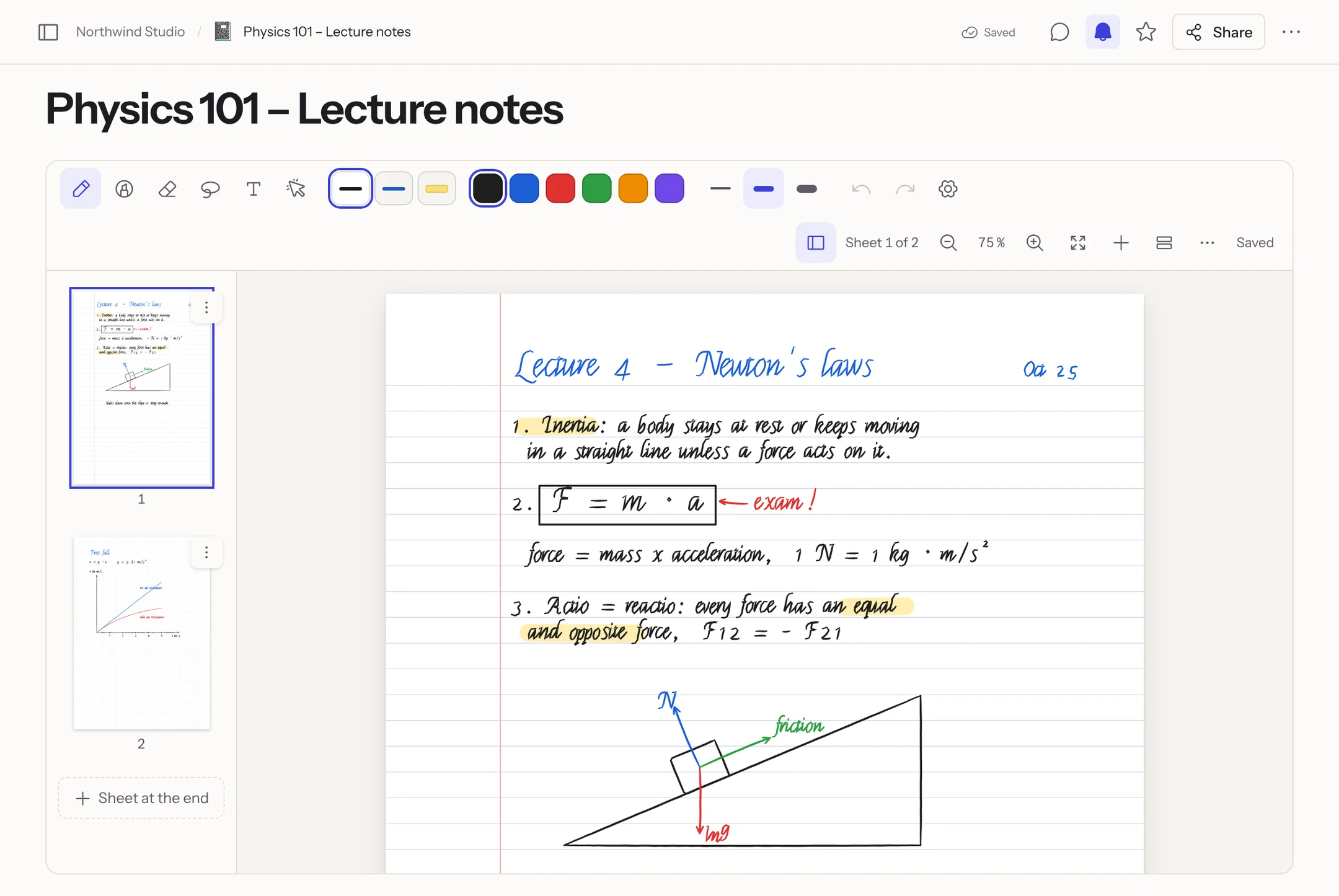
Creating a notebook
New page → Notebook (or New notebook in the command palette). A new notebook starts with one sheet of lined A4 paper.
From a PDF: in the same dialog, choose a file under Open a PDF as the notebook. Every page of the PDF becomes a sheet with that page as its background – lecture slides, worksheets or forms are then written on as if printed. ⋯ → Import PDF … adds more PDF pages to an existing notebook, after the current sheet. Up to 500 pages per import and 1000 sheets per notebook.
Paper
| Template | Looks like |
|---|---|
| Blank | no lines |
| Lined (college) | lines 7.1 mm apart (college ruled) with a margin |
| Lined (wide) | lines 8.7 mm apart (wide ruled) with a margin |
| Grid (5 mm) | squared paper |
| Dotted | dots every 5 mm |
| Cornell notes | title band, cue column on the left, summary at the bottom |
| Music staff | 12 staves (8 in landscape) |
Plus A4 or Letter, portrait or landscape, and light or dark. On dark paper, black ink shows light and the highlighter glows.
The lines icon in the toolbar (or Change paper … in a sheet's menu) opens the choice. Apply to:
- This sheet – only the current sheet gets its own paper;
- Notebook default – for all sheets without their own paper and for new sheets;
- All sheets – sets the default and removes every sheet's own paper.
Sheets from a PDF keep their PDF page and its size.
Writing
Whoever may edit the page writes right away – there is no "Annotate" step as in the PDF viewer. At the top is the toolbar: Pen (with pressure), Highlighter, Eraser (whole strokes or partial), Lasso (move, resize, recolour, copy, duplicate, delete), Text and Laser pointer, three favourite pens, colours, widths and the pen settings. They work as when annotating PDFs: only the pen writes once you have used it, fingers scroll and zoom, a resting hand leaves no marks; holding still at the end of a stroke straightens it into a line, rectangle, ellipse …
Everything is saved as you write (on the right of the toolbar: Saved). Every change of a sheet is a version. When two people write on the same sheet at the same time, both keep their strokes; a notice says that someone wrote along. What others write appears after a few seconds.
Readers of the page see all sheets, zoom and export, but no tools.
Keyboard shortcuts
| Key | Does |
|---|---|
| P H E L T K | Pen, highlighter, eraser, lasso, text, laser pointer |
| ⌘ Z / ⇧ ⌘ Z | Undo / redo |
| ⌘ C, ⌘ V, ⌘ D, Delete | Copy, paste, duplicate, delete the selection |
| ⌘ + / ⌘ − / ⌘ 0 | Zoom in, zoom out, fit to width |
| ⇧ ⌘ ↵ | New sheet after the current one |
| ⌥ ↓ / ⌥ ↑ | Next / previous sheet |
| ⌘ S | Save now |
On Windows and Linux use Ctrl instead of ⌘ and Alt instead of ⌥. On an iPad with a keyboard the same shortcuts apply.
Page overview
The sidebar icon on the left of the toolbar shows all sheets as previews; a tap jumps to the sheet. With ⋯ on a preview: New sheet after, Duplicate (with everything on it), Change paper …, Move up, Move down and Delete. You also change the order by dragging a preview or with ⌥ ↑/↓ on the focused preview. + in the toolbar adds a sheet after the current sheet or at the end, as does Add sheet below the last sheet.
Exporting as PDF
⋯ → Export as PDF downloads the notebook as a PDF: one page per sheet in the sheet's size, paper and handwriting as vectors (sharp at any zoom), PDF sheets with their original page including its text. The Markdown export puts the notebook into the ZIP as a PDF as well and writes a short Markdown file with a link to it and the recognised text. The PDF, Word and EPUB exports show the sheets as pictures (Word: only their text). Published and shared notebooks are read-only.
Handwriting in documents
Type /draw in a document (also /zeichnen, /dessin, /handwriting or /sketch): a drawing block across the full width appears. With a pen you write on it right away; with a mouse or finger after a tap into the block (or on Draw) – so a finger keeps scrolling the document. Then the toolbar appears with the block's paper (Blank, Lined, Grid) and Done. Drag the bottom edge to change the height (or use the arrow keys on the handle).
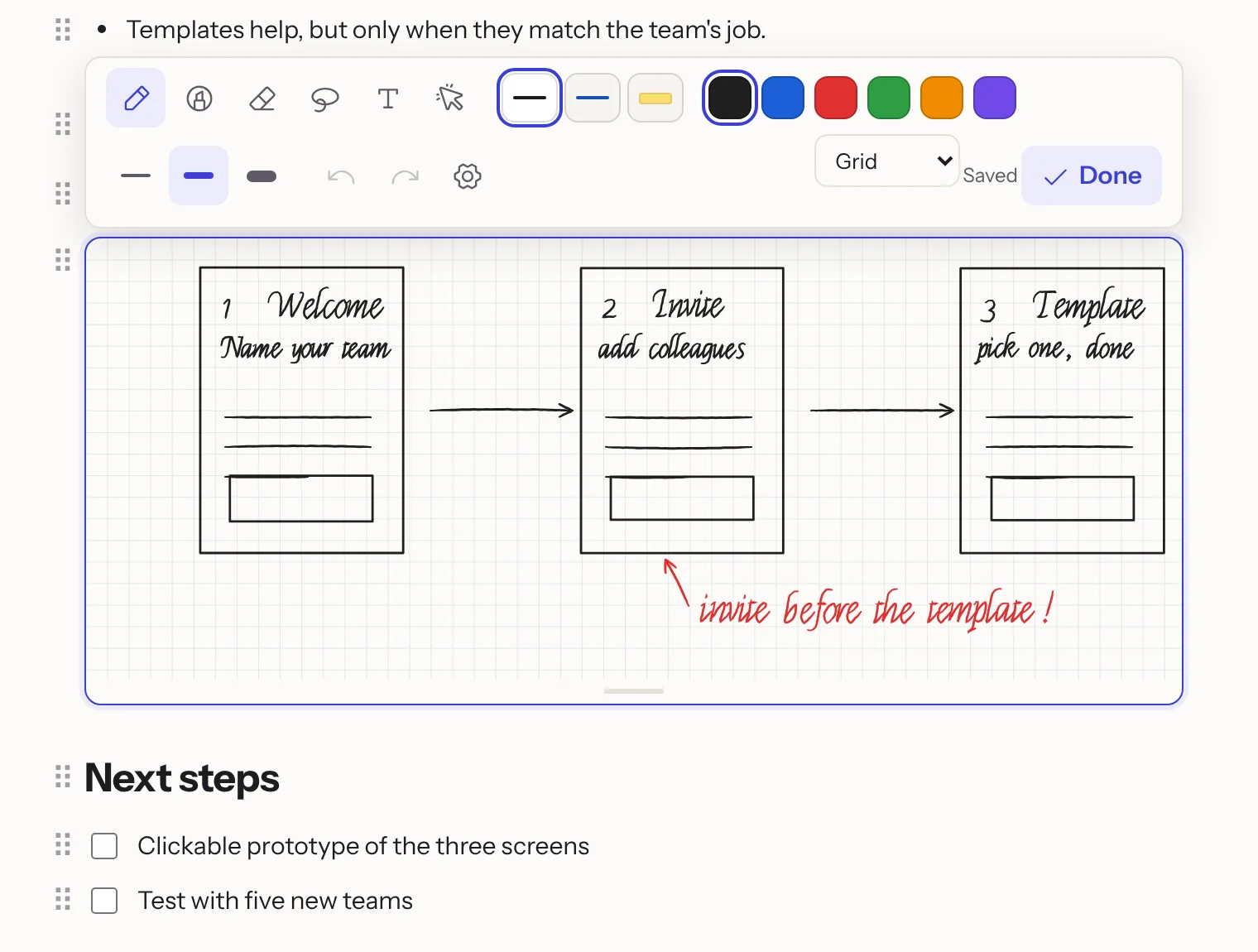
The handwriting belongs to the block and is saved as you draw. For working together this means: when several people draw in the same block at once, their strokes are merged instead of overwritten; the text around it you edit together as always. Copied or duplicated blocks (also into another document) take their drawing along and are independent afterwards. Permissions, locking and the trash work as for the document; on published pages, in share links and in exports the block shows as a picture.
Recognising handwriting (iPhone and iPad)
In the Flowplan app for iPhone and iPad the device itself recognises what you write – the strokes do not leave the device for this:
- Search: shortly after saving, the handwriting of a sheet, a drawing block or a PDF page is recognised and its text saved along. Search then also finds notebooks, documents and PDFs by what is handwritten.
- Convert to text: select handwriting with the lasso and choose Convert to text (the Aa icon) in the selection's bar. In a notebook and on PDFs, typed text replaces the strokes in their place; in a drawing block the text becomes a paragraph below the block. Undo brings the strokes back.
In the browser and the desktop app there is no recognition; Convert to text does not appear there. Text typed on sheets, in drawing blocks and on PDFs is searchable everywhere.
Limits
- Encrypted spaces have no notebooks and no drawing blocks.
- Locked pages show the handwriting; it can be changed after unlocking.
- A notebook's page versions only hold its appearance; each sheet has its own versions of the handwriting.
- Drawing blocks exist in documents and journal days, not in the documents of database records.