AI
Ask your workspace
Ask AI (sidebar, ++⌘ ⌥ A++ or ++Ctrl Alt A++, ++⌘ K++ → "Ask AI …" or the button in search) answers questions about your pages and databases – such as "When is the next heating maintenance due?" or "What did we decide about onboarding?".
8 min read
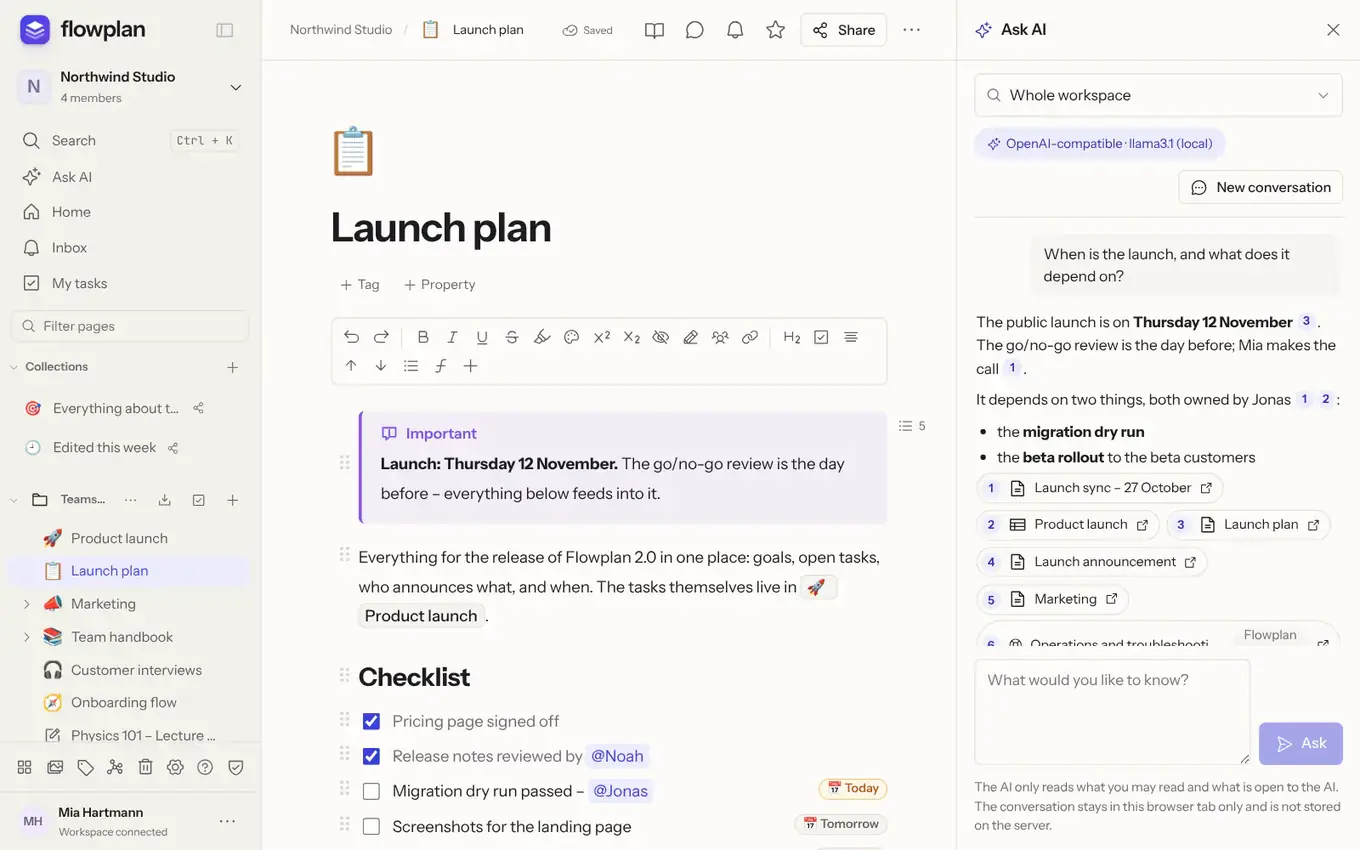
A panel at the right edge: on a computer and an iPad, Ask AI opens as a panel to the right of the page; the page gets narrower, nothing is covered. You can keep writing, scrolling and opening other pages while the answer is written – it keeps going, and the conversation stays when you switch pages. A click on a source opens the page beside it, the panel stays open. The panel starts at about 420 px and takes at most 45 % of the window; drag its left edge (or use the arrow keys) to change the width – a double-click resets it – and this browser remembers it. The page beside it lays out for the room it has left: when it gets tight it switches to its narrow layout, and the table of contents collapses to a button that opens the outline as a list. In narrow windows (below about 1100 px) the panel lies over the page instead of squeezing it; Pin puts it beside the page, Unpin over it again – this browser remembers that too. Esc in the panel, the × or the same shortcut close it again. Ask AI and the comments share the right edge: opening one closes the other. In focus mode the panel is hidden. On phones, Ask AI is a sheet above the bottom bar; swiping it down (or the arrow at its top) shrinks it to an "AI is answering …" button – the answer keeps going.
- This page: with a page open, the This page switch sits above the question field – on by default. The whole page then goes to the AI with your question: text, headings, lists, tables and code blocks as Markdown. So the AI answers questions like "What does this code block do?" or "Summarise this page" from the page itself; it appears as source [1], marked This page, and the search in the chosen scope runs as well. If the page is too long for the model, only its beginning goes along (about 60,000 characters, 12,000 with local AI), and a note below the answer says so. The server first checks that you may read the page and that the AI may read it; closed pages and end-to-end encrypted spaces have no switch. A click turns it off for this page; when you open another page it is on again.
- Suggest as changes: below an answer given with This page, this button puts the answer into the page as suggested changes – for example after "Switch the stack to Postgres 16" or "Fix the spelling in the second section". Nothing is overwritten: removed words are struck through, new ones are marked, each change is a suggestion of its own with your name and "(AI)", which you accept or reject one by one in the Suggestions bar (or all at once). In a code block the lines are compared – only the changed lines are suggested. New paragraphs, list items or code blocks go to the right place; if you reject them they disappear completely. If a passage has changed in the meantime or Flowplan cannot find it again unambiguously, it is not applied – the panel says how many suggestions were inserted and how many were not. The button only appears when you may edit the page (and it is not locked); people who may only read get the answer. It works with every provider, local ones too.
- The answer names its sources as numbered references [1], [2] …; a click opens the page or record. The references come from the search, never from the AI's text. Below the answer you see the sources it actually cites; further sources found sit behind n more sources and unfold on a click (if an answer cites none, the first three show).
- If the AI finds nothing that fits, it answers "I found nothing about that." instead of making something up.
- Where to look: the whole workspace, the open page with its sub-pages, or one space – in the menu at the top left. With All my workspaces (its last entry) the question searches every workspace you belong to – each only when AI is usable for you there (not as a guest when guests have no AI, for example), and with your rules for each workspace. Sources from other workspaces carry its name; a click switches there.
- Questions about Flowplan itself: The Flowplan help – this documentation, in English and German – is built into the app and searched along with Whole workspace and All my workspaces. Questions like “How do I set up two-factor sign-in?” or “Where do I choose the AI provider?” are answered from the help; such sources are marked Flowplan help and open the matching section on docs.flowplan.org. Only the Flowplan help in the menu asks there alone. The help lives in the app itself – no request goes out for it, and it matches the installed version.
- Journal and dates: journal days reach the AI with their date, and so does today's date. Questions like “What was the last thing with Batu?” or “What did I last …” take the newest matching day. A name or a rare word finds its pages even when a common word of the question hits many other pages.
- Formatting: answers are formatted – bold, italic, lists (also nested), code and links; the source numbers stay clickable.
- Copy: Copy below the sources takes the whole answer. Each code block also has its own Copy code button in its top right corner – handy when the AI puts a command, a snippet or a ready text (such as an issue to file) into a code block. This applies wherever AI answers appear formatted.
- Propose actions: below an answer, the AI can propose what to create from it – see AI actions.
- Conversation: follow-up questions take the last questions and answers into account; New conversation starts over. The conversation stays in this browser tab only and is not stored on the server.
- The search uses the full-text index; the best-matching passages go with your question to the provider shown at the top of the panel. The AI only reads what you may read and what is open to the AI (What the AI may access). A page's tags and property values count as part of its text.
- While the answer is written, a shimmer and a typing cursor show progress; the sources appear one after another.
Questions about the last or latest thing ("What did I last do with …?") always consider the newest journal days that match the question. The AI also reads handwriting in drawing blocks and notebooks (typed text and text recognised on iPhone/iPad) and the text of a page's PDFs, Office files and images – with the same rights as the page; journals with a PIN stay closed to the AI.
Semantic search (optional)
Questions in Chinese, Japanese, Korean or Thai are split into words even though these languages don't use spaces. "浦东新区的发票在哪里" searches for 浦东新区 and 发票; small particles like 的 are left out.
In addition to full text, Flowplan can store content as vectors ("embeddings"). Ask AI then also finds passages without the same words – "trip" finds "company outing".
- Set an embedding model at the instance provider:
- Ollama: download
nomic-embed-text(under Administration → AI → Download model orollama pull nomic-embed-text) and enter it. - OpenAI-compatible: e.g.
text-embedding-3-small; Gemini:text-embedding-004. Anthropic has no embeddings.
- Ollama: download
- Turn on semantic search and save. Or via the environment:
FLOWPLAN_AI_SEMANTIC_SEARCH=onandFLOWPLAN_AI_EMBEDDING_MODEL=nomic-embed-text.
- A background job embeds changed pages and records chunk by chunk; unchanged chunks are not embedded again. At most
FLOWPLAN_AI_EMBED_PER_HOURchunks per hour (default 5,000). - Never embedded: journals with a PIN, pages and spaces closed to AI, and the trash. Permissions and personal AI rules apply to every question.
- Semantic search always uses the instance provider. People using their own provider search full text only.
- Storage: 4 bytes per dimension and chunk (up to about 900 characters) – with
nomic-embed-text(768 dimensions) about 3 KB per chunk, roughly three to four times the text; with 1,536 dimensions about 6 KB. Only a checksum of each chunk is stored, not its text. The administration shows the number and size. - Switching off deletes all vectors; changing the model rebuilds them.
- For very large instances (hundreds of thousands of chunks) there is no vector index yet; the search stays correct but gets slower.
Related pages
Below a page and in a database record, Related pages shows up to eight pages and records that belong with it. It also works without AI:
- Without semantic search, it counts links from the page, links to the page, pages with the same links, the same tags (multi-select) for records, and similar titles in the full-text index.
- With semantic search, pages with similar content are added ("by meaning"). Only the vectors already stored are compared – no request goes to the provider, no text leaves the server. The open page must be readable for the AI; every hit passes the same rules as Ask AI.
Only what you may read is shown – no private spaces of others, no hidden records, nothing from the trash or locked journals.