Databases
Views
A database can have as many views as you like. Every view shows the same records with its own layout, filters, sorting and groups.
10 min read
On this page
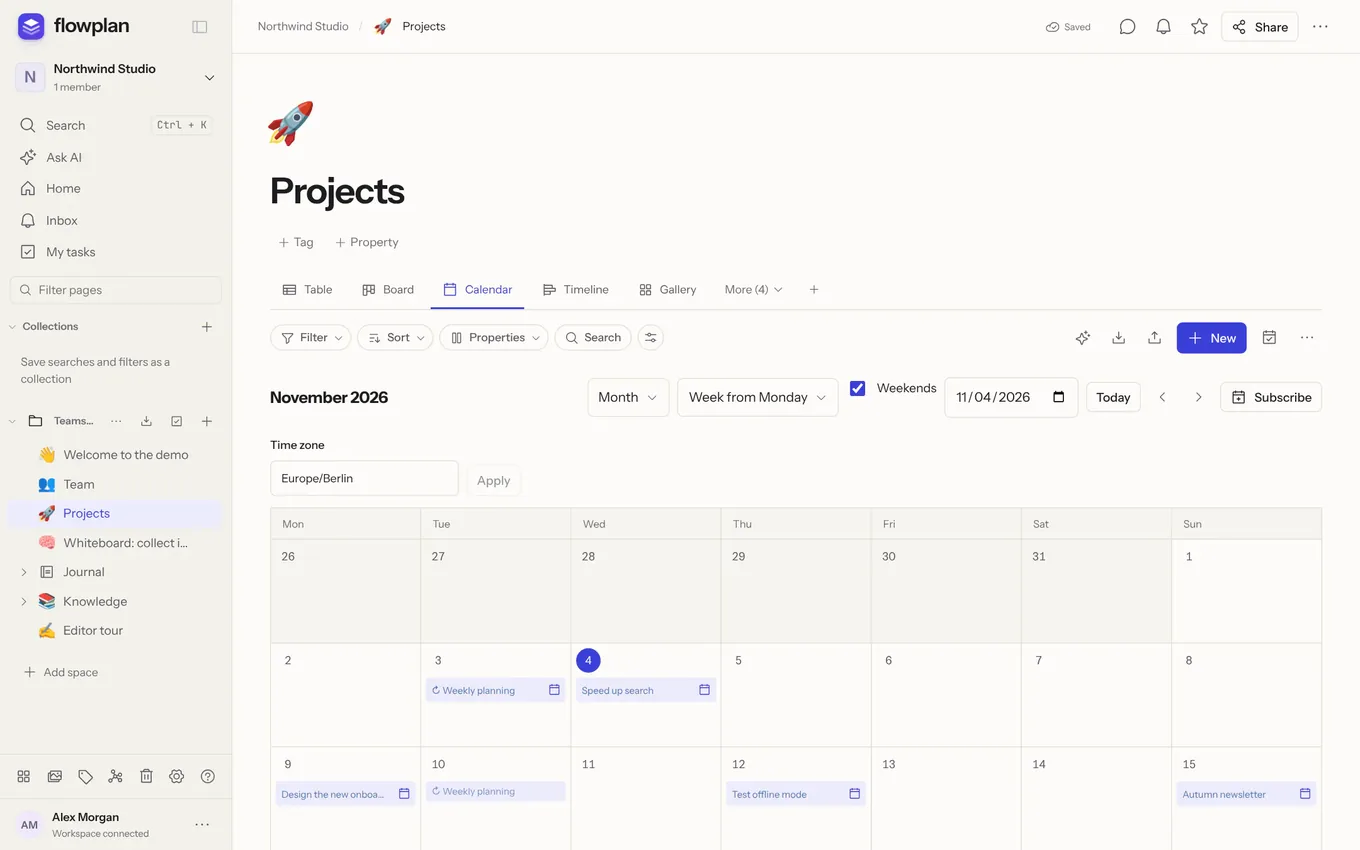
New view: + next to the view tabs, then choose one of the eleven layouts. View and properties controls which properties are visible and in which order.
A right-click on a view tab opens its menu: Rename, Duplicate, Settings …, Set as default view, Move left, Move right and Delete view (the records are kept; the last view cannot be deleted). With the mouse, tabs can also be reordered by dragging, and a double-click renames them. On touch screens, swiping scrolls the tabs; a long press opens the menu with Move left and Move right.
Default view: the view that appears first when the database is opened – the board instead of the table, for example. Without it, the first view opens. A small star in the tab marks it; it can also be set in the view settings (handy on a phone).
Reordering records by dragging
In tables, lists, feeds, boards and galleries, records can be dragged to another place by their handle (⋮⋮); cards on boards and in galleries also by the whole card with the mouse.
- Mouse: dragging starts only after the pointer has moved a few pixels – a simple click still opens the record, or on the handle the Move record dialog. While dragging, the cursor is the closed hand, a slightly lifted copy follows the pointer and a blue line shows where the record lands. Over a group header it lands at the end of that group (and changes the group).
- Scrolling at the edges: near the edge of the table, the board or the window the view scrolls along, sideways as well as up and down.
- Cancel: Esc during the drag puts everything back; nothing is changed.
- Touch screens: hold the handle briefly (about 0.3 seconds) until the record lifts, then drag. A quick swipe over the handle scrolls as usual; a short tap opens Move record. On boards the card handle and the column handle drag right away.
- Keyboard: focus the handle, Space lifts the record, ↑/↓ move it (on boards ←/→ to the next column, Home/End to the start or end), Space or Enter drops it, Esc cancels. Screen readers announce every position. Alt↑/↓ still moves it by one place at once.
- A record can also be dragged onto a database in the sidebar this way (see Copy and move records).
Table
- Edit cells directly; open records as a page via their title.
- Drag columns by their header onto another column – they land before it (blue line) – and resize them at their edges. On touch screens, hold the header briefly first.
- Choose a calculation below every column.
- Grouped tables fold groups and show summaries per group.
- The title column stays in place while the table scrolls sideways. On a phone it takes at most about 60 % of the table's width, and longer titles are cut short with "…". There the column with the checkbox and drag handle scrolls with the rest. This way the table can be swiped sideways anywhere, including on the title column.
- When you scroll down, the header row with the column names stays at the top – on the full page, in a database inside a document, in an open record and in the split view. So you always know which column you're in. It scrolls sideways together with the rows and only leaves once the end of the table has passed. Since 0.9.7
Board
The kanban view groups cards into columns, for example by status, select, person or relation.
- Move cards between and within columns by drag and drop: the card lifts, the target column opens a gap, and on release the card settles in. This changes the grouping property.
- New at the foot of a column creates a record right in that group.
- Reorder, hide or collapse columns; "No group" collects records without a value.
- Add group to the right of the columns creates your own status, such as "Waiting for customer": it is saved as a new option of the grouping select property and appears right away as a column of its own.
- Sub-groups also split the board into rows (swimlanes).
- Cards show every property ticked under View → Properties and columns that has a value, in that order; empty properties are left out, and the date sits at the bottom of the card. With more properties the card grows taller.
- With multi-select and relations, a card can appear in several columns; moving it only replaces the respective assignment.
- On touch devices, drag cards by their handle (swiping over a card scrolls) and columns by the ⋮⋮ handle in their header; with the mouse, drag columns by their header. Esc cancels and the card returns to its place.
Calendar
Month, week and day view by a date field.
- Week and day show an hourly grid with an all-day row and overlaps placed side by side.
- Move appointments in 15-minute steps, extend or shorten them at their edges.
- Drag whole-day entries (month view and the all-day row) to another day with the mouse, on touch devices by their ⋮⋮ handle; the target day gets a dashed outline, Esc cancels. With the keyboard, Alt←/→ moves a focused entry by one day, Alt↑/↓ in the month view by one week.
- A click on an hour creates an appointment, All day + an all-day record.
- Every view has its own time zone; without a setting the browser's applies. When it differs from your device's, it shows below the header; otherwise Time zone in the options opens the field. New in 0.10.2, in the :beta image
- The week start (Monday or Sunday) can be set per view; without a setting it follows the reader's language – Sunday in English (US), Monday otherwise.
- Keyboard: Alt↑/↓ moves by 15 minutes, Alt←/→ by one day.
- On a phone New in 0.10.2, in the :beta image: the top shows just ‹ Today › and the month; the icon beside it (Calendar options) opens view, week start, weekends, date, time zone and Subscribe. The month shows all seven days with the titles as short bars. Tap a day to see its records below – with the ⋮⋮ handle to move one to another day, the calendar icon for its date and + New for a record on that day. The week shows three days at a time and swipes sideways.
Subscribe to a calendar
Subscribe in the calendar view creates your personal link for Apple Calendar, Google Calendar or Outlook. It shows the records of this view with its filters – only what you may see – and recurrences as series. The link is secret and shown only once; Create new link invalidates the old one, End subscription switches it off. If you lose access to the database, the link returns nothing anymore.
Sync both ways (CalDAV)
In the same dialog, Set up access sets up sync with Apple Calendar, Thunderbird or DAVx⁵ (Android). Events you add, move, rename or delete there land in the database.
- Credentials: you get a server, a username and a password that is shown only once.
- Apple: Set up in Apple Calendar (in the app, in Safari or on a Mac) downloads a configuration profile with the account – install it under Settings → Profile Downloaded. Several calendars at once: Settings → Calendars & issues → Calendars on iPhone, iPad and Mac. By hand: Add account → Other → CalDAV account, type “Manual”.
- Thunderbird and DAVx⁵: they take the calendar address directly.
- Several devices: each profile gets its own access, so a calendar set up on the Mac keeps working when you install the profile on the iPhone. End access or Create new password ends all accesses to this calendar, those of profiles included.
- Permissions: your own rights apply – whoever can only read the database cannot change anything from the calendar. Workflow and automations apply as for any change.
Google Calendar does not support CalDAV accounts; use the calendar sync below for it.
Contacts as an address book (CardDAV)
Contacts databases can be subscribed to like calendars – as an address book in Apple Contacts, Thunderbird or DAVx⁵, read-only, with the same kind of access (password shown only once) and a configuration profile for iPhone, iPad and Mac. See Subscribe as an address book.
Sync with Google Calendar or Outlook
Calendar sync keeps a view with a date and a calendar in Google Calendar or Microsoft Outlook / 365 in step both ways – personally, with your own account.
- Settings → Calendars & issues → Connect calendar → Connect Google Calendar or Connect Microsoft Outlook / 365. You sign in with the provider and allow access to your calendars.
- In the database, open the calendar icon next to … (Calendar sync), pick the view, the account and the calendar, and Connect.
What is synced:
- Title ↔ event title.
- Date ↔ start and end: a date without a time becomes an all-day event, a date with a time a timed event. The view decides which date properties are start and end; the time zone of the calendar view applies to dates without their own time zone.
- The record's document ↔ description, as plain text. The description ends with a link back to the record.
- New, changed, deleted – both ways. Events deleted in the calendar move their records to the database's trash.
Good to know:
- Flowplan syncs every ten minutes and only fetches changes; Sync now in the dialog syncs right away.
- Conflicts: when both sides change the same event, the later change wins. The audit log records every conflict.
- Permissions: only records you may see and edit go to the calendar and are changed by it. Workflow and automations apply as for any change.
- Range: events from 90 days back to one year ahead. Recurring events from the calendar arrive as single records; a recurring record goes to the calendar with its first date.
- Disconnect under Settings → Calendars & issues ends every sync of that connection. You can also revoke access in your Google or Microsoft account.
- An administrator sets up the providers once, see Configuration.
Sprints
Backlog, sprints with goal and period, burndown and velocity – see Projects, tickets and sprints.
Study Since 0.10.0
Flashcards with spaced repetition: every record is a card, the view shows what is due today and quizzes you in focus mode. Its filters pick a sub-deck – see Flashcards.
Timeline
The timeline shows records with a date range as bars on a time axis, with zoom, milestones and dependencies.
Gallery
Cards with a preview image and every ticked property that has a value (as on the board). The image comes from the record's content, its cover or a files property, filling the card or fitted in.
List
Compact rows with the title and up to three filled-in properties, good for long collections.
Feed
Records including their document content one below the other, like a blog or a log. The title, Open record or the comment count opens the full record. More records load in steps of 20.
Chart
Configure chart chooses columns, bars, line or donut, the grouping and the calculation – count, sum, average, minimum, maximum. Date values can be summarised by day, week, month or year. A click on a data point shows the records behind it; Export as CSV exports all values.
- Series split every group by another property, side by side or stacked.
- More values put up to four additional calculations next to the main value, such as "sum of costs" next to "sum of revenue" per month. Every value becomes a series of its own with a legend; series and more values cannot be combined.
Form
Collects records through a form, also from people without an account. See Forms.
Linked databases
In a document, /db shows a view of an existing database. The embed has its own views, filters and sorting; records and their changes still belong to the source. The source name in the header opens the full database.
Reading it requires access to both the document and the source. The embed grants no additional permissions; Remove only deletes the block.