Documents
Images, files and voice notes
Images, files, PDFs and embeds in documents – upload, annotate, delete again – and voice notes that Flowplan can transcribe.
13 min read
On this page
Images, files and embeds
- Pasting from the clipboard (⌘V) or dragging in uploads images and files. Images can be resized at their edges.
- Image toolbar: point at an image (on a phone: tap it) and a small bar appears at its top right: Comment, Caption, Replace image (place, width, caption and alignment stay), Download, Full screen and … with alignment (left, centre, right), Mark up image, Copy image, Copy link to block and Delete.
- Photos are scaled down before uploading: at most 2560 px on the longer side, stored as WebP. The camera rotation is kept, metadata such as the location is removed. GIFs, SVGs and files that would hardly get smaller stay unchanged. Attachments in file properties and forms are stored as they are.
- PDFs appear as a card with a preview of the first page. A click opens the PDF viewer with all pages, zoom and Download. Two fingers zoom smoothly around the spot between them and move the pages – as in notebooks, also while just reading; on a trackpad use the pinch gesture or Ctrl + scroll. The buttons and ⌘ +/− change the zoom in steps of 25 %. Esc closes the viewer. The same applies to PDFs in the media library, in files properties of databases and on published pages. In editable text, ⌘-click a link to a PDF to open the viewer. In the viewer you can write on the PDF – see Annotate PDFs.
- Mark up images: double-click an image (or the pen in the toolbar while the image is selected, or … → Mark up image in the image toolbar) to open it for editing – with pen, highlighter, arrow, rectangle, circle and text, seven colours and three line widths, undo with ⌘Z. Save creates a new image with the markings; the original and the markings stay with the image, so you can change or remove them later.
- Media in the sidebar collects all uploads of the workspace for reuse.
Deleting media
In Media, select files with their checkbox and put them in the trash with Move to trash (or the trash icon on the file). There is no confirmation because it can be undone. Anyone who may edit the file's page may delete it; viewers and guests can't.
- Not used: files that no page, record, whiteboard or comment of the workspace contains any more carry this badge. The Not used filter shows only them, and Delete all unused moves them to the trash together after a confirmation. Older versions in the version history don't count as a use and may still show such files.
- Removing an image from a document doesn't delete the file – it then just counts as not used.
- Old cover images of a page that are no longer used can also be removed right in Change cover, see Page actions. New in 0.10.2, in the :beta image
- While a file is in the trash it can't be opened anywhere, including through shares and publications. Pages that still show it have a File missing placeholder in its place. Restoring brings it back unchanged.
- It is deleted for good – including in the
uploadsfolder and in object storage such as S3 – only when the trash is emptied, with Delete permanently, or when the retention period ends, see Trash. Until then it counts towards storage. - Embed (
/embed) takes an address: YouTube, Vimeo, Loom, Spotify, Figma and CodePen appear as players with an adjustable width, other sites as a link card with title and preview image. - Links to pages and mentions of people show a preview on hover.
- The administrators set the maximum file size (10 MB by default).
Annotate PDFs
If you may edit the page a PDF belongs to, the PDF viewer shows Annotate (not in encrypted spaces and on locked pages). A toolbar appears below it: Pen (with the Apple Pencil or another tablet pen, the line width follows the pressure), Highlighter (translucent, stays under the text and the ink), Eraser (Whole strokes or Partial – then only what is under the eraser goes), Lasso, Text and Laser pointer (points at something without staying). Plus colours, three widths, undo and redo (⌘Z, ⇧⌘Z).
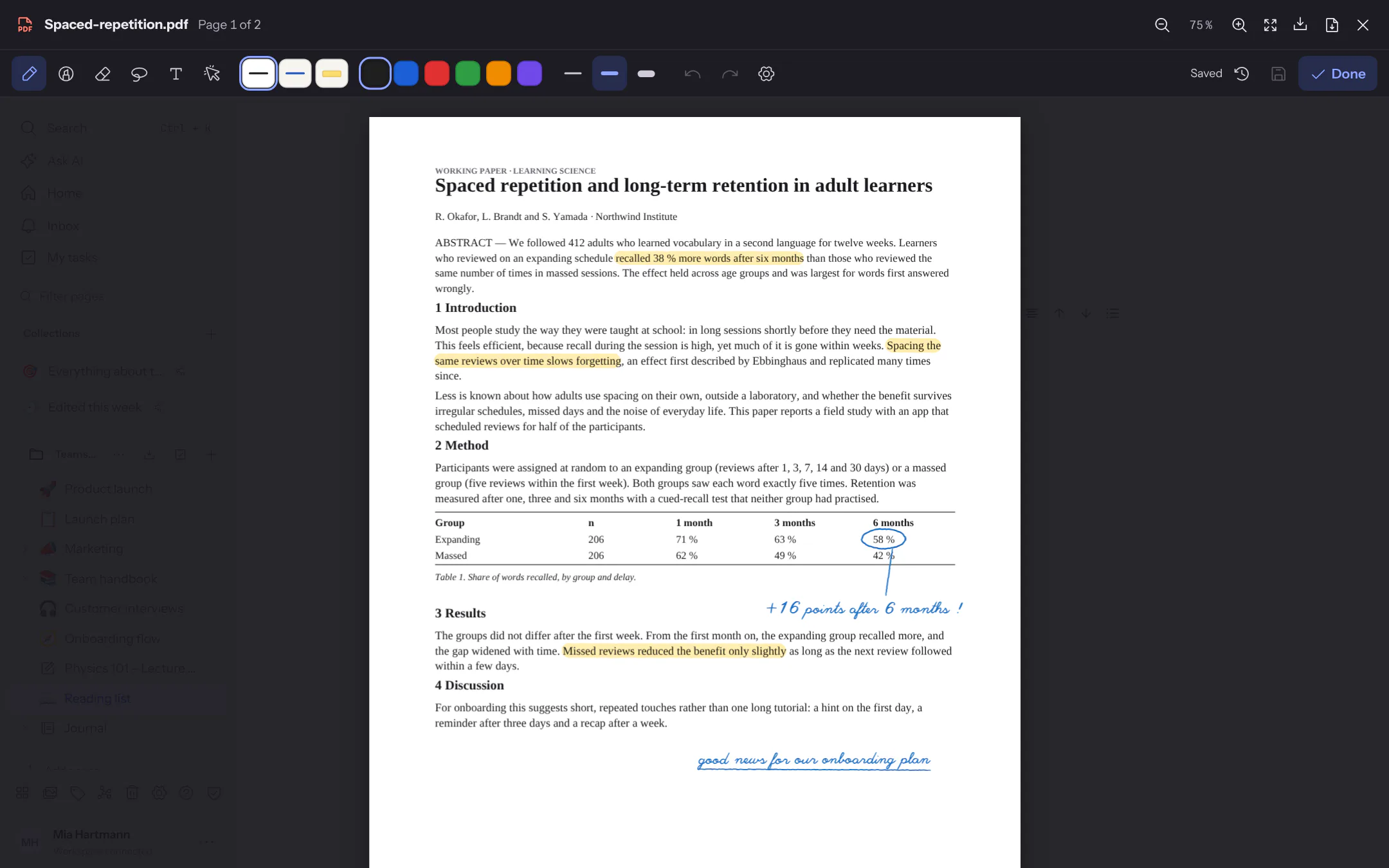
- Favourite pens: the three pens next to the tools remember colour and width; change them while one is chosen and the favourite changes with it. They apply on this device.
- Shapes: hold the pen still for a moment at the end of a stroke – a drawn line becomes straight, a rectangle, circle, triangle or diamond becomes the clean shape. Switch this off in the Pen settings (gear).
- Lasso: draw around strokes and text to move them, resize them with the handle at the bottom right, recolour, copy (⌘C, paste with ⌘V – also on another page), duplicate or delete them.
- Text is placed with a tap on the page; a tap on existing text changes it. On the iPad, Scribble writes into it with the pen.
- Draw with the pen only: once you have written with the pen on a device, only the pen writes – fingers scroll and zoom, a resting hand leaves no marks. PDFs, whiteboards and images share the setting; switch it off in the Pen settings, then a finger writes too, and two fingers scroll and zoom.
- Apple Pencil: the eraser end of a pen erases. In the iPad app, double-tap or squeeze switches to the eraser and back – as set in the iPad settings, or in the Pen settings always to the eraser, the last tool or nothing.
The annotations belong to the page of the PDF, not to the screen: they stay in place at any zoom and apply to everyone who opens the PDF – readers see them but cannot change them. The PDF itself stays unchanged. Done (or ⌘S) saves; every save is a version you can load again from the clock icon. If someone else saved the annotations in the meantime, your version wins and a notice says who; theirs is kept as a version. Search finds text you write on a PDF – in the app for iPhone and iPad also the handwriting itself, and Convert to text turns selected handwriting into typed text (see Recognising handwriting).
To turn a PDF into a notebook you write in page by page and add sheets to, open it as a notebook: every PDF page becomes a sheet.
Download still downloads the original. Download with annotations (next to it once there are annotations) creates a new PDF with the same pages and the annotations on top as vector graphics – they stay sharp when zooming in. Protected (encrypted) PDFs can only be downloaded without annotations; text appears in Helvetica, characters outside the Western European character set as “?”.
PDF in the side panel New in 0.10.2, in the :beta image
A PDF can stay open beside the page while you write: right-click (long-press on a touch screen) a PDF card in a document, a PDF in Media or a link to a PDF, then Open in side panel. Media and files among the search results also have their own icon for it. The PDF docks to the right of the page; the document or notebook on the left narrows and stays fully usable. Page and zoom stay where they are while you keep writing on the left; drag the panel's left edge to change its width, the device remembers it. On a phone the PDF comes up as a sheet from the bottom that you swipe down to close. Esc or × closes it, another PDF replaces it.
If you may edit the PDF's page, you write on it right away: these are the same annotations as in the PDF viewer – they belong to the PDF, everyone with access sees them, and they are saved as you write (every save is a version). Readers see them without changing them; encrypted spaces and locked pages have no annotating. Annotate switches the pen off and on.
Taking a region: with Region you draw around part of a page (or drag across it for a rectangle). Insert puts it as a picture into the document or notebook you worked in last; you can also drag the region there. The picture is drawn sharply from the PDF page and uploaded like any image. Below it, “Name.pdf, p. 3” opens the PDF in the side panel at exactly that page.
3D and CAD files New in 0.10.2, in the :beta image
Flowplan shows STL, OBJ, glTF/GLB, 3MF, STEP/STP and IGES/IGS files in the 3D viewer instead of only offering them as downloads. Upload such a file to a document and a card with a cube icon and Open in 3D viewer appears; a click opens the viewer. The same goes for 3D files in Media (filter 3D/CAD), in files properties of databases, in links to such files and on published pages. In editable text, a link opens the viewer with ⌘-click.
- Turn, pan, zoom: dragging with the mouse turns the model, the right mouse button (or Ctrl/⌘ while dragging) pans it, the wheel zooms at the pointer. On touch devices one finger turns, two fingers zoom and pan. With the keyboard focus on the 3D view, the arrow keys pan; +/− zoom, 0 goes to the home view, Esc closes the viewer.
- Views: Front, Top, Side and Iso show the whole model from the front, from above, from the right and at an angle from above (isometric). STL, 3MF, STEP and IGES have Z pointing up (as in CAD programs), glTF and OBJ Y. The house icon (Home view) returns to the isometric view, Fit to view shows the whole model from the current direction.
- Dimensions: the bottom bar shows the edges of the bounding box (width × depth × height) and the number of triangles.
- Measure: after Measure, click (or tap) two points on the surface; a line connects them, a label gives the distance, and the list at the bottom collects all measurements. Dragging still turns the model. The trash icon clears all measurements, the × next to one removes only that one.
- Wireframe shows the model's triangles instead of its surfaces.
- Units: the CAD reader converts STEP and IGES to millimetres, glTF/GLB is in metres, 3MF names its own unit. STL and OBJ store no unit – Flowplan assumes millimetres and says so.
- Size: the viewer opens meshes (STL, OBJ, glTF/GLB, 3MF) up to 200 MB and STEP/IGES up to 100 MB; larger files can still be downloaded. What you may upload depends on the maximum file size set by the administration. glTF files must be self-contained (best as GLB); models compressed with Draco or KTX2 are not shown.
- Offline: for STEP and IGES, Flowplan loads the CAD reader (OpenCascade, about 7 MB) from its own server the first time – never from a third party. It is not part of the offline copy, so without a connection STEP and IGES files open only once the reader has been loaded. STL, OBJ, glTF and 3MF also work offline once the file is on the device.
The file is read in the browser, large ones in a separate thread so the page stays responsive; the original stays unchanged, and Download gets it.
2D drawings: DXF and DWG New in 0.10.2, in the :beta image
Flowplan opens technical drawings in DXF and DWG format (AutoCAD and many other CAD programs) in the drawing viewer. The card in the document has a blueprint icon and Open in drawing viewer; otherwise everything works as for 3D files – also in Media (filter 3D/CAD), in files properties and on published pages.
- Pan and zoom: dragging (with the mouse or a finger) pans the drawing, the wheel or two fingers zoom. With the keyboard focus on the drawing, the arrow keys pan; +/− zoom, 0 fits the whole drawing, Esc closes.
- Layers: Layers opens the list of all layers with their colour and number of objects; a checkbox shows or hides a layer, All on and All off switch them all. Layers that are off or frozen in the drawing start hidden. Fit to view shows everything that is visible.
- Shown are lines, polylines (also with arcs), circles, arcs, ellipses, splines (approximated), texts and multiline texts (without fonts), blocks with their position, rotation, scale and arrays, dimensions (as the CAD program drew them), hatches (solid fills filled, patterns as a light area) and filled areas (SOLID). Colours come from the drawing (colour index, true colours, BYLAYER, BYBLOCK), and so do linetypes such as dashed. Objects drawn in white appear black on white paper. 3D solids, images and tables are not shown – the bottom bar says how many objects that affects; layouts (paper space) are left out, the viewer shows the model space.
- Paper: the moon icon switches to dark paper, the sun back to white.
- Measure: after Measure, click (or tap) two points. Each point snaps to the nearest end, vertex or centre close by, so measurements are exact; the list at the bottom gives the distance and the distances along X and Y.
- Unit and size: the drawing names its own unit (millimetres, inches, metres …); without one, the viewer measures in drawing units and says so. The bottom bar shows the size of the visible drawing.
- File size: DXF up to 100 MB, DWG up to 50 MB. Very large drawings are shown only in part, and the viewer says so. Binary DXF files are not read – save them as DXF in text format.
- DWG: for DWG, Flowplan loads a DWG reader (LibreDWG, about 11 MB) from its own server the first time; it is not part of the offline copy, so DWG files need a connection the first time. DXF also works offline. DWG files from AutoCAD R14 up to the current format (unchanged since AutoCAD 2018) are read, older ones from R11/R12 mostly too. If a file cannot be read, the viewer says so – then export the drawing as DXF from your CAD program and upload that file; the viewer reads DXF from any version.
Voice notes and meetings
/voice opens the recorder: tap the microphone, speak, Stop recording – up to two hours, enough for a meeting. You can listen to the recording or discard it; Insert puts it into the page as audio (within the instance's upload limit). If speech recognition is set up, the spoken words follow below as text; otherwise the dialog only offers the audio.
- Long recordings go to the server in parts; it puts them together and sends them to speech recognition.
WHISPER_MAX_MBlimits the size (default 200). - Transcript with timestamps: if speech recognition returns segments with times (OpenAI-compatible
verbose_json, e.g. faster-whisper-server, speaches or whisper.cpp), a collapsible Transcript · duration block appears with one paragraph per passage and its timestamp (00:04,1:02:05). - Speakers: only when the service itself separates speakers (diarization, switched on with
WHISPER_DIARIZE=onfor servers that knowdiarize) and returns a speaker per segment, each passage starts with Speaker 1, Speaker 2 … Flowplan never guesses speakers from pauses. If the service only knows plain JSON, the text is inserted as paragraphs as before. - Then summarise with AI summarises the transcript (Summaries).
- In the apps for iPhone, iPad and Android the app records; iPhone and iPad turn the words into text on the device, without speech recognition on the server (Voice notes in pages).
- Generate tasks and summary (when AI actions are on for you): the AI proposes a summary with decisions and a task list with assignees and dates – as a preview with checkboxes; only Run adds them to the page.