Getting started
First steps
From signing in for the first time to your first own page: what you do with Flowplan in the first ten minutes.
11 min read
On this page
Sign in or sign up
You sign in with your e-mail and password, with a passkey (fingerprint, face or device PIN) or – if your organisation has set it up – with Sign in with SSO through your organisation's login (OpenID Connect, such as Keycloak, Authentik, Zitadel or Entra ID). The sign-in page offers the way you last used on this device as one large button; With e-mail and password opens the form. You create an account with Create account, provided the instance allows sign-ups or you have been invited. Afterwards you set up passkeys under Settings → Account & security. Everything else is described under Sign-in.
On a brand-new instance you create the first account – it administers the instance. If you are moving or reinstalling, choose Restore from a backup there instead (Restore while setting up).
When you sign in for the first time, Flowplan creates a private workspace with example pages. With single sign-on, your name, e-mail address and – if available – your profile picture come from the login provider.
If the instance offers a demo, you can try Flowplan without an account. The demo gets its own example workspace and is deleted completely when you end it, sign out or after 45 minutes without activity.
Language: Flowplan follows your browser's language. Under Settings → Appearance & language → Language you pick German 🇩🇪, English 🇬🇧, English (US) 🇺🇸, French 🇫🇷 or Chinese 🇨🇳 from the list – it then applies on all devices, also to e-mails and push notifications. Further languages can be added: Languages and translations.
The introduction
After creating an account, Flowplan walks you through the essentials once: language and appearance, for admins the setup of the instance, if you like the move from the tool you used so far, first pages, notifications and offline on this device. Every step can be skipped, and afterwards the Getting started list in the sidebar helps you on. The steps in detail are in Introduction and settings. Since 0.9.7
Moving from Notion, AFFiNE, Obsidian, Evernote, Confluence or Google Docs? You can do it in the introduction (step Where are you coming from?) and at any time under Settings → Import & export. What comes along and how best to go about it is in Moving to Flowplan.
The settings open with an overview: one tile per section, grouped into Personal, Connections, Workspace and Help & info. The search at the top (“Search settings …”) helps – “passkeys” finds Account & security, for example –, and every section has its own link, e.g. /#settings/notifications.
Which settings you see depends on your settings level: Beginner, Normal or Expert. Since 0.9.7
The interface
- Sidebar on the left: workspace switcher, search, home, inbox, your spaces with the page tree, and below them templates, media, trash and settings.
- Home: recently edited pages, quick starts for a new idea or project, and all pages of your workspace – customizable with widgets (see Customize your home page).
- Header of a page: path, share, comments, favourite and the Page actions menu (
…). - Path: workspace → parent pages → page, and for an open record → database → record. Every part is a link (also into a new tab). The path follows the structure, not the way you came. When it gets long, … folds the middle – a click lists the hidden levels; on a phone only … and the current page remain. Pages you may not read do not appear: guests see the path from the page shared with them.
On a computer, drag the sidebar's right edge to make it wider or narrower (200 to 480 pixels); a double click on the edge restores the original width. Flowplan remembers the width per device. On a phone the sidebar folds away: the icon at the top left opens it, and so does a swipe to the right from the left edge (or Navigation in the bar at the bottom). The bar at the bottom also has Home, Search, Inbox and, in the middle, the round + for a new page (without a label; screen readers call it "New page"). Since 0.9.7 It lies over the current page, which stays visible, dimmed, beside it – nothing is left. Swipe it to the left, tap beside it or press Esc to close it. Over the page it has a width of its own, wider than docked by default (up to 360 pixels on a phone, 400 on a tablet); drag its right edge to change it, a double tap restores the default. Flowplan remembers this width per device, separately from the docked width. On an iPad and other tablets the same swipe opens the collapsed sidebar over the page. In Safari the very edge stays Safari's back gesture – there the swipe starts just inside the edge; the arrows at the top left go back. Since 0.9.7 For iPhone and iPad there is also an app on the App Store, for Android an app to download (Apps for iPhone, iPad and Android).
Back and forward
At the top left, next to the sidebar icon, the arrows ← and → take you to the page opened before and forward again. Every place with an address of its own is a step: pages, databases, journal days, whiteboards, a record opened from a database (as a dialog and as a full page, one step each), home, inbox, My tasks, tags, collections, media, trash and the sections of the settings. Dialogs, menus and the search do not count, and closing a record you opened in its database takes you back there without an extra step. When there is nothing in one direction, its arrow is greyed out. Every page and view opens at its top; back and forward take you to where you left it. Since 0.9.6
- List: a right click or a long press on an arrow shows the last (up to ten) pages in that direction with their icon and title – a click jumps straight there.
- Keyboard shortcuts: ⌘[ and ⌘] or ⌥← and ⌥→ (Windows and Linux: Alt← / Alt→ or Ctrl[ / Ctrl]). While typing, ⌥/Alt with an arrow moves the cursor as usual; the shortcuts can be changed like all others (Keyboard shortcuts).
- Browser: the arrows take the same steps as the browser's back and forward buttons and the mouse's side buttons – you can mix them.
- Desktop app: also the Navigation menu → Back / Forward, the mouse's side buttons and, on a Mac, swiping on the trackpad (More from the desktop app).
- Phone: there are no arrows there – the back gesture (iPhone) or the back button (Android) goes back.
Short animations show what just moved: cards and rows glide into their new place, bars that move along in the timeline visibly follow, and the target of a jump – from the table of contents, search or a notification – lights up briefly. Moving to another page only cross-fades the content area briefly, and the title is in its place at once Since 0.9.6; a card from a board or gallery grows into its record (on a phone the record comes up as a sheet). A tap or a key ends such a transition at once, and clicking quickly from one page to the next goes without one. While uploaded images load, they show a blurred preview in their final size and then fade in – nothing below them moves. How much moves is up to you under Settings → Appearance & language → Animations (Light and dark). Since 0.9.6 When Reduce motion is on in your device's settings, everything moves to its target without motion, and jump targets are only highlighted briefly and still.
Customize your home page
The home page is yours: Customize at the top right (or “Customize home page” in quick search) lets you arrange it from widgets the way you work. On phones everything sits in one column, on tablets in two, on large screens in three or four – the iPhone, iPad and Android apps and the desktop app show the same home page. Widgets of different heights leave no gaps: the first row follows your order from left to right, then each widget moves into the column with the least above it – so next to a tall My activity, short widgets such as Agenda stack on top of each other. Wide widgets sit under the lowest point of the columns they cover. With the keyboard and a screen reader you still go through the widgets in your order.
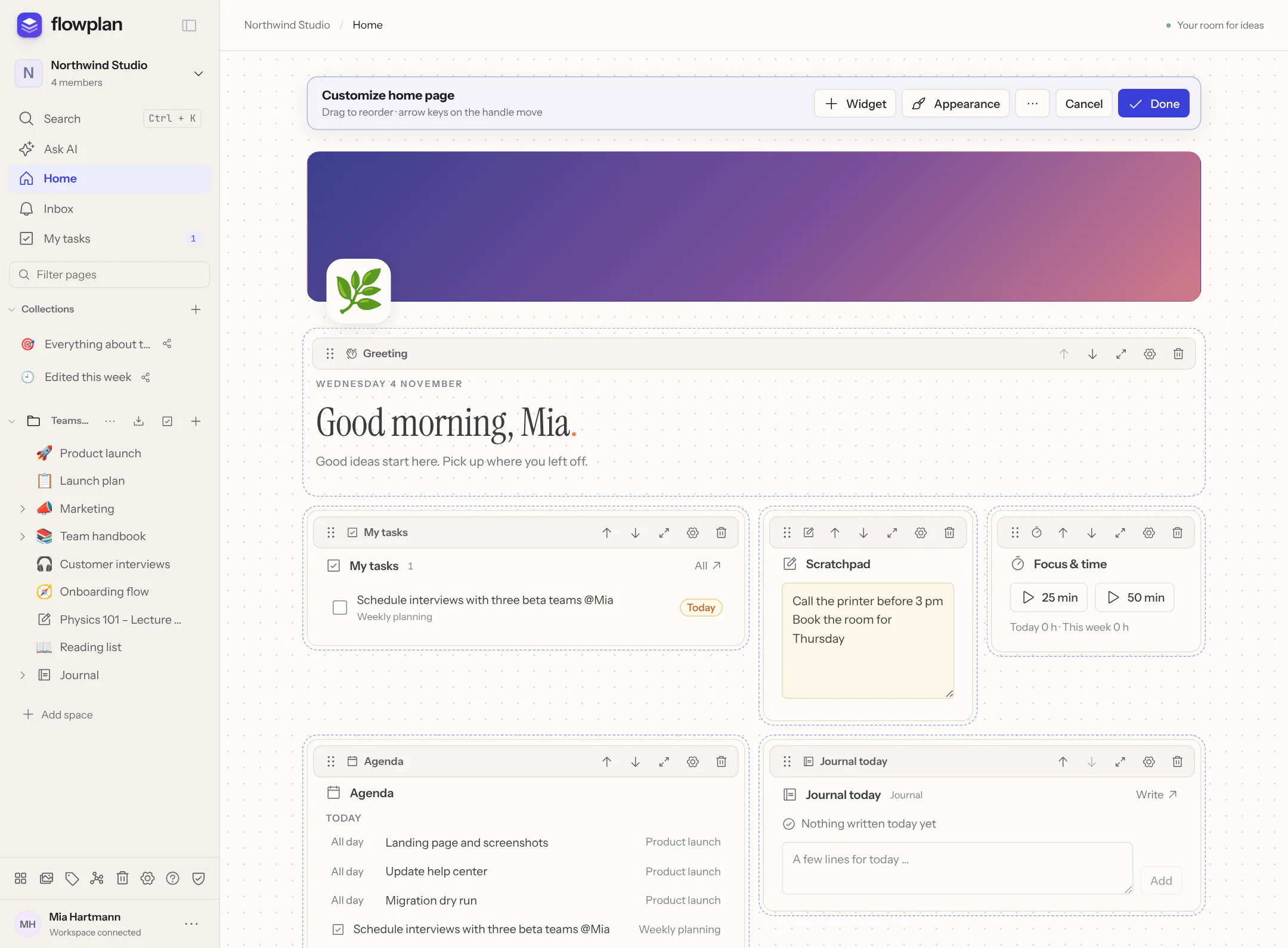
While customizing:
- Widget opens the gallery: greeting, recently edited or viewed, favourites, the workspace's pages, my tasks, inbox, journal today, agenda, database view, pinned page, quick capture, focus & time, habits, counter, scratchpad, activity, my activity, this week, links and – for administrators – the instance status.
- Move: drag the handle, use the up/down arrows, or the keyboard – focus the handle, then the arrow keys, Home and End.
- Size: small (one column), medium (two), large (three) or full width. A widget never gets wider than the space there is.
- Settings (gear): a heading of your own and what the widget shows – for My tasks “Due today and overdue”, “Due today”, “Overdue” or “All open”, from your tasks or the open records of a database view; for the Agenda the period (today, 3 or 7 days) and which calendar and timeline views count (also those connected to Google, Microsoft 365 or CalDAV).
- Appearance: a header with a colour, a gradient or a page's cover image, an emoji as icon, comfortable or compact spacing, a subtle background (dots, grid, tinted) and a normal or wide page.
- Done saves, Cancel discards. In the … menu you save the home page for all your workspaces (otherwise it applies to this one only) or reset it.
My activity shows how many pages you created and edited – per week, month or year (switchable in the widget), with a chart and the comparison with the same stretch of the previous period. An edited page counts at most once per day, and autosaves don't add to it. Only you see these numbers; Flowplan records nothing new for them and no times – it counts from what is stored anyway (creator, versions, activity log).
Since 0.10.0 Due cards shows what is due today in your flashcards: the number of cards, new and due ones per deck, your streak and Study, which opens all decks. In its settings you choose all decks or certain ones; the numbers are your own.
You tick off tasks right in the widget, habits too; the journal widget adds a few lines to today's entry, and the scratchpad holds whatever fits nowhere else – it saves as you type and is the same on all devices.
Widgets only show what you may see anyway: pages of other workspaces do not appear, journals behind a PIN only show their name, and the home page sees no content of end-to-end encrypted spaces.
A page of figures and charts that several people look at together is a dashboard.
Workspace owners can use … → Set as default for members to choose the home page new members (and everyone without their own) see. Personal notes are not passed on.
Your first page
- Click + next to a space in the sidebar or choose New page on the home screen.
- Enter a name at the top and choose the kind below it: Document, Database, Whiteboard, Journal, Dashboard, Notebook, Workflow or From a template (the arrow keys work too). A line below describes the chosen kind, a database or notebook shows its options right there, and Space sets where the page is created.
- Create page (on phones the buttons stay above the on-screen keyboard) and start writing. Everything is saved automatically, even without a connection.
In a document, / opens the block menu: type /h2, /todo or /table and press Enter to insert. How the editor works in detail is explained under Documents and the editor.
Find instead of search
⌘K (Windows/Linux: CtrlK) opens the quick search across titles, text, database records, comments and even the content of uploaded PDFs and Office files. More under Search, inbox and push.
Where to go next
- Pages and spaces: page tree, favourites, moving and trash.
- Databases: tables, boards, calendars and more from the same records.
- Collaboration and comments: write together, comment, mention.
Help and community
Questions, ideas or just saying hello: in the Flowplan Discord (opens in a new tab) users and admins help each other. Bugs and feature requests are best filed as GitHub issues (opens in a new tab), so nothing gets lost.
Using flowplan.org and something isn't working right now? The status page shows whether there is a disruption or maintenance. Since 0.9.8
About Flowplan
Settings → Help & info → About Flowplan (/#settings/about, also in the account menu ⋯ at the bottom of the sidebar – on a phone under More – and with ⌘/CtrlK → “About Flowplan”) shows:
- Version: the running version, the commit and the build date; for our Docker images also whether it is a beta (
:beta) or a release. Admins also see here when a newer version is known. Best mention the version when reporting a bug. - What's new: opens the release notes of the latest versions (see What's new after updates).
- Licence & source code: Flowplan is free software under the GNU AGPL-3.0 – with links to the licence text and to the source of the code running on this instance.
- Links: website, documentation, Discord and “Report a bug” (GitHub issues).
- Support Flowplan ♥: a link to GitHub Sponsors. It never appears in the iPhone, iPad and Android apps (app store rules); admins can hide it with
FLOWPLAN_HIDE_SPONSOR=true(Configuration).
The search finds the page with “About”, “Version”, “Licence”, “Source”, “Support” or “Sponsor” (and the German words). The sign-in page also names the licence (AGPL-3.0) and the source code at the bottom.